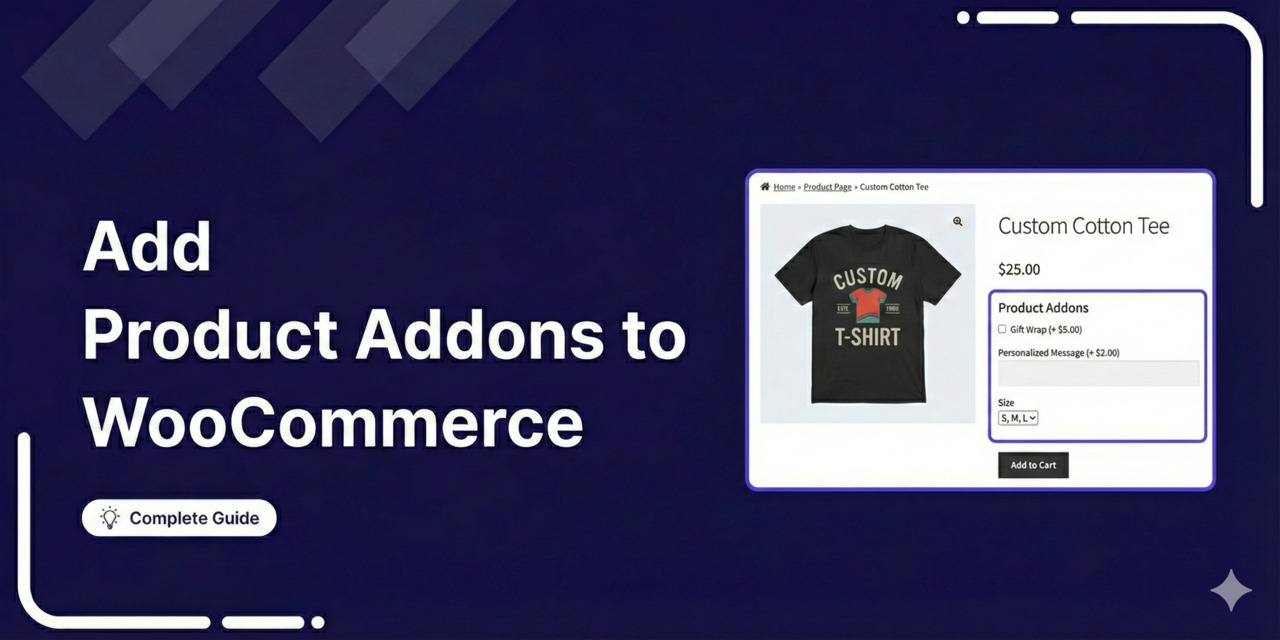
WooCommerce product add-ons offer more fields on the product page.
But the more useful question is which extras belong on that page at all. The answer is not all of them.
Gift wrap on a three-item order shows up three times. A warranty offer sitting beside a product photo gets ignored, then accepted by the same customer twenty seconds later at checkout.
Which plugin you pick matters. Where you put each extra matters more, and almost nobody writing about this category covers it.
In this guide, we'll compare the 7 best product add-on plugins and test them on a clean store.
Plus, we'll walk you through a complete step-by-step setup using a free WordPress plugin and break down the different types of add-on fields and when to use each one.
Table of Contents
- 1 Quick Verdict: The Best Product Add-On Plugins At a Glance
- 2 Best WooCommerce Product Options Plugins Compared
- 2.1 1. Acowebs WooCommerce Custom Product Addons
- 2.2 2. Extra Product Options by ThemeHigh
- 2.3 3. WooCommerce Product Add-Ons
- 2.4 4. YITH WooCommerce Product Add-Ons and Extra Options
- 2.5 5. WooCommerce Product Options by Barn2
- 2.6 6. Product Add-Ons Ultimate by Plugin Republic
- 2.7 7. Product Addons and Product Options With Custom Fields - WowAddons (WPXPO)
- 3 Plugins We Considered and Left Out
- 4 How to Add Product Add-Ons in WooCommerce (Step-by-Step)
- 5 Product Page, Cart, or Checkout: Where Each Add-On Belongs
- 6 Product Add-Ons vs Product Variations: Which Should You Use?
- 7 6 Best Practices to Increase Revenue With WooCommerce Product Add-Ons
- 8 Frequently Asked Questions
- 9 Start Offering Custom Product Options in WooCommerce Today!
Quick Verdict: The Best Product Add-On Plugins At a Glance
- For free conditional logic: Acowebs Woo Custom Product Addons
- For made-to-measure and formula pricing: WooCommerce Product Options by Barn2
- For first-party compatibility with Subscriptions and Bookings: WooCommerce Product Add-Ons (official)
- For keeping product pages fast: Advanced Product Fields
- For selling catalog products as add-ons: Product Add-Ons Ultimate
- For reusable option blocks across categories: YITH Product Add-Ons and Extra Options
- For seeing which add-ons actually sell: WowAddons by WPXPO
The choice usually comes down to two questions: does the extra change the price, and does the extra belong on the product page at all?
We cover both below.
Best WooCommerce Product Options Plugins Compared
The right plugin depends on the fields you need, the display-condition logic, the calculated pricing you want to implement in your store, and how much you are willing to spend.
Some plugins offer generous free versions that cover the basics, with premium versions to extend functionality. Others are premium-only and pack in advanced features from the start.
Here's how the top WooCommerce product add-on plugins stack up.
| Plugin | Field Types | Conditional Logic | Price Fields | Starting Price |
|---|---|---|---|---|
| WooCommerce Custom Product Addons by Acowebs | 22+ | ✅ Yes | ✅ Yes (Pro) | $49/year (Free version also available) |
| Extra Product Options by ThemeHigh | 28 | ✅ Yes (Pro) | ✅ Yes (Pro) | $39/year (Free plugin also available) |
| WooCommerce Product Add-Ons (by Woo) | 7+ | ❌ No | ✅ Yes | $79/year |
| YITH WooCommerce Product Add-Ons | 15+ | ✅ Yes (Pro) | ✅ Yes (Pro) | $119.99/year (Free version also available) |
| WooCommerce Product Options by Barn2 | 16+ | ✅ Yes | ✅ Yes | $99/year (No free plan) |
| Product Add-Ons Ultimate by Plugin Republic | 20+ | ✅ Yes | ✅ Yes | $79/year (No free version) |
| WowAddons | 25+ | ✅ Yes (Pro) | ✅ Yes (Pro) | $55/year (Free plugin also available) |
How We Evaluated These Product Add-On Plugins
We ignored install counts and star ratings. Those measure age and marketing budget, not fit.
Here is what we actually looked at:
- Field coverage: Which types ship free and which are gated, with attention to file uploads, image and color swatches, and date pickers.
- Conditional logic depth: Single rules, AND/OR chains, and whether conditions can key off WooCommerce variations rather than only other fields.
- Pricing engines: Flat fees, percentage surcharges, per-character pricing, quantity multipliers, custom formulas, and whether the total updates before Add to Cart rather than after.
- Front-end weight: Whether scripts load site-wide or only where fields are active.
- Data integrity end to end: Whether the entered value survives cart, checkout, the admin order screen, and the confirmation email.
- Checkout compatibility: Tested against both the classic shortcode checkout and the block checkout.
Let's look into each plugin.
1. Acowebs WooCommerce Custom Product Addons
This plugin by Acowebs is where most stores should start because its free tier includes conditional display rules and field validation.
That combination covers a lot of real builds before you spend anything.
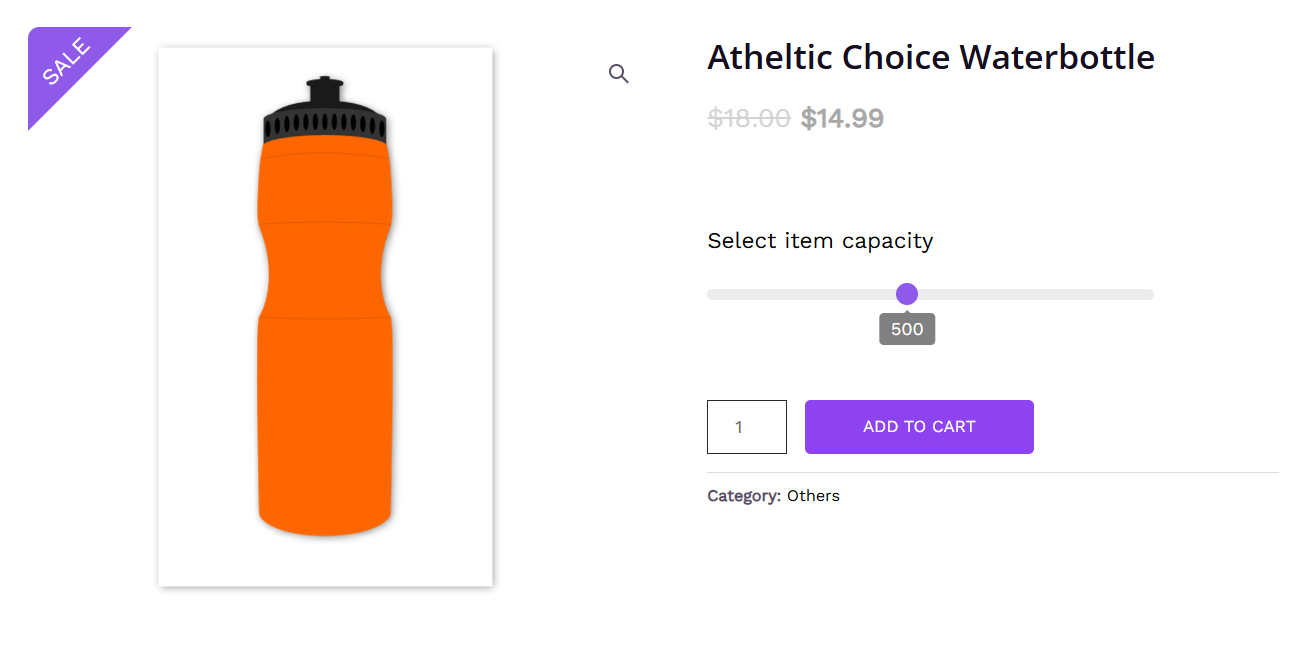
Pro opens up 22+ field types, image and color swatches, date pickers, file uploads, and custom price formulas.
The feature worth paying for is variation-aware conditional logic, which lets an engraving field appear only when the customer picks a specific size or finish.
Here are the key features:
- Drag-and-drop form builder: Fields sit on a visual canvas with grid and column alignment, so multi-column layouts do not need CSS.
- React-based front end: Rendering happens client-side, which keeps script weight flat as option counts climb.
- Custom price formulas: Prices calculate from entered values, which covers per-character engraving and dimension-based pricing.
- Repeater fields: Customers add multiple instances of the same field group, so three engraved names on one order does not mean three products.
What we found:
Building a conditional engraving field took a few minutes with no documentation. We found styling to be very friction-heavy.
Anything beyond the built-in grid meant writing CSS, and the defaults inherit theme styles only loosely.
Pros:
- Conditional logic and validation both work for free, which no other freemium plugin here matches
- WPML and Polylang compatible, so option labels translate properly on multilingual stores
- Formulas handle per-character and measurement-based pricing in Pro
- Repeater fields cover multi-item personalization without duplicating the whole form
Cons:
- Field appearance changes beyond the grid options require custom CSS
- Image swatches, file uploads, and date pickers are all Pro-only, so visual configurators need the paid tier
- Formulas need numeric values assigned to text choices before they calculate, which is easy to miss on a first build
Pricing: The free version is available on WordPress.org. Pro starts at $49/year for a single site.
2. Extra Product Options by ThemeHigh
ThemeHigh Extra Product Options lets you add up to 28 custom product field types organized into sections with customizable headings.
The free version includes text, number, hidden, password, telephone, etc., with conditional display rules based on products, categories, tags, and other field values.
The premium version adds conditional logic, pricing fields, repeater fields (for allowing multiple entries of the same field), and custom price formulas.
Those formulas are particularly useful for stores that price by measurement or calculation, like clothing stores.
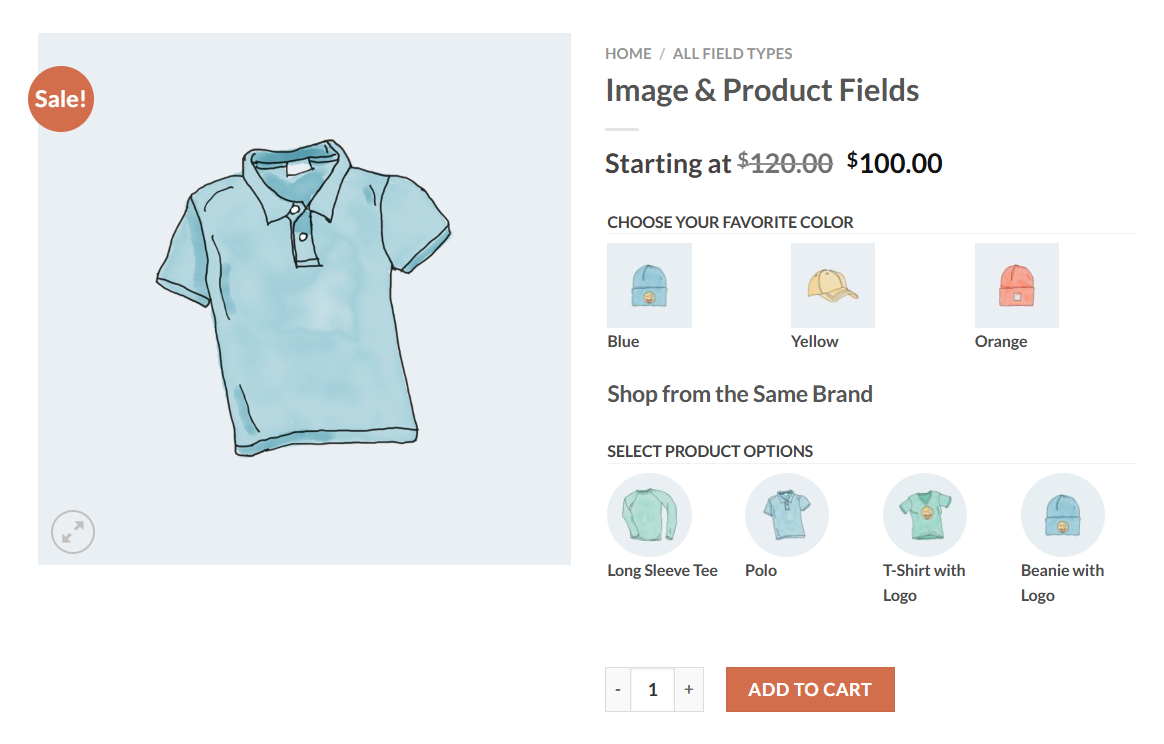
Key features:
- Price calculator: Helps you calculate prices based on formulas from custom variables and product data.
- Variations available as add-ons: Show variations as swatches or clickable images.
- Custom price fields: Includes additional fees and pay-what-you-want without a second plugin.
- Smart validation: Its custom validator lets you validate multiple fields by defining rules based on regular expressions.
What we found:
The admin is plain and quick to work in once you stop expecting a polished builder.
Field configuration is form-based rather than drag-and-drop, which is faster for simple setups and tedious for large ones.
Pros:
- Section-based field grouping with configurable display positions on the product page
- Custom validator feature using regular expressions allows precise input validation
- WPML compatible and translated into 10+ languages
Cons:
- The free version is limited to basic field types
- No live preview of field configurations in the free version
Pricing: The free version is available on WordPress.org. The Pro version starts at $39/year for single-site usage.
3. WooCommerce Product Add-Ons
This is the official extension from WooCommerce. It supports text fields, dropdowns, checkboxes, image-based selections, file uploads, a customer-defined price field, flat-fee and percentage pricing.
It works with WooCommerce Subscriptions to add cost to recurring charges and with WooCommerce Bookings for upgrades like a rush fee or a priority slot.
If those extensions run your store, first-party support is worth paying for.
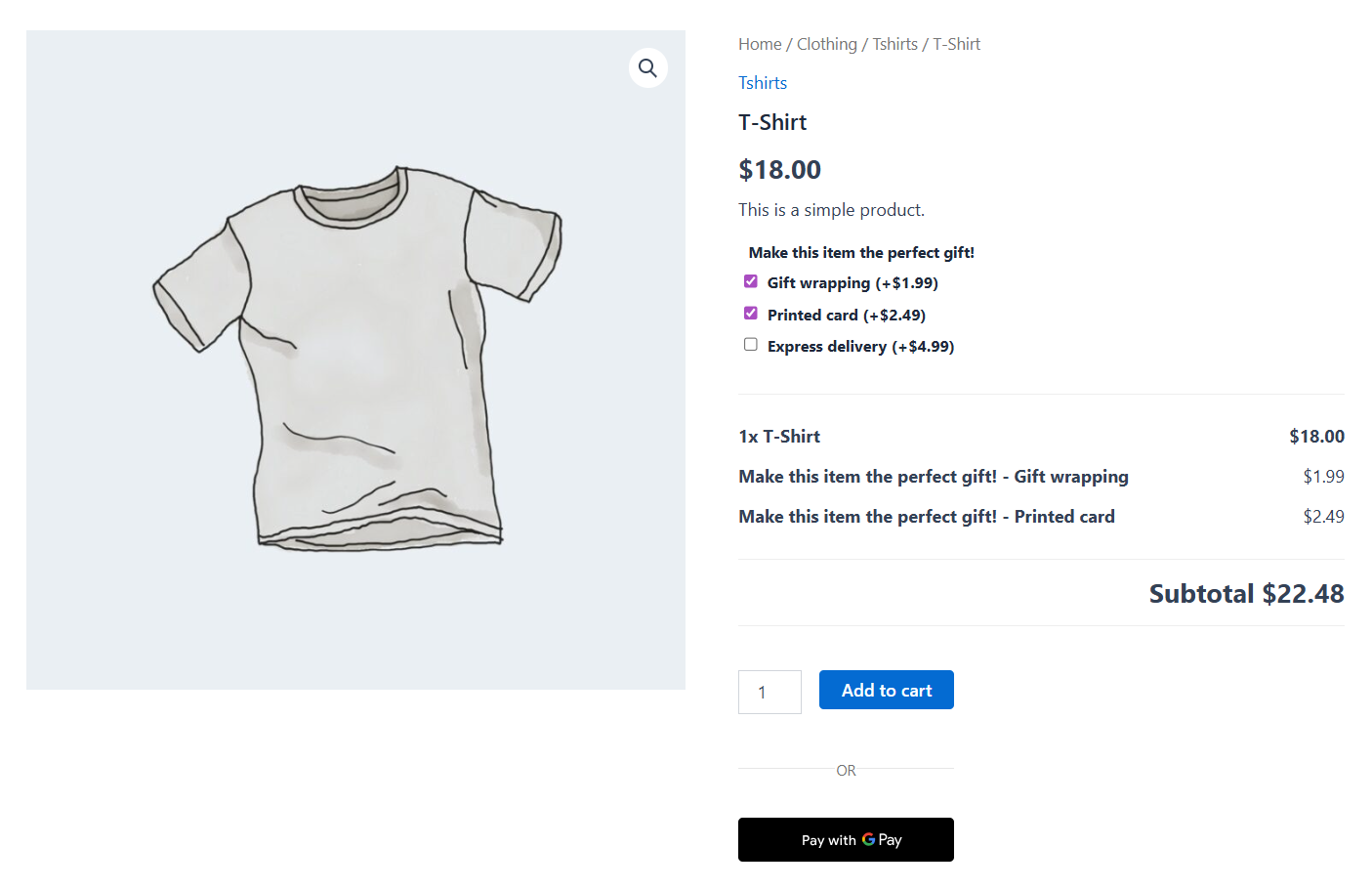
Here are the key features:
- Global and per-product groups: Apply one option set store-wide, override it on individual products.
- Customer-defined price: Shoppers enter their own amount, which suits tips, donations, and pay-what-you-want listings.
- File uploads with type restrictions: Files attach directly to the order.
- REST API endpoints: Add-ons can be managed programmatically at the product and global level.
What we found:
Setup is fast because there is not much to configure, and the ceiling arrives just as quickly.
With no conditional logic, every field a customer might conceivably need is visible at once, so a product with six situational options becomes a wall.
On variable products, add-ons applied to the parent get inherited by every variation with no way to differentiate.
Pros:
- First-party maintenance means core updates will not break it
- Documented Subscriptions and Bookings compatibility, including recurring add-on pricing
- REST API support makes bulk management across large catalogs practical
- Percentage pricing works cleanly for service fees that scale with product price
Cons:
- No conditional logic at all, so nothing can be shown or hidden based on selections
- Add-ons on a variable product apply to every variation with no per-variation control
- No color swatch field type, which rules it out for apparel and finish selection
Pricing: This plugin costs $79 for 1 year and $126.40 for a 2-year plan.
4. YITH WooCommerce Product Add-Ons and Extra Options
YITH has built one of the most feature-packed product add-ons plugins available.
Build a group of options once, apply it across products or whole categories. On a catalog where fifty items share the same gift-wrap and message fields, that saves real hours.
The free version handles text, select, radio, and checkbox. Premium adds color and image swatches, conditional logic, file uploads, date pickers, and per-option pricing rules.
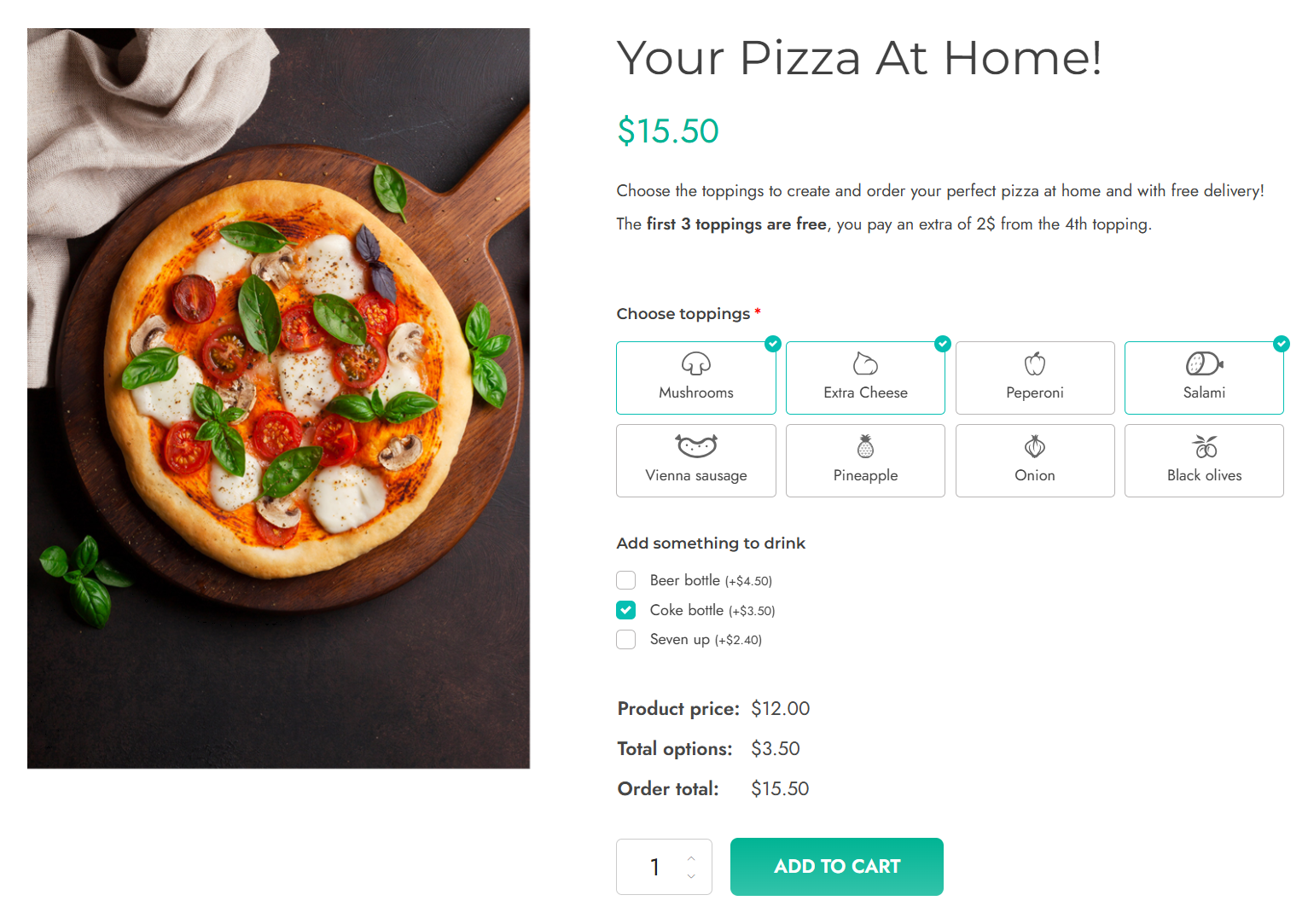
Key features:
- Reusable option blocks: Define once, apply to products or categories without rebuilding.
- Color and image swatches: They render well by default, which is not true of every plugin here.
- Variation-specific conditional logic: Different option blocks depending on the selected variation.
- Ecosystem integration: Connects natively with other YITH WooCommerce plugins.
What we found:
Swatches look good with no styling work, and that is worth something.
The admin is busier than the task requires, with more nesting between a block and an individual option’s price rule than makes sense.
Free-tier users hit the upgrade prompt fast, because conditional logic and every visual field type sit behind Pro.
Pros:
- Category-level block assignment is the quickest way to roll options across a large catalog
- Swatch rendering is polished by default with no custom CSS
- Conditional logic can key off the selected variation, not just other fields
- Established vendor with a long update history
Cons:
- The free version has no conditional logic and no visual field types, so it covers basic text and select fields only
- Premium pricing sits above most competitors for a comparable feature set
Pricing: The free version is available, while its premium plan costs $119.99/year.
5. WooCommerce Product Options by Barn2
If you calculate prices rather than select them, nothing else here competes with Barn2's Product Options plugin.
Formulas accept mathematical operators, logical functions, product data, and values pulled from other fields, which covers blinds priced by width and drop, flooring priced by area, and catering priced by headcount.
It can render existing WooCommerce variations as add-on style fields, so you keep SKU-level stock control while presenting the options as swatches or checkboxes instead of a dropdown.

Its key features include:
- Advanced price calculator: Build formulas from custom variables, product data, and math functions.
- Variations as add-ons: Show standard variations as swatches or clickable images without losing inventory tracking.
- Customer-defined price field: Covers tips, donations, and pay-what-you-want.
- Min and max controls. Quantity limits on checkboxes, character limits on text fields.
What we found:
The formula builder is the most capable in this category and also the fiddliest.
Every text choice needs a numeric value before it can drive a calculation, which is not obvious the first time a build gets complex.
Live Preview, the feature that shows a customer their uploaded artwork on the product, is a separately priced add-on rather than part of the core plugin.
Pros:
- Handles multi-variable calculations that most competitors cannot express at all
- Displaying variations as add-on fields keeps stock control that pure add-on plugins throw away
- Conditional logic keys off both custom options and WooCommerce variation attributes
- Global, category, and per-product assignment live in the same interface
Cons:
- No free version, so the formula engine cannot be trialled before purchase
- Live Preview requires a higher-priced bundle rather than shipping in the core plugin
- The file upload field has no crop, rotate, or background removal, which print-on-demand stores tend to need
Pricing: It starts at $99/year for one-site usage.
6. Product Add-Ons Ultimate by Plugin Republic
Child products are the reason to buy this add-ons ulimate plugin.
Instead of typing add-on options by hand, you point a field at real products in your catalog, and they become selectable extras with their own pricing.
That turns a product page into a lightweight bundle builder without a bundles plugin.
On the market since 2017, it covers text, textarea, dropdowns, checkboxes, radio buttons, image and color swatches, file uploads, date pickers, and calculated fields.
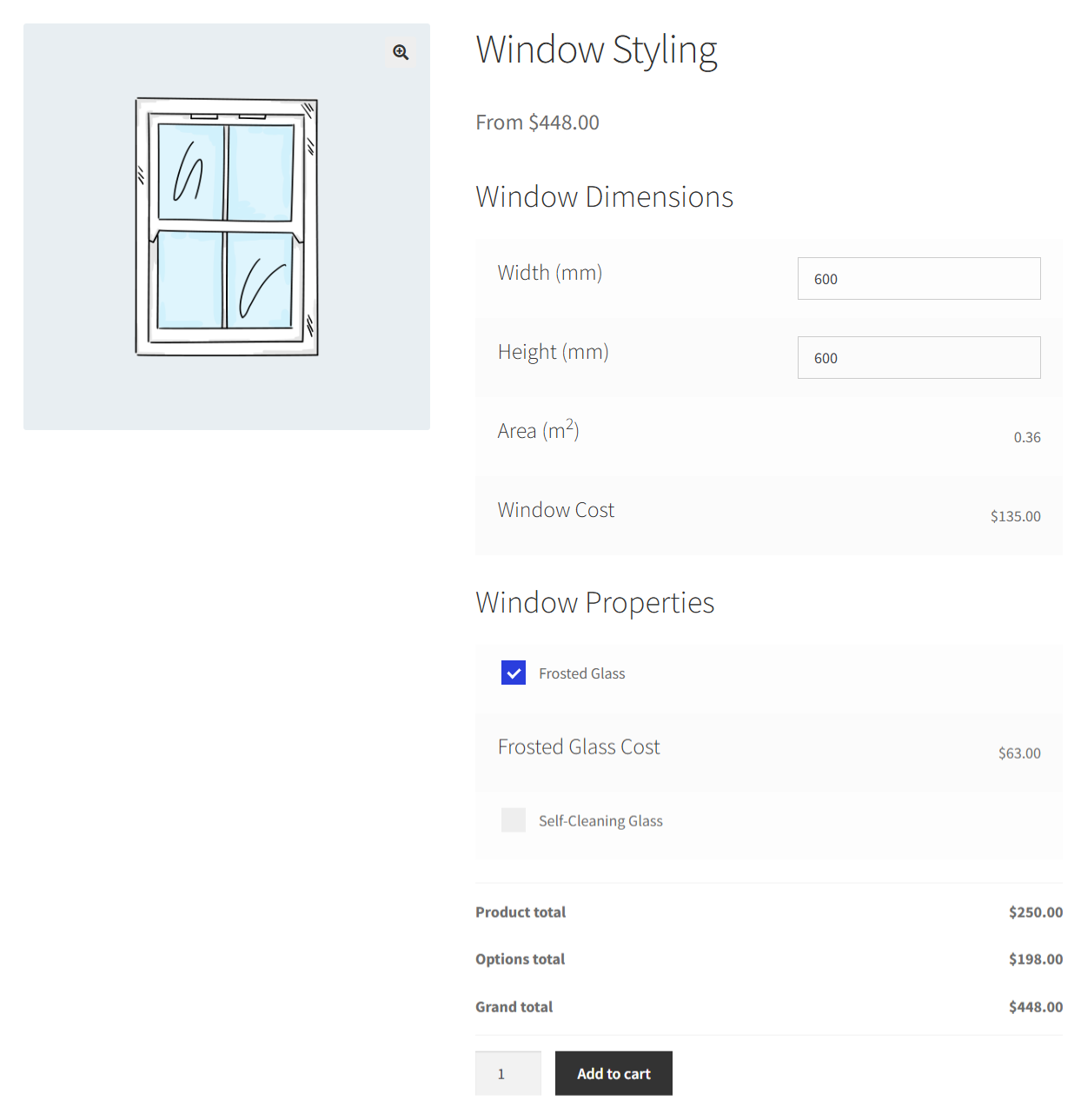
Here are the key features:
- Child products as add-on fields: Sell real inventory as extras rather than retyping options that then drift out of sync.
- Drag-and-drop file uploads: Multiple files with type restrictions, attached automatically to the order.
- Per-product and global assignment: Build an option set once, apply it where it fits.
- Documented compatibility: Works with WooCommerce Subscriptions, Bookings, and Aelia Currency Switcher out of the box.
What we found:
The child-product field behaves well, pricing included.
The admin shows its age next to newer builders, and moving add-on fields in and out in bulk is awkward because standard WooCommerce CSV import does not carry them, and the dedicated import and export tool is still in beta.
Pros:
- Child-product add-ons keep stock and pricing tied to the real catalog item
- WPML certified, with confirmed Subscriptions and Bookings compatibility
- The most complete file upload handling here, with multiple files and type restrictions
- Works across Elementor, Divi, Gutenberg, and the other major builders
Cons:
- Add-on fields cannot be imported or exported through standard WooCommerce CSV import
- File uploads have known issues moving files to the correct directory under block checkout
- No free version, so the child-product workflow cannot be tested before buying
Pricing: Basic starts at $79/year (single site) or $199 lifetime. Pro starts at $99/year (up to 25 sites) or $279 lifetime.
7. Product Addons and Product Options With Custom Fields - WowAddons (WPXPO)
WowAddons is the newest plugin here and it ships one thing nobody else does: a dashboard reporting clicks and sales per add-on.
Most stores add paid options and never learn which ones earn their place on the page. This one tells you, which means you can delete the dead ones.
The field library is broad, including text inputs, color and image swatches, file uploads, date pickers, range sliders, and formula fields, all built in a full-screen drag-and-drop builder with live preview.
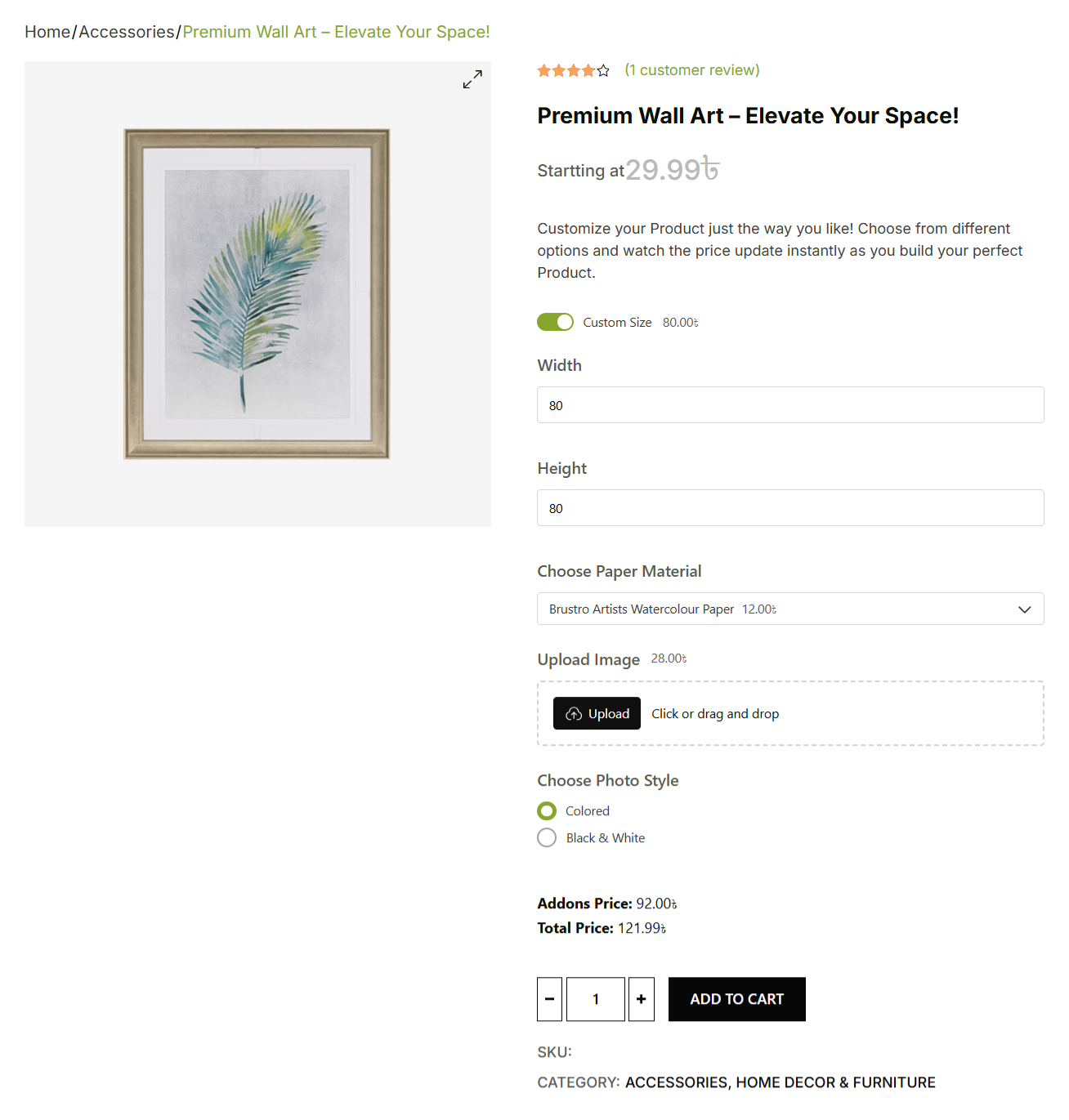
Key features:
- Add-on analytics dashboard: Clicks and sales per add-on, so unused fields get cut instead of accumulating.
- Product recommendation fields: Other catalog products as selectable extras, available for free.
- Global style settings: Fonts, spacing, and appearance from the dashboard rather than a stylesheet.
- Full-screen builder with live preview: No save-reload-check loop.
What we found:
The builder is the most pleasant of the seven to work in. The gaps are maturity gaps rather than design ones; documentation trails the feature set, and file upload handling is basic compared with Plugin Republic or Acowebs Pro.
Pros:
- Add-on level reporting is unique in this category and directly tells you what to remove
- Conditional logic and product-recommendation fields both sit in the free version
- Global style controls remove most of the CSS work other plugins create
- 25+ field types including range sliders and formula fields
Cons:
- Conditional logic cannot trigger on WooCommerce product attributes or variations, only on other fields
- File upload handling lacks the type restrictions and multi-file support competitors offer
- Small install base and short track record, so long-term maintenance is unproven
Pricing: Basic starts at $79/year (single site) or $199 lifetime. Pro starts at $99/year (up to 25 sites) or $279 lifetime.
Plugins We Considered and Left Out
Some Woo Reddit threads on product add-ons topic name plugins most roundups skip.
We did check, and here are the reasons why we haven't considered them in our best plugins list:
- STAGGS: A visual product configurator rather than a fields plugin. If you need 3D or layered image previews, that’s a different category and a different budget.
- Gravity Forms + Gravity Forms Product Add-Ons: The combination Woo’s own docs recommend for conditional logic. Excellent if you already run Gravity Forms; two licenses and a form-builder mental model if you don’t.
- WCBoost Variation Swatches: Solves swatches, not add-ons. Pair it with one of the above rather than choosing between them.
- Tyche and WPC product options: Capable and cheap, but option-data handling in the block cart has been inconsistent across releases. Test before committing a catalog.
How to Add Product Add-Ons in WooCommerce (Step-by-Step)
For this walkthrough, we will use the Product Addons for WooCommerce plugin because its free version includes the conditional logic the setup needs
First, install and activate it from Plugins ⇒ Add New.
Once done, follow the step-by-step instructions below to add custom product add-ons to your WooCommerce store:
Step 1: Create a new form
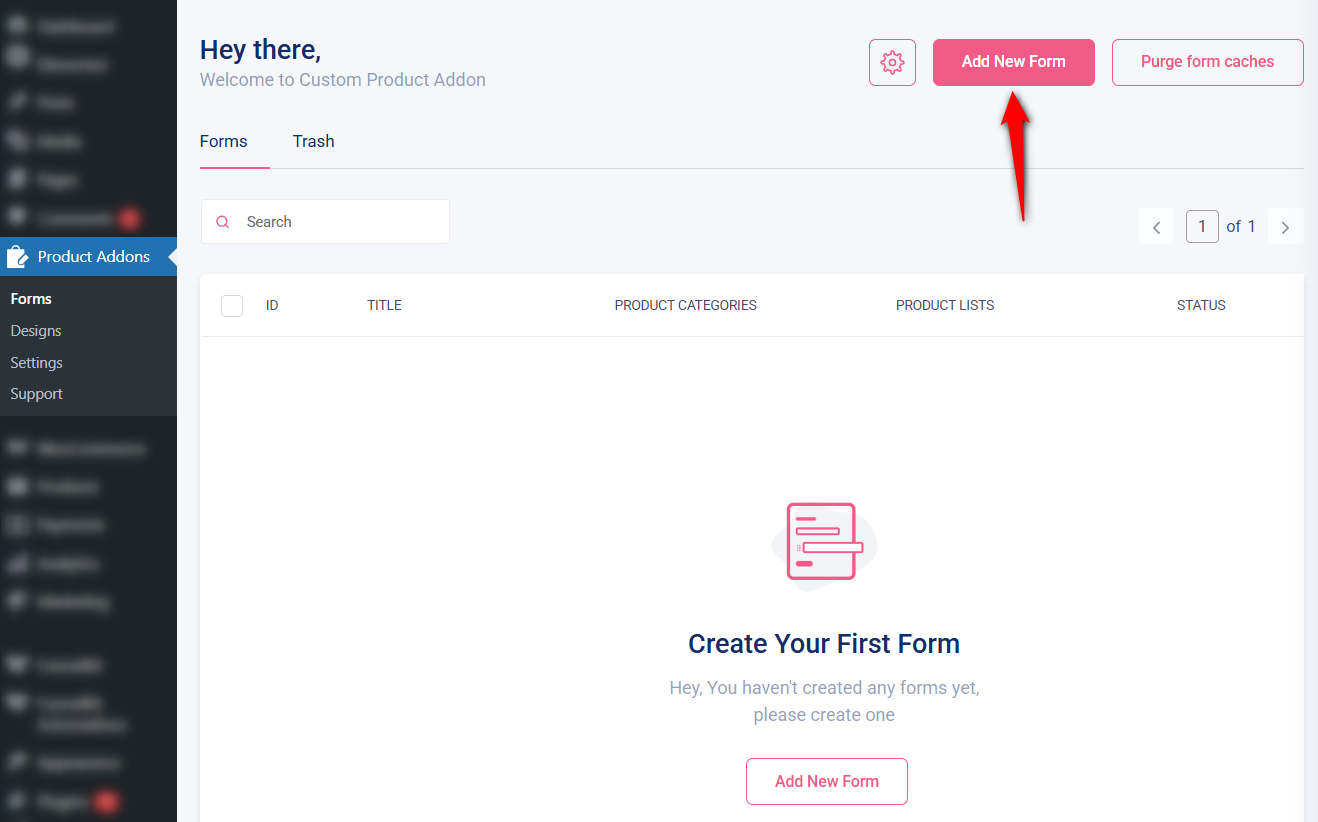
From your WordPress dashboard, go to Product Addons ⇨ Forms and click on 'Add New Form'.
Enter the title of your form that reflects the products it applies to.
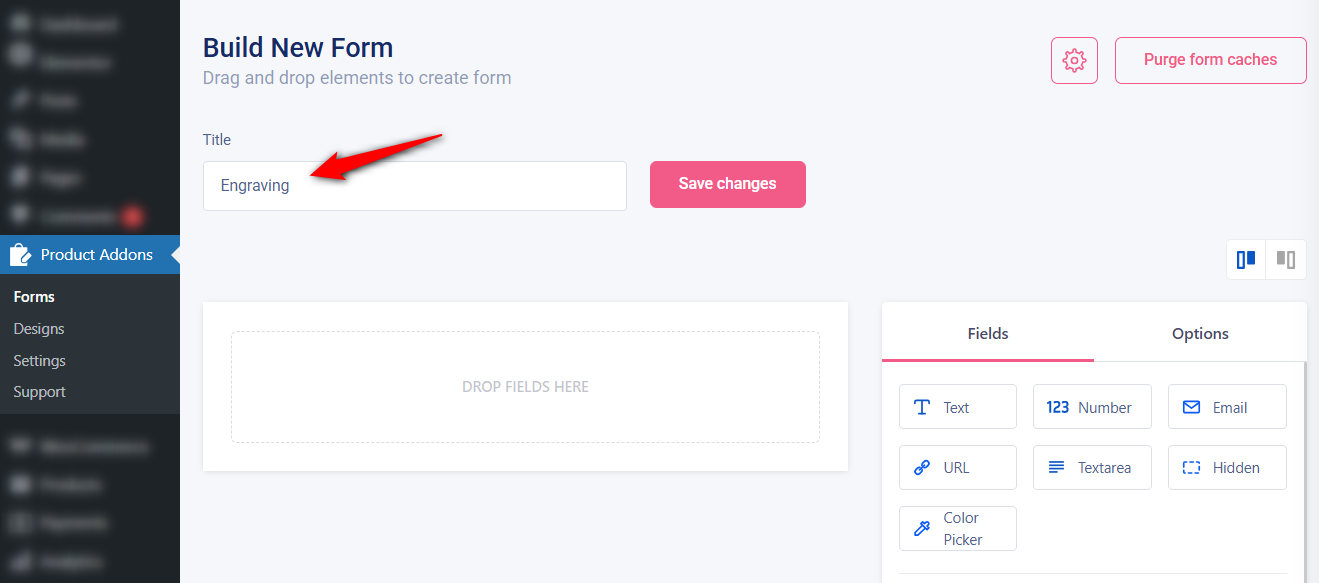
Make sure to save your changes.
Step 2: Add your fields
For a basic custom options setup, a good starting combination is a text input for a customer name or message, a dropdown to select a font, a checkbox for optional gift wrapping, and radio buttons to choose a packaging style.
Drag and drop the 'Radio Group' field into the form.
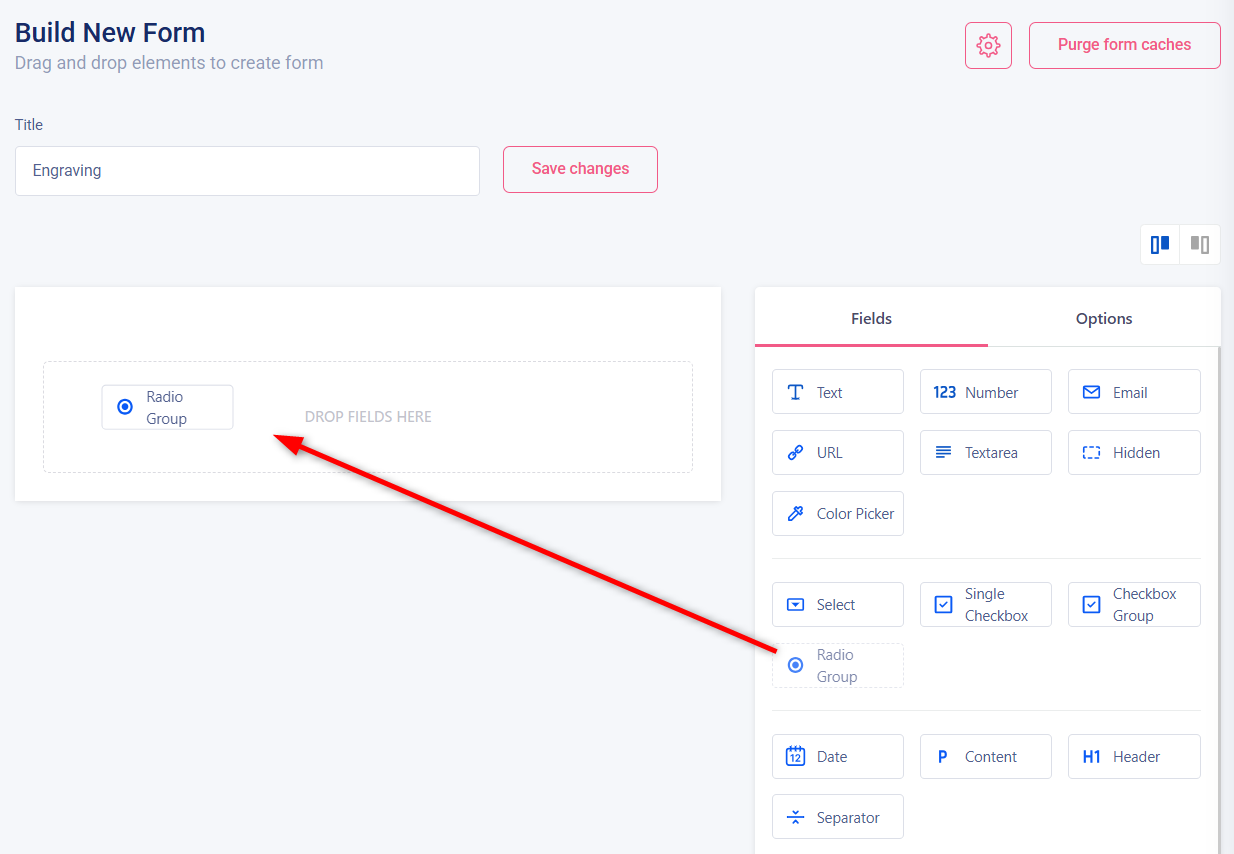
Each field has a label (what the customer sees), placeholder text, and a flag that indicates whether it's required or optional.
Enter the labels you want. For instance, we've entered "Personalize your order for free" with "Add engraving" and "No engraving" as the radio options.
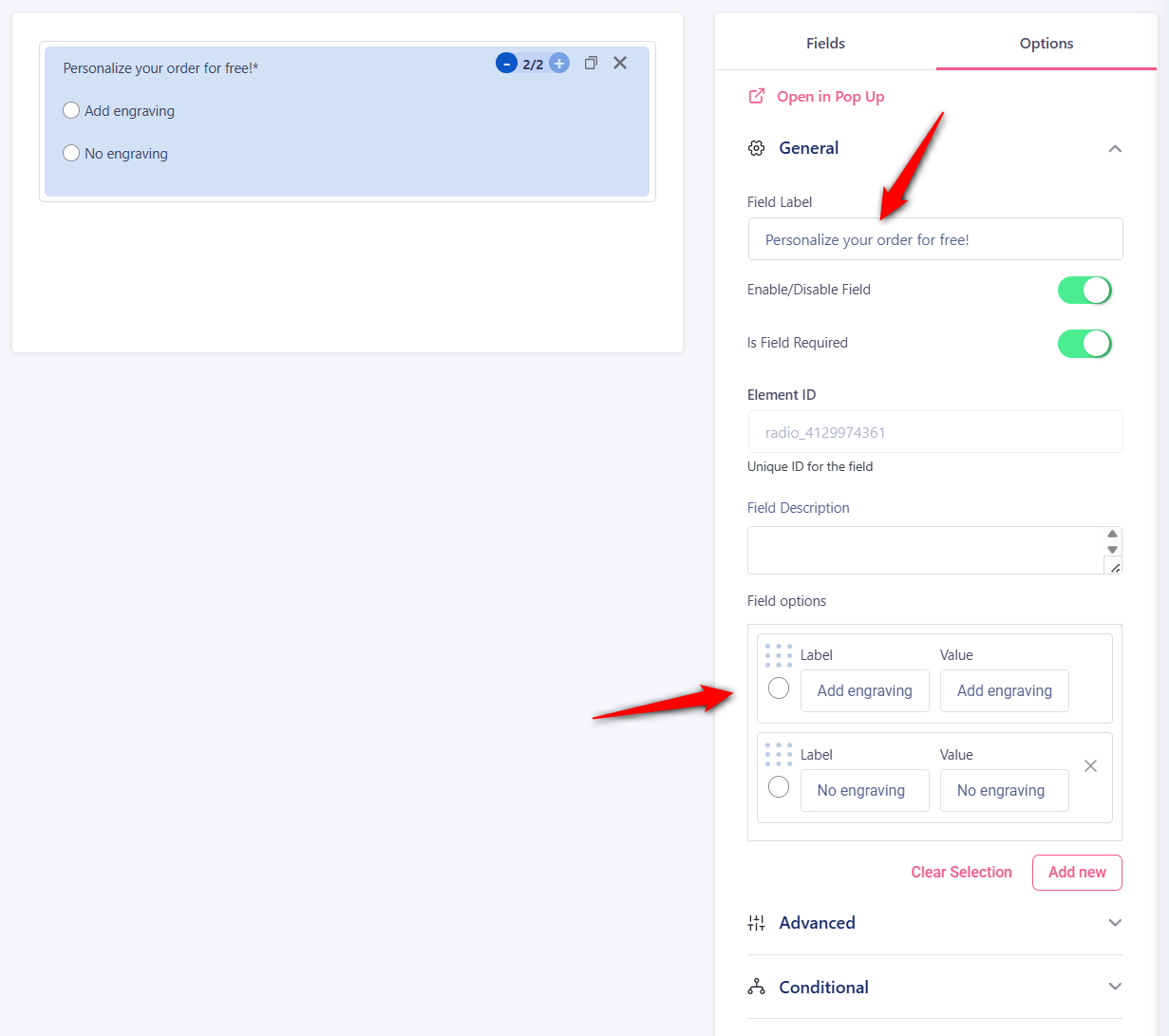
We've also added a text input for the engraving and set the display condition to appear only when the 'Add engraving' radio is selected.
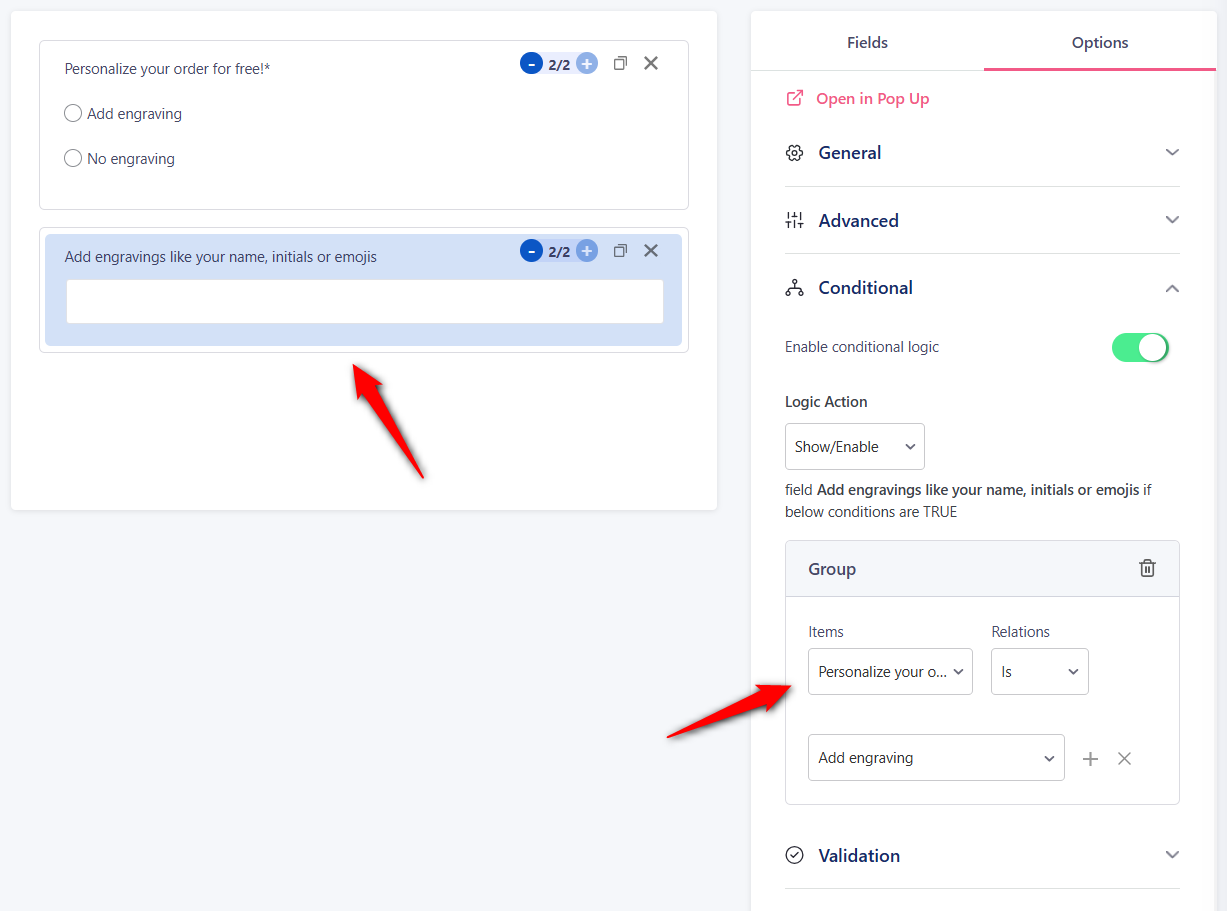
You can also set validation rules on text fields here.
Please note that you cannot set custom prices for these fields in the free version. These are only available in the premium version.
Percentage-based pricing (available in the premium version) makes more sense for options that should scale with the product price.
For instance, premium material upgrades or insurance feel more natural as a percentage of the base cost.
Step 3: Assign the add-on to products
To do this, click on the gear icon and assign the product.
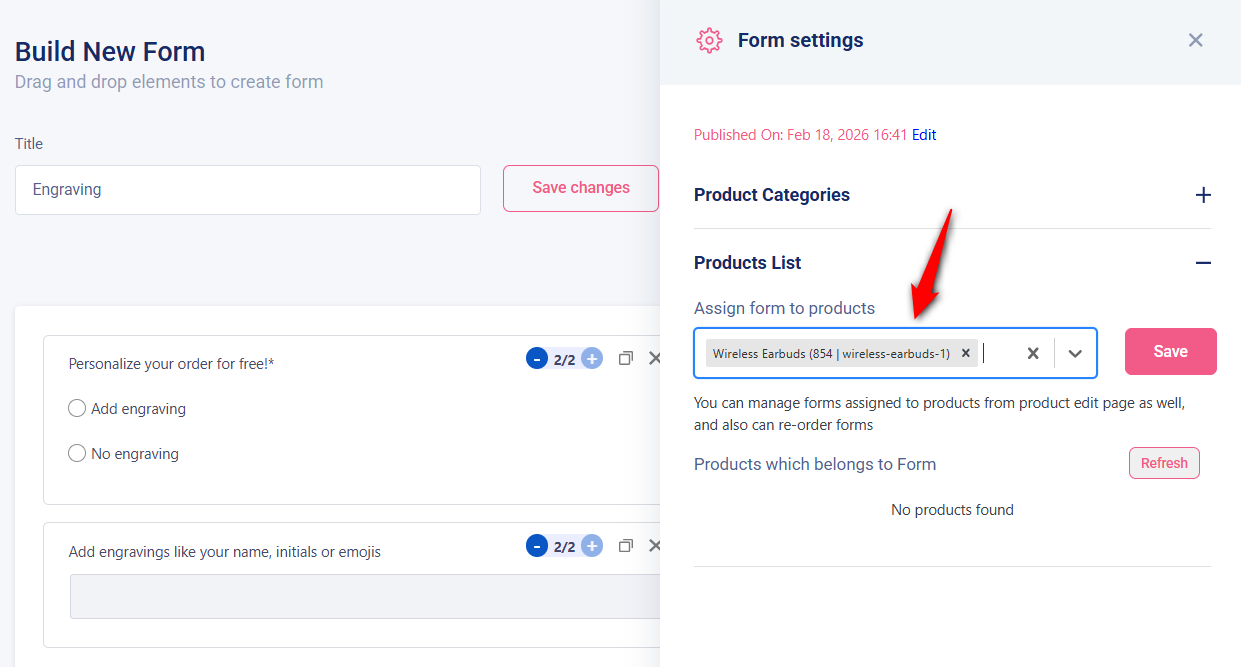
You can even do this by going to your specific product inside the WooCommerce catalog.
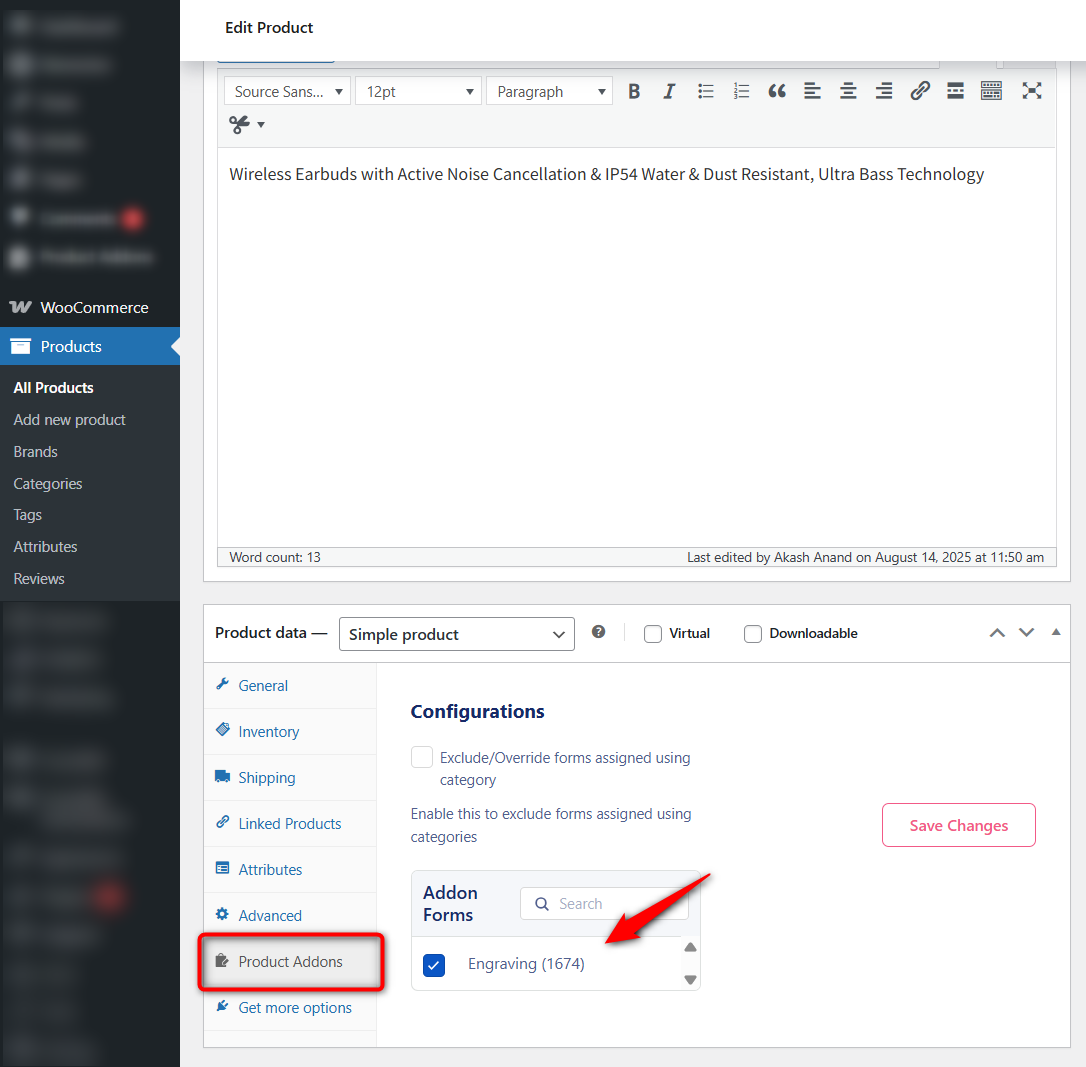
Make sure to save your changes when done.
Step 4: Test your product add-ons in WooCommerce
Now, go to a product page where the add-ons should appear, select the add engraving option and your text field will appear.
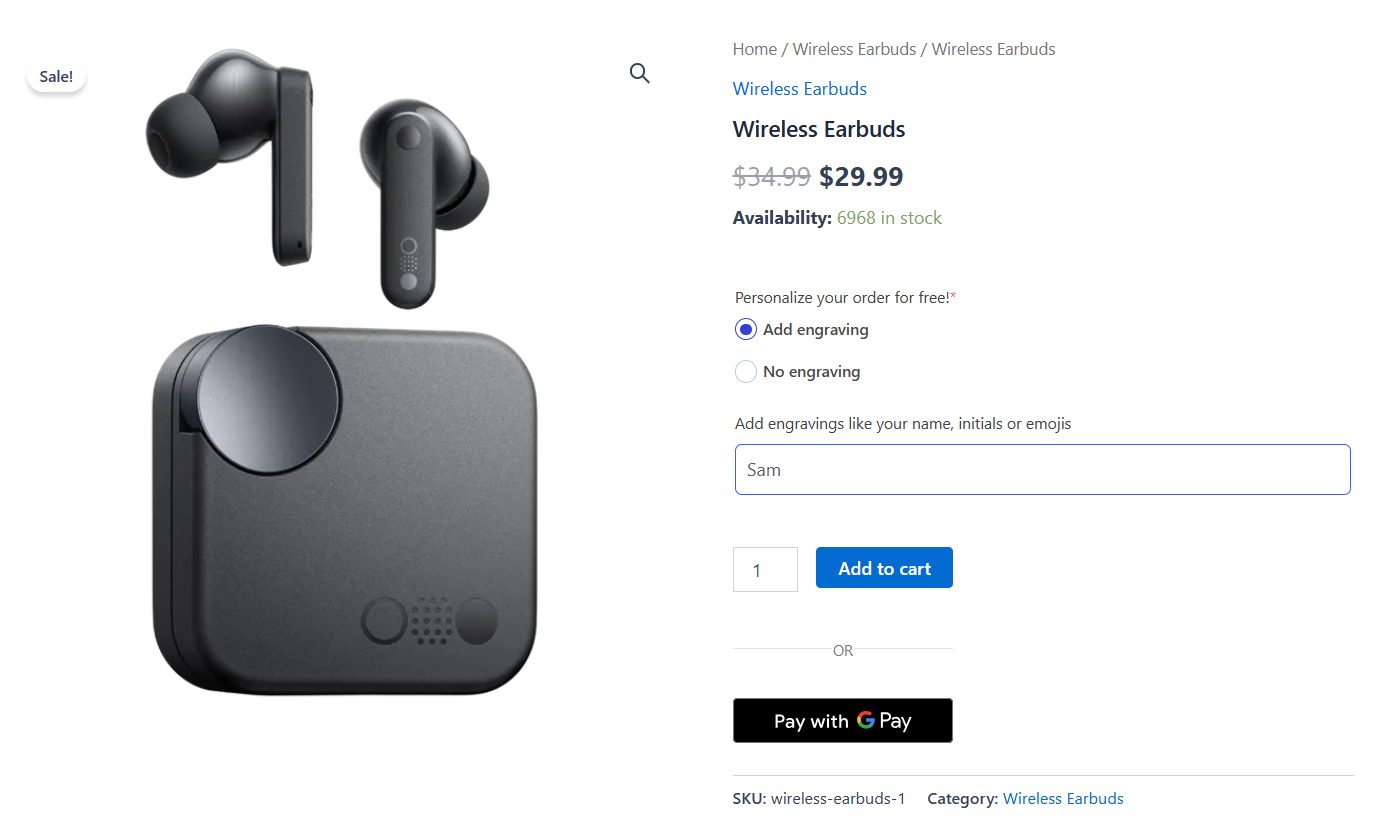
Check whether the add-on fields push the Add to Cart button too far down the page on smaller screens.
If you have a long list of options, dropdowns tend to be more mobile-friendly than radio buttons because they take up less vertical space.
Add the product to the cart and head to the checkout page:
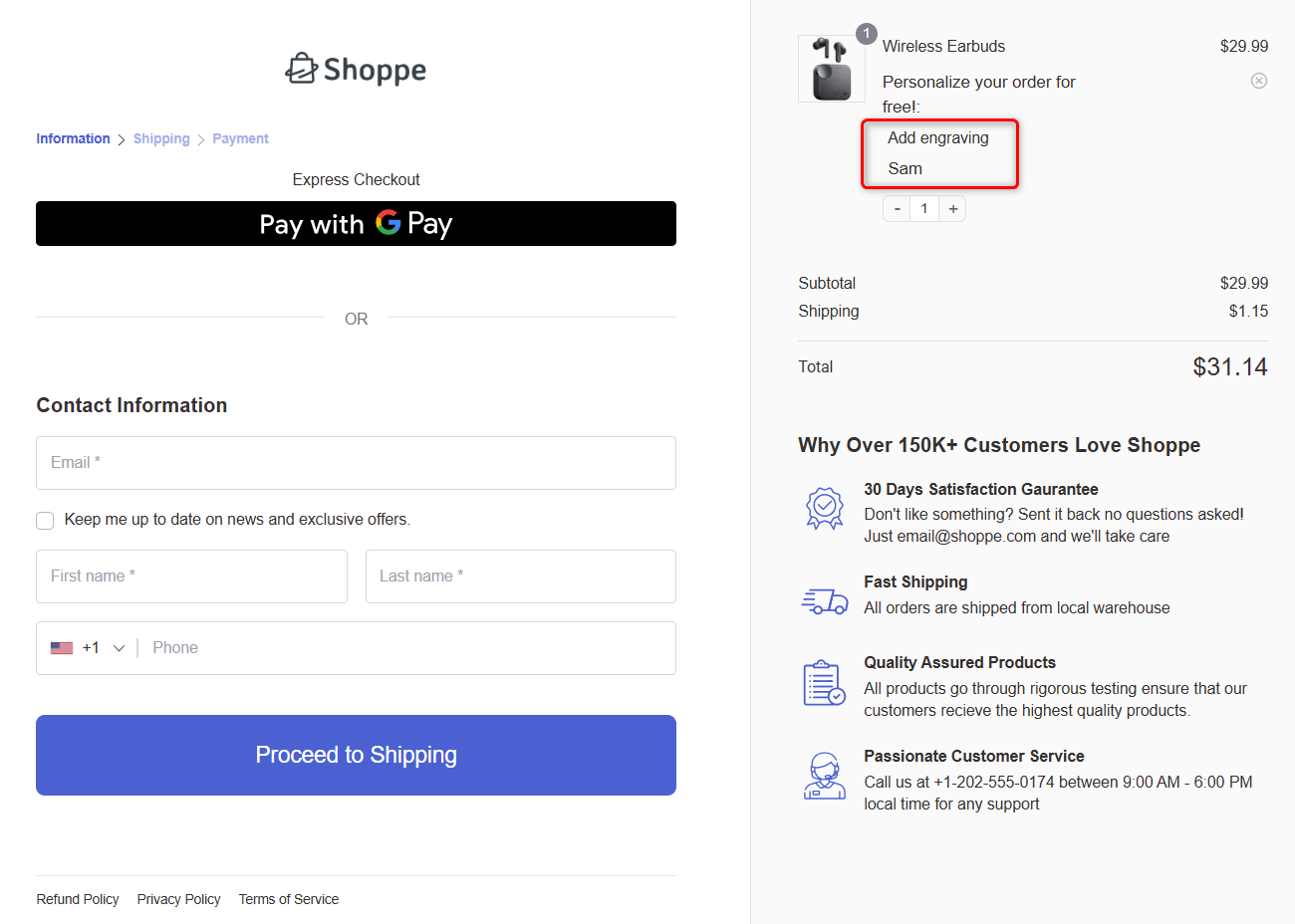
This beautiful checkout page is created with FunnelKit. It helps you create high-converting sales funnels and optimized WooCommerce checkout pages.
Place a test order and you'll see the custom field appear in your WooCommerce orders to help your fulfillment team.
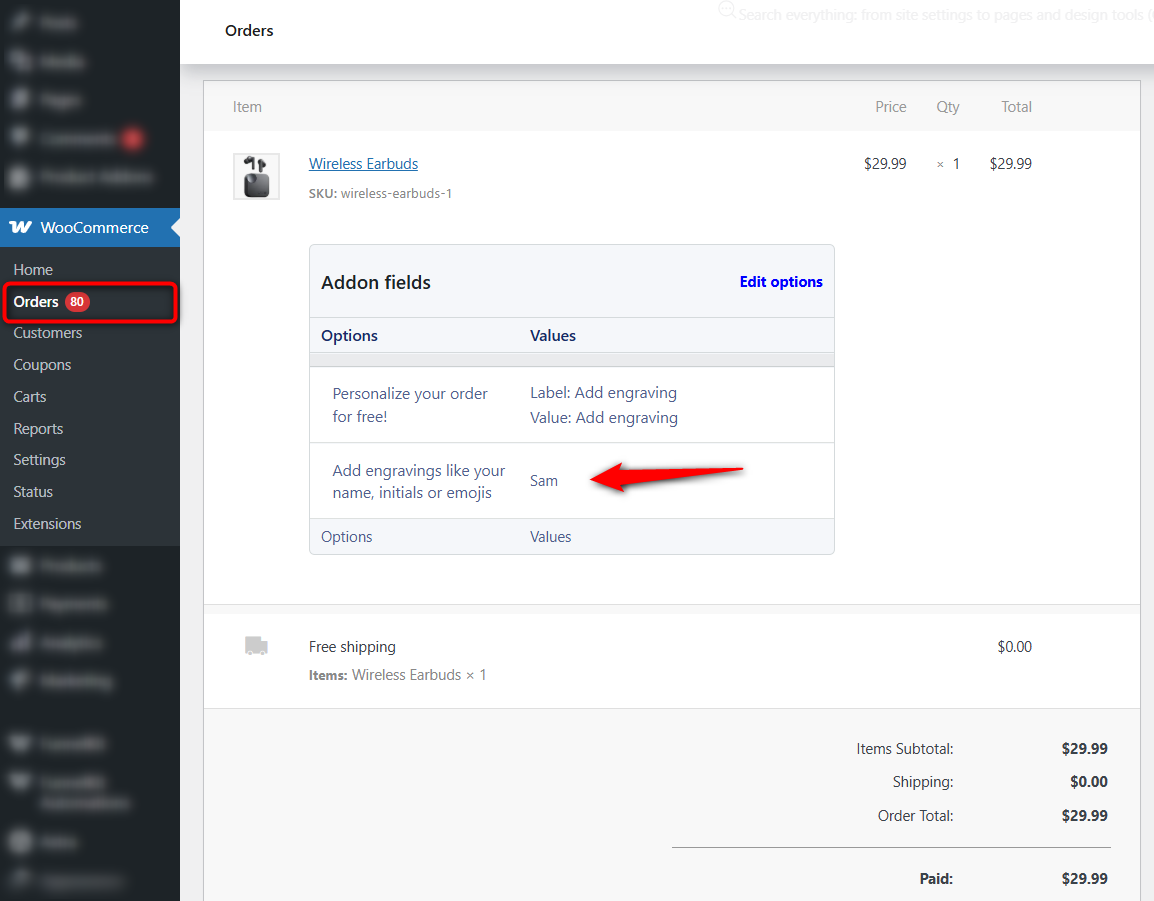
Well done! This is how you can add product add-ons to your WooCommerce store.
Make sure to test-run it on your phone, too. Tap through every field type (dropdowns, text inputs, checkboxes) to make sure they are easy to interact with on a touchscreen.

Product Page, Cart, or Checkout: Where Each Add-On Belongs
Every plugin above assumes the answer is the product page. For roughly half of what stores sell as extras, that is wrong.
The distinction is whether the extra attaches to an item or to an order.
Engraving belongs to one specific necklace. Gift wrap usually belongs to the whole order.
Put an order-level extra on the product page and a customer buying three things sees the same gift-wrap checkbox three times, then gets charged for it three times.
| Add-on type | Best placement | Why |
|---|---|---|
| Engraving, monogram, custom text | Product page | Item-level, must attach to one line item |
| Uploaded artwork or photos | Product page | Tied to the specific item being produced |
| Material, finish, or size upgrades | Product page | Changes the base price of that item |
| Gift wrap and gift messages | Cart | Order-level, duplicates badly per product |
| Rush or express handling | Cart or checkout | Applies to the whole shipment |
| Warranty, insurance, installation | Checkout | Converts best framed as protection at the moment of payment |
Retail TouchPoints reports that 59% of online shoppers are more likely to buy from a store offering customization, and one in five will pay up to 20% more for it.
That willingness is real, but it is not evenly distributed across the journey. Nobody thinks about shipping insurance while choosing a font.
Order-level extras belong in the cart. FunnelKit Sliding Cart has a dedicated add-ons section for exactly this category, covering gift wrapping, gift messages, express shipping, and warranties as checkbox or radio options with prices shown inline.
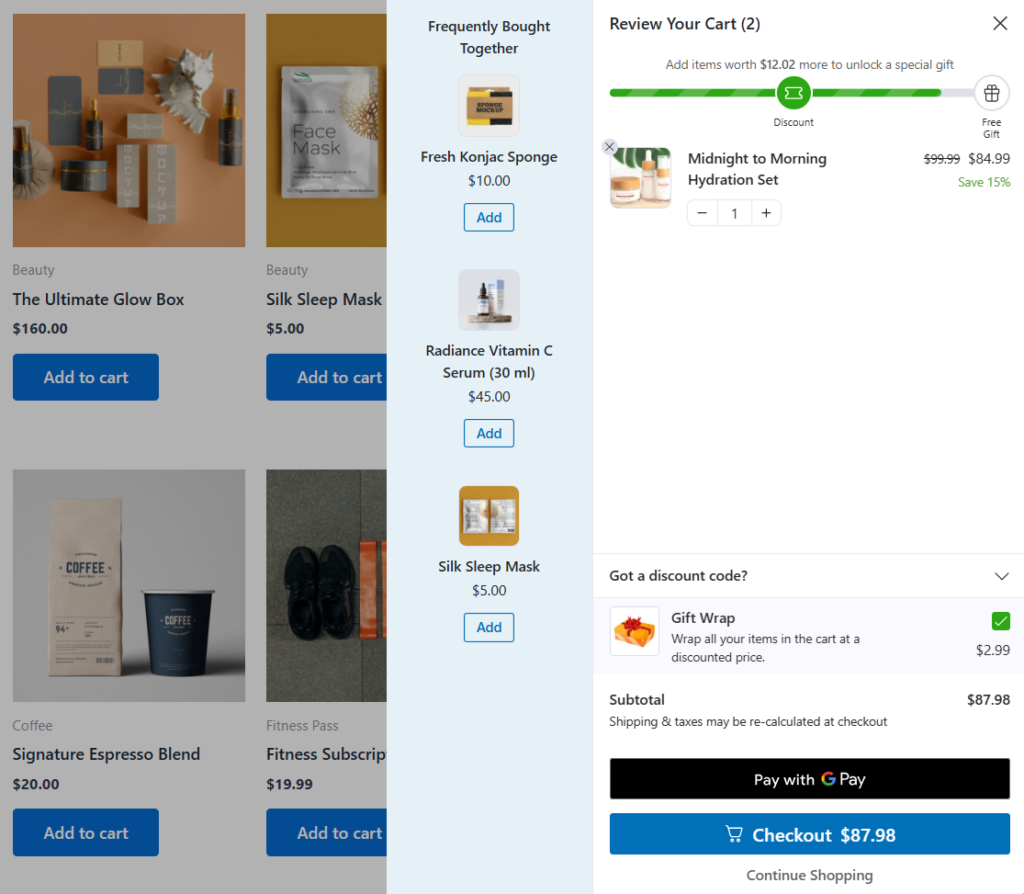
Protection-type extras do better later still. An order bump puts a single checkbox on the checkout page, in front of a customer who has already decided to buy.
The same warranty ignored beside a product photo gets accepted beside a payment form. For the broader playbook, see our guide to WooCommerce order bumps.
Please note that the product page is for things that change what gets made. Everything else moves downstream.
Product Add-Ons vs Product Variations: Which Should You Use?
These solve different problems, and stores often pick the wrong one, so it is worth being blunt.
Variations use WooCommerce’s built-in attribute system. Every combination gets its own SKU, price, stock level, and image. Use them when the option affects inventory.
For example, a medium blue shirt is a physically different object from a large red one, and you need to know how many of each you have in stock.
Add-ons sit on top of any product type as extra fields. No SKU, no stock tracking.
Use them for customer input and optional extras, such as engraved text, an uploaded logo, gift wrap, and a delivery date.
The failure mode is using variations for customization.
Four options with five choices each produce 625 variations, which is unmanageable in the admin, slow on the front end, and a genuinely impressive way to make a product page take nine seconds to load.
If the option is customer input rather than a countable thing, it is an add-on.
6 Best Practices to Increase Revenue With WooCommerce Product Add-Ons
Let's look at the proven best practices that will help you increase WooCommerce sales with strategic product add-ons:
- Keep visible fields to three to five per product
Baymard Institute’s product page research found that cluttered product pages overwhelm shoppers and push them to abandon.
If a product genuinely needs more than five options, reveal them progressively with conditional logic instead of showing everything at once.
- Show pricing transparently with real-time totals
Every paid option carries its price in the label, for example, "Gift wrapping (+$4.99)". The running total updates before Add to Cart, not after.
A price that changes at checkout reads as a hidden fee, and hidden fees are one of the fastest ways to lose a finished cart.
- Replace plain dropdowns with visual swatches
When customers are choosing colors, fabrics, patterns, or finishes, a swatch showing the actual color or texture is more effective than a text label that says "Ocean Blue".
According to Customcy, rich product configurators and advanced visualization tools can lift conversion rates by up to 50%. If visual accuracy matters for your products, swatches are worth the upgrade.
On Reddit and other discussion forums, WooCommerce store owners regularly report that switching from plain-text dropdowns to visual swatches has noticeably improved engagement, especially for apparel and accessories, where accuracy matters.
- Frame add-ons as perks (not just additional charges)
The way you label an add-on influences whether customers select it.
“Add Gift Wrap - $5.00” feels like an expense. But “Make it special with premium gift wrap, only $5.00” frames the same cost as a benefit.
Small copywriting language like this can meaningfully increase add-on uptake. Focus on what the customer actually gets.
- Test every field type on mobile before going live
Most of the eCommerce traffic comes from mobile phones.
If your radio buttons are too small to tap accurately, your dropdowns don't scroll properly, or your file upload field doesn't work in mobile browsers, you are losing sales from visitors.
Test on actual devices, not just by resizing the browser.
- Optimize your checkout
Product add-ons increase the level of detail for each cart line item. If your checkout page does not display those details clearly, customers get confused and bail.
Tools like FunnelKit Funnel Builder help you build a checkout page that handles itemized add-on details, supports order bumps for additional revenue, and keeps the layout clean so complex orders don't feel overwhelming.
Frequently Asked Questions
Yes. Acowebs, Advanced Product Fields, WowAddons, and YITH all have free versions on WordPress.org.
Acowebs and Advanced Product Fields include conditional logic for free, which most freemium plugins hold back.
Free tiers generally exclude image swatches, file uploads, and calculated pricing.
No. Core WooCommerce supports variations only, which cover size and color but not customer input like engraving text or uploaded files.
Add-on fields need either the official paid extension or a third-party plugin.
Support varies by plugin and it is worth testing before launch.
Several plugins pass add-on data correctly through the classic checkout but drop it, or mishandle file uploads, through the block checkout’s Store API.
Place a test order end-to-end on staging first.
Yes. Most plugins support global option groups applied store-wide or to selected categories, with per-product sets that override or supplement them.
That is the efficient way to handle universal extras like gift wrapping or delivery instructions.
Technically, using hooks such as woocommerce_before_add_to_cart_button.
The real scope is larger than it looks: field rendering, validation, cart storage, checkout display, order meta, email output, and maintaining all of it through WooCommerce updates.
A plugin is cheaper unless you have a requirement that nothing on the market covers.
They can, depending on how the plugin loads assets. Plugins that enqueue scripts site-wide add weight to every page, including pages with no fields.
Acowebs and Advanced Product Fields both focus on front-end performance. Measure on your own theme rather than taking the claim at face value.
Start Offering Custom Product Options in WooCommerce Today!
No single plugin on this list transforms a store. Acowebs saves you a license fee. Barn2 makes made-to-measure pricing possible. WowAddons tells you which options are dead weight. Useful, all of them, and none of them decisive on its own.
The compounding happens in getting each extra into the place where customers actually say yes.
A store that moves gift wrap out of the product page and into the cart, then moves the warranty offer to checkout, changes nothing about its plugin stack and still sells more extras.
Those lifts stack in a way that field-type counts never do.
So start by picking the plugin that matches what you sell, then spend the afternoon after that auditing placement.
And if you only change one thing, change the checkout.
It is the last surface every one of these add-ons has to survive, and it is where the detail you collected either closes the order or confuses the customer out of it.
FunnelKit Funnel Builder lets you implement an optimized checkout that converts cleanly, rather than creating friction at the final step.
Related Resources:
- How to Customize the WooCommerce Checkout Fields
- 25 WooCommerce Checkout Optimization Tips
- How to Add Order Bumps in WooCommerce
- How to Reduce Cart Abandonment in WooCommerce
Editorial Team
October 11, 2026You can customize the WooCommerce cart page with the Cart block, a page builder like Elementor, or CSS and PHP snippets. Which method works for you depends on the cart...

Editorial Team
October 9, 2026A WooCommerce discount lowers what a shopper pays, either through a reduced product price or a code entered at checkout. Out of the box, WooCommerce gives you two ways to...
Editorial Team
October 9, 2026A downsell gives customers a cheaper option after they turn down your main offer. If you show it too soon, you might convince them to skip the original offer and...