WooCommerce frequently bought together (FBT) offers are one of the easiest ways to increase revenue on a product page.
But WooCommerce doesn’t have this feature built in, so you’ll need a plugin or custom code to add one.
The default upsell section won’t do the job because it doesn’t let customers add multiple products to their cart with one click.
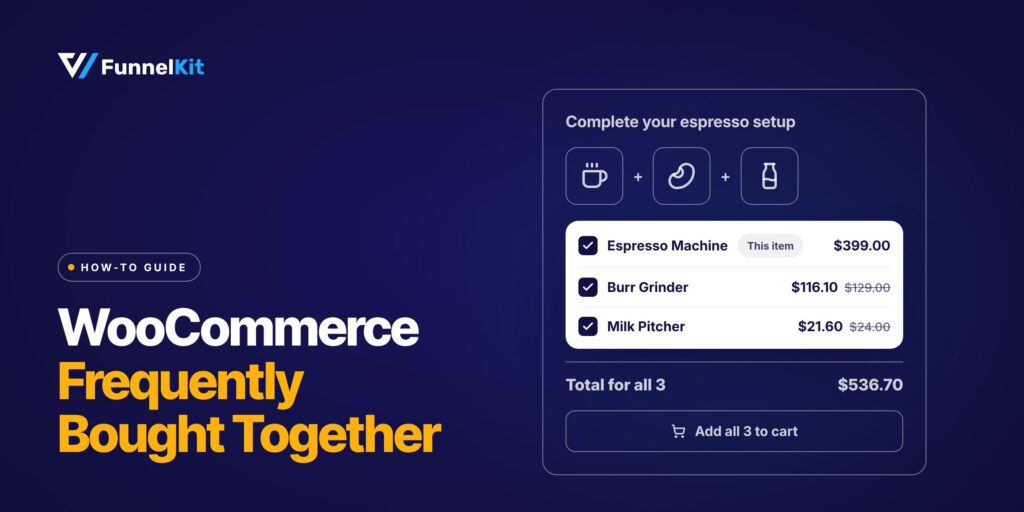
Let’s say someone walks into a kitchen appliance store to buy a $399 espresso machine. The salesperson suggests adding a $129 burr grinder and a $24 milk pitcher. The customer likes the idea and buys all three.
The store makes $552 instead of $399, without spending anything extra to bring in that customer.
That’s exactly what a WooCommerce frequently bought together box does on your product page. It shows shoppers a few related products they can add to their cart along with the main product.
In this guide, we’ll look at six plugins that can help you set this up. You’ll also learn how to create a frequently bought together offer for free, both with and without code.
We’ll cover some common issues along the way, including how products are added to the cart, how discounts are calculated, and what to check when the box doesn’t appear.
Jump straight to the quick step-by-step process here
Does WooCommerce Have Frequently Bought Together Built In?
No. WooCommerce doesn’t have a built-in frequently bought together feature. It does offer upsells and cross-sells, but neither works quite the same way.
Upsells appear on the product page, while cross-sells show up in the cart.
Both let you recommend related products, but customers still have to open each product and add it to their cart separately.
That’s different from Amazon’s frequently bought together box, where shoppers can select multiple products, see the combined price, and add everything to their cart with one click.
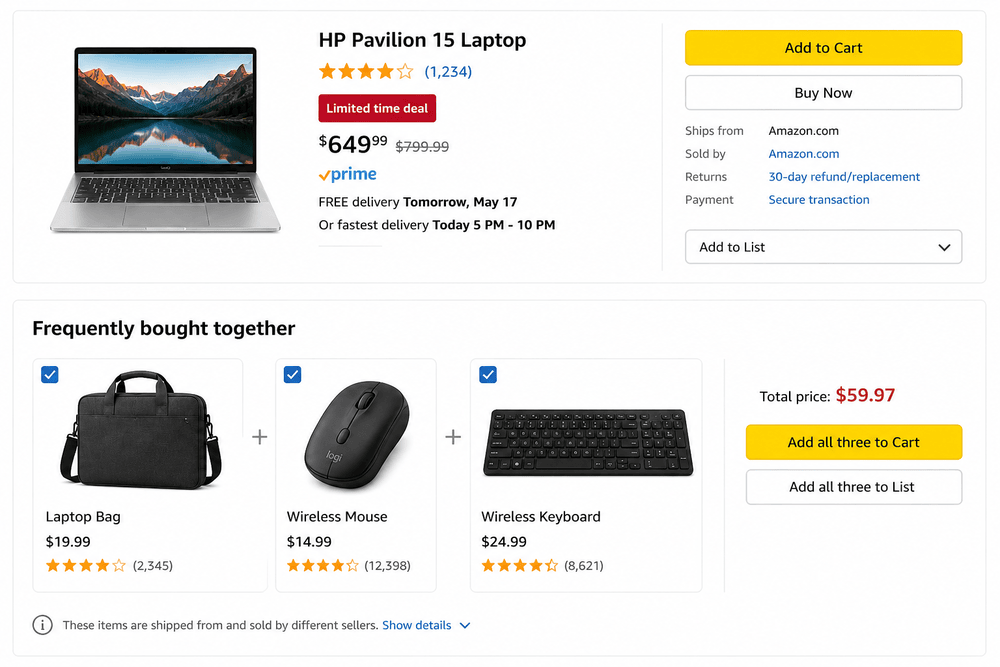
If you want checkboxes, a combined price, bundle discounts, and a single Add all to cart button, you’ll need a plugin or a little custom code.
Frequently Bought Together vs Upsells, Cross-Sells, Related Products and Bundles
These terms sound similar, and they’re often used interchangeably. But they serve different purposes and show up at different points in the shopping experience.
| Feature | What it shows | Where it appears | Who picks the products | Add all in one click? |
|---|---|---|---|---|
| Frequently bought together | Complementary items the shopper can add alongside the main product | Product page, near Add to Cart | You do, or a plugin does, from purchase data | Yes |
| Upsells | A different, usually pricier alternative to the current item | Product page, below the description | You do, in the Linked Products tab | No |
| Cross-sells | Complementary items for what is already in the basket | Cart page only | You do, in the Linked Products tab | No |
| Related products | Anything sharing a category or tag | Product page, below the content | WooCommerce does automatically | No |
| Product bundles | A group of products sold together as a single offer, often at a set price | Product page, as a separate offer | You | Yes |
The biggest difference is when shoppers see the offer. Frequently bought together products appear while customers are still deciding what to buy.
Cross-sells, on the other hand, come into play once they’ve added something to their cart.
If you want to explore the latter, check out our guide to WooCommerce cross-sells.
Which Setup Fits Your Store?
You probably only need one of the three methods covered in this guide. Here’s a quick way to decide which one makes sense for your store.
| Your situation | Setup to use | Covered in |
|---|---|---|
| You want the full box (checkboxes, a combined price and a bundle discount) without code | FunnelKit Bundles, free inside Funnel Builder | Method 1 |
| You want to test whether shoppers click on add-ons before installing anything | WooCommerce linked products | Method 2 |
| You’re a developer with a small catalog and want full control | A custom code snippet | Method 3 |
| You want pairs picked automatically from past orders, or a different plugin | Compare options in our plugins roundup | Not covered here |
Best plugins worth considering are FunnelKit Bundles, WPC Frequently Bought Together and YITH Frequently Bought Together; both let you add an Amazon-style product recommendation box to your product pages.
UpsellWP also includes this feature. If you want automatic product pairings, Product Recommendations, an official WooCommerce extension, is another option.
For pricing, features, and a closer look at the pros and cons, check out our roundup of the best frequently bought together plugins. This guide focuses on setting up the box rather than comparing plugins.
How to Add Frequently Bought Together in WooCommerce
There are four ways to add a frequently bought together box to WooCommerce: using a WordPress plugin, WooCommerce’s built-in linked products, or a custom code snippet.
Start with method 1 and move up only when the free version hits a wall you can name.
We’ll carry one example through every step below: the $399 espresso machine, with the $129 burr grinder and a $24 milk pitcher as add-ons.
Swap in your own products as you go.
Method 1: FunnelKit Bundles (Free, No Code)
If you want to set this up without writing code, start with FunnelKit Bundles. It’s part of the free FunnelKit Funnel Builder plugin.
The free version includes Frequently Bought Together and Fixed Bundle types, along with design controls and bundle management.
If you need more options, Bundles Pro adds quantity breaks, mix-and-match boxes, in-bundle upsells, advanced targeting, and bundle analytics.
You can get it through the FunnelKit Elite plan.
Note: FunnelKit Bundles offers four bundle types, but we’re focusing on just one here. For a closer look at the other three, see our FunnelKit Bundles launch guide.
Step 1: Create a new bundle
First, install and activate the free Funnel Builder plugin.
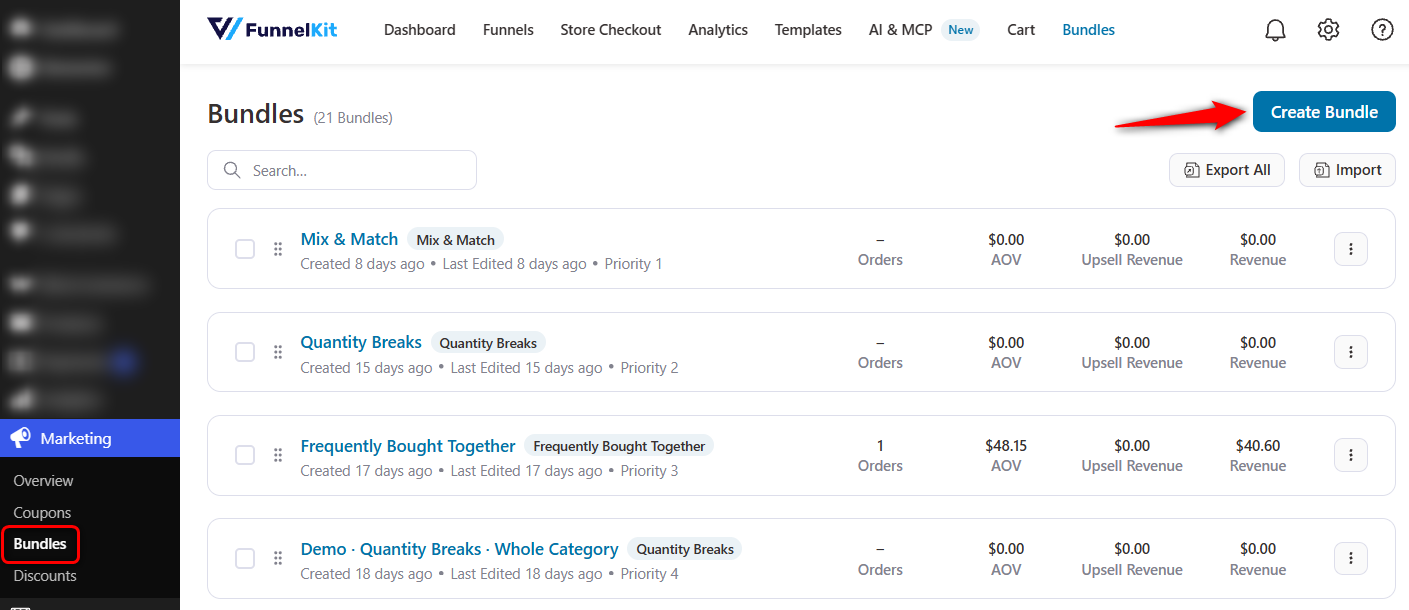
Go to Marketing ⇨ Bundles and click ‘Create Bundle’.
Select Frequently Bought Together as the bundle type.
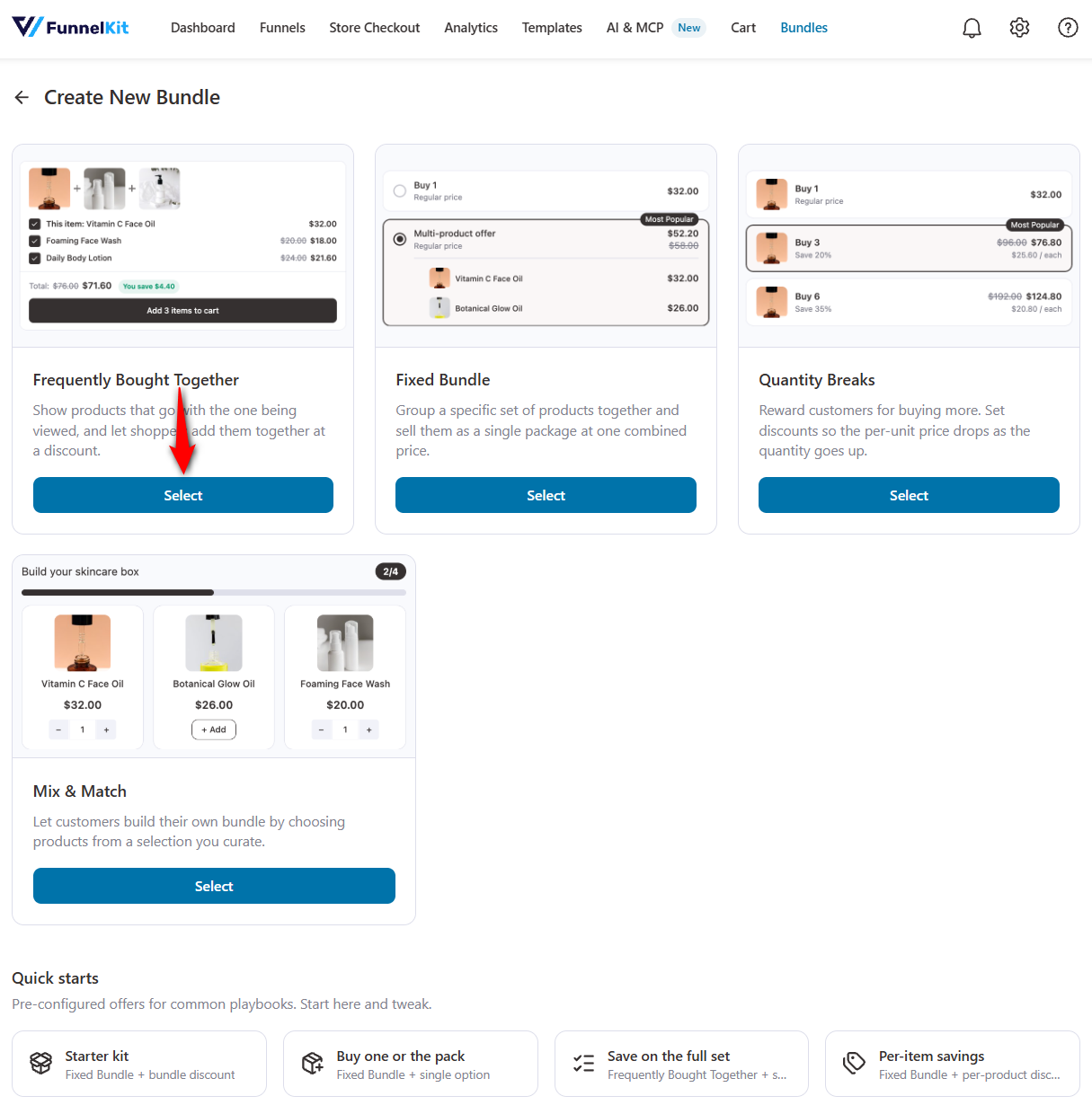
The other free option, Fixed Bundle, is better suited to ready-made kits and gift sets where customers buy everything together rather than choose individual add-ons.
Step 2: Choose which product pages should show the box
Select the products where you want the bundle to appear. For this example, choose the espresso machine.
We recommend starting with one best-selling product. This makes it easier to see how the offer performs before adding it to other product pages.
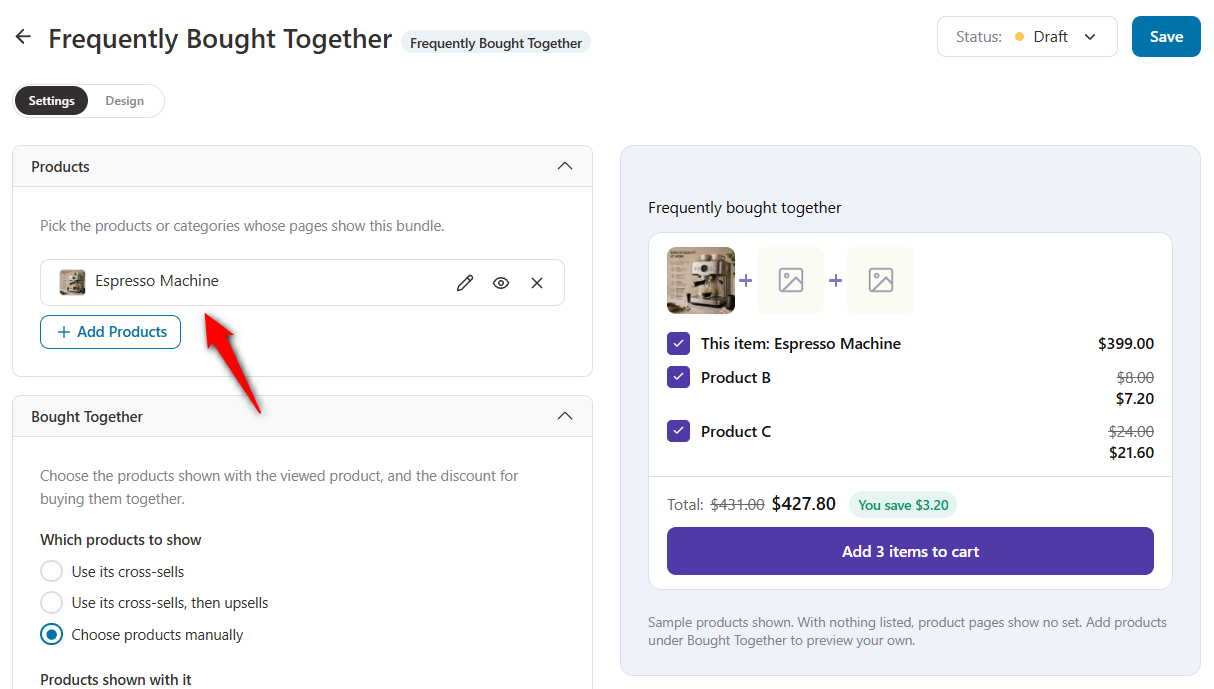
If multiple bundles target the same product, the one higher in your bundles list appears first.
Step 3: Add products and choose a discount
Now add the burr grinder and milk pitcher as add-ons.
You can select these products manually or let FunnelKit pull them from the main product’s cross-sells first, followed by its upsells.
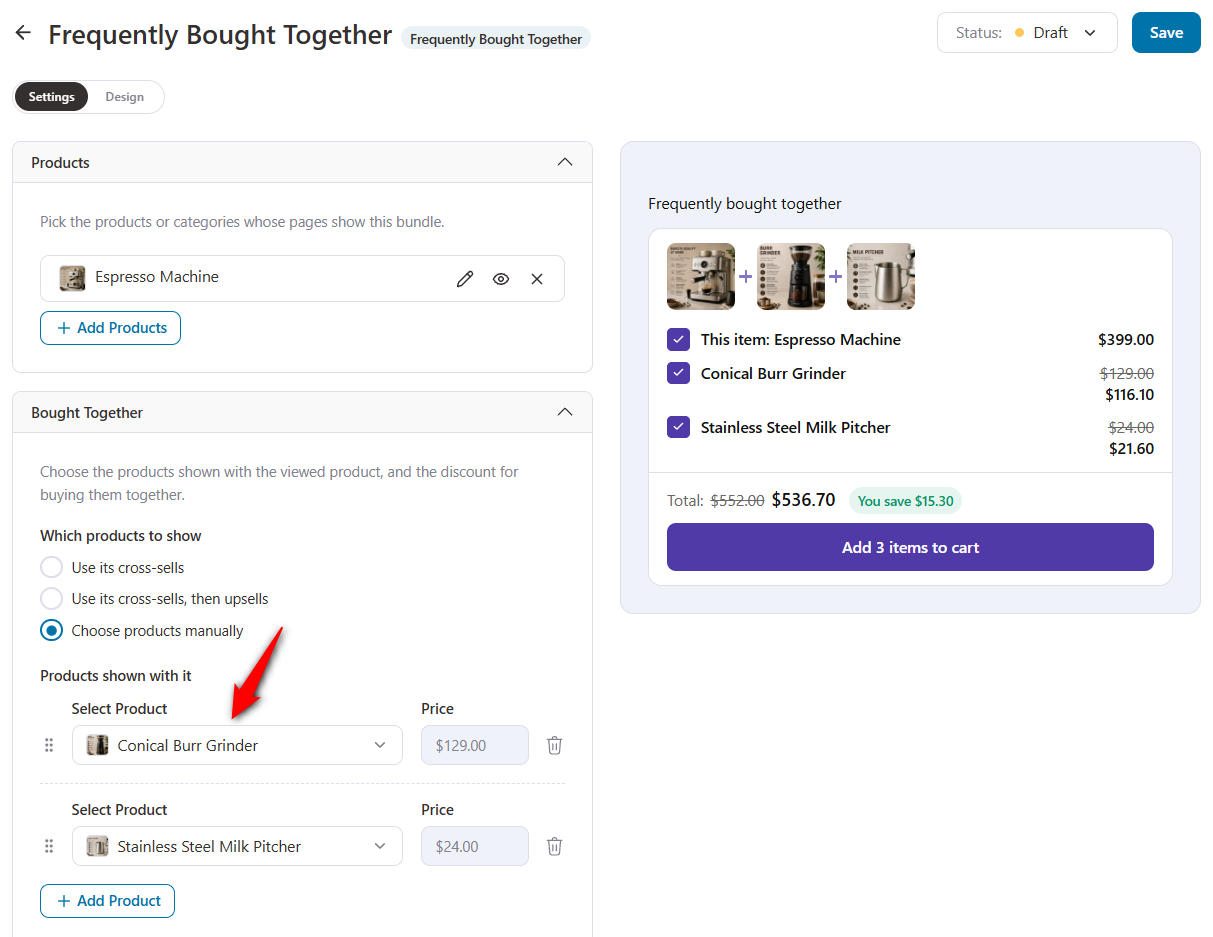
Next, decide how you want to handle discounts. You can apply one only to the added products, to the entire bundle, or skip the discount altogether.
You can also require customers to select a minimum number of add-ons before the discount kicks in.
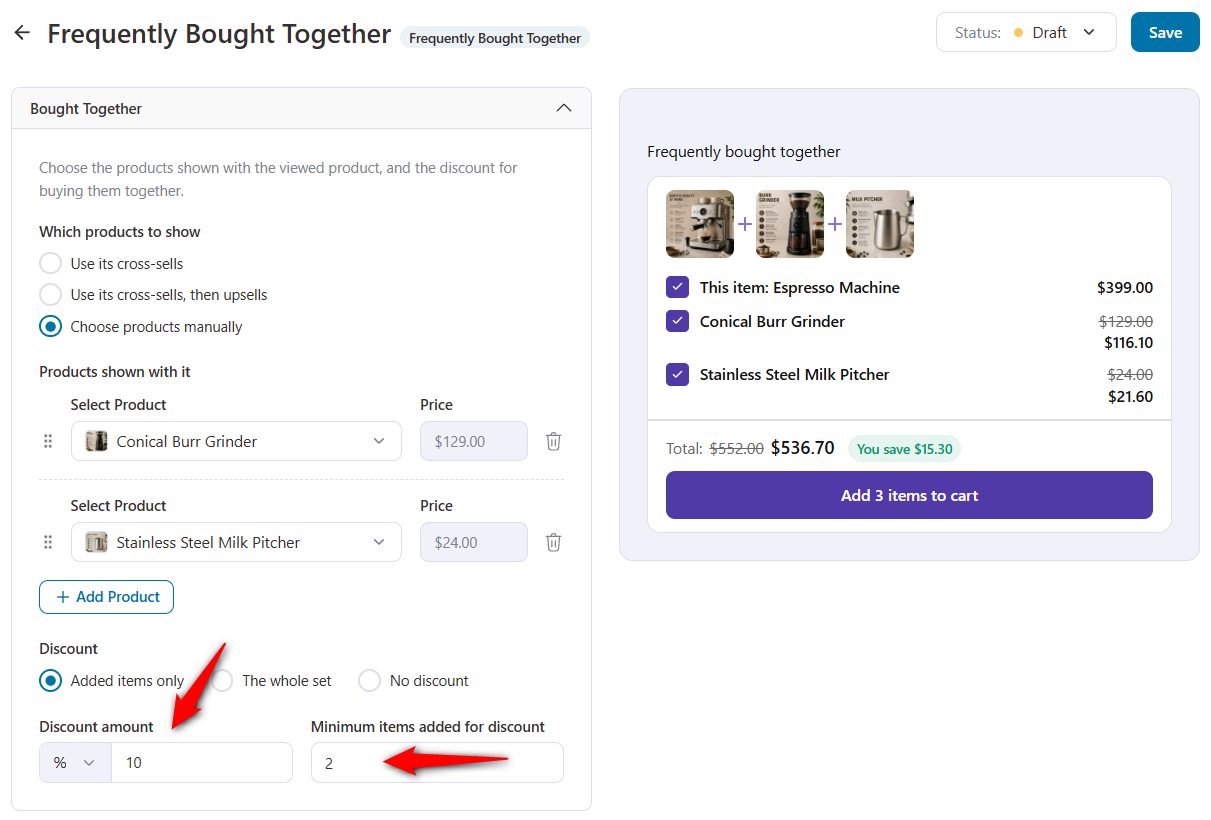
We recommend discounting the add-ons rather than the entire bundle. Otherwise, you’re also reducing the price of the main product, even though the customer was already planning to buy it.
We’ll look at the pricing math later in this guide.
For variable products, shoppers can select options such as size or color directly inside the box, either inline or through a popup.
Step 4: Customize the box design
A good offer won’t help much if shoppers don’t notice it. Open the Design tab and choose one of the four available styles: Minimal, Bold, Compact, or Soft.
Then adjust the colors to match your store’s branding.
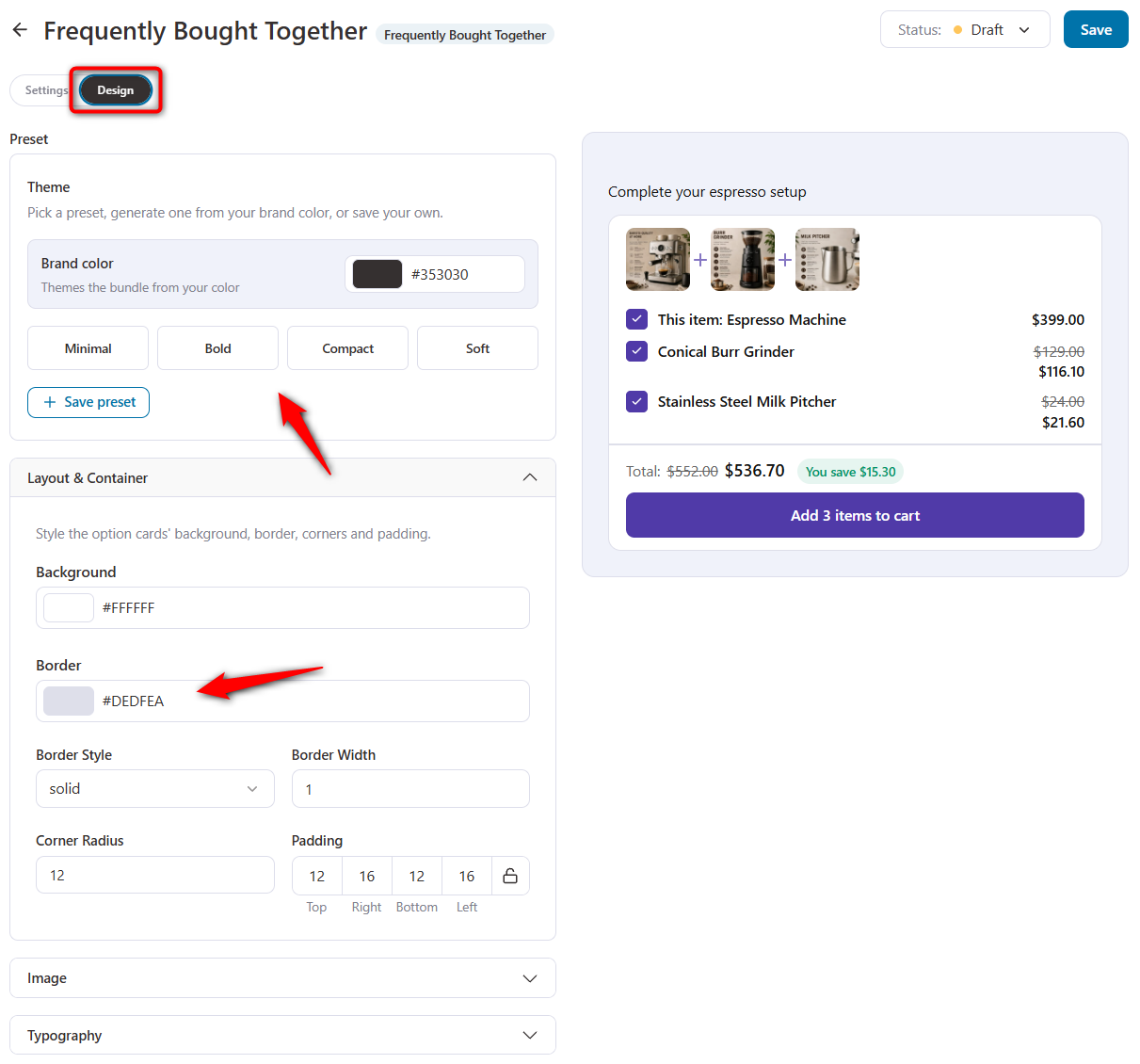
Give the box a heading that tells shoppers what they’re getting. For example, “Complete your espresso setup” explains why the products go together.
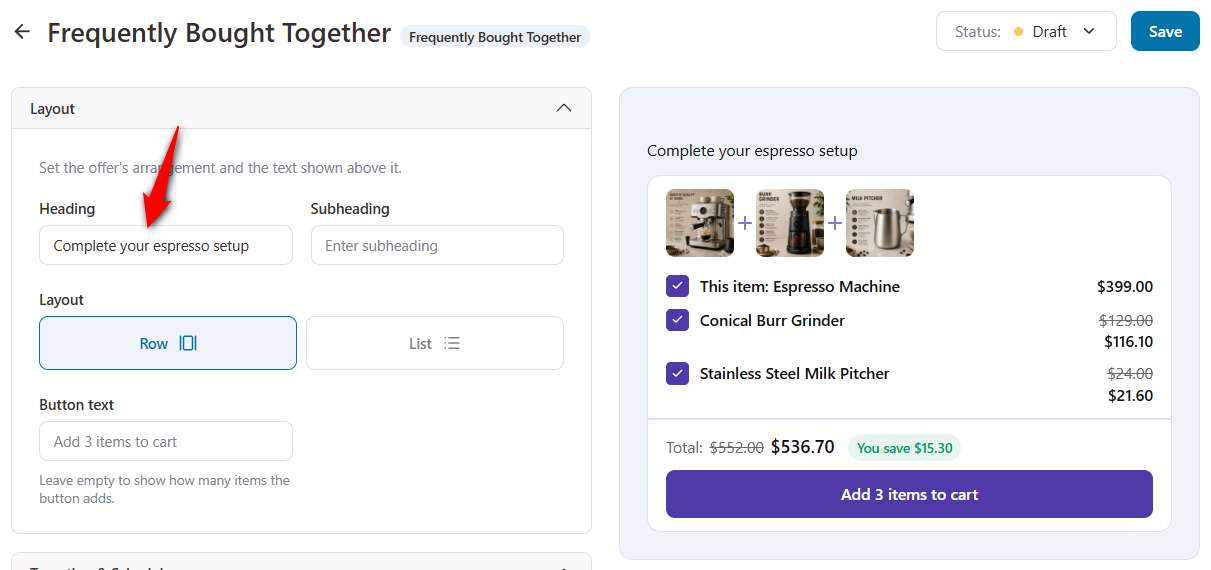
“Frequently bought together” is more generic and doesn’t give shoppers much context.
Keep the offer to two or three add-ons. Too many choices can make the box look cluttered and give shoppers more to think about.
Check the live preview to see how the box looks alongside your product images and price. Don’t forget to check the mobile view as well.
Step 5: Activate the bundle and test it
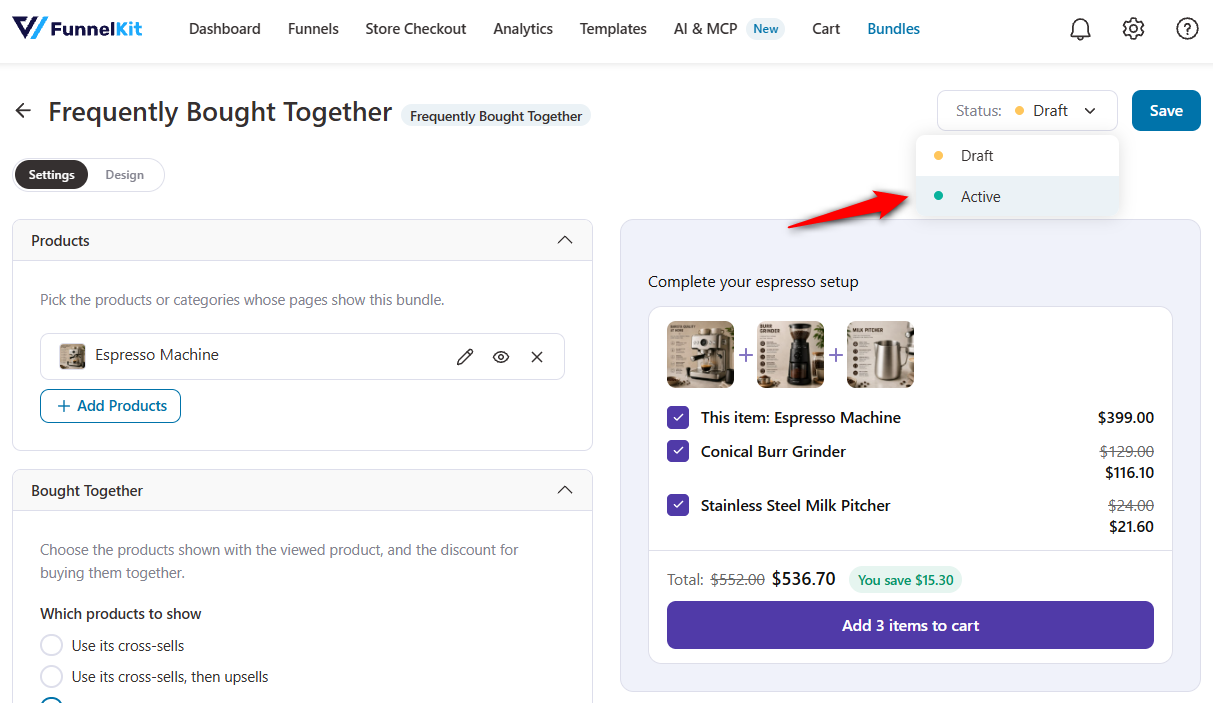
Once everything looks right, set the bundle status to Active and save your changes. You can also schedule it to go live later.
Now visit the espresso machine’s product page on your store and test the box:
- Select and deselect each add-on to make sure the total updates correctly.
- Add the selected products to your cart and check that they’re grouped together.
- Continue to checkout and place a test order.
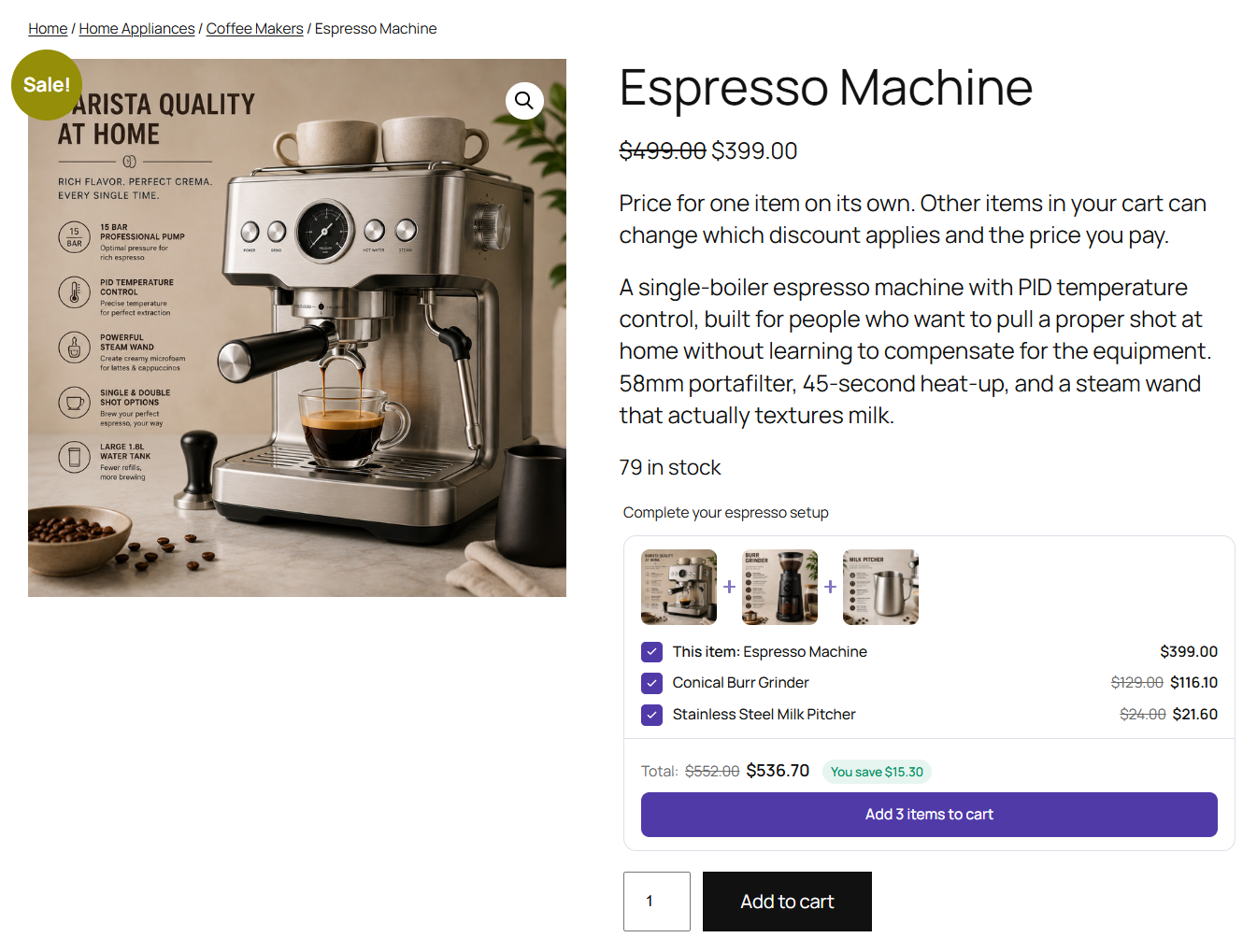
The products stay grouped in the cart, at checkout, in order emails, under My Account, and on the WooCommerce admin order screen. Each product also uses its own stock, so inventory levels remain accurate.
Finally, repeat the test on your phone. Make sure the box, updated price, and Add to Cart button are all easy to see without horizontal scrolling.
Method 2: Native WooCommerce linked products
You can get part of the way there without installing anything.
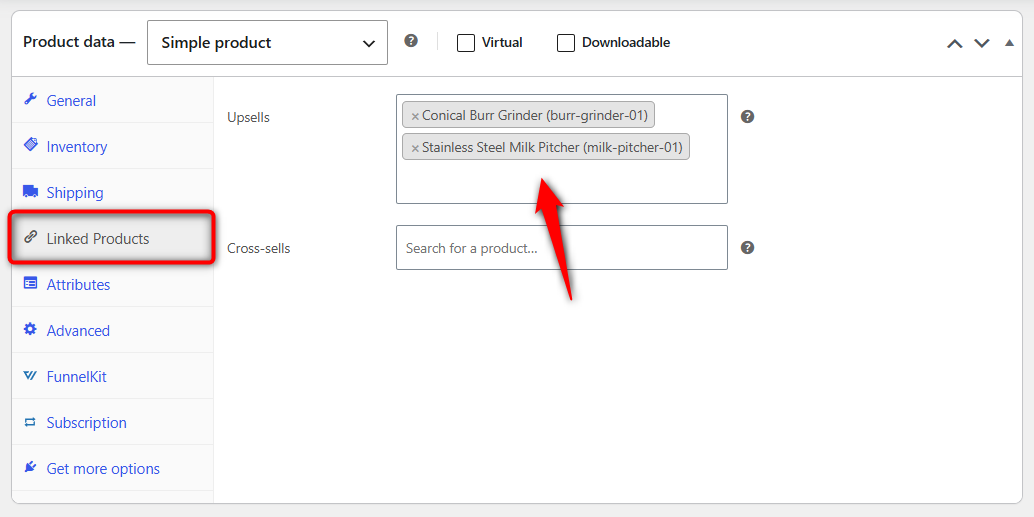
Edit a product, open Product data ⇨ Linked Products, and add the grinder and pitcher to the Upsells field.
WooCommerce renders them at the bottom of the product page.
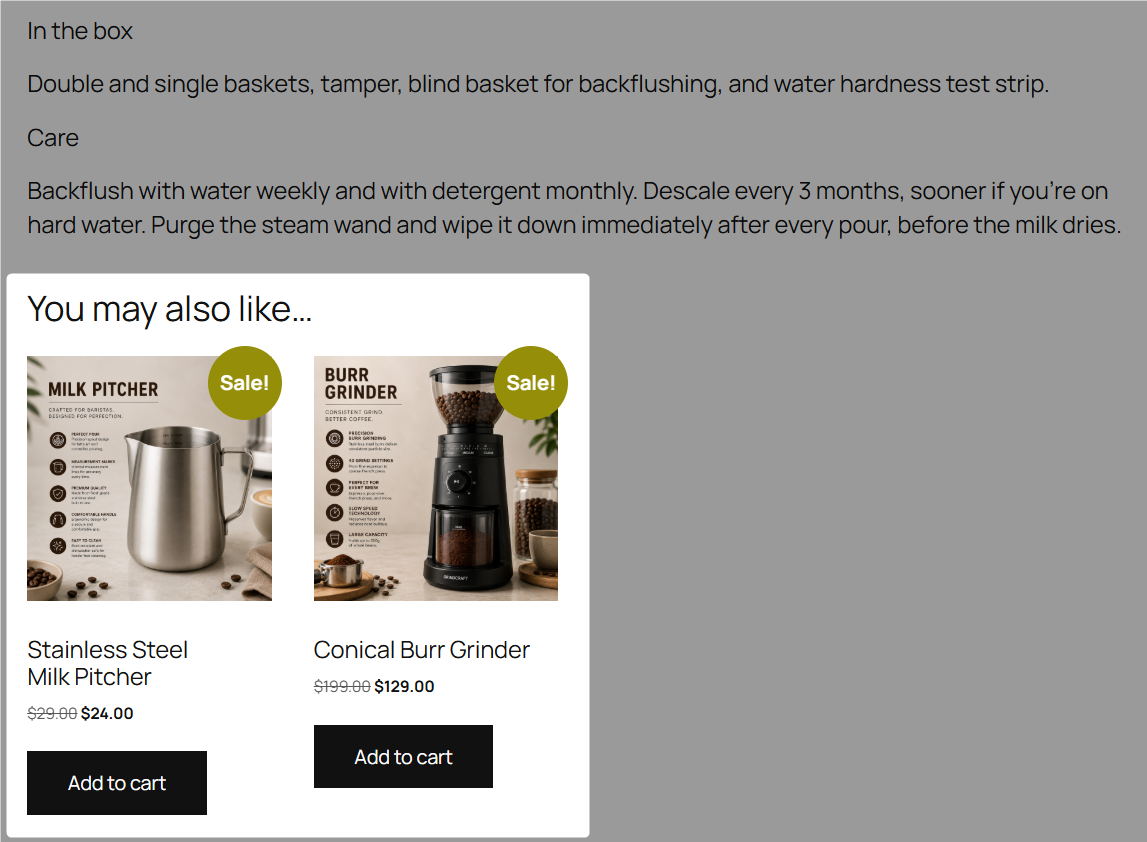
There are a few limitations, though. You won’t get checkboxes, a combined price, a single Add to Cart button, or a bundle discount. The default heading is also “You may also like.”
If you’re comfortable with code, you can change that heading using the woocommerce_product_upsells_products_heading filter.
This is a good way to test whether shoppers are interested in your recommended add-ons before installing a dedicated frequently bought together plugin.
Method 3: Custom code with WooCommerce hooks
If you’re comfortable working with PHP, you can add a basic frequently bought together box without installing another plugin.
A couple of WooCommerce hooks are enough to display a checkbox list below the Add to Cart button and add the selected products to the cart along with the main product.
The snippet uses the product’s existing upsells as the add-on list.
You can add the code to your child theme’s functions.php file or use a code snippets plugin. Either way, test it on a staging site before using it on your live store.
// 1. Show the product's simple, in-stock upsells as checkboxes under Add to Cart.
add_action( 'woocommerce_after_add_to_cart_button', 'store_fbt_box' );

function store_fbt_box() {
    global $product;

    if ( ! is_a( $product, 'WC_Product' ) ) {
        return;
    }

    $ids = $product->get_upsell_ids();
    if ( empty( $ids ) ) {
        return;
    }

    wp_nonce_field( 'store_fbt_add', 'store_fbt_nonce' );

    echo '<div class="store-fbt"><p><strong>Frequently bought together</strong></p><ul>';

    foreach ( $ids as $id ) {
        $addon = wc_get_product( $id );

        if ( ! $addon || ! $addon->is_type( 'simple' ) || ! $addon->is_purchasable() || ! $addon->is_in_stock() ) {
            continue;
        }

        printf(
            '<li><label><input type="checkbox" name="store_fbt_ids[]" value="%1$d"> %2$s %3$s</label></li>',
            absint( $id ),
            esc_html( $addon->get_name() ),
            wp_kses_post( $addon->get_price_html() )
        );
    }

    echo '</ul></div>';
}

// 2. Add the ticked add-ons when the main product goes into the cart.
add_action( 'woocommerce_add_to_cart', 'store_fbt_add_addons', 10, 6 );

function store_fbt_add_addons( $cart_item_key, $product_id, $quantity, $variation_id, $variation, $cart_item_data ) {
    static $running = false;

    if ( $running || empty( $_POST['store_fbt_ids'] ) ) {
        return;
    }

    $nonce = isset( $_POST['store_fbt_nonce'] ) ? sanitize_text_field( wp_unslash( $_POST['store_fbt_nonce'] ) ) : '';
    if ( ! wp_verify_nonce( $nonce, 'store_fbt_add' ) ) {
        return;
    }

    // Adding an item fires this hook again, so the flag prevents a loop.
    $running = true;

    foreach ( (array) wp_unslash( $_POST['store_fbt_ids'] ) as $addon_id ) {
        WC()->cart->add_to_cart( absint( $addon_id ) );
    }

    $running = false;
}
The first function displays simple, in-stock upsell products as checkboxes and adds a security nonce. The second verifies that nonce and adds each selected product to the cart.
One detail to watch is the $running flag. Adding a product triggers the same WooCommerce hook again.
Without this flag, the add-ons could trigger the process repeatedly and keep adding more products to the cart.
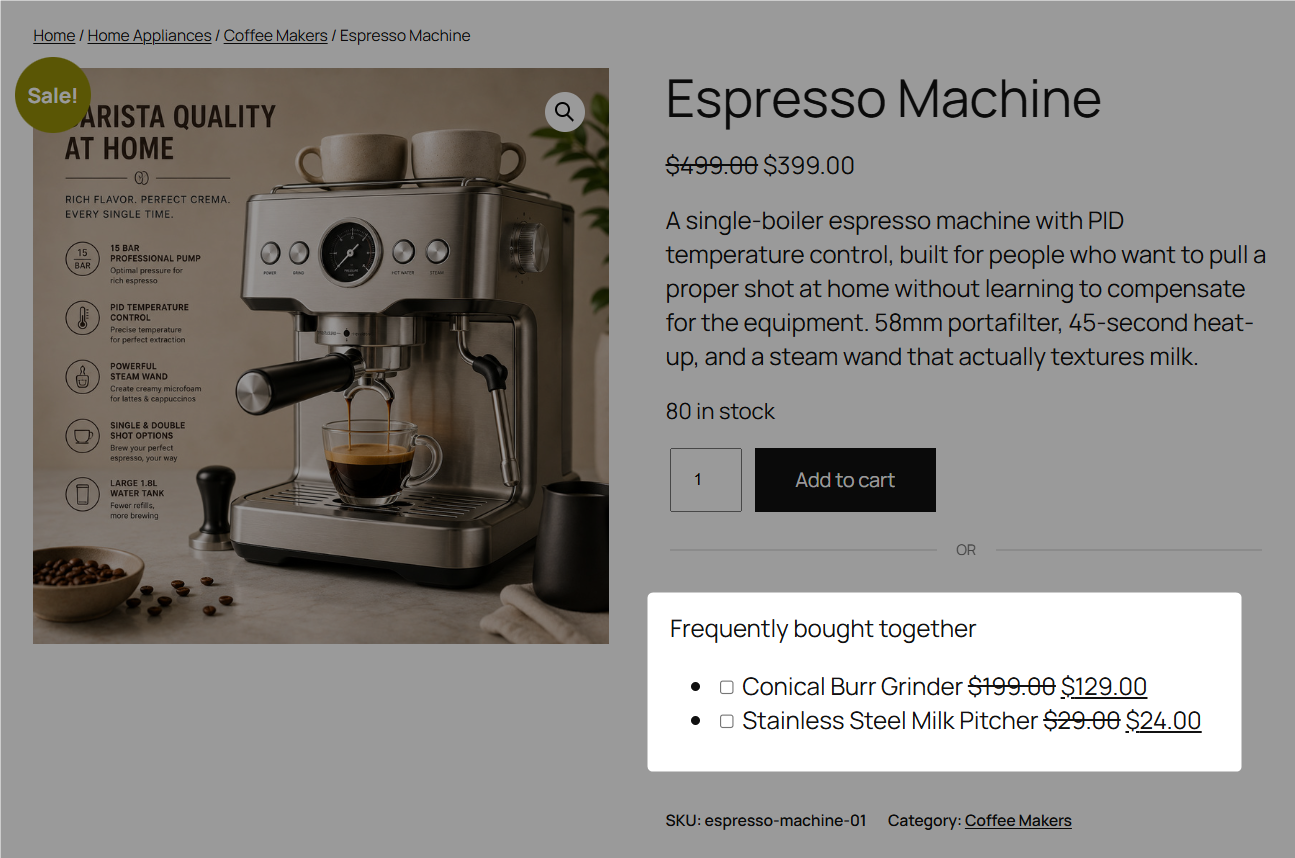
This approach has a few limitations. There’s no bundle discount, combined price, or support for variable add-ons. It also won’t work if your theme uses AJAX add-to-cart on single product pages.
Some block-based product templates don’t trigger the classic form hooks either.
For a small store with a handful of products, this can be a simple solution. But if you’re managing hundreds of products, a dedicated plugin will be much easier to maintain.
5 Settings to Decide Before the Box Goes Live
Before publishing your frequently bought together box, take a few minutes to check these five settings. They affect how the offer works, what shoppers see, and what happens after they add the products to their cart.
Which discount to offer
You don’t have to discount every bundle. You can offer a percentage or fixed discount on each add-on, or simply show related products at their regular prices.
Some plugins offer more pricing options, too. You can discount the entire bundle, set one fixed price for all the products, or include an add-on as a free gift.
You can also set a minimum number of add-ons a customer must select to qualify for the discount.
Choose an option that makes the offer attractive without eating into your profit margin.
How bundled items behave in the cart
This is one detail that’s easy to overlook when choosing a WooCommerce frequently bought together plugin.
Not every plugin handles bundled products the same way once shoppers add them to their cart.
There are three common approaches:
- Separate cart lines at bundle prices: Each product appears as its own line in the cart, with the discounted price applied. Some plugins also use fixed quantities for these items.
- Grouped with the main product: FunnelKit Bundles keeps add-ons grouped under the main product throughout the cart, checkout, order emails, and admin order screen.
- Independent products: WooCommerce’s native linked products and the custom code snippet in Method 5 add each item as a regular product at its normal price.
There’s another thing to check: Can shoppers remove the main product but keep the discounted add-ons? If they can, they might get the bundle discount without buying the complete bundle.
Also, test how coupons work with your bundle. Most plugins allow WooCommerce coupons to apply to bundle prices just like other cart items.
How add-ons get picked
You have four ways to choose which products appear in your frequently bought together box:
- Manual selection: Choose specific add-ons for each product. All the methods in this guide support this approach.
- Category or rule-based selection: Set rules that apply to multiple products instead of configuring each bundle individually. Some plugins offer this in their paid plans.
- Past order data: Recommend products based on what customers have previously purchased together. You’ll need a plugin that supports automatic product recommendations.
- Existing linked products: Reuse your WooCommerce upsells, cross-sells, or related products. FunnelKit Bundles can pull from cross-sells first and then upsells. The custom code snippet in Method 5 uses upsells.
Variable Products Inside the Box
If your add-ons come in different sizes, colors, or other variations, shoppers need a way to choose the option they want without leaving the product page.
For most stores, manual selection is a good place to start. Pick add-ons for your 20 best-selling products first. As your catalog grows and managing every bundle manually becomes difficult, consider rule-based recommendations or automatic pairing from order history.
FunnelKit Bundles supports this through inline selection or a popup. WooCommerce’s native linked products send shoppers to the individual product page, while the custom code snippet doesn’t support variable add-ons.
After setting everything up, test a variable product yourself. Select a size or color, add the bundle to the cart, and make sure the correct variation appears.
Theme, page builder, and mobile checks
If you’ve built custom product pages using Elementor, Divi, or the WordPress Site Editor, your template might not include the WooCommerce hook that the plugin uses to display the box.
Check whether your plugin offers a shortcode or block as an alternative. This also gives you more flexibility to place the frequently bought together box on a landing page or inside a blog post.
Finally, test the layout on an actual phone. The products should stack neatly, with the combined price and Add to Cart button easy to find below them.
Make sure shoppers don’t have to scroll sideways to see the entire offer.
How to Price Bundle Discounts Without Losing Margin
A good rule is to discount the add-ons and keep the main product at its regular price.
Going back to our espresso machine example, the same 10% discount can cost your store $15.30 or $55.20, depending on how you apply it.
| Discount setup | Shopper pays | Total discount | Discount taken off the machine |
|---|---|---|---|
| No discount | $522.00 | $0 | $0 |
| 10% off the add-ons only | $536.70 | $15.30 | $0 |
| 10% off the whole set | $496.80 | $55.20 | $39.90 |
Both offers advertise a 10% saving, but there’s a big difference in what you give up.
With a discount on the entire bundle, you’re taking $39.90 off the espresso machine, even though the customer was already planning to buy it.
Discounting just the grinder and milk pitcher costs you $15.30 and still gives shoppers a reason to add both products.
As a general rule, make sure the discount on each add-on is smaller than the profit you earn from selling it.
There are two other things to watch when setting up bundle pricing:
- Sale prices
Some plugins calculate bundle discounts using the regular price instead of the current sale price. For example, the grinder normally costs $129 but is on sale for $109.
If the plugin applies a 10% discount to the regular price, the bundle price becomes $116.10. That’s actually $7.10 more than buying the grinder separately at its sale price.
Check how your plugin handles sale prices. You can calculate discounts using the sale price, exclude already-discounted products, or adjust the offer accordingly.
- Tax display
Your bundle box and cart might show different totals if your store enters prices without tax but displays them with tax.
Some plugins show bundle totals before tax, while the cart displays tax-inclusive prices. Compare both totals before making the offer live so shoppers aren’t surprised by the price at checkout.
Which Placement Converts Best?
| Placement | Setup effort | Best for | Watch out for |
|---|---|---|---|
| Product page box | Low | Cheap, obvious companions the shopper expects | Least committed audience, and page speed if the plugin loads images |
| Slide-out cart | Low | Small add-ons and free-shipping threshold nudges | Anything that reopens the buying decision |
| Checkout order bump | Low | One high-fit add-on under roughly 30% of cart value | Adding more than one, which stalls the checkout |
| Post-purchase upsell | Medium | Higher-priced upgrades with zero conversion risk | Needs a payment gateway that supports off-session charges |
| Post-purchase email | Medium | Consumables, refills, and second-order items | Timing, since too early reads as a pitch, too late is forgotten |
There isn’t one winner. The product page box is what shoppers expect, the order bump usually has the highest attach rate, and the post-purchase upsell carries the highest average value because it’s the only one with no downside risk.
The reason to run all four isn’t that one shopper buys the grinder four times.
It’s that each placement catches a different person: the one persuaded before adding anything, the one who needed to see the cart total first, the one who only says yes when it costs a single click, and the one who didn’t know they wanted better grind consistency until the machine was on the counter.
Put numbers on it. On 1,000 espresso machine orders a month, a conservative 5% attach rate on the $129 grinder earns $6,450 from the box alone.
Four placements at 5% each don’t sell 200 grinders to the same people.
They move roughly 20% of buyers to one grinder instead of 5%, which is $25,800 on the same traffic bill.
Where Else Bought-Together Offers Convert?
Almost every guide on this topic stops at the product page.
In our experience, that’s one of four moments a shopper will accept an add-on, and it’s the one where they’re least committed, because they haven’t decided to buy anything yet.
35% of Amazon’s purchases are because of product recommendations. Amazon runs the same logic in the cart, at checkout, and in post-purchase email, and the compounding across all four is where the AOV lift comes from.
Here’s the same espresso machine offer, moved through the rest of the journey.
In the slide-out cart
The shopper has committed to the machine, so the grinder now reads as completing a decision rather than reopening one.
This is also the one placement where a free-shipping or discount threshold does real work: $23 short of a 10% discount with a $24 pitcher.
FunnelKit Cart runs it in a side panel that opens on Add to Cart, with no page load.
Set up your upsells inside:
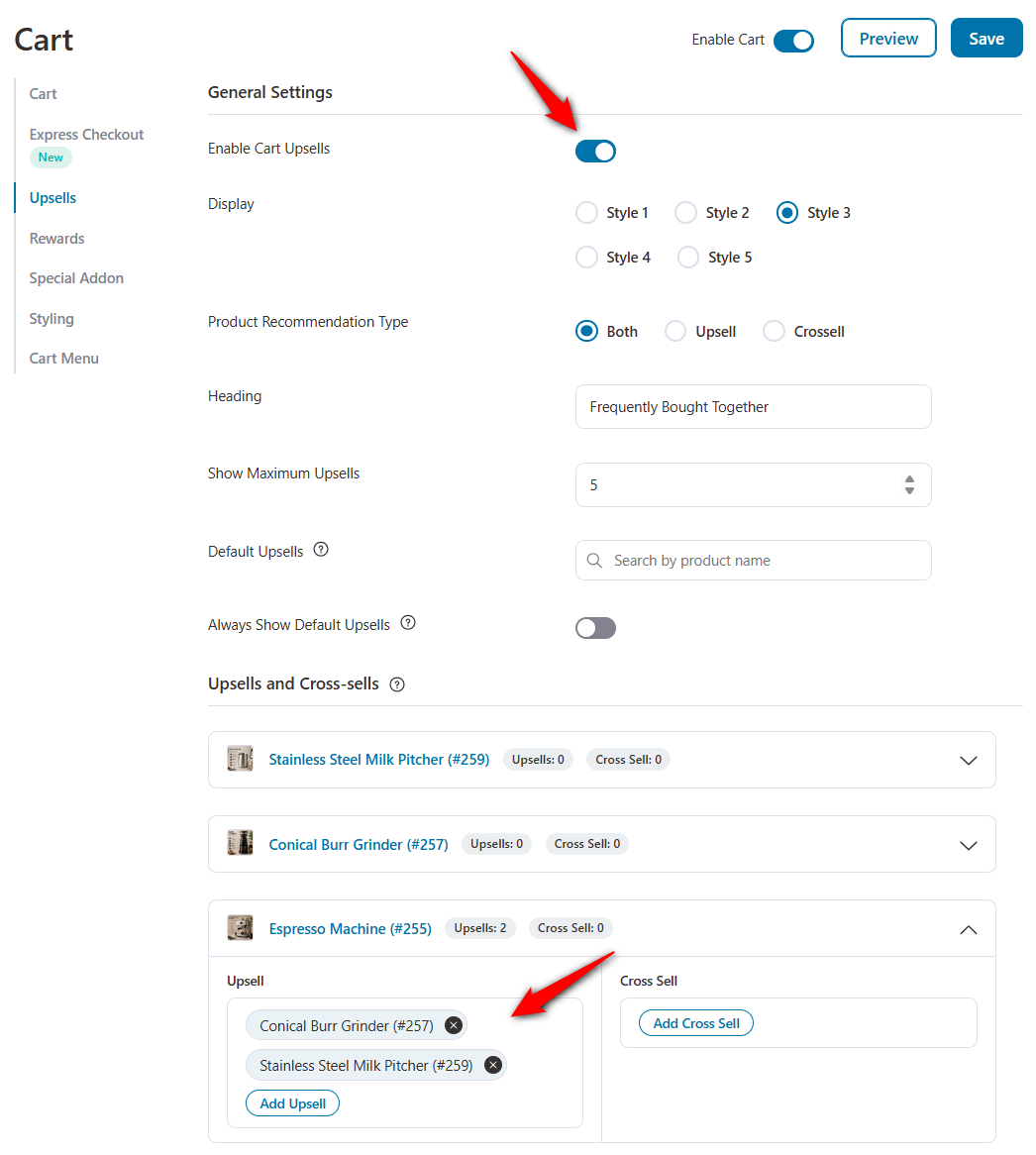
Set up rewards to take full advantage of the threshold-based high order boost.
This is how it looks with all the upsells and rewards set up inside the side cart:
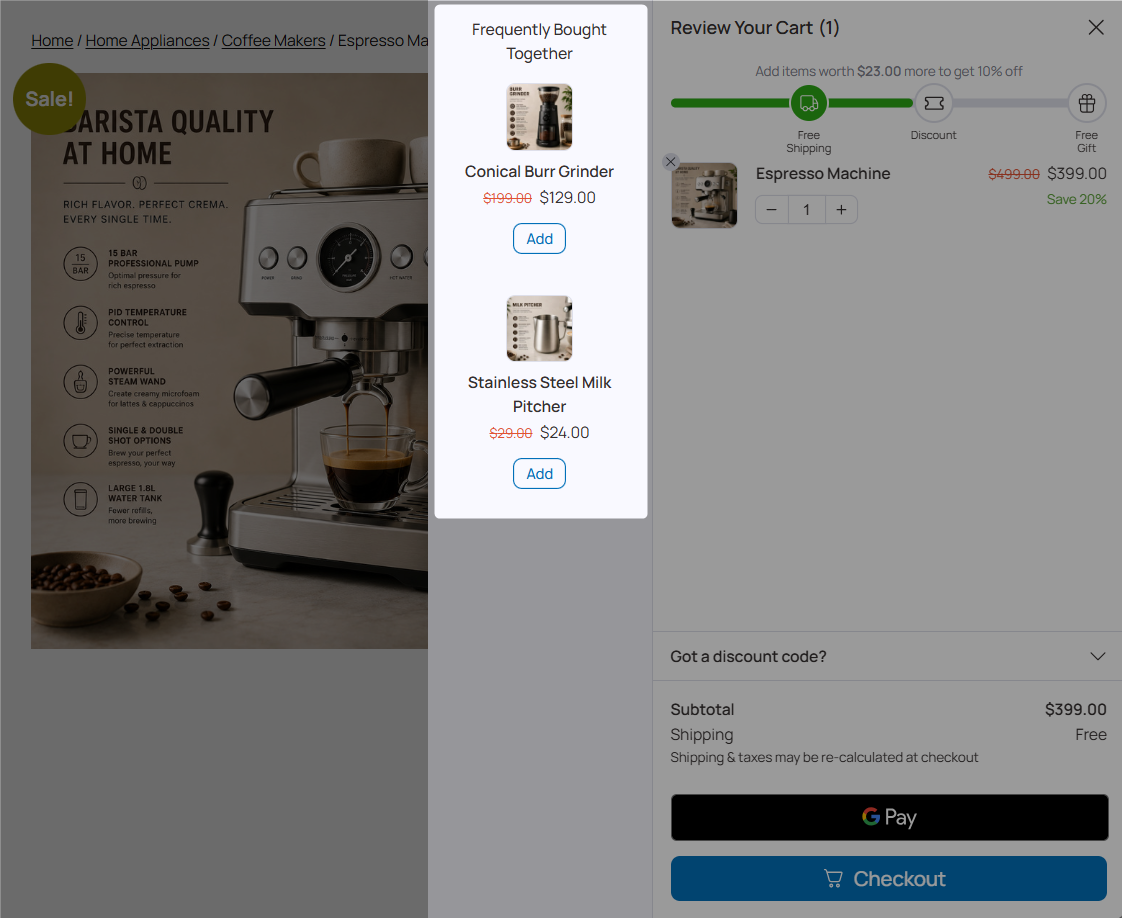
See our guide to the WooCommerce sliding cart.
At checkout, as an order bump
A single checkbox above the payment button with a one-line pitch and a price.
The shopper is already entering card details, so yes, it costs one click and no re-entry, which is why order bumps consistently outperform product page recommendations.
Setting up order bumps is quite easy. Just import a skin, add products, and set discounts!
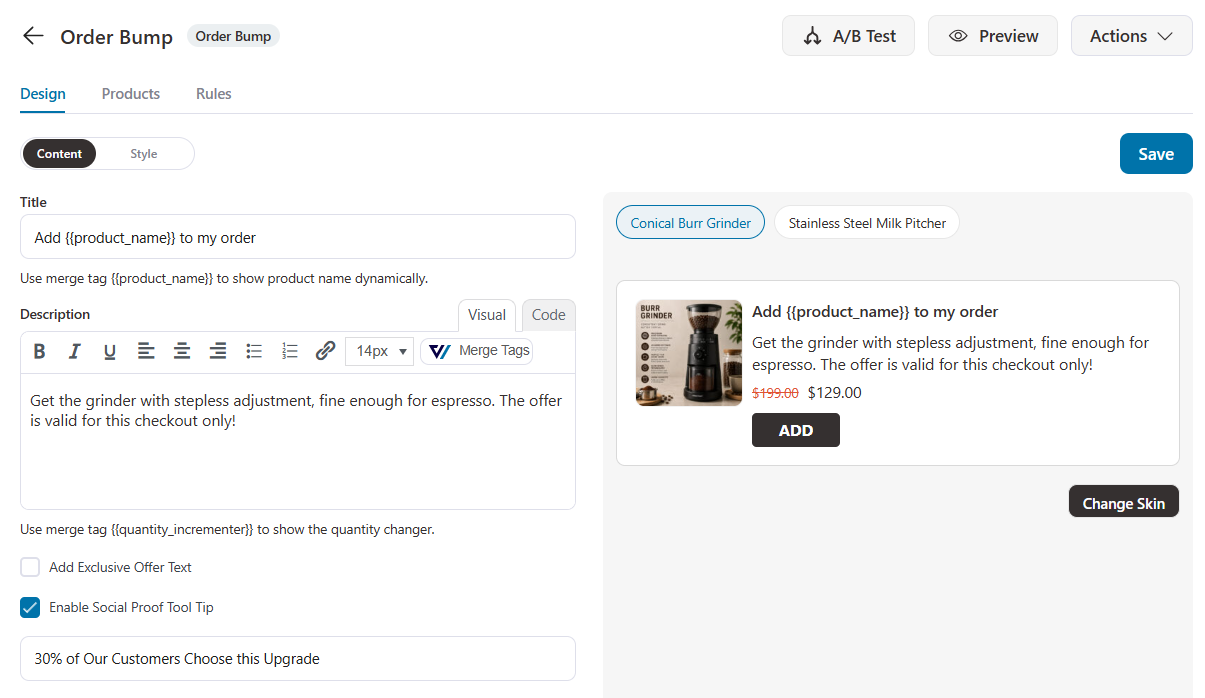
This is how the order bumps look on the WooCommerce checkout page created with FunnelKit.
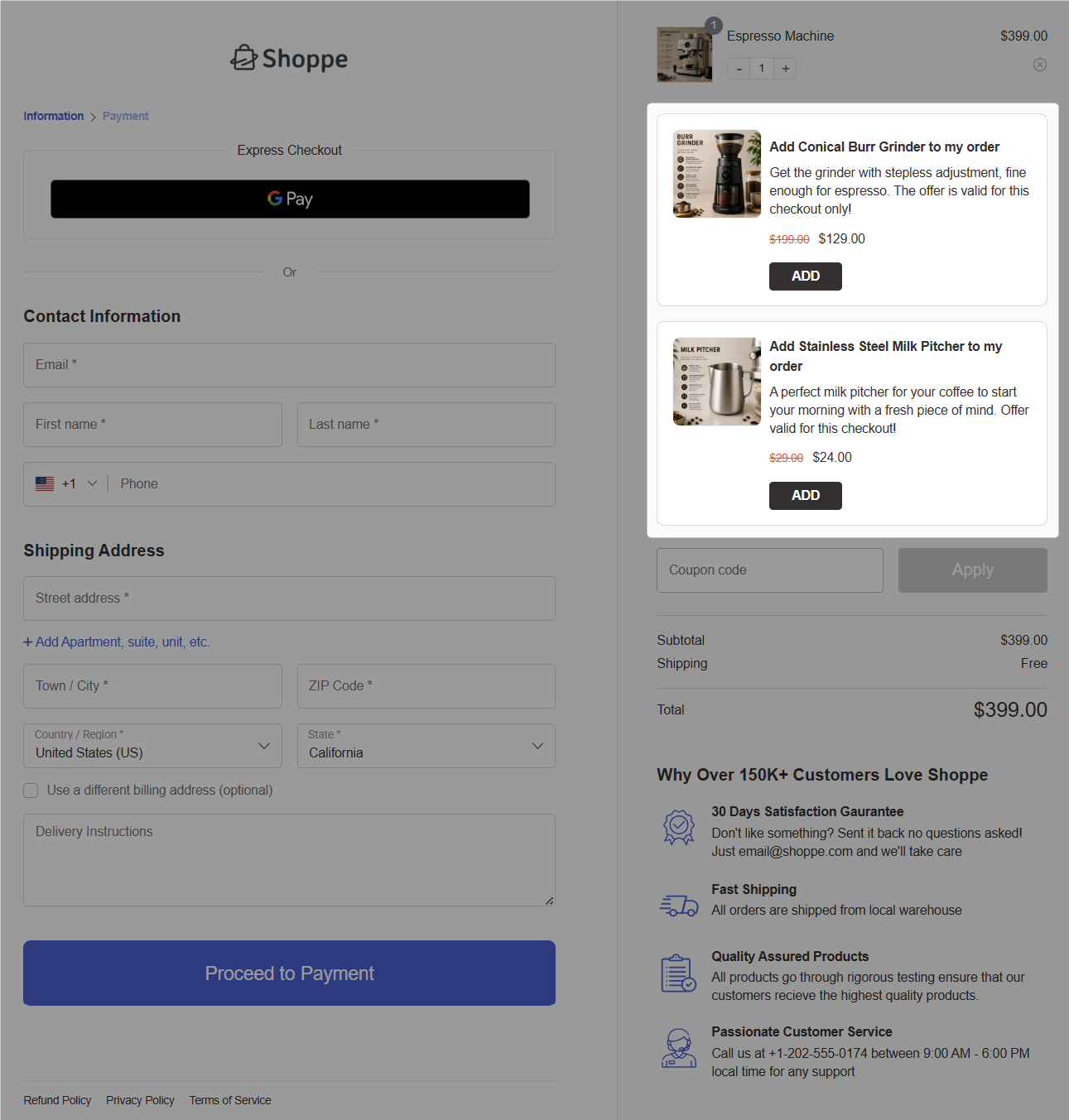
Our walkthrough on setting up a checkout order bump covers the targeting rules.
After purchase, as a one-click upsell
The offer runs after the order is placed, so it can’t touch your checkout conversion rate.
Accepting charges the saved card without a second checkout.
This is the home for the higher-priced add-on you’d never risk in the box, like a $199 grinder upgrade.
FunnelKit Funnel Builder makes it effortless to set up your one-click upsell offers.
You can customize the page with Elementor, Bricks, Divi, Oxygen, Gutenberg, and more.
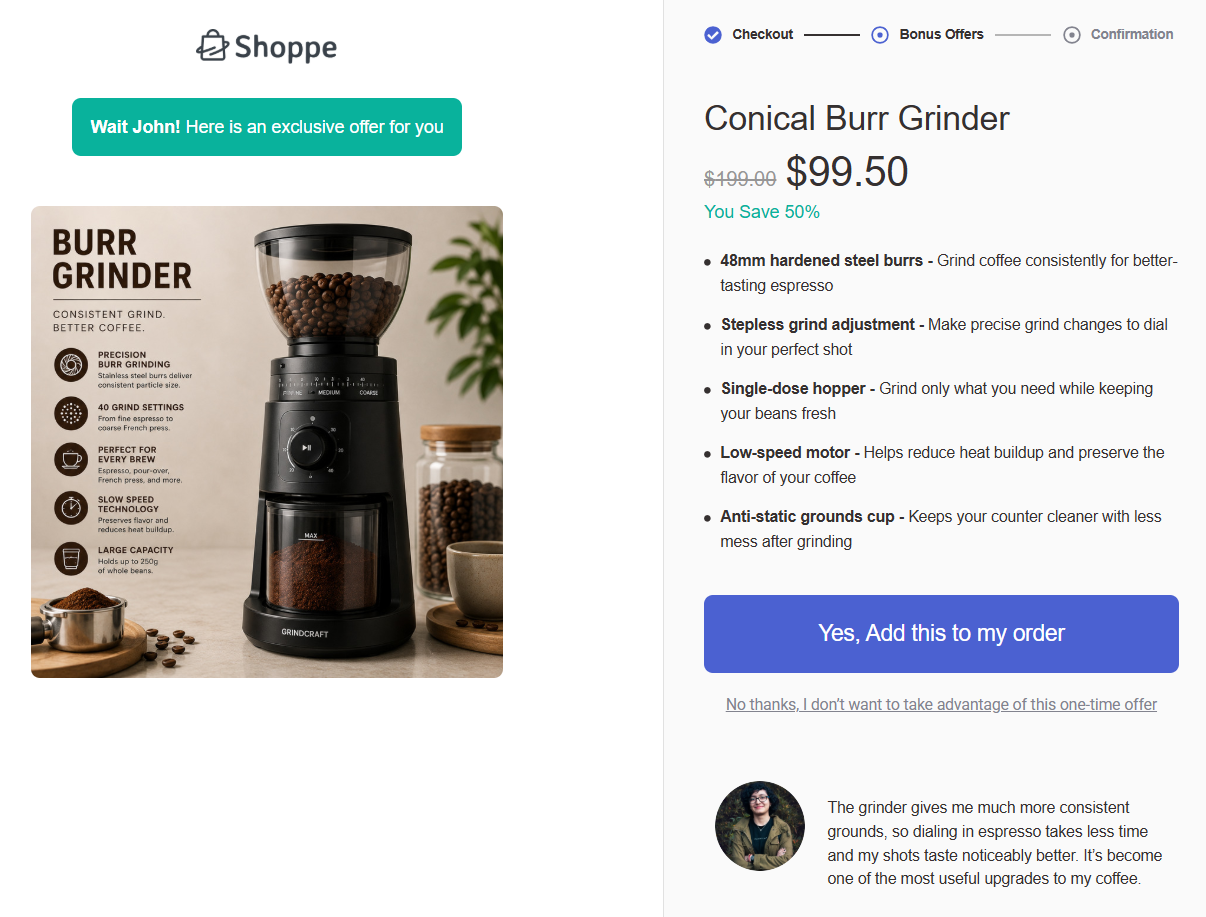
See our guide to WooCommerce one-click upsells.
In the post-purchase email
Sent three to seven days after delivery, once the machine is on the counter and the shopper has felt the grind problem for themselves.
FunnelKit Automations triggers this off the specific product purchased, so only espresso machine buyers get grinder offers.
Now customize the email template to meet your needs.
To make your template more appealing, you’ll find editing options on the left side, including text, images, buttons, social icons, etc.
Upload an image of your product. Also include a detailed product description.
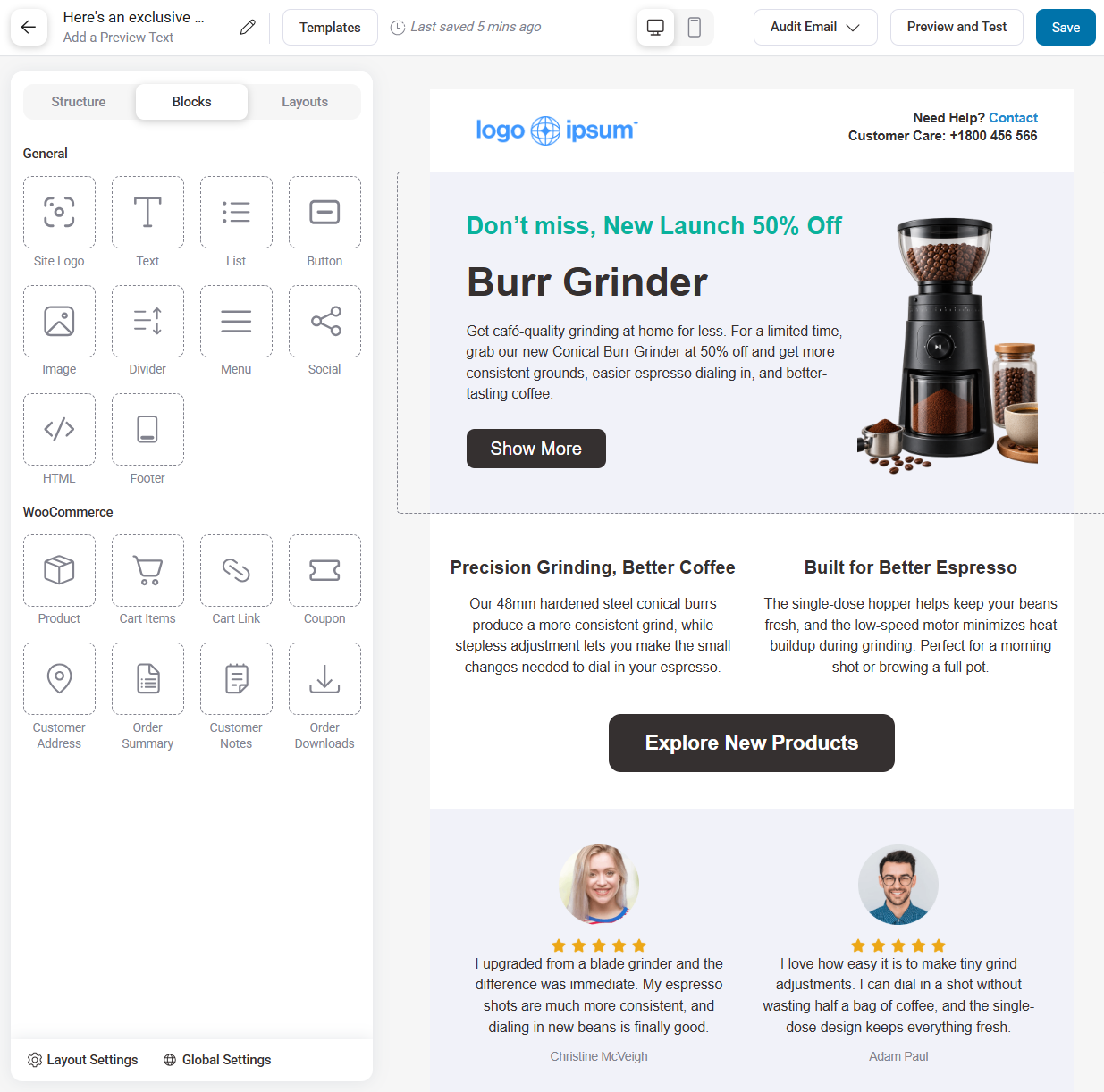
For how to decide which products to pair in the first place, see our guide to WooCommerce product recommendations.
Which Products to Bundle Together: Examples by Store Type
The best add-ons are products customers are likely to need soon after buying the main item.
- Coffee equipment: Pair an espresso machine with a grinder and milk pitcher. You can add coffee beans as a third option since the buyer will need them eventually.
- Electronics: Pair a mirrorless camera with a spare battery and memory card. Both are useful from the first shoot.
- Apparel: Pair a shirt with chinos and a belt from the same collection. Since each item comes in different sizes, choose a plugin that lets shoppers select variations right inside the bundle box.
- Digital products: Pair a design template with an extended commercial license or setup guide. Digital add-ons don’t involve shipping costs or delivery delays, removing two common reasons for hesitation.
To find good product combinations in your own store, export your orders from the last 90 days and check which products frequently appear together.
Items that regularly show up in orders with a best-seller are strong candidates for a frequently bought together offer.
For more ideas on choosing products, see our guide to WooCommerce product recommendations
Frequently Bought Together Not Showing? 6 Fixes
If your WooCommerce Frequently Bought Together box isn’t showing up, check these six things before digging into more complicated issues.
- Check add-ons and fallback products
The box won’t appear if no add-on products are assigned. If your plugin uses linked upsells or cross-sells as a fallback, make sure those fields are filled in too.
- Clear all caches
Your caching plugin, hosting server, or CDN might still be serving an older version of the product page. Clear each cache after making changes, then reload the page.
- Check the products in your bundle
Some plugins hide the entire bundle if even one product is out of stock, unpublished, hidden from the catalog, or missing a price.
Make sure every product is available and properly configured.
- Check your custom product template
Page builders and block themes can sometimes remove the hook that displays the bundle box.
Try adding it directly using your plugin’s shortcode, block, or builder widget.
- Check AJAX add to cart settings
If your theme uses AJAX add-to-cart on single product pages, it might add only the main product to the cart and ignore the selected add-ons.
Temporarily disable this option and test again.
- Look for plugin conflicts
Dynamic pricing and currency switcher plugins can sometimes interfere with bundle prices. Test this on a staging site by switching to a default theme like Storefront and deactivating other plugins. Then reactivate them one at a time to find the culprit.
The Health Check & Troubleshooting plugin lets you run these tests for your login without affecting what other visitors see.
7 Best Practices to Follow When Setting Up Frequently Bought Together Products in WooCommerce
Setting up the frequently bought together feature in your WooCommerce store is a fantastic way to boost sales and improve your customers’ shopping experience.
To maximize the benefits of this strategy, tailor it to your store’s needs and your customers’ buying habits.
Here are some best practices for implementing frequently purchased items in WooCommerce to maximize its potential.
1. Choose complementary products wisely
Don’t just pair random items together. Think about what makes sense for your customers. For example, suggest a helpful glass protector, earbuds, or a charger if you’re selling a phone.
You aim to create a natural pairing that feels like a no-brainer for the buyer. The more relevant the suggestions, the more likely customers will add them to their cart.
2. Use data to drive your suggestions
Whenever possible, utilize data to inform your frequently purchased bundles. Examine past purchase histories to identify frequently purchased products.
If your plugin allows it, enable automatic suggestions based on real data to keep recommendations accurate and up to date.
This data-driven approach makes your offers more relevant and increases your chances of converting.
3. Offer bundle discounts for extra incentive
People love a favorable deal. Offering a small discount when buying products together can be a great incentive.
For example, offer a 10% discount on laptops, mice, and keyboards. This strategy enhances perceived value and increases sales.
Therefore, customize the discounts with different offerings, such as percentage-based (e.g., 10%) or flat-rate discounts for product bundles.
Tailor your approach to your audience and campaign goals, and experiment with different options to maximize appeal and effectiveness.
4. Keep your display clean and clear
Your frequently bought together section should be easy to see but not overwhelming. Make sure it’s visually appealing, with clear images and concise descriptions.
Avoid clutter and keep it simple so customers can quickly understand the benefits of buying the additional items without feeling bombarded by too many options.
5. Test and optimize regularly
Setting up your frequently bought together feature isn’t a one-and-done deal. Monitor its performance closely.
Test different product combinations, change the layout, or try different pricing strategies. Use A/B testing to see which setups convert better.
Regular tweaks help you find what works best for your audience.
6. Showcase the feature throughout the customer journey
Don’t limit frequently bought together suggestions to product pages. Integrate them with other parts of the customer journey, such as the shopping cart or checkout pages.
This keeps relevant product suggestions in front of your customers at crucial decision-making moments, increasing the likelihood that they will add those items to their purchase.
7. Leverage email marketing to retarget abandoned carts
Don’t let abandoned carts end the sales journey. Use email marketing to remind customers of deals, especially bundle deals they left behind. Highlight the savings they could enjoy by completing their purchase.
If so, you can tweak your email’s subject line to “Complete Your Purchase and Save 15%!”
This approach keeps your offers top of mind and encourages customers to finalize their purchase.
Frequently Asked Questions (FAQs)
Is there a free WooCommerce frequently bought together plugin?
Yes. WPC Frequently Bought Together and YITH WooCommerce Frequently Bought Together both ship free versions that render a product page bundle box with discounts.
The paid tiers mainly add variable product support and bulk rule configuration.
Can I add bought together products without a plugin?
You can, using the code method above, which hooks into woocommerce_before_add_to_cart_button and reuses your existing upsell links.
You give up bundle discounts, combined pricing, and variable product support, so it suits small catalogs only.
Do bought together bundles work with variable products?
It depends on the plugin. WPC supports variable products and specific variations as bundle items only in its premium version; the free version skips them entirely.
Check that variation selection happens inside the bundle rather than bouncing the shopper to another page.
Can I set a different quantity for each bought together item?
Yes, with most plugins. WPC lets customers adjust quantities per item and lets you set minimum and maximum quantities for the deal, which matters for consumables like filters, pods, or refills that people buy in multiples.
Where should the section sit on the product page?
Above or immediately after the Add to Cart button. The default position in most plugins is below the product tabs, which a large share of visitors never reach, so moving it is usually the highest-leverage change you can make to the offer.
Does a bought together section slow down the product page?
It adds queries for each recommended product, so three items is negligible while a category-wide recommendation on a large catalog is not.
Keep bundles small, run a caching plugin, and check your product page speed after switching it on.
Can I use product bundle recommendations for digital products?
Absolutely, and digital add-ons often attach better than physical ones.
Warranties, templates, extended licenses, and guides have no shipping cost and no delivery wait, which removes two reasons people hesitate.
What is the difference between an order bump and a bought together offer?
A bought together offer sits on the product page while the shopper is still choosing.
An order bump sits on the checkout page, after they have committed.
Running both is not redundant, because they catch different people at different moments.
Ready to Add a Frequently Bought Together Box to Your Best-Seller?
Start with one product and two or three relevant add-ons. Apply a discount to the add-ons, then test the entire buying process on your phone before going live.
After a month, check your orders to see which add-ons customers actually buy and which ones they skip.
With that data, you can explore more advanced options, such as rule-based bundles, product recommendations based on order history, and checkout offers.
If you want to start with a free WooCommerce Frequently Bought Together box and add checkout offers later from the same dashboard, we’d recommend FunnelKit Bundles. It works with the free Funnel Builder plugin.
Happy selling!
Try Risk-free with 14 Days Money Back Guarantee
Related Resources:
- Best WooCommerce Frequently Bought Together Plugins
- WooCommerce Product Recommendations: 7 Ways to Boost AOV
- WooCommerce Cross-Sell: How to Set Up and Boost Sales
- WooCommerce Order Bumps: Setup and Ideas
Thank you for reading. Stay connected with us on the Facebook group, X (Twitter) and YouTube channel for more tips to help grow your business.