


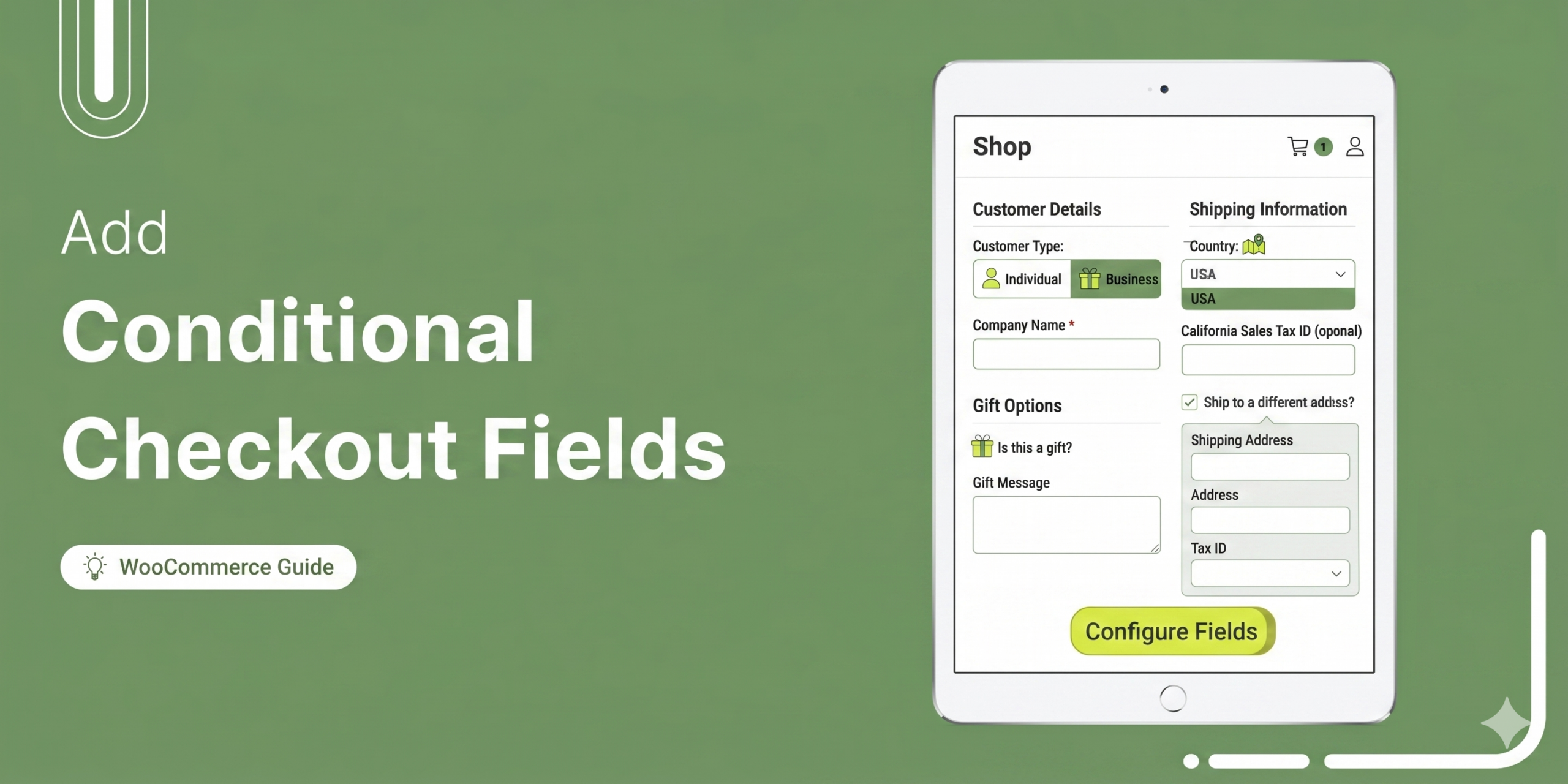
WooCommerce conditional checkout fields work like a good server: nobody hands the dessert menu to a table that just asked for the check.
Fields appear or stay hidden based on rules you set, so a gift message box shows up only when a customer picks gift wrapping, and a VAT number field only for business buyers in the EU.
Out of the box, WooCommerce cannot do this. Every customer sees the same static form, whether they are buying a digital download or a pallet of furniture.
Baymard Institute puts a number on what that costs: 18 percent of shoppers have abandoned a checkout because it felt too long or complicated.
That is not a UX detail. That is revenue walking away over form fields.
In this guide, we will show you how to add conditional fields to your WooCommerce checkout with a plugin and no code, then walk through an HPOS-safe code method for developers.
We will also cover triggering fields by shipping method, payment method, and cart contents, where block checkout compatibility stands, and how the top conditional field plugins compare.
Jump to the step-by-step process below
Table of Contents
- 1 What Are Conditional Checkout Fields in WooCommerce?
- 2 Every Trigger You Can Use for Dynamic Checkout Fields
- 3 Method 1: Add Dependent Checkout Fields Without Code
- 4 Method 2: Conditional Fields With Custom Code (HPOS-Safe)
- 5 Show Checkout Fields Based on Shipping Method, Payment Method, or Cart Contents
- 6 Do Conditional Fields Work With the WooCommerce Block Checkout?
- 7 What to Collect With Conditional Fields (Real Store Setups)
- 8 5 Conditional Checkout Field Plugins Compared
- 9 Frequently Asked Questions (FAQs)
- 10 Put Conditional Checkout Fields to Work in Your Store
What Are Conditional Checkout Fields in WooCommerce?
Conditional checkout fields are checkout fields that appear or disappear based on rules, such as what's in the cart, which shipping or payment method is selected, the customer’s country or role, or another field’s value.
The default checkout takes the opposite approach. It shows everyone everything, roughly 23 to 24 fields, when a good checkout does the job in 12 to 14.
Every field a shopper has to read and skip is friction, and checkout friction is the most expensive kind there is.
| Aspect | Static checkout fields | Conditional checkout fields |
|---|---|---|
| Who sees the field | Every shopper | Only shoppers who match the rule |
| Form length | Fixed, grows with every business need | Shortest possible per order |
| Data quality | Irrelevant fields get junk answers or blanks | Answers come from people the question applies to |
| Adding a niche requirement | Adds friction to all orders | Adds friction to the orders that need it |
| Setup | Built into WooCommerce | Needs a plugin or code |
The terminology varies by plugin with dependent fields, dynamic checkout fields, display rules, and conditional logic.
They all describe the same mechanic, though. A trigger, a condition, and a field that shows, hides, or becomes required.
Every Trigger You Can Use for Dynamic Checkout Fields
Most tutorials demonstrate one trigger type and leave you to guess about the rest, which is why so many people build a field-value example and then discover it doesn’t help with the rule they actually came for.
Here’s the full map, and what genuinely supports each one.
| Trigger | Example | No-code plugins | Custom code (classic) | Block checkout |
|---|---|---|---|---|
| Another field’s value | “Tax exempt? → show Tax ID” | Yes | Yes (JS + server validation) | Yes (JSON Schema) |
| Product in cart | Knife in cart → engraving text | Yes | Yes (server-side) | Yes (cart.items) |
| Product category in cart | Class booked → waiver name | Yes | Yes (server-side) | Yes (cart.items) |
| Shipping method | Local pickup → pickup time slot | ThemeHigh, WP Desk | Yes (JS + server validation) | Yes (prefers_collection, shipping_rates) |
| Payment method | Cash on delivery → phone confirmation | ThemeHigh, WP Desk | Yes (JS + server validation) | Yes (checkout.payment_method) |
| Cart total | Over $1,000 → PO number | Yes | Yes (server-side) | Yes (totals.total_price) |
| Cart item count | 12+ items → wholesale details | Yes | Yes (server-side) | Yes (items_count) |
| Coupon applied | WHOLESALE10 → company name | FunnelKit, WP Desk | Yes (server-side) | Yes (cart.coupons) |
| User role | Wholesale role → VAT number | Yes | Yes (server-side) | Yes (via registered fields) |
| Country or state | EU billing country → VAT ID | Yes | Yes (JS + server validation) | Yes (billing_address.country) |
| Virtual-only cart | Downloads only → hide address | FunnelKit | Yes (server-side) | Yes (needs_shipping) |
There’s a split running through that table worth understanding before you build anything.
- Cart-based triggers are known when the page renders
Cart contents, totals, coupons, user role, etc., WooCommerce knows all of it server-side before the form is drawn, so you can add or omit the field in PHP and be done.
- Selection-based triggers change after the page renders
Shipping method, payment method, country, and other field values are chosen by the shopper while they’re standing in the form.
The field has to exist in the DOM already and toggle with JavaScript.
That’s exactly where conditional validation breaks, and we fix it further down.
Method 1: Add Dependent Checkout Fields Without Code
To add conditional checkout fields in WooCommerce without writing code from scratch, we will use FunnelKit Funnel Builder.
FunnelKit Funnel Builder handles this with a rules interface on the checkout step, and the build takes about ten minutes.
One trade-off to state plainly before you start, because it decides whether this method is right for you at all: FunnelKit replaces your WooCommerce checkout with its own checkout page.
If you’re rebuilding checkout for conversion anyway, that’s the point of the tool.
If all you want is to bolt one conditional field onto your existing native checkout and change nothing else, a lightweight field editor is the smaller commitment.
See the comparison table below.
Step 1: Edit your checkout page
Make sure to create your store checkout in WooCommerce.
Once your steps are imported, click on the checkout page to start customizing it.
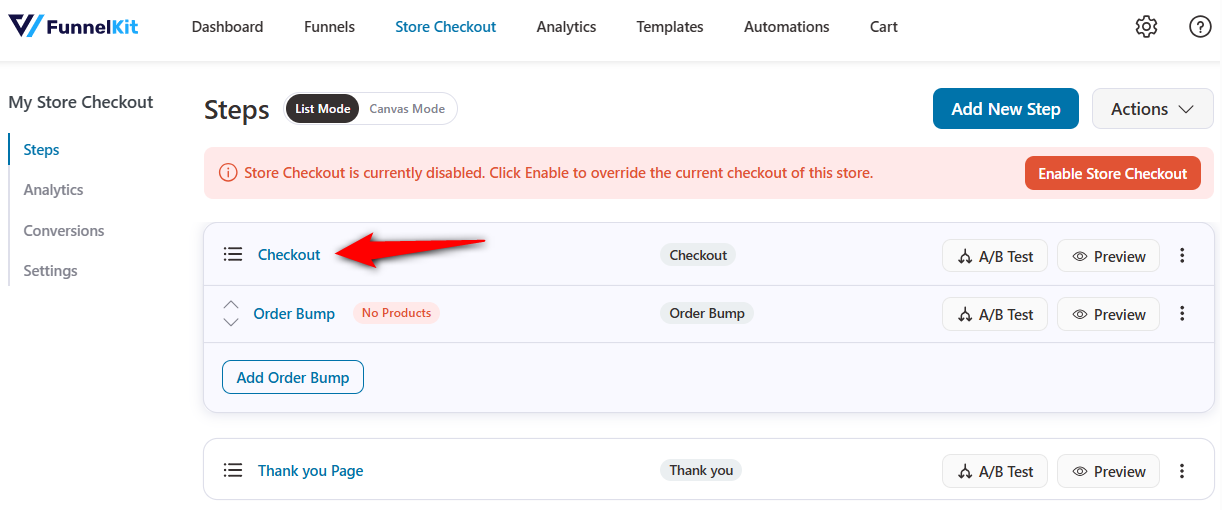
Under the Design tab, scroll down to the 'Checkout Form Fields' section.
This is where the built-in checkout field editor comes into action.
Step 2: Add the field you want to control
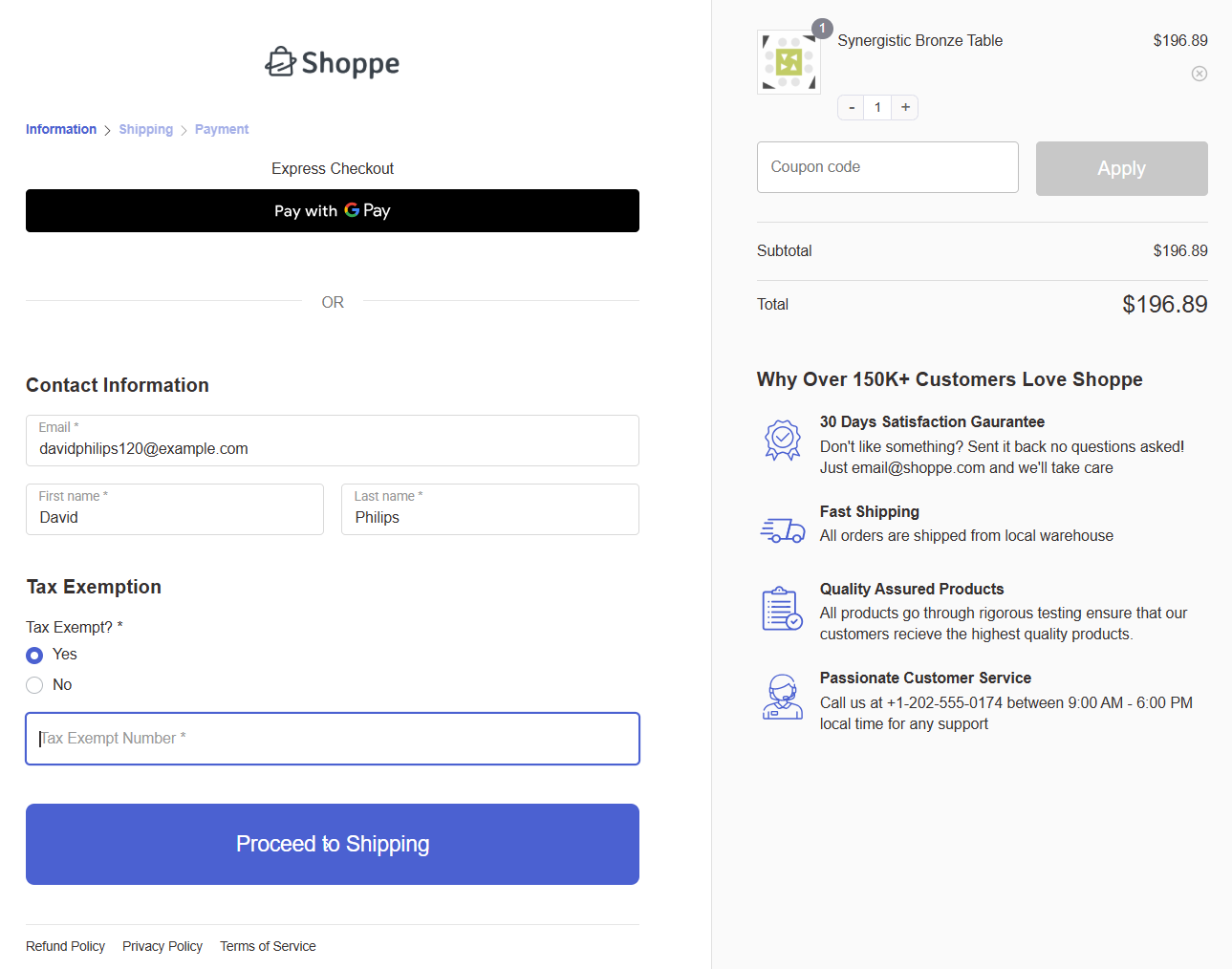
Let's create a conditional setup to collect tax-exemption information.
First, add a radio field labeled "Tax Exempt?" with options 'Yes' and 'No'. Assign a Field ID like tax_exempt.
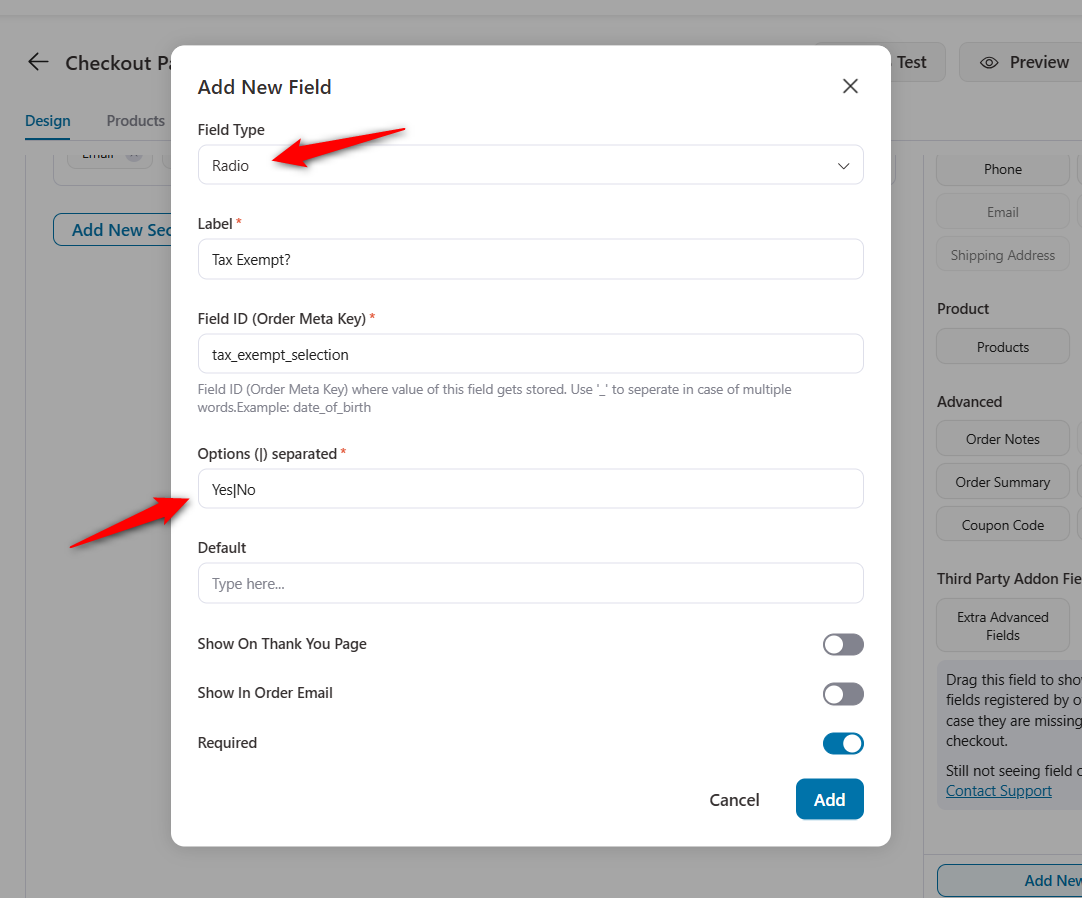
Next, create a second text field labeled “Tax Exempt Number” with a Field ID like tax_exempt_number.
Drag both fields into the billing section of your checkout form. Place the conditional field (Tax Exempt Number) directly below its trigger field (Tax Exempt?).
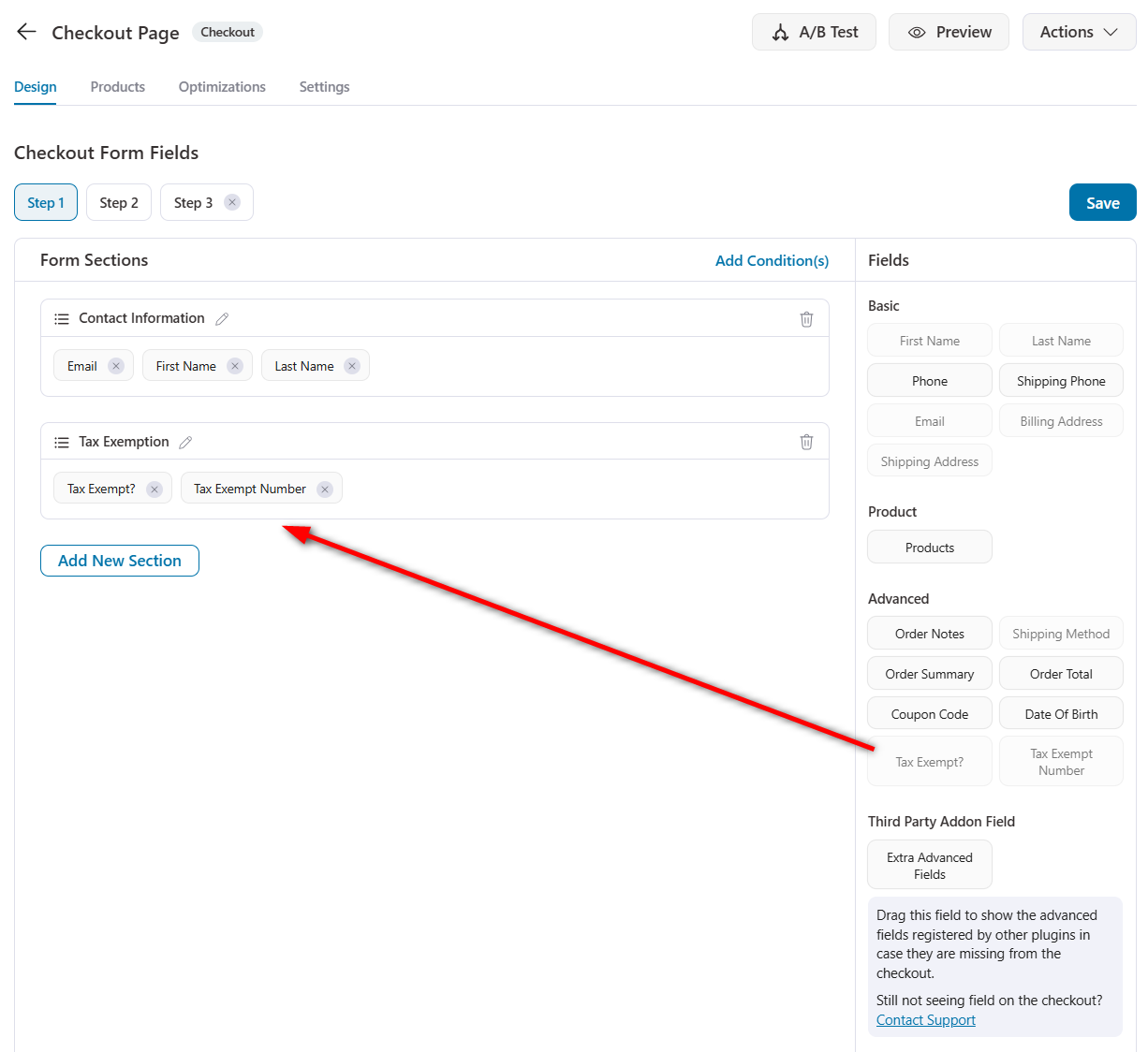
Save your changes.
Step 3: Add the conditional logic
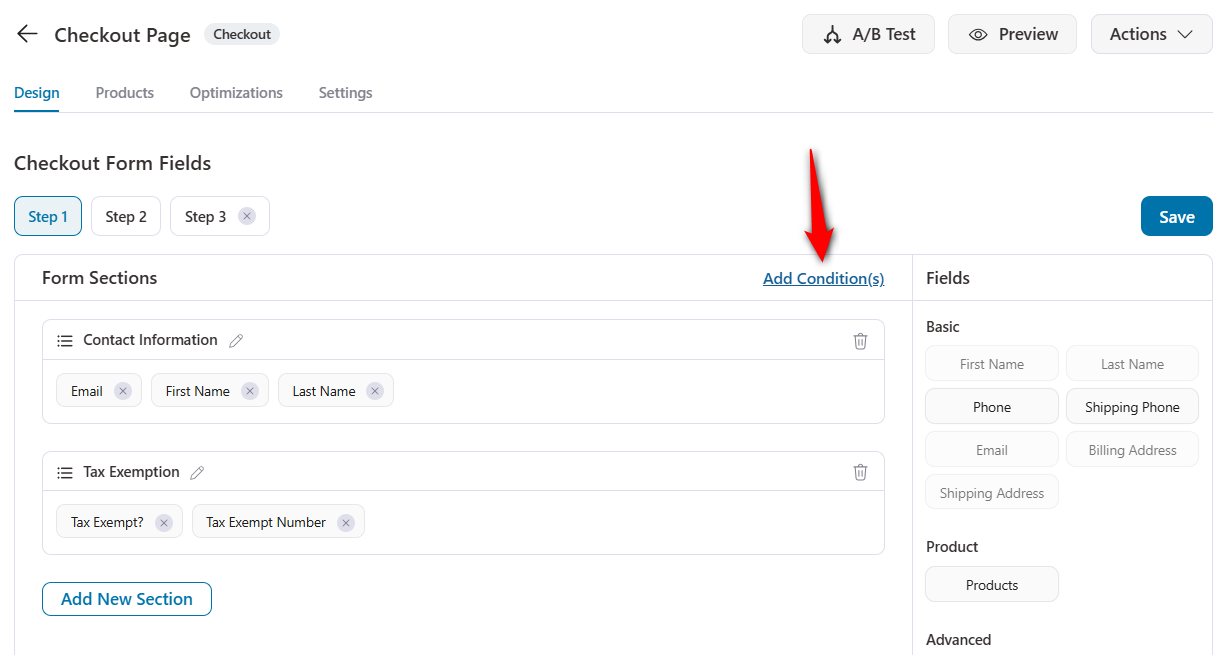
Click on 'Add Condition(s)' to set up the conditional checkout field logic.
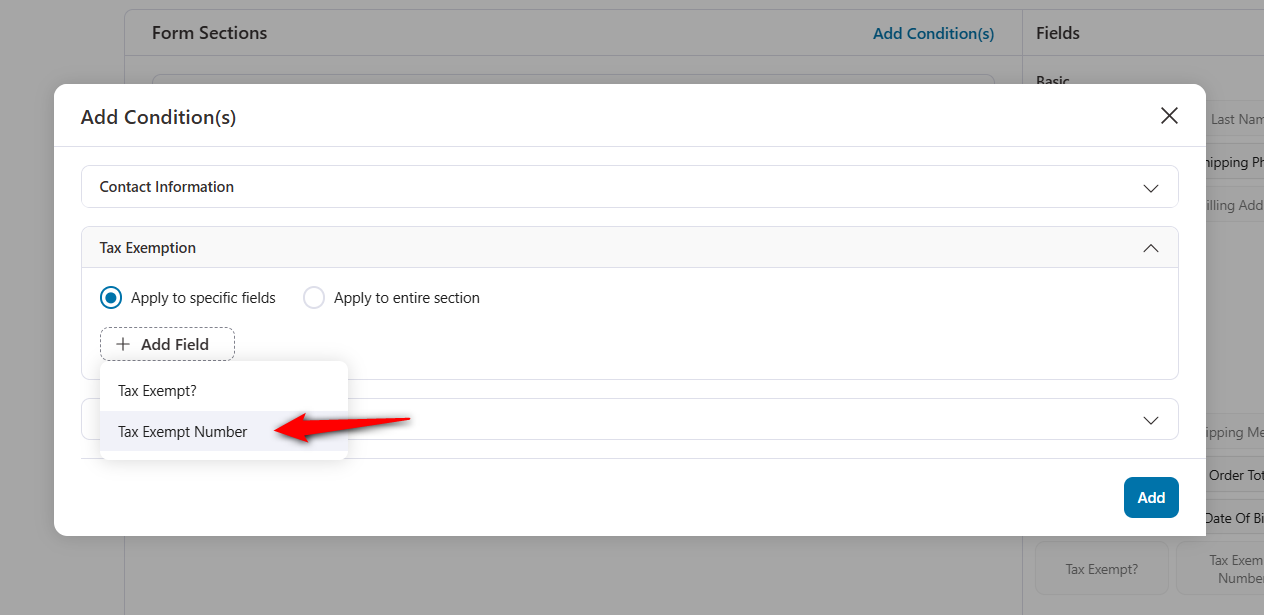
Select the 'Apply to specific fields' option and hit '+ Add Field'.
Choose the Tax Exempt Number field here.
Next, set up the condition for the "Tax Exempt?" custom field to exactly match 'Yes'.
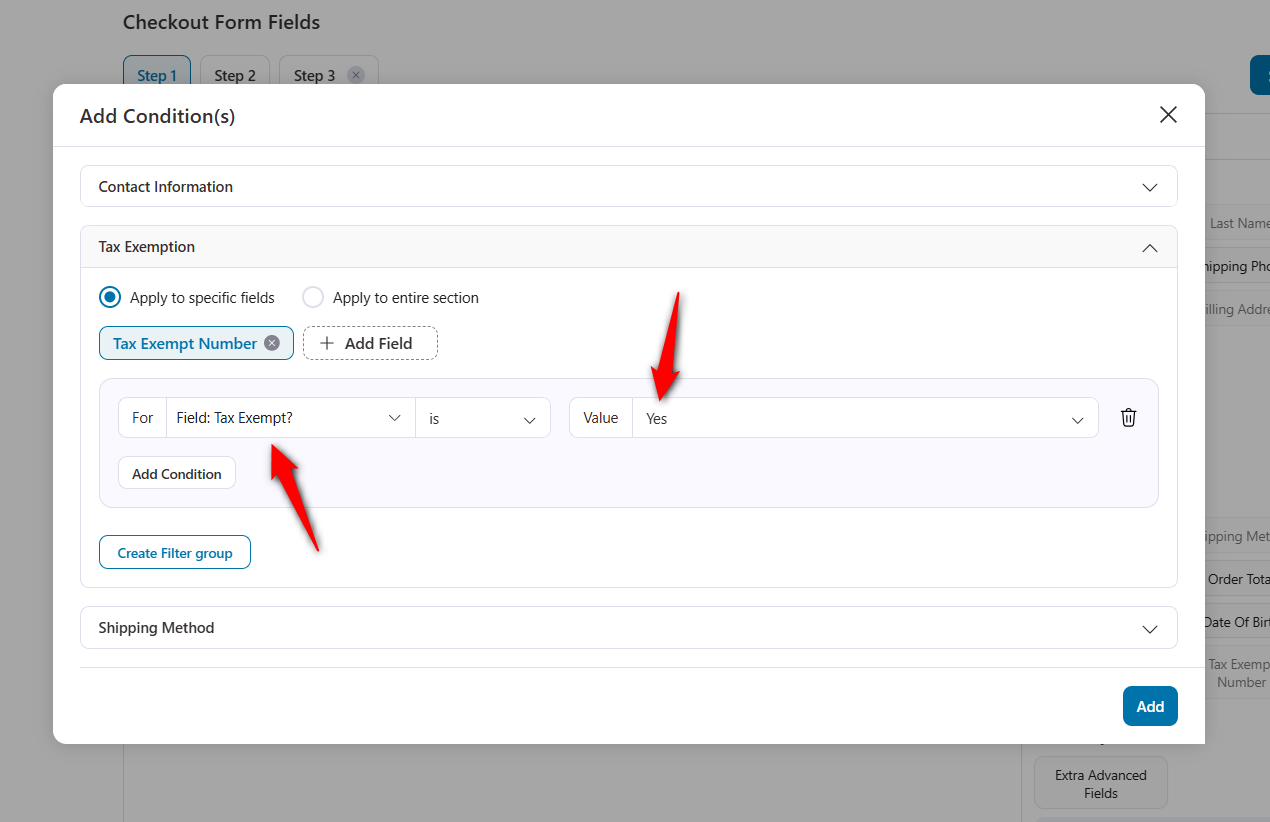
Conditions inside one group are AND, so all of them must be true.
Click 'Create Filter Group' to add an OR group, where any satisfied group shows the field.
Once done, click on 'Add'.
Step 4: Save and test your conditional checkout fields
Click Save and activate your checkout page as the global checkout for your store.
Test on both desktop and mobile devices. To test, go to any product, add it to your cart, and proceed to checkout.
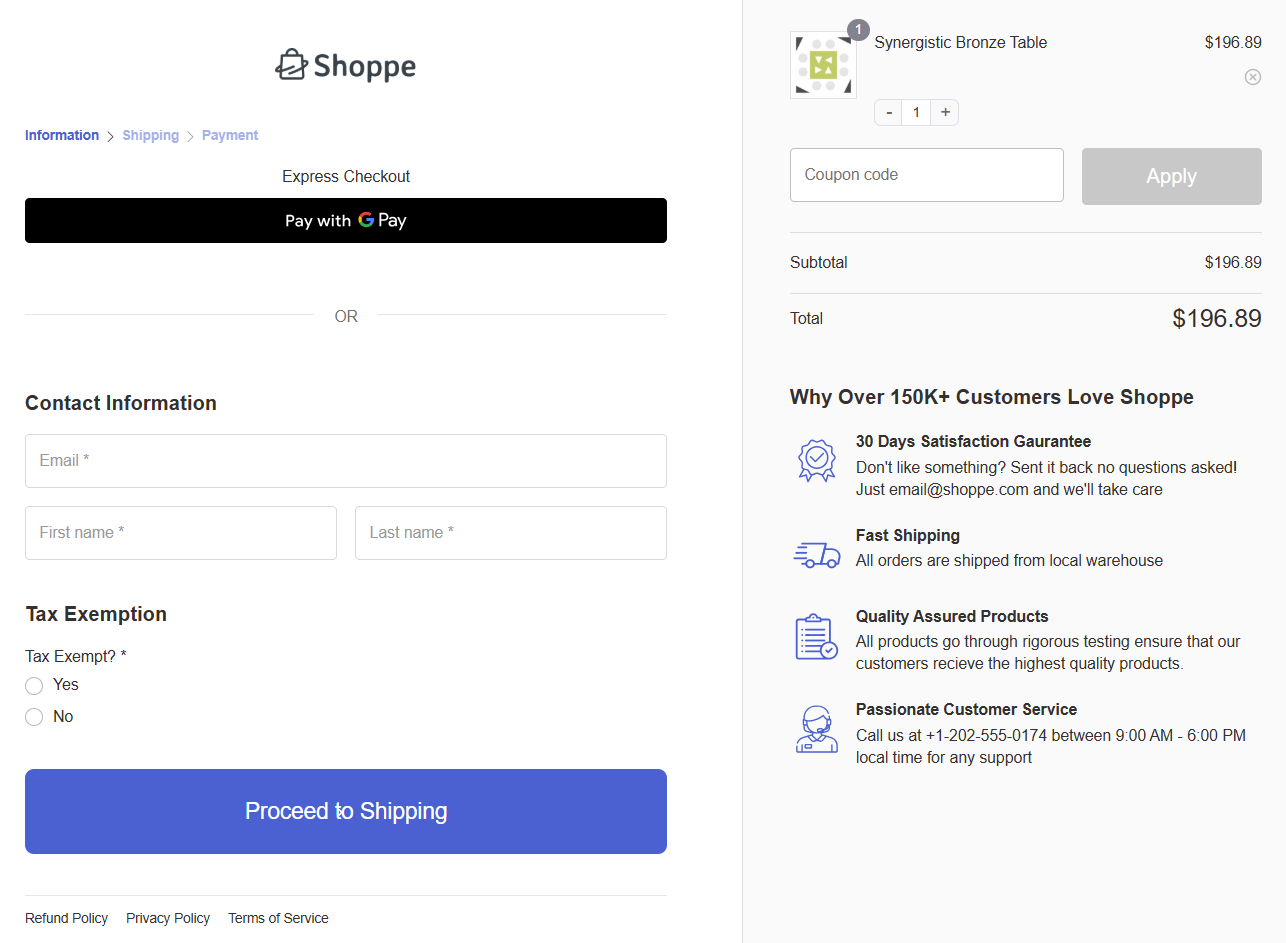
Verify that the conditional field is hidden by default and only appears when the correct trigger value (Tax Exempt in our case) is selected.
Try both trigger values to confirm the field shows and hides correctly.
Confirm that the custom field values are saved correctly under the order meta section.
FunnelKit’s condition types cover cart, user, and field values. There’s no native shipping-method or payment-method trigger.
For the pickup-time and cash-on-delivery rules, use ThemeHigh or WP Desk, or the code in the next sections.
Method 2: Conditional Fields With Custom Code (HPOS-Safe)
If you prefer working with WooCommerce hooks, you can build dependent checkout fields with PHP and a few lines of JavaScript.
This route gives you full control, and unlike most tutorials still circulating, the snippets below write to WooCommerce’s order object instead of legacy post meta, so they are safe for stores running High-Performance Order Storage (HPOS).
Test on a staging site first, and add the code through a child theme or a code snippets plugin so updates do not overwrite it.
These snippets are written for the classic shortcode checkout. If your store uses the block checkout, jump to the block checkout section below.
Our running example here is a gift wrapping option: a checkbox that reveals a gift message box, validates it only when relevant, and saves it to the order.
Step 1: Add the trigger and conditional field to the checkout form
The woocommerce_after_order_notes hook places both fields under the order notes area.
add_action( 'woocommerce_after_order_notes', 'fk_add_gift_wrap_fields' );
function fk_add_gift_wrap_fields( $checkout ) {
    woocommerce_form_field( 'gift_wrap', array(
        'type'  => 'checkbox',
        'class' => array( 'form-row-wide' ),
        'label' => 'Add gift wrapping to this order?',
    ), $checkout->get_value( 'gift_wrap' ) );

    woocommerce_form_field( 'gift_message', array(
        'type'        => 'textarea',
        'class'       => array( 'form-row-wide', 'gift-message-field' ),
        'label'       => 'Gift message',
        'placeholder' => 'Enter your gift message here...',
    ), $checkout->get_value( 'gift_message' ) );
}
Step 2: Show and hide the field with JavaScript
This script hides the gift message box by default and reveals it when the checkbox is ticked.
add_action( 'wp_footer', 'fk_gift_wrap_conditional_script' );
function fk_gift_wrap_conditional_script() {
    if ( ! is_checkout() ) return;
    ?>
    <script>
    jQuery( function( $ ) {
        var $giftField = $( '.gift-message-field' );
        $giftField.hide();
        $( '#gift_wrap' ).on( 'change', function() {
            $( this ).is( ':checked' ) ? $giftField.slideDown() : $giftField.slideUp();
        });
    });
    </script>
    <?php
}
Step 3: Validate the field only when it is visible
Mark a conditional field as required in its definition and WooCommerce will demand a value even while the field is hidden, leaving customers stuck on an error they cannot see.
The fix is to validate server-side only when the trigger condition is met.
add_action( 'woocommerce_checkout_process', 'fk_validate_gift_message' );
function fk_validate_gift_message() {
    if ( ! empty( $_POST['gift_wrap'] ) && empty( $_POST['gift_message'] ) ) {
        wc_add_notice( 'Please enter a gift message or untick gift wrapping.', 'error' );
    }
}
With this pattern, a hidden field can never block checkout, and a revealed field is properly enforced.
Step 4: Save the values to the order the HPOS-safe way
Instead of update_post_meta(), hook into woocommerce_checkout_create_order and write to the order object directly.
This works on every store, whether HPOS is enabled or not.
add_action( 'woocommerce_checkout_create_order', 'fk_save_gift_wrap_fields', 10, 2 );
function fk_save_gift_wrap_fields( $order, $data ) {
    if ( ! empty( $_POST['gift_wrap'] ) ) {
        $order->update_meta_data( '_gift_wrap', 'yes' );
        $order->update_meta_data(
            '_gift_message',
            sanitize_textarea_field( wp_unslash( $_POST['gift_message'] ?? '' ) )
        );
    }
}
Step 5: Display the values in order emails (optional)
By default, custom values only appear on the admin order screen.
This snippet adds the gift message to order emails using the order object’s getter, again avoiding legacy post meta.
add_action( 'woocommerce_email_order_meta', 'fk_show_gift_wrap_in_emails', 10, 3 );
function fk_show_gift_wrap_in_emails( $order, $sent_to_admin, $plain_text ) {
    if ( 'yes' === $order->get_meta( '_gift_wrap' ) && $order->get_meta( '_gift_message' ) ) {
        echo '<p><strong>Gift message:</strong> ' . esc_html( $order->get_meta( '_gift_message' ) ) . '</p>';
    }
}
The code route is a good fit for one or two stable rules.
Once you need multiple triggers, AND/OR combinations, or frequent changes, every new rule means more PHP, more JavaScript, and more edge cases to test.
That is usually the point where store owners move to a plugin.
Note: To edit, rearrange, or remove the default billing and shipping fields as well, see our guide to the WooCommerce checkout field editor.
Show Checkout Fields Based on Shipping Method, Payment Method, or Cart Contents
Field-value triggers like the two examples above are the easy case.
The three triggers below change while the customer is mid-checkout or depend on what is in the cart, so each needs a slightly different approach.
1. Show a field when a shipping method is selected
The classic example is local pickup.
Reveal a “Pickup time slot” dropdown only when the customer chooses local pickup, and keep it hidden for every courier option.
In a plugin, this is a single display rule on the field, for example “shipping method is local pickup”.
If you are coding it, the catch is that WooCommerce refreshes the checkout via AJAX whenever the shipping method changes.
Listen for the updated_checkout event on document.body and toggle your field there, not on page load.
Pair the slot dropdown with a date picker field if customers also need to choose a pickup day.
2. Reveal a field when a payment method is chosen
Stores using cash on delivery often add a phone confirmation or delivery note field that only appears for COD orders. Bank transfer orders might reveal a “Payment reference” field instead.
Plugins handle this with a “payment method is…” rule. In code, listen for changes on the payment method input inside the checkout form, since the gateway list also reloads with AJAX:
jQuery( 'form.checkout' ).on( 'change', 'input[name="payment_method"]', function() {
    jQuery( '.cod-note-field' ).toggle( jQuery( this ).val() === 'cod' );
});
3. Trigger fields from products or categories in the cart
Cart-based conditions are evaluated when the checkout renders, which makes them the simplest to code.
The snippet below shows a “Delivery access notes” box only when a product from the Furniture category is in the cart:
add_action( 'woocommerce_after_order_notes', 'fk_furniture_access_field' );
function fk_furniture_access_field( $checkout ) {
    foreach ( WC()->cart->get_cart() as $item ) {
        if ( has_term( 'furniture', 'product_cat', $item['product_id'] ) ) {
            woocommerce_form_field( 'delivery_access_notes', array(
                'type'  => 'textarea',
                'class' => array( 'form-row-wide' ),
                'label' => 'Delivery access notes (stairs, elevator, parking)',
            ), $checkout->get_value( 'delivery_access_notes' ) );
            break;
        }
    }
}
The same idea covers cart totals, quantities, virtual versus physical products, and subscription items.
Plugins expose all of these as dropdown rules, so most stores never touch the code version.
Do Conditional Fields Work With the WooCommerce Block Checkout?
This is the compatibility question to answer before you install anything.
WooCommerce now ships the block-based checkout as the default for new stores, and many conditional field plugins still only support the classic shortcode checkout.
Here is where things stand:
- Plugins with block checkout support
ThemeHigh’s Checkout Field Editor supports custom fields with conditional logic in the billing, shipping, and additional sections of the block checkout, although its custom sections remain classic-only.
WP Desk takes a modular route with a free Checkout Fields for Blocks plugin plus a paid conditional logic add-on.
- The developer route
WooCommerce’s Additional Checkout Fields API lets you register fields on the block checkout programmatically.
It does not yet include native show/hide logic, so conditional visibility means extending the Store API, a much heavier lift than the classic hooks in Method 2.
- The checkout replacement route
FunnelKit sidesteps the question entirely because it replaces the default checkout page with its own, so the classic versus block distinction does not apply to its conditional fields.
If you are committed to the native block checkout, shortlist only the plugins above and confirm block support in the changelog before you buy. It is the compatibility gap that catches most stores.
What to Collect With Conditional Fields (Real Store Setups)
That same pattern of asking only when it applies powers the setups we see conditional fields used for most often:
- Capture company and VAT details from business buyers
A dropdown asking “I am ordering as…” reveals Company Name, VAT number, and Purchase Order fields when Business is selected.
Add an OR rule so the VAT field also appears for EU billing countries regardless of the dropdown.
- Collect dietary restrictions for events and catering
A “Do you have dietary restrictions?” radio reveals a multi-select with options like vegan, gluten-free, and nut allergy.
It removes the follow-up email your team currently sends before every event.
- Store delivery preferences for subscription boxes
When a physical subscription product is in the cart, reveal a preferred delivery day selector and a standing instructions box.
Saved with the subscription, the preferences persist across every renewal order.
- Add age or ID confirmation for restricted products
When an age-restricted category is in the cart, reveal a required “I confirm I am over 18” checkbox, and optionally an ID number field.
The condition keeps the legal step away from customers it does not apply to.
- Collect personalization details for engravable products
When an engravable or custom product is in the cart, reveal an “Engraving instructions” box with a character limit.
The customer types it once at checkout instead of replying to a clarification email later.
5 Conditional Checkout Field Plugins Compared
No single tool wins here, and the right pick depends mostly on whether you’re changing your checkout architecture or leaving it alone.
| Plugin | Free version | Block checkout | Trigger types | Fees per field | Best for |
|---|---|---|---|---|---|
| FunnelKit Funnel Builder | Yes (conditional fields in Pro) | N/A (replaces the checkout) | Cart total, items, category, tag, item count, coupons, virtual cart; user role and status; any billing/shipping field value | No (uses order bumps) | Stores rebuilding checkout for conversion anyway |
| Checkout Field Editor (ThemeHigh) | Yes, ~20 field types; display rules are Pro | Yes, reduced field types and more limited logic | Payment method, shipping method, country, cart contents, subtotal, total, user role, product, variation, category, other field values | Yes (Pro) | Adding conditional fields to a native checkout you’re keeping |
| Flexible Checkout Fields + Checkout Fields for Blocks (WP Desk) | Yes, both; conditional logic is paid on each | Yes, via the separate Blocks plugin + Conditional Logic add-on | Shipping method, payment method, products, categories, cart value, user role, date, other fields | Yes (add-on) | Block-checkout stores that need rules without code |
| Conditional Woo Checkout Field (Amplify) | Yes, one field for one product | No | Products and categories in cart | Yes (fee tied to the response) | Product-triggered fields that carry a surcharge |
If you need a shipping-method or payment-method trigger and don’t want to write code, ThemeHigh or WP Desk are the answer.
If you only need one conditional field on a checkout you’re otherwise happy with, installing a funnel builder is the wrong size of tool.
FunnelKit earns its place when conditional fields are one item on a longer list that also includes checkout layout, express payments, order bumps, and upsells.
At that point, running one plugin instead of four is the argument.
Plugin capabilities shift between versions, so confirm block support against the current release before committing.
For the wider field, see our roundup of WooCommerce checkout plugins.
Frequently Asked Questions (FAQs)
The most common conditions include customer input (selecting a radio button, checking a checkbox, or choosing a dropdown option), products or product categories in the cart, cart total or item count, selected shipping method, user role, billing or shipping country, etc.
Plugin-based solutions typically support all of these through a visual interface, while custom code can handle any condition you can write logic for.
Restricting checkout is a different feature from conditional fields: instead of showing or hiding inputs, you block the order entirely when a rule fails, such as a restricted shipping destination or an ineligible cart.
Many tools specialize in this and can display a custom notice explaining why the order cannot be placed.
Most conditional checkout field plugins like FunnelKit Funnel Builder work with any theme that follows WooCommerce coding standards.
However, heavily customized themes or themes that override WooCommerce checkout template files can sometimes conflict with conditional field logic.
If you encounter display issues, check whether your theme modifies the form-checkout.php or form-billing.php template files.
Yes, several plugins support adding fees to conditional fields. For example, Amplify Plugins Conditional Woo Checkout Field Pro lets you charge fees per entry, per letter, per word, or per selected option. The Conditional Checkout Fields plugin on WooCommerce.com also supports field-based pricing.
With custom code, you can use the woocommerce_cart_calculate_fees hook to add dynamic fees based on checkout field values.
WooCommerce checkout pages have several sections where fields can be placed: billing details, shipping details, additional information (order notes), and the order review area.
Most plugins let you add fields to any of these sections. Some plugins also support creating entirely new sections that can be positioned before or after any existing section, including before billing fields, after shipping fields, or before order review.
You should always follow these best practices when adding conditional checkout fields to WooCommerce:
- Check for JavaScript errors
- Verify field IDs match exactly
- Clear all caches
- Check for any plugin conflicts
- Check HPOS compatibility
- Test the condition trigger yourself
Yes, as long as the trigger and its dependent field live on the same step.
Splitting them across steps means the customer answers the trigger, moves on, and never sees the field it revealed.
Put Conditional Checkout Fields to Work in Your Store
The stores that get this right aren’t collecting less information.
They’re collecting the same information from a fraction of the shoppers, which is why their checkouts stay near Baymard’s 8-field mark while still capturing waivers, VAT numbers, and pickup slots.
You do not need all of it on day one. Find the one question your checkout currently asks everyone that only some buyers should see, and turn it into a rule.
That single change ships in about 15 minutes with the field editor, and small lifts like it are how checkouts compound.
FunnelKit Funnel Builder is where we would build it, because the conditional fields come bundled with the checkout templates, express payments, and upsells that move revenue measurably.
So get there fast by clicking the button below!
Editorial Team
October 11, 2026You can customize the WooCommerce cart page with the Cart block, a page builder like Elementor, or CSS and PHP snippets. Which method works for you depends on the cart...

Editorial Team
October 9, 2026A WooCommerce discount lowers what a shopper pays, either through a reduced product price or a code entered at checkout. Out of the box, WooCommerce gives you two ways to...
Editorial Team
October 9, 2026A downsell gives customers a cheaper option after they turn down your main offer. If you show it too soon, you might convince them to skip the original offer and...






