Would you like to show shoppers a bundle offer on your product pages without touching any code? In this guide, we'll walk you through creating your first bundle, from picking a bundle type to setting it live. All you need is Funnel Builder installed and activated.

Before you get started, make sure Funnel Builder is installed and activated on your WordPress site. If you need help, see our guide on installing the plugin and activating your license.
How to Create Bundles Using FunnelKit Bundles
Now steps the follow below:
Step 1: Navigate to the Bundles Settings
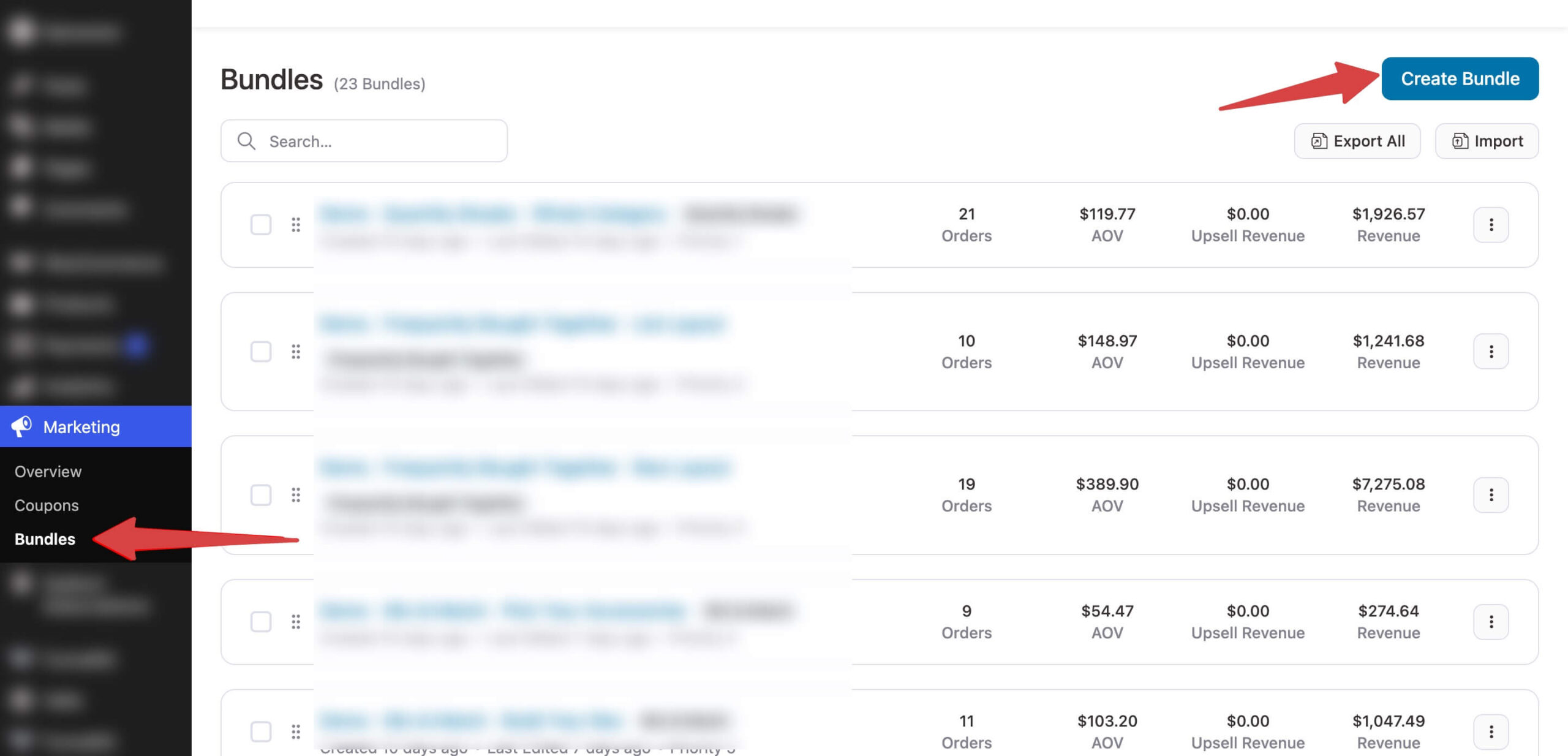
Go to Marketing » Bundles in your WordPress dashboard. Bundles opens inside the Funnel Builder app, with its own Bundles item in the FunnelKit top menu. You'll see a list of every bundle on your store.
To start a new one, click Create Bundle in the top-right corner of the list.
Step 2: Choosing a Bundle Type
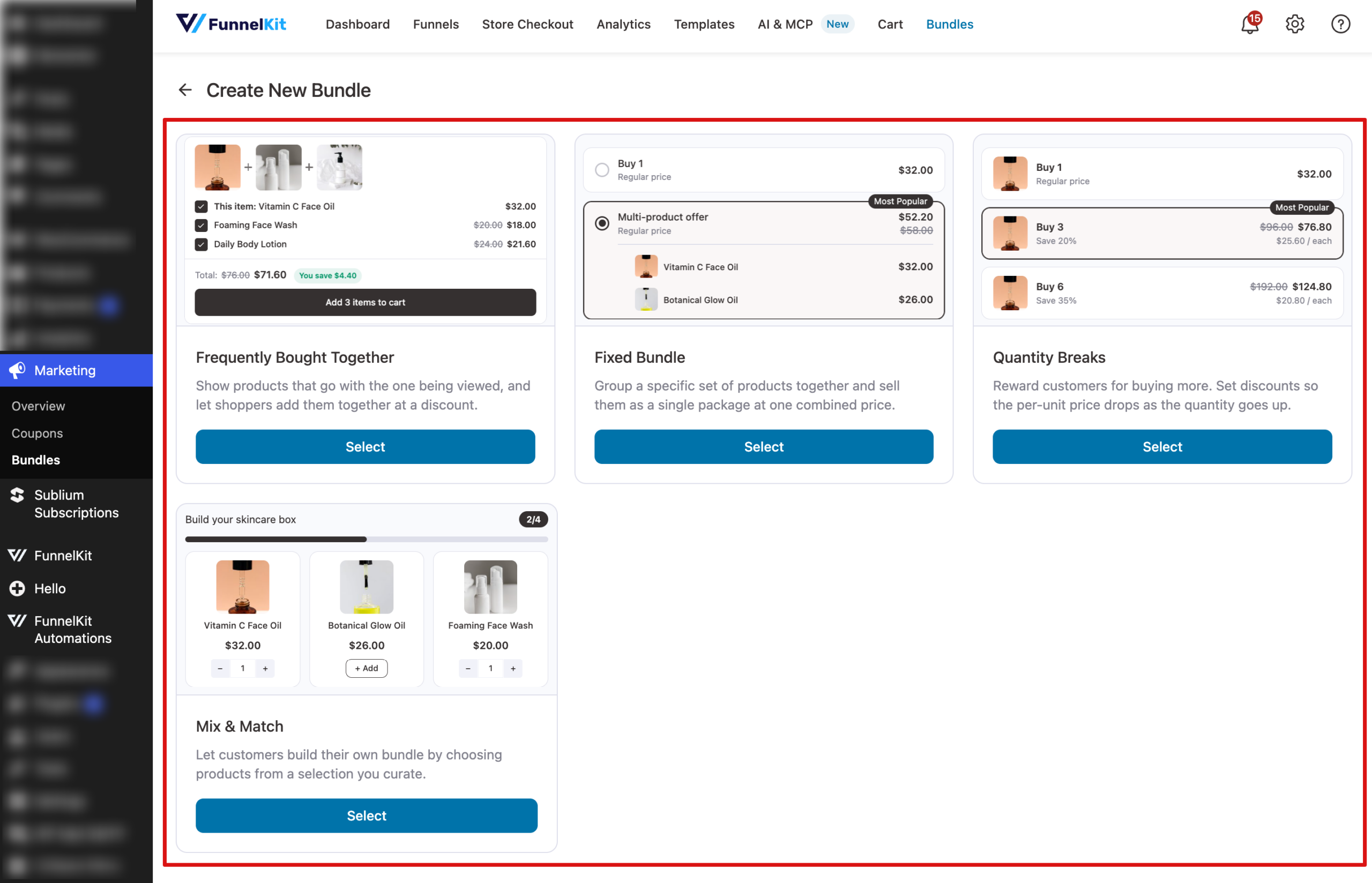
The Create New Bundle screen shows the four bundle types, each with a small preview of how it looks to shoppers:
- Frequently Bought Together: shows products that go with the one being viewed and lets shoppers add them together at a discount. See setting up Frequently Bought Together.
- Fixed Bundle: sells a set group of products as one package at a combined price. See creating a Fixed Bundle.
- Quantity Breaks: lowers the price per unit as shoppers buy more of the same product. See setting up Quantity Breaks.
- Mix & Match: lets shoppers build their own box from a selection of products you choose. See creating a Mix and Match bundle.
Click Select on the type you want. The plugin creates the bundle as a draft and opens it in the editor.
Starting from a Quick Start
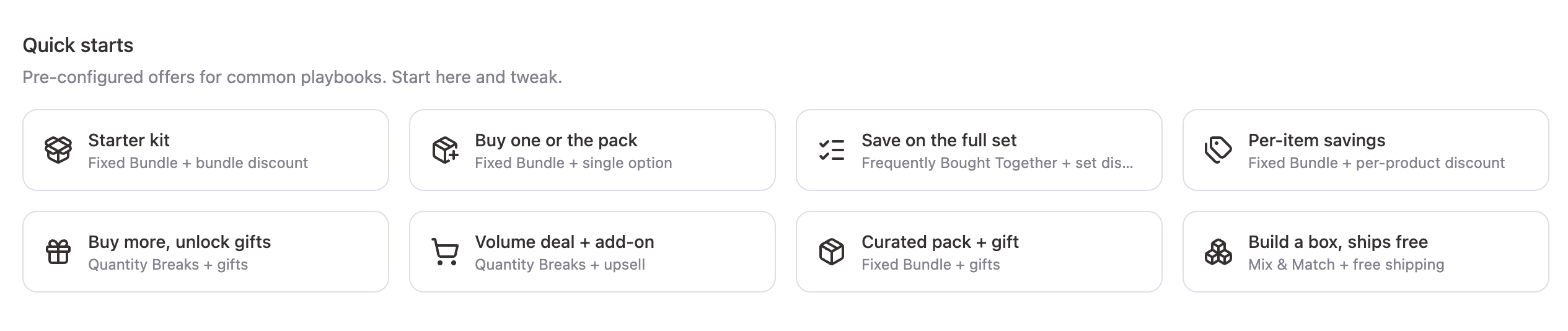
Below the type cards, the Quick Start section offers ready-made setups for common strategies, such as Buy more, unlock gifts, Unlock free shipping, Volume deal + add-on, Curated pack + gift, and Build a box, ships free. Each one opens a bundle with the matching type and features already turned on, so you only need to pick products and adjust the numbers.
Getting to Know the Bundle Editor
The editor has two tabs. The Settings tab holds everything about the offer itself: which products it appears on, the deal, and any gifts or upsells.
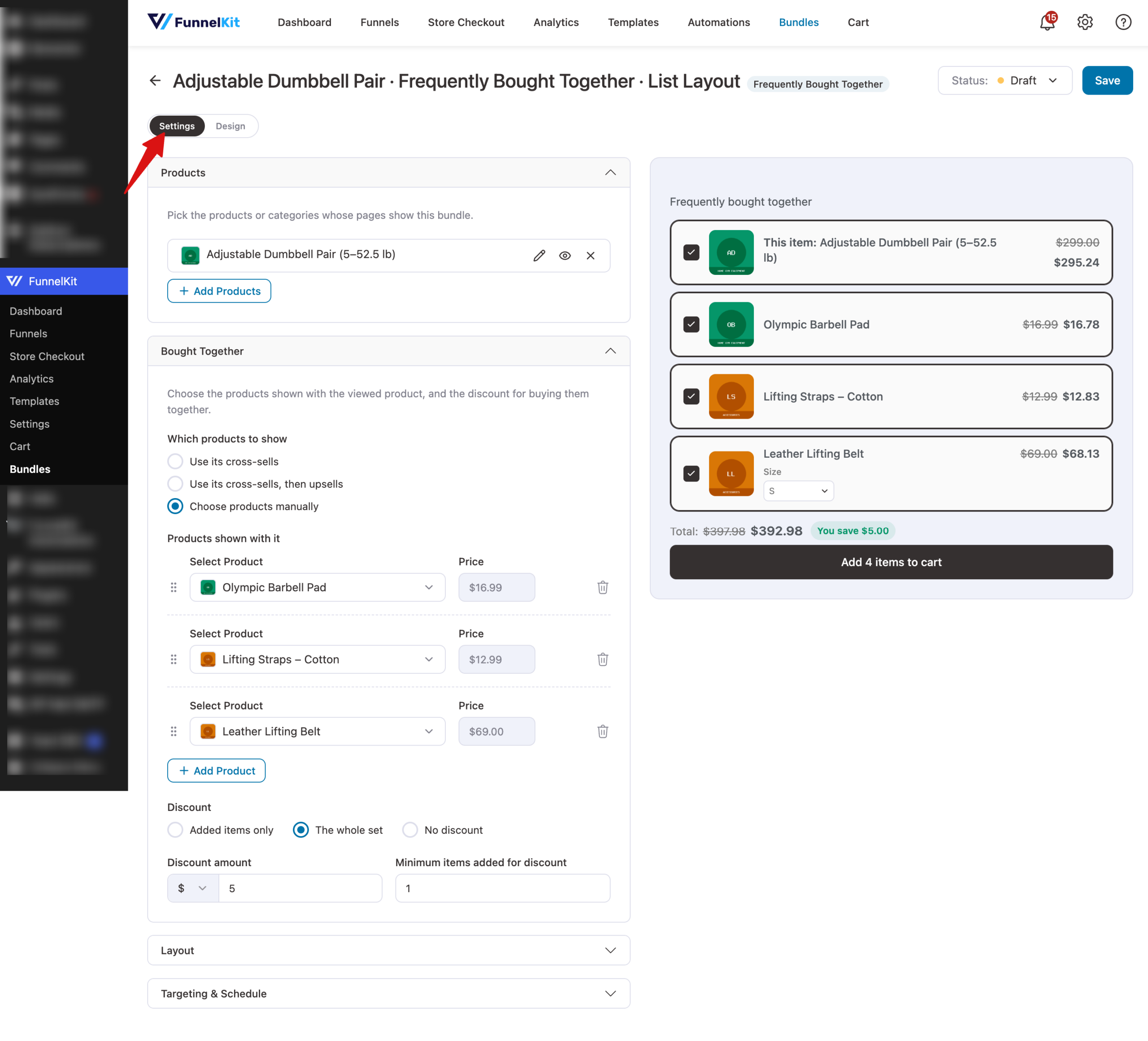
The Design tab controls colors, borders, and text styles. On the right, a live preview shows exactly what shoppers will see, and when the bundle is on more than one product, the Preview product dropdown above it lets you check it on each one.
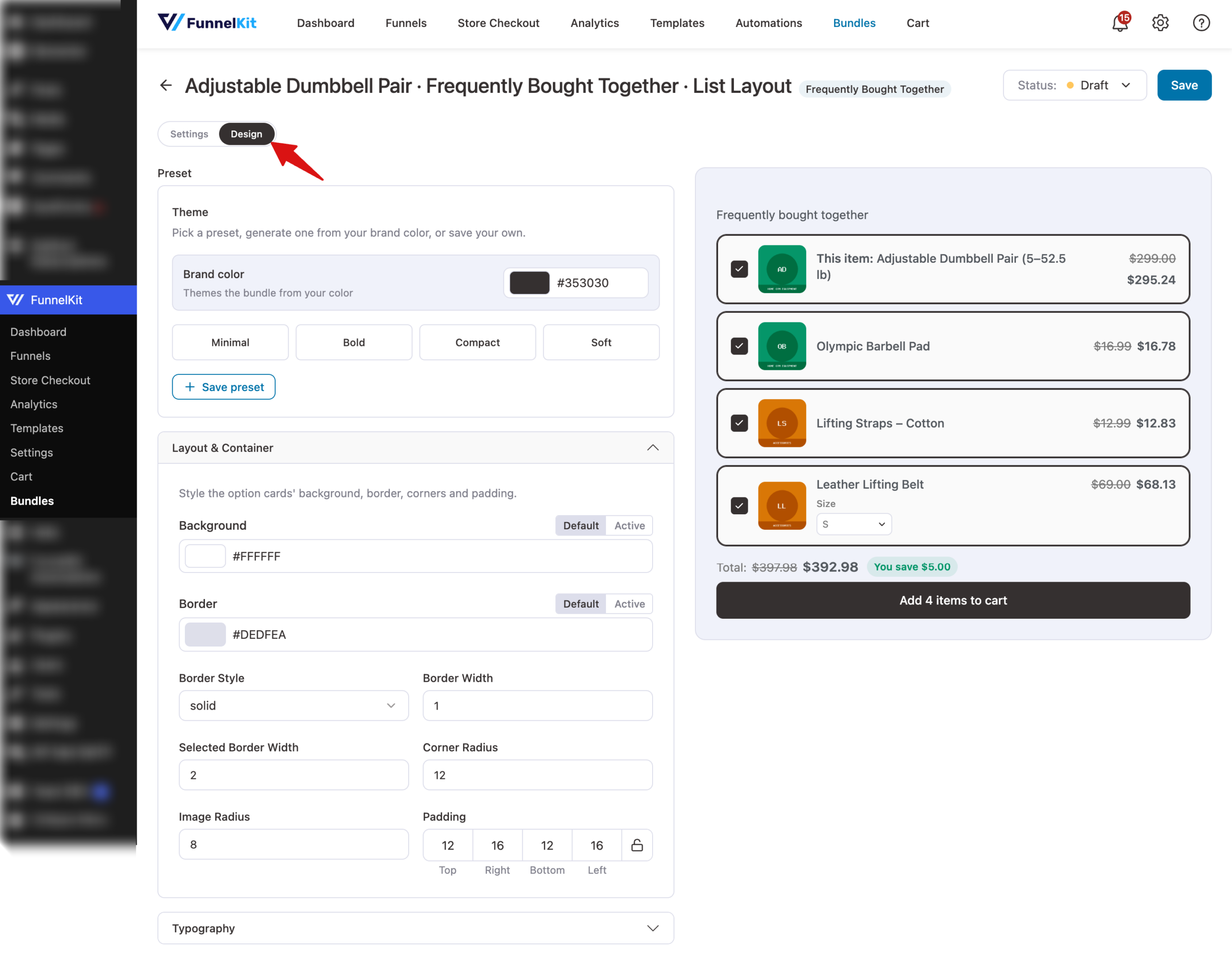
Each section on the Settings tab opens and closes when you click its header. Sections with a switch next to the header, like Upsells and Progressive Gifts, are optional features you can turn on when you need them.
To rename the bundle, click its title at the top of the editor and type a new name. Shoppers never see this name. It's only for you.
Setting the Bundle Live
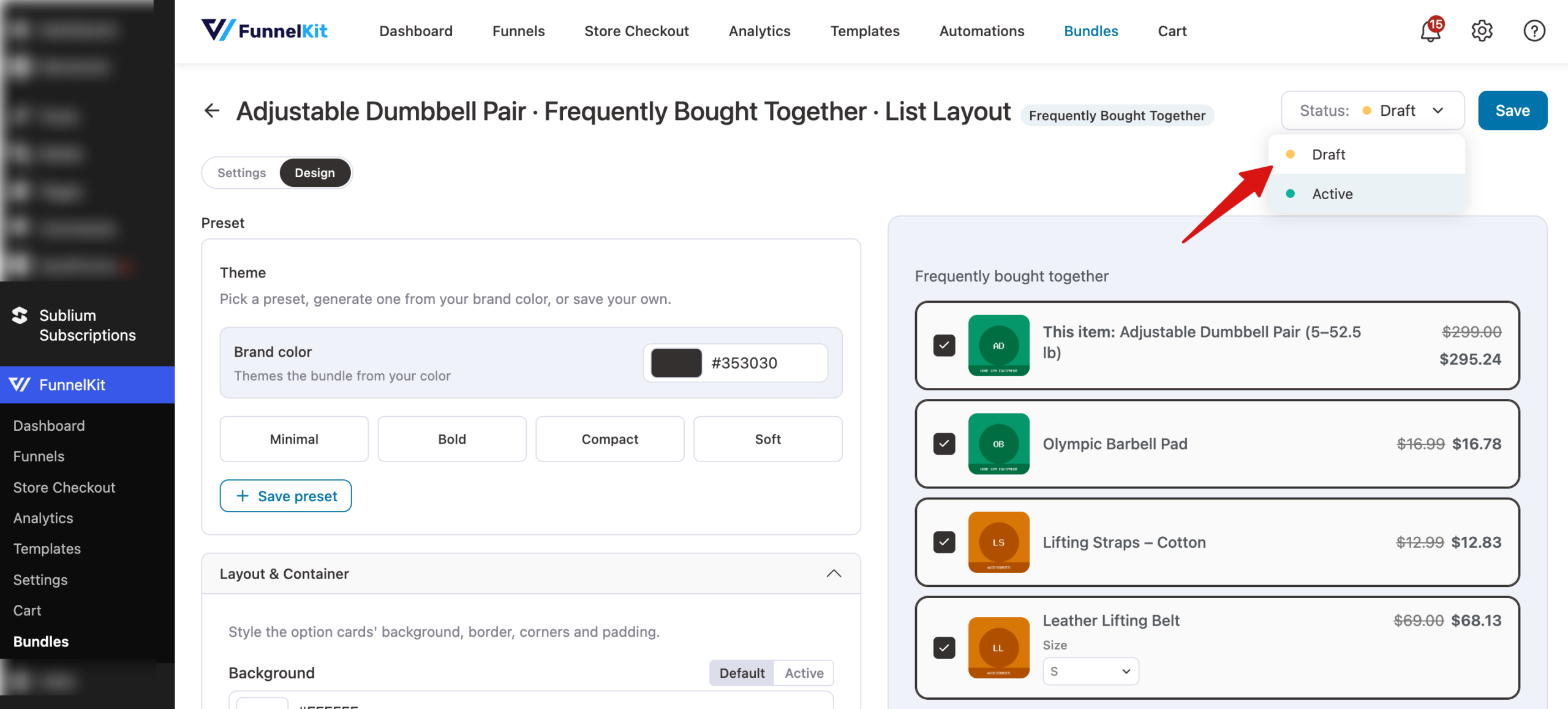
New bundles start as drafts, so nothing shows on your store while you build. When you're ready to go live, open the Status dropdown in the top-right corner, choose Active.
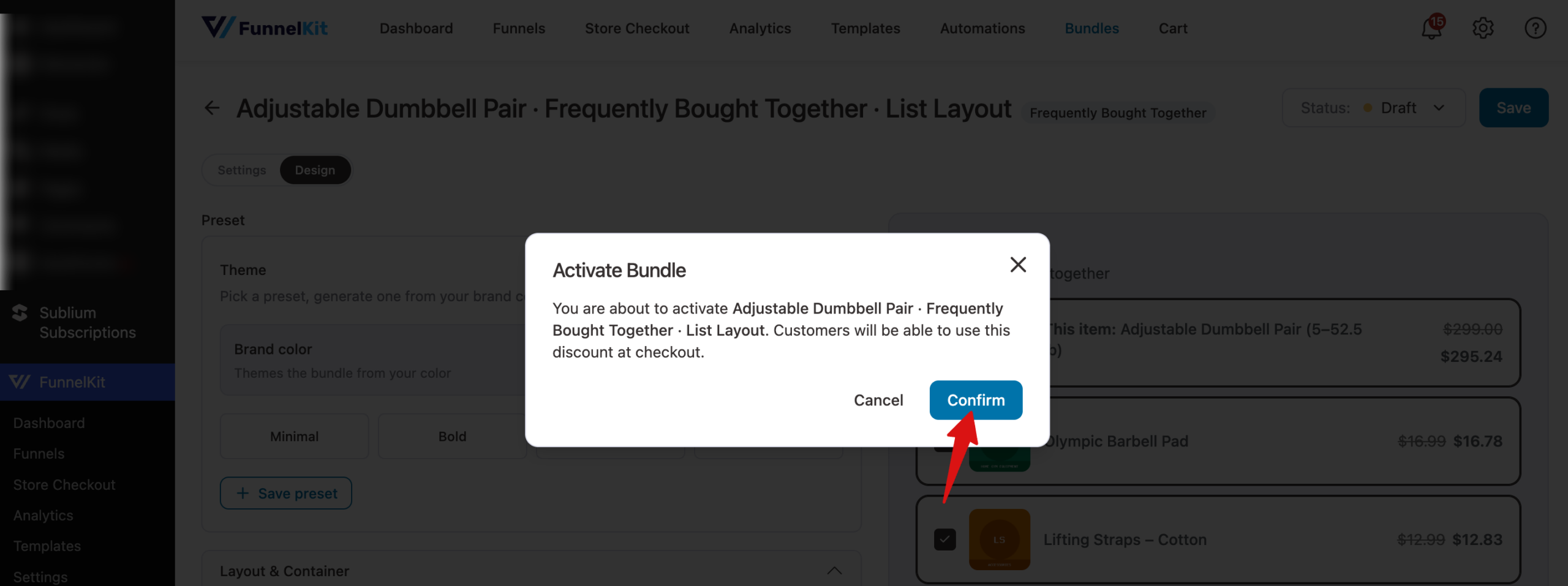
Next, click Confirm in the Activate Bundle window. Your changes are saved, and the bundle goes live right away.
When you're done making changes, click Save. If something needs fixing, such as an offer with no quantity, the editor highlights the field and explains what to change before it saves.
That's it! You've created your first bundle and set it live on your store.
Next, you might want to customize your bundle's design to match your brand.
FAQ
Can I change a bundle's type after creating it?
The type is set when you create the bundle and shows as a label next to its name in the editor. To use a different type, create a new bundle.
Why don't I see my bundle on the product page?
Check that the bundle's status is Active, that the product is listed in its Products section, and that its schedule hasn't ended. Also check whether another active bundle higher in your list targets the same product, since only one bundle shows per product.
Can I preview a bundle before setting it live?
Yes. The live preview in the editor updates as you change settings. Store administrators also see bundles on the storefront regardless of the user role targeting, so you can check the real product page while you're logged in.