Would you like to let shoppers build their own box from a selection of products, with better discounts for larger boxes?
In this guide, we'll walk you through creating a Mix and Match bundle, from choosing the products to setting box sizes and limits.

Before you get started, make sure Funnel Builder, Funnel Builder Pro, and the Bundles Addon are installed and activated on your WordPress site. If you need help, see our guide on installing the plugin and activating your license.
Step 1: Choosing Where the Box Builder Appears
To begin, go to FunnelKit » Bundles, click Create Bundle, and select Mix & Match.
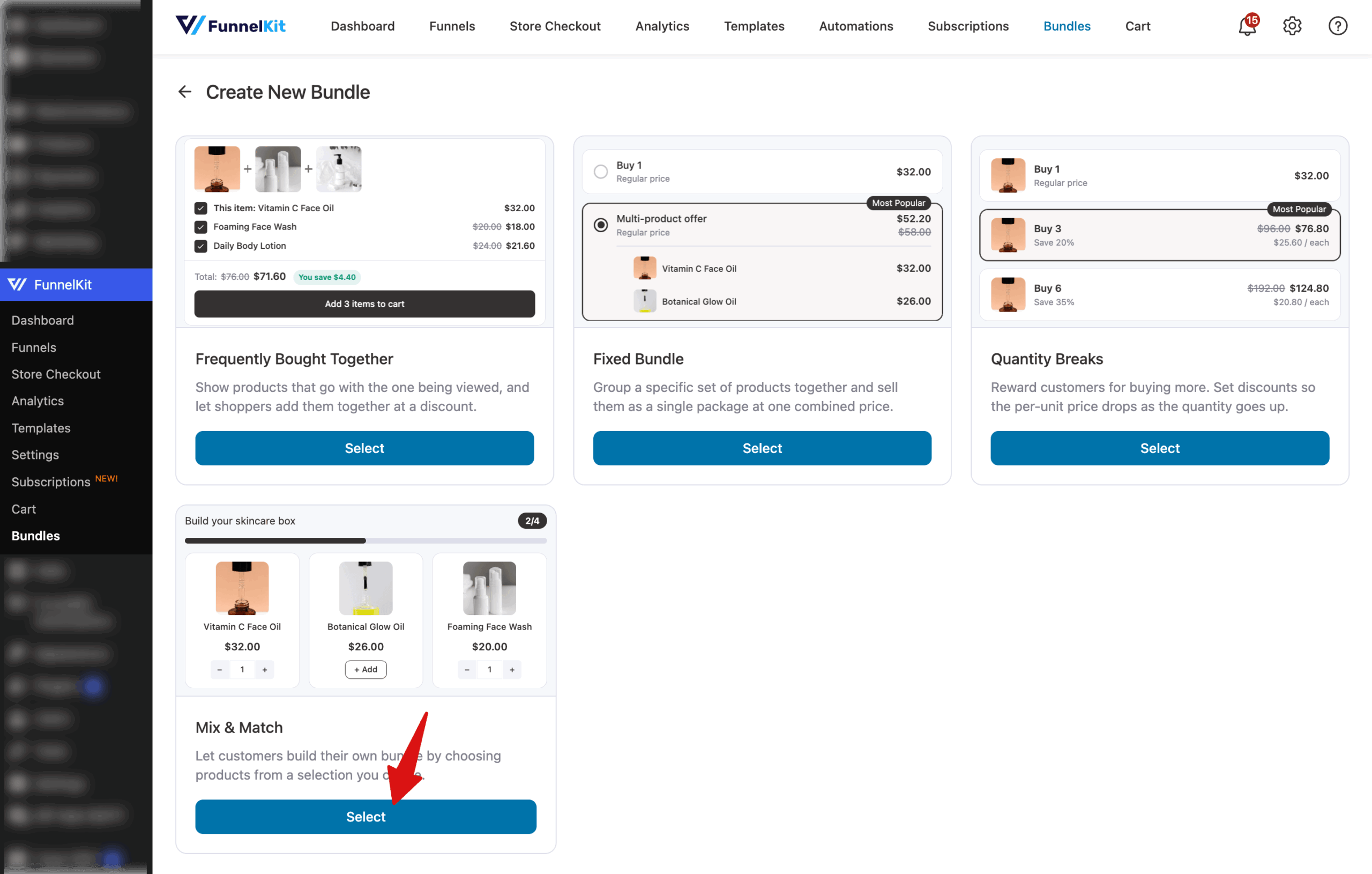
Next, provide a name. In the Products section, click Add Products.
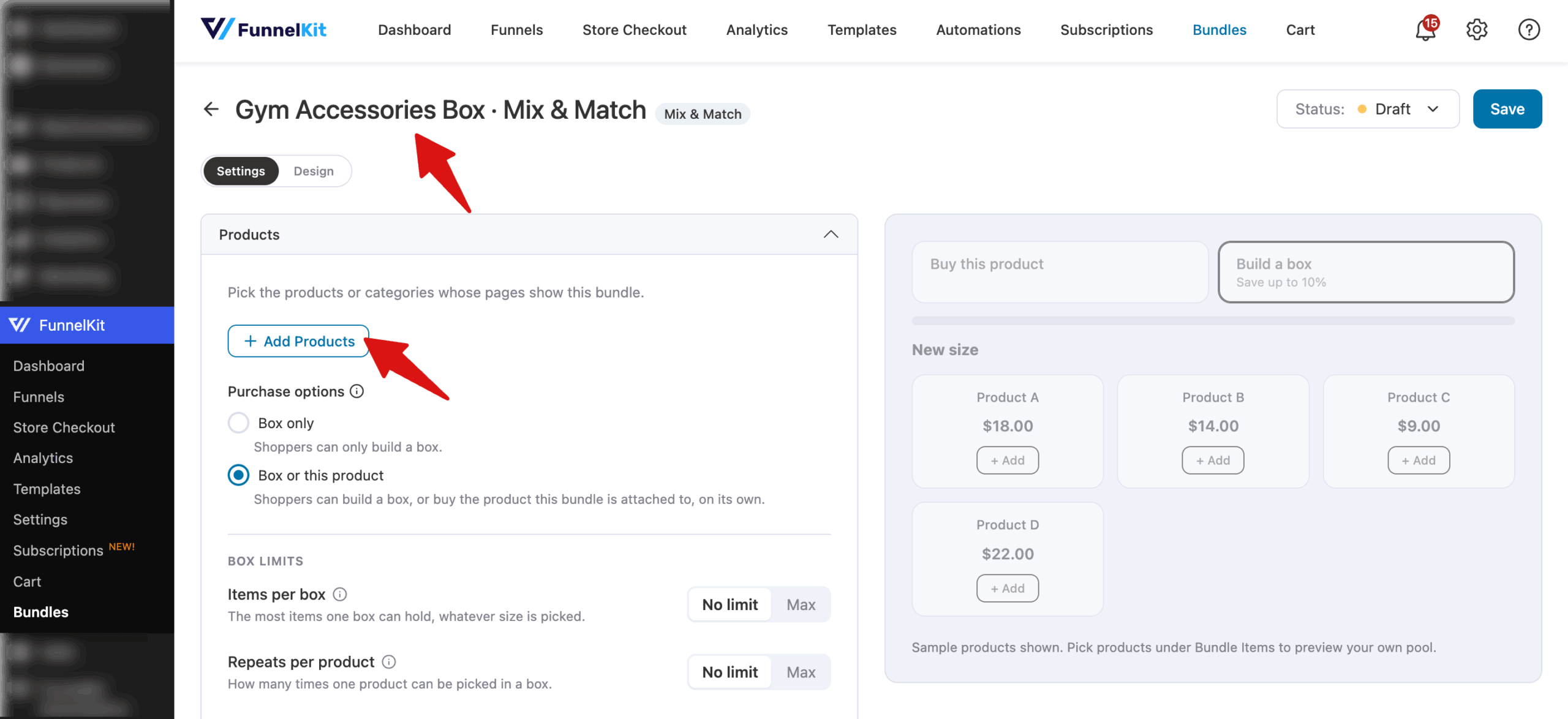
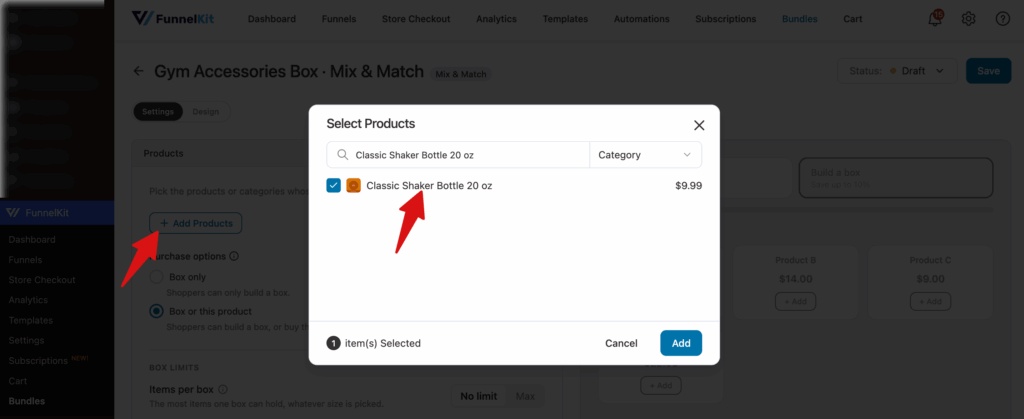
Then search for and add the products whose pages will show the box builder.
Below the product list, you'll set what shoppers can buy and how full a box can get.
Step 2: Setting the Purchase Options
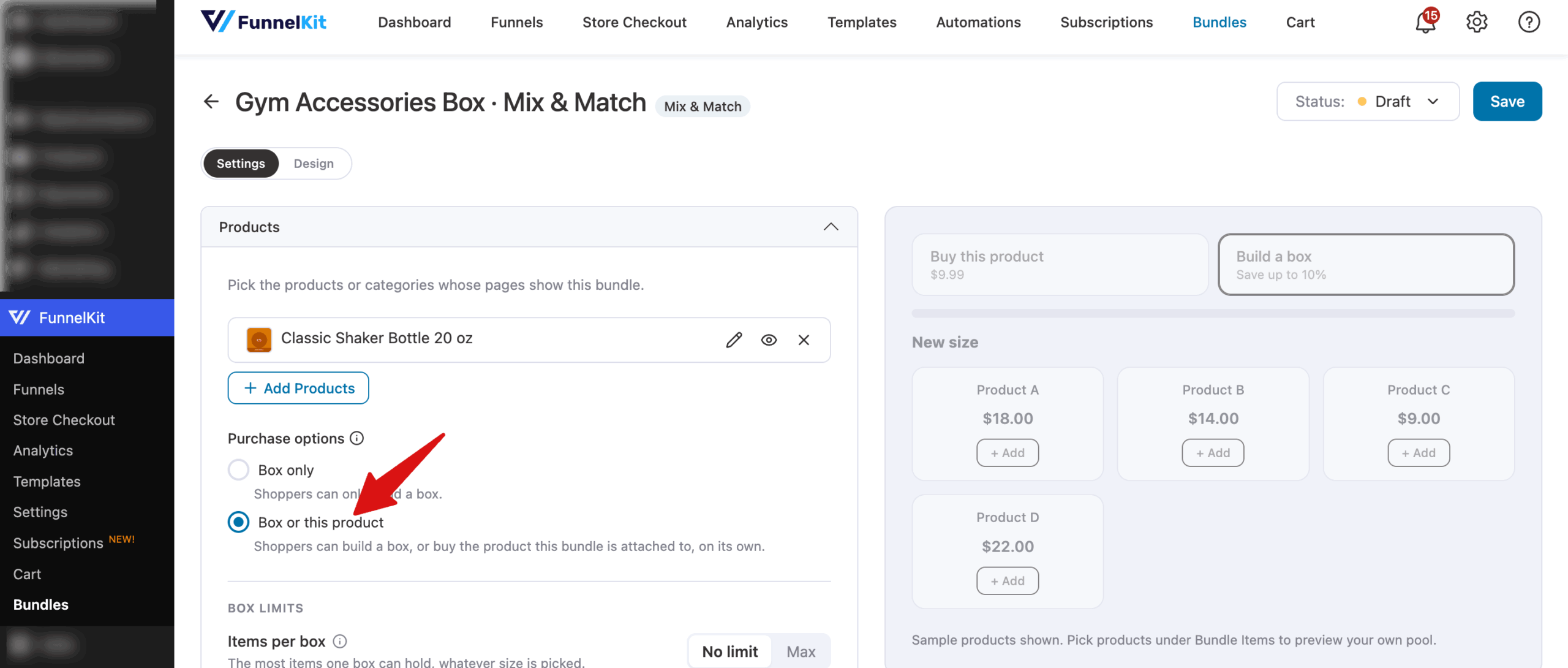
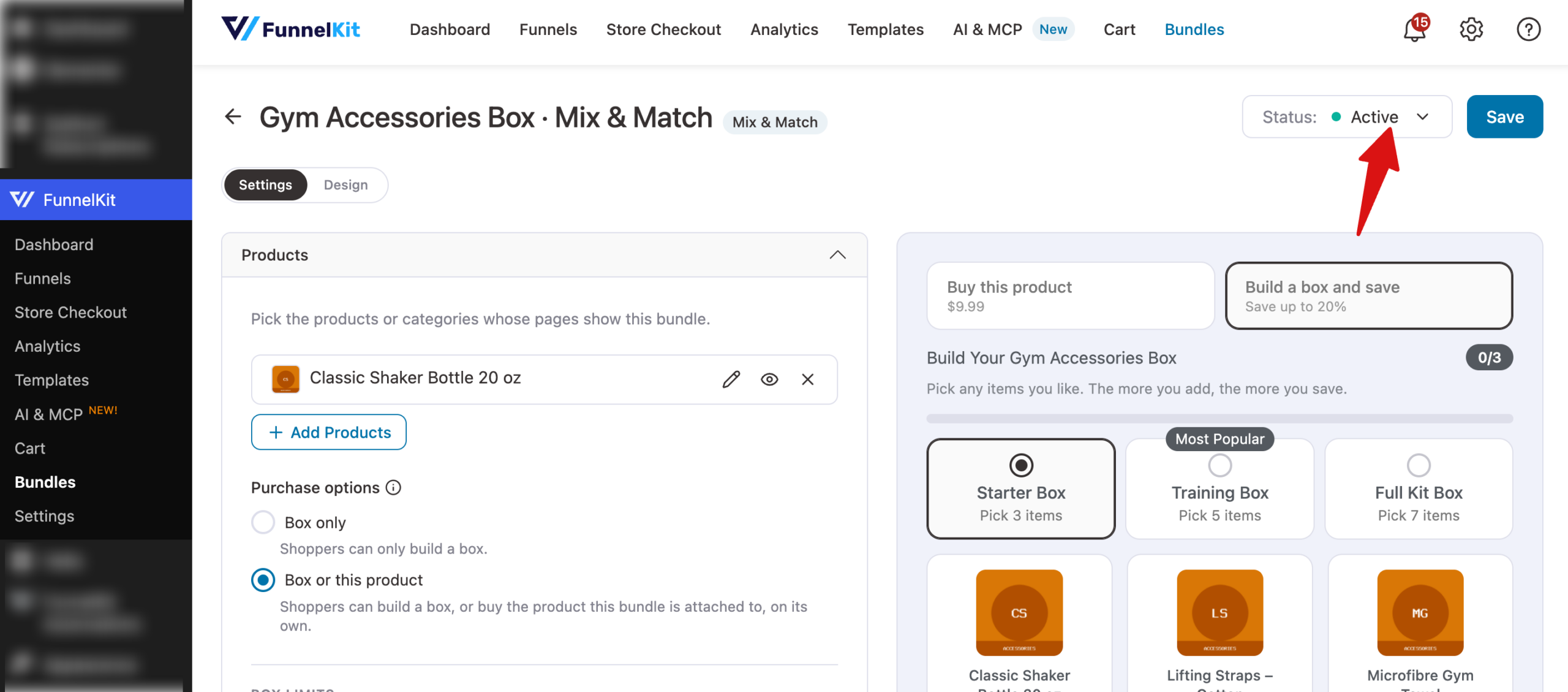
Under Purchase options, choose what shoppers can buy on the product page:
- Box only: the page shows only the box builder. Shoppers pick products and buy the box at your discounted price.
- Box or this product: the page shows two choices. Shoppers can buy the product they're viewing on its own at its regular price, or build a box.
If you choose Box or this product, a Box Builder section appears where you can rename the two choices (for example, Buy this product and Build a box) and decide whether to show the price and savings under each one. Product choices, upsells, and gifts only appear when a shopper picks the box.
Step 3: Setting Box Limits
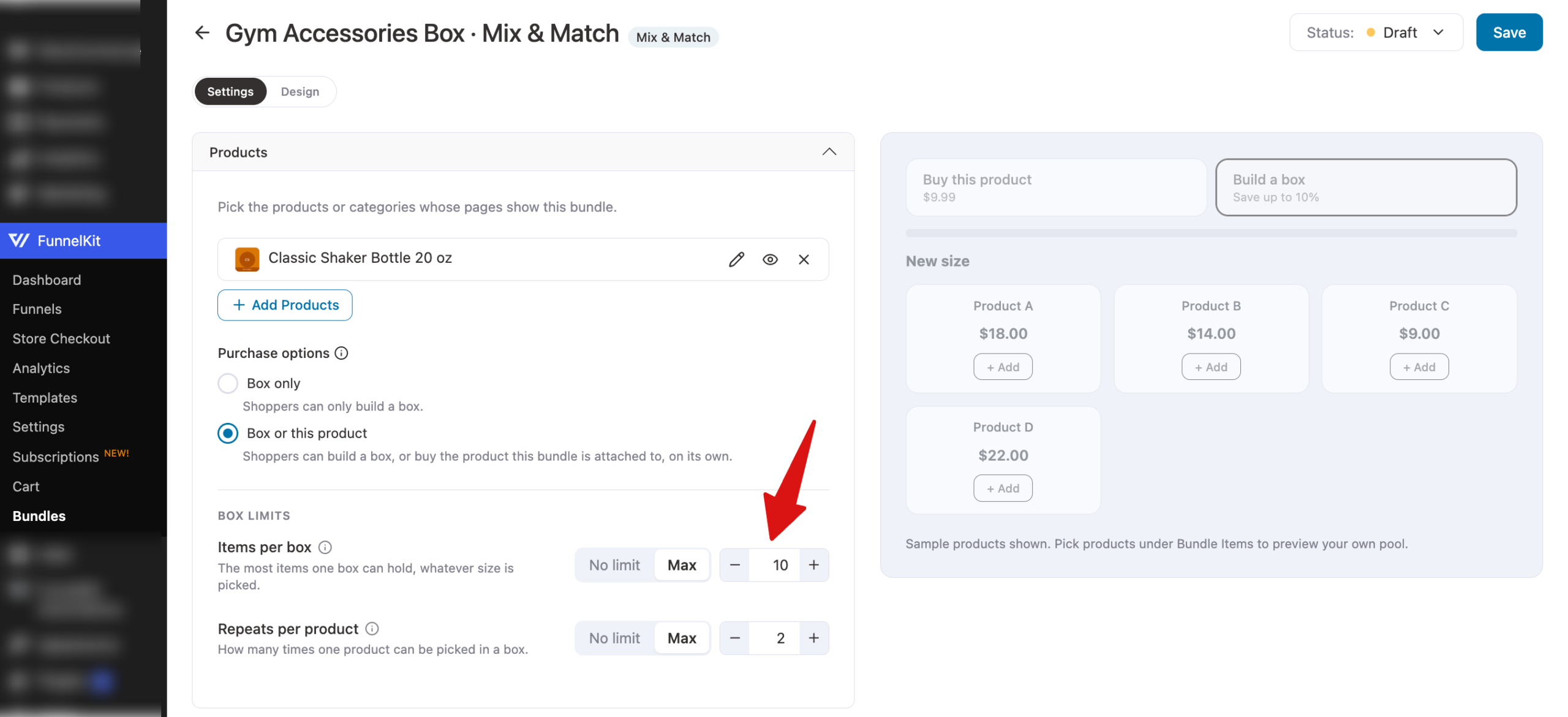
The Box limits settings control how many items fit in a box:
- Items per box: choose No limit to let a box hold up to your largest box size, or Max to set the most items any box can hold.
- Repeats per product: choose No limit to let a product repeat up to the box size, or Max to set how many times one product can be picked.
For example, with Items per box set to Max 10 and Repeats per product set to Max 2, a box can hold up to 10 items, and each product can appear in it twice at most. A full box of 10 would need at least 5 different products.
Note: Each box size must be possible to fill. If your limits make a size impossible, such as a box size of 12 with a max of 10 items, the editor blocks saving and suggests a fix.
Step 4: Adding the Products Shoppers Choose From
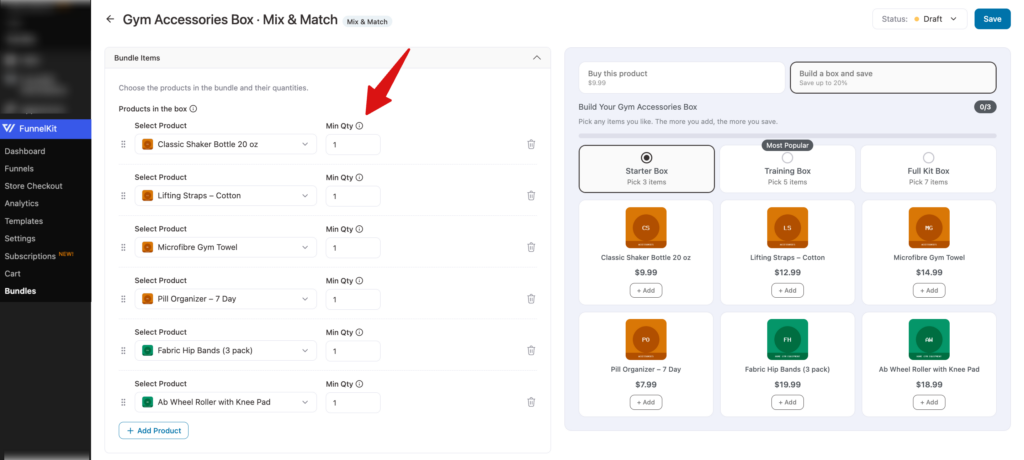
The Bundle Items section lists the products shoppers can pick for their box. Each row is one tile on the product page.
Click Add Product to add a row, then choose the product in Select Product.
Each row also has an optional field:
- Min Qty: the starting quantity when a shopper adds this product. It doesn't force shoppers to pick it. Use 0 for no minimum.
A variable product, such as a T-shirt, can be listed on several rows, each with its own size and color picker.
Step 5: Choosing the Layout
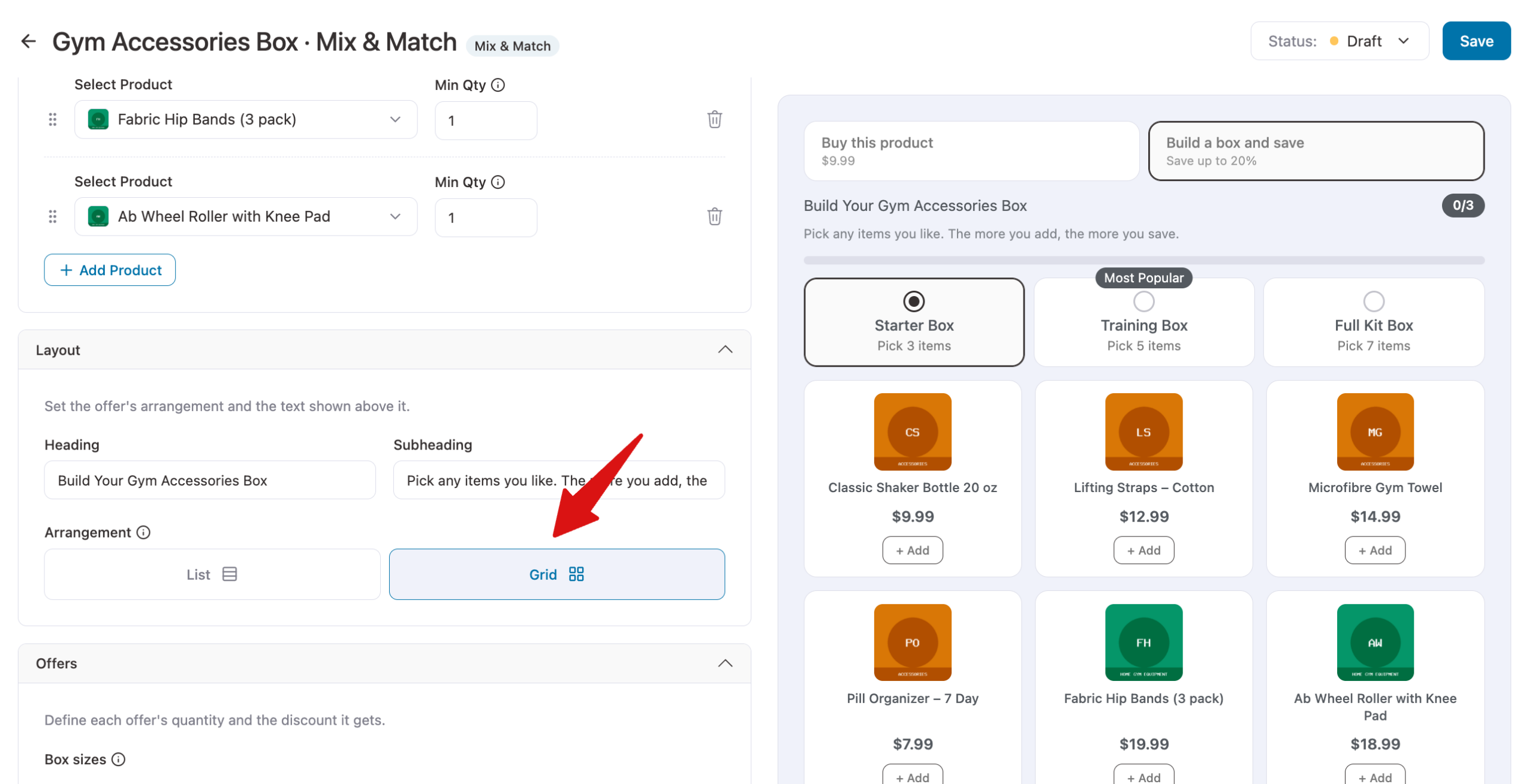
In the Layout section, enter an optional Heading and Subheading, then choose an Arrangement for the product tiles:
- List: shows one product per row.
- Grid: shows products in columns.
Step 6: Setting Up Box Sizes
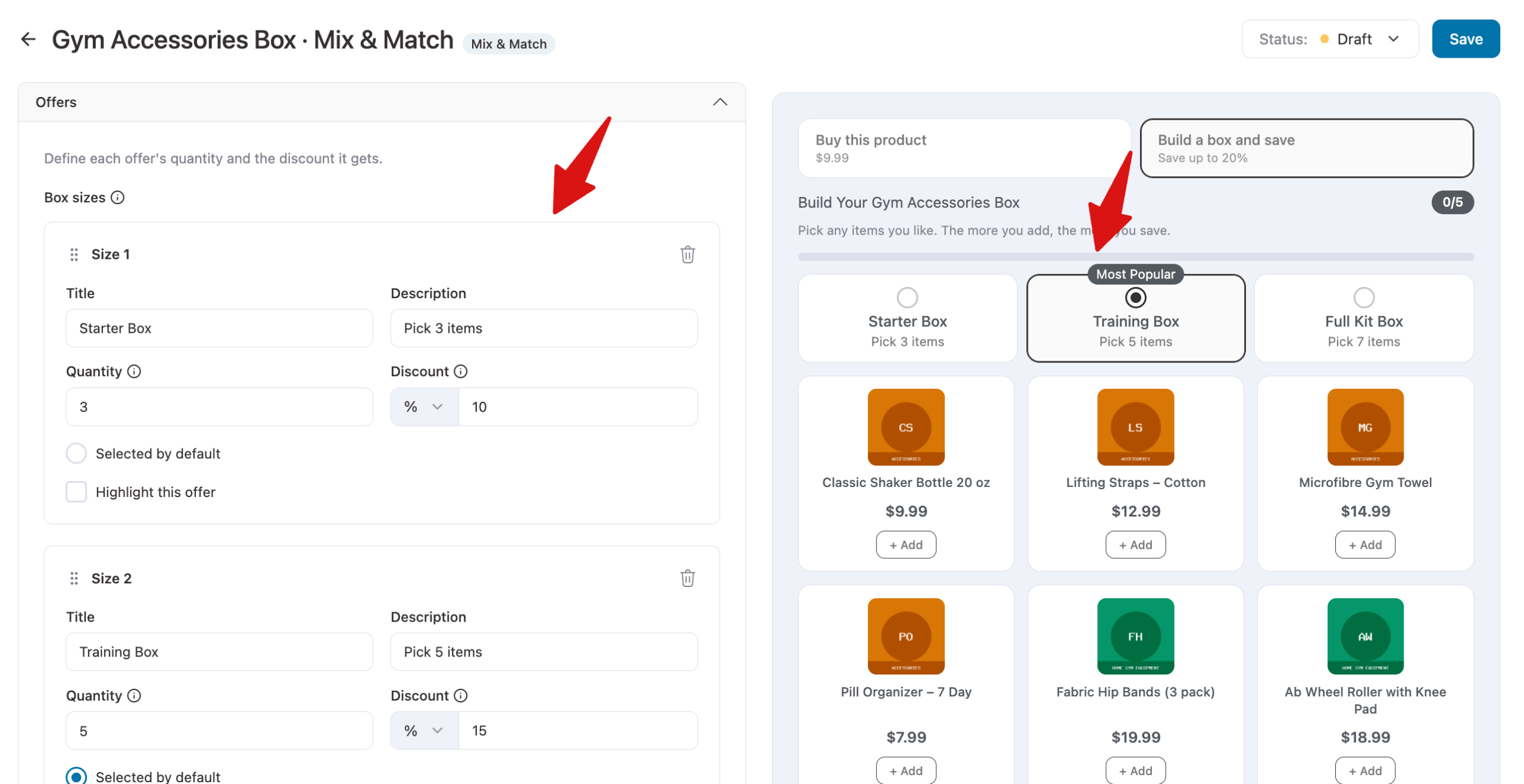
In the Offers section, each box size is a box shoppers can fill. For each size, enter an optional Description, the Quantity of items it needs, and the Discount it earns.
Turn on Highlight this offer to add a badge, such as Best Value.
To add another size, click Add Size.
A box can be bought once its item count matches one of your box sizes exactly.
Step 7: Checking the Preview
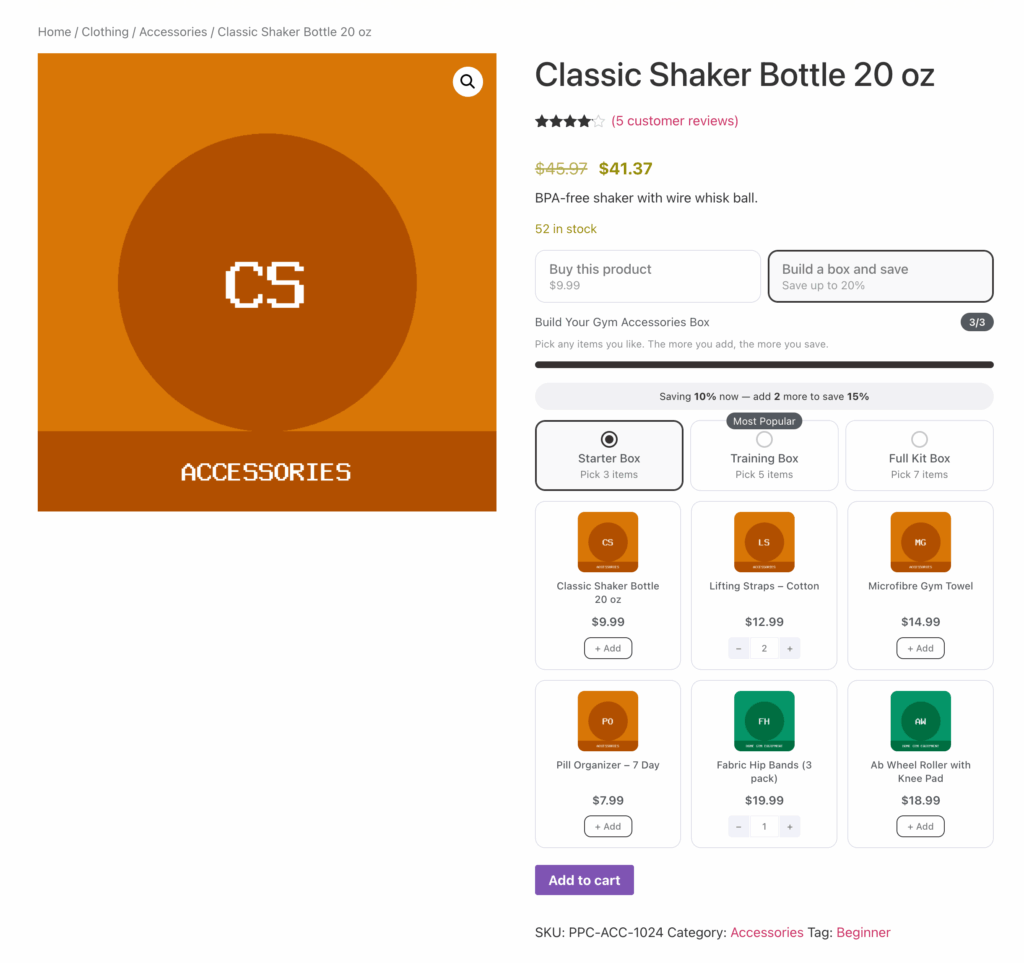
The preview shows the box builder as shoppers see it, with a progress bar and a counter that fill as they add items to the box.
When everything looks right, set the status to Active and click Confirm. Your changes are saved, and the bundle goes live.
That's it! You've created a Mix and Match bundle that lets shoppers build their own box.
Next, you might want to reward bigger boxes with free gifts or free shipping.
FAQ
Can I style the progress bar?
Yes. On the Design tab, Mix and Match bundles have a Progress bar section for the fill color and height, and a Reward Strip section for the message under it. See customizing your bundle's design.
Can shoppers pick variations inside the box?
Yes. Variable products show their options inside the tile. You can change how options appear with the Product options setting.