Would you like to know what shoppers see after they add a bundle to their cart? In this guide, we'll walk you through how bundles look on the product page, in the cart and checkout, and in orders and emails. All you need is Funnel Builder installed and activated.
Before you get started, make sure you have at least one active bundle. If you haven't created one yet, see our guide on creating your first bundle.
Bundles on the Product Page
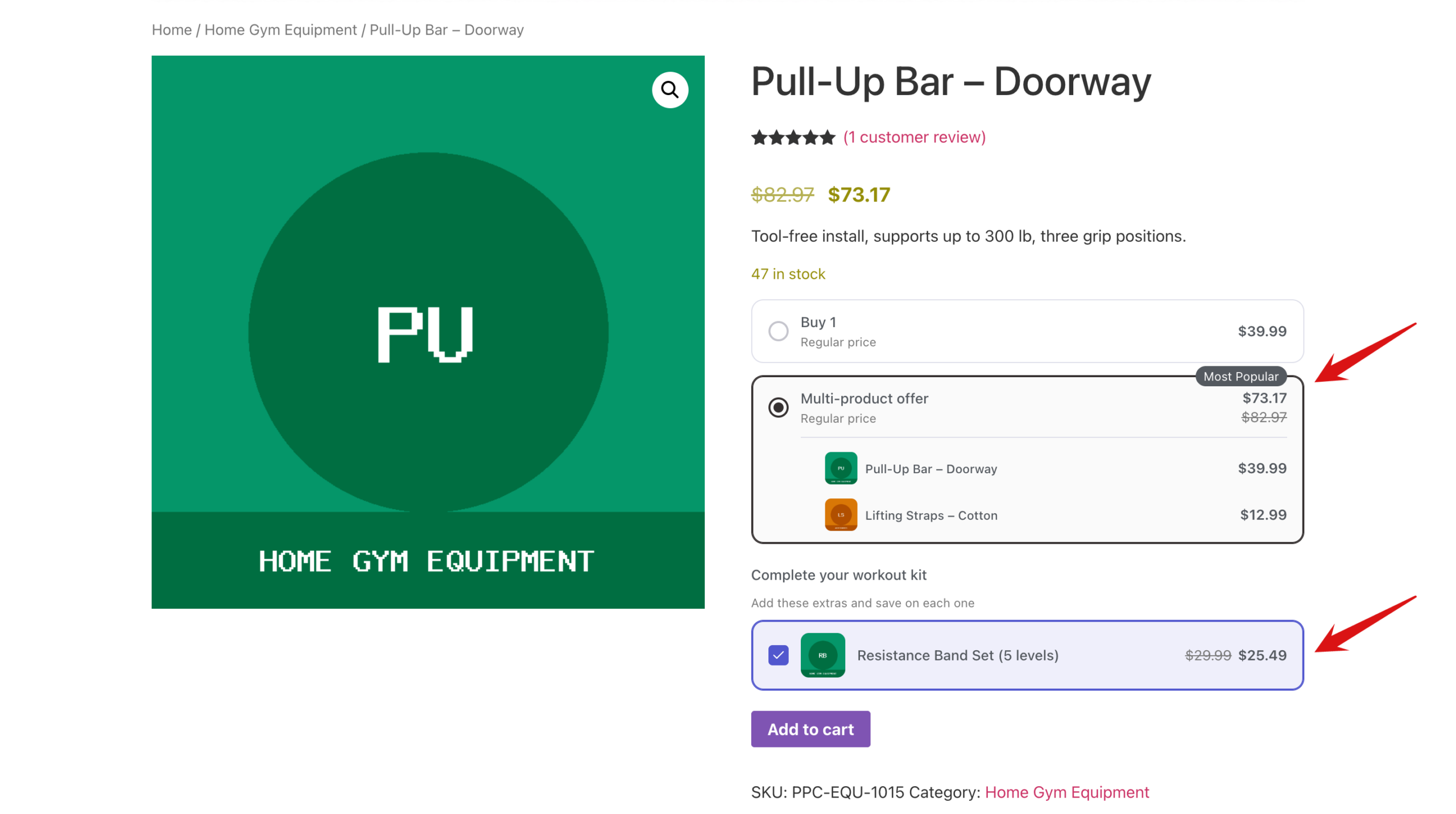
Each bundle type has its own look on the product page. Here's a Fixed Bundle, where the shopper chooses between buying one item and buying the whole set:
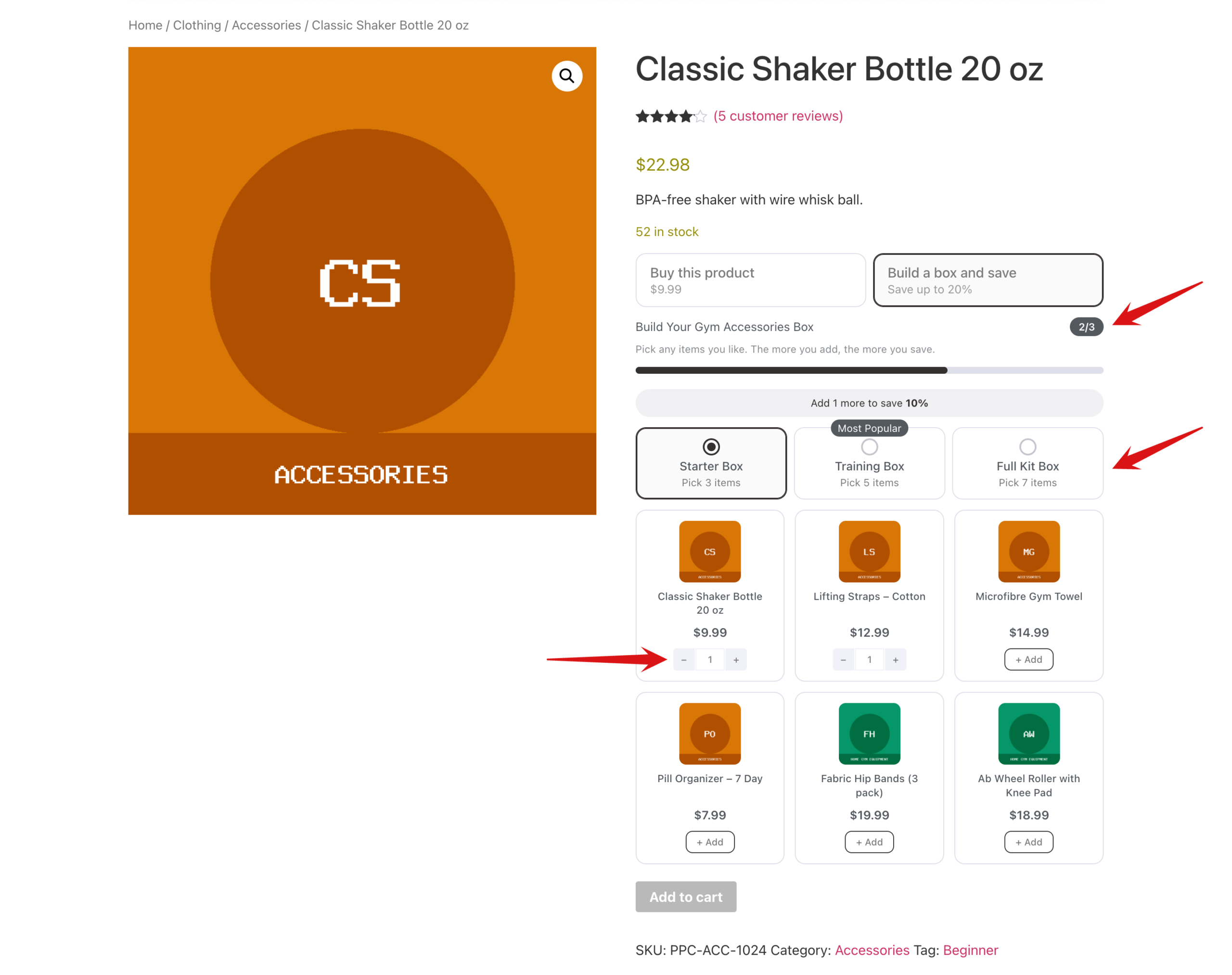
A Mix and Match bundle shows a box builder, where shoppers add products until the box is full:
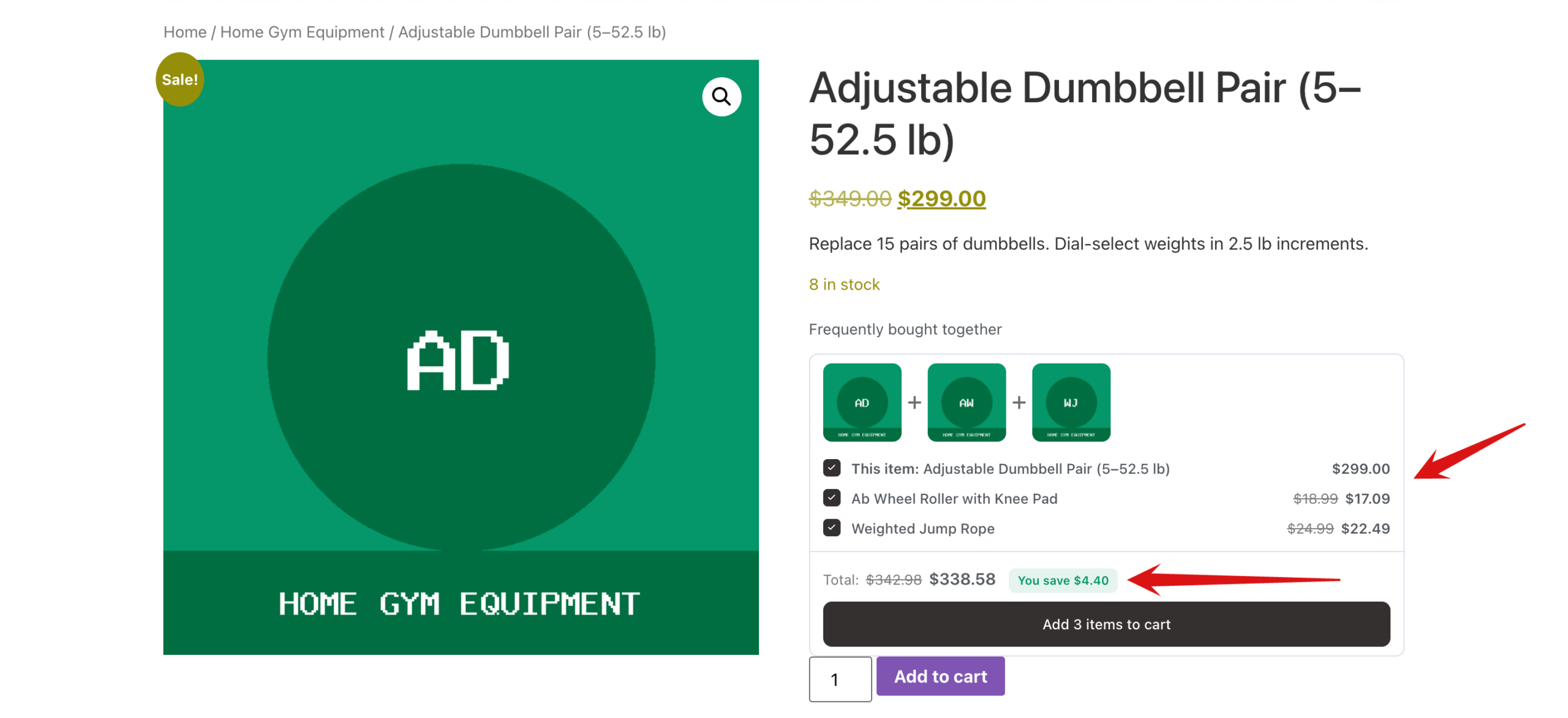
A Frequently Bought Together bundle shows the viewed product with its suggested companions and a total:
Bundles in the Cart and Checkout
When a shopper adds a bundle, its items are grouped together in the cart, with the discounted price shown next to the original price crossed out. Free gifts appear as their own lines marked as a free gift, and upsell add-ons join the bundle as separate lines.
The same grouping carries through to checkout. If the bundle unlocked free shipping, the bundle's own items ship for free, and any other items in the cart keep their normal shipping.
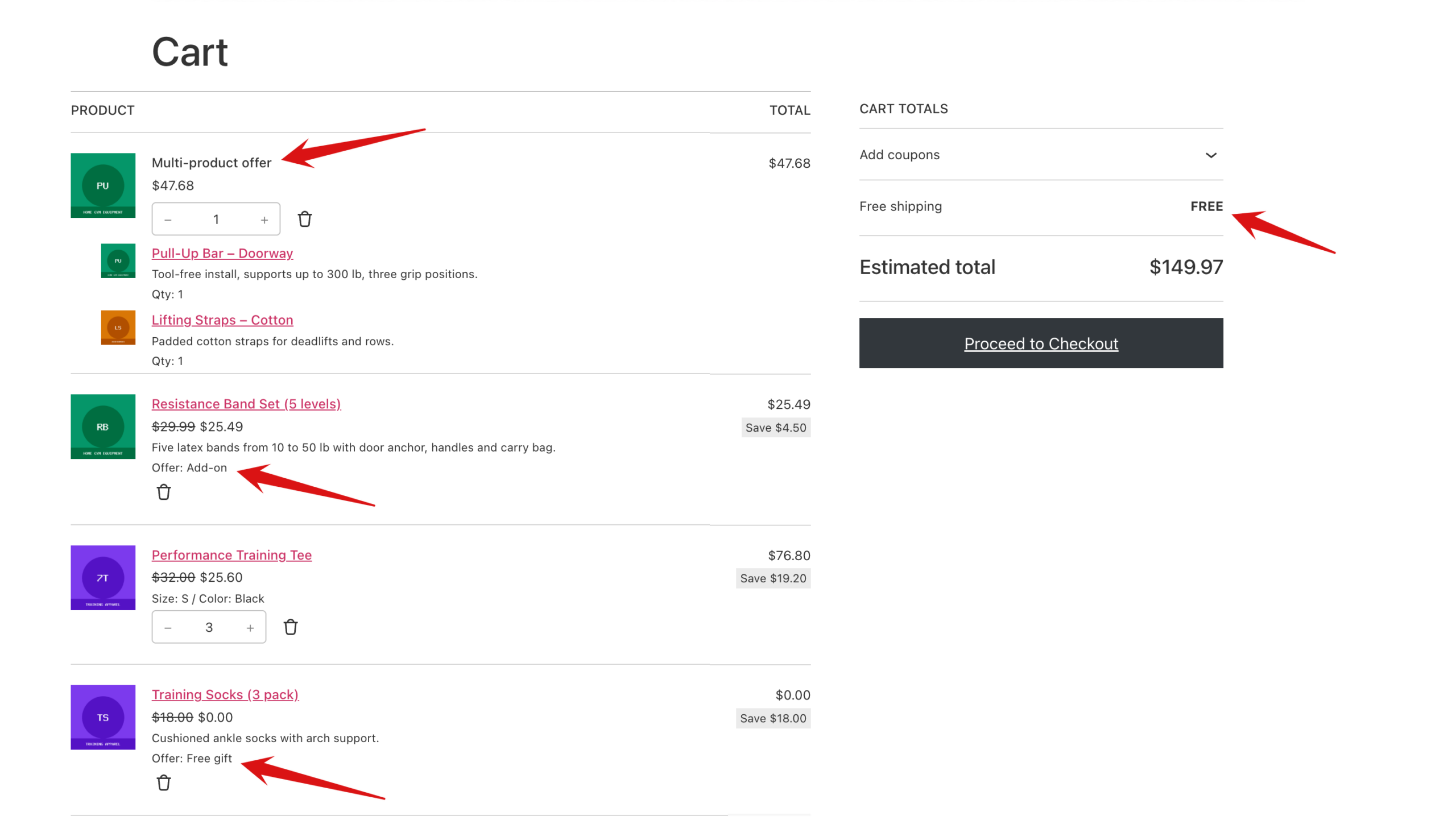
Bundles work with both the classic and block-based WooCommerce cart and checkout.
Bundles in Orders and Emails
Bundle lines stay grouped on the Thank You page (including Funnel Builder Thank You pages), in order emails, on the customer's My Account order page, and on the order screen in your WordPress dashboard. When free shipping was unlocked, the order totals include a Free Shipping row.
Next, see how your bundles perform in bundle analytics.