Would you like to know how much revenue your bundles bring in and which offers convert best? All you need is the Bundles Addon with an active license.
This guide walks you through the Bundles Analytics screen and what each number means.

Before you get started, make sure Funnel Builder, Funnel Builder Pro, and the Bundles Addon are installed and activated on your WordPress site. If you need help, see our guide on installing the plugin and activating your license.
Filtering the Report
To get started, we'll open the Bundles report, which is part of Funnel Builder's Analytics screen.
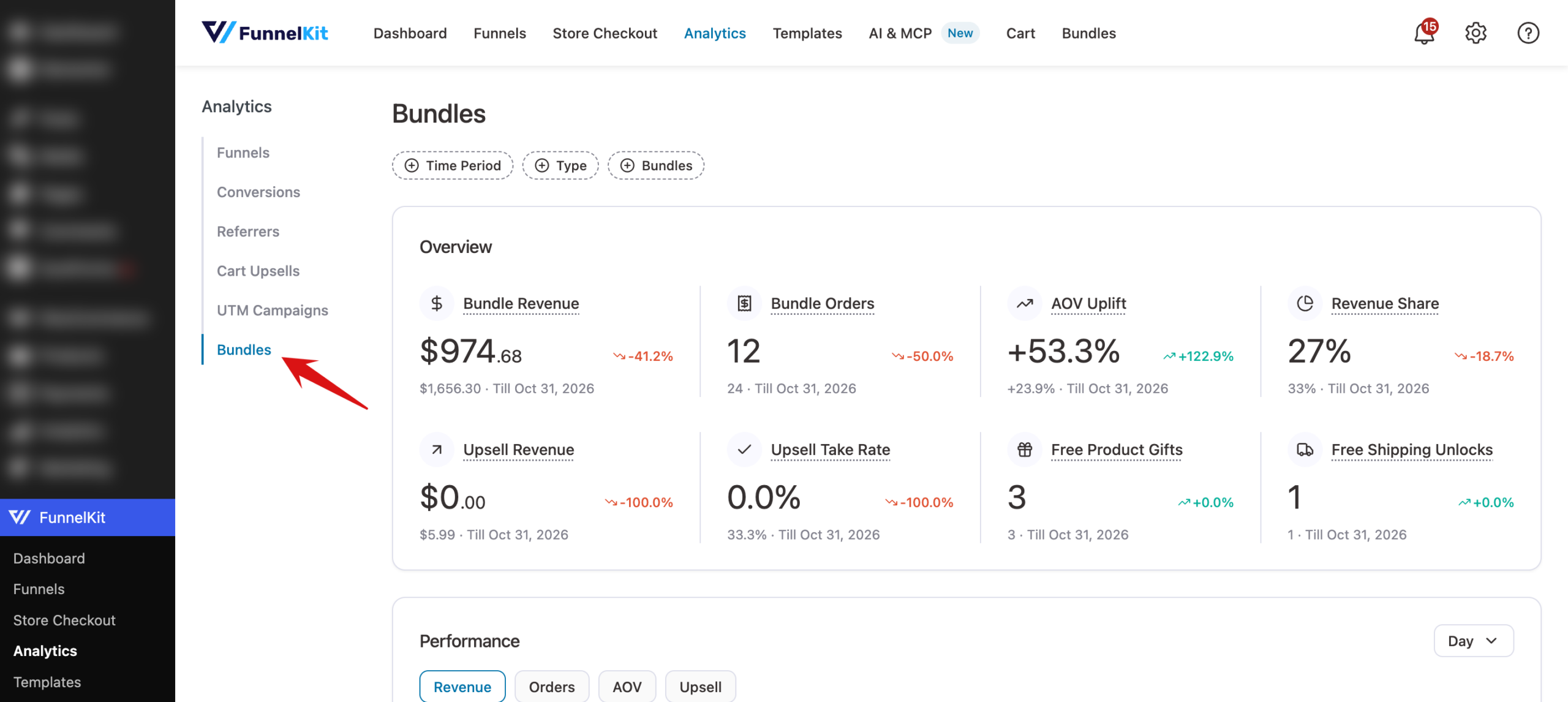
From your WordPress admin sidebar, go to FunnelKit » Analytics. At the bottom of the Analytics menu, below UTM Campaigns, click Bundles.
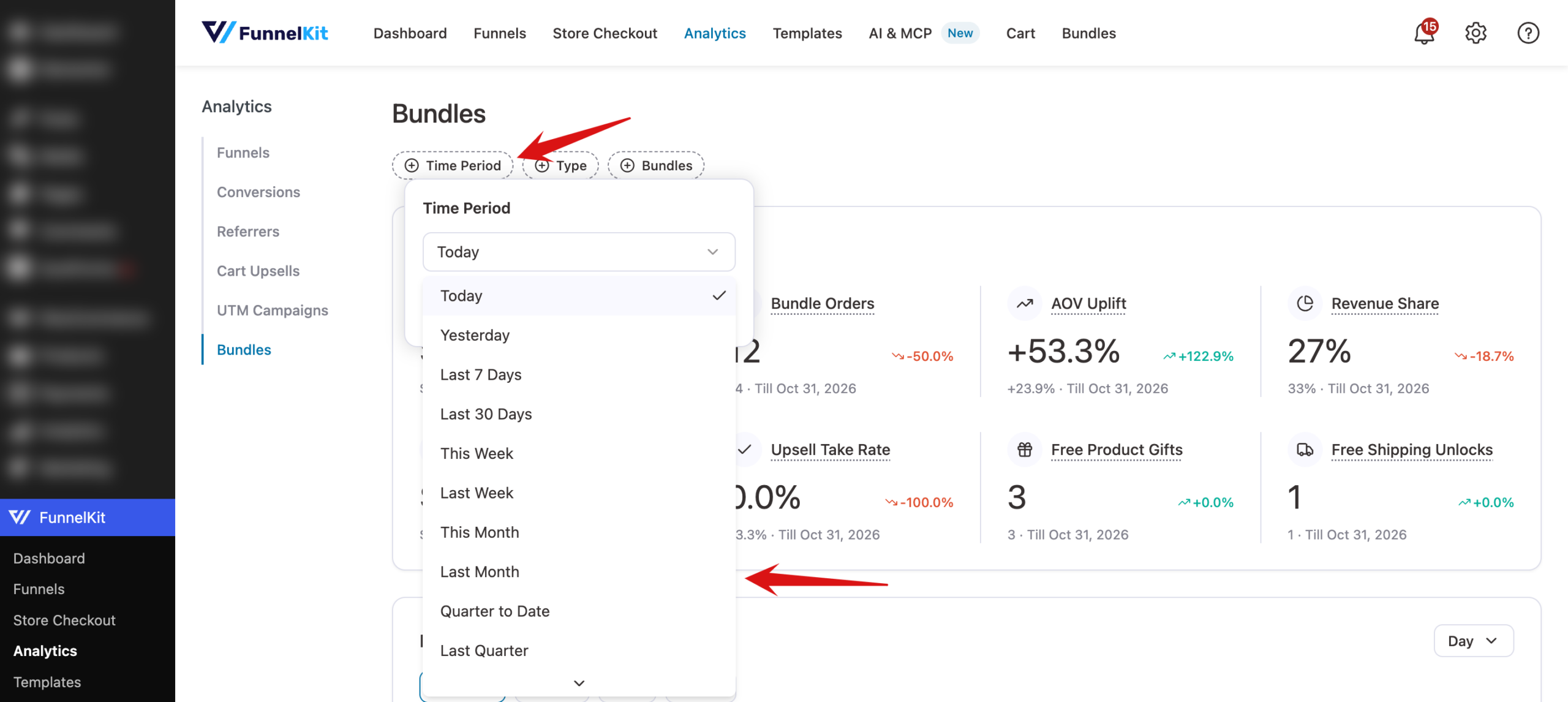
The filters at the top of the report narrow every number below them:
- Time Period: sets the dates the report covers. Pick a preset, such as Last 7 Days, This Month, or Year to Date, or choose Custom Date Range.
- Compare: appears once you've picked a Time Period, and sets what each number is compared against, either the Previous Period or the Previous Year.
- Type: shows only one bundle type.
- Bundles: shows only the bundles you pick.
Click a filter, such as Time Period, choose an option from its dropdown, and click Apply.
Once the filters are set, the rest of the report updates to match.
Reading the Overview
The Overview shows eight numbers for the selected period. Each one also shows its change compared with the earlier period.
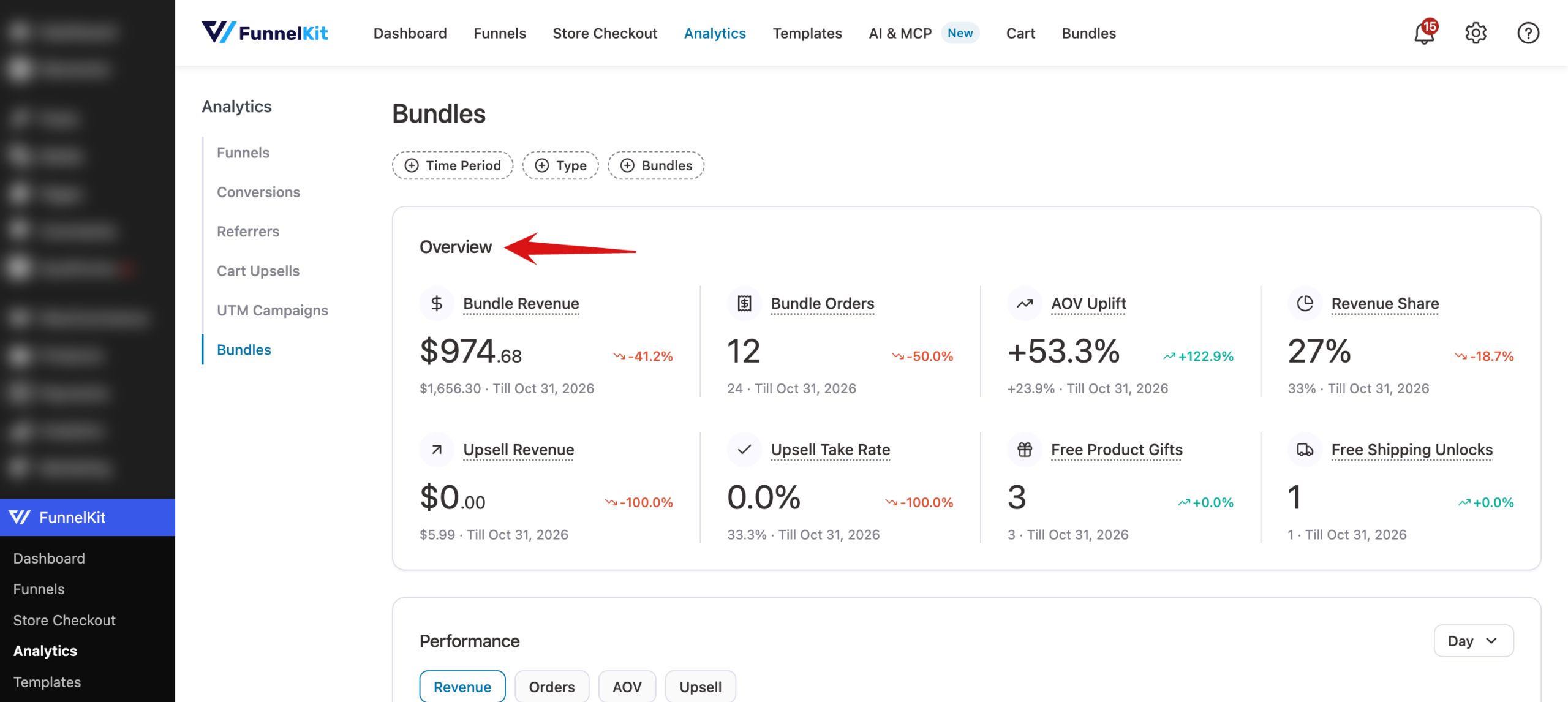
- Bundle Revenue: revenue from bundle orders.
- Bundle Orders: the number of orders that included a bundle.
- AOV Uplift: how much bundle orders raise your average order value compared with your store's usual average.
- Revenue Share: bundle revenue as a share of your store's total revenue.
- Upsell Revenue: revenue from accepted bundle upsells.
- Upsell Take Rate: the share of shown upsells that customers accepted.
- Free Product Gifts: the number of free gift products redeemed.
- Free Shipping Unlocks: the number of orders that unlocked free shipping.
Next, the Performance chart shows how these numbers move over time.
Tracking Performance Over Time
Below the Overview, the Performance chart plots one metric over the selected period, so you can spot the days a promotion took off.
The Revenue, Orders, AOV, and Upsell buttons above the chart switch the metric it plots.
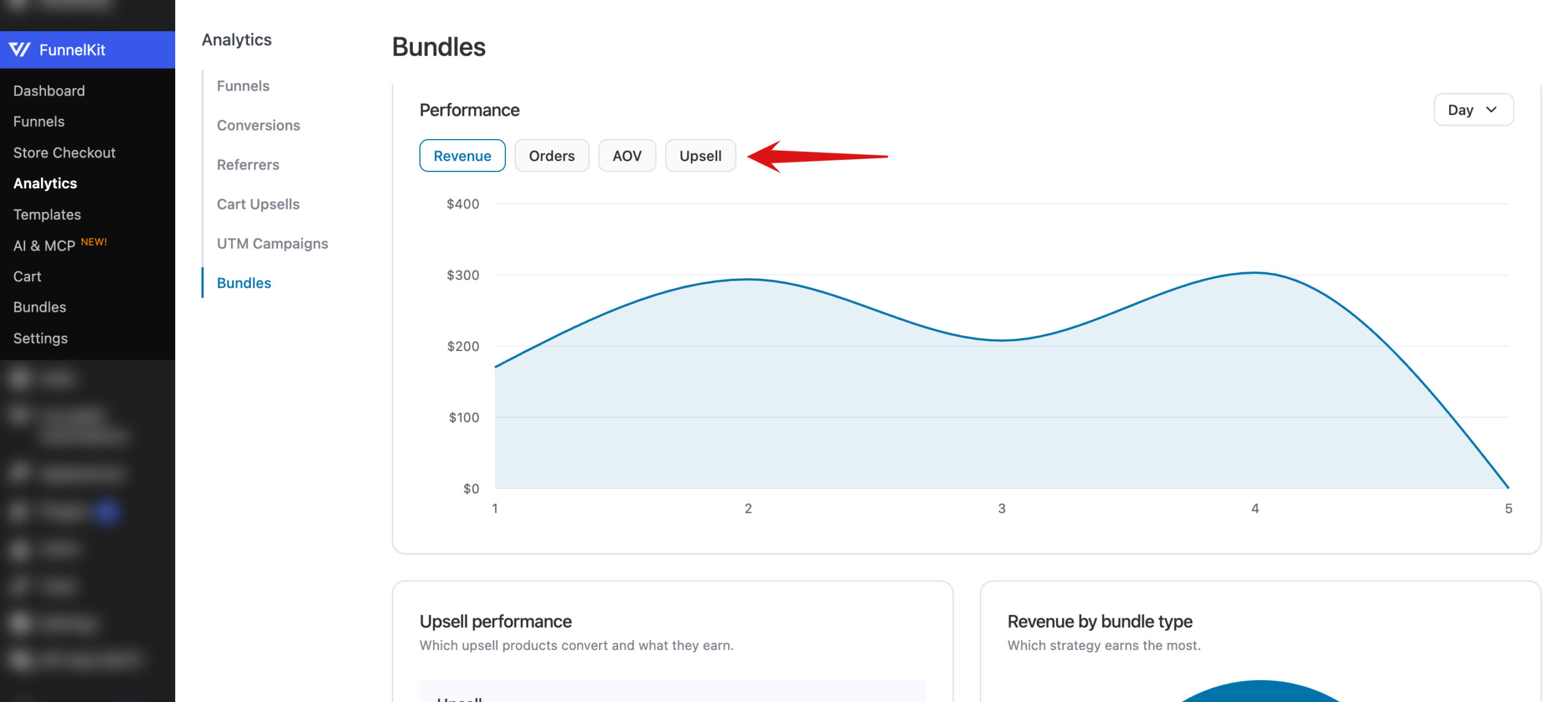
The dropdown in the chart's corner changes the time grouping. Click it and choose Day or Month.

Next, the tables below the chart break the numbers down further.
Comparing Upsells and Bundle Types
The Upsell performance table lists each upsell product, the bundle it belongs to, and its orders and revenue. It shows which add-ons convert.
Next to it, Revenue by bundle type shows how revenue splits across Quantity Breaks, Fixed Bundle, Mix and Match, and Frequently Bought Together.

For numbers on a single bundle, the Bundles list shows each bundle's Orders, AOV, Upsell Revenue, and Revenue.
That's it! You now know how to read your bundle analytics. Next, try improving a low performer by adding a free gift or an upsell.
FAQ
Below, we've answered some of the most common questions about bundle analytics.
Which of my orders are counted?
Analytics count orders with a Processing or Completed status. If an order moves to another status, such as Refunded or Cancelled, it's removed from the report.
Why don't my new orders show up right away?
Orders are recorded in the background, and report results are cached for up to five minutes. If a new order is missing, check back a few minutes after it's placed.
Are orders from before I installed the paid addon included?
No. Analytics start recording once the paid addon is installed and active, so earlier orders aren't counted.