Would you like to show shoppers the products that go best with the one they're viewing, and reward them for adding them together?
In this guide, we'll walk you through setting up a Frequently Bought Together bundle, from choosing the products to setting the discount and layout.

Before you get started, make sure Funnel Builder is installed and activated on your WordPress site. If you need help, see our guide on installing the plugin and activating your license.
Step 1: Choosing Where the Bundle Appears
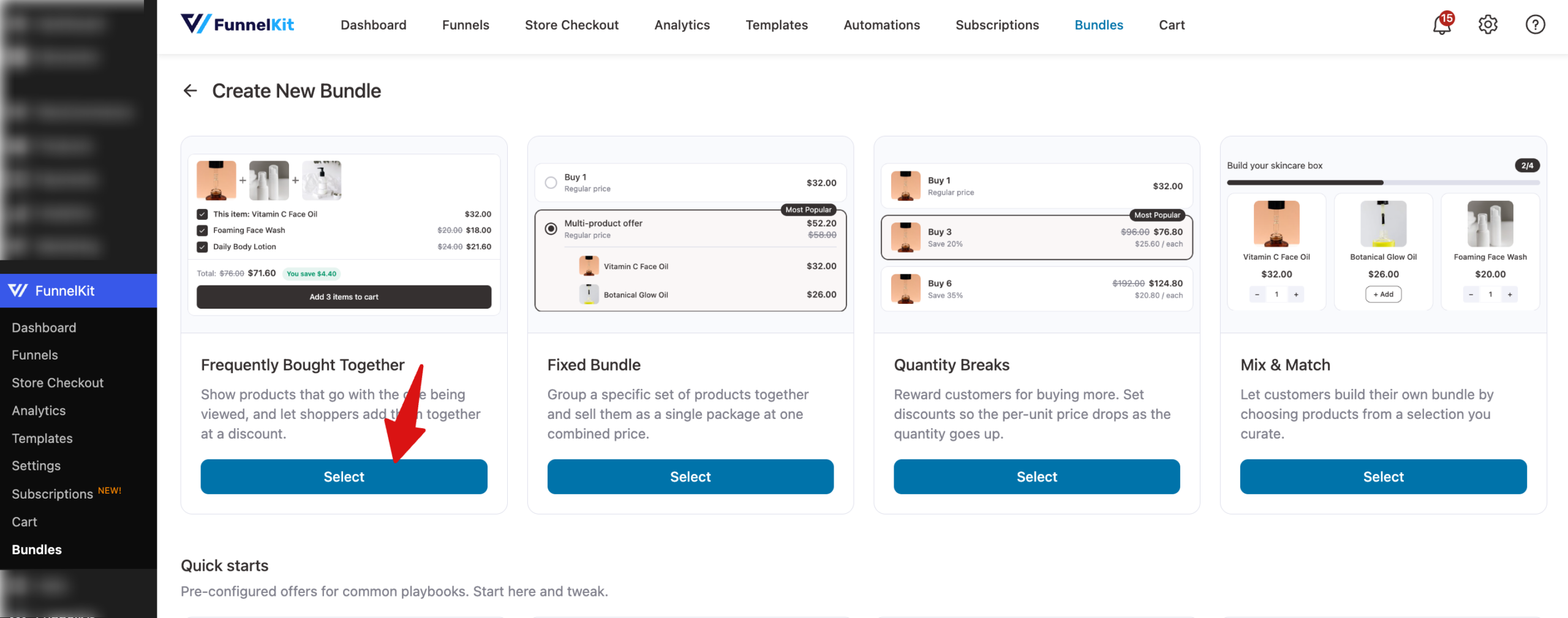
To begin, go to FunnelKit » Bundles, click Create Bundle, and select Frequently Bought Together.
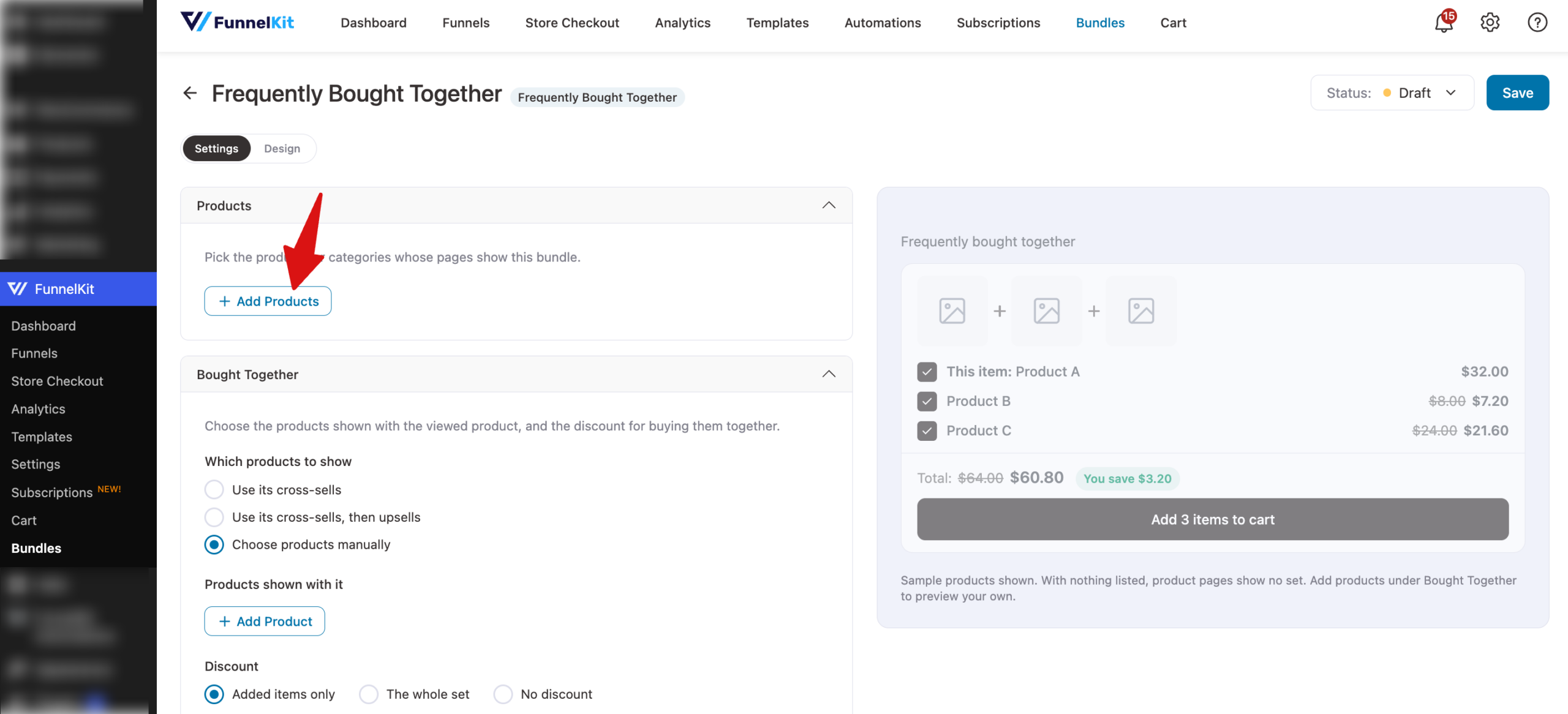
In the Products section, click Add Products and choose the product pages where this bundle appears. The product a shopper is viewing is always the first item in the set.
Step 2: Choosing the Products Shown Together
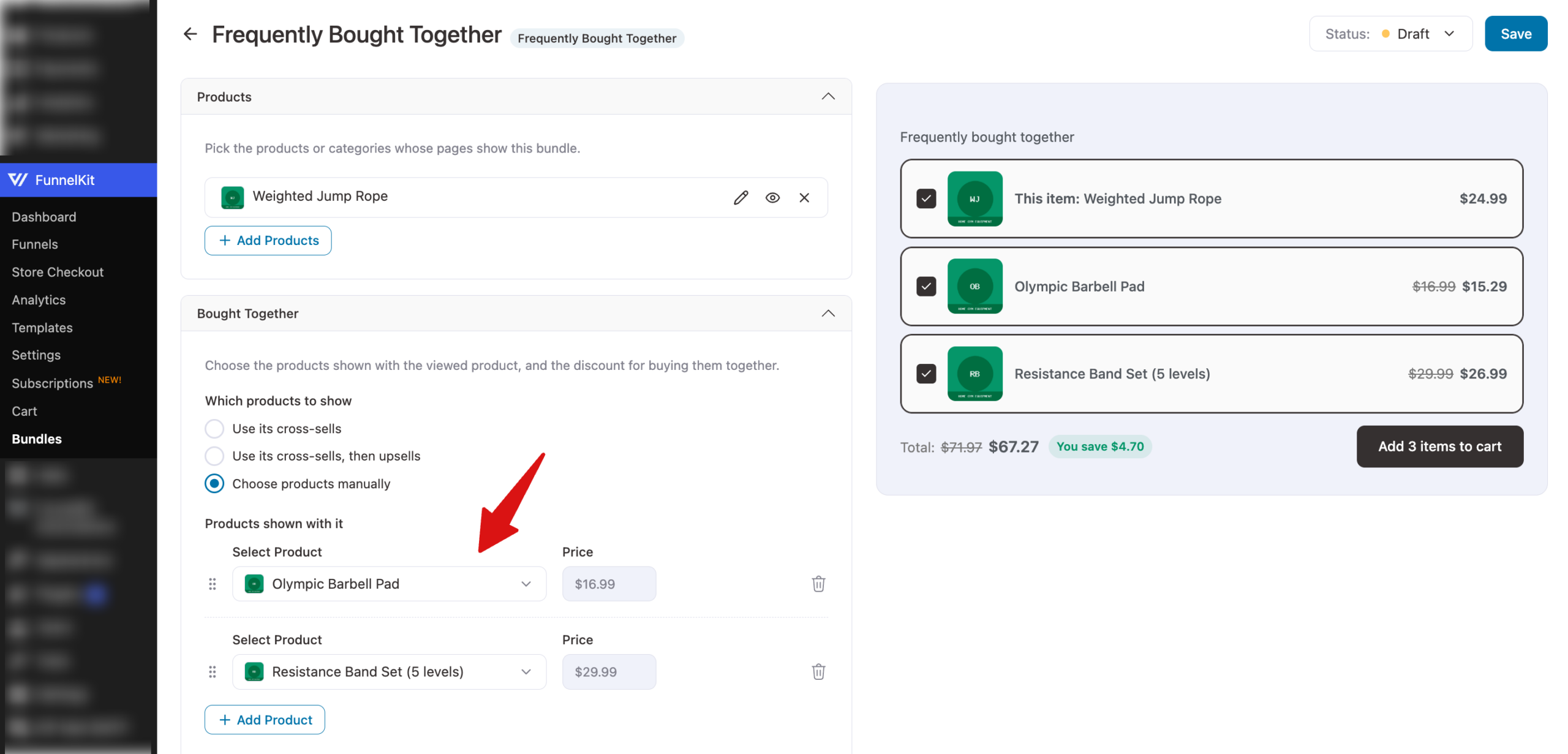
In the Bought Together section, choose where the suggested products come from with Which products to show:
- Use its cross-sells: shows the cross-sell products you've already set on each product in WooCommerce.
- Use its cross-sells, then upsells: uses the product's cross-sells, then its upsells.
- Choose products manually: lets you pick the exact products under Products shown with it. Click Add Product to add more.
Step 3: Setting the Discount
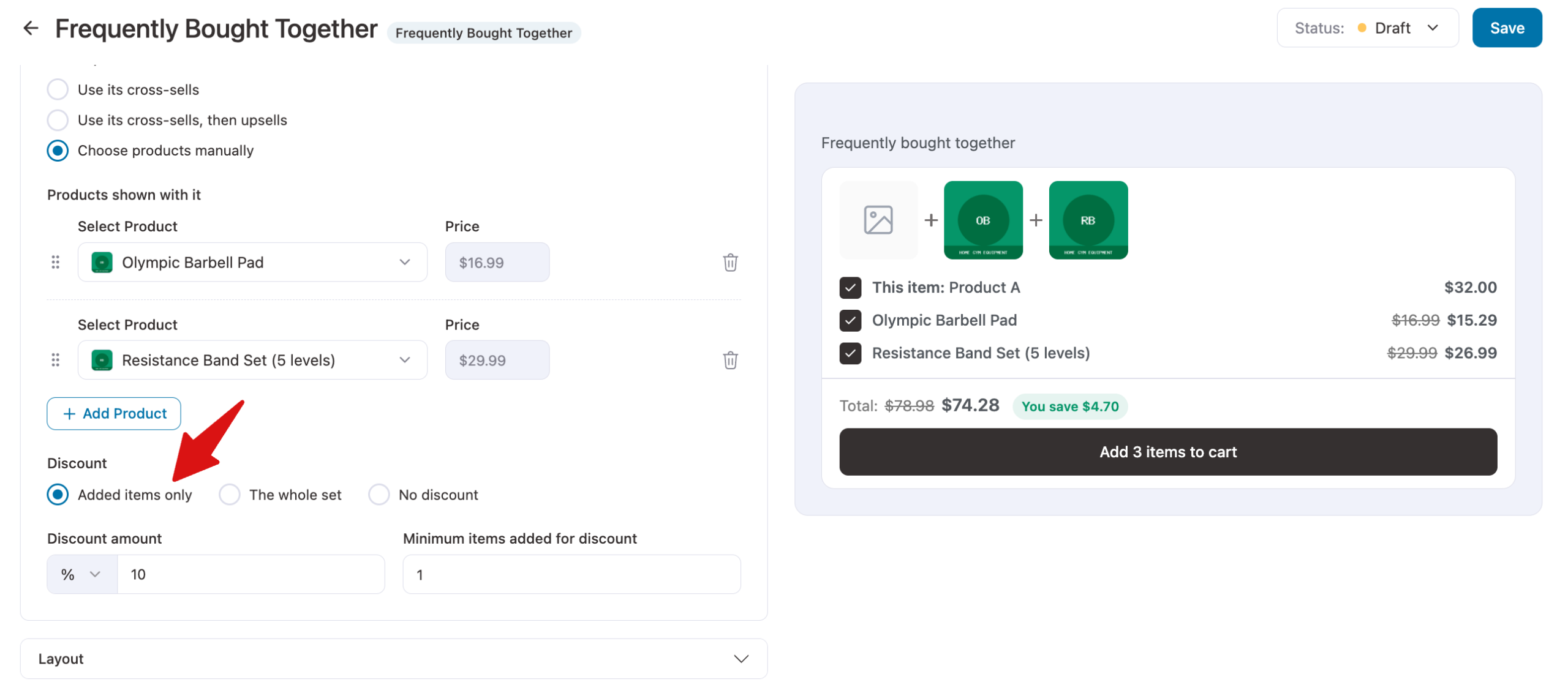
Under Discount, choose what the discount applies to:
- Added items only: the discount applies to the extra products, not the one being viewed.
- The whole set: the discount applies to every product in the set, including the one being viewed.
- No discount: shoppers can add the products together at their regular prices.
Enter the Discount amount as a percentage or a fixed amount.
Then use Minimum items added for discount to set how many items the shopper needs to add, besides the viewed product, before the discount applies.
Step 4: Choosing the Layout
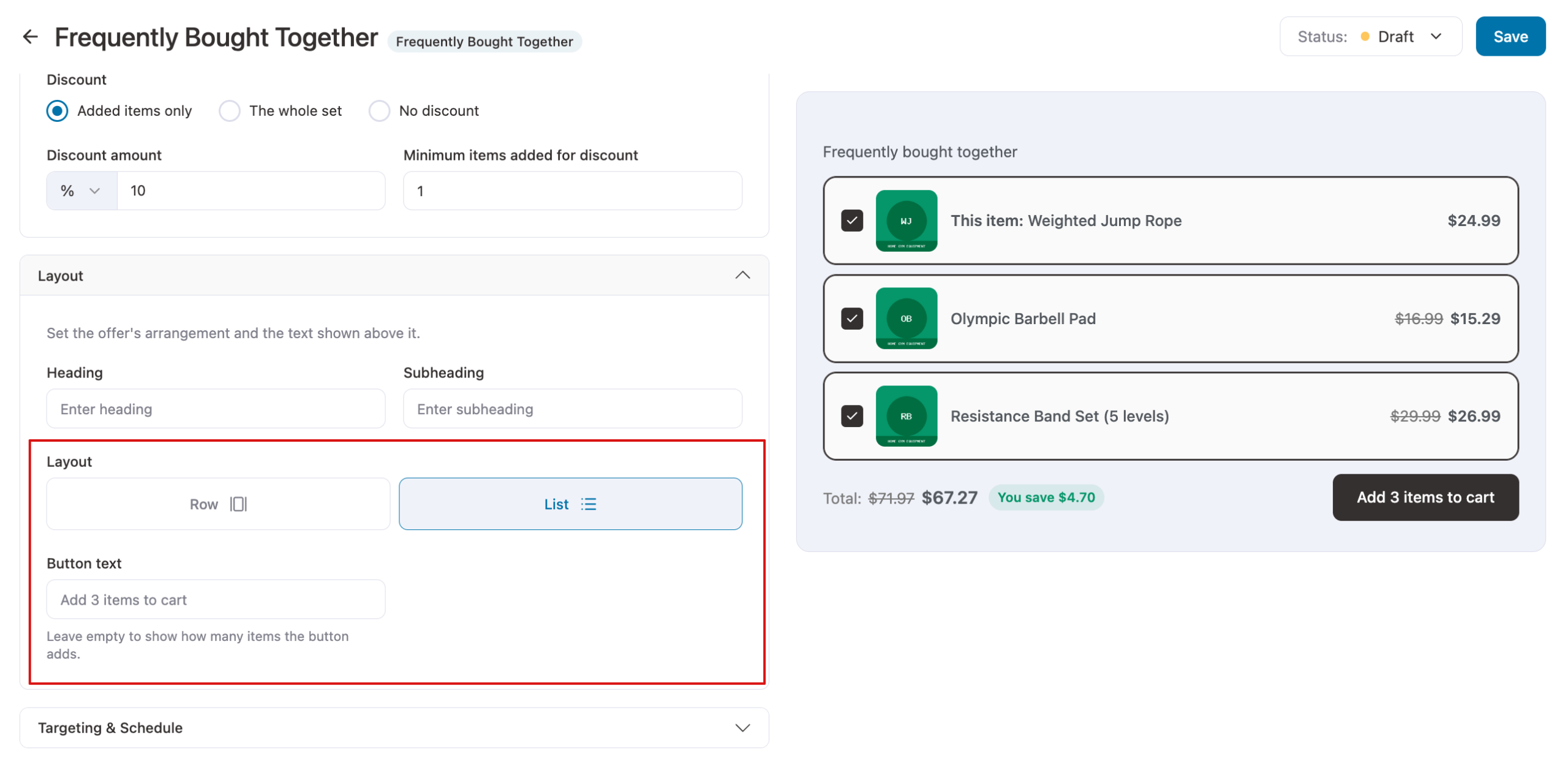
In the Layout section, enter an optional Heading and Subheading, then choose a layout:
- Row: shows the product images side by side, with plus signs between them, above the product list.
- List: shows the products as a list.
You can also set the Button text. Leave it empty to show how many items the button adds, such as Add 3 items to cart.
Step 5: Checking the Preview
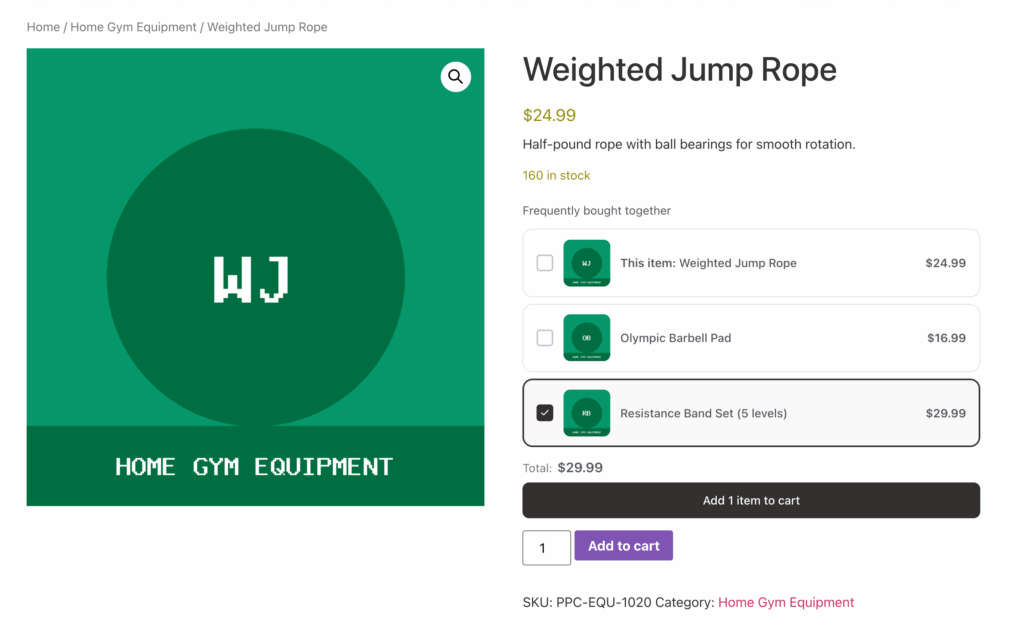
The preview shows the set with each product's price and a running total.
On the product page, shoppers can untick any suggested product they don't want before adding the set to their cart. The product they're viewing always stays in the set.
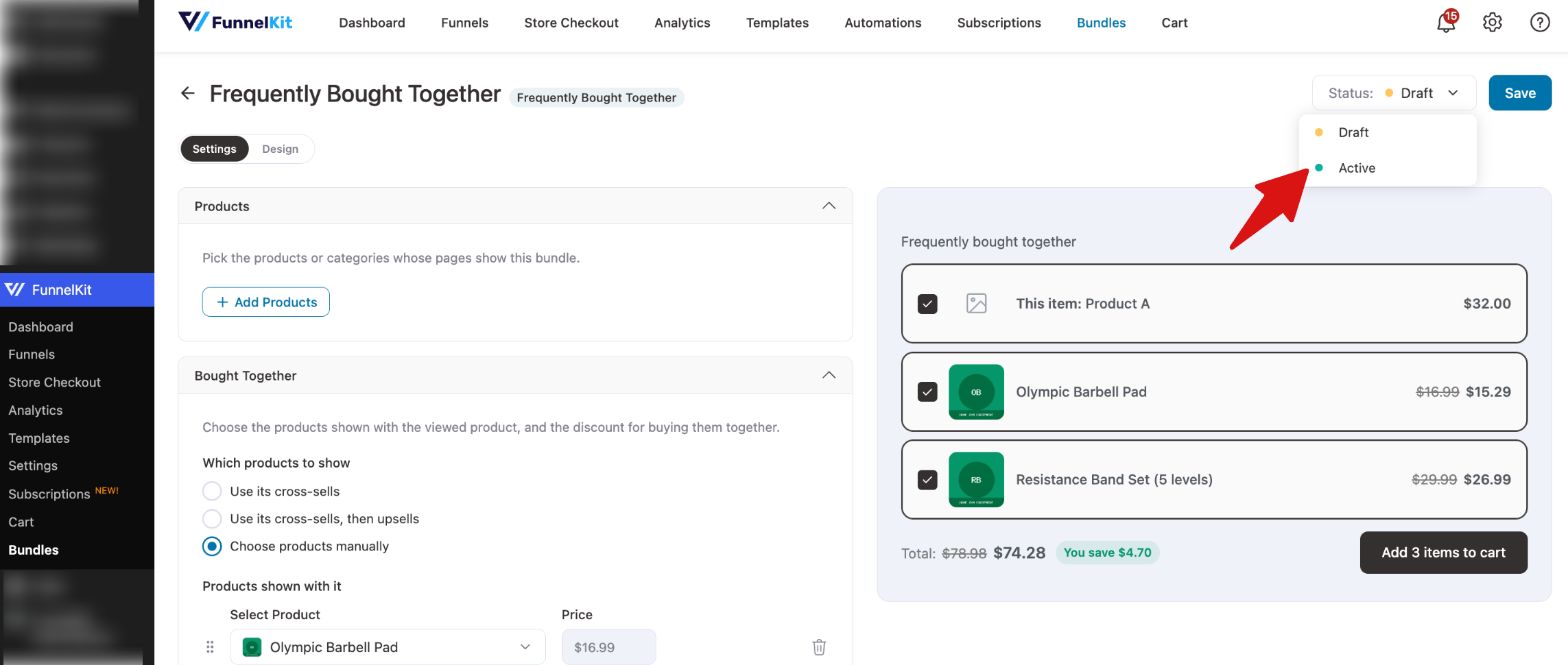
When everything looks right, set the status to Active and click Confirm. Your changes are saved, and the bundle goes live.
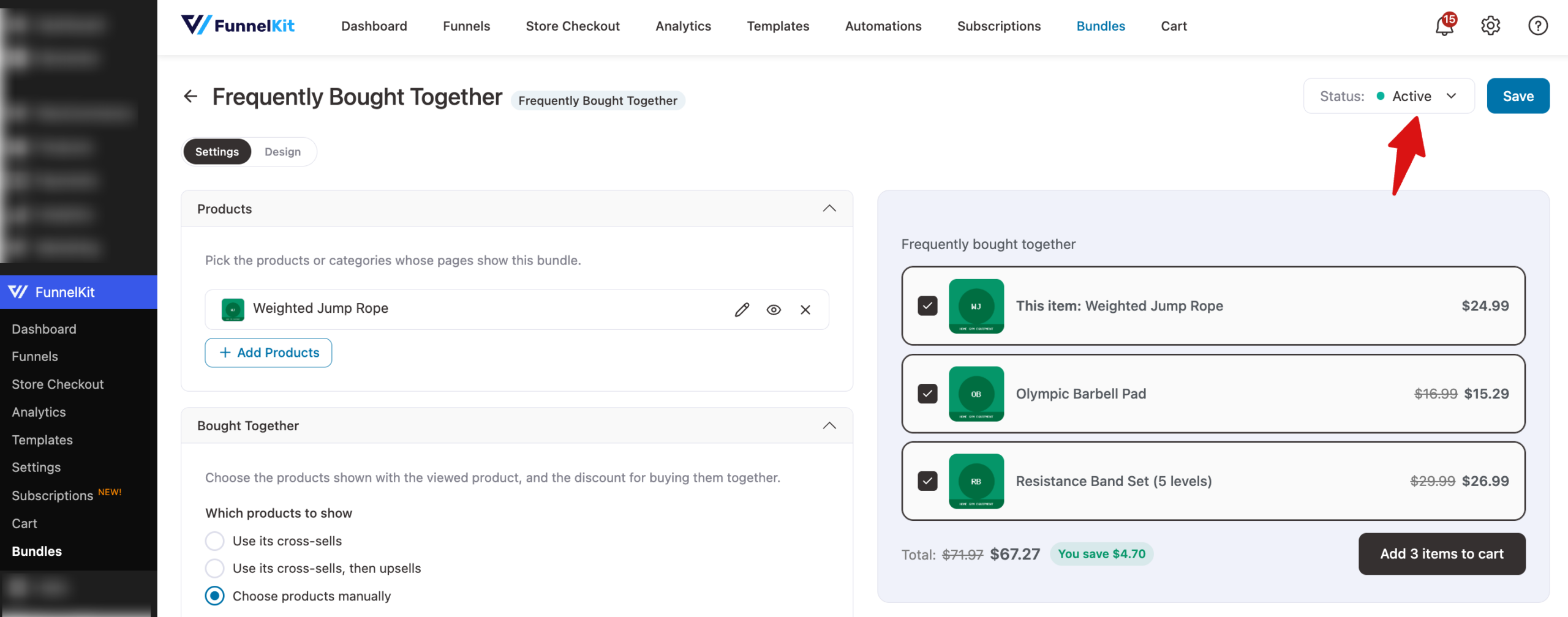
That's it! You've set up a Frequently Bought Together bundle.
Here is what it looks like on the product page:
Next, you might want to create bundles right from the product edit screen.
FAQ
Can a product show a Frequently Bought Together bundle and another bundle at the same time?
No. A product page shows one bundle. If several active bundles target the same product, the one highest in your bundles list is shown.
Where do I set cross-sells and upsells?
Cross-sells and upsells are standard WooCommerce settings. Edit a product and open the Linked Products tab in the Product data box.