Would you like to give shoppers a free gift or free shipping when they choose a bigger offer? In this guide, we'll walk you through setting up progressive gifts that unlock as shoppers move up your offers. All you need is the Bundles Addon with an active license.

Before you get started, make sure you've created a Quantity Breaks, Fixed Bundle, or Mix and Match bundle. If you haven't yet, see our guide on creating your first bundle.
How to Set Up Progressive Gifts Using FunnelKit Bundles
Here are the steps to follow below:
Step 1: Turn On Progressive Gifts
Open your bundle in the editor and expand the Progressive Gifts section. Turn on the switch next to the header to show its settings.
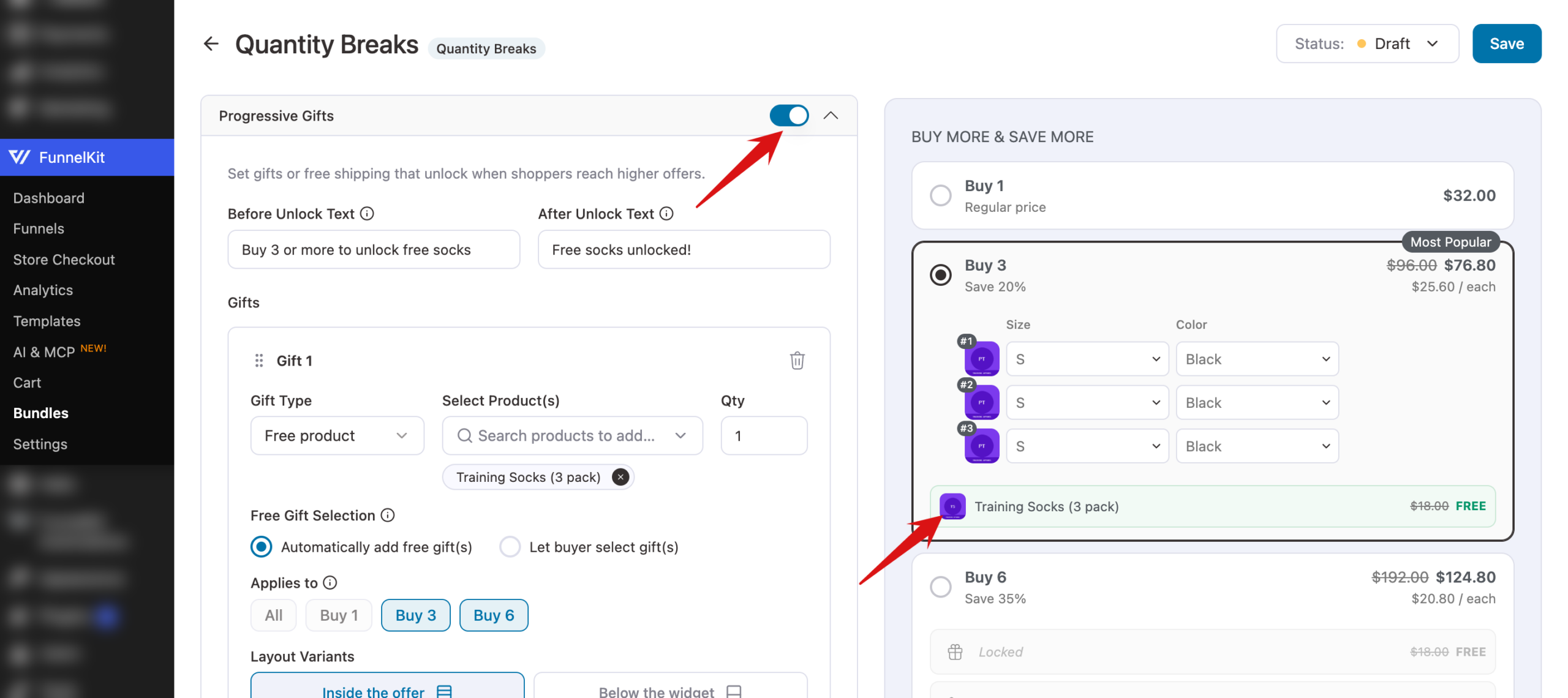
The two message fields at the top nudge shoppers toward a gift:
- Before Unlock Text: shown while the gift is still locked, to encourage shoppers to add more.
- After Unlock Text: shown once the shopper has unlocked the gift.
Step 2: Add a Gift
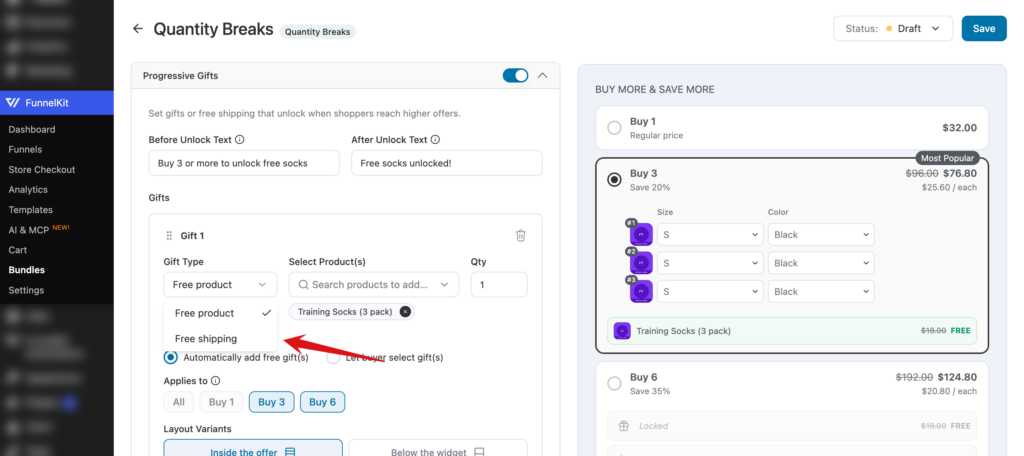
Each gift card sets one reward. Start by choosing a Gift Type:
- Free product: adds one or more products to the cart at no cost.
- Free shipping: makes shipping free for the bundle's items.
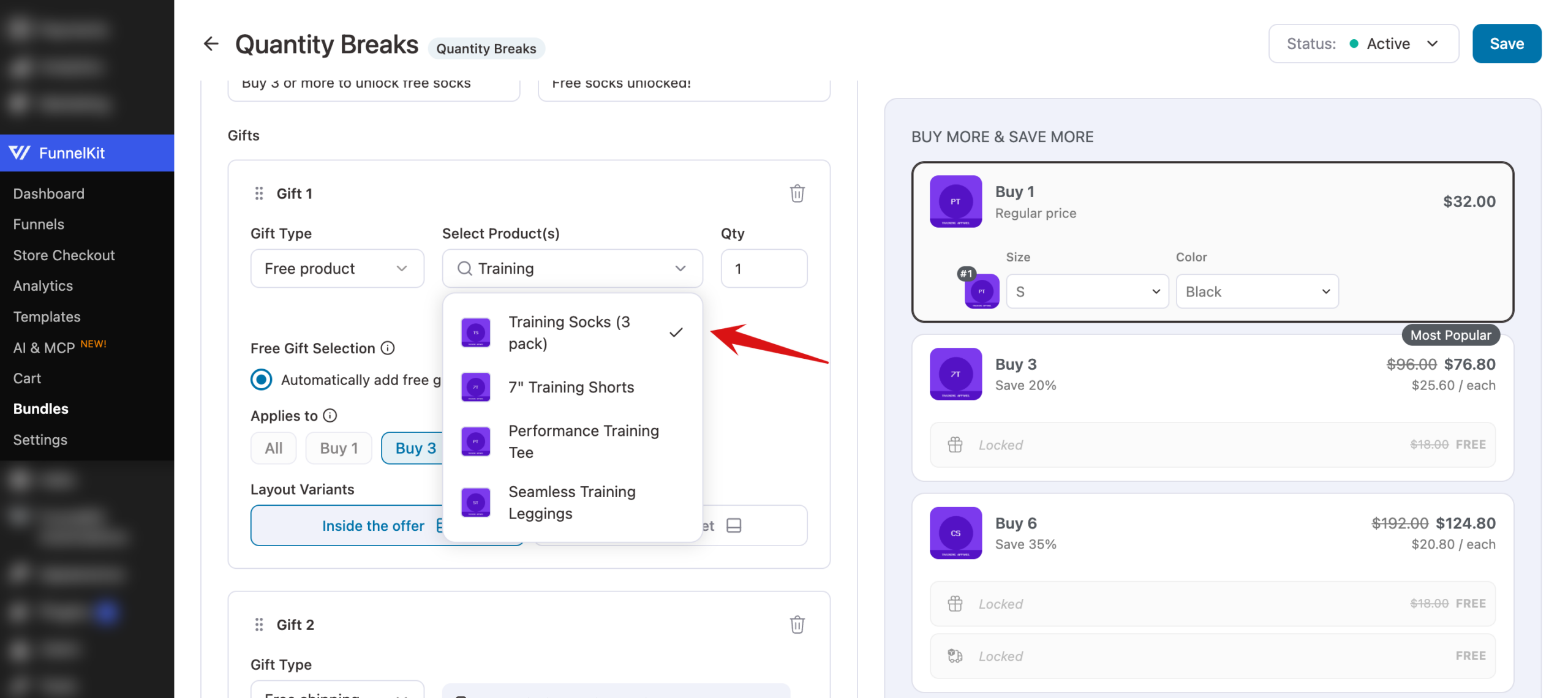
For a free product, click Select Product(s), type a product name to search, and click the product you want to give away. Then set the Qty.
Step 3: Choose How Shoppers Get the Gift
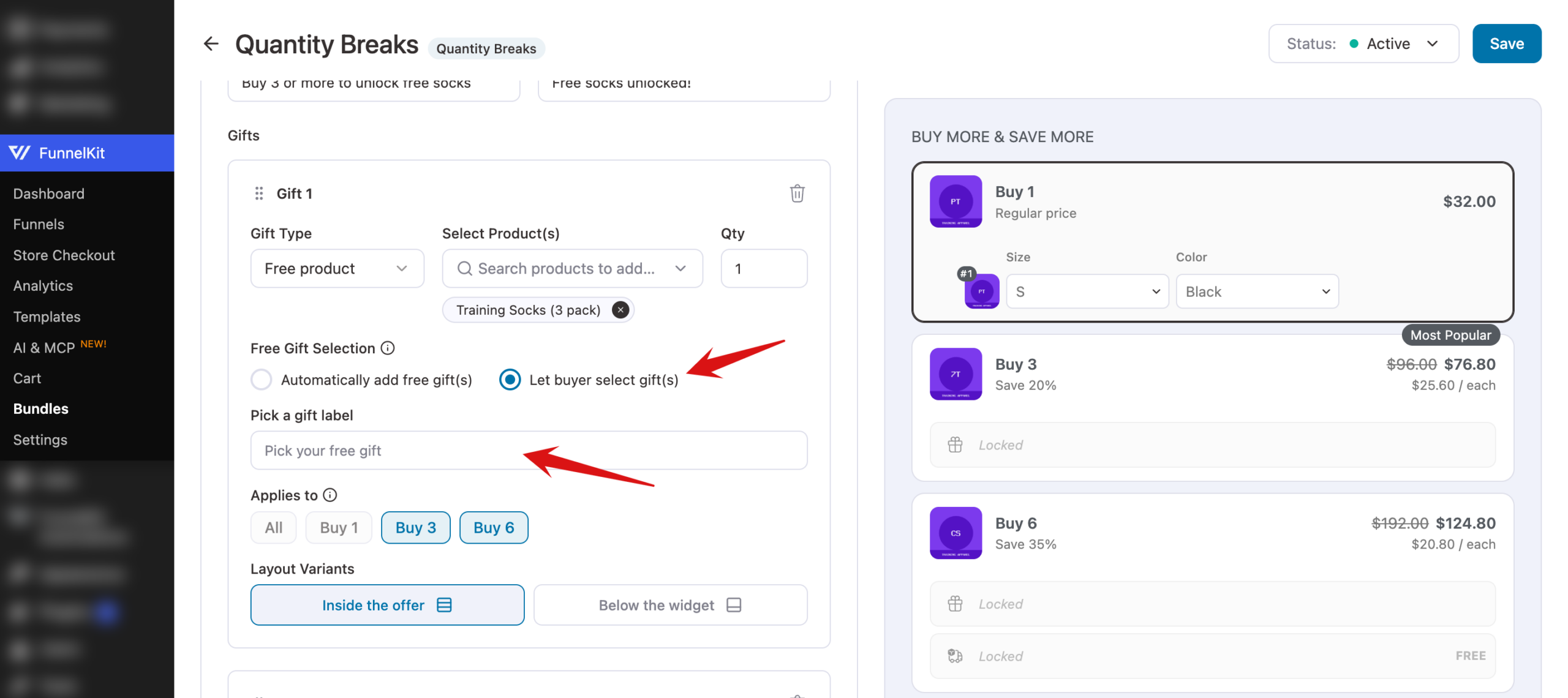
Under Free Gift Selection, choose how the gift reaches the cart:
- Automatically add free gift(s): the gift is added to the cart for the shopper.
- Let buyer select gift(s): the shopper picks one gift from the products you've chosen. When this is selected, a Pick a gift label field appears where you can change the label on the picker, such as Pick your free gift.
Step 5: Choose Which Offers Unlock the Gift
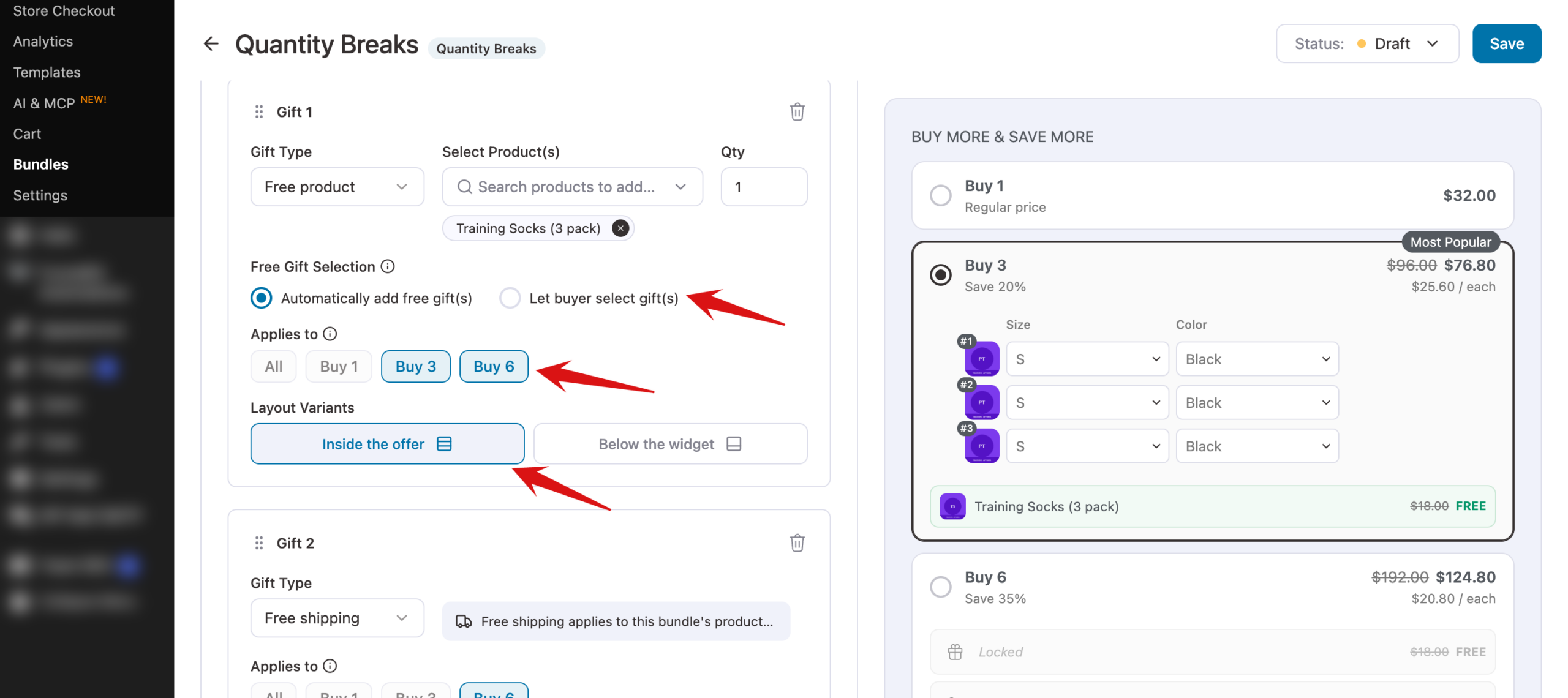
Use Applies to to pick the offers that unlock this gift. Leave it on All to unlock it with every offer, or select specific offers, such as only the 3 Jars and 6 Jars tiers, to reward bigger orders.
Then choose a Layout Variants option for where the gift is shown:
- Inside the offer: the gift appears within the offer it unlocks with.
- Below the widget: the gift is listed under the whole bundle. Mix and Match bundles always use this option.
Step 6: Add More Rewards and Save
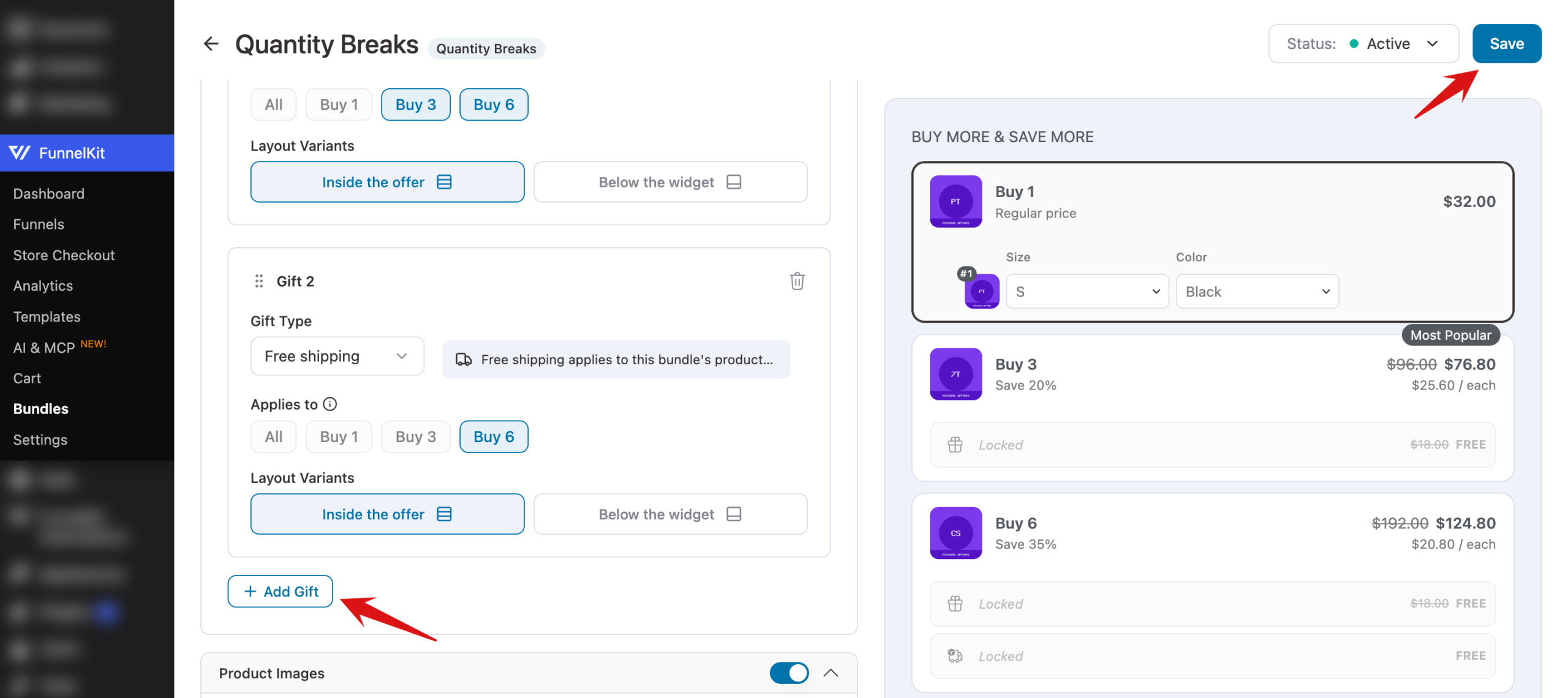
To add another reward, click Add Gift below the last gift card and set it up the same way. When you're done, click Save in the top-right corner of the editor.
Seeing Gifts on Your Store
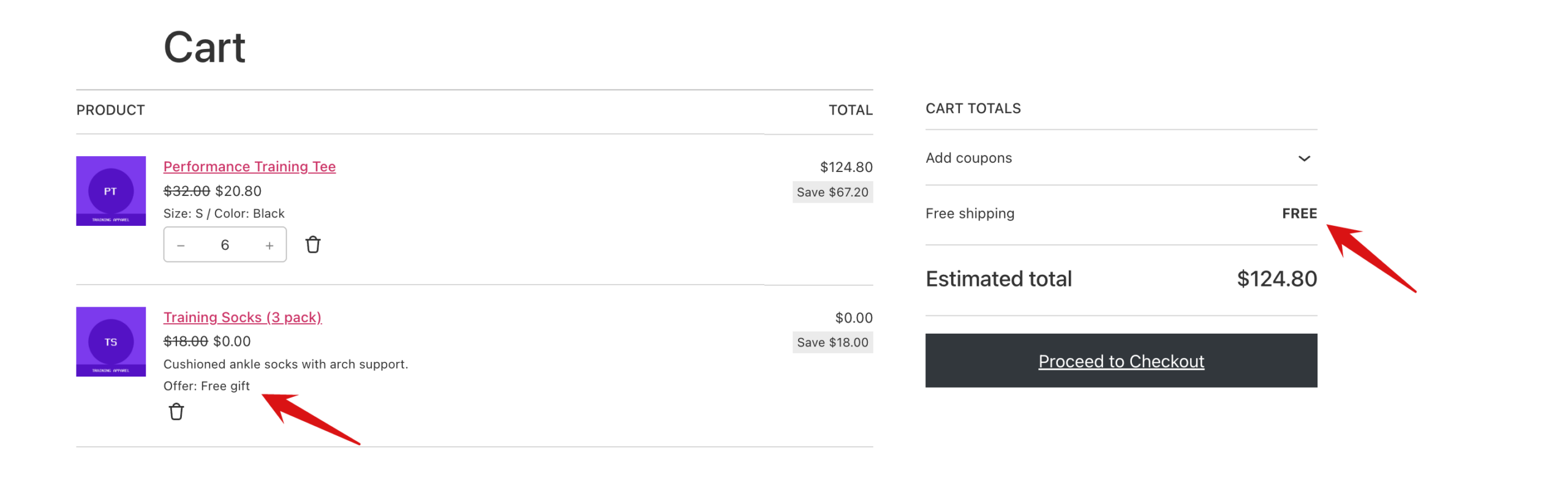
On the product page, gifts appear with their regular price crossed out and a FREE label. Gifts show as Locked on offers they aren't tied to, and unlock when the shopper selects an offer that includes them.
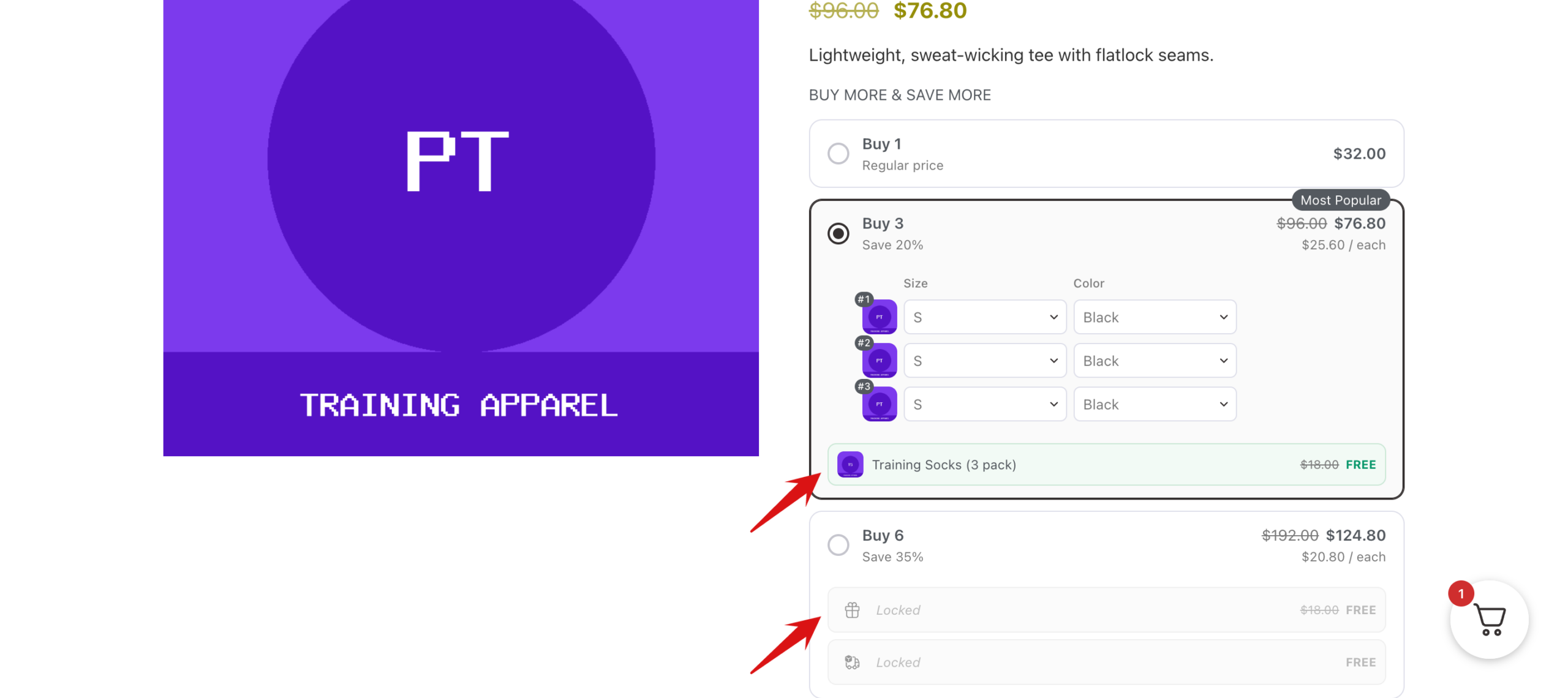
Free shipping works the same way. When it unlocks, the bundle's own items ship for free (other items in the cart keep their normal shipping), and a Free Shipping row appears in the order totals.
That's it! You've set up progressive gifts that reward shoppers for choosing bigger offers.
Next, you might want to style your gift rows on the Design tab.
FAQ
Can a gift be a variable product?
Yes. When the gift is a variable product, shoppers choose its options, such as size, on the product page.
Does free shipping apply to the whole order?
No. Free shipping applies to the bundle's items only. Other products in the cart are shipped at your normal rates.
Can I track how many gifts I've given?
Yes. The Analytics screen shows Free Product Gifts and Free Shipping Unlocks counts. See bundle analytics.