Would you like to run a bundle only for logged-in customers, or only during a holiday sale? In this guide, we'll walk you through targeting a bundle to specific user roles and scheduling when it runs.
All you need is Funnel Builder, Funnel Builder Pro, and the Bundles Addon with an active license.

Before you get started, make sure you've created a bundle. If you haven't yet, see our guide on creating your first bundle.
How to Target and Schedule a Bundle Using FunnelKit Bundles
Here are the steps to follow below:
Step 1: Show the Bundle to Specific User Roles
Open your bundle in the editor and expand the Targeting & Schedule section. Click Show to User Roles to open the list of roles on your store.
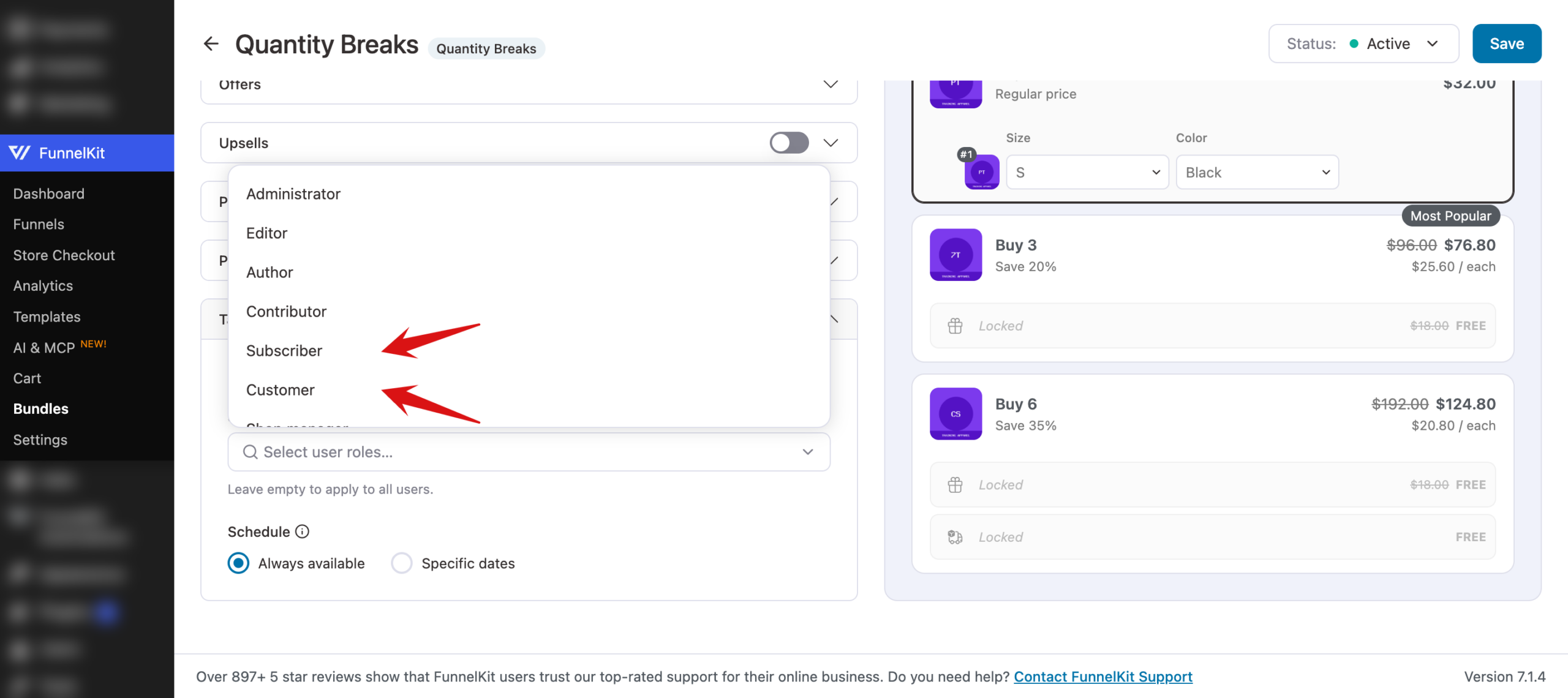
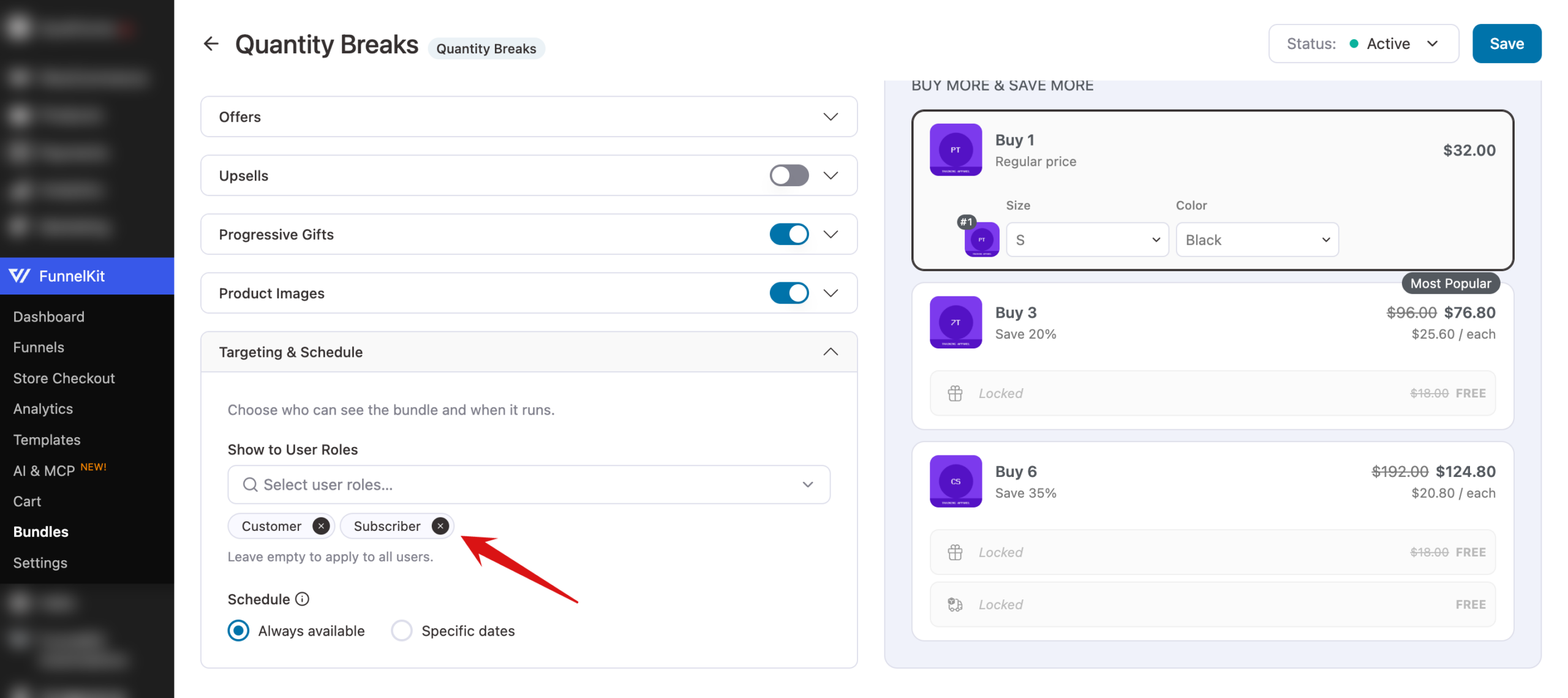
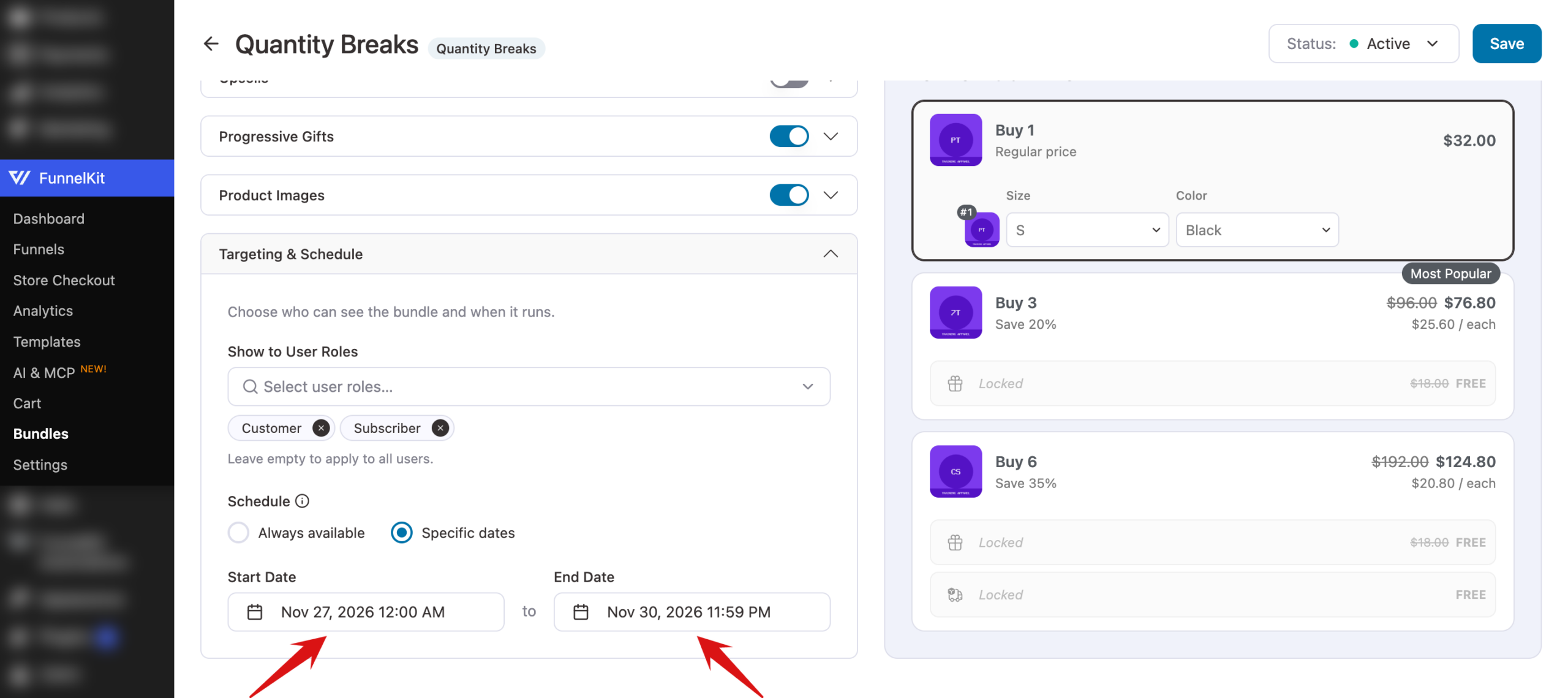
Choose the roles that can see the bundle, such as Customer or Subscriber. Leave it empty to show the bundle to everyone, including visitors who aren't logged in.
Step 2: Schedule the Bundle
Under Schedule, choose Always available to run the bundle whenever it's active. To limit it to a date range, choose Specific dates.
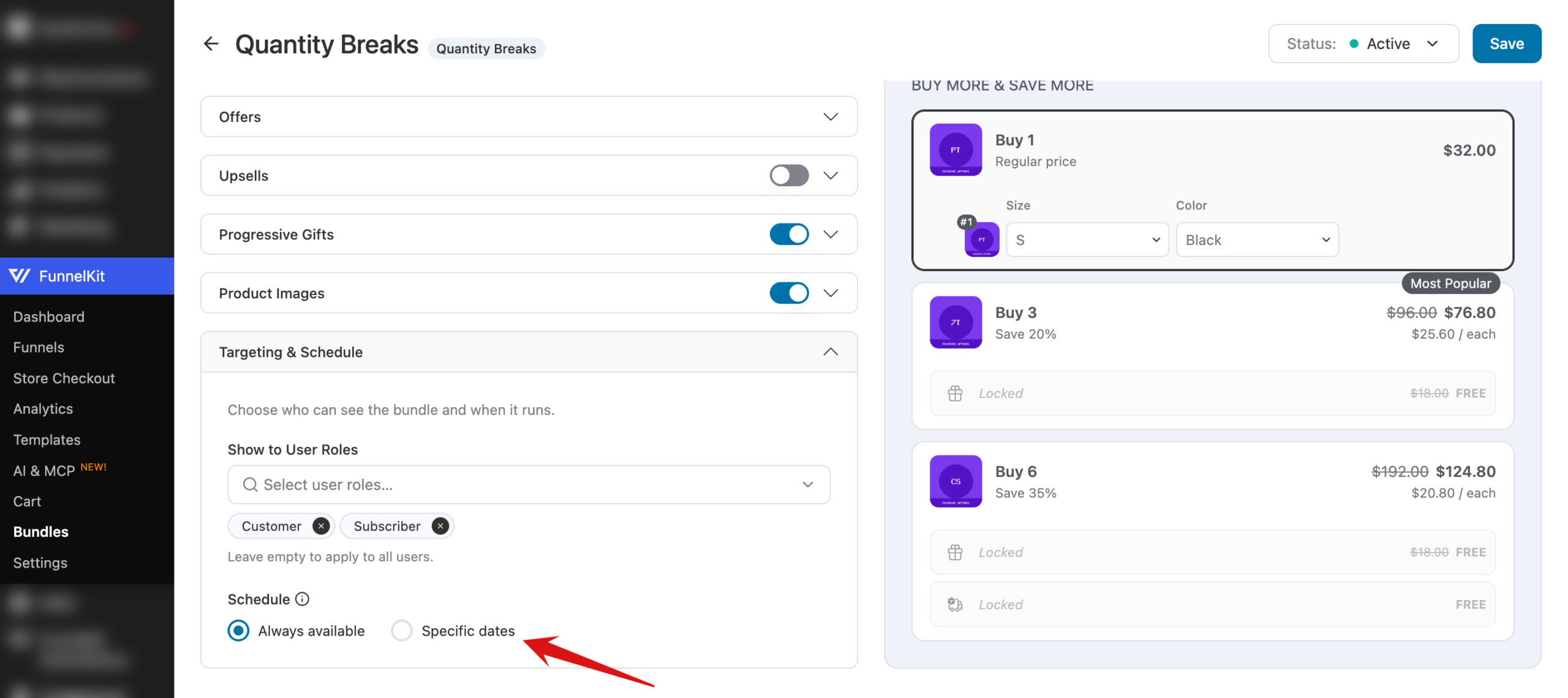
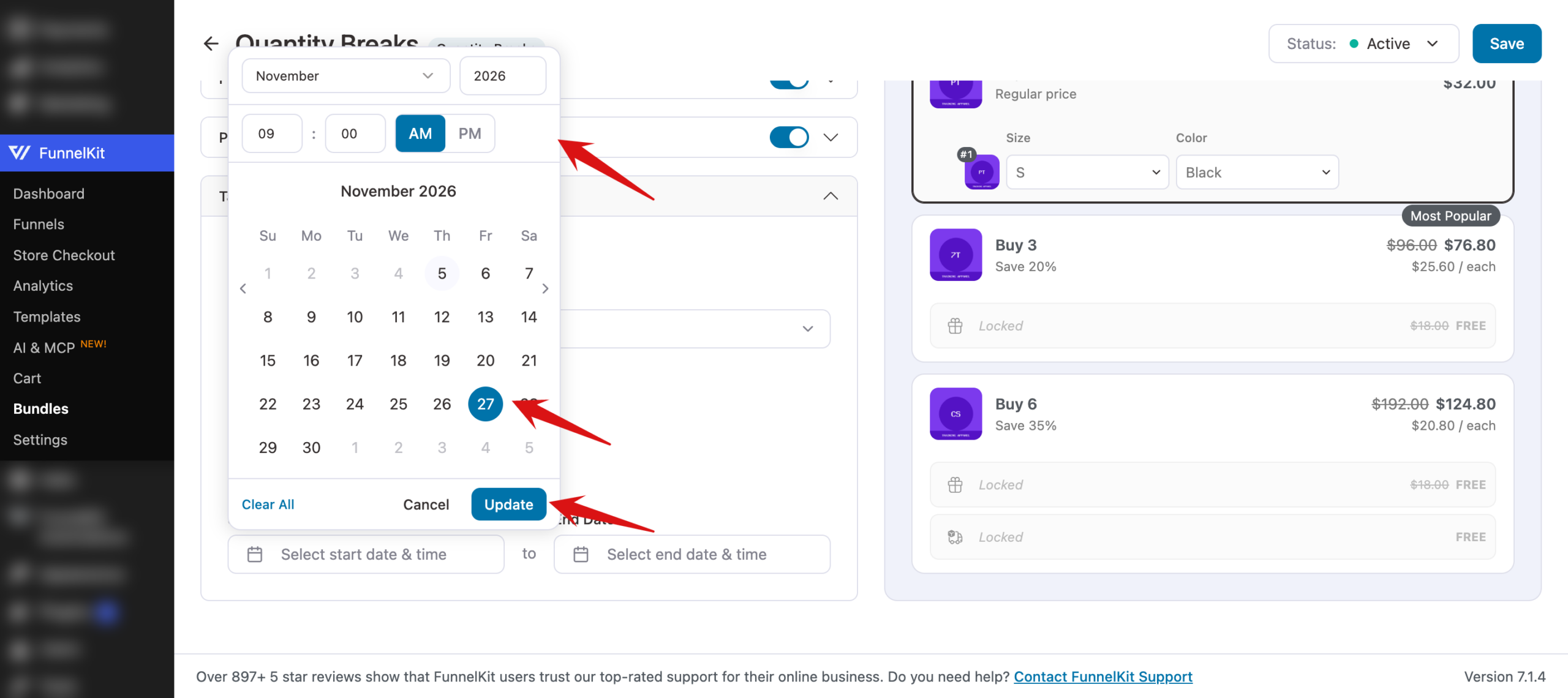
Click the Start Date field to open the date picker. Set the time, pick the day on the calendar, and click Update. Do the same for the End Date. You can set a Start Date, an End Date, or both. If you set both, the end date needs to come after the start date.
A scheduled bundle shows a Scheduled label in your bundles list until it starts, and it stops showing on your store once its end date passes. When you're done, click Save.
Step 3: Place the Bundle by Category (Optional)
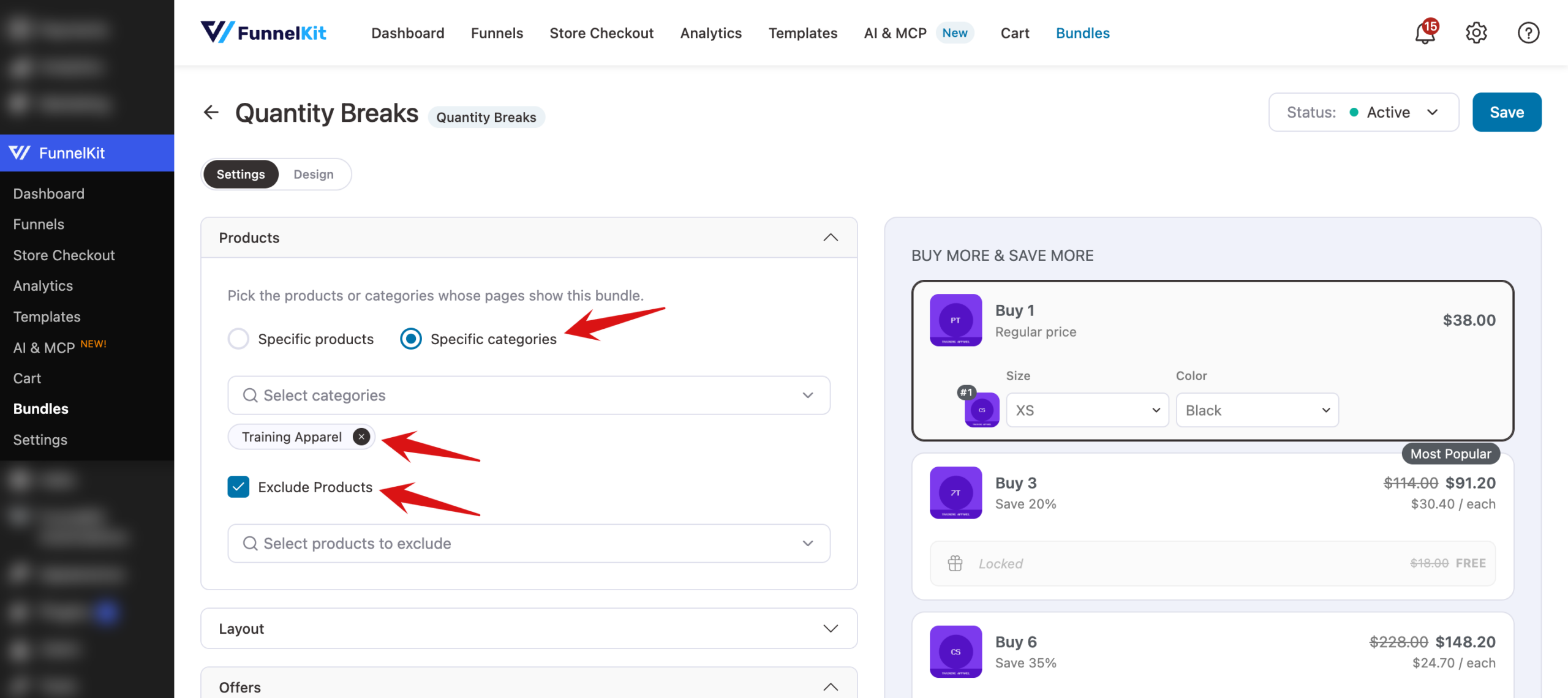
Instead of picking products one by one, you can show a bundle on every product in a category. In the Products section of a Quantity Breaks bundle, choose Specific categories and select the categories. To skip some products in those categories, tick Exclude Products and choose them. An exclusion always wins over a category placement.
That's it! You've targeted your bundle to the right shoppers and scheduled when it runs.
Next, see managing your bundles to control which bundle wins when several target the same product.
FAQ
Do schedules apply to administrators too?
Yes. Administrators see bundles regardless of role targeting, but a bundle outside its scheduled dates doesn't show for anyone.