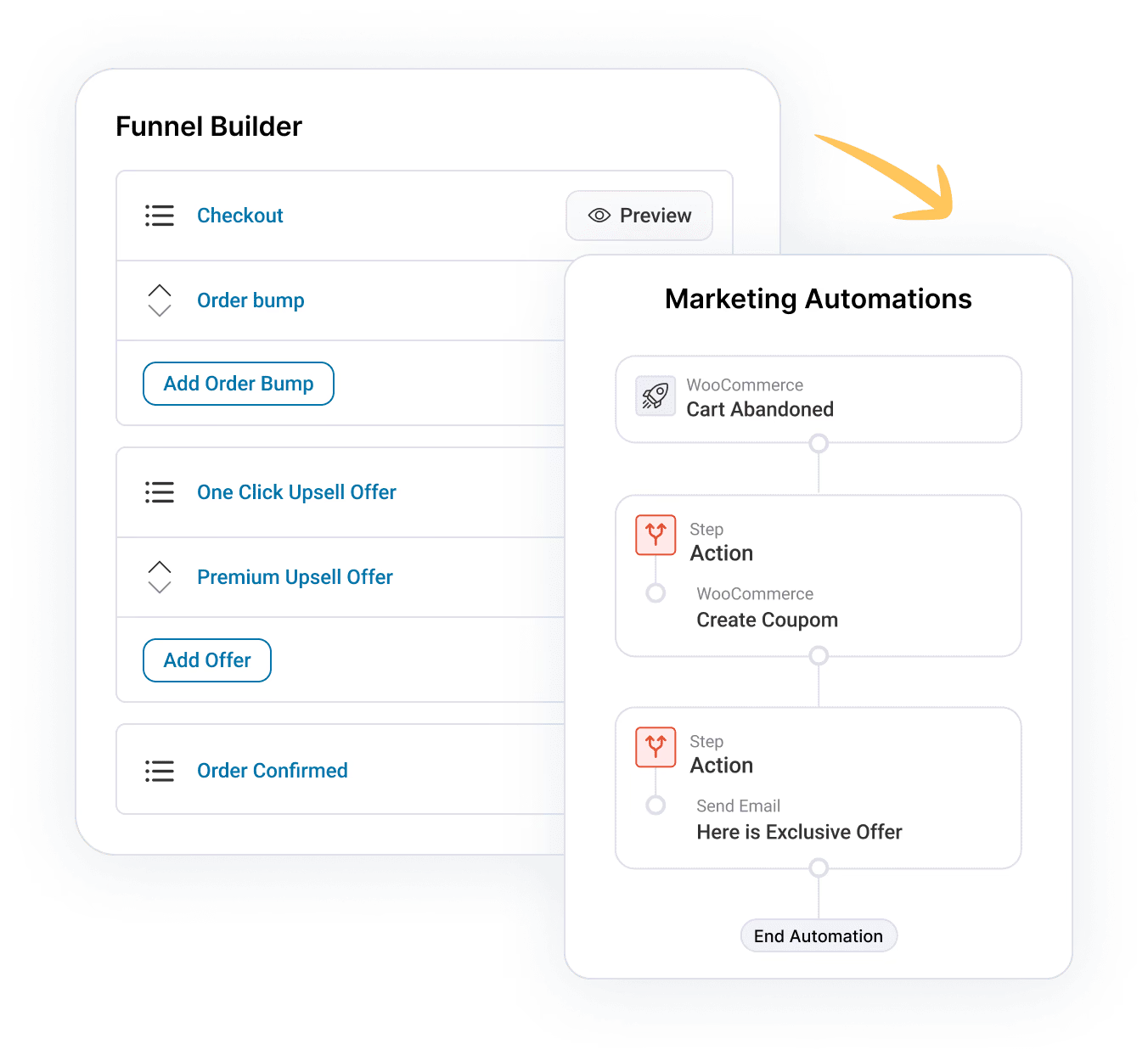
Would you like your bundle offers to match your store's colors and style? In this guide, we'll walk you through the Design tab, where you can apply a theme, adjust colors and borders, and save your own presets. All you need is Funnel Builder installed and activated.

Before you get started, make sure you've created a bundle. If you haven't yet, see our guide on creating your first bundle.
How to Customize Your Bundle's Design Using FunnelKit Bundles
Here are the steps to follow below:
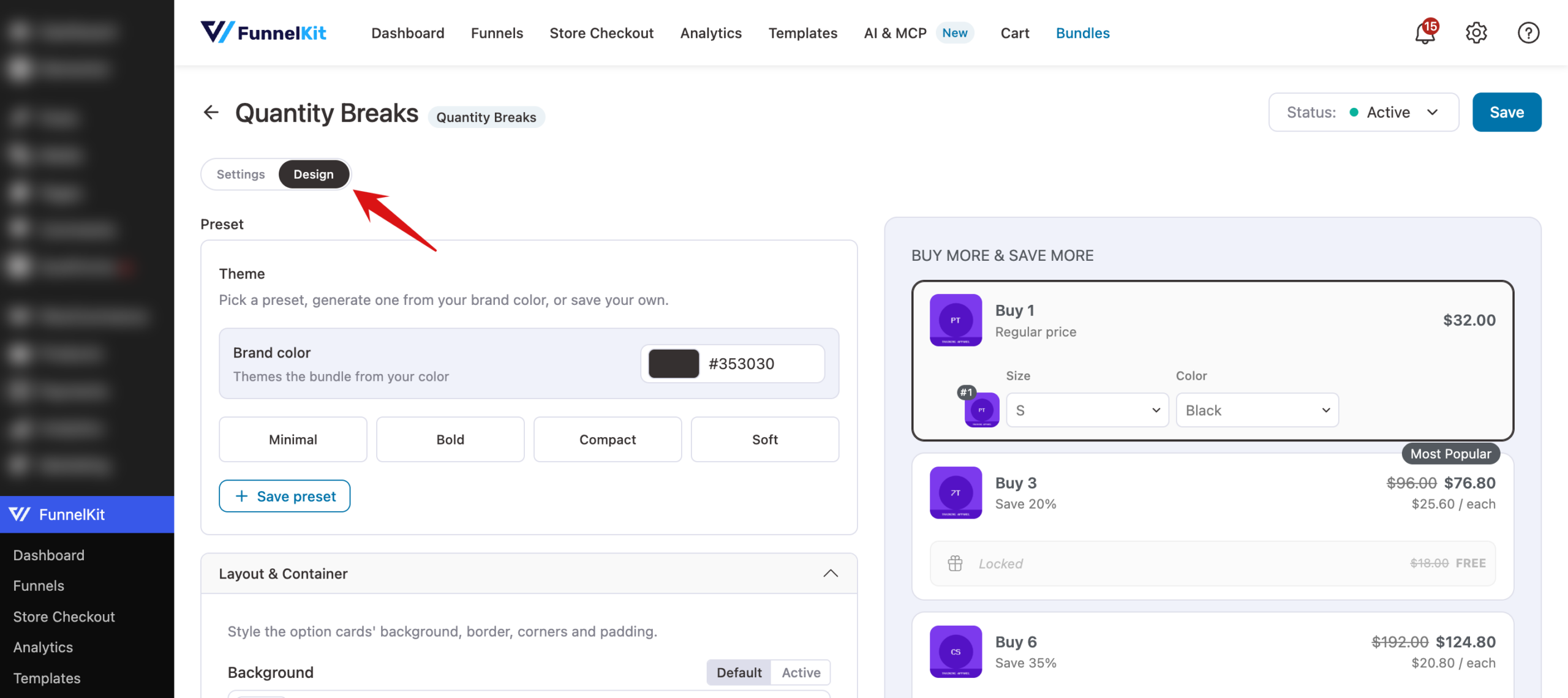
Step 1: Open the Design Tab
Open your bundle in the editor and click the Design tab at the top. Every change you make shows instantly in the live preview on the right.
Step 2: Apply a Theme
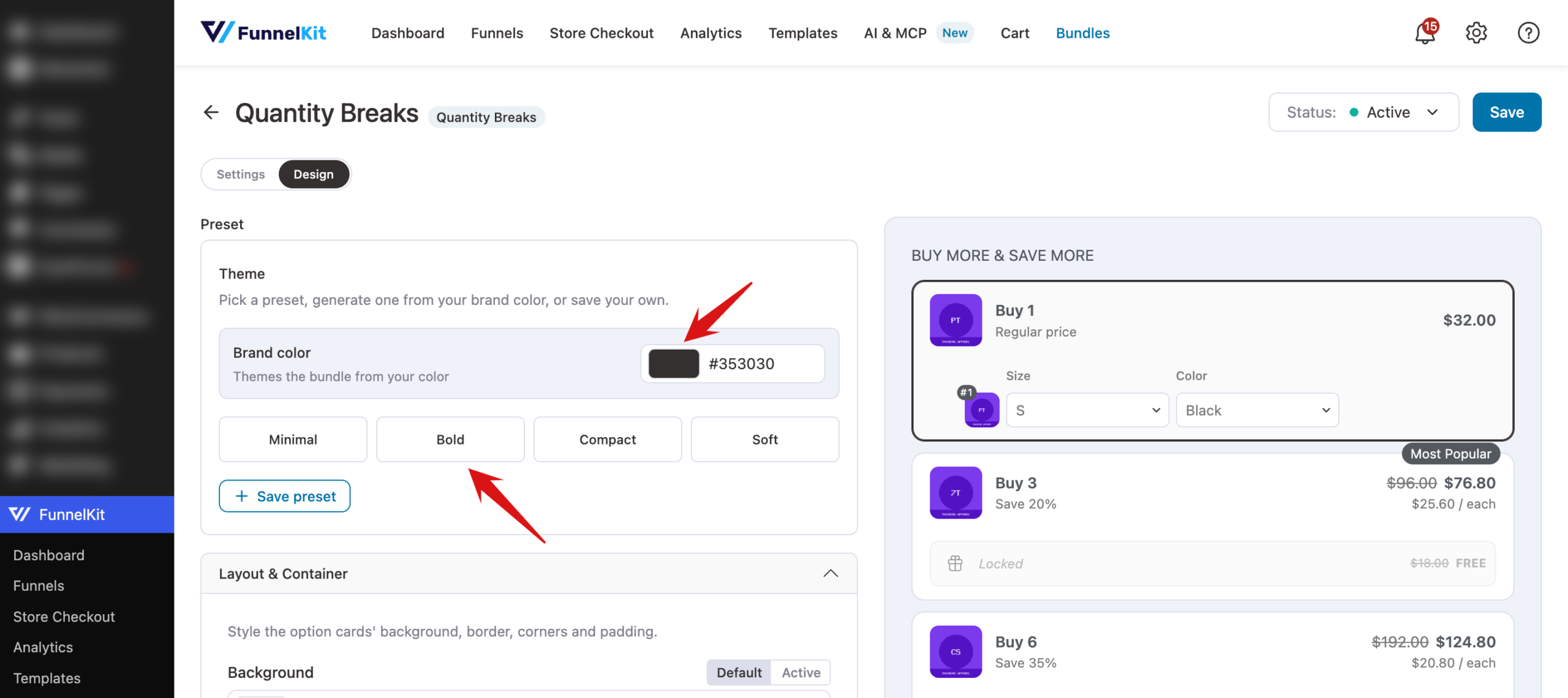
The Theme section is the fastest way to style a bundle. You can:
- Pick a ready-made preset: Minimal, Bold, Compact, or Soft.
- Enter your Brand color to generate a theme from that one color.
- Click Save preset to save your current design under a name so you can reuse it on other bundles. Saved presets can be edited or deleted later.
Step 3: Fine-Tune the Design
The remaining sections let you adjust individual parts of the widget. Click a section header to open it.
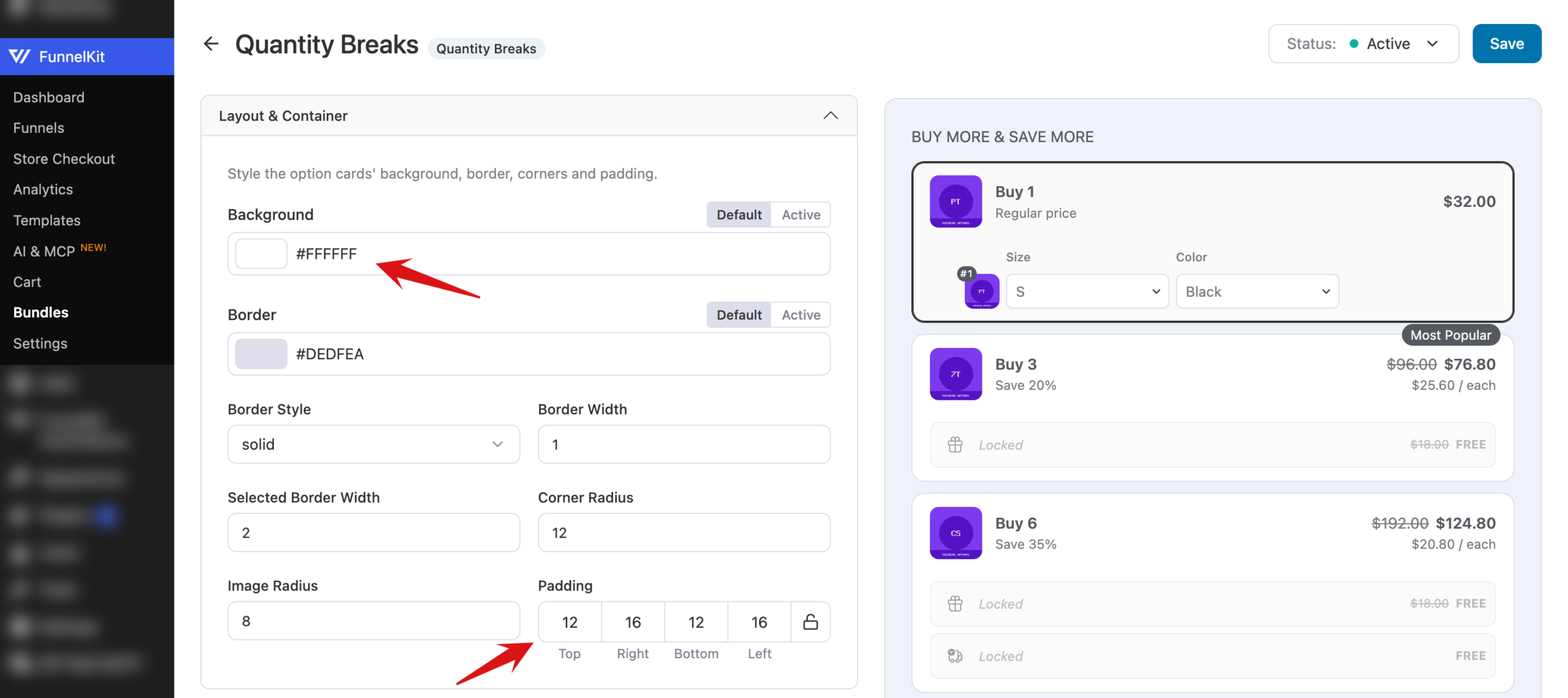
Layout & Container: style the option cards' Background and Border colors, with separate Default and Active colors for the selected card. You can also set the Border Style, Border Width, Selected Border Width, Corner Radius, Image Radius, and Padding.
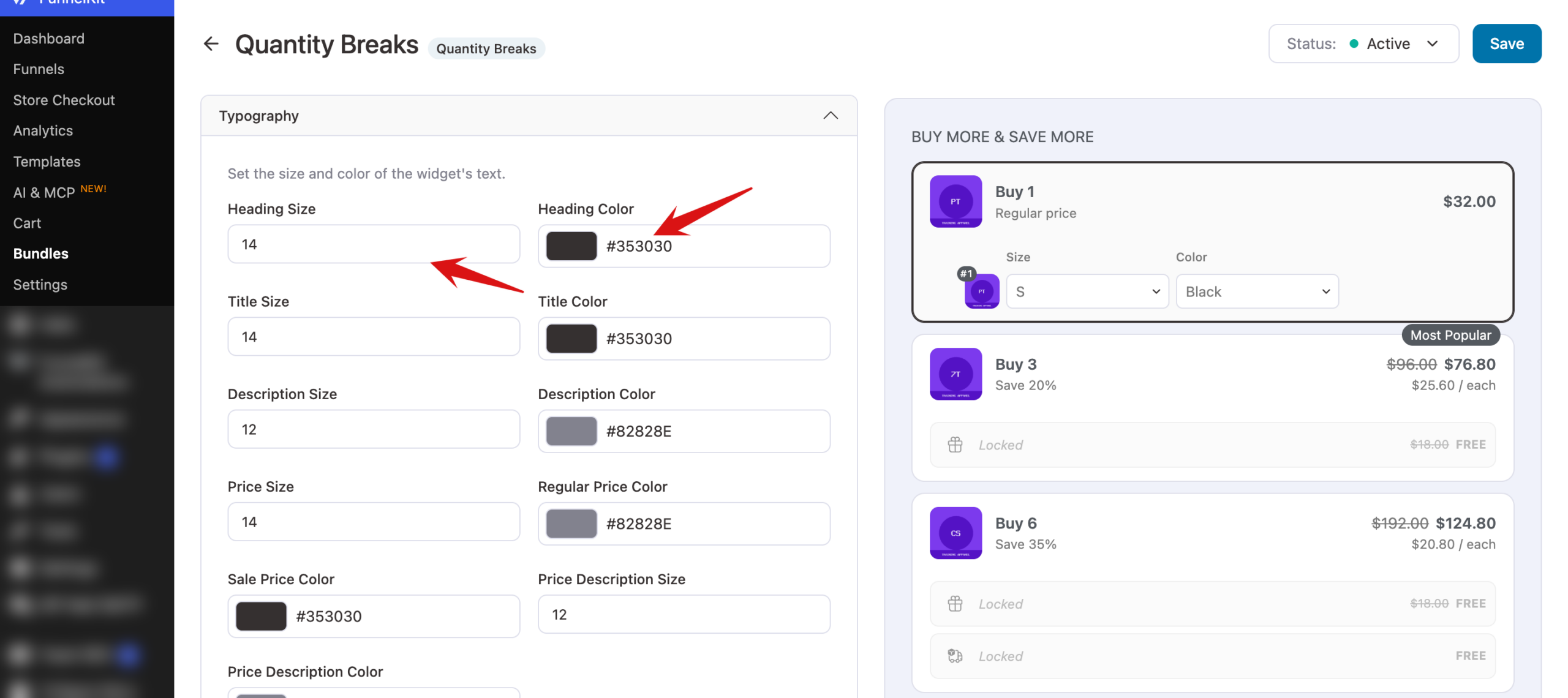
Typography: set the size and color of the widget's text, such as headings, titles, and prices.
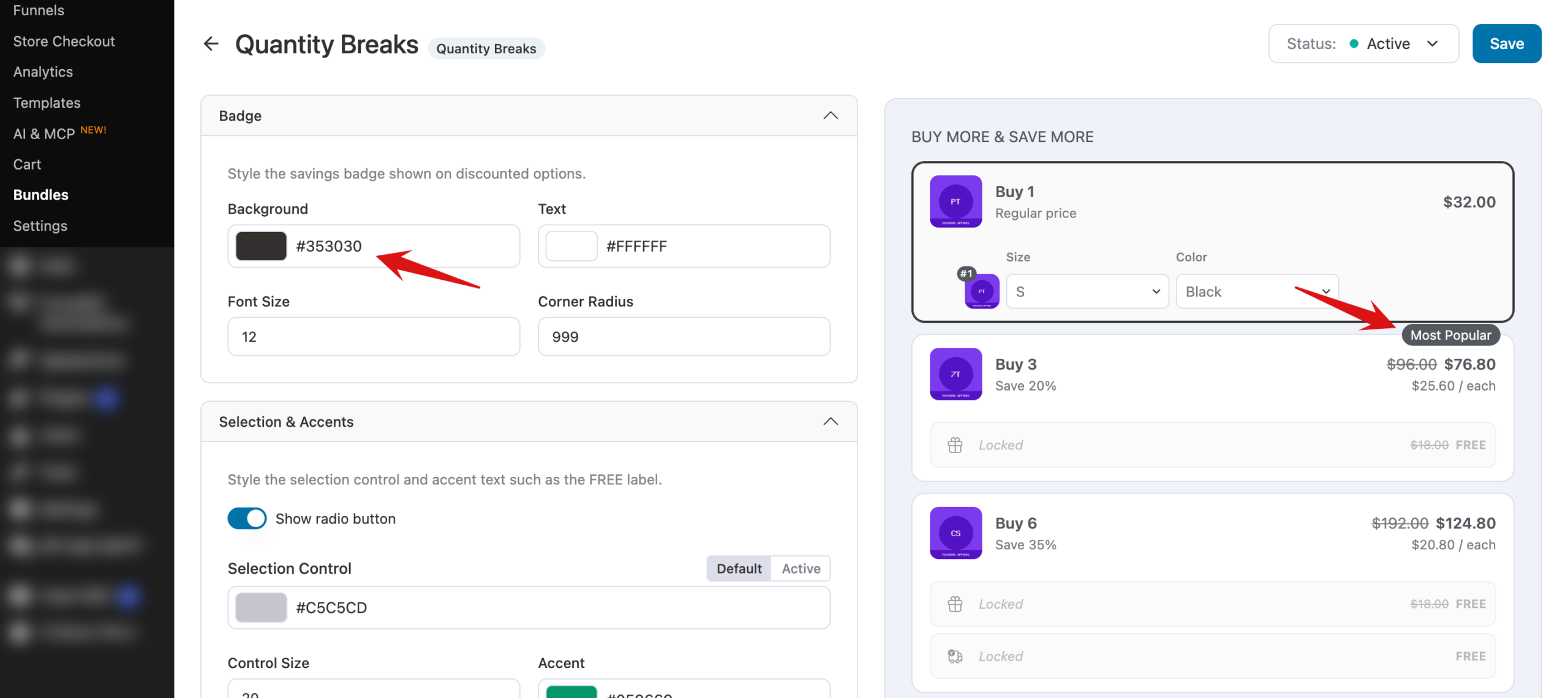
Badge: style the badge shown on an offer, such as Most Popular or Save 20%.
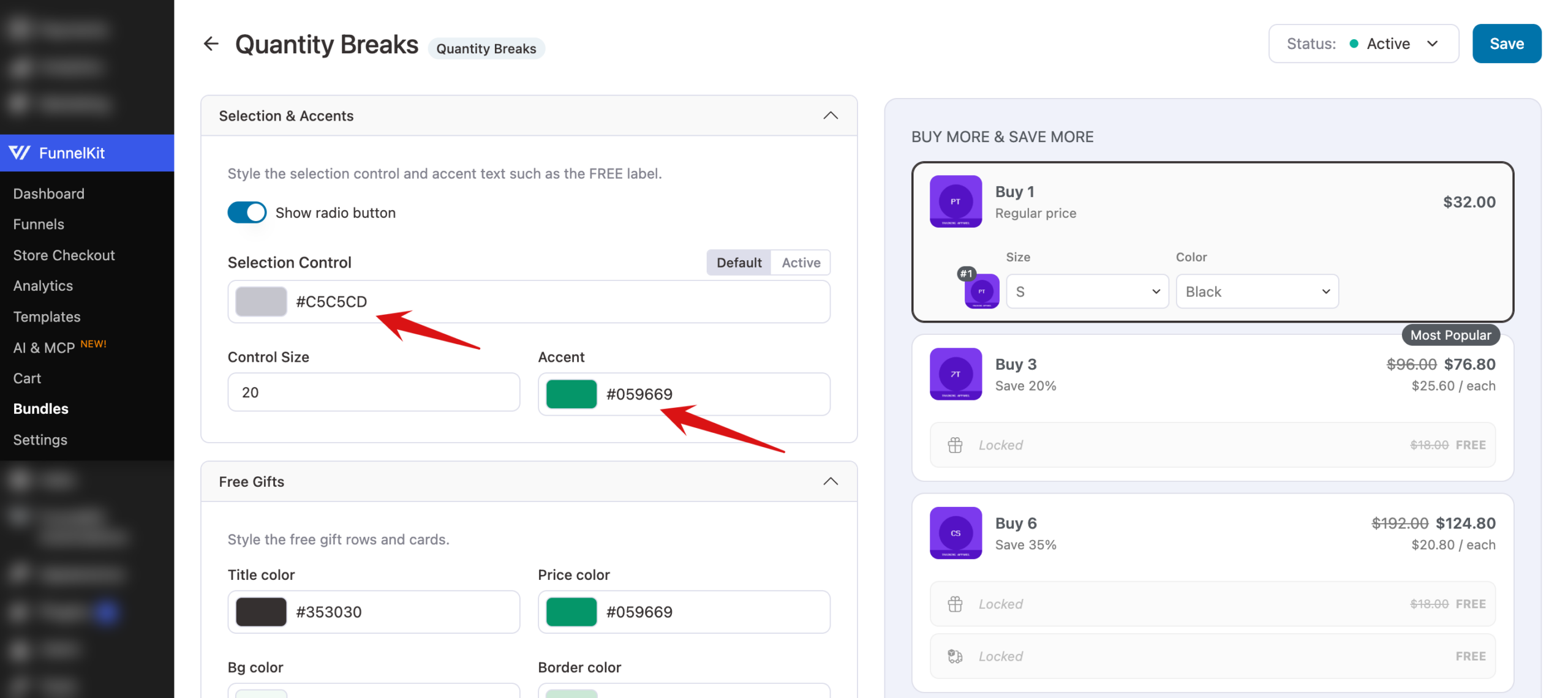
Selection & Accents: style the selection control, such as the radio button on each offer, and accent text such as the FREE label.
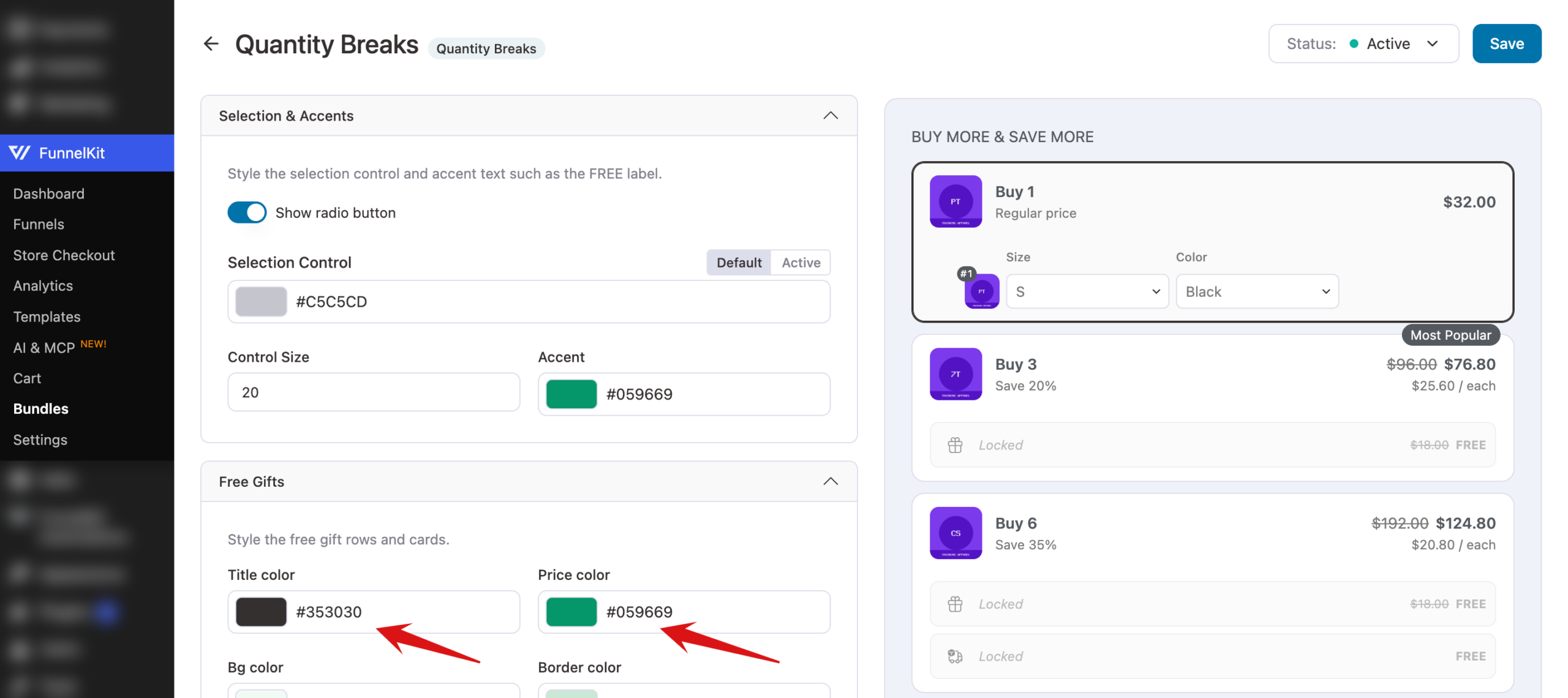
Upsells and Free Gifts: when a bundle has upsells or progressive gifts turned on, the Design tab adds an Upsells section to style the add-on rows and a Free Gifts section to style the gift rows and cards.
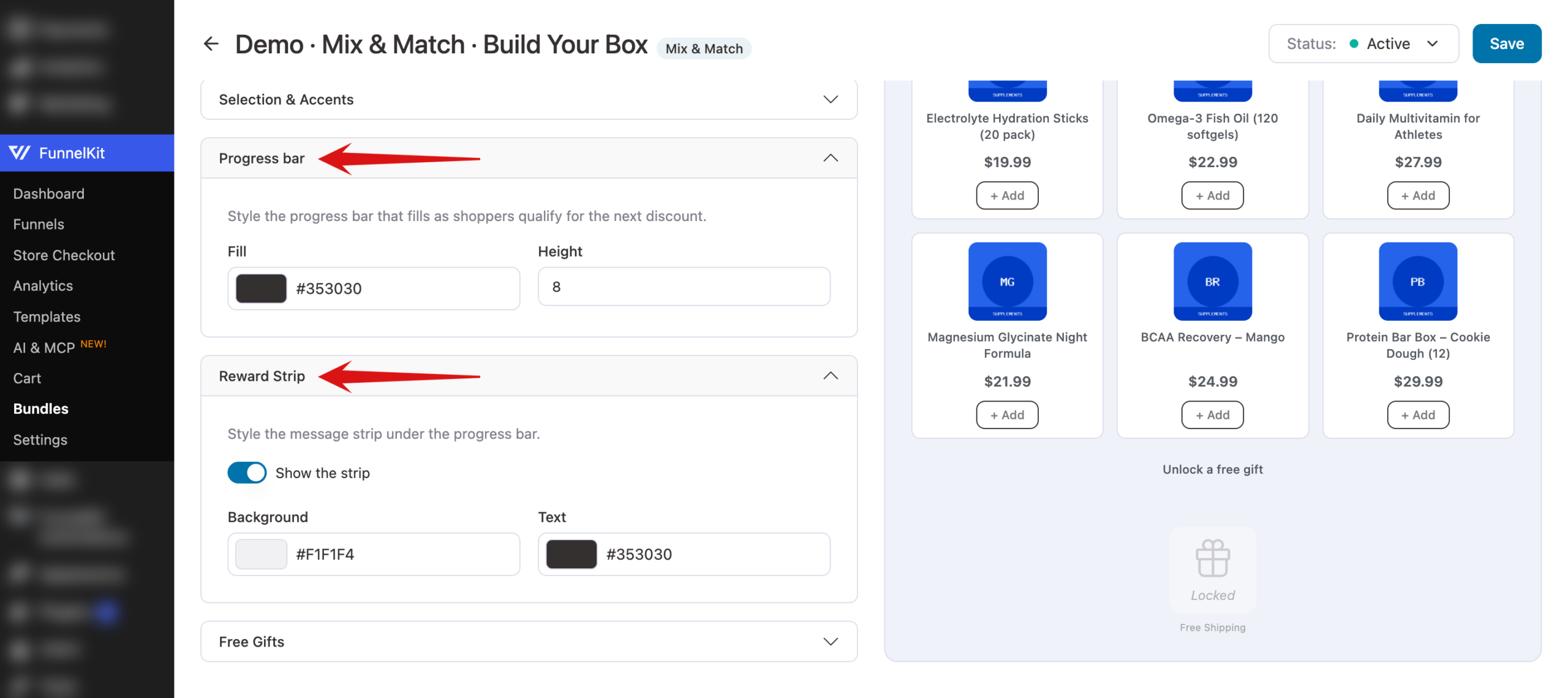
Mix and Match bundles also get a Progress bar section for its fill color and height, and a Reward Strip section for the message under it.
Step 4: Save Your Design
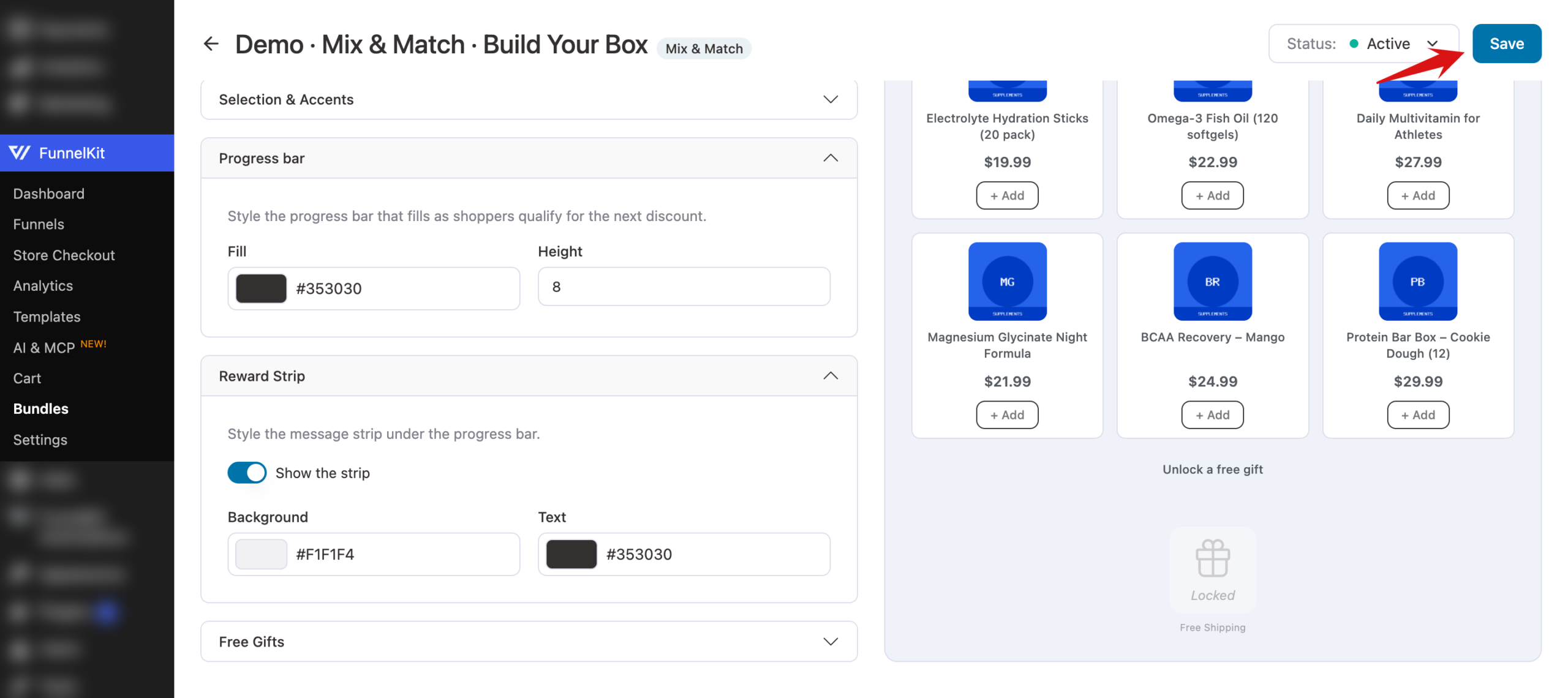
When the preview looks right, click Save in the top-right corner of the editor.
That's it! Your bundle now matches your store's look.
Next, you might want to choose where bundles appear on the product page.