Would you like to control where bundles appear on your product pages and how product options are shown inside them? All you need is Funnel Builder installed and activated.
This guide walks you through the Bundles settings in Funnel Builder.
Before you get started, make sure Funnel Builder is installed and activated on your WordPress site. If you need help, see our guide on setting up Bundles and activating your license.
How to Configure Bundle Placement and Product Options Using FunnelKit Bundles
Here are the steps to follow below:
Step 1: Open the Bundles Settings
To get started, we'll open the Bundles settings, which live with the rest of your Funnel Builder settings.
From your WordPress admin sidebar, go to FunnelKit » Settings. In the settings menu, click Bundles.
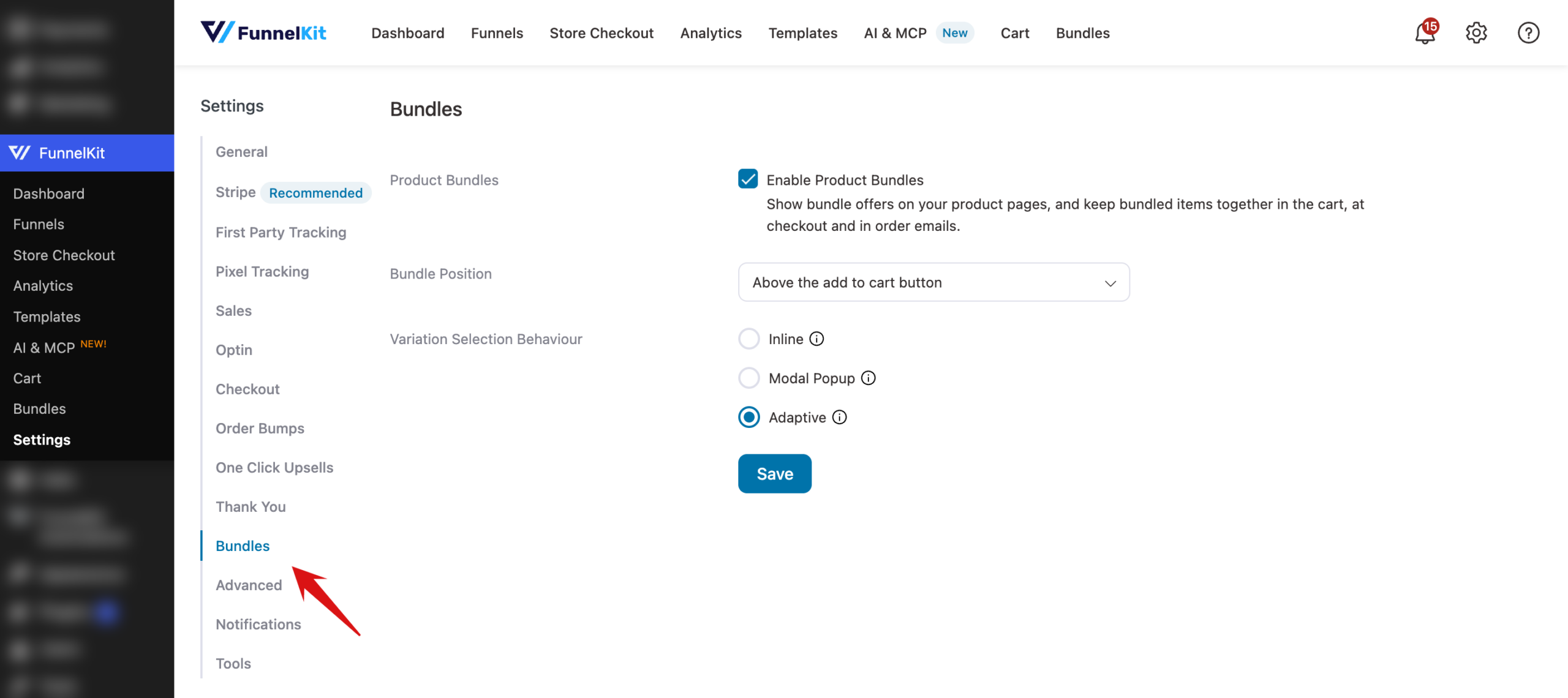
The Bundles settings have two tabs: Placement and Product options.

Step 2: Choose Where Bundles Appear
The Placement tab opens first. The Where bundles appear dropdown sets where the bundle shows on the product page. It's set to Above the add to cart button by default.
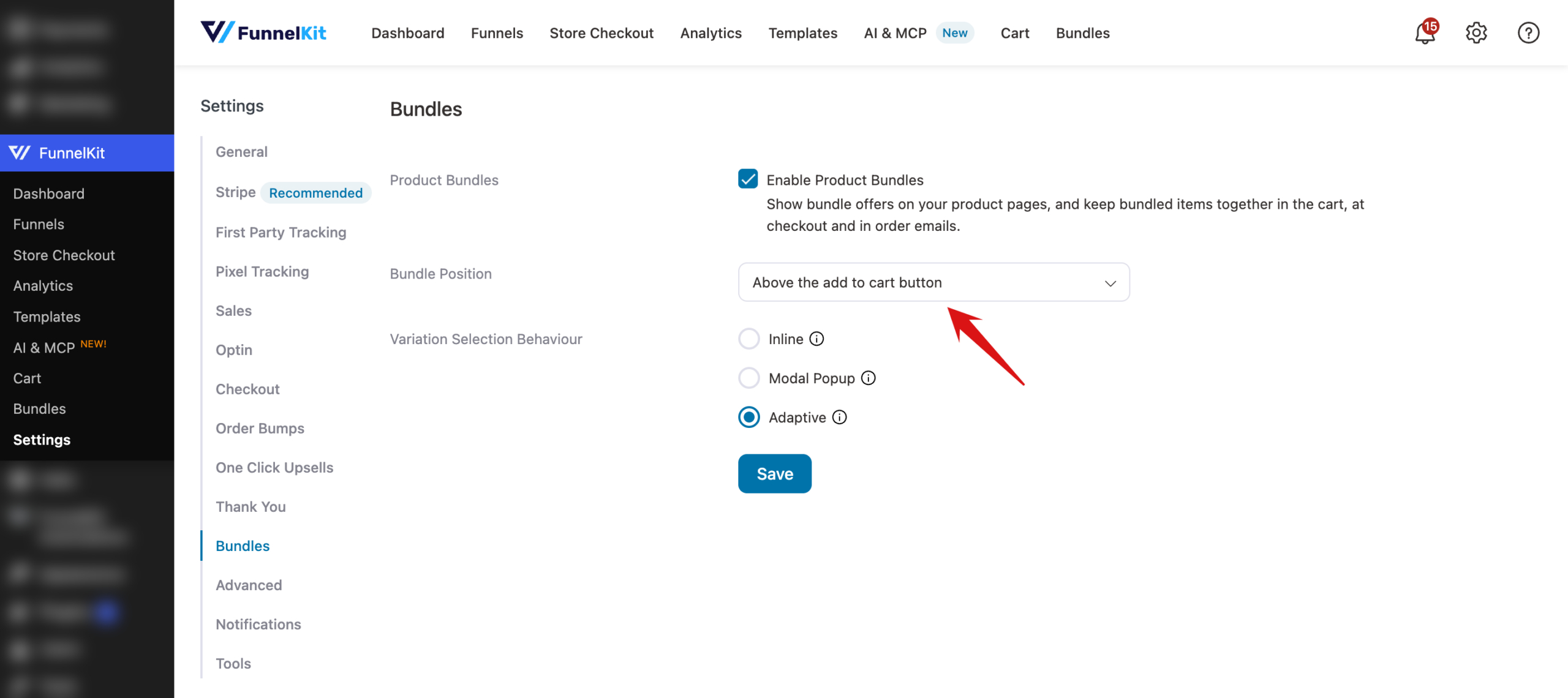
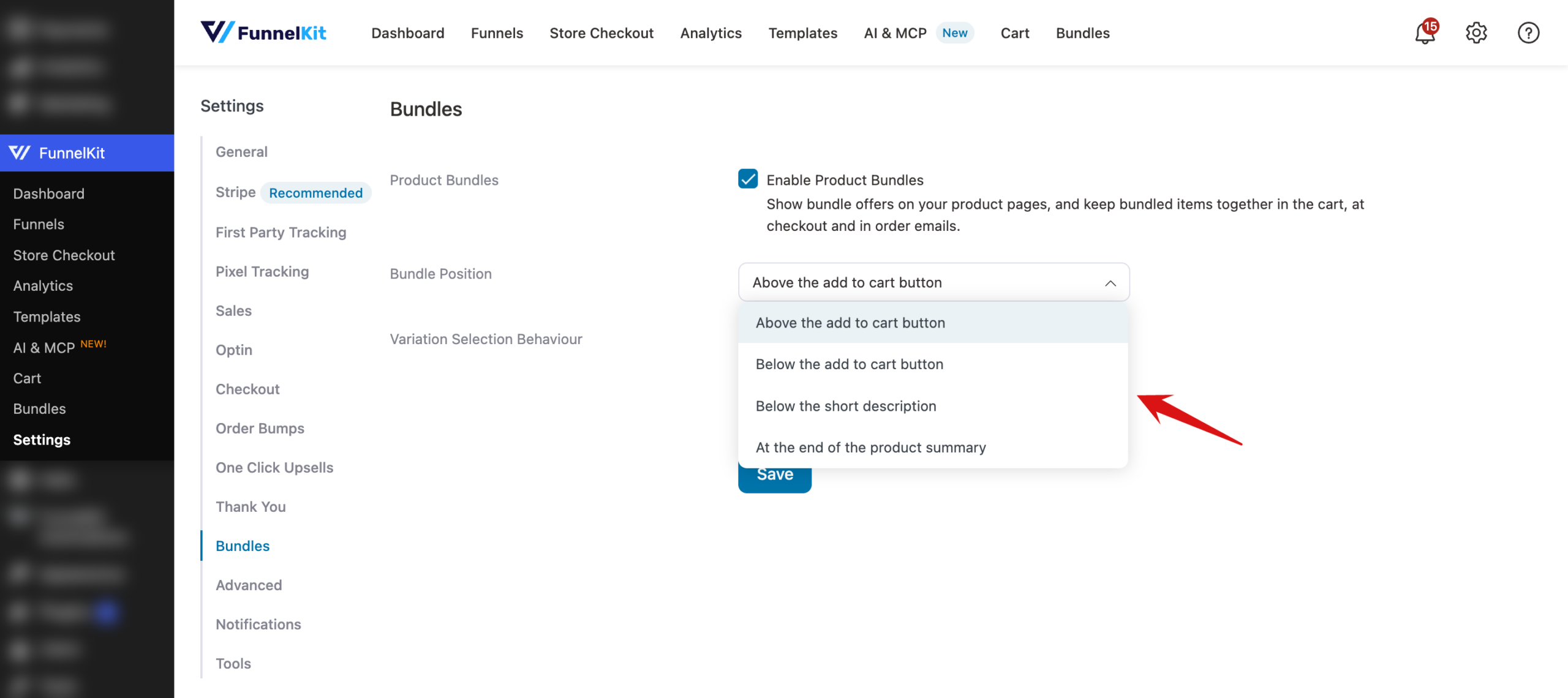
Themes lay out the product page differently, so pick another position if the bundle looks out of place with your theme. From the Where bundles appear dropdown, select one of these positions:
- Above the add to cart button: the bundle sits right above the buy button. Choose this if you want shoppers to see the offers just before they add to cart.
- Below the add to cart button: the bundle sits under the buy button. Choose this if you want the regular buy button to come first.
- Below the short description: the bundle follows the product's short description. Choose this if you want the offers next to your product summary text.
- At the end of the product summary: the bundle comes after everything else in the summary area. Choose this if you want the offers below the main purchase area.
When you've picked a position, click Save below the dropdown.
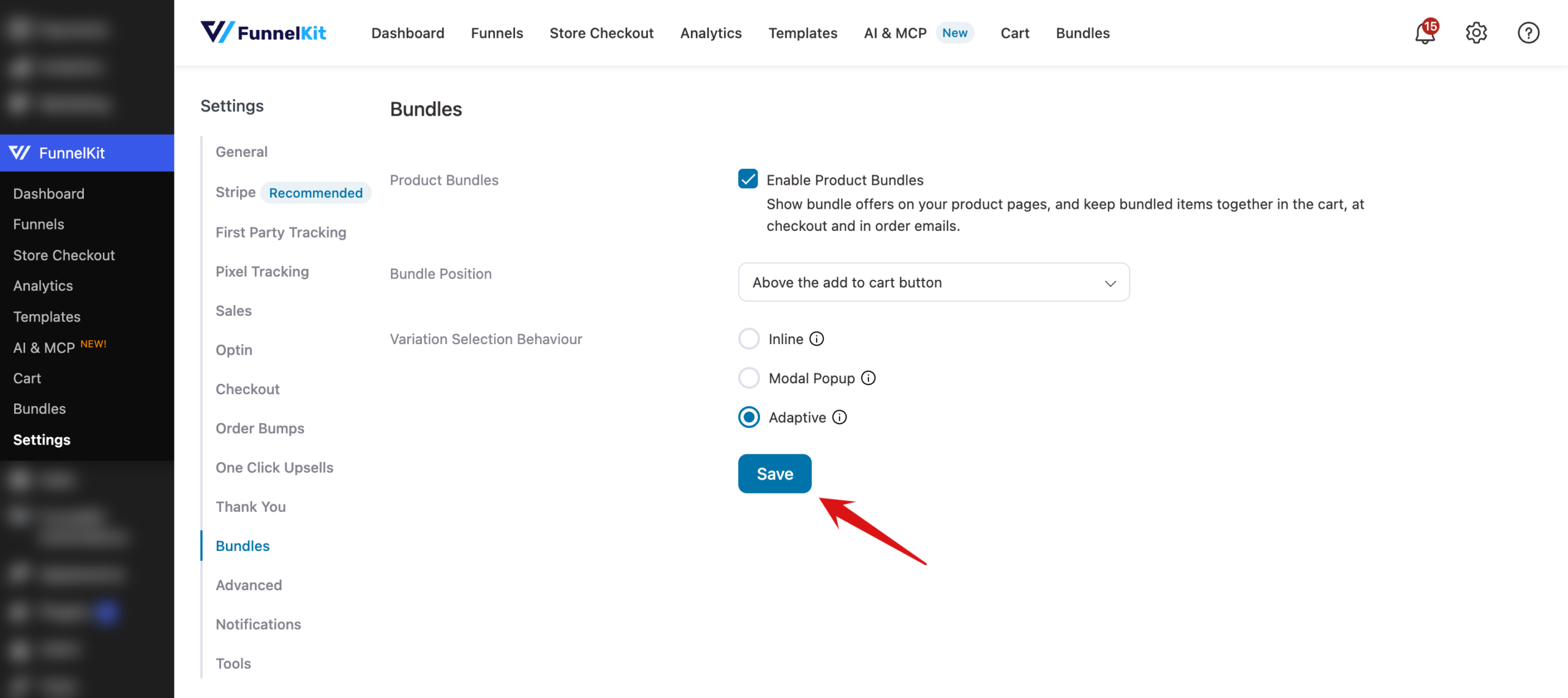
Your placement is now saved.
Step 3: Choose How Product Options Appear
The Product options tab controls how a variable product's options, such as size or color, are shown inside an offer. At the top of the Bundles settings, click the Product options tab.
The How variation options appear setting is set to Auto by default. Auto picks the display for each product based on how complex its options are.
- Auto: simple variable products show option dropdowns in the offer. Products with three or more options, swatches, add-ons, or bookings open a quick-view popup instead. Choose this if your store mixes simple and complex variable products.
- Inline: shows option dropdowns directly in every offer. Choose this if you want shoppers to pick options without opening a popup.
- Quick-view: every variable product shows a Select options button that opens a popup. Choose this if you want every offer to stay compact.
When you're done, click Save.
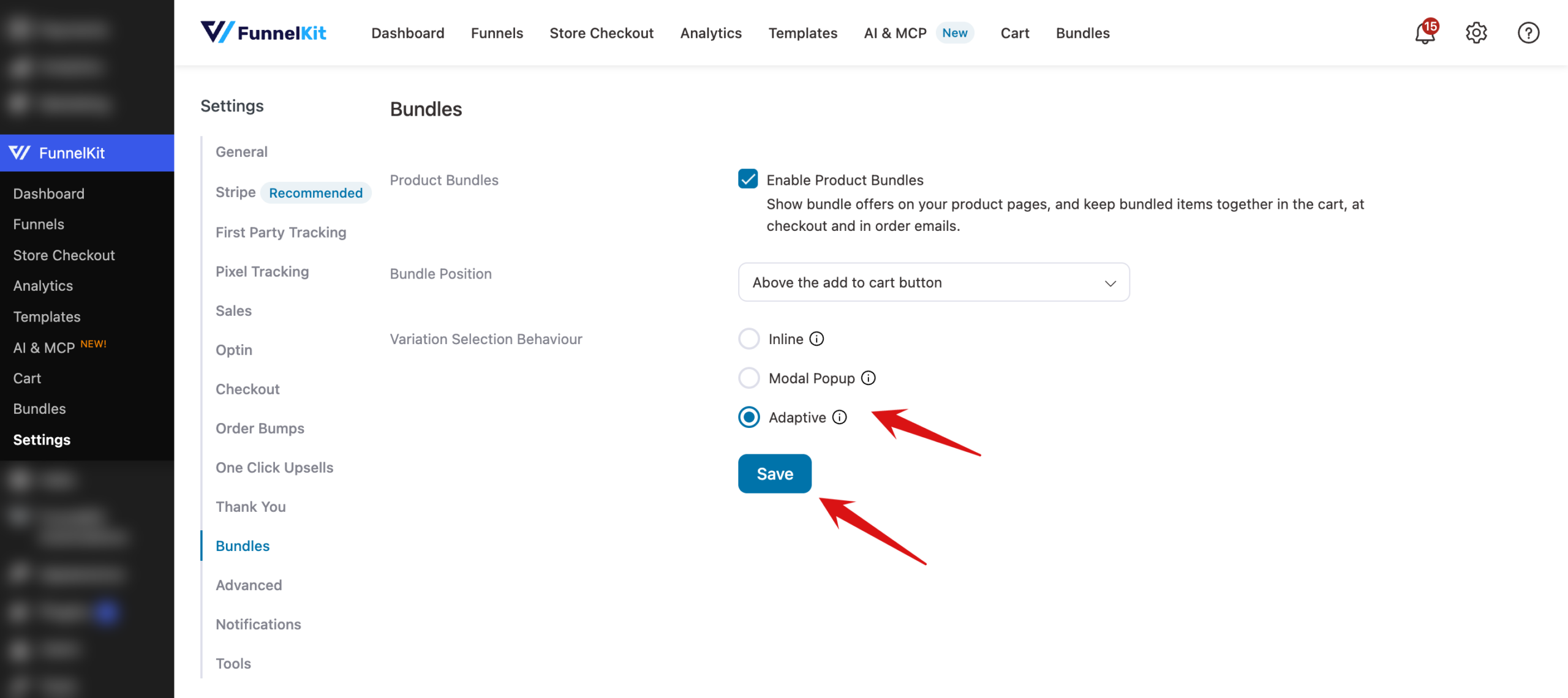
That's it! You now know how to set where bundles appear and how product options are shown. Next, see how bundles appear in the cart, checkout, and orders.
FAQ
Below, we've answered some of the most common questions about the Bundles settings.
Does the placement setting work with my page builder?
Bundles supports product pages built with Elementor, Elementor Pro, Divi, and Bricks, as well as the WooCommerce block editor templates.
Where do I enter my Bundles Addon license?
Go to FunnelKit » Settings » General and find the License section. The Bundles Addon's row is labelled FunnelKit Bundles For WooCommerce.