


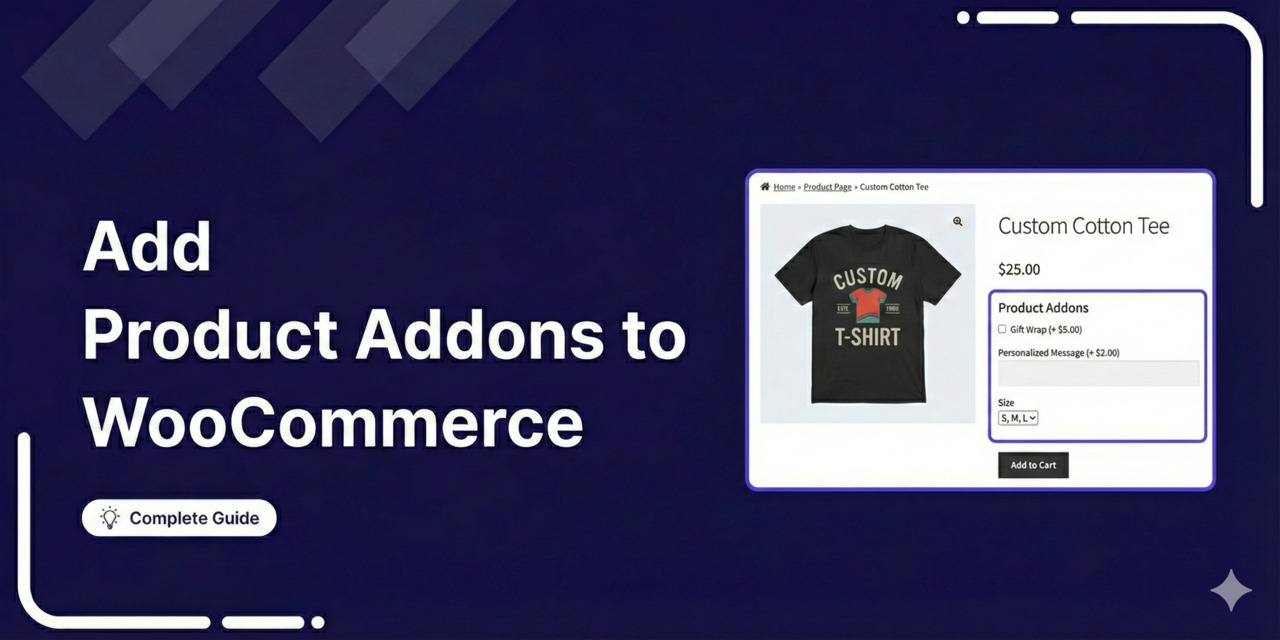
WooCommerce product add-ons give your customers extra options on the product page.
These can be custom text fields for engraving, checkboxes for gift wrapping, dropdown menus for material selection, color swatches, file uploads, and date pickers.
All these add-ons let shoppers personalize or configure a product before adding it to their carts.
But the catch is, WooCommerce does not offer any of this out of the box. The default product page only supports basic variations, such as size and color, through its variable product type.
If you want to offer engraving, custom messages, premium packaging, or add-on services, you'll need a dedicated plugin.
In this guide, we'll compare the best WooCommerce product add-on plugins available for free and premium as well.
Plus, we'll walk you through a complete step-by-step setup using a free WordPress plugin, break down the different types of add-on fields and when to use each one.
Why Add Product Add-Ons to Your WooCommerce Store
WooCommerce product add-ons (also called custom product options or extra product fields) are additional input fields that appear on your product page alongside the Add to Cart button.
They let customers personalize their orders before checkout, and each option can be free or come with an additional cost.
According to Retail TouchPoints, 59% of online shoppers say they are more likely to buy from a store that offers product customization, and one in five will pay up to 20% more for a custom item.
Adding these options directly to your product pages captures that willingness to pay without any extra emails or manual back-and-forth.
Here is why we recommend adding product add-ons to your WooCommerce store:
- Increase your average order value with paid extras, such as gift wrapping, rush processing, extended warranties, and premium material upgrades. Even a small $3 to $5 per-transaction value adds up fast.
- Product add-ons collect all details upfront at the point of purchase to reduce any support tickets and order mix-ups.
- Let customers customize products such as text fields for engraving, monograms, or printed messages on their own, without custom order forms or separate emails.
- Tame complex product configurations such as custom cakes with specific toppings, furniture with multiple fabric and finish options, and apparel with embroidery selections.
- When multiple stores sell the same products, custom options become the tiebreaker by giving customers a reason to buy from your store.
McKinsey's research states that companies that tailor the buying experience well generate 40% more revenue from those efforts than average performers.
Product add-ons are one of the most brilliant ways to give your WooCommerce customers that tailored experience without reworking your entire setup.
Table of Contents
- 1 Types of Product Add-On Fields in WooCommerce
- 2 How to Add Product Add-Ons in WooCommerce (Step-by-Step)
- 3 7 Best WooCommerce Product Addon Plugins Compared
- 3.1 1. WooCommerce Custom Product Addons by Acowebs
- 3.2 2. Extra Product Options by ThemeHigh
- 3.3 3. WooCommerce Product Add-Ons
- 3.4 4. YITH WooCommerce Product Add-Ons & Extra Options
- 3.5 5. WooCommerce Product Options by Barn2
- 3.6 6. Product Add-Ons Ultimate by Plugin Republic
- 3.7 7. WowAddons by WPXPO
- 3.8 Our Recommendation
- 4 6 Best Practices to Increase Revenue With WooCommerce Product Add-Ons
- 5 Frequently Asked Questions Related to Product Add Ons for WooCommerce
- 6 Start Offering Custom Product Options in WooCommerce Today!
Types of Product Add-On Fields in WooCommerce
Here is a rundown of some common custom fields you can offer as product addons:
- Text input: A single line of text to engrave a name, a monogram, or a short custom message. Text area fields are better suited to longer content, such as gift card messages, delivery instructions, or product descriptions for custom print orders.
- Dropdown: To select one choice out of four or more options, such as material types, engraving font, size options, etc.
- Checkbox: Helps pick multiple things at once, for instance, gift wrapping ($2.99), a printed card ($1.99), or express packaging ($3.99).
- Radio buttons: Present all choices at the front, but only one can be selected, such as standard vs. premium packaging, or choosing between a matte, glossy, or satin finish.
- Image and color swatches: Image swatches replace plain text with small thumbnails, so customers can actually see what a fabric pattern or product finish looks like before selecting it. Color swatches display clickable circles or squares in the actual color.
- File upload: Let customers attach their own files to an order, for example, a logo for printing, a photo for a mug, or a custom design.
- Date picker: Customers can select a specific date, which is common for delivery dates, event dates, or appointment scheduling.
- Number: Capture a numeric value from the customer. It can be a measurement (length, width, height), a quantity for bundled items, or a number used in a price calculation.
- Customer-defined price: Instead of picking from predefined options, the customer enters a price. It shows up in tip jars for restaurant orders, donation fields for charities, and more. You can set minimum and maximum values to keep entries within a sensible range.
How to Add Product Add-Ons in WooCommerce (Step-by-Step)
For this walkthrough, we will use the Product Addons for WooCommerce plugin.
It is one of the most popular plugins and its drag-and-drop builder is easy to use even if you have never worked with custom fields before.
The free version has 15 field types, including text fields, dropdowns, checkboxes, and radio buttons. Its premium version unlocks conditional logic, file uploads, pricing fields, repeater fields, swatches, and advanced layout controls.
Make sure to download and activate it on your WordPress website.
Once done, follow the step-by-step instructions below to add custom product add-ons to your WooCommerce store:
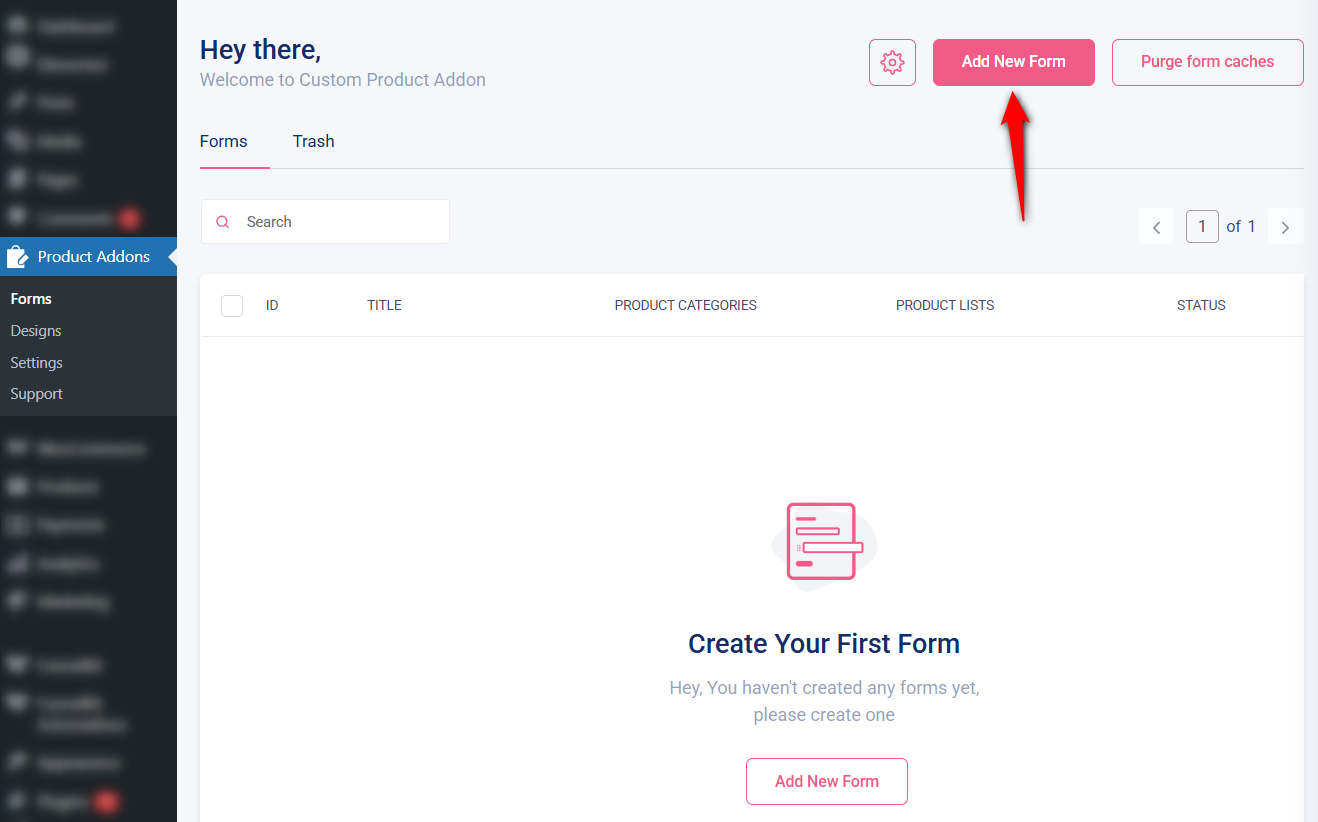
Step 1: Create a new form
From your WordPress dashboard, go to Product Addons ⇨ Forms and click on 'Add New Form'.
Enter the title of your form that reflects the products it applies to.
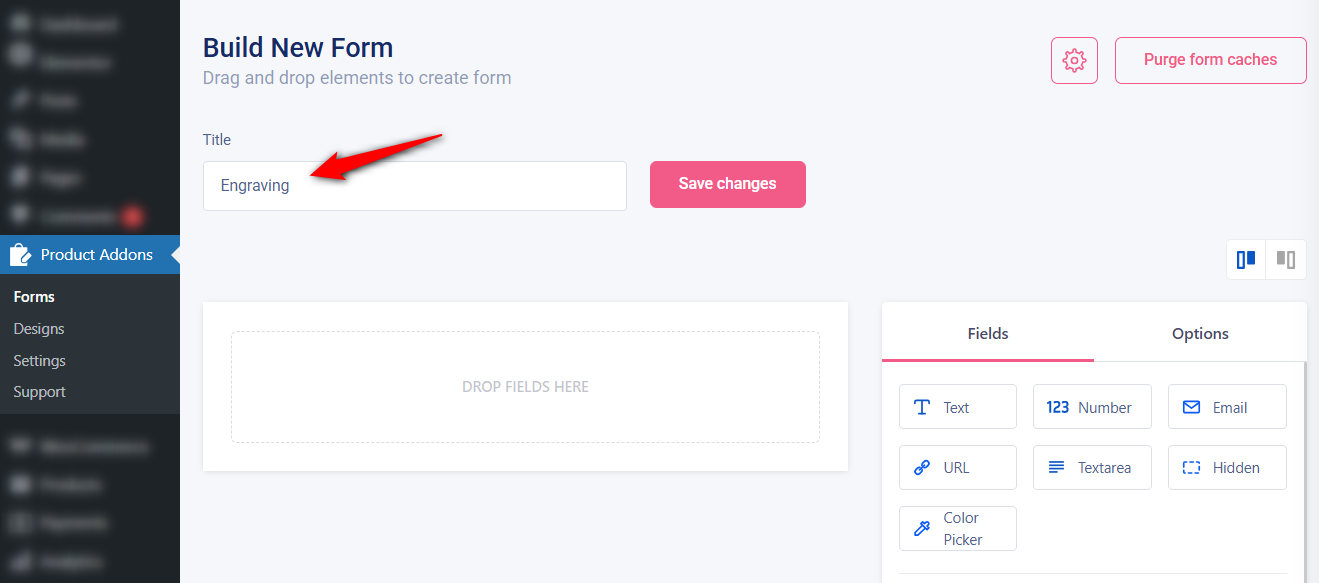
Make sure to save your changes.
Step 2: Drag and drop the product addon field
For a basic custom options setup, a good starting combination is a text input for a customer name or message, a dropdown to select a font, a checkbox for optional gift wrapping, and radio buttons to choose a packaging style.
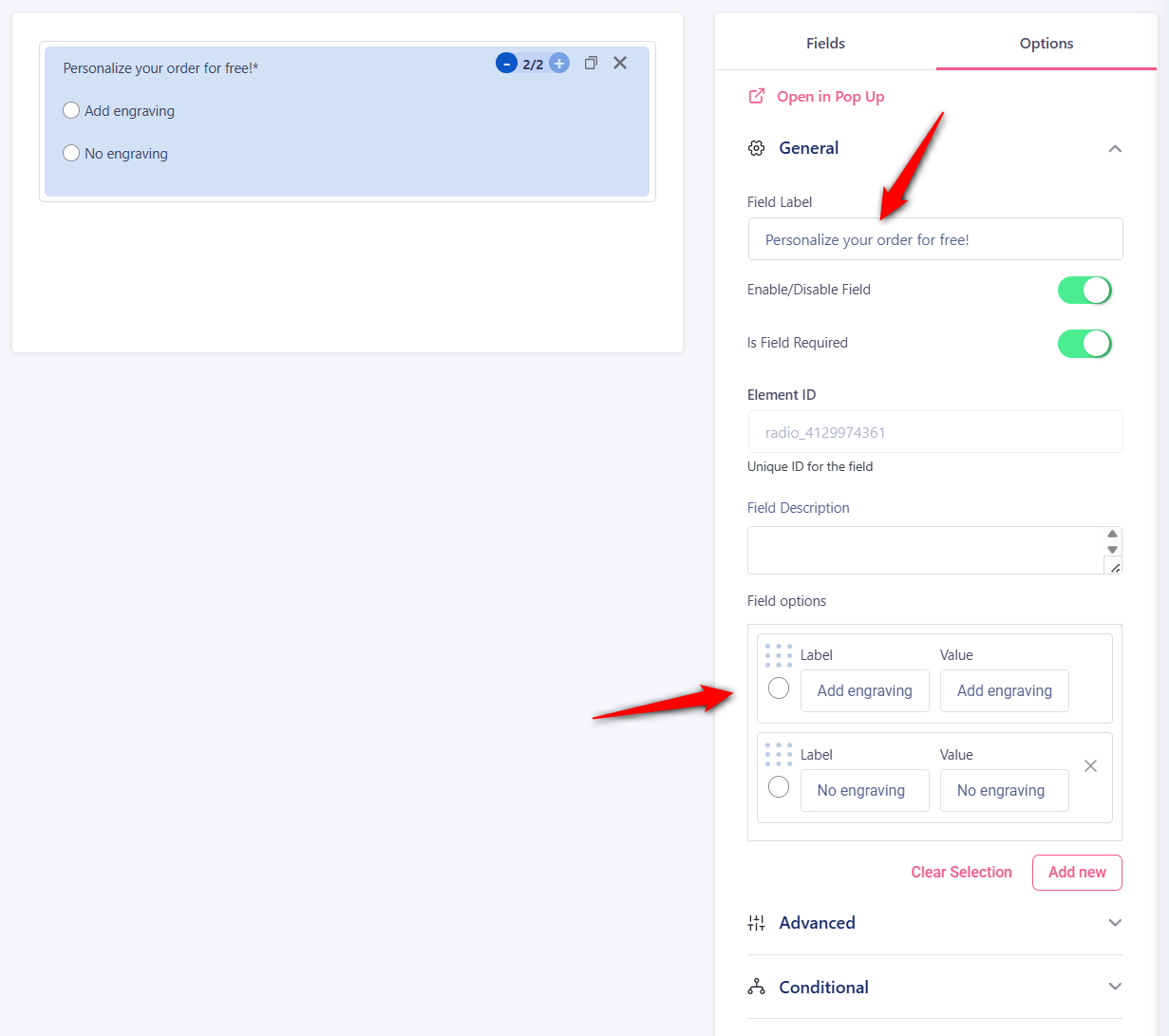
Drag and drop the 'Radio Group' field into the form.
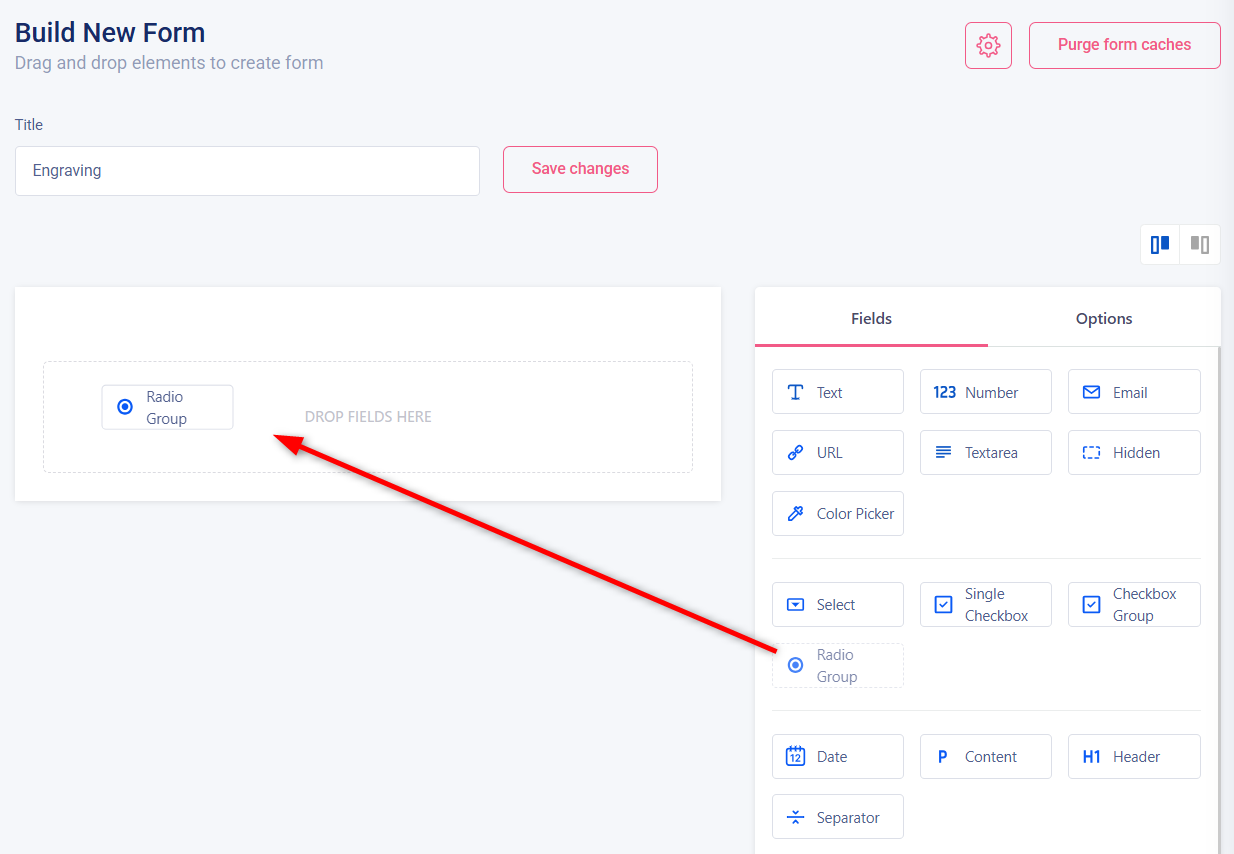
Each field has a label (what the customer sees), placeholder text, and a flag that indicates whether it's required or optional.
Enter the labels you want. For instance, we've entered "Personalize your order for free" with "Add engraving" and "No engraving" as the radio options.
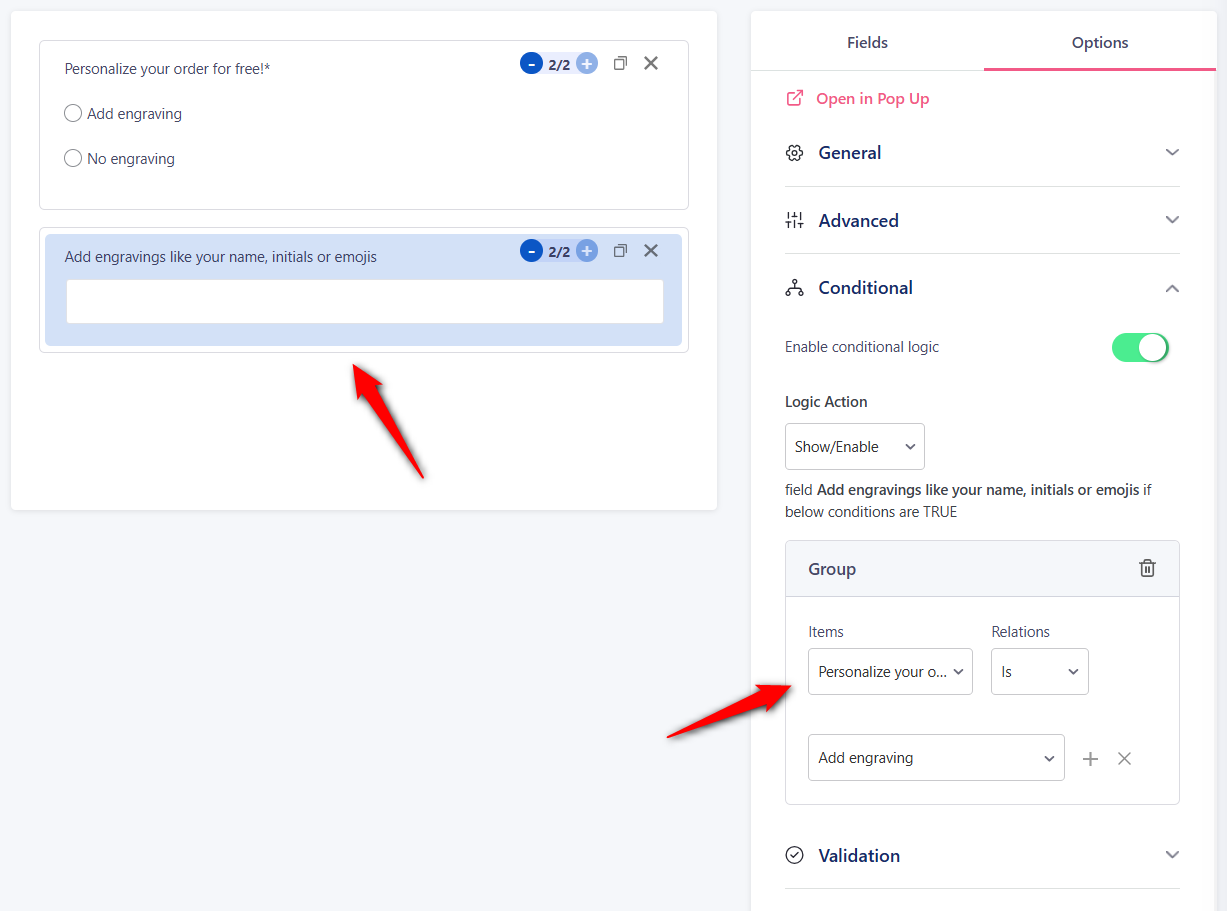
We've also added a text input for the engraving and set the display condition to appear only when the 'Add engraving' radio is selected.
You can also set validation rules on text fields here.
Please note that you cannot set custom prices for these fields in the free version. These are only available in the premium version.
Percentage-based pricing (available in the premium version) makes more sense for options that should scale with the product price.
For instance, premium material upgrades or insurance feel more natural as a percentage of the base cost.
Step 3: Assign the add-on to a particular product
To do this, click on the gear icon and assign the product.
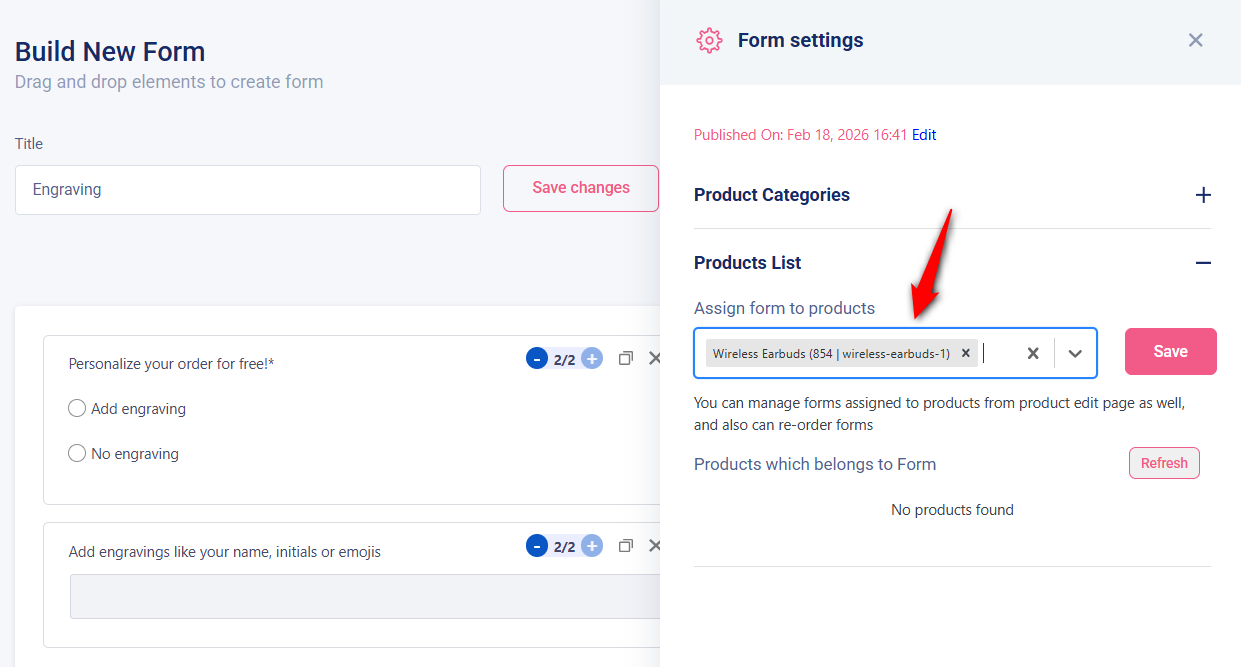
You can even do this by going to your specific product inside the WooCommerce catalog.

Make sure to save your changes when done.
Step 4: Test your product add-ons in WooCommerce
Now, go to a product page where the add-ons should appear, select the add engraving option and your text field will appear.
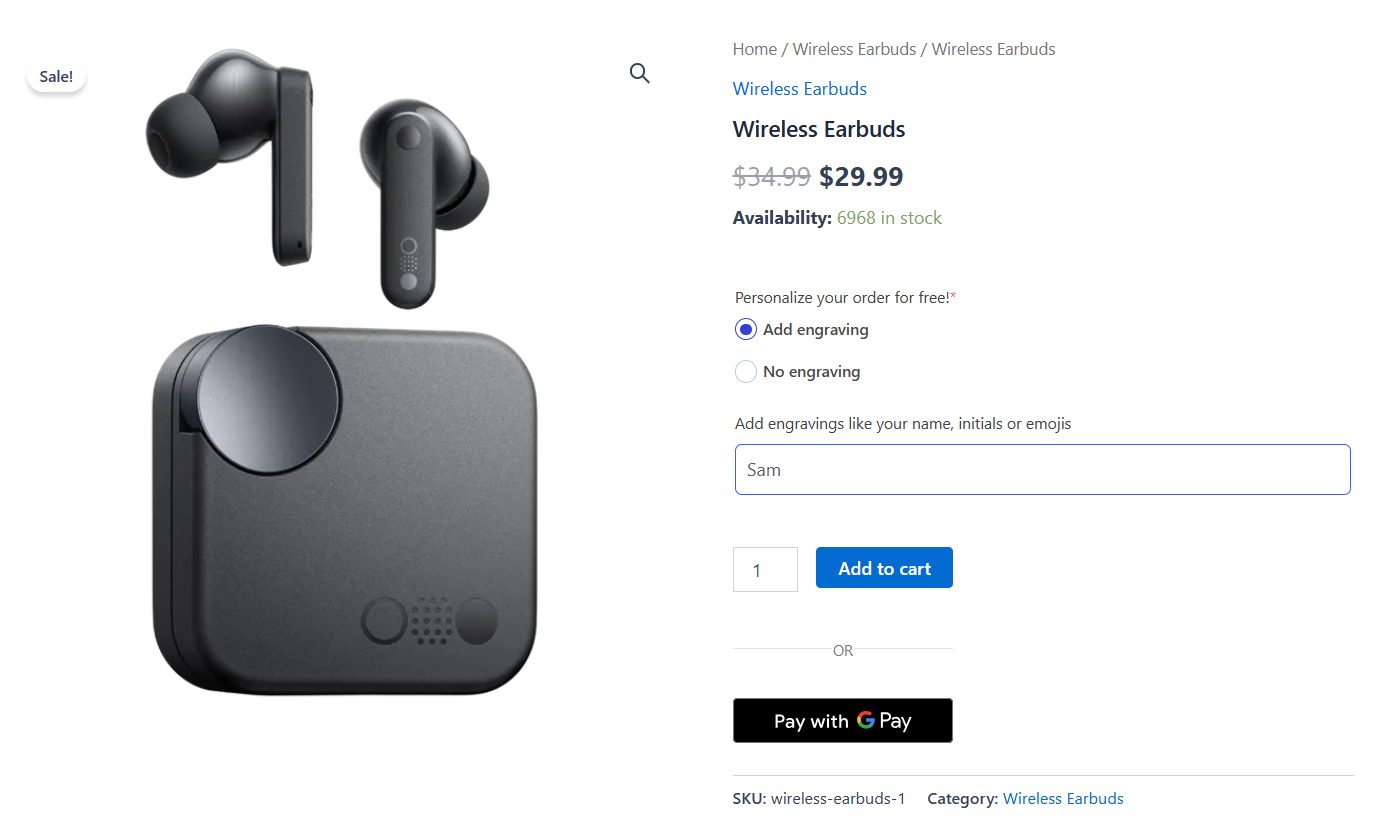
Pay attention to whether the add-on fields push the Add to Cart button too far down the page on smaller screens.
If you have a long list of options, dropdowns tend to be more mobile-friendly than radio buttons because they take up less vertical space.
Add the product to the cart and head to the checkout page:
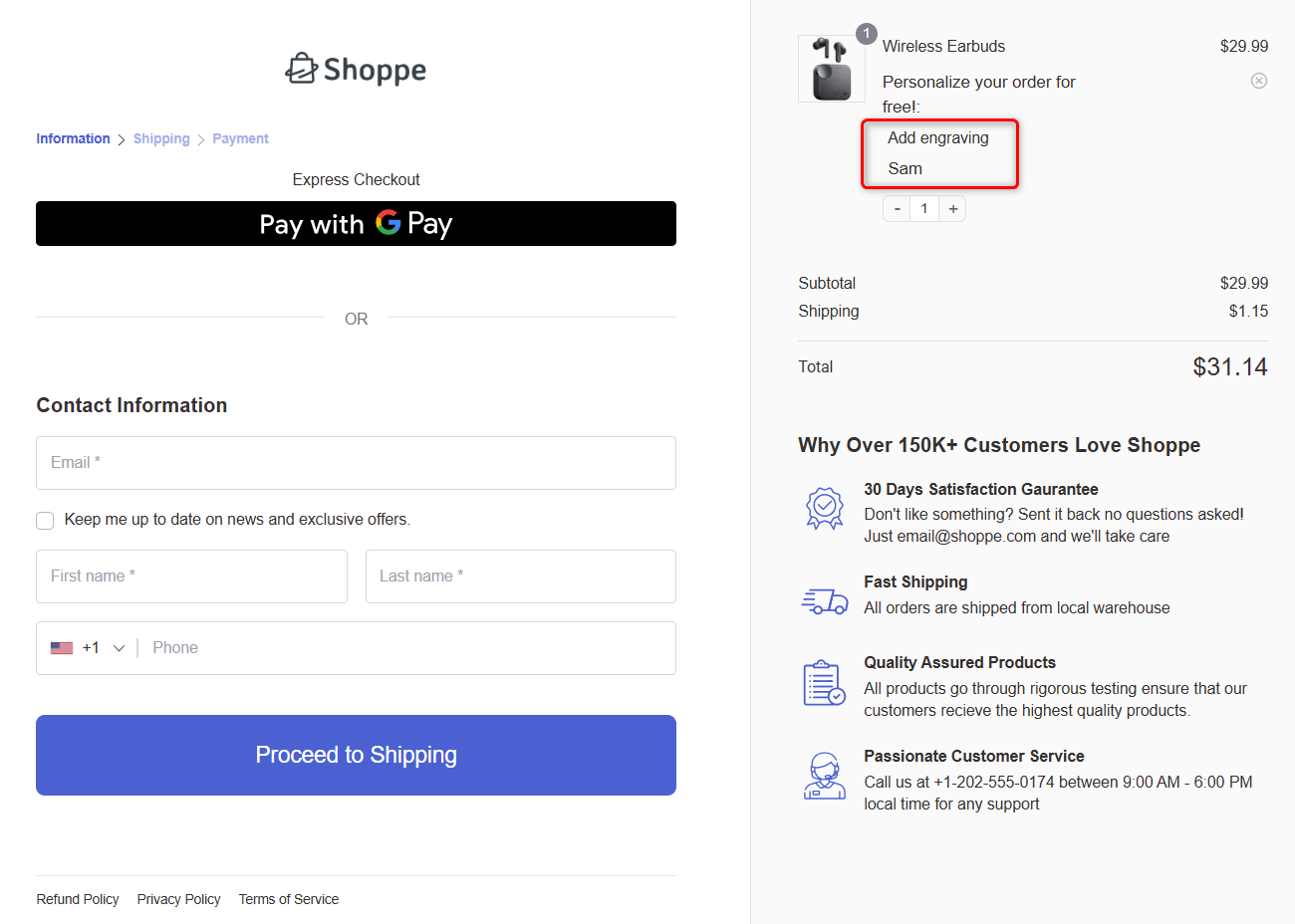
This beautiful checkout page is created with FunnelKit. It helps you create high-converting sales funnels and optimized WooCommerce checkout pages.
Place a test order and you'll see the custom field appear in your WooCommerce orders to help your fulfillment team.
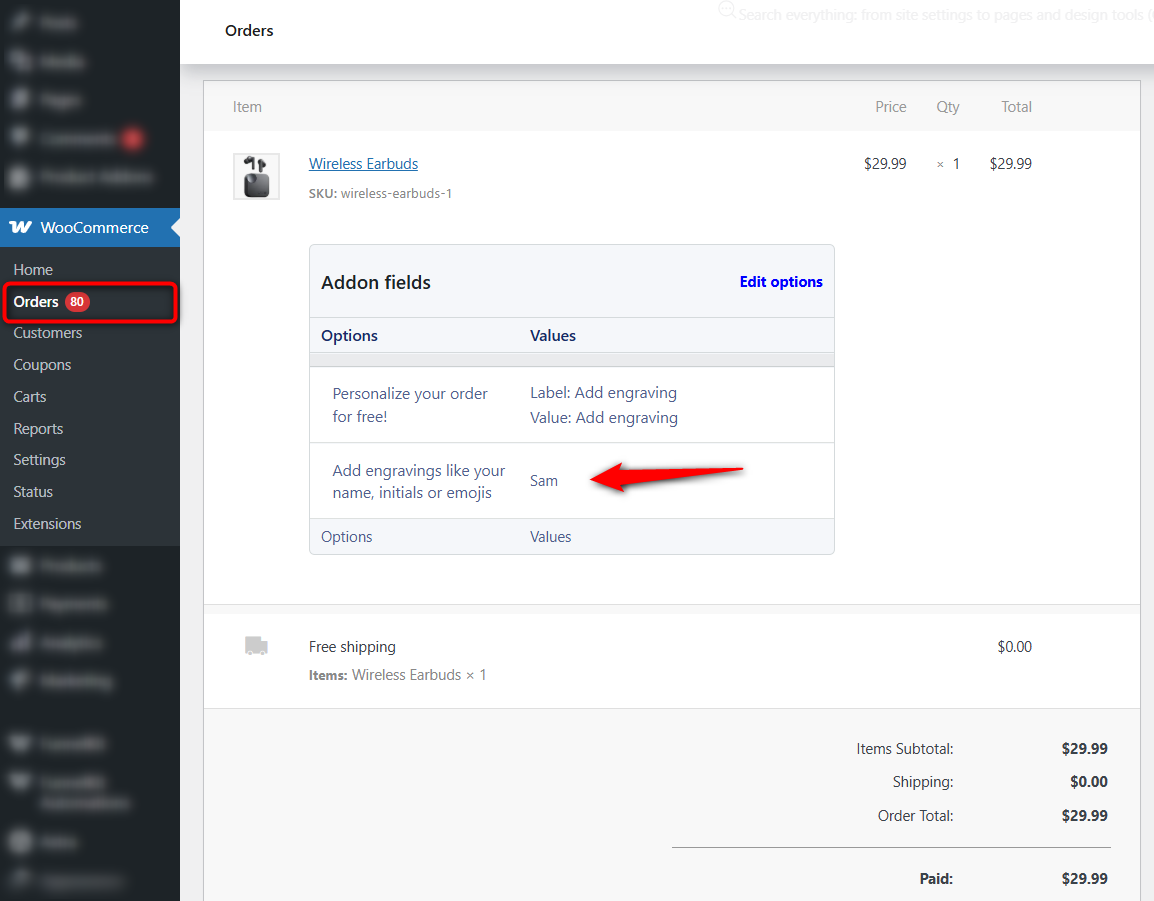
Well done! This is how you can add product add-ons to your WooCommerce store.
Make sure to test-run it on your phone, too. Tap through every field type (dropdowns, text inputs, checkboxes) to make sure they are easy to interact with on a touchscreen.
7 Best WooCommerce Product Addon Plugins Compared
The right plugin depends on the kinds of fields you need, the display condition logic, calculated pricing you want to implement in your store, and how much you are willing to spend.
Some plugins offer generous free versions that cover the basics, with premium versions to extend functionality. Others are premium-only and pack in advanced features from the start.
Here's how the top WooCommerce product add-on plugins stack up.
| Plugin | Field Types | Conditional Logic | Price Fields | Image and Color Swatches | Starting Price |
|---|---|---|---|---|---|
| WooCommerce Custom Product Addons by Acowebs | 22+ | ✅ Yes (Pro) | ✅ Yes (Pro) | ✅ Yes (Pro) | $49/year (Free version also available) |
| Extra Product Options by ThemeHigh | 28 | ✅ Yes (Pro) | ✅ Yes (Pro) | ✅ Yes (Pro) | $39/year (Free plugin also available) |
| WooCommerce Product Add-Ons (by Woo) | 7+ | ❌ No | ✅ Yes | ⚠️ Only Image selections | $79/year |
| YITH WooCommerce Product Add-Ons | 15+ | ✅ Yes (Pro) | ✅ Yes (Pro) | ✅ Yes (Pro) | $119.99/year (Free version also available) |
| WooCommerce Product Options by Barn2 | 16+ | ✅ Yes | ✅ Yes | ✅ Yes | $99/year (No free plan) |
| Product Add-Ons Ultimate by Plugin Republic | 20+ | ✅ Yes | ✅ Yes | ✅ Yes | $79/year (No free version) |
| WowAddons | 25+ | ✅ Yes (Pro) | ✅ Yes (Pro) | ✅ Yes (Pro) | $55/year (Free plugin also available) |
How We Evaluated These WooCommerce Product Addon Plugins
Choosing the right WooCommerce product add-on plugin is worth paying close attention to as you evaluate your options, as it depends solely on your store's needs.
We installed each plugin on a clean WooCommerce store running the latest WordPress and tested them against the criteria that matter most for product customization.
Here are the key areas we tested:
- Field types
We focused on custom fields, including text, checkboxes, dropdowns, swatches, file uploads, date pickers, and products. We noted which field types are available in the free and premium versions.
- Conditional logic
We tested single-condition rules and multi-condition chains with AND/OR operators. This helped us to show or hide fields based on customer selections, product variations, categories, or user roles.
- Pricing flexibility
We verified whether pricing updates dynamically on the product page before the add-to-cart button is clicked.
We looked at pricing fields for flat fees, percentage-based surcharges, per-character pricing, quantity-based pricing, and custom formula calculations.
- Ease of use
We assessed the time required to configure a product with 5+ custom fields, the builder's intuitiveness, and whether the plugin offers drag-and-drop reordering, live preview, or requires a save-reload-check workflow.
This tested how quickly a first-time user could set up a working product page without consulting their respective documentation or support.
- Performance and speed
We measured the impact of the frontend script and stylesheet load on product pages using the browser's DevTools.
This also tested whether plugins load assets globally or only on pages where add-on fields are active, and noted any plugins that required server memory increases to function.
- Frontend appearance
The frontend appearance testing was about how clean and modern the add-on fields render on the product page without requiring custom CSS. We tested it across Storefront, Astra, and different block themes.
- Checkout compatibility
We ran this test to determine whether the add-on data carries correctly through the cart, checkout, order confirmation emails, and the admin order view.
We tested with both the classic shortcode checkout and WooCommerce's block-based checkout.
Let's go through them one by one.
1. WooCommerce Custom Product Addons by Acowebs
This plugin by Acowebs offers a popular free version that includes a drag-and-drop form builder with advanced conditional logic and validation support.
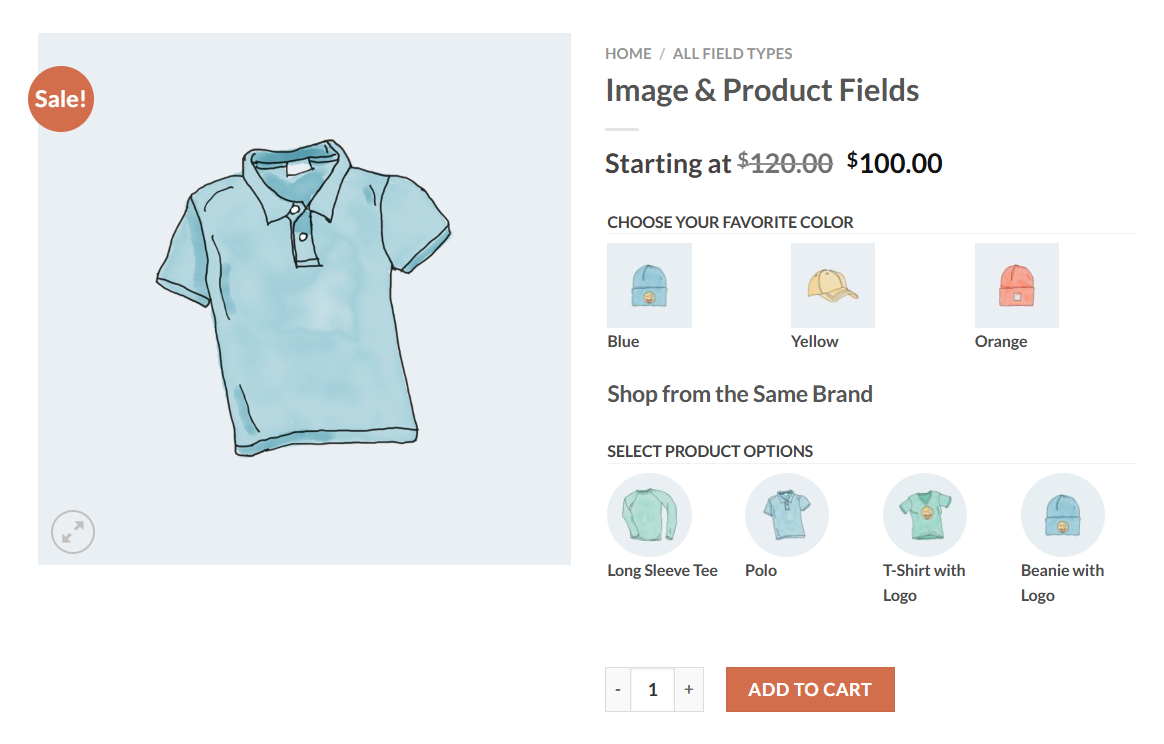
The premium version expands to 22+ field types, image and color swatches, date pickers, file uploads, and custom price formulas.
One useful Pro feature is variation-based conditional logic. You can show or hide specific add-on fields based on the product variation the customer selected.
Pros
- The free version includes conditions and validation
- Compatible with WPML and Polylang for multilingual stores
- React-based frontend architecture delivers fast load times with minimal script bloat on product pages
Cons
- Limited frontend styling options, such as changing colors, layouts, and field appearances, require custom CSS
- Image swatches, file uploads, and date pickers are locked behind Pro
User reviews:
4.9 out of 5 (463 total reviews) with 30,000+ active installs on WordPress.org.
Pricing:
The free version is available on WordPress.org. Pro starts at $39/year for a single site.
2. Extra Product Options by ThemeHigh
ThemeHigh Extra Product Options lets you add up to 28 custom product field types organized into sections with customizable headings.
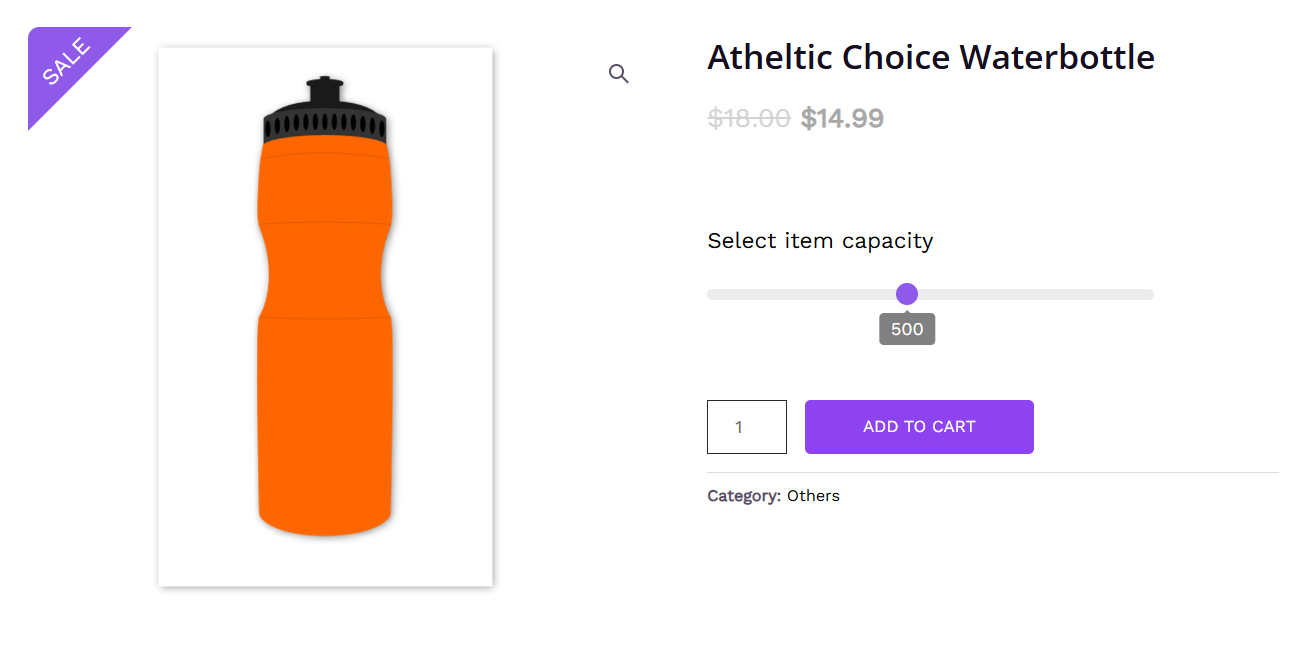
The free version includes text, number, hidden, password, telephone, etc., with conditional display rules based on products, categories, tags, and other field values.
The premium version adds conditional logic, pricing fields, repeater fields (for allowing multiple entries of the same field), and custom price formulas. Those formulas are particularly useful for stores that price by measurement or calculation, like clothing stores.
Pros
- Section-based field grouping with configurable display positions on the product page
- Custom validator feature using regular expressions allows precise input validation
- WPML compatible and translated into 10+ languages
Cons
- The free version is limited to basic field types
- No live preview of field configurations in the free version
User reviews:
This plugin has a rating of 4.9 out of 5 (215 total reviews) and has 30,000+ active installs on WordPress.org.
Pricing:
The free version is available on WordPress.org. The Pro version starts at $39/year for a single site usage.
3. WooCommerce Product Add-Ons
This is the official extension from WooCommerce. It supports text fields, dropdowns, checkboxes, custom price inputs, file uploads, and image-based selections.
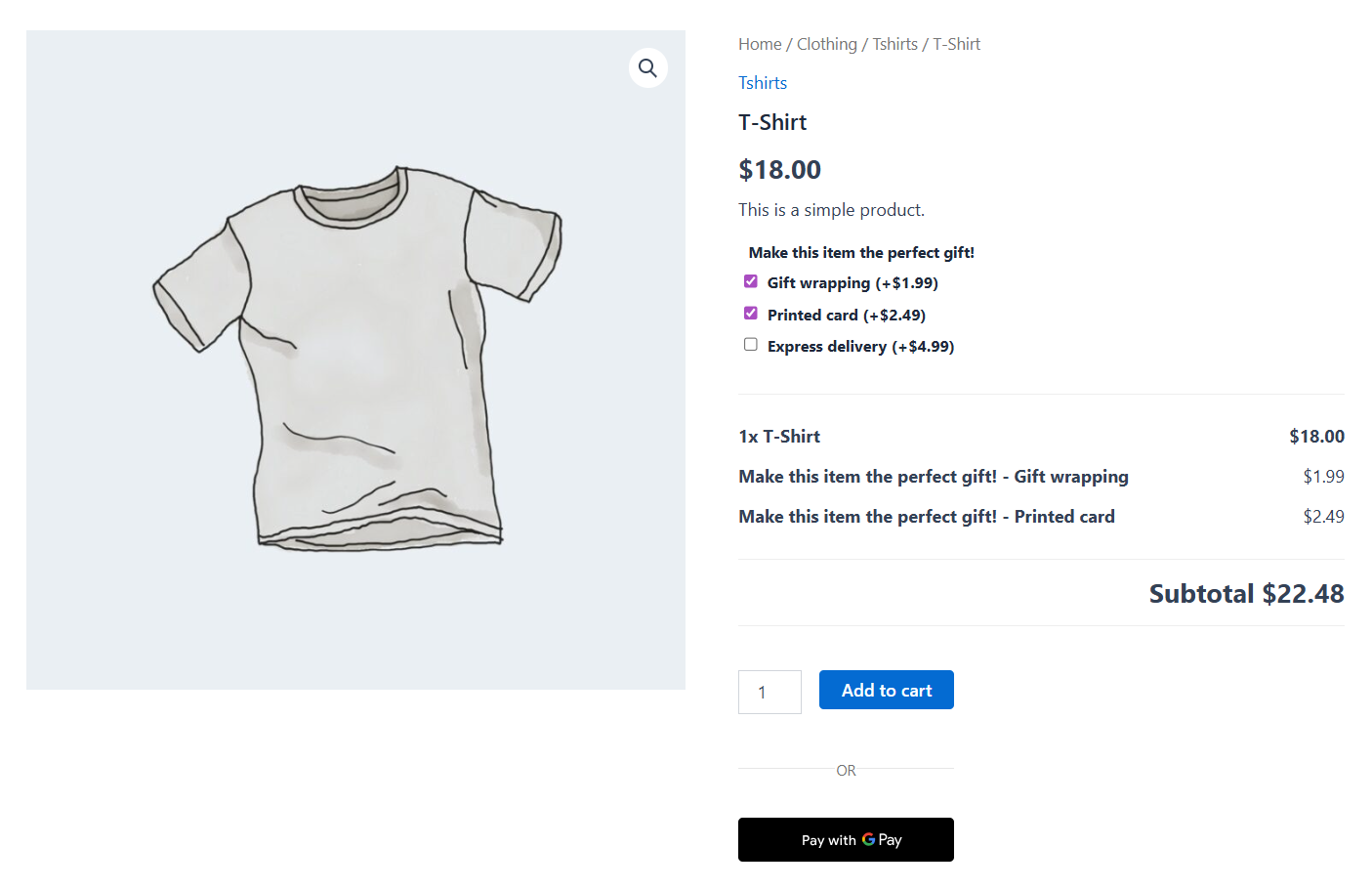
The one thing worth calling out is the customer-defined price field, which lets shoppers name their own price. Restaurants use it for tips, charities for donations, and creators for pay-what-you-want products.
The plugin supports both global add-on groups and per-product add-ons, with flat-fee and percentage-based pricing fields.
Pros
- First-party extension guarantees compatibility with WooCommerce core updates and major extensions
- Customers can upload files with configurable type restrictions, attached directly to orders
- REST API endpoints available for programmatically managing product-level and global add-ons
Cons
- Does not support conditional logic
- Add-ons applied to a variable product are inherited by all variations
- No color swatch option available
User reviews:
3.4 out of 5 (48 total reviews) with 100,000+ active installs (WooCommerce.com).
Pricing:
This plugin costs $79 for 1 year and $126.40 for a 2-year plan.
4. YITH WooCommerce Product Add-Ons & Extra Options
YITH has built one of the most feature-packed product add-ons plugins available. The free version covers the basics (text, select, radio, checkbox), but the Pro version offers deeper functionality.
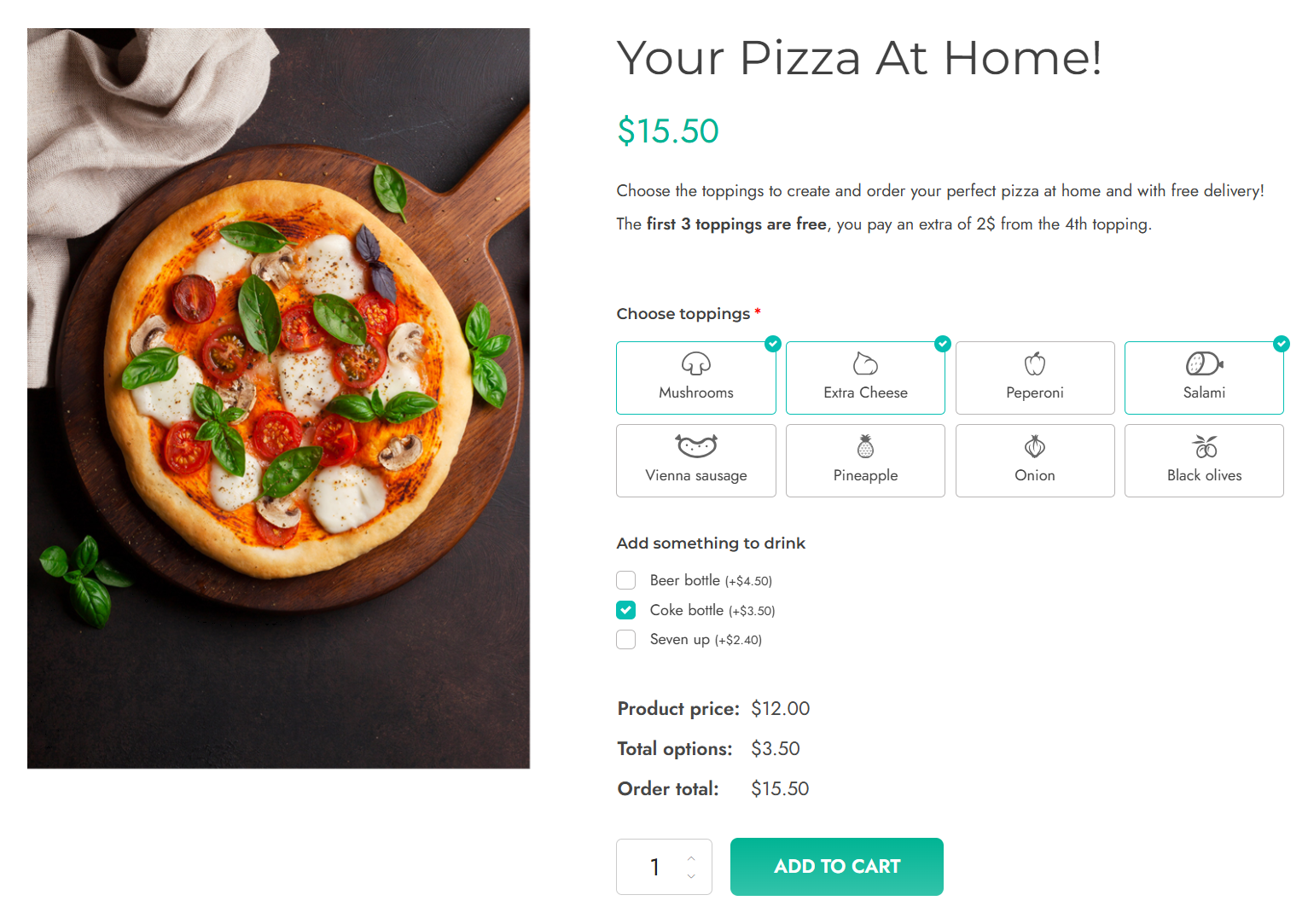
You get color and image swatches, conditional logic, file uploads, date pickers, and granular pricing rules per option. Global add-on groups let you roll out the same options across multiple products or categories without recreating them each time.
This plugin frequently appears in Reddit and forum discussions about WooCommerce customization, often praised for striking a good balance between feature depth and ease of use.
Pros
- Color and image swatches render with a modern look out of the box
- Variation-specific conditional logic lets you show different add-on blocks based on the product you selected
- Native integration with 10+ YITH plugins
Cons
- Independent testing reported high memory consumption, requiring an increase in the server memory from 256MB to 512MB to run this plugin
- Premium pricing is significantly higher than that of most competitors
- Its free version is limited to only basic field types with no conditional logic
User reviews:
3.7 out of 5 (57 total reviews) with 20,000+ active installs (WordPress.org).
Pricing:
The free version is available, while its premium plan costs $119.99/year.
5. WooCommerce Product Options by Barn2
Barn2 built this plugin for stores where the basic field types are not enough. The price calculation engine is probably the most advanced in this category.
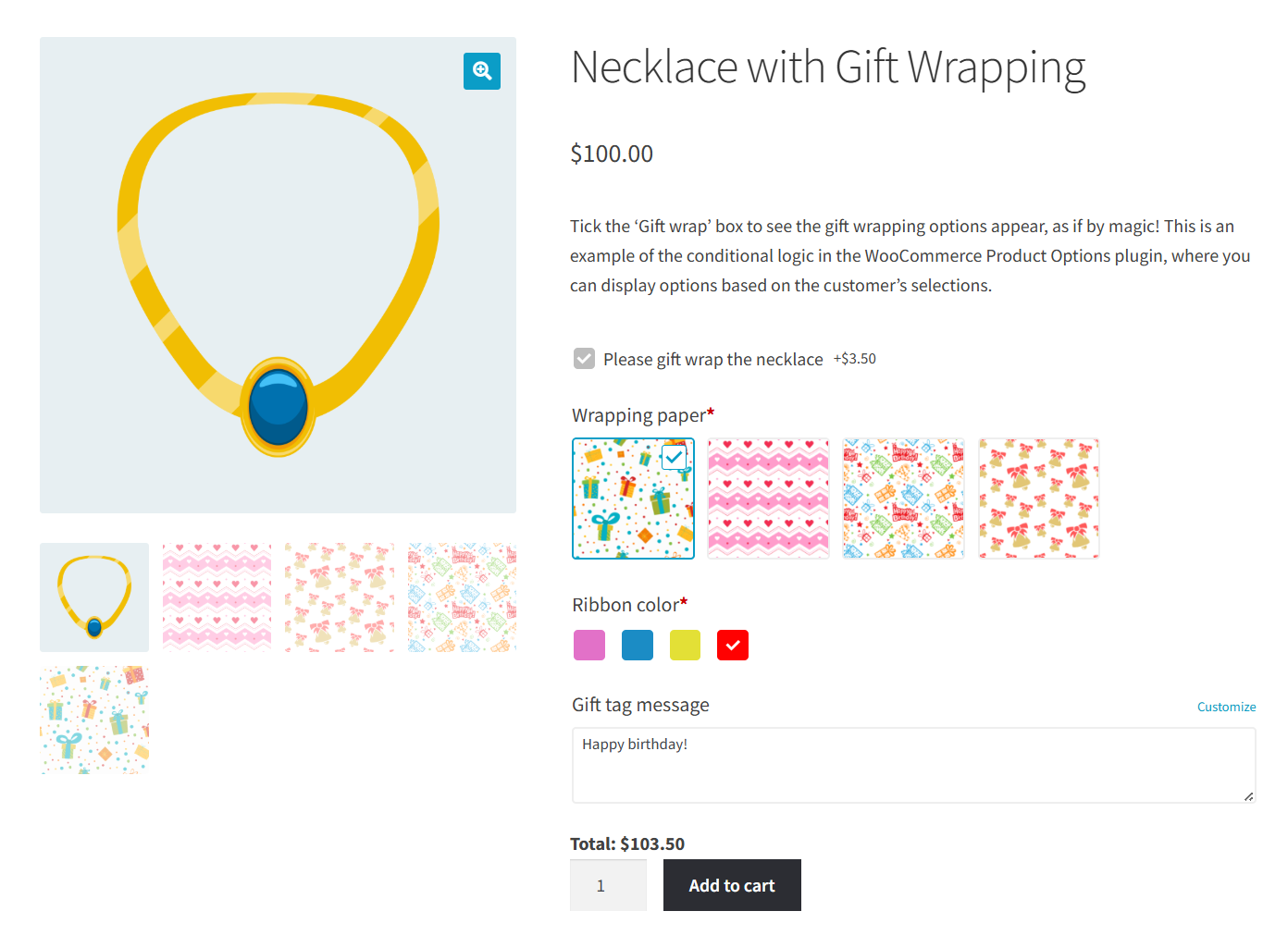
You can create formulas using mathematical operators, logical functions, product data, and values from other fields as variables. If you need to generate a price based on customer-entered dimensions, weight, or quantity, this plugin handles it.
Instead of defining add-on options manually, you can pull in other products from your WooCommerce catalog and display them as selectable add-ons on the landing page.
Pros
- The product field type enables upselling related products directly on the product page as selectable add-ons
- Conditional logic works with both custom options and WooCommerce variation attributes
Cons
- It's a premium-only plugin with no free version available
- Live product image preview requires purchasing a separate add-on bundle at a higher price tier
- Conditional logic fails with "greater than" or "less than" number comparisons, price formula errors with non-standard decimal separators, and page crashes are recurring problems with this plugin
User reviews:
4.9 out of 5 (23 total reviews) with 4,500+ active installs as stated on their website.
Pricing:
Its price starts at $99/year for one site usage.
6. Product Add-Ons Ultimate by Plugin Republic
Plugin Republic offers a variety of field types, including text, textarea, dropdowns, checkboxes, radio buttons, image and color swatches, file uploads, date pickers, and calculated fields.
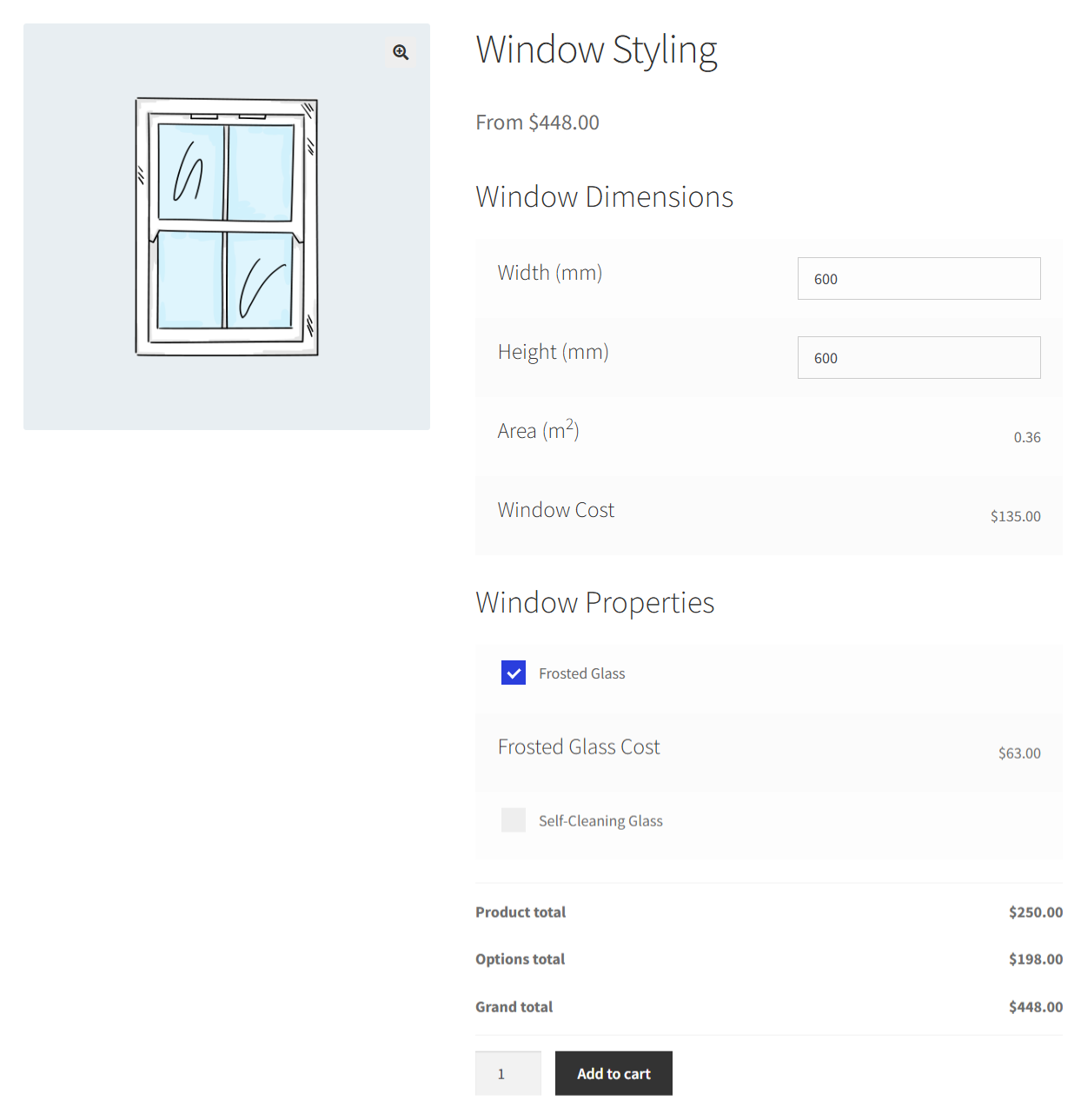
It includes conditional logic and the pricing feature handles quantity-based and formula-driven price adjustments.
You can set up complex configuration scenarios, such as Custom furniture with multiple-dimensional inputs, build-your-own bundles, and products with many interdependent options, all of which are well supported.
Pros
- Drag-and-drop file uploads with multiple file support, type restrictions, and files automatically attached to WooCommerce orders
- WPML certified and compatible with WooCommerce Subscriptions, Bookings, and Aelia Currency Switcher out of the box
- Compatible with all major page builders like Elementor, Divi, Gutenberg Block Editor, Visual Composer, and others
Cons
- Cannot import or export add-on fields via standard WooCommerce CSV import. They have a specialist import/export tool, but it's in beta.
- Faced issues with Checkout Blocks when uploading files. These files were not moved to the correct directory when using block-based checkout.
User reviews:
4.8 out of 5 (92 total reviews) on Trustpilot.
Pricing:
Basic starts at $79/year (single site) or $199 lifetime. Pro starts at $99/year (up to 25 sites) or $279 lifetime.
7. WowAddons by WPXPO
WowAddons is one of the newer players in this space, but it has made up ground quickly with 25+ add-on field types, including text, select, checkbox, radio, color/image swatches, file uploads, date pickers, range sliders, and more.
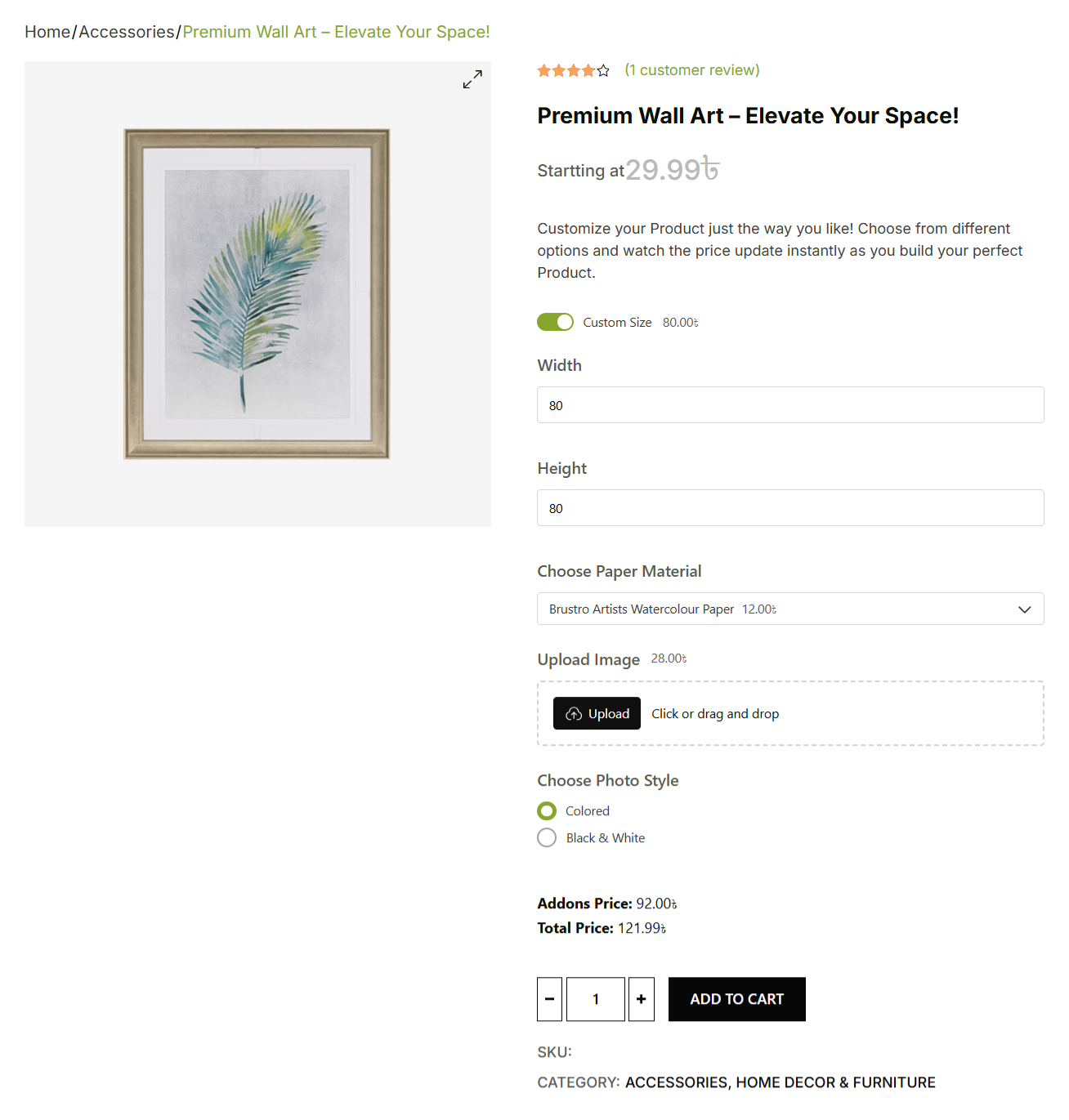
The plugin features a full-screen drag-and-drop builder with real-time live preview, global style settings for fonts and spacing, and upsell/cross-sell capabilities.
Pro adds features like repeater fields, quantity-based pricing, and priority support.
Pros
- Full-screen intuitive interface with drag-and-drop builder and real-time live preview
- Global style settings let you adjust fonts, spacing, and design from the dashboard without writing CSS
- The product field type is available for free. It enables cross-selling by displaying other WooCommerce products as selectable add-ons directly on the product page.
Cons
- Conditional logic cannot trigger or filter based on WooCommerce product attributes or variations
- Relatively new plugin with a small user base
- File upload functionality is basic compared to competitors like Plugin Republic or Acowebs Pro
User reviews:
5 out of 5 (29 total reviews) with 2,000+ active installs on WordPress.
Pricing:
Basic starts at $79/year (single site) or $199 lifetime. Pro starts at $99/year (up to 25 sites) or $279 lifetime.
Our Recommendation
For the strongest free starting point, ThemeHigh (19 free field types) and Acowebs (free condition and validation) lead the pack.
For advanced price calculations or cross-selling actual products as add-ons, Barn2 and Plugin Republic are the premium standouts.
If sheer field type variety and a full drag-and-drop premium builder excite you, give WowAddons a look.
And if you already rely on WooCommerce Subscriptions or Bookings, the official WooCommerce extension is the safest bet for compatibility, but it also comes with many drawbacks.

6 Best Practices to Increase Revenue With WooCommerce Product Add-Ons
Let's look at the proven best practices that will help you increase WooCommerce sales with strategic product add ons:
- Keep per-product add-on fields between 3 and 5
Yes, it's tempting to offer addons on every possible option, but too many fields can create decision fatigue.
The Baymard Institute’s research on product page usability shows that cluttered pages overwhelm shoppers and lead them to abandon the page entirely.
If a product genuinely needs more than five options, use conditional logic to reveal them progressively based on users' selections.
- Show pricing transparently with real-time totals
Every paid add-on should display its price right next to the label, such as “Gift Wrapping (+$4.99)”.
A surprise price increase at checkout is not at all optimal for a WooCommerce store.
Make sure the plugin you choose updates the product total on the page as customers select options, so they see the final amount before clicking 'Add to Cart'.
- Replace plain dropdowns with visual swatches
When customers are choosing colors, fabrics, patterns, or finishes, a swatch showing the actual color or texture is more effective than a text label that says "Ocean Blue".
According to Customcy, rich product configurators and advanced visualization tools can lift conversion rates by up to 50%. If visual accuracy matters for your products, swatches are worth the upgrade.
On Reddit and other discussion forums, WooCommerce store owners regularly report that switching from plain-text dropdowns to visual swatches has noticeably improved engagement, especially for apparel and accessories, where accuracy matters.
- Frame add-ons as perks (not just additional charges)
The way you label an add-on influences whether customers select it.
“Add Gift Wrap - $5.00” feels like an expense. But “Make it special with premium gift wrap, only $5.00” frames the same cost as a benefit.
Small copywriting languages like this can meaningfully increase add-on uptake. Focus on what the customer actually gets.
- Test every field type on mobile before going live
Most of the eCommerce traffic comes from mobile phones.
If your radio buttons are too small to tap accurately, your dropdowns do not scroll properly, or your file upload field does not work in mobile browsers, you are losing sales from your visitors.
Test on actual devices, not just a browser resize.
- Optimize your checkout
Product add-ons increase the level of detail for each cart line item. If your checkout page does not display those details clearly, customers get confused and bail.
Tools like FunnelKit Funnel Builder help you build a checkout page that handles itemized add-on details, supports order bumps for additional revenue, and keeps the layout clean enough that complex orders do not feel overwhelming.
Frequently Asked Questions Related to Product Add Ons for WooCommerce
Product variations use WooCommerce’s built-in attribute system, where you can define combinations like Size (Small, Medium, or Large) and Color (Red, Blue, or Green). Each combination can have its own SKU, price, stock level, and product image.
Product add-ons sit on top of any product type as additional fields. They do not create separate SKUs and are not tracked by WooCommerce inventory.
That's why it's important to follow basic guidelines for using variations for options that affect inventory and pricing at the SKU level. And, use add-ons for customer-driven customization, such as engraved text, optional paid extras, or uploaded files.
Yes, we have mentioned both free and premium WooCommerce product add-ons plugins in this post.
ThemeHigh’s Extra Product Options includes 19 field types for free. Acowebs stands out by offering fields with validation and conditions. YITH and WowAddons also have free versions with basic field types and product cross-sells.
These free plans work well for stores with simple customization needs. Conditional logic, image swatches, and advanced pricing typically need a premium upgrade.
Yes, you can add product add-ons with custom code instead of a plugin. WooCommerce provides hooks, such as woocommerce_before_add_to_cart_button, that let you inject custom fields using PHP.
But the scope of what you need to build yourself is crucial. Field rendering, validation, storing data in the cart, displaying it at checkout, saving it to order meta, and then maintaining all of that through WooCommerce updates.
For most WooCommerce store owners, a plugin is faster to set up, safer to maintain, and cheaper in the long run than hiring a developer. Custom code only makes sense when you have a very specific requirement that no existing plugin supports.
Yes, you can apply product add-ons to all products globally. Most plugins support global add-on groups that you can apply to every product in your store or to products in specific categories.
This way, you can efficiently handle universal options like gift wrapping, delivery instructions, or extended warranty offers.
Per-product add-ons let you build custom option sets for individual items and can override or supplement the global settings.
The official WooCommerce extension, YITH, ThemeHigh, and Acowebs addon plugins support both global and per-product groups.
Product add-ons plugins hook into the WooCommerce product page template, so they generally work with any page builder out of the box.
Whether you use Elementor, Divi, Gutenberg, or your theme’s default template, the add-on fields will appear near the Add to Cart button.
Yes, there are plugins that take this further. ThemeHigh, Acowebs, YITH, or Barn2, for instance, offer dedicated Elementor or Gutenberg widgets that let you control exactly where the fields appear and how they are styled within the page layout.
Start Offering Custom Product Options in WooCommerce Today!
We covered what WooCommerce product add-ons are, walked through the different field types and explained why they matter for both your average order value and your support workload.
We set up a working add-on configuration step by step using Acowebs’ free plugin and compared seven of the best plugins side by side, from generous free versions to full-featured premium options.
For most WooCommerce stores, the best move is to start with a free plugin like ThemeHigh, Acowebs, or YITH, and upgrade to a premium version once you need conditional logic, visual swatches, or calculated pricing.
If your products have complex configuration requirements or you want to cross-sell real inventory as add-ons, Barn2 and Plugin Republic are the strongest premium choices.
And once your product pages are set up, pairing them with an optimized checkout page using FunnelKit Funnel Builder will ensure that added product detail converts cleanly rather than creating friction at the final step.
Related Resources:
- How to Customize the WooCommerce Checkout Fields
- 25 WooCommerce Checkout Optimization Tips
- How to Add Order Bumps in WooCommerce
- How to Reduce Cart Abandonment in WooCommerce
Editorial Team
April 6, 2026Almost every store owner needs to export WooCOmmerce orders sooner or later. Maybe you need to send order data to your accountant, move records to a new site, or pull...

Editorial Team
April 6, 2026Want to turn one-time buyers into customers who keep coming back using WooCommerce? Then you need to find a WooCommerce subscription plugin. These plugins will help you automate billing, manage...

Editorial Team
March 30, 2026Discover how to boost sales and customer loyalty with three smart ways to offer free gifts in your WooCommerce store. Want to boost WooCommerce sales and delight your customers? Offer...






