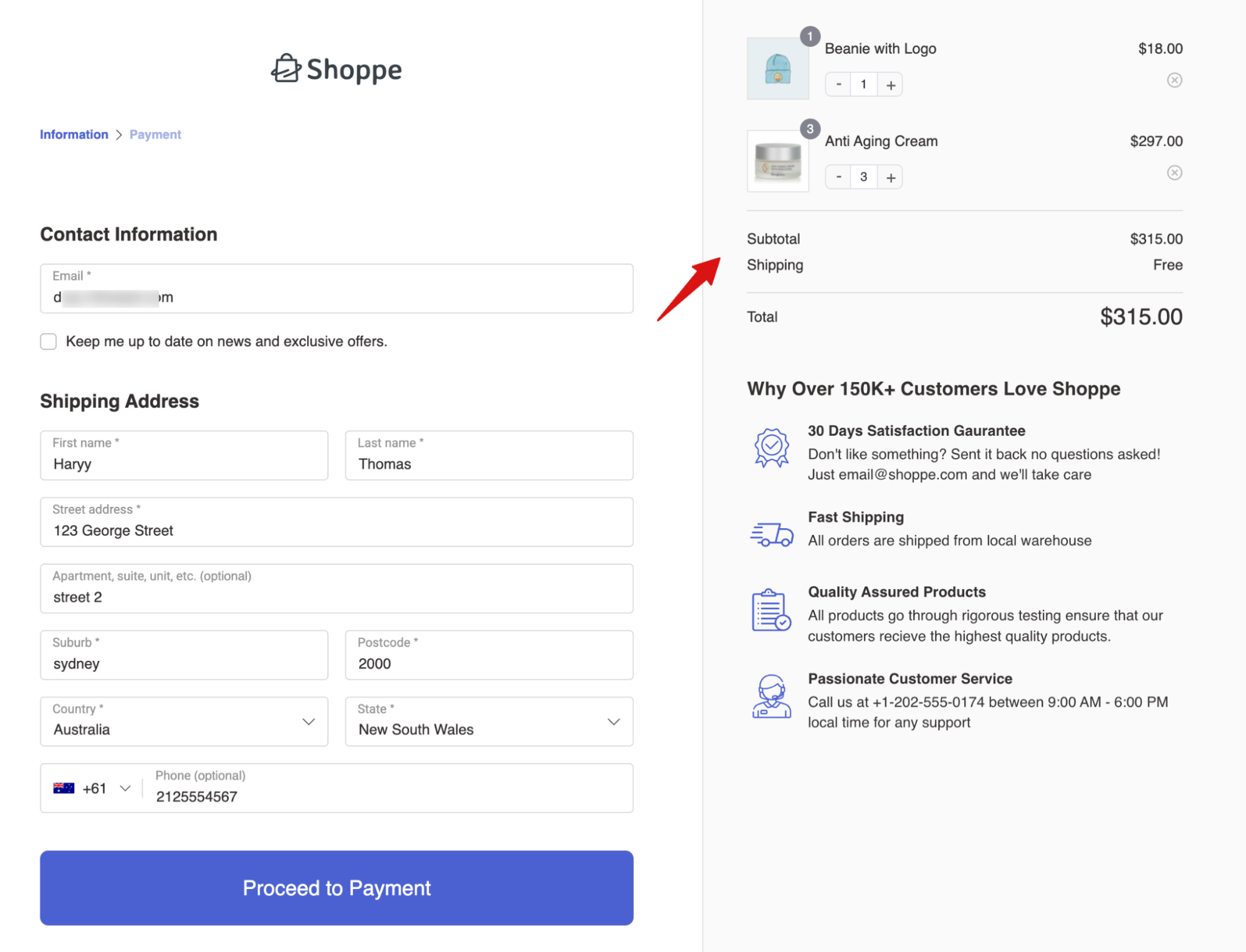
If the “Have a coupon?” field is still appearing on your checkout page even after disabling it in the checkout settings, but it continues to show inside the FunnelKit checkout mini cart, here’s why:
Normally, the coupon field is removed when you disable the Auto-Apply Coupon option under Checkout Optimization.
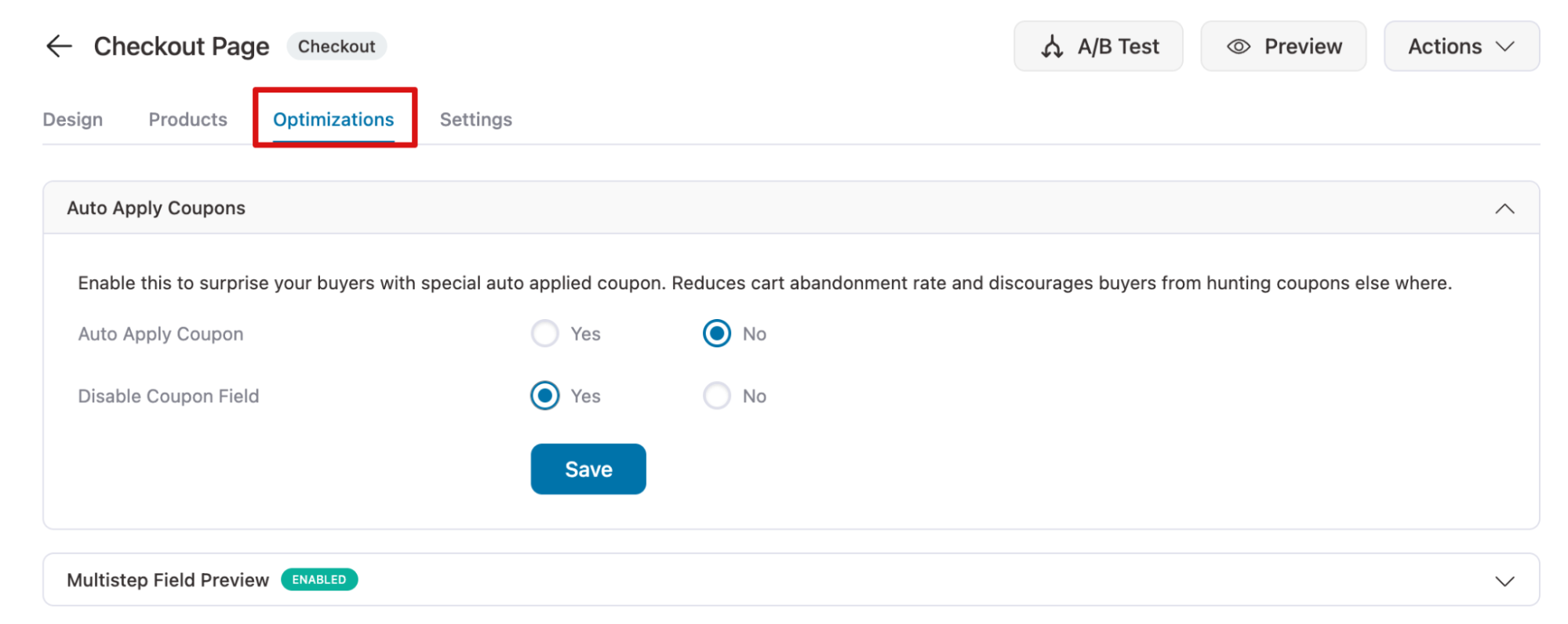
However, the mini cart Coupon works separately. If the coupon field is still visible there, it means the Coupon toggle is enabled inside the Mini Cart element of your checkout template.
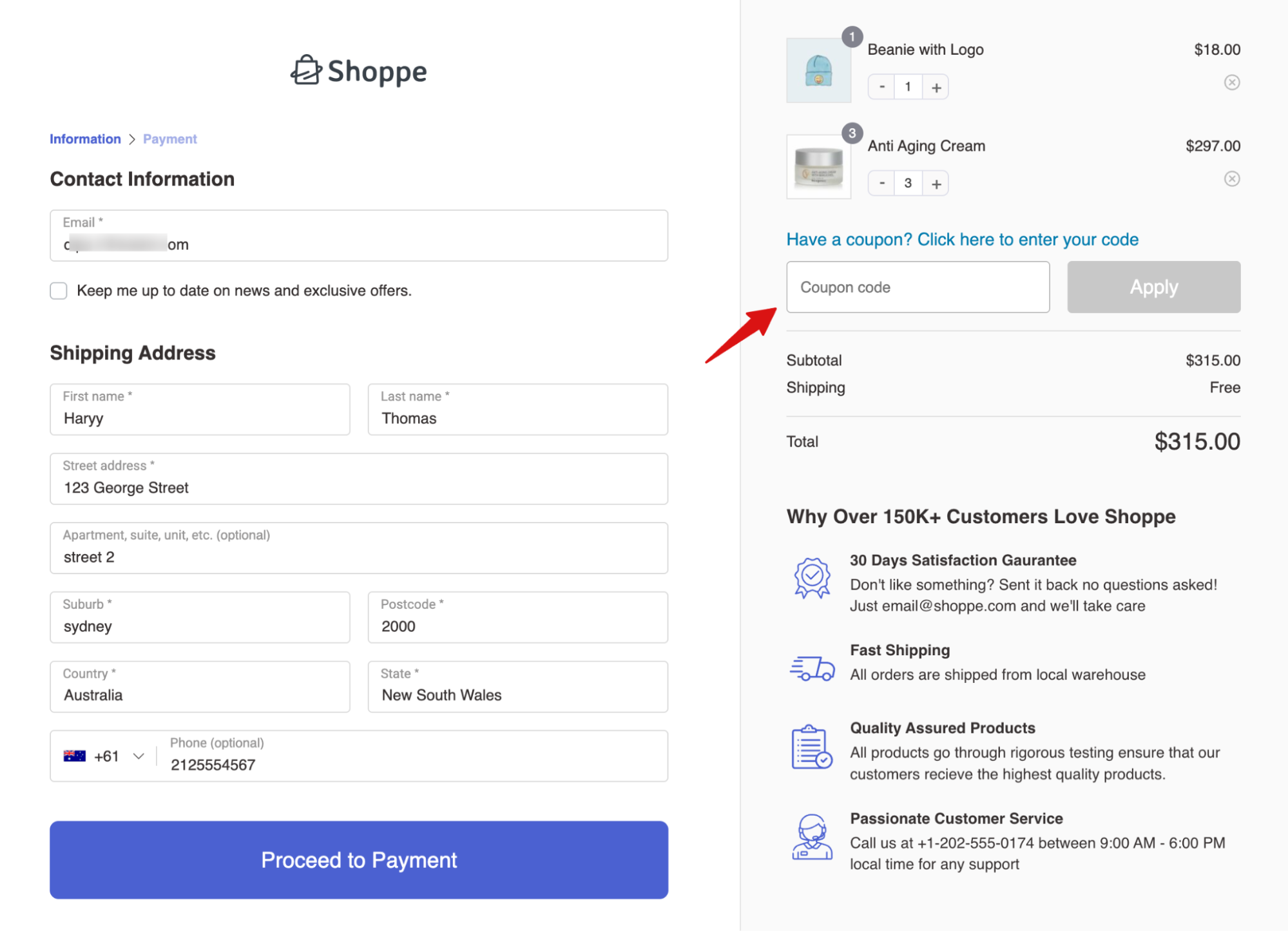
To remove it completely, you’ll need to disable the coupon option in the template's Mini Cart settings.
How to Disable the Coupon Field in FunnelKit Checkout Mini Cart
Follow the steps below to turn it off in the Mini Cart on the Checkout Page Editor.
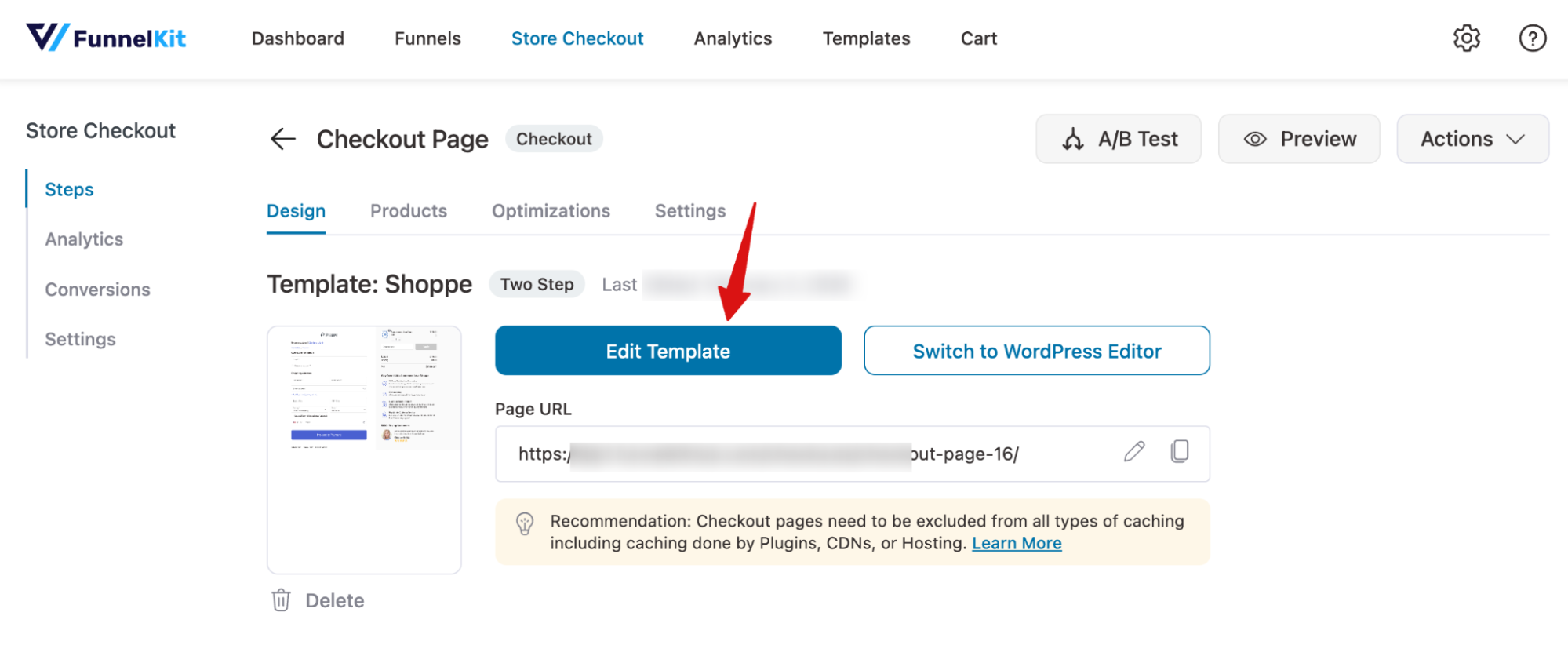
Step 1: Edit the Checkout Template
Go to FunnelKit Checkout and hit the “Edit Template” option.
Step 2: Disable the coupon in the mini cart widget
Now, inside the editor, click on the Mini Cart widget and on the left panel, make sure the Coupon field is turned off.
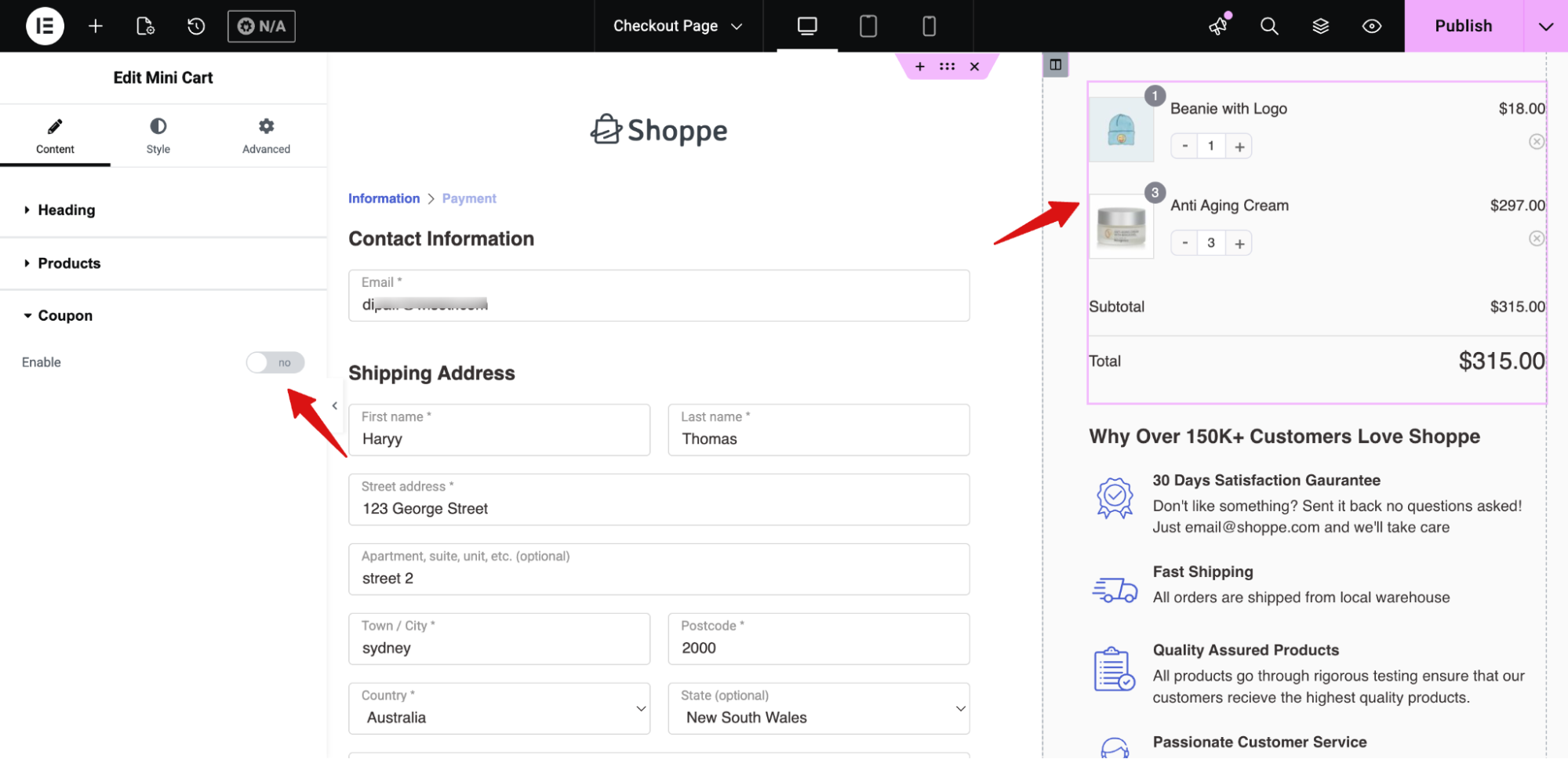
Make sure to save the changes.
Now, if you check, there won’t be any coupon field in the mini cart.