


WooCommerce conversion tracking sends purchase and checkout events, carrying order value, currency and a transaction ID, from your store to GA4 and your ad platforms.
There are six commonly used methods, i.e., the built-in Google integration, GA4 events, Google Ads conversions, Meta's Conversions API, Google Tag Manager, and all-in-one pixel plugins.
Most guides on this subject pick one tool and walk you through its settings. That's the wrong shape for the decision you're actually making.
Nobody arrives here wondering how to click through a plugin.
They arrive because their store says 40 orders, Google Ads says 27, Meta says 61, and this week's budget gets allocated on one of those numbers being right.
This guide compares the six realistic routes on what actually decides the outcome: whether events survive an ad blocker, a payment redirect, a cache layer and a consent banner, and whether the revenue attached to them is correct.
After that, verification, reconciliation, and the seven failures behind most of the broken setups we get sent.
Table of Contents
- 1 What Conversion Tracking Captures (And What It Misses)
- 2 Which WooCommerce Conversion Tracking Method Fits Your Store
- 3 Method 1: WooCommerce’s built-in Google integration
- 4 Method 2: Run Every Pixel from One Screen
- 5 Method 3: Build a Data Layer and Run It Through GTM
- 6 Method 4: Send Purchases from Your Server (No Browser Involved)
- 7 Tracking Conversions from TikTok, Pinterest and Snapchat
- 8 The Tracking Plugins Compared On What Actually Matters
- 9 A Note On the Plugin Named After this Search Term
- 10 The Revenue Your Tracking Is Probably Missing
- 11 How to Verify Tracking Is Actually Working: 5-Step QA
- 12 Why Your WooCommerce Orders Don’t Match Google Ads or GA4
- 13 Fixing the 7 Most Common Tracking Failures
- 14 5 Best Practices to Ensure Accurate Conversion Tracking in WooCommerce
- 15 Frequently Asked Questions
- 16 Start Tracking Every WooCommerce Conversion Today!
What Conversion Tracking Captures (And What It Misses)
WooCommerce ecommerce tracking has three moving parts, and the vocabulary matters because every debugging tool you’ll open uses it.
The data layer is a JavaScript object your store populates with structured event data (add_to_cart, begin_checkout, purchase), including event parameters like value, currency, items[], and transaction_id.
Tags are the pieces of code that send that data to a destination. Triggers decide when a tag fires.
Break any one of the three and the store keeps taking orders while the reporting goes quiet.
A standard setup captures product views, add-to-cart, checkout start, purchase, and refunds if you configure them.
Here are a few events that it misses by default, and what causes most of the arguments with your media buyer:
- Orders where the shopper never loaded the confirmation page, whether from a closed tab, a gateway redirect, or a slow payment authorization.
- Orders from visitors running blocking extensions or strict browser privacy modes, where the tag never executes.
- EEA and UK traffic where consent was denied and the tag correctly refused to fire.
- Revenue added after the main product, i.e., order bumps, one-click upsells, and subscription renewals.
- Offline and phone orders, unless you push them in deliberately.
None of those are configuration mistakes. They’re structural, and the only fix for the first three is moving event delivery to the server.
Which WooCommerce Conversion Tracking Method Fits Your Store
There is no universally correct setup here. A store running zero ads needs GA4 and nothing more.
A store spending heavily on Meta needs server-side tracking on day one.
| Method | Best for | Setup time | Server-side | Consent Mode v2 | Cost |
|---|---|---|---|---|---|
| Google for WooCommerce | Stores starting from zero | 10 minutes | Partial | Yes | Free |
| All-in-one pixel plugin | Multi-platform advertisers | 10 minutes | Meta CAPI, varies by plugin | Varies by plugin | Free to paid |
| Google Tag Manager | Teams with a developer | 2 to 4 hours | With a server container | Yes | Free |
| Server-side APIs | Stores losing data to ad blockers | 4 hours or more | Yes | Yes | Free to hosted |
| Custom code | Developer-maintained stores | Ongoing | Depends on build | Manual | Developer time |
| Managed service | Stores without technical staff | Outsourced | Yes | Yes | Agency fees |
You don't need all six methods. For most stores, the highest-leverage combination is a pixel plugin for browser events plus Meta’s Conversions API for purchases.
That takes under half an hour and closes the largest accuracy gap.
Method 1: WooCommerce’s built-in Google integration
Two official free extensions cover the baseline, and skipping them to install something paid is how stores end up with three tools fighting over one event.
Google Analytics for WooCommerce adds GA4 ecommerce events for product views, add to cart, checkout steps, and purchase with order value and transaction ID.
Google for WooCommerce connects Merchant Center and Google Ads, installs the Google tag, and sets up conversion tracking for Shopping and Performance Max campaigns.
You get the four events that matter, GA4 ecommerce reports that populate immediately, and a Google Ads conversion action that counts.
However, you don't get Meta, TikTok, or any non-Google platform, server-side delivery, enhanced conversions configuration, or any control over event parameters.
If you run Google Ads and nothing else, we would stop here. If you advertise across more than one platform, treat this as the foundation and build on it.
For the full walkthrough, see our guide to connecting WooCommerce and Google Analytics.
Method 2: Run Every Pixel from One Screen
The fastest route to multi-platform tracking is a plugin that manages every pixel from a single settings screen.
No conversion IDs pasted into theme files, no snippet that breaks on the next theme update.
This is what we set up first on most stores, because it buys accurate data on day one and you can always graduate to GTM later.
FunnelKit Funnel Builder handles pixel integration for GA4, Google Ads, Meta, TikTok, Pinterest, and Snapchat, includes server-side Conversions API support for Meta, and passes order IDs with each event so browser and server events deduplicate properly.
The free version includes the pixel tracking features. The Pro plan starts at $99.50 per year and adds funnel analytics, one-click upsells, and order bumps.
Follow the step-by-step instructions.
Step 1: Open pixel settings and start with GA4
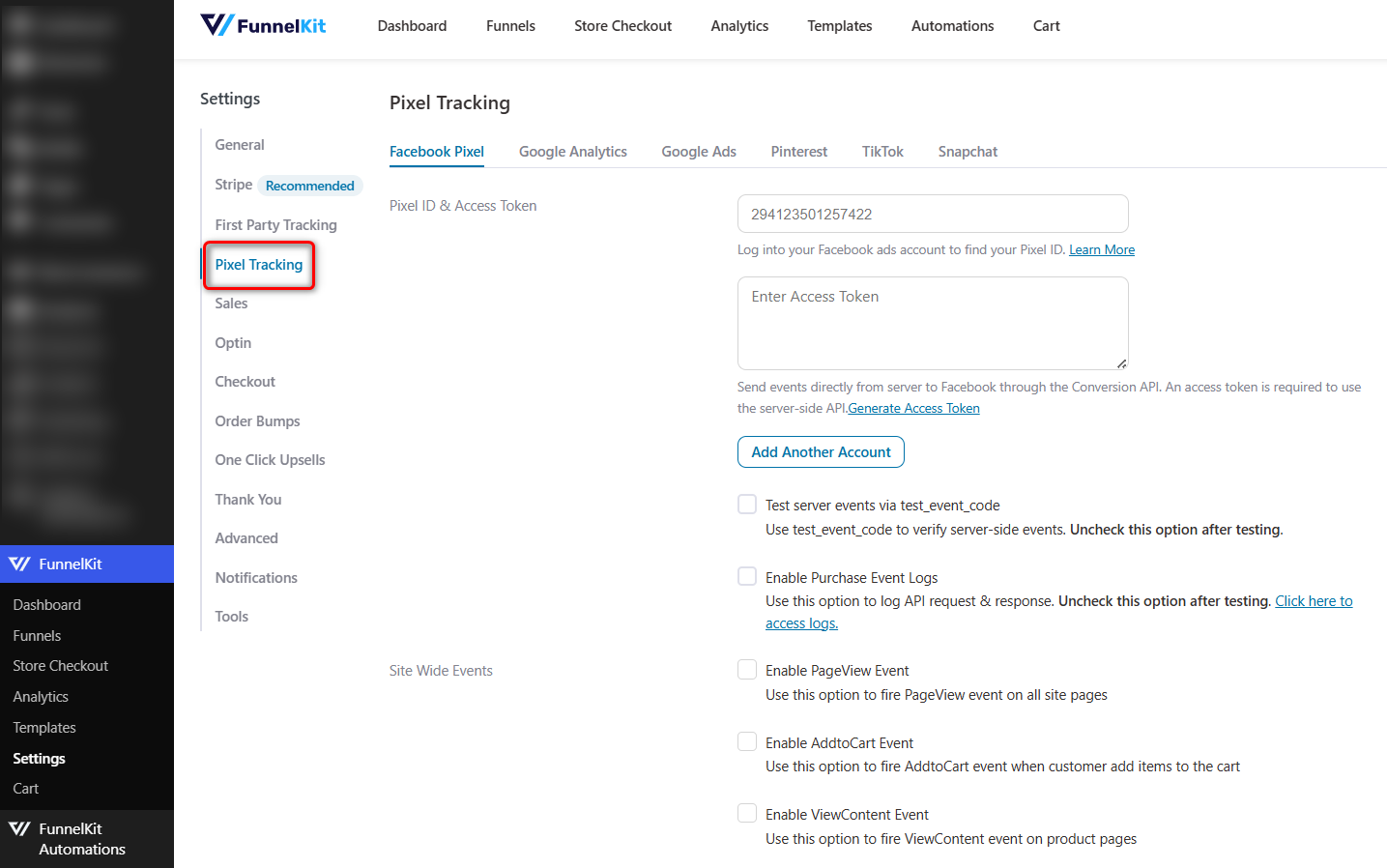
Install FunnelKit Funnel Builder, then open the Pixel Tracking section in the settings.
Each platform gets its own tab, so you configure them one at a time instead of wrestling with a single wall of fields.
That means three tabs: Google Analytics, Google Ads, and Facebook (Meta).
Start with Google Analytics even if you do not run ads yet.
GA4 becomes the reference point you measure every other platform against later, which is the only way to tell a tracking bug from an attribution difference.
Step 2: Add your platform IDs
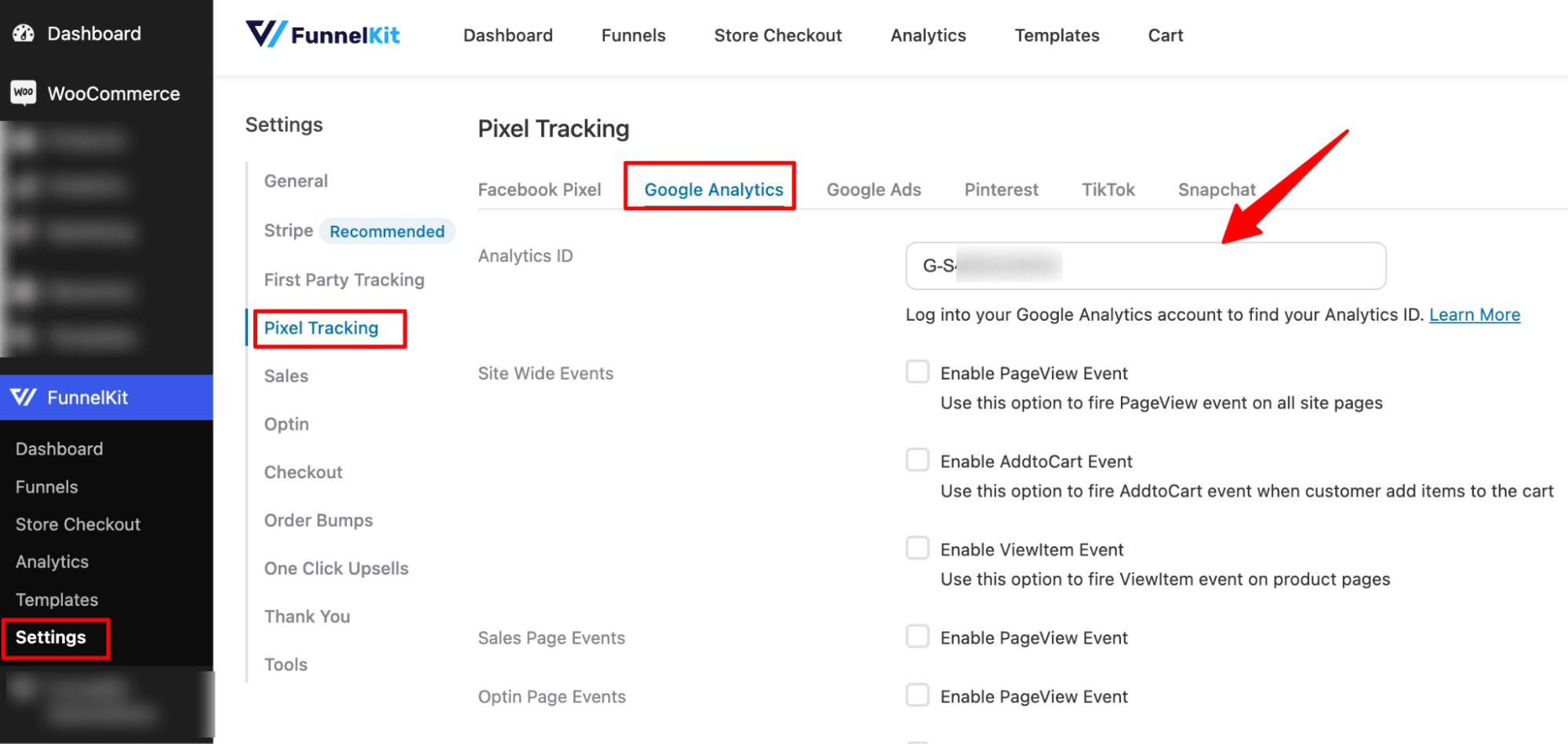
Paste your GA4 Measurement ID into the Google Analytics tab.
For Google Ads, you need two values: the Conversion ID and the Conversion Label, which sit together in the event snippet under your conversion action, separated by a forward slash.
For Meta, paste the Pixel ID.
You can add multiple GA4 IDs separated by commas, which is worth knowing if you report into both a client property and your own.
Step 3: Turn on the Conversions API for Meta
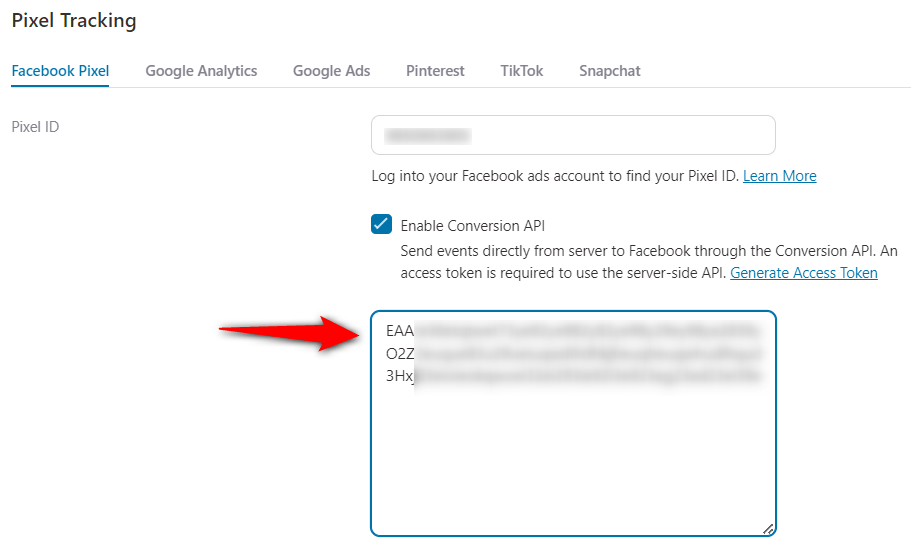
Browser-only tracking loses a meaningful share of Meta conversions to ad blockers and iOS privacy settings.
The Conversions API sends the same events from your server, so they land even when the browser pixel never fires.
Tick Enable Conversions API, generate an access token from the Settings tab of your Meta Pixel dashboard, and paste it in.
Meta has documented how the two event streams get matched and deduplicated.
For the full Meta setup including advanced matching, see our guide to WooCommerce Facebook Pixel integration.
To learn about the whole process, watch this video 👇
Step 4: Choose your events
Enabling every event on every platform bloats your data, slows your pages, and makes debugging miserable later.
For your store, Purchase and Add to Cart go to all three platforms, because those are what the bidding algorithms train on.
Page View and View Item go to GA4 and to Meta, where the store runs retargeting, and stay off in Google Ads, where it only runs conversion campaigns.
If you use order bumps or one-click upsells, switch those events on too.
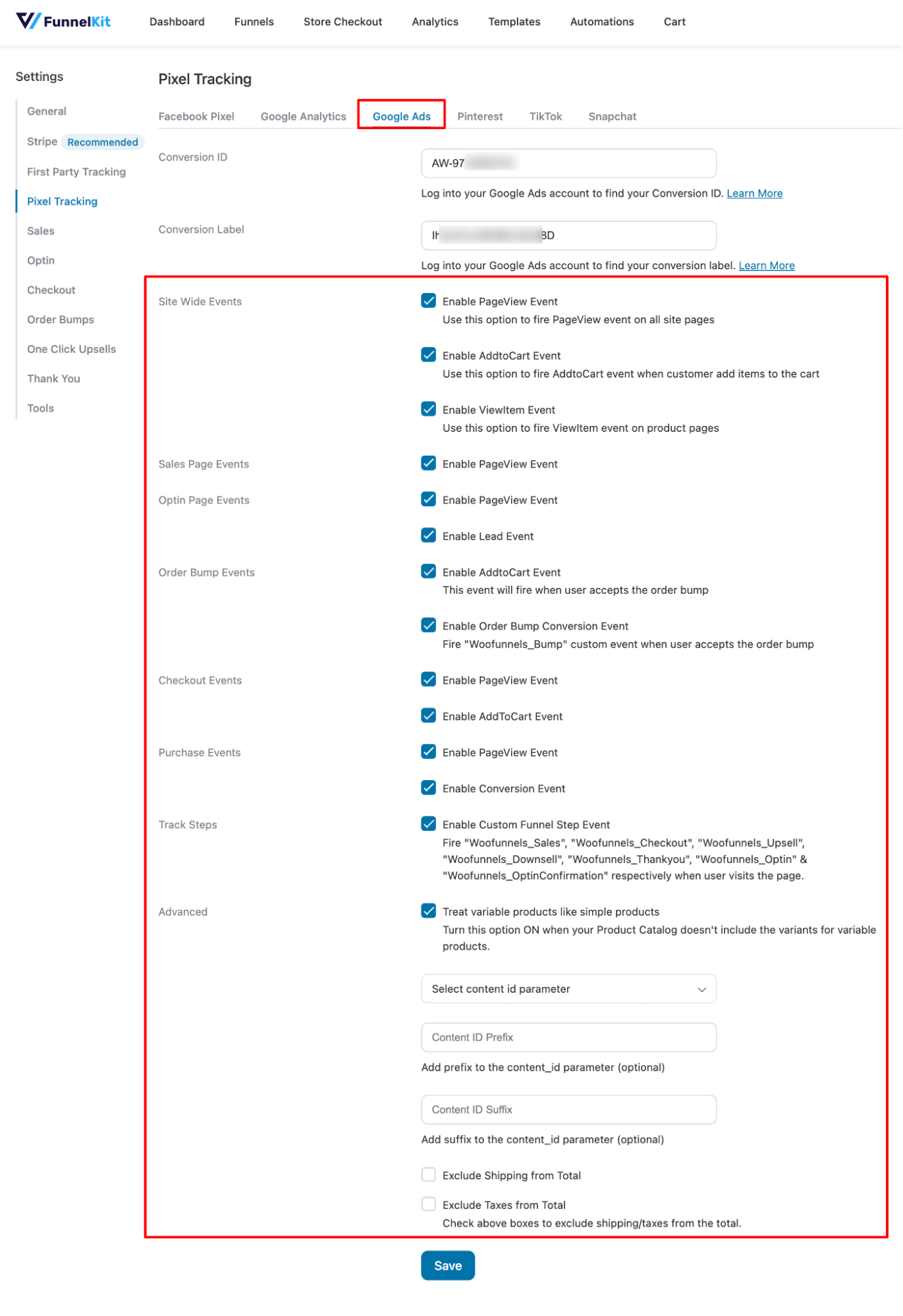
Standard tracking setups miss that revenue completely, which we cover below.
Save once each platform is configured.
Step 5: Place a test order and prove it works
Open your store in an incognito window, add a product, and run an order through to the thank you page.
Buy a product. You'll see AddToCart, InitiateCheckout, and Purchase fire in sequence, with item total, currency, and transaction ID matching the WooCommerce order number.
If the value comes back as zero, your WooCommerce currency and your ad platform currency do not match.
Use Google Tag Assistant, Meta Pixel, and other testing assistants to successfully verify pixel firing.
If the transaction ID is missing, you have no way to deduplicate later.
Test on mobile as well as desktop. Some mobile checkout flows redirect through a payment gateway in a way that skips the thank you page entirely, and a purchase event that never loads is a purchase event that never fires.
For the single-platform walkthrough, see our guide to Google Ads conversion tracking for WooCommerce.
Method 3: Build a Data Layer and Run It Through GTM
Google Tag Manager is the route most measurement specialists prefer, and it dominates the conversation whenever advertisers discuss this.
In a widely referenced Reddit thread on tracking WooCommerce purchases, the answers split three ways: import GA4 key events into Google Ads, use the Google tag directly, or run GTM with a data layer.
GTM does not read your store on its own. WooCommerce has to push structured purchase data into a JavaScript object called the data layer, and GTM reads values out of it.
The GTM4WP plugin generates that data layer without custom development.
From there, you build a tag per platform, set triggers per event, and map variables such as transaction ID, value, and currency into each tag.
You can control every tag, trigger, and parameter in one container, and adding a platform never touches your site.
You've to pay for maintenance, because platforms revise their tracking specifications and someone has to keep the container current.
Take this route if you have a developer on hand. Without one, a pixel plugin produces cleaner data in a fraction of the time.
Method 4: Send Purchases from Your Server (No Browser Involved)
Browser tracking runs JavaScript in the visitor’s browser, and ad blockers, tracking prevention in Safari and Firefox, and consent tools all interfere.
That's why a share of your conversions simply never arrive.
Server-side tracking sends the same events straight from your server to the platform API. Nothing in the browser has to execute.
Here are three implementations that matter:
- Meta Conversions API: This is the important one, and the reason your event match quality score exists. It sends hashed email and phone numbers with purchases to lift matching.
- Google Ads Enhanced Conversions: Sends hashed first-party customer data alongside the conversion so Google can match sales it would otherwise drop.
- GA4 Measurement Protocol: Sends events to GA4 from your server. Useful for delayed or offline conversions such as bank transfer orders.
Server-side is not a replacement for browser tracking, and we would not treat it as one.
Browser events capture early funnel intent in real time; server events capture high-value conversions reliably.
Run both, with a shared event ID so the platform can tell they are the same order.
Consent Mode v2 sits across all of it. If you sell into the EU or UK, your consent tool has to signal consent state to Google and your tracking has to respect it.
Conversions sent without valid consent signals can be discarded outright, which looks identical to broken tracking in your reports.
Tracking Conversions from TikTok, Pinterest and Snapchat
If you advertise on any of these three, the pattern is the same as the Meta setup above: create the pixel, paste the ID, choose your events, verify with the platform’s browser extension.
| Platform | What you need | Events supported | Server-side option |
|---|---|---|---|
| TikTok | Pixel ID from TikTok Ads Manager | View Content, Add to Cart, Initiate Checkout, Purchase | Events API |
| Tag ID from Ads and Conversions | Page Visit, Add to Cart, Checkout | Conversions API | |
| Snapchat | Snap Pixel ID from Events Manager | Page View, Add to Cart, Start Checkout, Purchase | CAPI |
Each platform names its events slightly differently, which matters when you are debugging.
Find the complete details in our step-by-step guides on TikTok Pixel, Pinterest conversion tracking and Snapchat Pixel for WooCommerce.
The Tracking Plugins Compared On What Actually Matters
Most comparisons of conversion tracking plugins list features.
The features that decide how much conversion data reaches your ad platforms are a much shorter list than the marketing pages suggest.
We compared the main options on the criteria that change your data, not the ones that fill a table:
| Plugin | Platforms | Server-side | Consent Mode v2 | Custom events | Best for |
|---|---|---|---|---|---|
| Google for WooCommerce | Google Ads, GA4 | Partial | Yes | No | Google-only stores |
| PixelYourSite | Meta, Google Ads, GA4, more | Meta CAPI | Yes | Yes | Multi-platform on a budget |
| Pixel Manager for WooCommerce | Google, Meta, TikTok, Bing, more | Yes on Pro | Yes | Yes | Accuracy-focused stores |
| Conversios | GA4, Google Ads, Meta | Yes | Limited | Limited | Google Merchant Center users |
| Facebook for WooCommerce | Meta only | Pixel and CAPI | Partial | No | Meta-only stores |
| FunnelKit Funnel Builder | GA4, Google Ads, Meta, TikTok, Pinterest, Snapchat | Meta CAPI | Via consent plugin | Funnel step events | Stores running funnels and upsells |
| GTM4WP | Any, through GTM | With a server container | Yes | Yes | Teams with a developer |
None of these wins on every row, including ours.
FunnelKit is a funnel builder that includes pixel management, not a dedicated measurement platform.
If GA4 reporting is your only requirement, it is more than you need, and Google’s free extension will do the job.
It also doesn't offer first-party domain tracking or identity resolution, and a customer data platform is a better fit if those are what you are shopping for.
Where it differs from the others is funnel-level revenue, which we cover two sections down.
A Note On the Plugin Named After this Search Term
Search this topic, and the first results you meet are for a plugin literally called WooCommerce Conversion Tracking, sold on the Woo marketplace as Conversion Tracking Pro.
Sharing a name with the search term is not the same as being the right answer, and the listing is worth two minutes of your time before you spend $99.
At the time of writing, its marketplace listing shows version 1.1.3 with 800+ active installs. It requires PHP 5.6 and is tested with WooCommerce 9.4.3, while WooCommerce has since moved several major versions ahead.
Its documented integrations are Facebook Pixel, Twitter Ads, Google AdWords, Bing Ads, and Perfect Audience.
Google renamed AdWords to Google Ads in 2018. Perfect Audience was sold to SharpSpring in 2019, rebranded, and absorbed into Constant Contact in 2021.
Two of the five integrations are named after things that no longer go by those names.
The documentation covers no Google Analytics 4, no Meta Conversions API, and no server-side tracking of any kind.
None of that means it fails at placing a basic pixel. It means the plugin that owns the keyword was built for a version of ad tech that ended some time ago, and you should choose on feature set rather than on name.
The Revenue Your Tracking Is Probably Missing
Nearly every tracking setup measures exactly one thing, i.e., the main purchase. Everything on either side goes unrecorded.
If you run order bumps at checkout or one-click upsells after it, that money arrives as a separate transaction or as an addition to an existing order.
Standard pixel plugins and default GA4 setups routinely miss it, so your reported average order value comes in below your real one and your bidding is calibrated against an understated number.
You are then optimizing toward a version of your store that earns less than it does.
You should check out these three streams in your own reports today:
- Order bump conversions: Track these as their own add-to-cart and conversion events so you can read take rate separately from the main product.
- Post-purchase upsell and downsell revenue: In some configurations, these transactions complete after the thank you page has already fired, which is when most tracking stops listening.
- Email and automation attributed revenue: A different meaning of conversion tracking, and a real one. When an abandoned cart email or a broadcast recovers an order, that order belongs to the campaign that recovered it. FunnelKit Automations reports revenue attribution per automation and broadcast, separate from anything your pixels record.
The first diagnostic we would run is to compare total WooCommerce revenue for last month against what GA4 reports for the same period.
If GA4 comes in meaningfully lower while your purchase events are otherwise firing, bump and upsell revenue is the usual culprit.
How to Verify Tracking Is Actually Working: 5-Step QA
Setting tracking up and confirming it works are two different jobs, and most broken setups look perfectly healthy in the settings screen.
These are the five checks we run after every tracking change:
- Watch the events fire live: Google Tag Assistant covers GA4 and Google Ads; Meta Pixel Helper covers Meta. Complete a full test purchase and watch each event appear in order.
- Open the purchase event payload: Firing is not passing. Confirm the event carries a value, a currency, and a transaction ID. A purchase event with no value is close to useless for bidding.
- Check GA4 DebugView: It shows events arriving in real time with the parameters attached to each one.
- Read your Meta event match quality score: Below 5.0 in Events Manager means Meta cannot reliably match your events to real people. Hashed email and phone on purchases is the fix.
- Reconcile against WooCommerce after a week: Compare your order count with what each platform reports. This is the only check that catches problems the debugging tools cannot see.
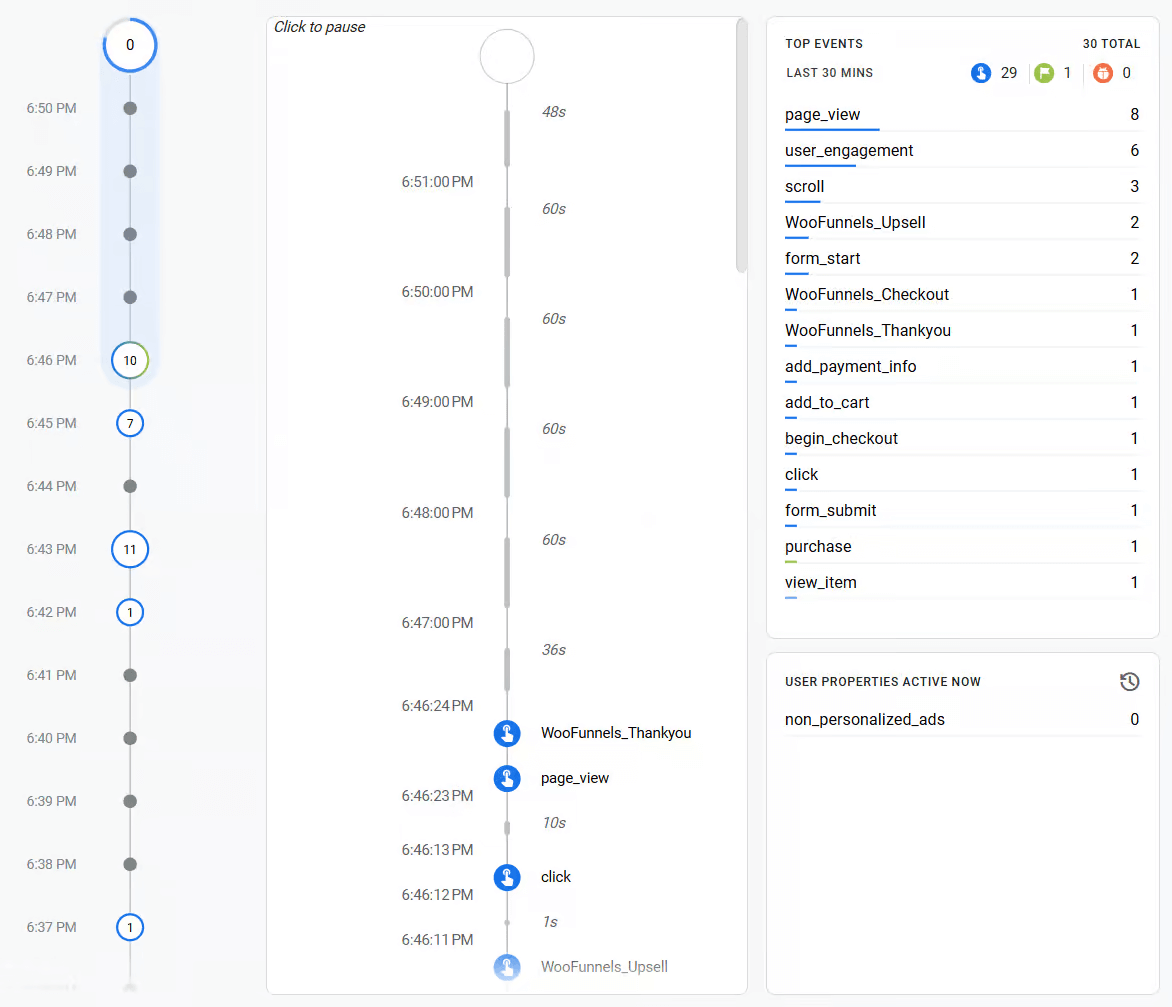
Always test in an incognito window. Your extensions, your cached scripts, and your logged-in session all change how pixels behave.
Why Your WooCommerce Orders Don’t Match Google Ads or GA4
Your store says 40 orders, but GA4 says 34, Google Ads says 27, and Meta says 61.
This is the most common tracking complaint we see, and the first thing to understand is that some of the gap is expected.
- Attribution date vs order date
Google Ads credits a conversion to the click date, not the order date.
A sale on the 3rd from a click on the 28th lands in last month. Over a 30-day window, this looks like a discrepancy; it’s a calendar difference.
- Different denominators
Google Ads counts only orders it can attribute to an ad interaction within the conversion window.
Your order count includes organic, email, direct, and repeat customers.
These numbers aren't supposed to be equal, and a monthly report that compares them directly measures nothing.
- View-through and platform windows
Meta’s default attribution includes view-through conversions and a 7-day click window.
It will report more purchases than GA4, which credits its own model on the event date.
Meta reporting fewer purchases than GA4 is the real red flag, because it means CAPI isn’t delivering.
- Consent and blocking
In the EEA and UK, denied consent means no event, correctly.
Google models some of that gap; GA4 and Ads model it differently, so they disagree with each other and with your store.
- Refunds, cancellations and unpaid orders
WooCommerce Analytics nets refunds out. Ad platforms generally don’t unless you send refund events.
Any tool firing purchase on pending or on-hold status is counting orders that may never be paid.
Aim for WooCommerce and GA4 within 5% on order count and 3% on revenue, with Google Ads and Meta trending in the same direction week over week.
Anything past this, you’re just tuning noise.
Fixing the 7 Most Common Tracking Failures
When WooCommerce conversion tracking isn’t working, it’s almost always one of these seven.
- Cached confirmation page: Purchase events missing or duplicated at random. Exclude /checkout/, /order-received/, cart, and any upsell URLs from page and object caching, then clear the cache and retest.
- Two plugins, one platform: Duplicate conversions and inflated ROAS. Audit every active plugin that can fire a Meta or Google event, disable all but one owner per platform, and confirm order-ID deduplication is on.
- Purchase firing before payment: Conversions for unpaid orders on bank transfer, cash on delivery, and BNPL. Restrict the purchase event to paid statuses; woocommerce_payment_complete is the safe anchor.
- Off-site gateway redirect: Orders in WooCommerce, no conversions in the platform. This isn’t fixable client-side. Move purchase delivery server-side.
- HPOS mismatch: Purchase events arriving with zero value. Update or replace any tracking plugin still reading order data from wp_postmeta.
- Block checkout or draft-order timing: Events silent after a Woo update. Update your tracking plugin, then re-test the full order flow rather than the thank-you page in isolation.
- Missing or mismatched transaction ID and currency: Deduplication is impossible, and revenue is wrong. Pass the WooCommerce order number as the transaction ID everywhere, and match your store currency to your GA4 property.
None of these announce themselves. Set the GA4 anomaly alert from step 5, and you catch the next one in two days instead of two months.
5 Best Practices to Ensure Accurate Conversion Tracking in WooCommerce
Follow these practices to ensure accurate WooCommerce conversion tracking:
1. Use only one tracking solution per platform
Running multiple plugins that fire the same events almost always leads to duplicate conversions. Audit your WordPress plugins and remove any redundant ones.
2. Send hashed customer data with purchases
This is what drives Meta event match quality and Google Enhanced Conversions matching.
3. Re-audit after every major update
WooCommerce releases, theme changes and gateway updates all break tracking silently.
4. Keep GA4 as your reference point
Measure every ad platform against GA4 rather than against each other, so you always have one baseline.
5. Write down what you changed and when
A site note in GA4 whenever you touch tracking turns a future mystery data drop into a two-minute answer.
6. Respect consent signals properly
Conversions sent without valid consent can be discarded, and in your reports that looks exactly like broken tracking.
Frequently Asked Questions
Browser-side tracking uses JavaScript that runs in the visitor's browser. When someone views a page, adds a product to the cart, or starts checkout, the pixel fires and sends data directly to platforms like Google Analytics or Meta.
Server-side tracking sends events directly from your server to advertising and analytics platforms using their APIs. The browser doesn't need to execute any tracking code for these events to be sent.
We recommend using both methods to track conversions. Browser-side tracking is ideal for early-funnel events such as page views, product views, and add-to-cart actions because it captures user intent in real time. Server-side tracking is best for high-value events, such as purchases, where accuracy matters more than speed.
Partly. WooCommerce Analytics reports orders and revenue in your dashboard, and the free Google for WooCommerce extension sends ecommerce events to GA4 and Google Ads.
Meta, TikTok and server-side tracking are not covered.
Yes, through Google Tag Manager with a manually built data layer, or by adding tracking code via your theme’s functions file.
Both need ongoing maintenance as platforms revise their specifications, which is why most store owners end up on a plugin.
Both, for different jobs. GA4 is where you analyze behavior and compare channels; the Google Ads conversion tag is what Smart Bidding trains on.
Importing GA4 key events into Google Ads is a common shortcut, though a direct tag usually reports faster.
Remove the second plugin firing the same event, exclude your thank you page from caching so refreshes cannot re-trigger it, and make sure browser and server events share an event ID so the platform can deduplicate them.
Usually, this is a currency mismatch between your WooCommerce settings and your GA4 or Google Ads property.
It can also happen when dynamic value tracking is switched off in your pixel settings, or when the order total isn't being passed into the tag.
It can. The Cart and Checkout Blocks fire events differently from the classic checkout, and setups built for the shortcode version sometimes stop firing after migration.
Run a test order and confirm your purchase event still appears rather than assuming it carried over.
GA4 standard reports can take up to 24 hours, though DebugView is immediate.
Google Ads typically reports within three hours.
Meta shows events in Test Events straight away but takes longer to surface them in reporting.
Renewals happen with no browser session, so browser pixels never see them.
You need server-side tracking through the Measurement Protocol or a platform Conversions API to attribute recurring revenue back to the channel that acquired the customer.
Start Tracking Every WooCommerce Conversion Today!
No single change on this page fixes your data. Adding the Conversions API without excluding your thank you page from caching still leaves you with missing purchases.
Fixing caching while two plugins fire the same event just gives you accurate duplicates.
Accuracy comes from running the list, and each fix compounds on the last because every platform you correct improves the baseline you measure the next one against.
If you only do one thing this week, place a test order and open the purchase event payload.
Not whether it fired, but whether it carried a value, a currency, and a transaction ID.
That single check catches more broken WooCommerce conversion tracking than every dashboard in your stack combined, and it takes about four minutes.
Once purchase events land accurately, the more interesting question is what happens between add to cart and paid order, where checkout structure, order bumps and upsells start moving numbers you can finally see.
Explore FunnelKit if that’s the stage you’re at.

Editorial Team
September 23, 2026A tripwire funnel is one of the most powerful tools in digital marketing, and also one of the most misunderstood. In our experience helping thousands of WordPress businesses build sales...
Editorial Team
September 22, 2026WooCommerce checkout with Elementor can match the rest of your store, but making it convert well takes more than a design change. Think about a store that redesigns its checkout...

Editorial Team
September 21, 2026A lead generation funnel is the path a stranger takes from their first click to becoming a contact you can follow up with, and eventually, ideally, a customer. Most businesses...






