WooCommerce frequently bought together offers are one of the easiest ways to increase revenue on a product page.
Think about the counter at a kitchen appliance store. Let's say someone buys an espresso machine, and the salesperson places a bag of beans, a descaling kit, and a milk frothing pitcher next to it.
They’re not really selling the customer more stuff. They’re helping them get everything they need in one trip.
That small recommendation can make a big difference.
The espresso machine alone might be a $349 purchase. Add the three products the customer is likely to need in their first week, and suddenly you have a $419 order from the same customer, during the same visit, without spending anything extra to acquire them.
Your WooCommerce store probably doesn’t have this kind of “counter” yet. That’s because WooCommerce doesn’t include a true frequently bought together feature out of the box.
It does have native upsells and cross-sells, but they appear in fixed locations and come with predefined headings you can’t easily customize. That’s quite different from creating a dedicated product bundle that feels like a natural recommendation.
To add that experience to your store, you’ll need a plugin.
In this guide, we’ll look at the best free and paid options, show you how to set up frequently bought together offers, explain the discount math you need to get right, and cover three other places where these recommendations can perform even better.
Let's set it up.
Table of Contents
- 1 Does WooCommerce Have Frequently Bought Together Built In?
- 2 Frequently Bought Together vs Cross-Sells, Upsells, and Related Products
- 3 How to Add Frequently Bought Together to Your WooCommerce Product Page?
- 4 Where Else Bought-Together Offers Convert?
- 5 Which Placement Converts Best?
- 6 Troubleshooting: Frequently Bought Together Not Showing
- 7 7 Best Practices to Follow When Setting Up Frequently Bought Together Products in WooCommerce
- 7.1 1. Choose complementary products wisely
- 7.2 2. Use data to drive your suggestions
- 7.3 3. Offer bundle discounts for extra incentive
- 7.4 4. Keep your display clean and clear
- 7.5 5. Test and optimize regularly
- 7.6 6. Showcase the feature throughout the customer journey
- 7.7 7. Leverage email marketing to retarget abandoned carts
- 8 Frequently Asked Questions (FAQs)
- 9 Ready to Run Bought Together Offers Across Your Whole Store?
Does WooCommerce Have Frequently Bought Together Built In?
No, WooCommerce doesn’t include a Frequently Bought Together feature. The closest native options are upsells on the product page and cross-sells on the cart page.
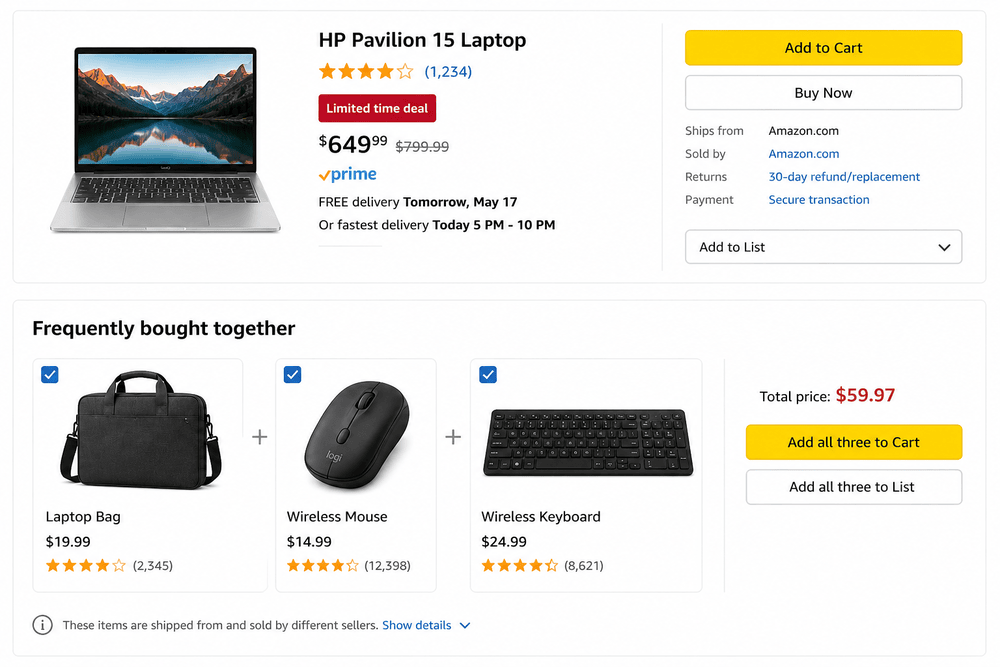
But neither of them gives you checkboxes, a combined price, or a single Add to Cart button for the whole set.
This is the same gap that every plugin in this category exists to fill.
The native upsell grid sits under a “You may also like” heading you can’t rename without editing template files, and every product in it links out to its own page.
A shopper who wants the machine and the grinder visits two pages and adds two items.
The Amazon-style box does it in one click, which is the entire point of the pattern.
Frequently Bought Together vs Cross-Sells, Upsells, and Related Products
These four terms get used interchangeably. They aren’t the same thing, and the difference that matters is timing and clicks.
| Feature | What it shows | Where it appears | Who picks the products |
|---|---|---|---|
| Frequently bought together | Complementary items the shopper can add alongside the main product | Product page, near the Add to Cart button | You do, or a plugin does, from purchase data |
| Upsells | A different, usually pricier alternative to the current item | Product page, under the description, as “You may also like” | You do, in the Linked Products tab |
| Cross-sells | Complementary items for what is already in the basket | Cart page only | You do, in the Linked Products tab |
| Related products | Anything sharing a category or tag | Product page, below the content | WooCommerce does automatically |
Bought-together offers fire while the shopper is still deciding. Cross-sells fire after.
Both work, on different psychology, which is why the strongest setups run both.
For the broader playbook, see our guide to WooCommerce cross-sells.
How to Add Frequently Bought Together to Your WooCommerce Product Page?
There are three ways to get there:
- A free plugin: Gets you the box, the checkboxes, the combined price, and per-item discounts.
- A paid plugin: Worth it for one thing: pairings generated from your real order history instead of the ones you guessed. Variable product support lives here too.
- Native linked products or your own code: No discount logic, no combined Add to Cart.
Start at option 1 and move up only when the free version hits a wall you can name.
We’ll carry one example through every step below: the $399 espresso machine, with the $129 burr grinder and a $24 milk pitcher as add-ons.
Swap in your own products as you go.
Free Option: WPC Frequently Bought Together
WPC is the free plugin most stores land on, and it does the most before it asks you for money.
Install and activate the WPC Frequently Bought Together plugin.
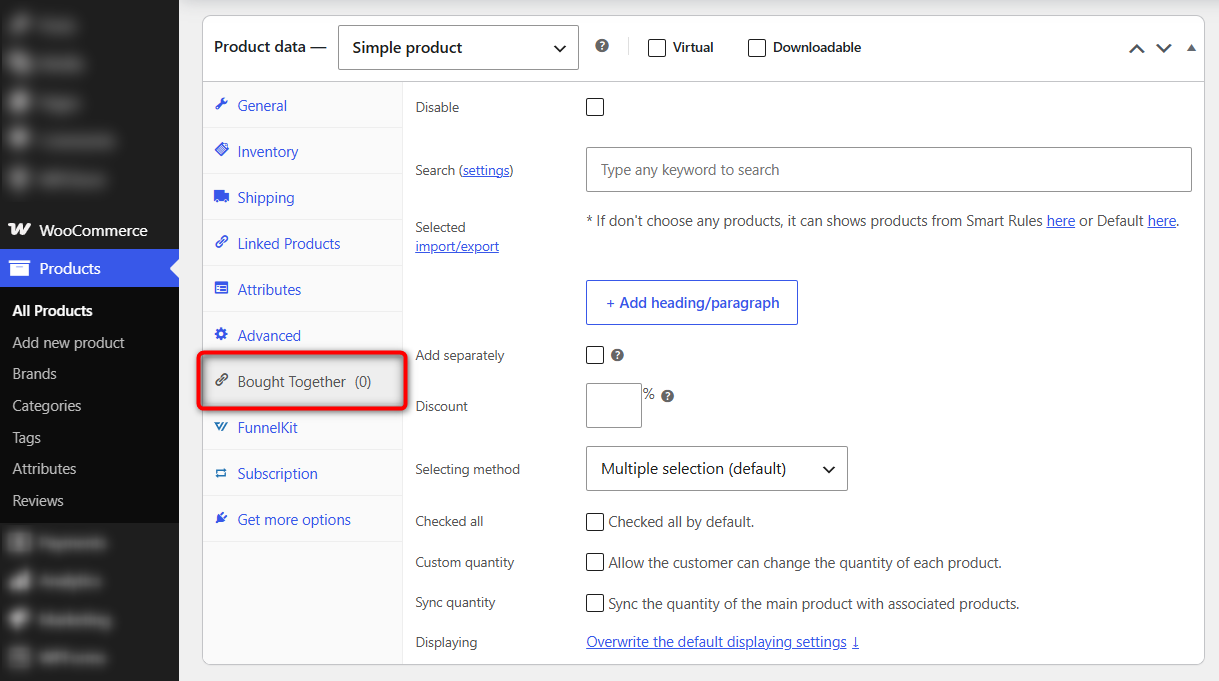
Step 1: Edit the product and find the Bought Together tab
In our case, we’ll open the espresso machine product and scroll to Product data.
Click the Bought Together tab that WPC adds alongside Inventory and Linked Products.
Step 2: Add the bought together items and set the price for each add-on
Search by name, SKU, or ID. Add the grinder and pitcher.
Keep the list to two or three add-ons; beyond that, the box turns into a catalog and the selection rate drops.
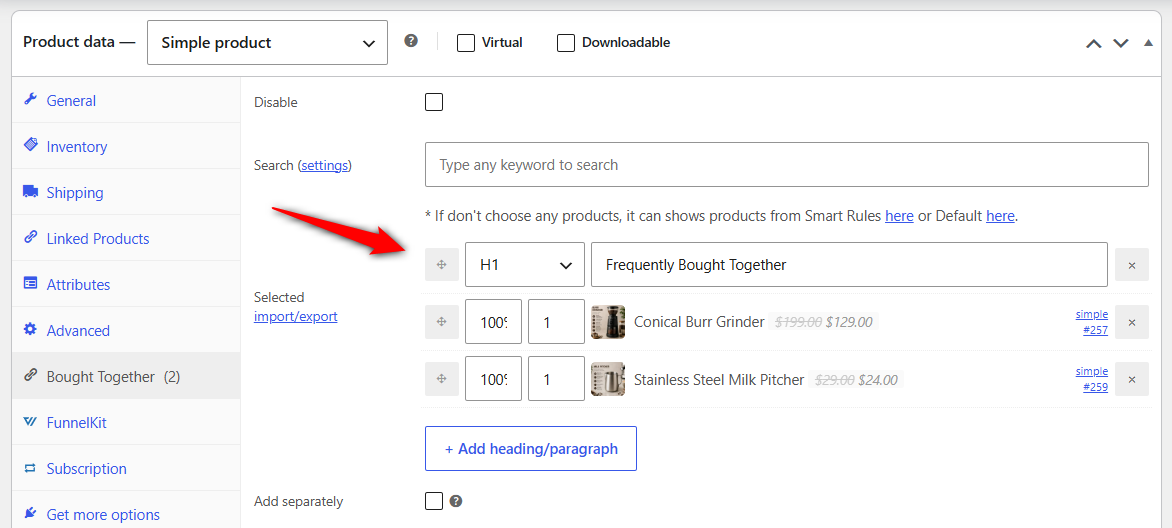
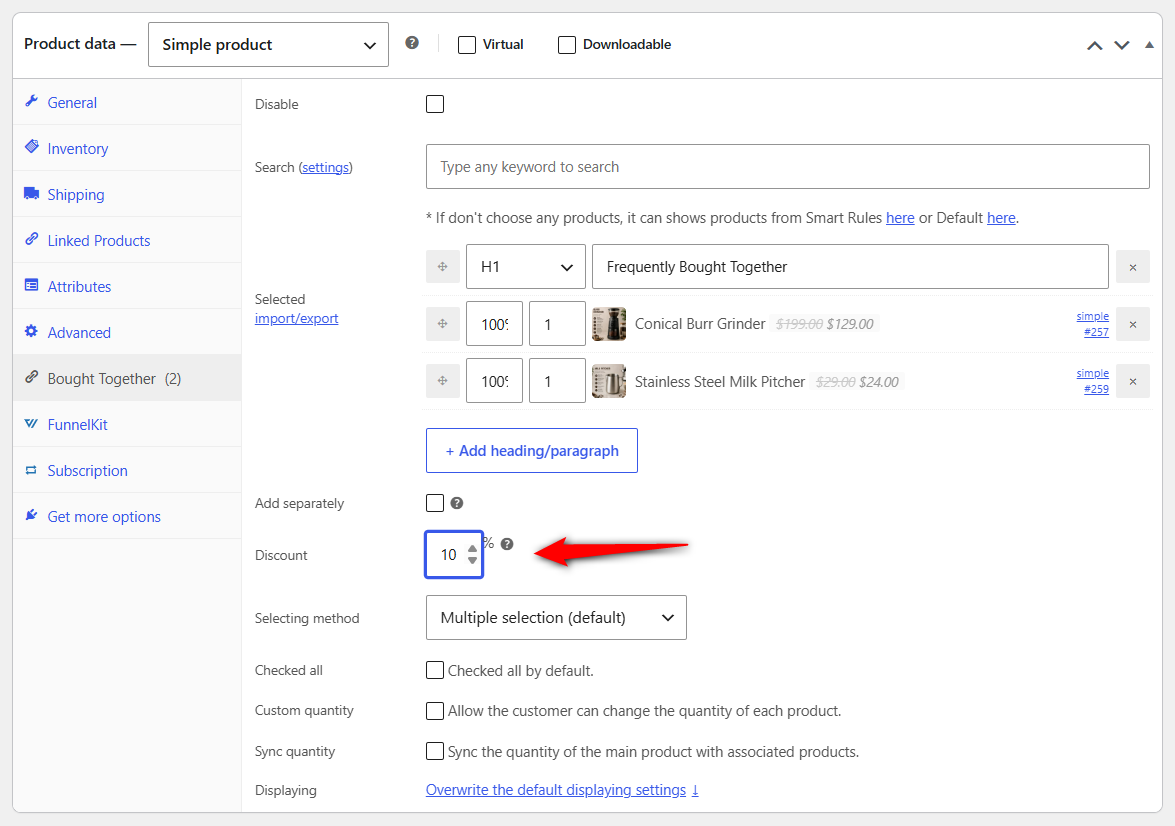
Each item takes a new price as a percentage or a fixed amount.
Enter the individual pricing or discount the whole bundle, or leave it empty for full price.
Do the discount math below before you pick a number.
Step 3: Set the global defaults
Under WPClever ⇨ Bought Together, pick what shows when a product has no custom list, falling back to related products, upsells, or cross-sells from Linked Products.
If you run frequent sales, set the pricing method to “from Regular price” so discounted products don’t get discounted twice.
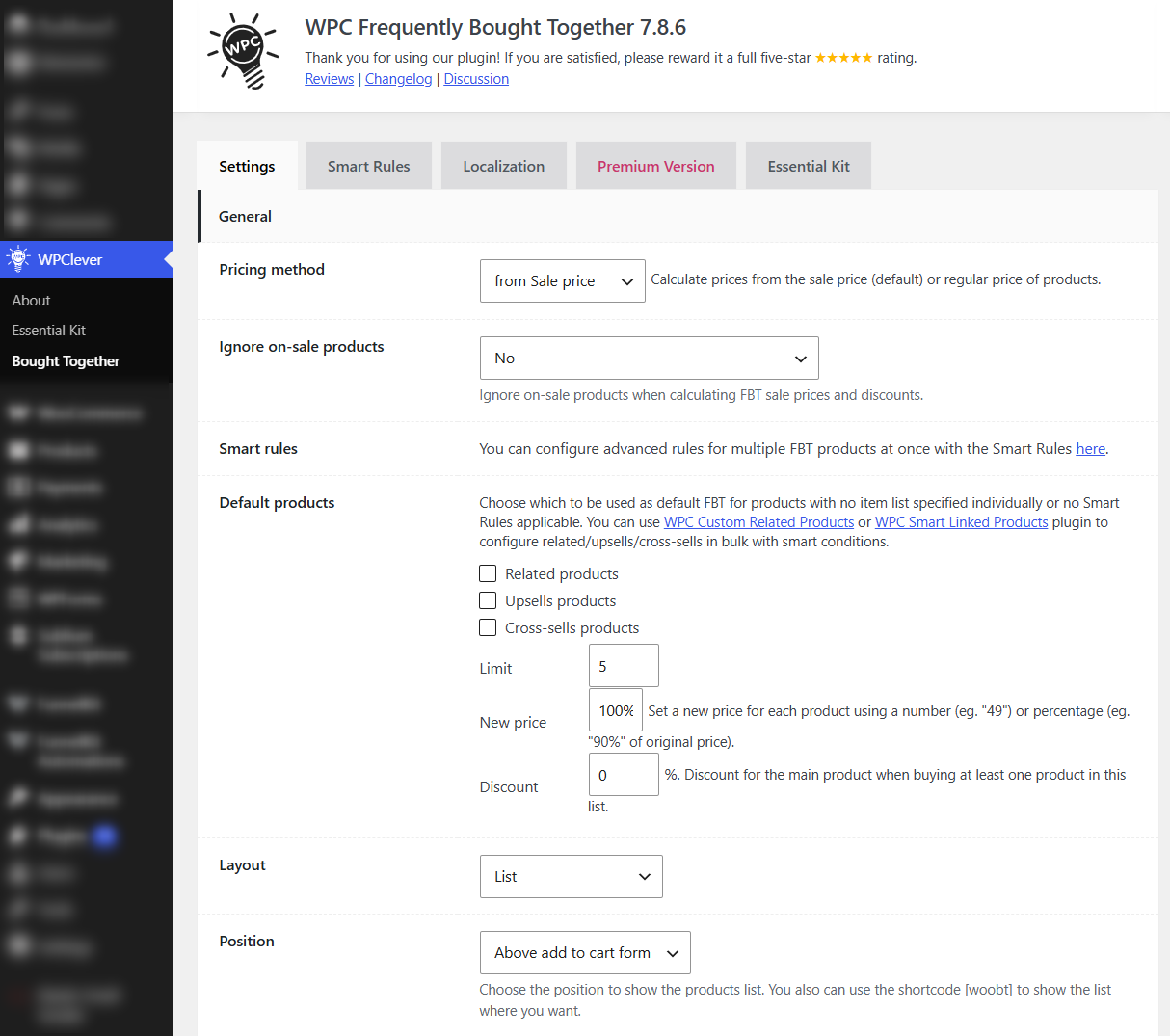
Please note that the fallback pulls from the Linked Products tab, so if you have never filled those fields in, set them on your top sellers first, or the fallback has nothing to show.
Step 3: Test it on your store
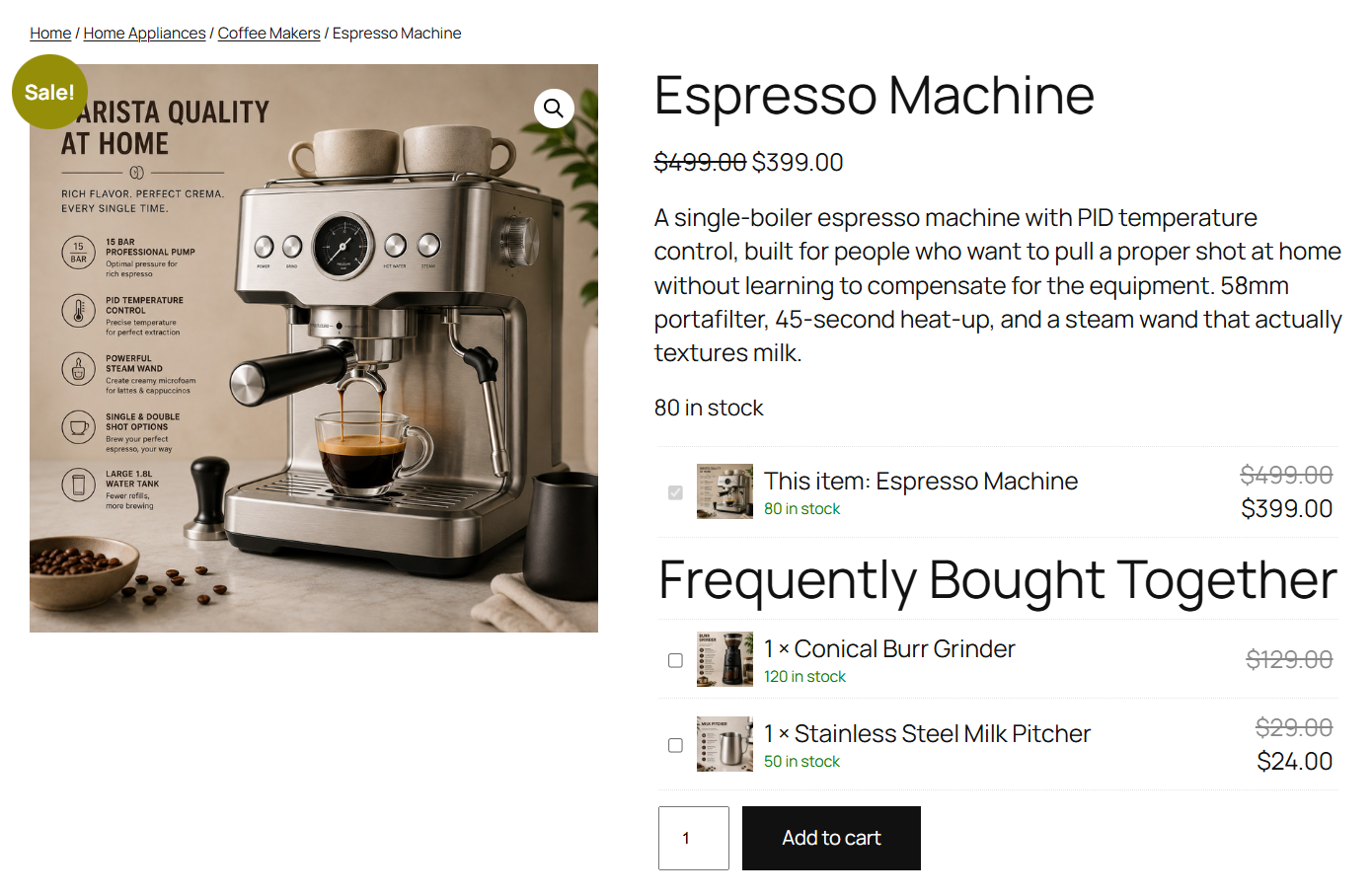
Open the espresso machine product on the front end, uncheck the pitcher, check the grinder, and add to cart.
Both items should land with the bundle price applied.
But there is one honest limitation. The free version renders the box below the product summary above the Add to Cart button. Repositioning is a Premium option.
Paid Option: YITH Frequently Bought Together
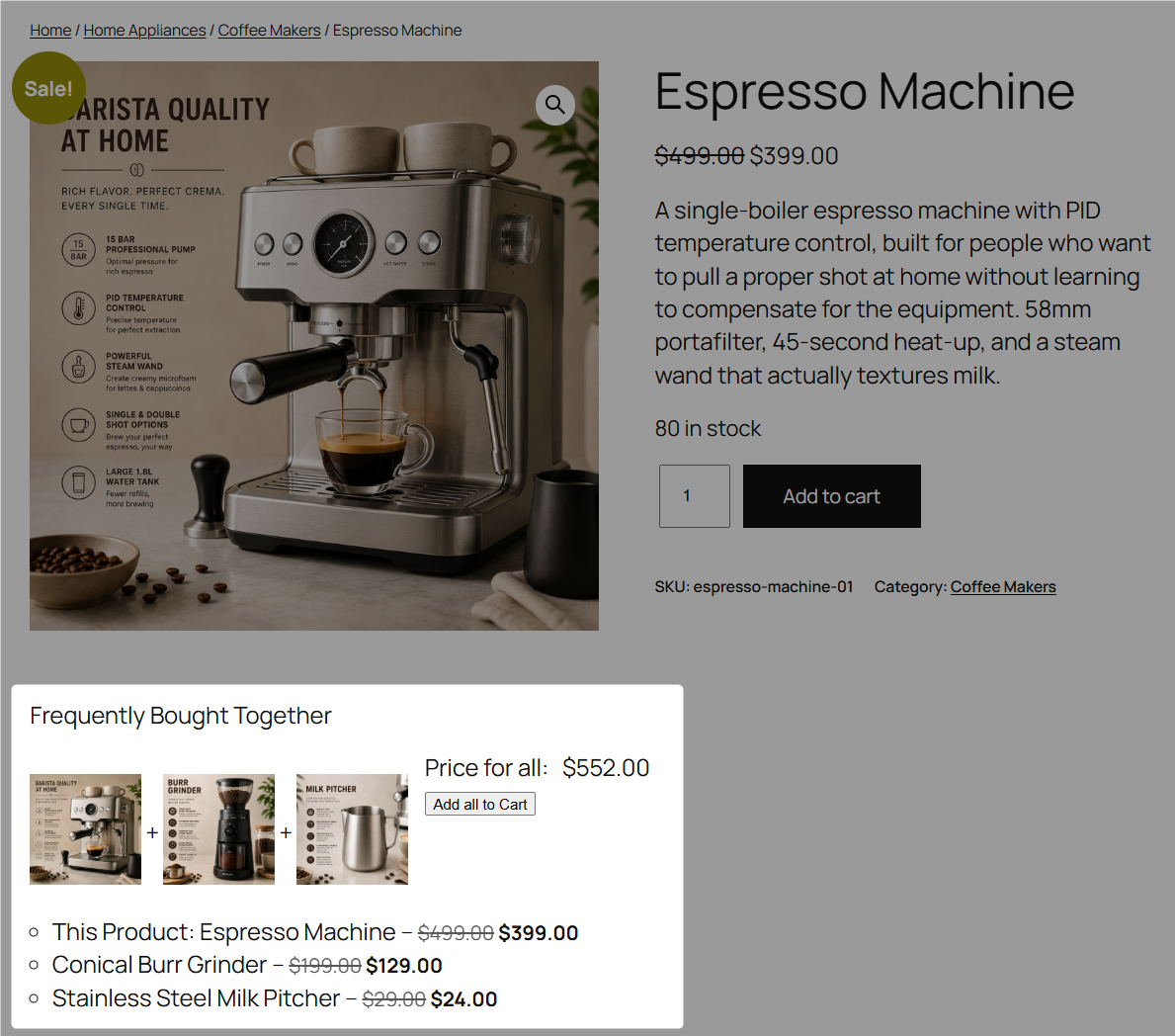
YITH ships a free version too. The paid version is worth it for one feature, i.e., suggestions generated from your actual order history instead of pairings you guessed at.
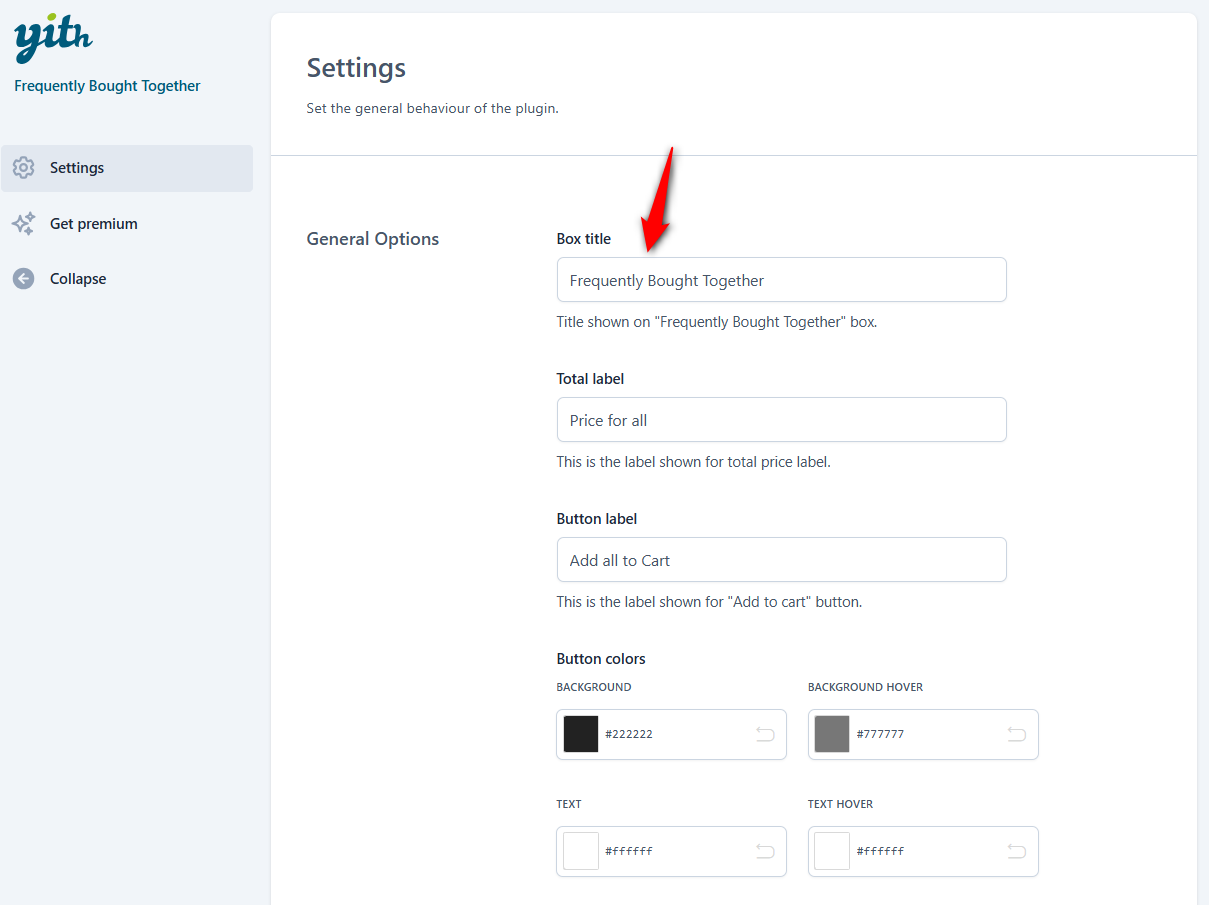
Setup runs from one screen at YITH ⇨ Frequently Bought Together, where you set the widget position (below Add to Cart, above the product tabs, or at the bottom of the page), rename the heading, and restyle the button.
Please note that quantity is locked to 1 per item, so it can’t do "buy three, save 10%". And the main product can’t be removed from the list.
For most stores, these limitations don't matter. However, for anyone selling consumables, the quantity lock does.
If you want the full field, including Bundle, WooCommerce extensions, and more, we've compared them in our roundup of WooCommerce frequently bought together plugins.
This guide sticks to the two stores most users actually end up installing.
The native WooCommerce linked products capability
You can get part of the way there without installing anything.
Edit a product, open Product data ⇨ Linked Products, and add the grinder and pitcher to the Upsells field.
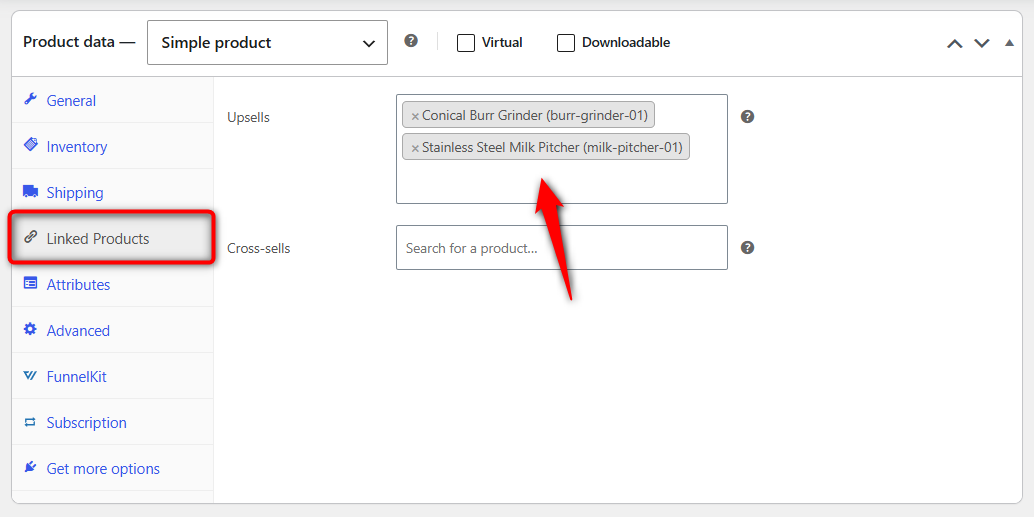
WooCommerce renders them at the bottom of the product page.
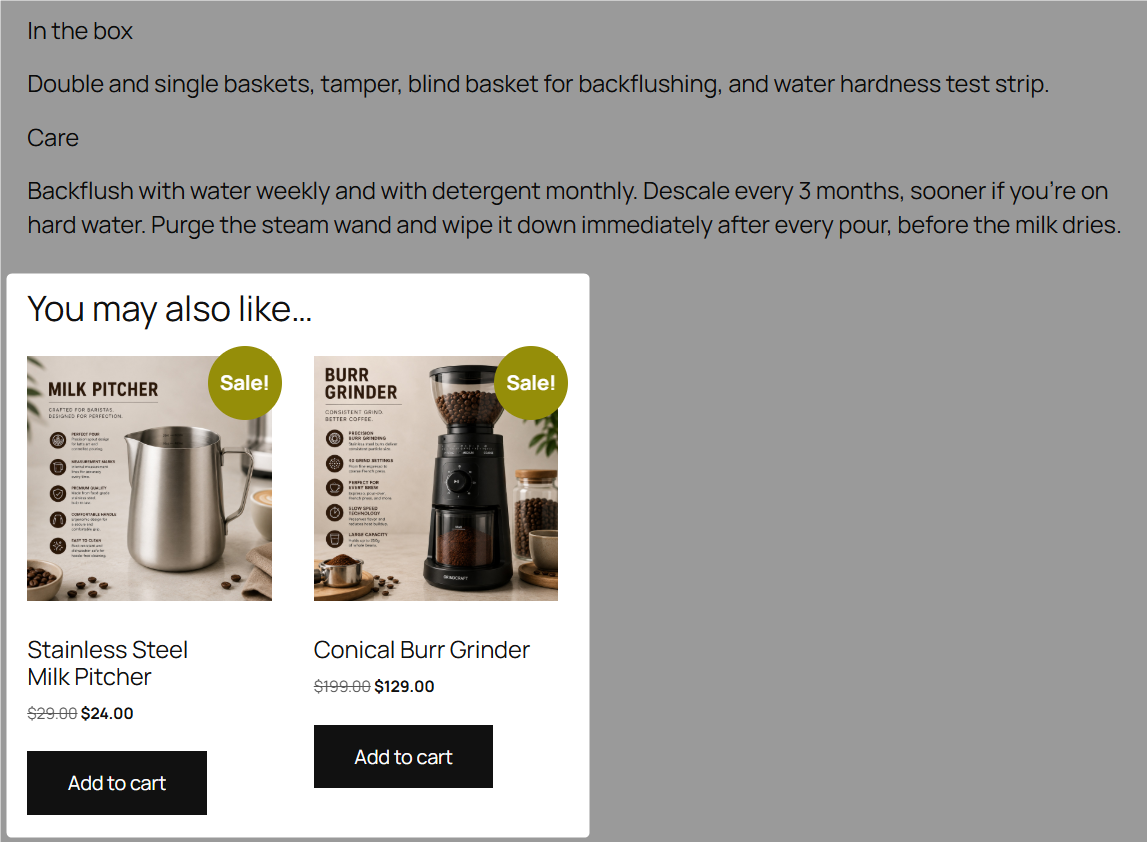
You get a grid of product cards. What you don’t get is checkboxes, a combined price, a single Add to Cart, a bundle discount, or control over the heading, which stays “You may also like” unless you override woocommerce_upsell_display in a child theme.
It’s a related-products display wearing a recommendation label.
Use it to test whether add-ons get any traction on a given product. Once you know they do, it’s costing you the orders a real box would have caught.
Adding a bought-together box without a plugin
If you’d rather write it, the hook is woocommerce_after_add_to_cart_button.
This renders a checkbox list of the product’s linked upsells under the Add to Cart button:
add_action( 'woocommerce_after_add_to_cart_button', 'store_fbt_box' );

function store_fbt_box() {
    global $product;
    $ids = $product->get_upsell_ids();

    if ( empty( $ids ) ) {
        return;
    }

    echo '<div class="store-fbt"><p>Frequently bought together</p><ul>';

    foreach ( $ids as $id ) {
        $addon = wc_get_product( $id );

        if ( ! $addon || ! $addon->is_in_stock() ) {
            continue;
        }

        printf(
            '<li><label><input type="checkbox" name="fbt_ids[]" value="%1$d"> %2$s %3$s</label></li>',
            esc_attr( $id ),
            esc_html( $addon->get_name() ),
            wp_kses_post( $addon->get_price_html() )
        );
    }

    echo '</ul></div>';
}
That draws the box but doesn’t add anything.
You also need to catch the checked IDs when the main product is added:
add_action( 'woocommerce_add_to_cart', 'store_fbt_add_addons', 10, 6 );

function store_fbt_add_addons( $key, $product_id, $qty, $var_id, $variation, $data ) {
    if ( empty( $_POST['fbt_ids'] ) ) {
        return;
    }

    foreach ( (array) $_POST['fbt_ids'] as $id ) {
        WC()->cart->add_to_cart( absint( $id ) );
    }
}
Drop both in your child theme’s functions.php or a snippets plugin, and add nonce verification before it goes live.
This is how frequently bought recommendations will appear on your product page:
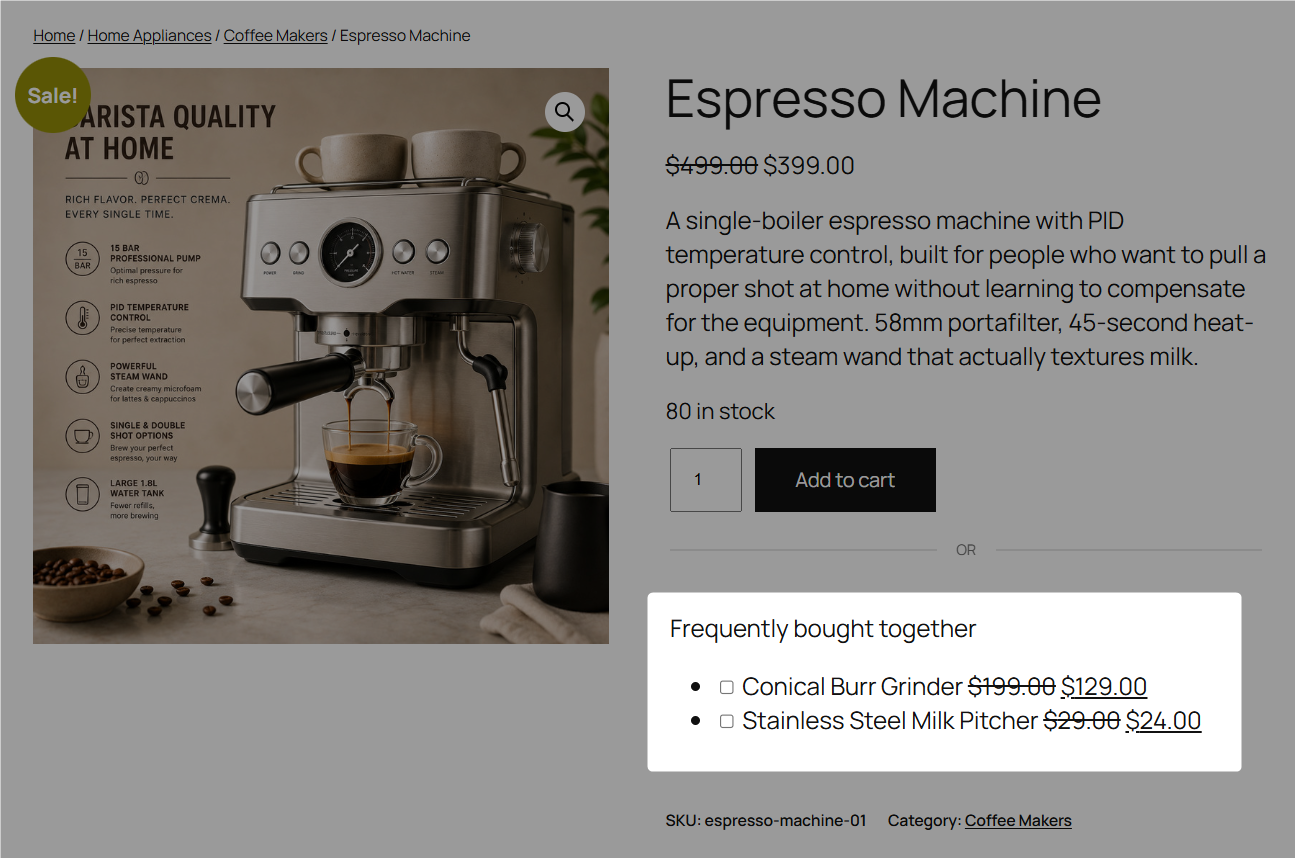
The missing piece here is the bundle pricing, variation handling, a combined total, and it breaks the moment a theme overrides the add-to-cart template.
This is a reasonable 20-line answer for a store with five products, but not a substitute for a plugin at 500.
Where Else Bought-Together Offers Convert?
Almost every guide on this topic stops at the product page.
In our experience, that’s one of four moments a shopper will accept an add-on, and it’s the one where they’re least committed, because they haven’t decided to buy anything yet.
McKinsey’s widely cited estimate puts 35% of Amazon’s purchases down to recommendations.
That number is often quoted as a product-page stat. It isn’t one.
Amazon runs the same logic in the cart, at checkout, and in post-purchase email, and the compounding across all four is where the AOV lift comes from.
Here’s the same espresso machine offer, moved through the rest of the journey.
In the slide-out cart
The shopper has committed to the machine, so the grinder now reads as completing a decision rather than reopening one.
This is also the one placement where a free-shipping or discount threshold does real work: $23 short of a 10% discount with a $24 pitcher.
FunnelKit Cart runs it in a side panel that opens on Add to Cart, with no page load.
Set up your upsells inside:
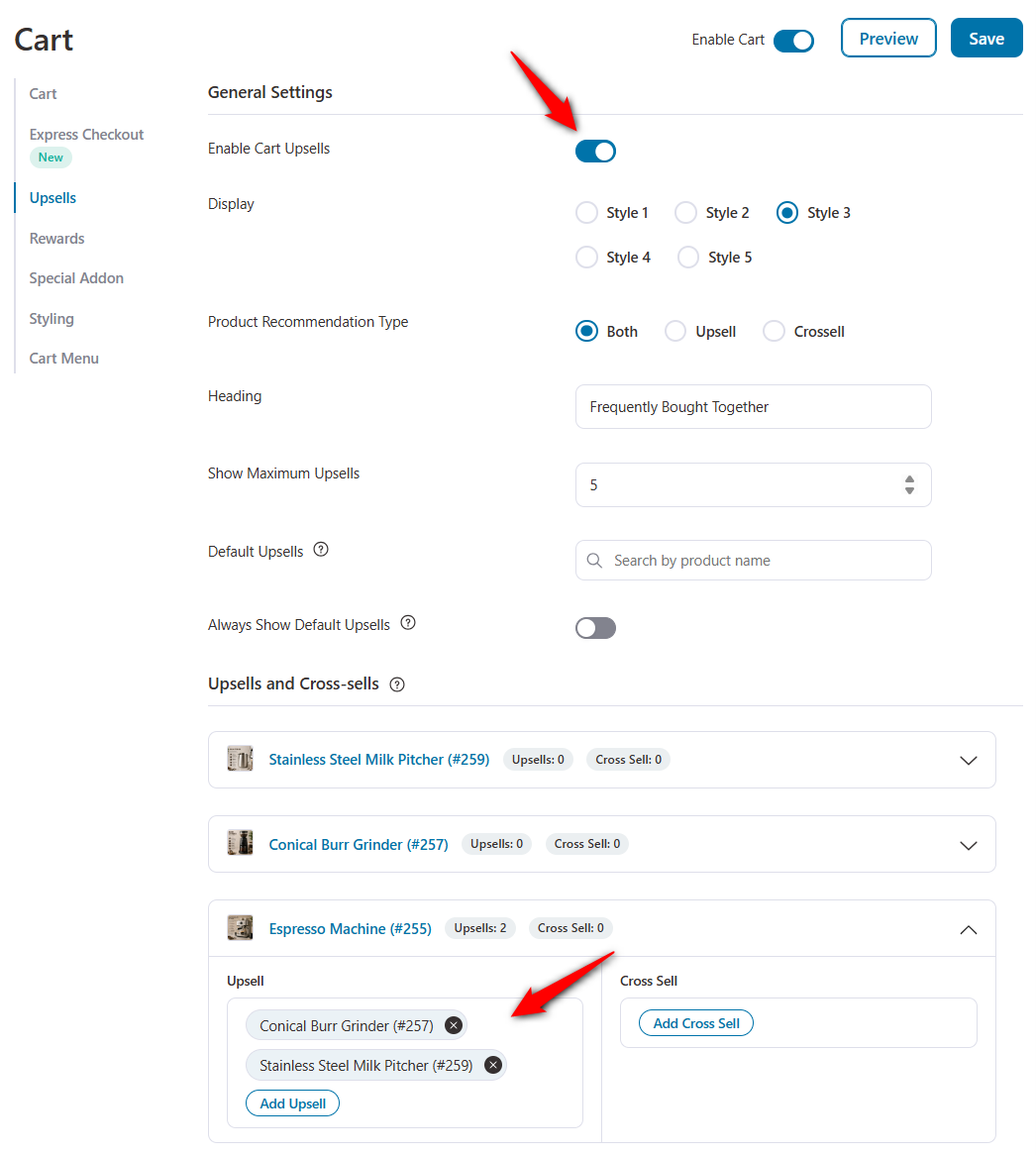
Set up rewards to take full advantage of the threshold-based high order boost.
This is how it looks with all the upsells and rewards set up inside the side cart:
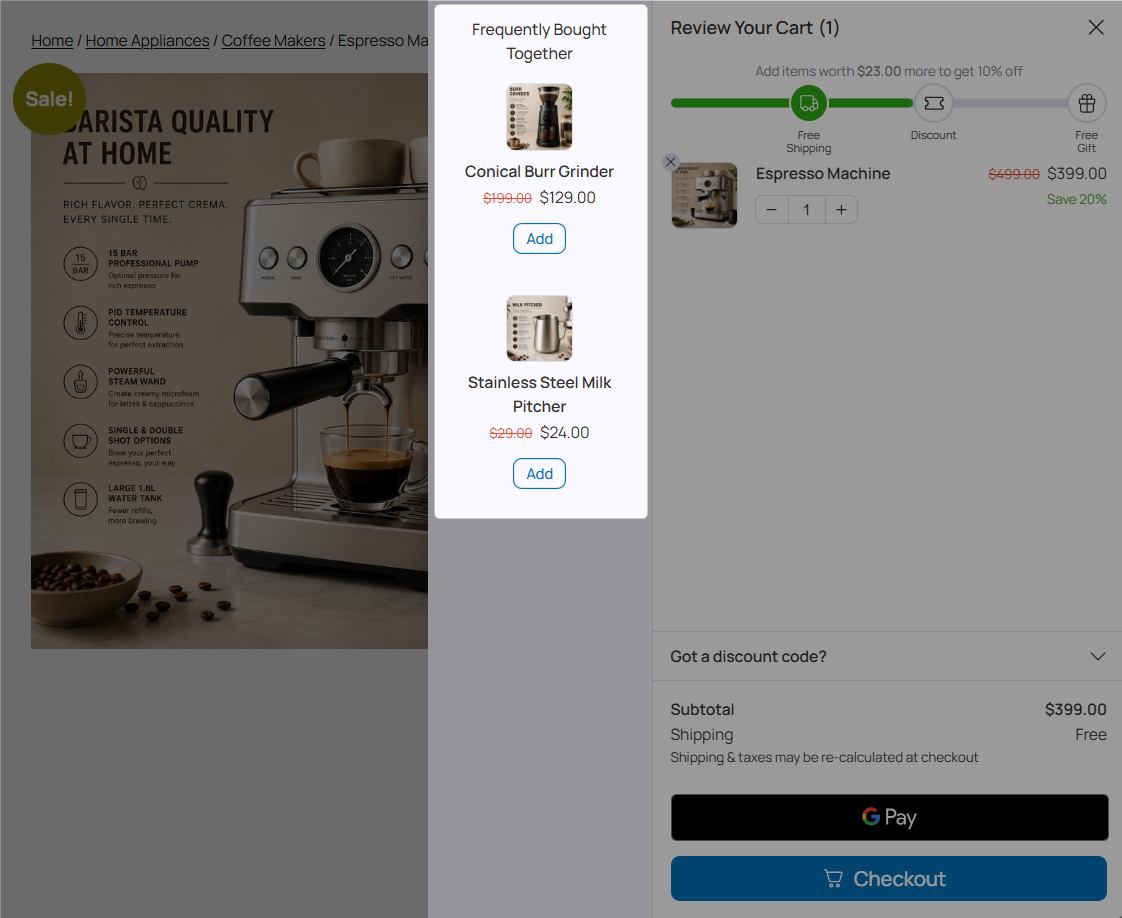
See our guide to the WooCommerce sliding cart.
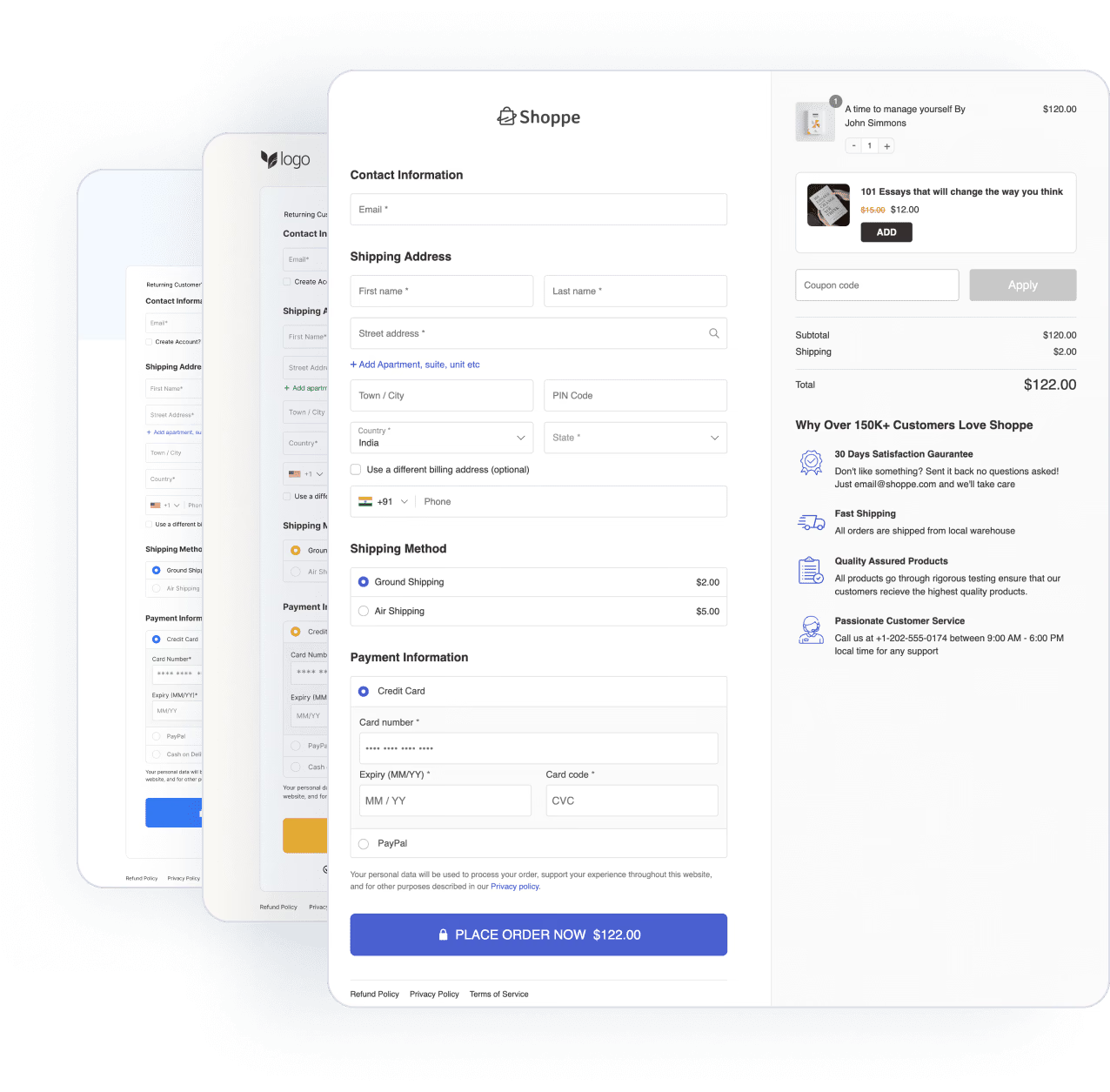
At checkout, as an order bump
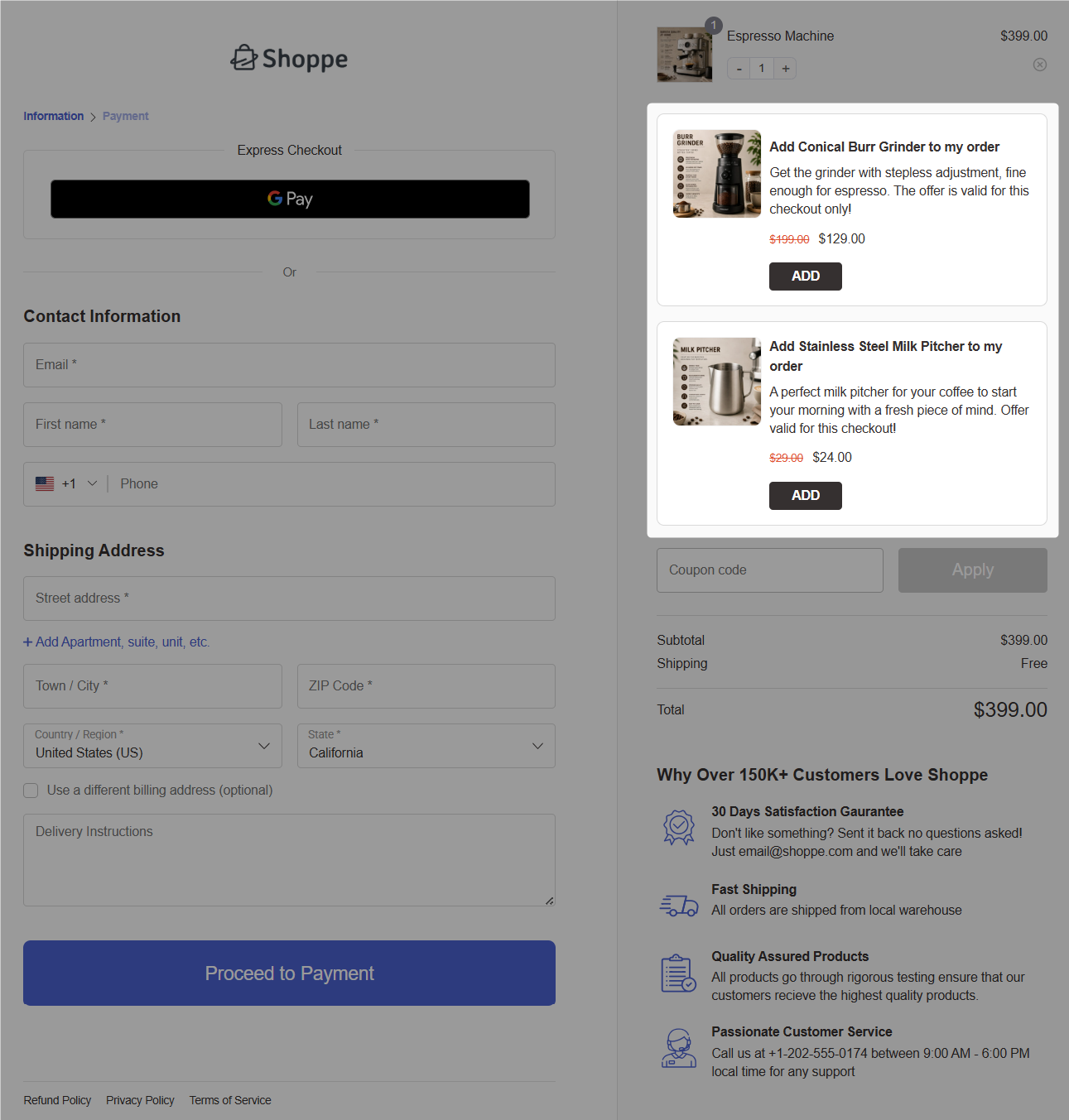
A single checkbox above the payment button with a one-line pitch and a price.
The shopper is already entering card details, so yes, it costs one click and no re-entry, which is why order bumps consistently outperform product page recommendations.
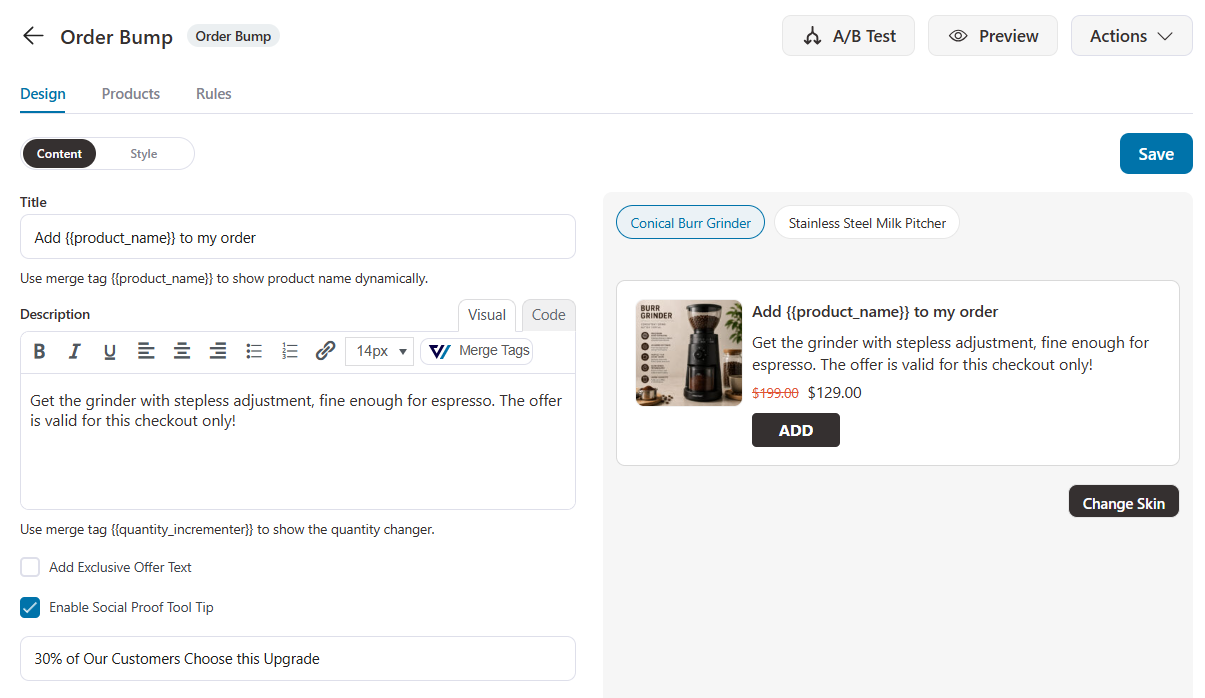
Setting up order bumps is quite easy. Just import a skin, add products, and set discounts!
This is how the order bumps look on the WooCommerce checkout page created with FunnelKit.
Our walkthrough on how to set up a checkout order bump covers the targeting rules.
After purchase, as a one-click upsell
The offer runs after the order is placed, so it can’t touch your checkout conversion rate.
Accepting charges the saved card without a second checkout.
This is the home for the higher-priced add-on you’d never risk in the box, like a $199 grinder upgrade.
FunnelKit Funnel Builder makes it effortless to set up your one-click upsell offers.
You can customize the page with Elementor, Bricks, Divi, Oxygen, Gutenberg, and more.
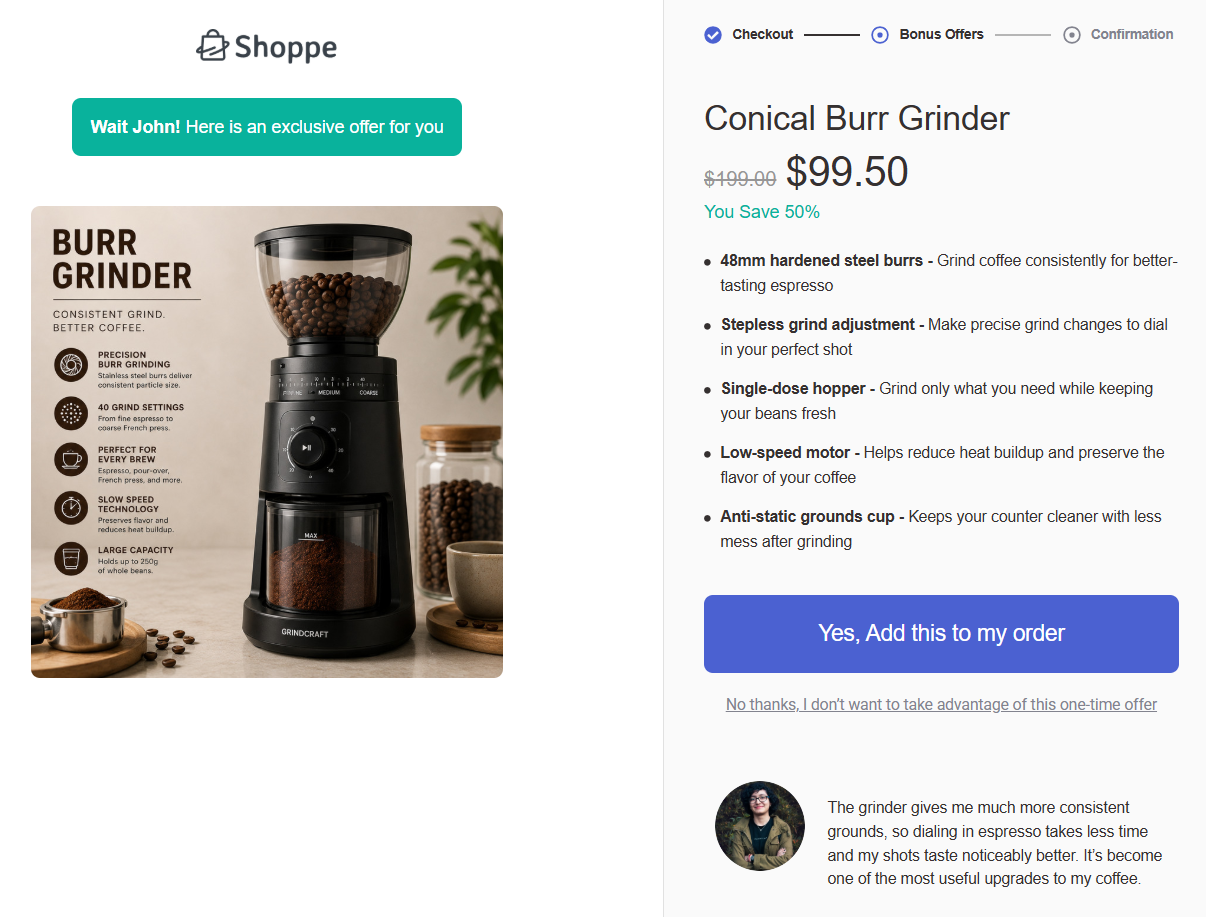
See our guide to WooCommerce one-click upsells.
In the post-purchase email
Sent three to seven days after delivery, once the machine is on the counter and the shopper has felt the grind problem for themselves.
FunnelKit Automations triggers this off the specific product purchased, so only espresso machine buyers get grinder offers.
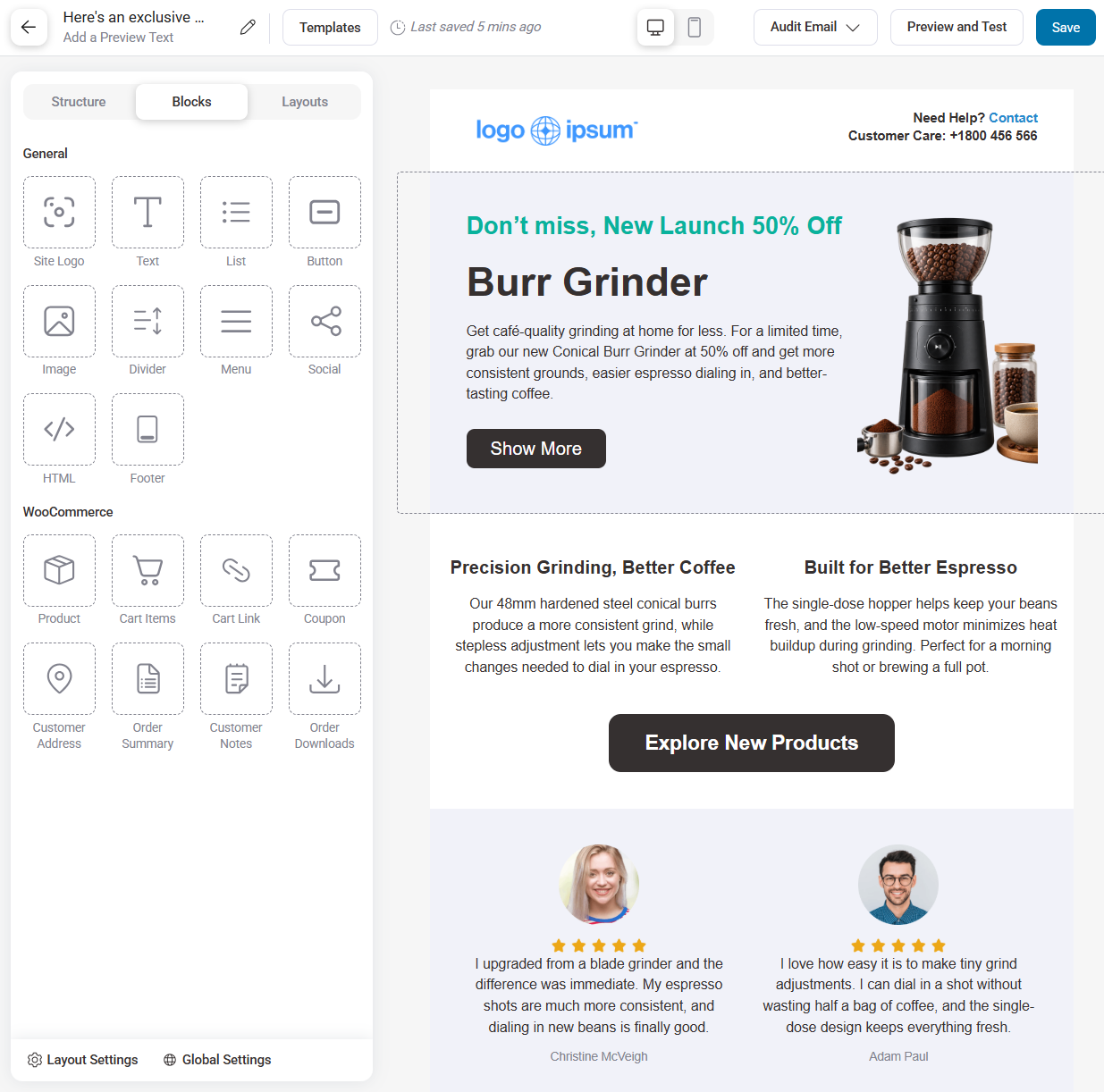
Now customize the email template to meet your needs.
To make your template more appealing, you’ll find editing options on the left side, including text, images, buttons, social icons, etc.
Upload an image of your product. Also include a detailed product description.
For how to decide which products to pair in the first place, see our guide to WooCommerce product recommendations.
Which Placement Converts Best?
| Placement | Setup effort | Best for | Watch out for |
|---|---|---|---|
| Product page box | Low | Cheap, obvious companions the shopper expects | Least committed audience, and page speed if the plugin loads images |
| Slide-out cart | Low | Small add-ons and free-shipping threshold nudges | Anything that reopens the buying decision |
| Checkout order bump | Low | One high-fit add-on under roughly 30% of cart value | Adding more than one, which stalls the checkout |
| Post-purchase upsell | Medium | Higher-priced upgrades with zero conversion risk | Needs a payment gateway that supports off-session charges |
| Post-purchase email | Medium | Consumables, refills, and second-order items | Timing, since too early reads as a pitch, too late is forgotten |
There isn’t one winner. The product page box is what shoppers expect, the order bump usually has the highest attach rate, and the post-purchase upsell carries the highest average value because it’s the only one with no downside risk.
The reason to run all four isn’t that one shopper buys the grinder four times.
It’s that each placement catches a different person: the one persuaded before adding anything, the one who needed to see the cart total first, the one who only says yes when it costs a single click, and the one who didn’t know they wanted better grind consistency until the machine was on the counter.
Put numbers on it. On 1,000 espresso machine orders a month, a conservative 5% attach rate on the $129 grinder earns $6,450 from the box alone.
Four placements at 5% each don’t sell 200 grinders to the same people.
They move roughly 20% of buyers to one grinder instead of 5%, which is $25,800 on the same traffic bill.
Troubleshooting: Frequently Bought Together Not Showing
- The box isn’t appearing on the product page
Three checks, in order. The product needs at least one add-on assigned or a global fallback set, or the plugin renders nothing.
Clear every cache layer, including your CDN, since these boxes get cached out constantly.
Then confirm the display setting is still enabled at product level, because per-product disabling is easy to trip by accident.
- AJAX add to cart conflicts
If your theme uses AJAX add to cart on single product pages, the checked add-ons never reach the server, because the AJAX handler posts only the main product ID.
The main product lands in the cart and the add-ons quietly don’t.
Fix it by disabling AJAX add-to-cart on single product pages and letting the form submit normally.
Cart page and shop archive AJAX can stay on. This is the single most common cause of “it worked in staging” reports.
Note: if you’re running a side-panel cart, check the handoff here too. The cart needs to catch every item the form submits, not just the first one.
- Out-of-stock products in the bundle
An out-of-stock add-on either blocks the combined Add to Cart or throws a validation error on submit, depending on the plugin.
Turn on the option to hide unavailable items.
If your plugin doesn't offer this, keep backorder-only products out of your bought-together lists and re-audit when stock changes.
- Theme and page builder conflicts
Custom single product templates in Elementor, Divi, or a block theme usually drop the hook the plugin renders into.
If the box vanishes on a builder template, place it back with a shortcode.
YITH ships [ywfbt_form product_id=""] in both free and premium for exactly this.
Themes that override content-single-product.php cause the same problem.
Compare your theme’s template against the WooCommerce core version and confirm woocommerce_after_add_to_cart_button and woocommerce_after_single_product_summary are still firing.
You can use the email campaign to send frequently purchased products together.
7 Best Practices to Follow When Setting Up Frequently Bought Together Products in WooCommerce
Setting up the frequently bought together feature in your WooCommerce store is a fantastic way to boost sales and improve your customers' shopping experience.
To maximize the benefits of this strategy, tailor it to your store's needs and your customers' buying habits.
Here are some best practices for implementing frequently purchased items in WooCommerce to maximize its potential.
1. Choose complementary products wisely
Don’t just pair random items together. Think about what makes sense for your customers. For example, suggest a helpful glass protector, earbuds, or a charger if you're selling a phone.
You aim to create a natural pairing that feels like a no-brainer for the buyer. The more relevant the suggestions, the more likely customers will add them to their cart.
2. Use data to drive your suggestions
Whenever possible, utilize data to inform your frequently purchased bundles. Examine past purchase histories to identify frequently purchased products.
If your plugin allows it, enable automatic suggestions based on real data to keep recommendations accurate and up to date.
This data-driven approach makes your offers more relevant and increases conversion chances.
3. Offer bundle discounts for extra incentive
People love a favorable deal. Offering a small discount when buying products together can be a great incentive.
For example, offer a 10% discount on laptops, mice, and keyboards. This strategy enhances perceived value and increases sales.
Therefore, customize the discounts with different offerings, such as percentage-based (e.g., 10%) or flat-rate discounts for product bundles.
Tailor your approach to suit your audience and campaign goals, experimenting with different options to maximize appeal and effectiveness.
4. Keep your display clean and clear
Your frequently bought together section should be easy to see but not overwhelming. Make sure it’s visually appealing, with clear images and concise descriptions.
Avoid clutter and keep it simple so customers can quickly understand the benefits of buying the additional items without feeling bombarded by too many options.
5. Test and optimize regularly
Setting up your frequently bought together feature isn’t a one-and-done deal. Monitor its performance closely.
Test different product combinations, change the layout, or try different pricing strategies. Use A/B testing to see which setups convert better.
Regular tweaks help you find what works best for your audience.
6. Showcase the feature throughout the customer journey
Don’t limit frequently bought together suggestions to product pages. Integrate them with other parts of the customer journey, such as the shopping cart or checkout pages.
This keeps relevant product suggestions in front of your customers at crucial decision-making moments, increasing the likelihood that they will add those items to their purchase.
7. Leverage email marketing to retarget abandoned carts
Don’t let abandoned carts end the sales journey. Use email marketing to remind customers of deals, especially bundle deals they left behind. Highlight the savings they could enjoy by completing their purchase.
If so, you can tweak your email’s subject line to “Complete Your Purchase and Save 15%!”
This approach keeps your offers top of mind and encourages customers to finalize their purchase.
Frequently Asked Questions (FAQs)
Yes. WPC Frequently Bought Together and YITH WooCommerce Frequently Bought Together both ship free versions that render a product page bundle box with discounts.
The paid tiers mainly add variable product support and bulk rule configuration.
You can, using the code method above, which hooks into woocommerce_before_add_to_cart_button and reuses your existing upsell links.
You give up bundle discounts, combined pricing, and variable product support, so it suits small catalogs only.
It depends on the plugin. WPC supports variable products and specific variations as bundle items only in its premium version; the free version skips them entirely.
Check that variation selection happens inside the bundle rather than bouncing the shopper to another page.
Yes, with most plugins. WPC lets customers adjust quantities per item and lets you set minimum and maximum quantities for the deal, which matters for consumables like filters, pods, or refills that people buy in multiples.
Above or immediately after the Add to Cart button. The default position in most plugins is below the product tabs, which a large share of visitors never reach, so moving it is usually the highest-leverage change you can make to the offer.
It adds queries for each recommended product, so three items is negligible while a category-wide recommendation on a large catalog is not.
Keep bundles small, run a caching plugin, and check your product page speed after switching it on.
Absolutely, and digital add-ons often attach better than physical ones.
Warranties, templates, extended licenses, and guides have no shipping cost and no delivery wait, which removes two reasons people hesitate.
A bought together offer sits on the product page while the shopper is still choosing.
An order bump sits on the checkout page, after they have committed.
Running both is not redundant, because they catch different people at different moments.
Ready to Run Bought Together Offers Across Your Whole Store?
The product page box is the obvious half, and a free plugin gets it live in an afternoon.
The half most stores never build is everything after it: the slide-out cart, the checkout bump, the one-click offer after payment, and the follow-up email a few hours later.
Each one is a small lift on orders you were already getting, and they stack.
FunnelKit covers those four placements from one plugin, with rule-based targeting to keep each offer relevant to what the shopper actually bought.
There is a free version to start with, and Pro from $99.50 a year adds one-click post-purchase upsells and A/B testing.
Happy selling!
Related Resources:
- Best WooCommerce Frequently Bought Together Plugins
- WooCommerce Product Recommendations: 7 Ways to Boost AOV
- WooCommerce Cross-Sell: How to Set Up and Boost Sales
- WooCommerce Order Bumps: Setup and Ideas
Editorial Team
September 3, 2026The right WooCommerce subscription plugin turns one-time buyers into predictable recurring revenue. On the other hand, a wrong one breaks renewals, loses customers, and costs more than the license fee....
Editorial Team
August 28, 2026WooCommerce order attribution tells you where your orders come from. Out of the box, no extra plugin needed. But the built-in report only tells half the story, crediting whichever click...
Editorial Team
August 27, 2026Have you ever noticed the cart icon at the top of many online stores? It’s more than just a design choice. It can greatly improve your customers' experience. A cart...