


A WooCommerce auto apply coupon adds the discount to the cart before shoppers have to look for a code.
Supermarkets have been doing this for years. If there's a "3 for $10" deal on the shelf, the discount is applied at checkout. Nobody has to stop at the register and dig through their wallet for a paper coupon.
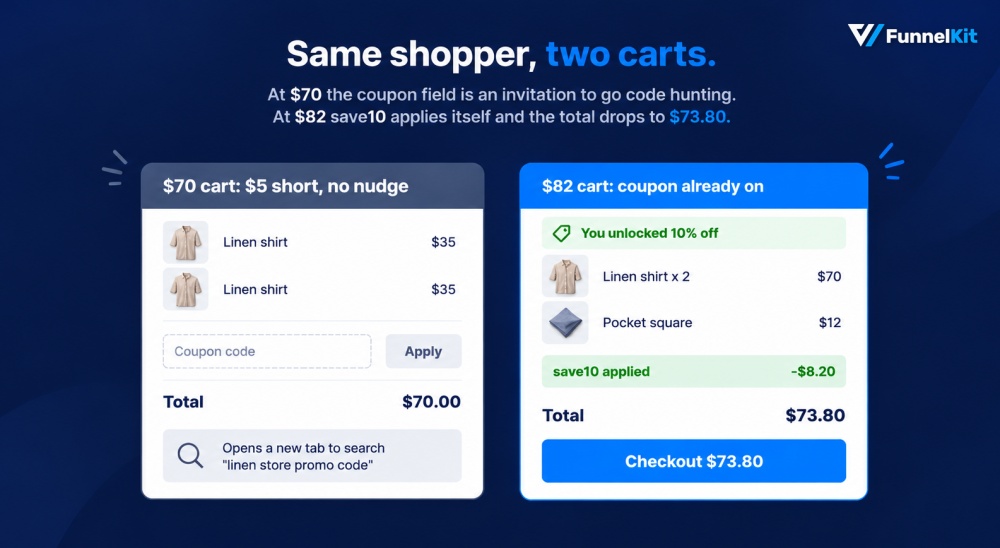
The same idea works even better online. Say a shopper at a linen clothing store has two $35 shirts in their cart. Their total is $70, so they're only $5 away from getting 10% off.
Show them that offer, and they have a reason to add the $12 pocket square and check out with an $82 order.
But if you leave them with an empty coupon field, they may open a new tab to search for a promo code, and some of them won't even come back.
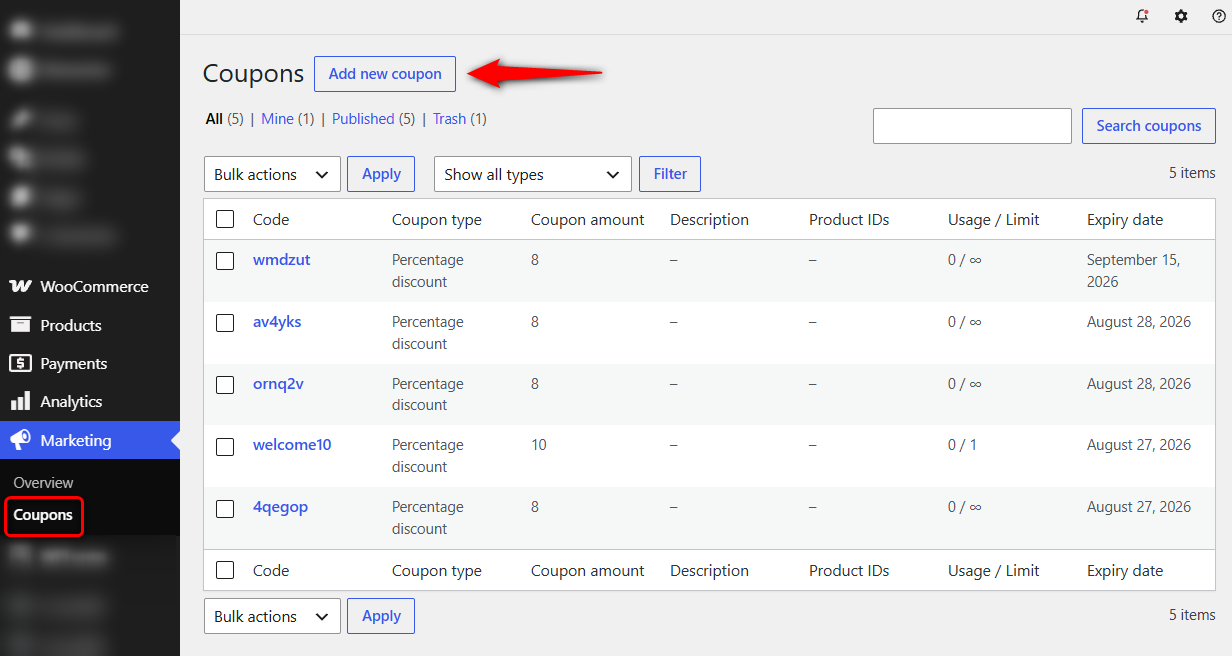
WooCommerce lets you create coupons under Marketing ⇨ Coupons, but it doesn't have a built-in option to apply them automatically.
Below, we'll look at six ways to add that functionality, from a free plugin setting to a coupon that automatically applies at checkout to PHP code that also works with the block checkout.
Table of Contents
- 1 Can WooCommerce Apply Coupons Automatically?
- 2 Before You Start: Create the Coupon
- 3 Method 1: Auto Apply Coupon at Checkout and Hide the Coupon Field
- 4 Method 2: Show a Spend-More Reward Inside the Cart
- 5 Method 3: Apply a Coupon Through a Link (Coupon URLs)
- 6 Method 4: Send an Automatic Discount in Abandoned Cart Emails
- 7 Method 5: Add an Auto-Apply Toggle With a Free Plugin
- 8 Method 6: Apply a Coupon Programmatically (Block Checkout Safe)
- 8.1 Step 1: Add the helper (once)
- 8.2 Apply the coupon when the cart total reaches $75
- 8.3 Apply it when a specific product or category is in the cart
- 8.4 Apply it based on the number of items
- 8.5 Apply it for first-time or returning customers
- 8.6 Apply it by user role (wholesale, members)
- 8.7 Offer free shipping above a threshold
- 9 5 Rules That Keep Automatic Discounts From Eating Your Margin
- 10 Auto Apply Coupon Not Working? 8 Fixes
- 11 Frequently Asked Questions (FAQs)
- 12 Start Converting More Shoppers With WooCommerce Auto Apply Coupons!
Can WooCommerce Apply Coupons Automatically?
No, WooCommerce cannot apply a coupon automatically. It can create coupons, restrict them, and cap how often they're used, but it has no setting that applies one for the customer.
To get a discount into the cart without the shopper typing anything, you need one of three things:
- A plugin that adds an auto-apply option to the coupon screen.
- A link that carries the code into the shopper's session.
- A PHP snippet that applies the code when the cart meets your rule.
| Method | Best for | Coding required? | Free option? | Block checkout? |
|---|---|---|---|---|
| At the checkout | Custom checkouts where you also hide the coupon field | No | Pro | Replaces the default checkout |
| In the cart on a spend threshold | Raising order value with a progress bar | No | Pro (FunnelKit Plus and above) | Works in the slide-out cart |
| Shareable link | Email campaigns, ads, or social promotions | No | Yes | Yes |
| Inside an automated email | Recovering abandoned carts and winning back lapsed buyers | No | Yes on plain-text emails | Link-based, so checkout type doesn't matter |
| Plugin toggle | Quick setup for any cart that qualifies | No | Yes | Yes, if the plugin is marked Blocks-compatible |
| PHP snippet | Custom rules the native restrictions can't reach | Yes | Yes | Yes, with the snippets in this guide |
You do not need all six. Most stores run one or two, so choose based on where your discount needs to appear rather than working down the list.
Before You Start: Create the Coupon
Every method below applies an existing coupon. None of them create one, so build it first.
Creating a discount coupon
Go to Marketing ⇨ Coupons and click on 'Add coupon'.
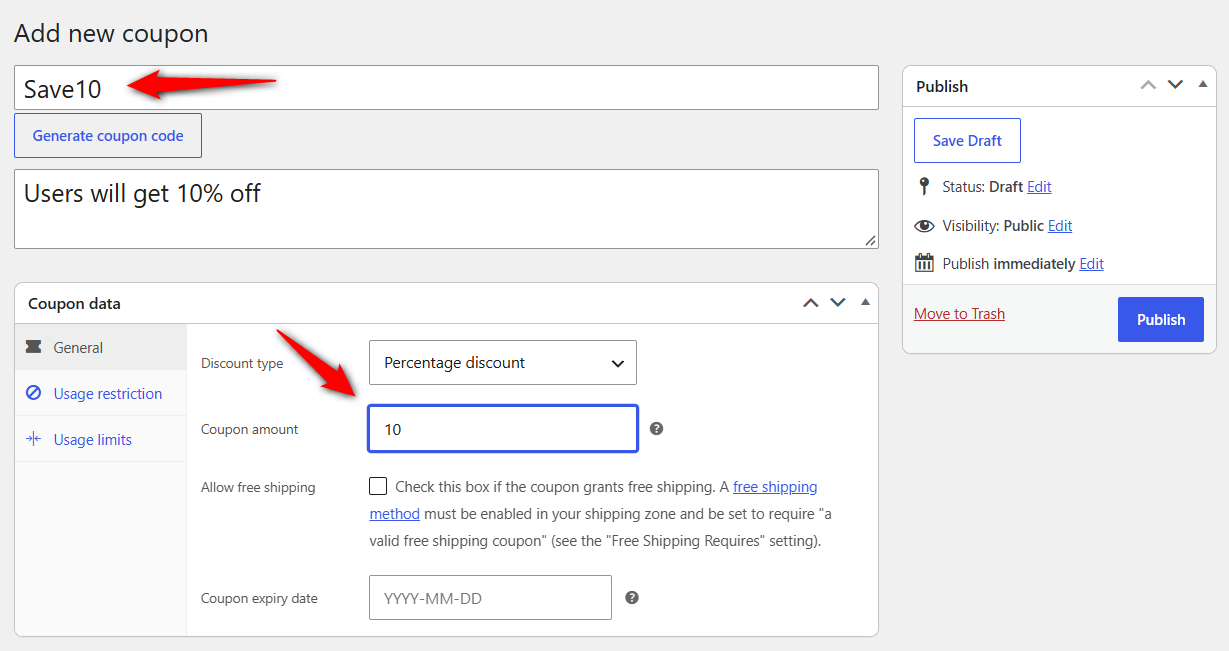
Type a code (Save10) or click Generate coupon code for a random one. Codes aren't case-sensitive.
On the General tab, set Discount type to Percentage discount and Coupon amount to 10.
Set a Coupon expiry date if this is a time-limited campaign. You can even allow free shipping with this coupon.
Setting the coupon usage restrictions and limits
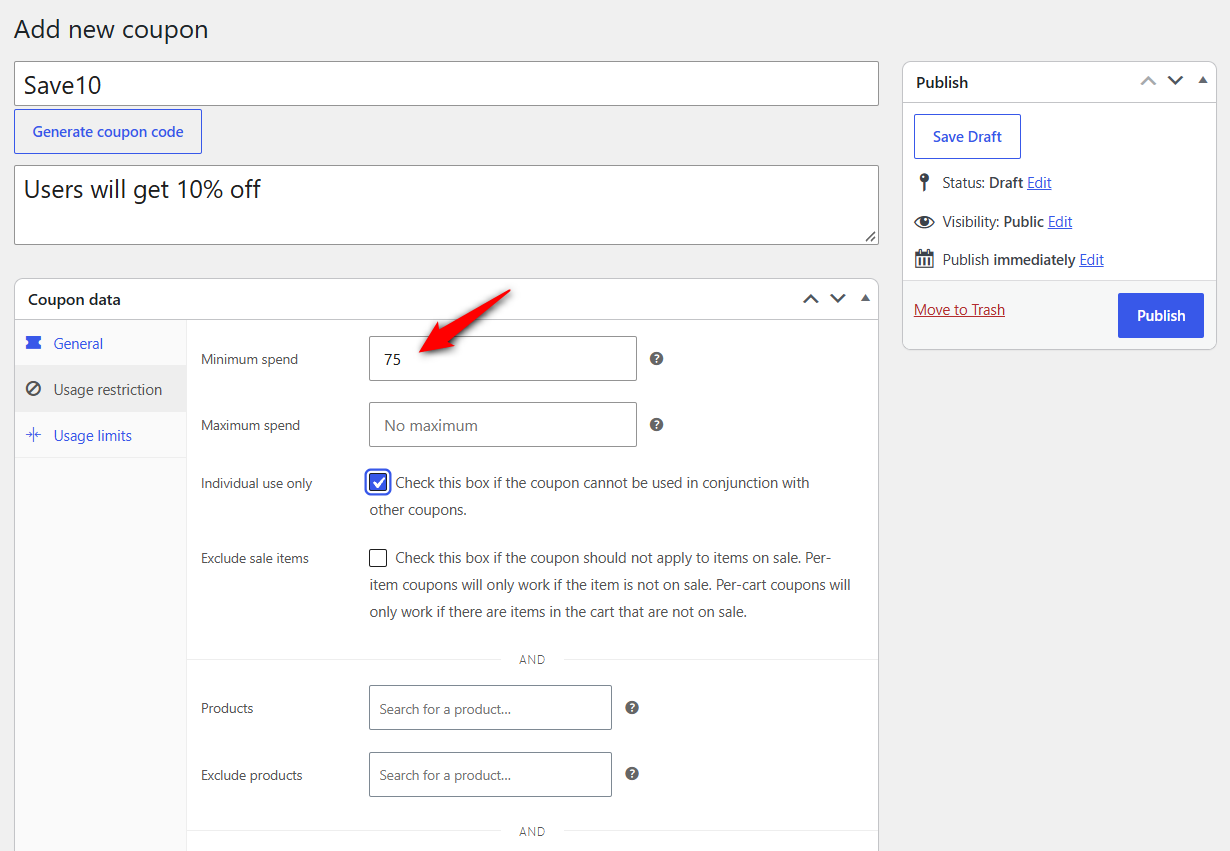
On Usage restriction, set Minimum spend to 75. Tick Individual use only if it shouldn't be combined with other codes.
Adding a minimum spending limit encourages more sales when applying coupons.
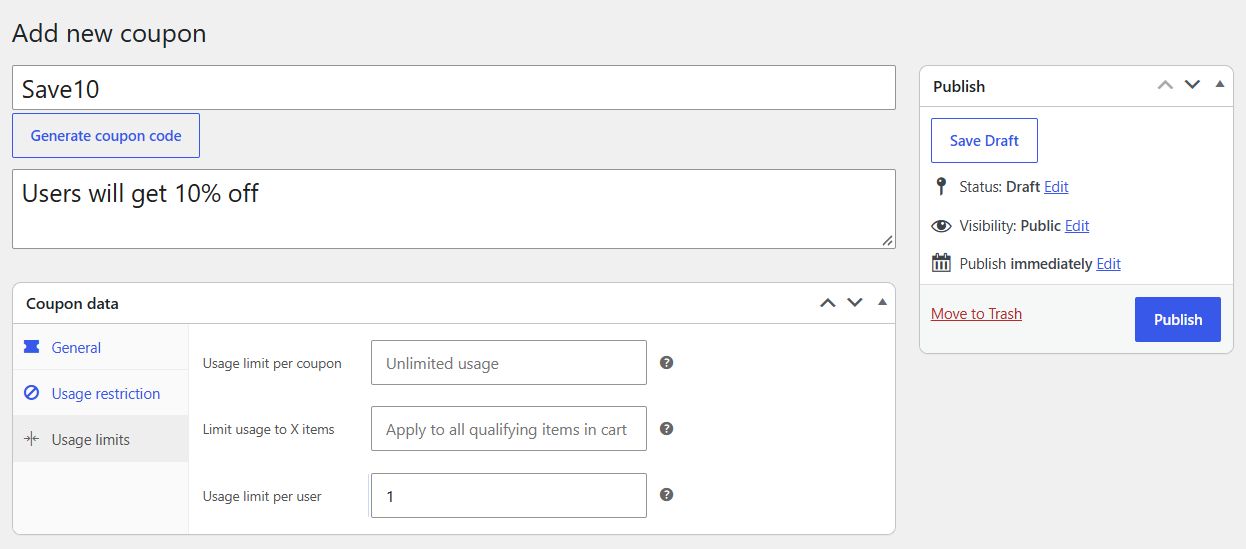
On the Usage Limits tab, set how many times a customer can use a coupon and how many times a coupon can be used.
Setting usage restrictions can be highly beneficial if you want to run campaigns like discounts for only the first, let's say, 100 users.
We'll set the usage limit per user if each customer should get it once.
After setup, click 'Publish' to save the coupon code and make it usable.
Now that you have generated the coupon code, let’s look at how to auto-apply a coupon in WooCommerce based on the cart total in the next sections.
👉 For a full breakdown of discount types, restrictions, and usage limits, see our guide to WooCommerce coupons.
Method 1: Auto Apply Coupon at Checkout and Hide the Coupon Field
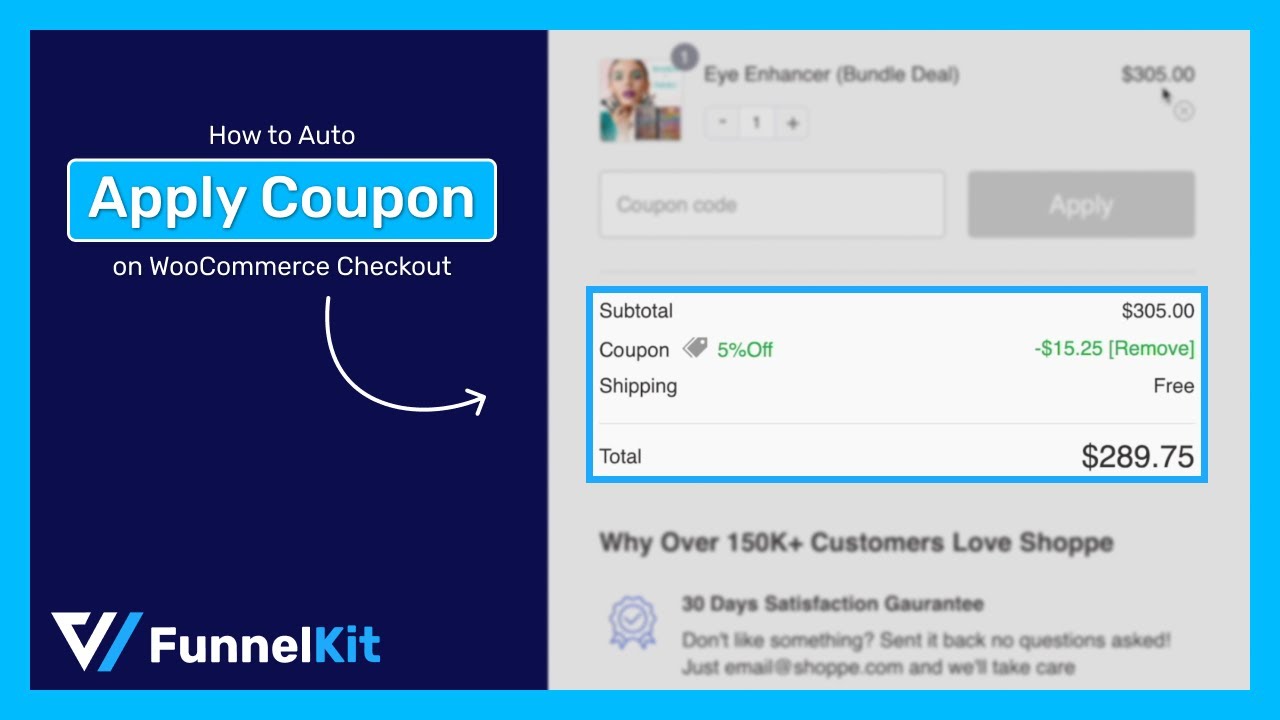
If you are already replacing the default WooCommerce checkout, the rule belongs on the checkout page itself.
This route is for stores running dedicated funnels or one-page checkouts, where the goal is to remove the coupon field rather than fill it in.
FunnelKit Funnel Builder lets you auto-apply coupons and hide the coupon field on the WooCommerce checkout page.
Before we start, install and activate FunnelKit Funnel Builder.
Step 1: Create a store checkout and import a template
We will create a custom or global store checkout to replace the default WooCommerce checkout page.
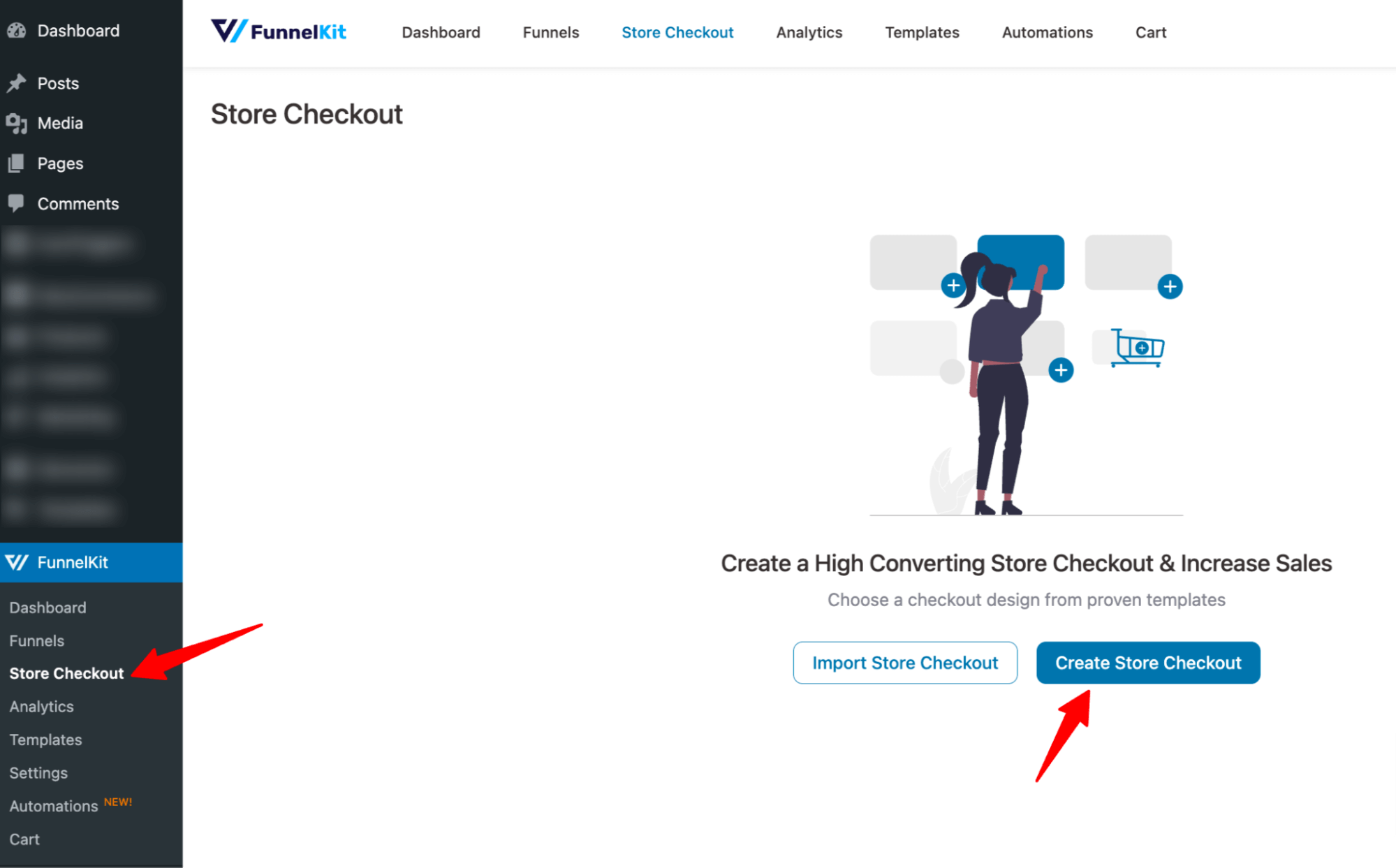
To create a new store checkout, navigate to FunnelKit ⇨ Store Checkout and click on 'Create Store Checkout'.
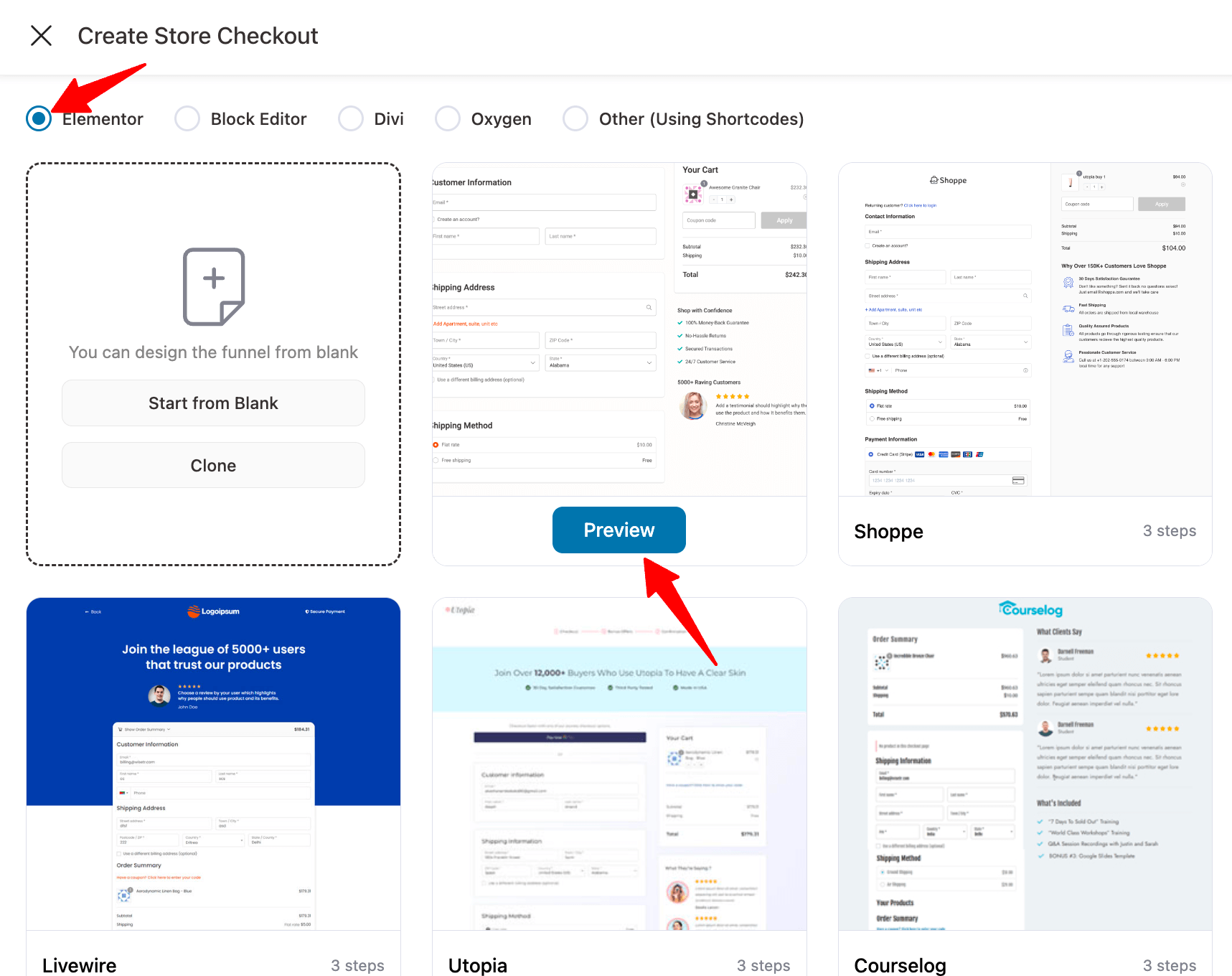
You should now see a new window with all the prebuilt FunnelKit templates. Choose your favorite page builder and hover over the template you like.
To preview the template pages, hover and click on the 'Preview' button.
Here, we're using the Elementor page builder and the "Minimalist" template. This template has three steps: checkout, one-click upsell, and thank you page.
Before you can import this template, decide whether you want a single-page checkout or a multi-page checkout.
Here, we're going with the simple single-page layout.
To import the template you choose, click on 'Import This Funnel', provide a name and click on Done.
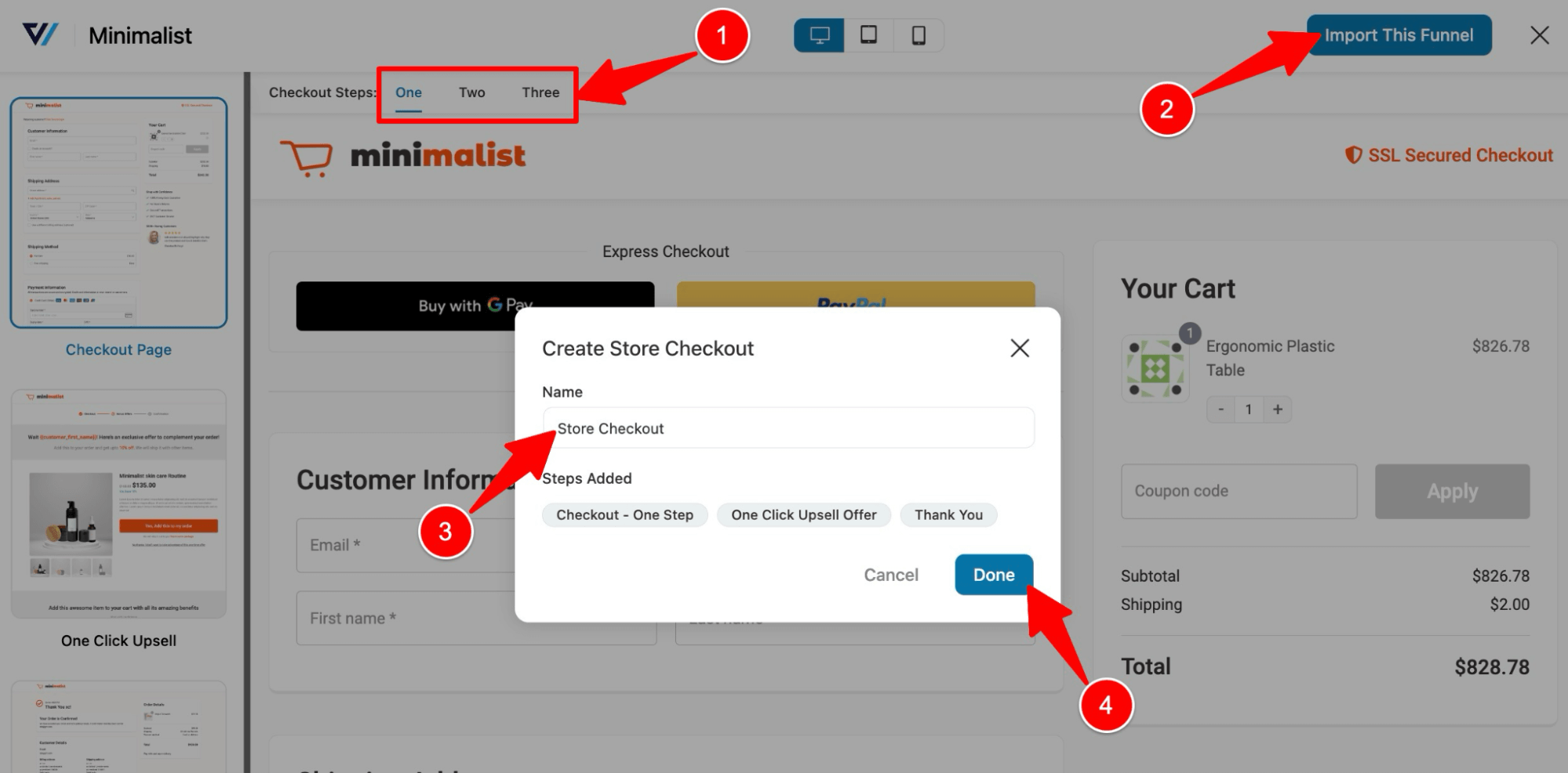
This will add the newly created store checkout.
Step 2: Customize the checkout page
Click on the checkout page to start customizing it.
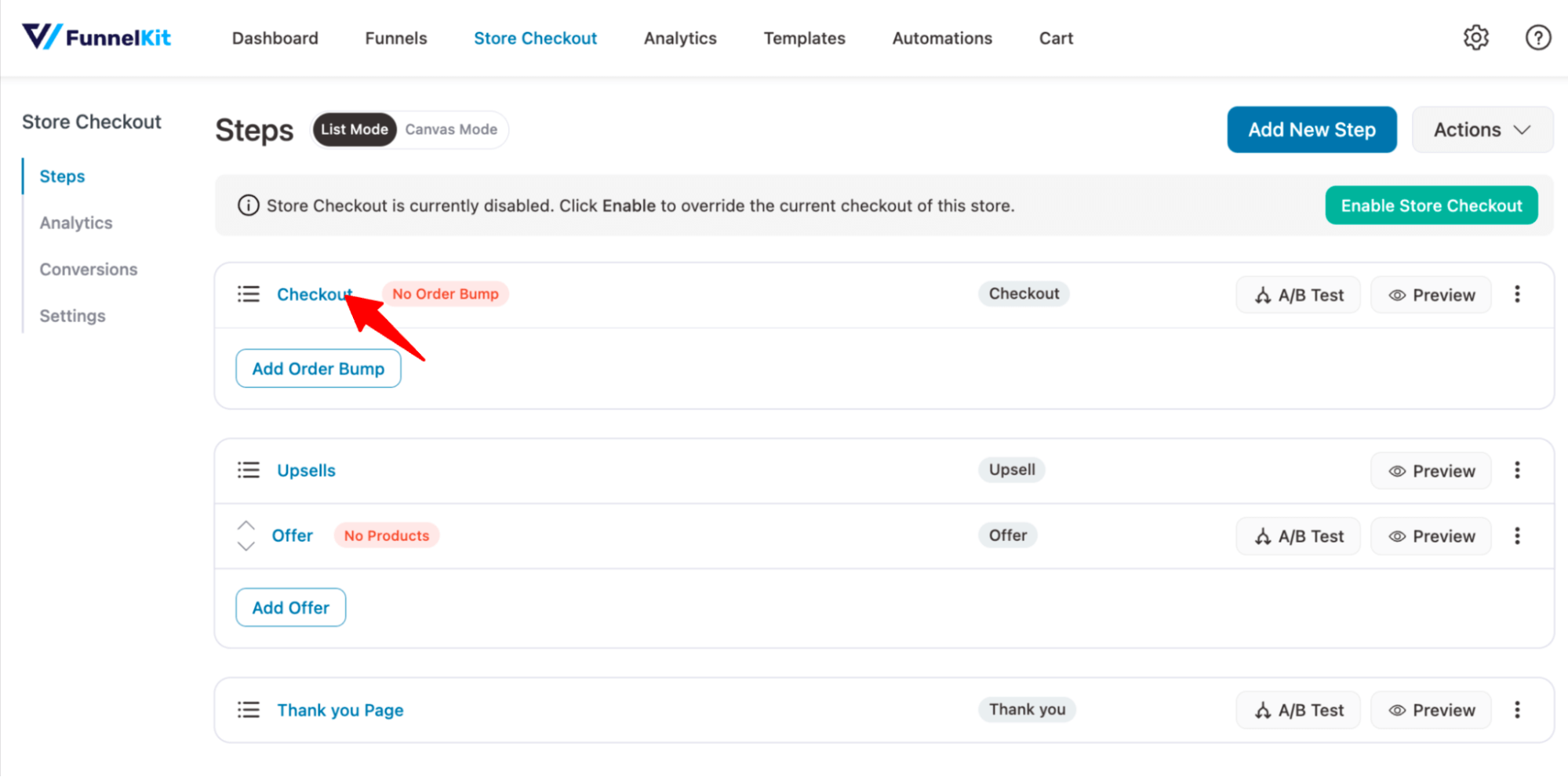
On the Design tab, you can customize your checkout page template.
For more details, check our post on customizing the WooCommerce checkout page.
Scroll down to the Checkout Form Fields. Here, you can add custom fields, edit, rearrange, or even remove unnecessary checkout form fields.
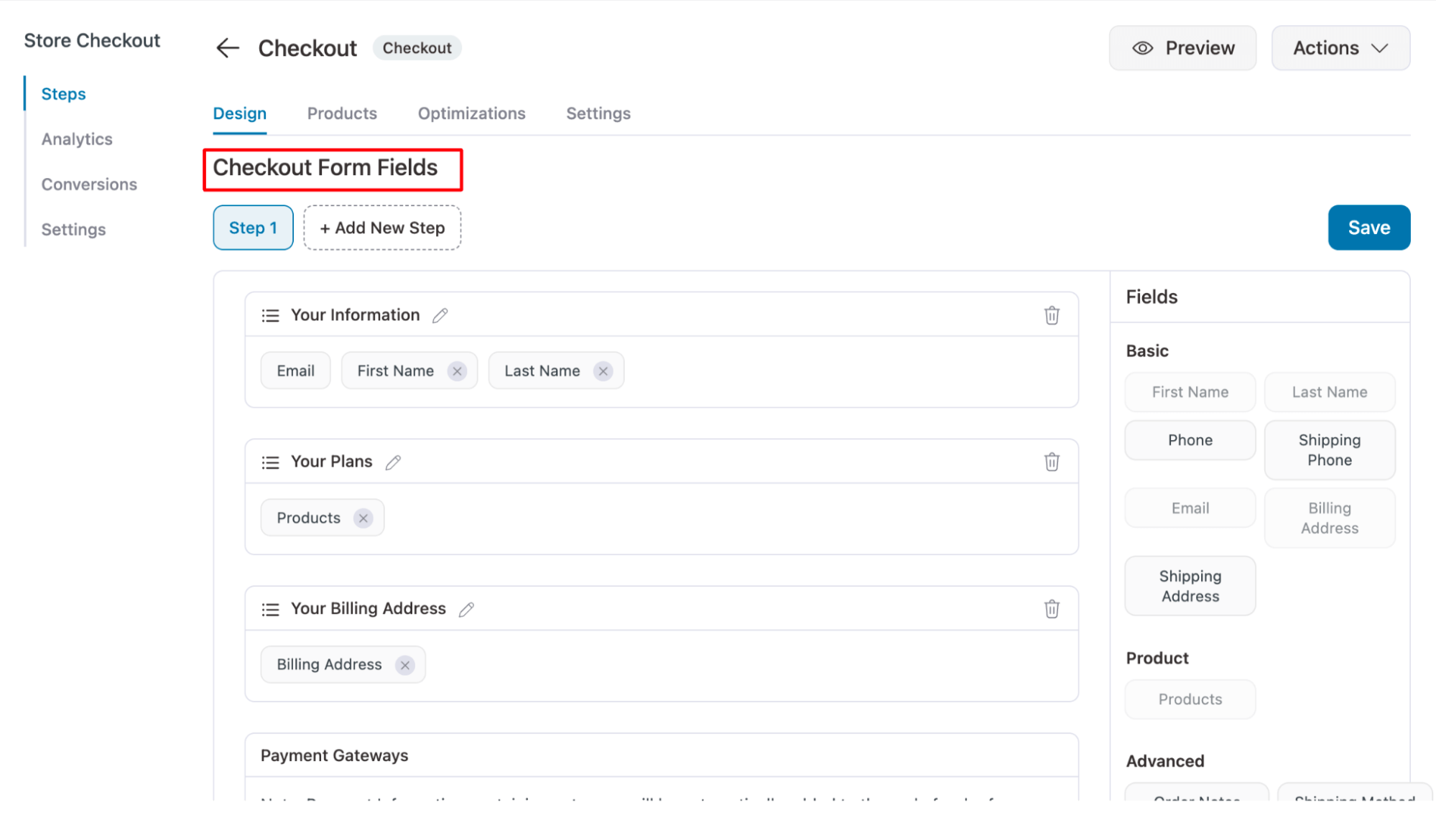
For more details, refer to our WooCommerce checkout field editor post.
Step 3: Enable the auto-apply coupon option
Move to the Optimizations tab. Under Auto Apply Coupons, click on 'Yes' to enable and add the coupon code.
The coupon's own restrictions still govern when it fires. For example, if you've set the minimum spend to $75, a $76 cart gets 10% off automatically, with no extra configuration here.
Once the coupon is ready, enter the coupon code. You can deactivate the coupon field so that users don't have to enter a coupon code manually.
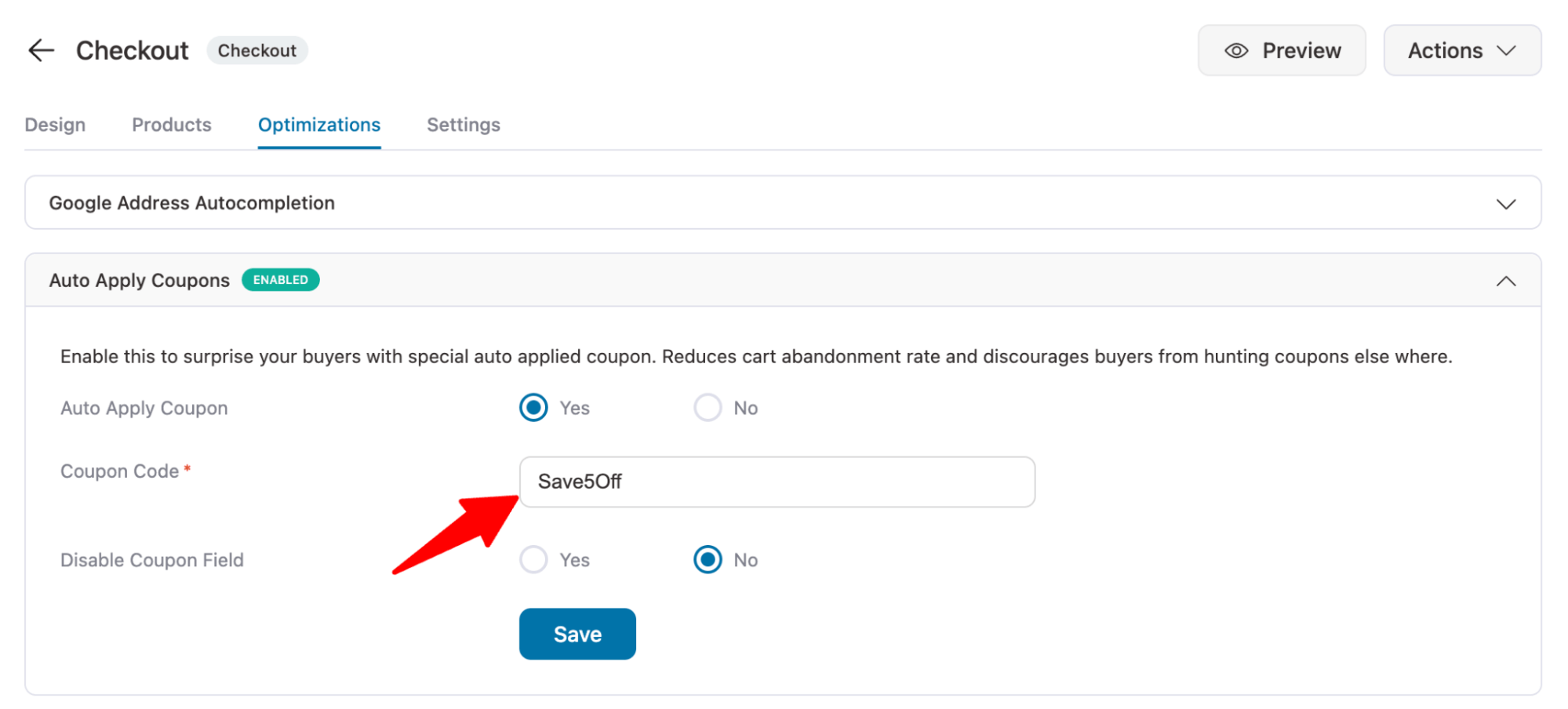
Then click 'Save' to update the options.
Along with auto-apply coupons, you can also optimize your checkout page with express payment options (Google Pay and Apple Pay), enable Google address auto-complete, and an enhanced phone field.
Step 4: Enable the checkout and test it out
Activate the store checkout by clicking on the 'Enable Store Checkout' button.
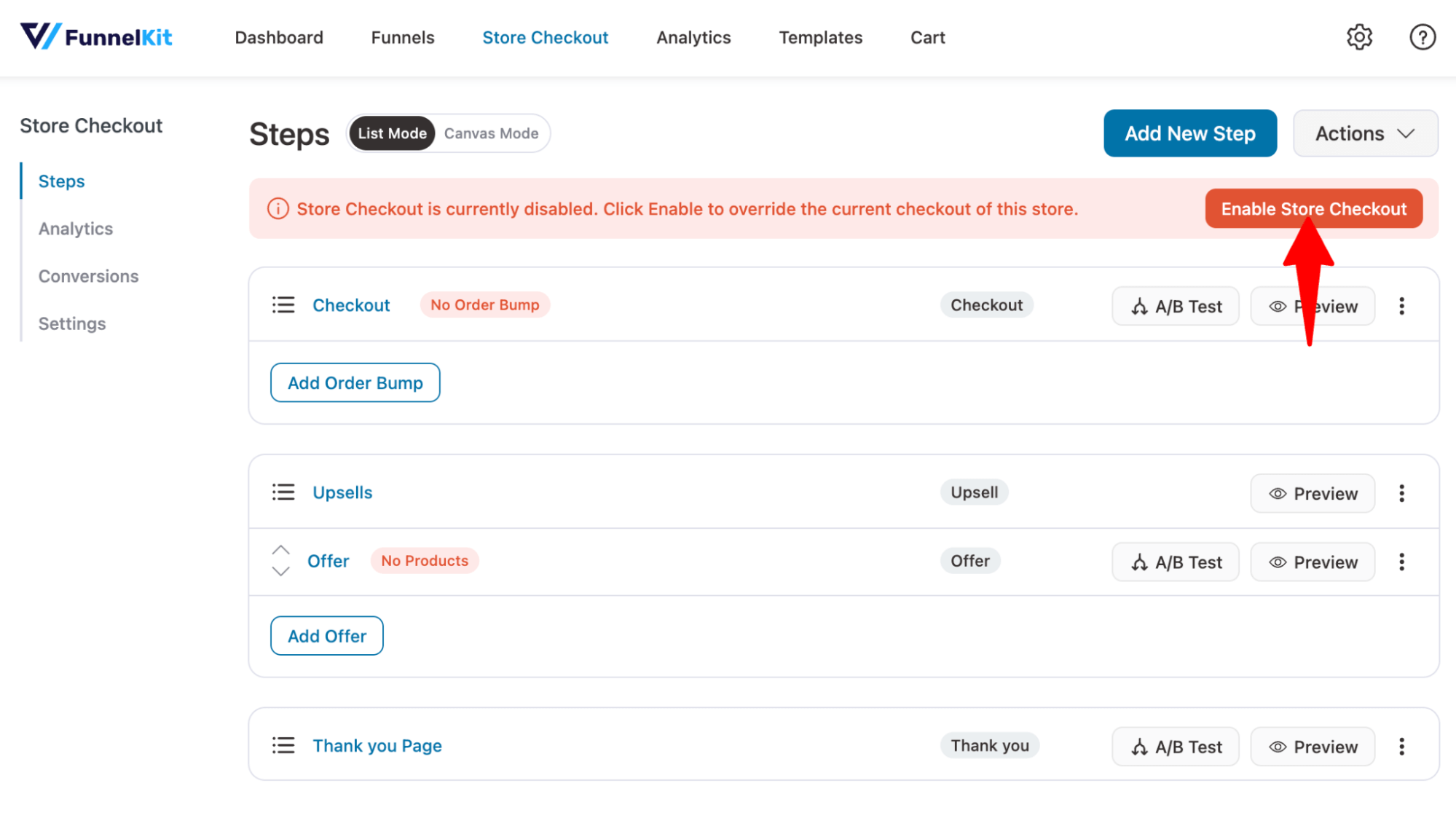
This will ensure your store's checkout page with the auto-apply coupon feature is live.
To test the process, add some products to the cart and head to the checkout page.
Based on the coupon you set, it will be automatically applied when the conditions are met.
Here, we set a coupon code that requires a total of $150 for an order, and the cart items must be from the clothing category.
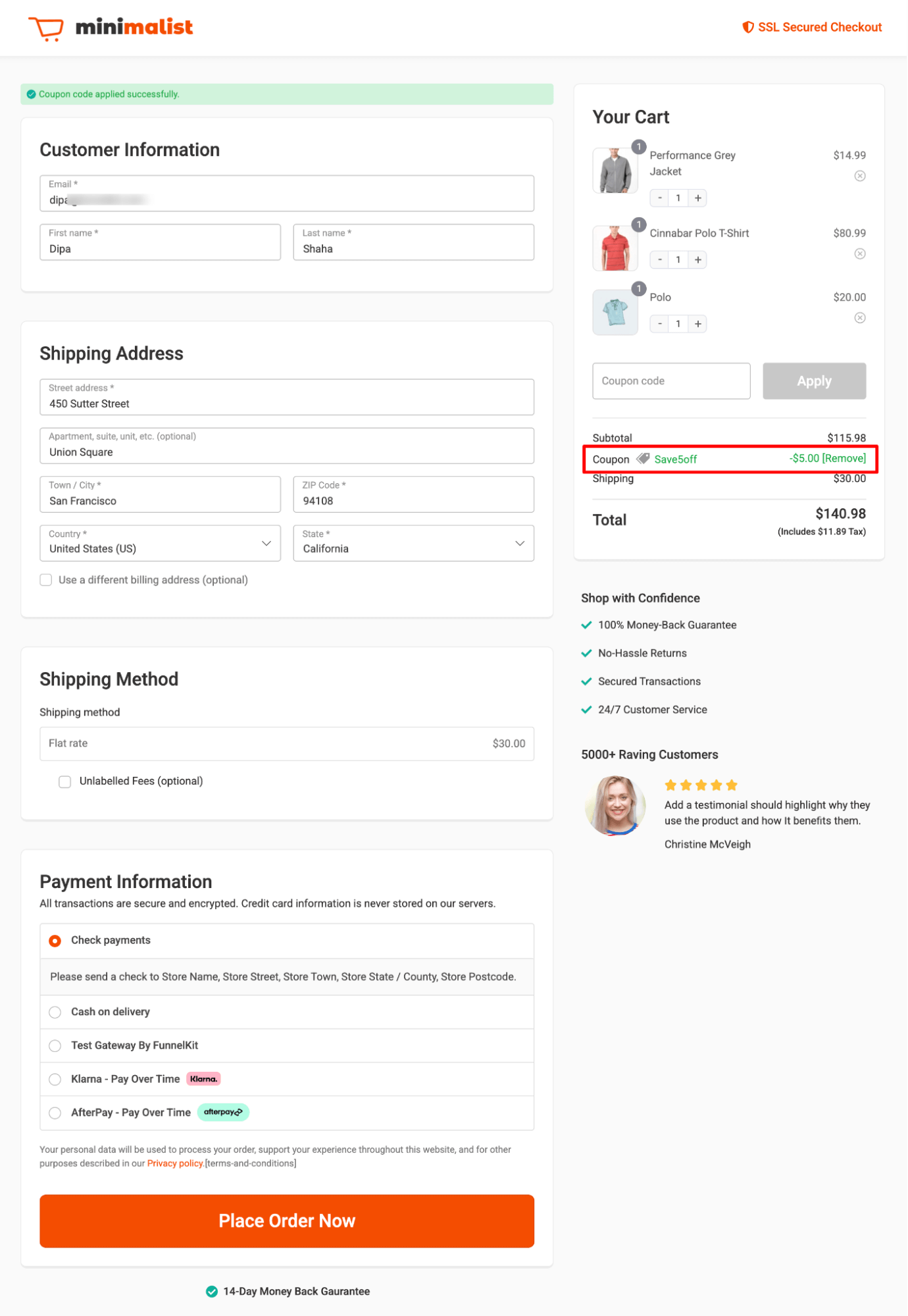
As with the checkout page, you can also customize your one-click upsell and thank-you pages.
Method 2: Show a Spend-More Reward Inside the Cart
Checkout is a little late to introduce a spending threshold. By that point, the shopper has usually finished adding products.
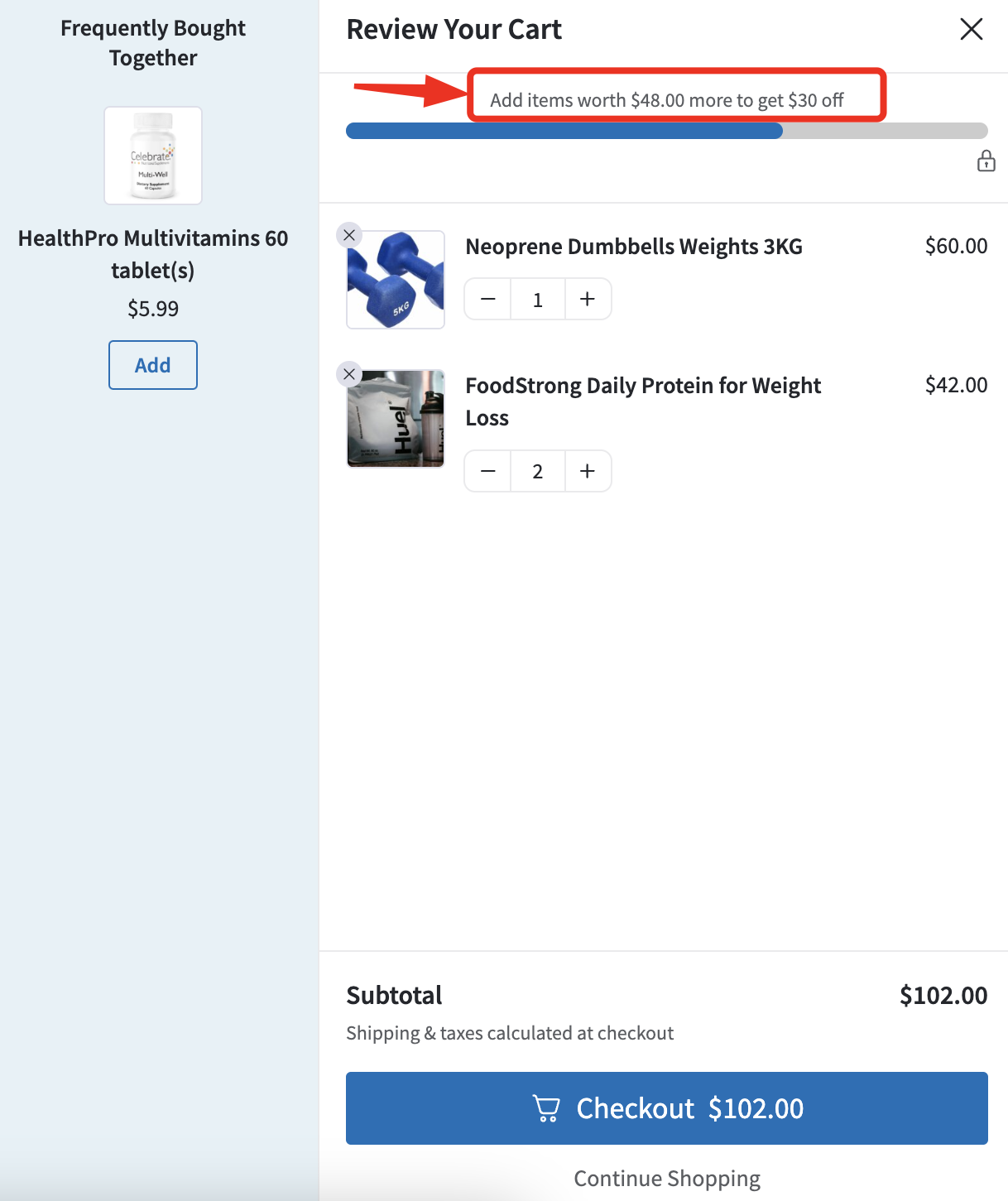
The cart gives you more room to influence the order. A progress bar that says "$5 away from 10% off" gives our $70 shopper a clear reason to add the pocket square while they're still deciding what to buy.
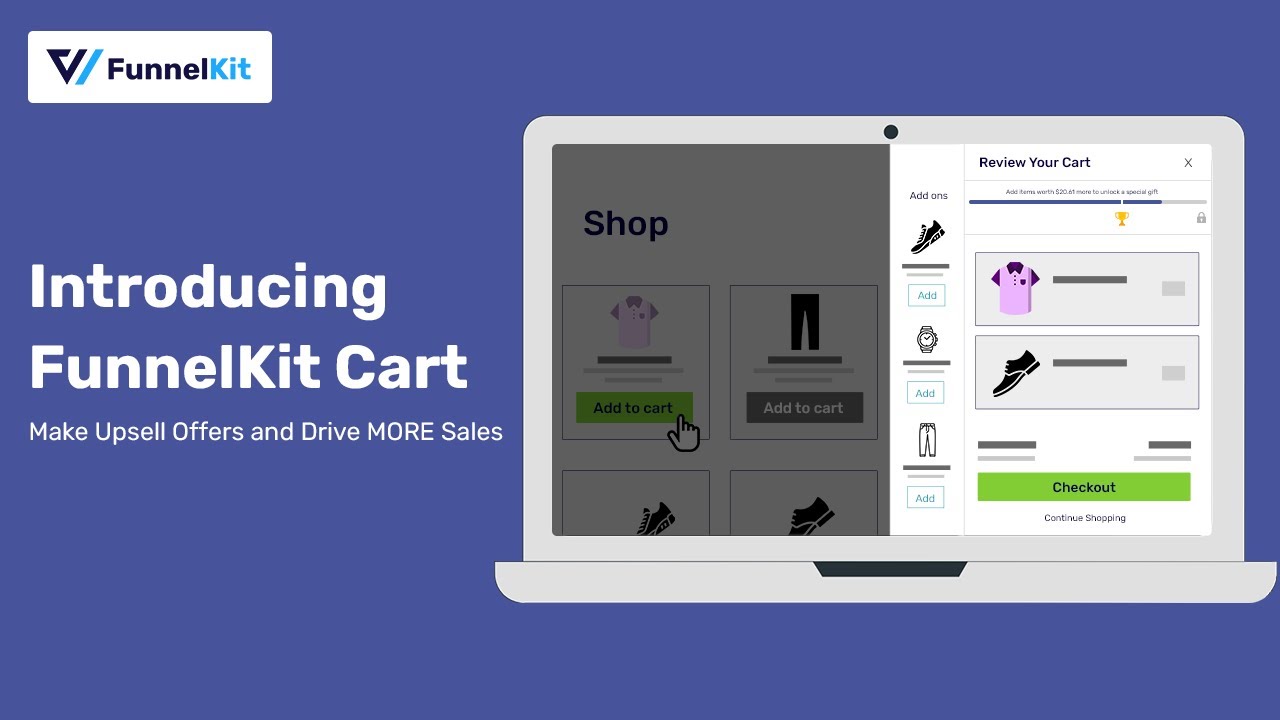
FunnelKit Cart handles this with milestone rewards in its slide-out cart. Set a spending threshold and a reward, and the cart shows shoppers how close they are.
Once they cross the threshold, the coupon is applied automatically.
Rewards are a premium feature available with FunnelKit Plus and higher plans.
Here's a quick preview:
Install and activate FunnelKit Cart on your website.
Step 1: Enable the slide-out cart
Go to FunnelKit ⇨ Cart and turn on the 'Enable Cart' toggle button.
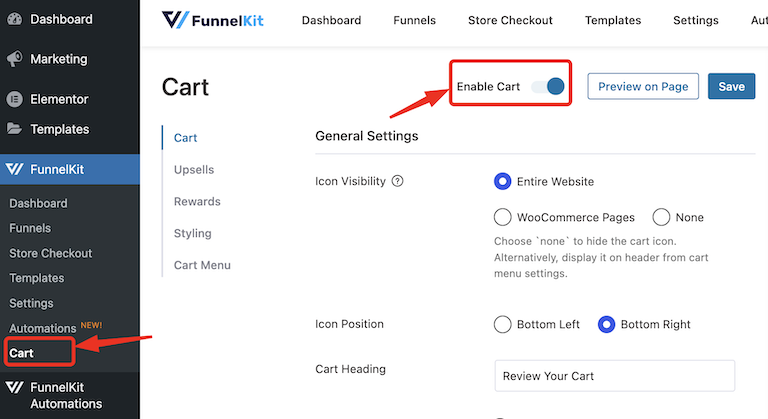
After enabling the side cart, you can choose the cart icon display and positioning inside your WooCommerce store.
Watch this video below:
Step 2: Add a reward milestone
Open the Rewards section and click on 'Create Reward'.
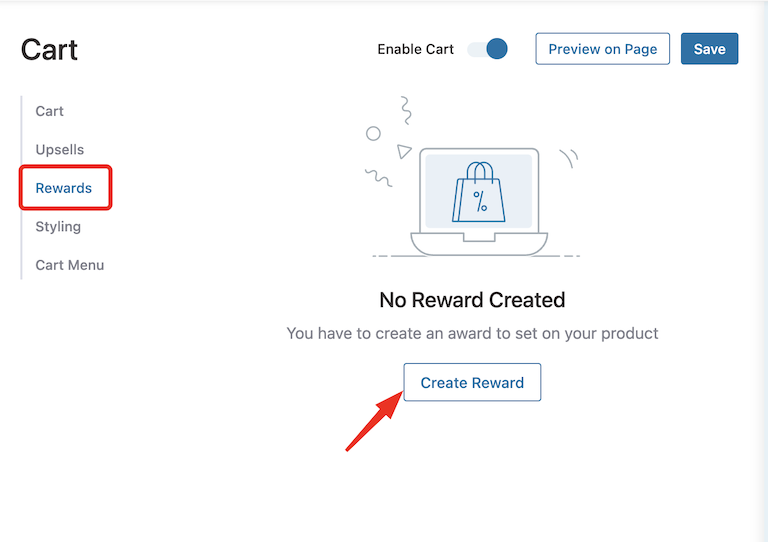
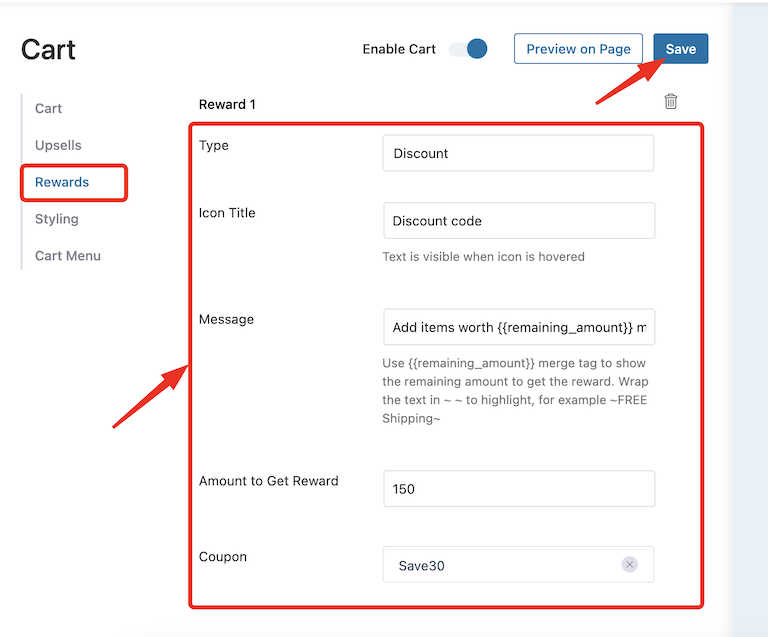
Now, to set up a cart threshold-based discount, customize the following options:
- Type: Create three rewards: Free shipping, discount, and free gift. Let's choose Discount.
- Icon Title: Provide the discount title that appears when someone hovers over the icon.
- Message: Enter the message shown in the top shopping bar. You can use the merge tag {{remaining_amount}} to display the remaining amount required to receive the reward. For example, we added the message "Add items worth {{remaining_amount}} more to get $30 OFF," since our discount is meant to provide $30 OFF on orders worth $150 or more.
- Amount to Get Reward: Enter the minimum amount one must spend to receive the reward. This is important for calculating the message that will appear in the cart. In our case, it’s $150.
- Coupon: Enter the coupon code you want to automatically apply to the mini cart.
After setting up all the options, click on Save to update.
For more details on setting up other reward types, see our step-by-step guide.
Step 3: Test the auto-apply discount
To test whether the discount reward applies under the conditions you applied, go to the storefront and add the product to your mini cart.
With our condition and coupon code, users will enjoy $30 OFF orders of $150 or more.
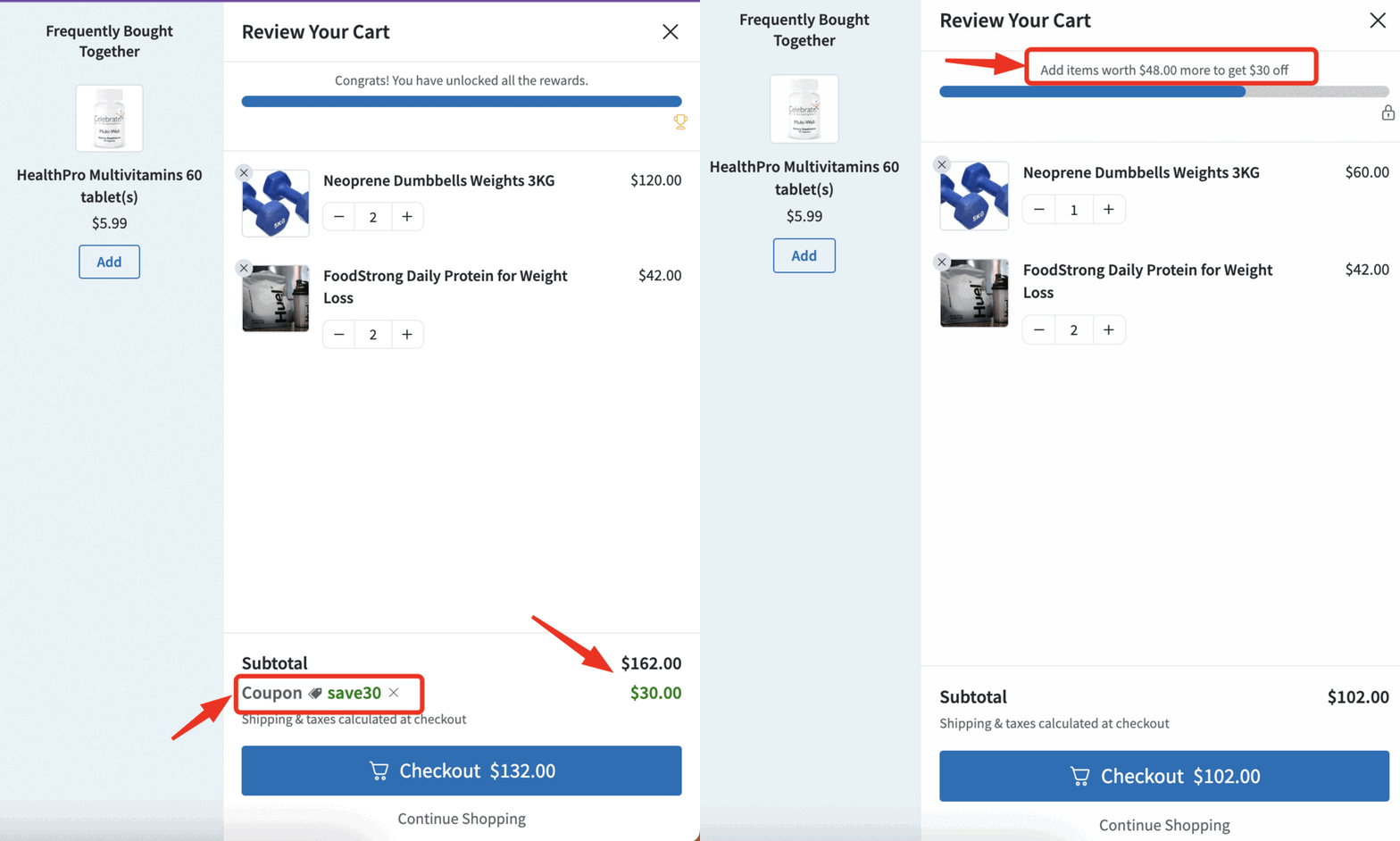
This is how easily you can set auto-apply coupons in a WooCommerce side cart.
Method 3: Apply a Coupon Through a Link (Coupon URLs)
Links make more sense when the discount is tied to a specific campaign, such as an email, ad, influencer post, or text message.
The shopper clicks the link, and the coupon is already waiting in their cart when the page loads.
Email is a natural place to use this. In an ActiveCampaign study reported by MediaPost, 64% of shoppers said they'd subscribe to a store's promotional emails to get a coupon.
Coupon URL formats by tool
| Tool | Link format | Notes |
|---|---|---|
| Snippet below (no plugin) | https://yourstore.com/?coupon=save10 | Works on any page, including add-to-cart links |
| Smart Coupons | https://yourstore.com/?coupon-code=save10 | Comma-separate several codes (first five apply by default). The sc-page parameter sets the landing page. |
| FunnelKit Funnel Builder | https://yourstore.com/checkouts/your-checkout/?aero-coupons=save10 | Opens a FunnelKit checkout with the coupon applied. Comma-separate several codes. See the URL coupon docs. |
| Auto Coupons | Any page you choose | Applies when a shopper visits the page set on the coupon |
| URL Coupons (WooCommerce.com) | A custom path, e.g. https://yourstore.com/spring-sale | Set per coupon |
| Discount Rules Pro | Generated inside the rule | Copy it from the rule's coupon condition |
You can also add products to the cart in the same click using WooCommerce's built-in add-to-cart parameter.
This example adds two products (product ID 123) and passes save10 along with them:
https://yourstore.com/cart/?add-to-cart=123&quantity=2&coupon=save10Two products bring the total to $70, which is below the $75 minimum. The snippet below keeps the coupon in the shopper's session and applies it once they add enough to qualify.
FunnelKit Funnel Builder also has a link generator. Open your store checkout's Optimizations tab, select Generate URL to Populate Checkout, then enter the product IDs, quantities, and coupons. Copy the generated link and use it in your campaign.
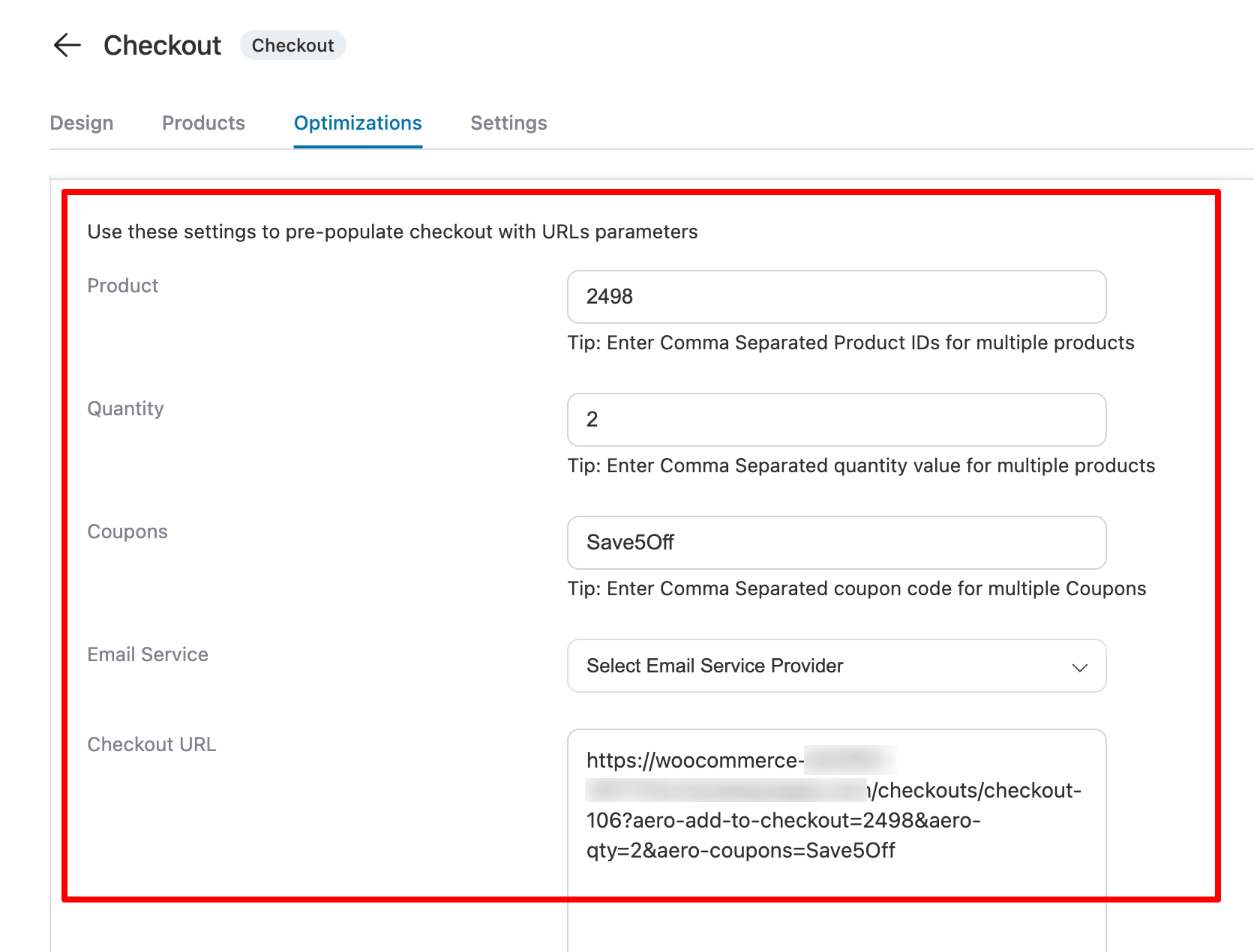
The result sends a shopper straight to checkout with the products and the discount already in place.
Apply a coupon from a URL without a plugin (PHP)
This snippet reads ?coupon= from any URL on your store and saves the code in the shopper's session. It then applies the coupon as soon as the cart meets its requirements.
That means the link still works if the shopper lands on an empty cart or starts with the $70 cart above. The coupon stays in the session until the cart reaches the required amount.
Use the free Code Snippets plugin, a child theme's functions.php, or a site-specific plugin.
Test the code on staging before using it on your live store. Never add it to a parent theme's functions.php, because a theme update can overwrite your changes.
/**
 * Apply a WooCommerce coupon from a link.
 * Example: https://yourstore.com/?coupon=save10
 * With a product: https://yourstore.com/cart/?add-to-cart=123&coupon=save10
 */

// 1. Save the code from the link in the shopper's session.
add_action( 'wp_loaded', 'fk_capture_coupon_from_url', 1 );

function fk_capture_coupon_from_url() {
	if ( is_admin() || empty( $_GET['coupon'] ) || ! function_exists( 'WC' ) || ! WC()->session ) {
		return;
	}

	if ( ! WC()->session->has_session() ) {
		WC()->session->set_customer_session_cookie( true );
	}

	$code = wc_format_coupon_code( sanitize_text_field( wp_unslash( $_GET['coupon'] ) ) );
	WC()->session->set( 'fk_pending_coupon', $code );
}

// 2. If the cart already has items, recalculate so the code applies right away.
add_action( 'wp_loaded', 'fk_apply_pending_coupon_now', 30 );

function fk_apply_pending_coupon_now() {
	if ( is_admin() || ! function_exists( 'WC' ) || ! WC()->session || ! WC()->cart ) {
		return;
	}

	if ( WC()->session->get( 'fk_pending_coupon' ) && ! WC()->cart->is_empty() ) {
		WC()->cart->calculate_totals();
	}
}

// 3. Apply the saved code as soon as the cart qualifies for it.
add_action( 'woocommerce_after_calculate_totals', 'fk_apply_pending_coupon', 20 );

function fk_apply_pending_coupon( $cart ) {
	if ( ( is_admin() && ! wp_doing_ajax() ) || ! WC()->session ) {
		return;
	}

	$code = WC()->session->get( 'fk_pending_coupon' );

	if ( ! $code ) {
		return;
	}

	$coupon = new WC_Coupon( $code );

	// Forget codes that don't exist or are already in the cart.
	if ( ! $coupon->get_id() || $cart->has_discount( $code ) ) {
		WC()->session->__unset( 'fk_pending_coupon' );
		return;
	}

	// Not valid yet (e.g. below minimum spend)? Keep it and try again next time.
	if ( true !== ( new WC_Discounts( $cart ) )->is_coupon_valid( $coupon ) ) {
		return;
	}

	WC()->session->__unset( 'fk_pending_coupon' );
	$cart->apply_coupon( $code );
	$cart->calculate_totals();
}
If another plugin already uses a coupon parameter, rename it in the first function and in your links.
Test it by opening https://yourstore.com/?coupon=save10 in a private window with an empty cart. Add two shirts, then add the pocket square. Once the total reaches $82, check that save10 is applied.
Add coupon links to Klaviyo, Mailchimp, or FunnelKit Automations emails
- Klaviyo: Add the coupon parameter to your Klaviyo cart rebuild link: {{ organization.url|trim_slash }}/cart/?coupon=save10&wck_rebuild_cart={{ event.extra.CartRebuildKey }}. If you use Smart Coupons, replace coupon= with coupon-code=. Test the snippet with Klaviyo’s cart rebuild before using it in a live campaign.
- Mailchimp and other email tools: Add the complete coupon URL as the button destination. If each subscriber receives a unique coupon, include the appropriate merge tag in the URL.
- FunnelKit Automations: The Cart Link block can add the coupon for you. See Method 6 for the setup.
Coupon links for Facebook, Instagram, and Google Ads
Add the coupon parameter to the URL and keep your UTM parameters alongside it.
If each channel has its own coupon code, you can use the usage count under Marketing ⇨ Coupons to see how many orders each code generated.
https://yourstore.com/product/linen-shirt/?coupon=spring10&utm_source=facebook&utm_medium=paid_social&utm_campaign=spring103 things that can break coupon links
- Page caching: If the landing page is fully cached, PHP may not run and the coupon code won't reach the shopper's session. Exclude URLs containing your coupon parameter from caching, along with your cart, checkout, and account pages.
- The landing cart doesn't meet the coupon restrictions: One $30 product won't meet a $75 minimum spend. The snippet above keeps the coupon and checks again when the cart changes, but some plugins try to apply it once and stop. In that case, link to a qualifying bundle or use a campaign coupon without a minimum spend.
- A product-restricted coupon with an empty cart: If the coupon only works for a specific product, send shoppers to that product or use an add-to-cart link. That way, the product is already in the cart when WooCommerce checks the coupon.
Method 4: Send an Automatic Discount in Abandoned Cart Emails
Every method so far waits for the shopper to come back on their own. This one goes after the carts that stalled.
A cart abandonment sequence is the highest-leverage place to put a discount, because the customer already chose the products and stopped at the price.
Timing decides whether it works because the first email inside an hour recovers meaningfully more than one sent the next day.
FunnelKit Automations tracks abandoned carts, then builds the recovery link with the coupon attached, so the email link works.
Make sure you've installed and activated FunnelKit Automations on your website.
Step 1: Enable cart tracking
Firstly, enable abandoned cart tracking. To do so, go to FunnelKit Automations ⇨ Settings.
Check the 'Enable Cart Tracking' option on the Cart tab. This will activate the cart tracking.
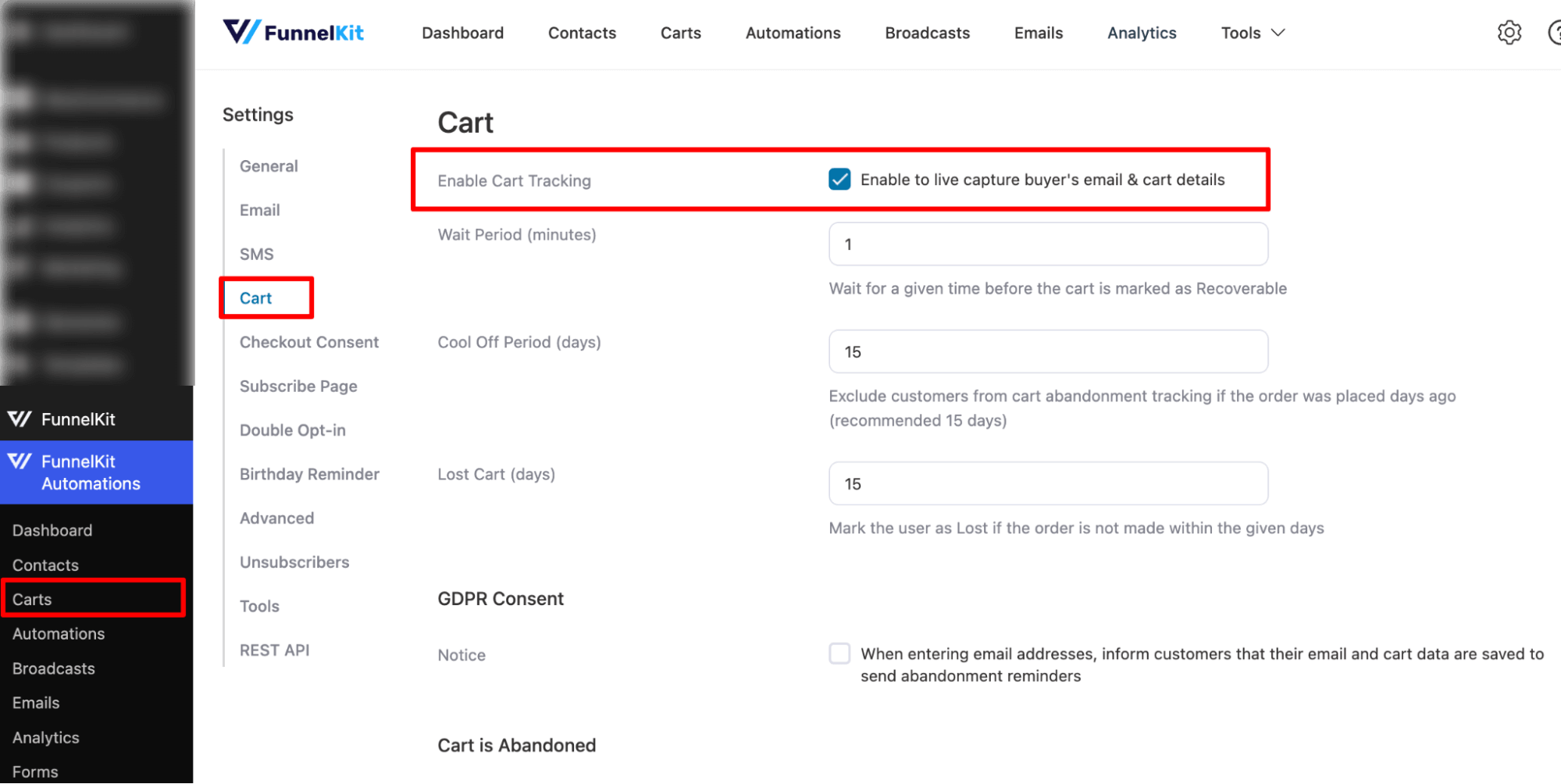
You can also set other options, such as Wait Period, Cool Off Period, and Lost Cart (days). Make sure to save your changes.
Step 2: Import the recovery automation recipe
Navigate to FunnelKit Automations ⇒ Automations and then click on ‘Create New Automation’.
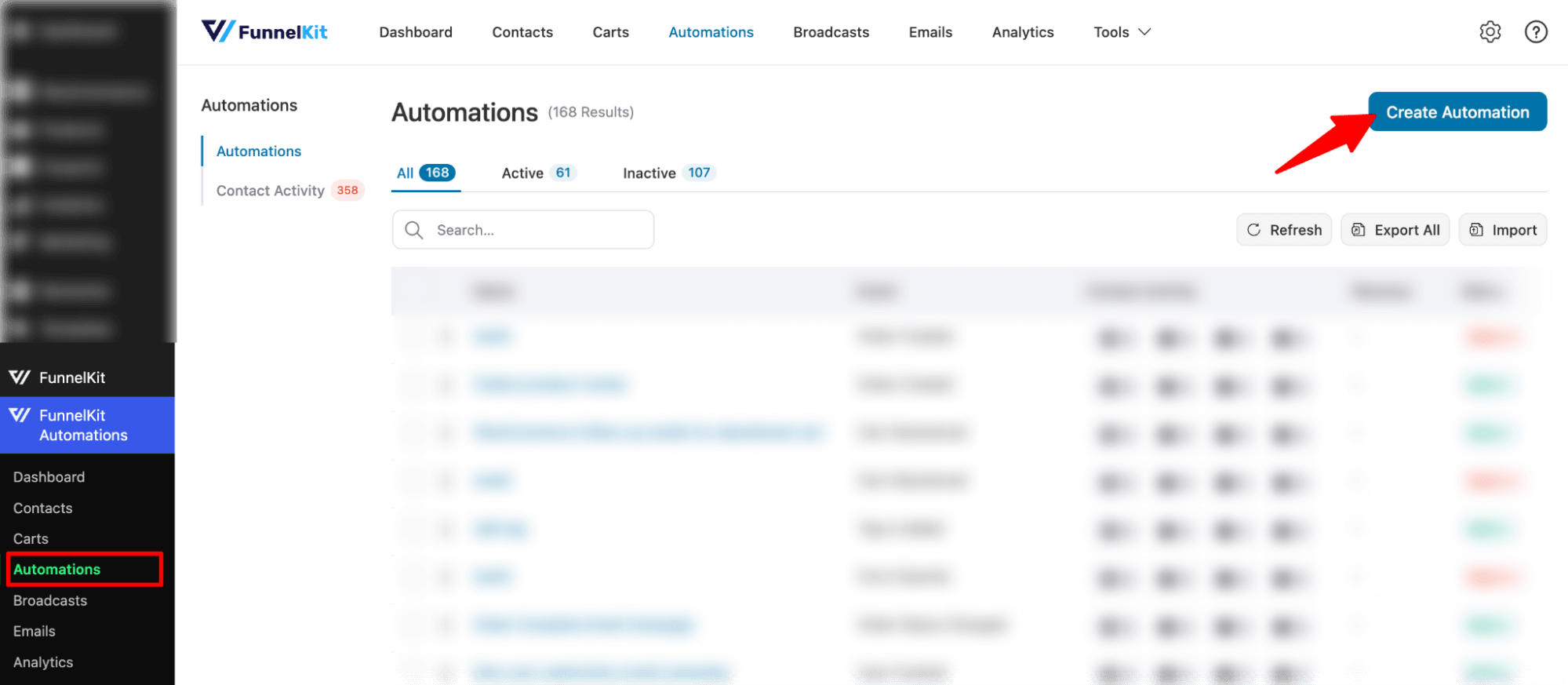
Now, you can see all the pre-built templates by FunnelKit Automations.
Here, we will choose the Abandoned cart reminder template.
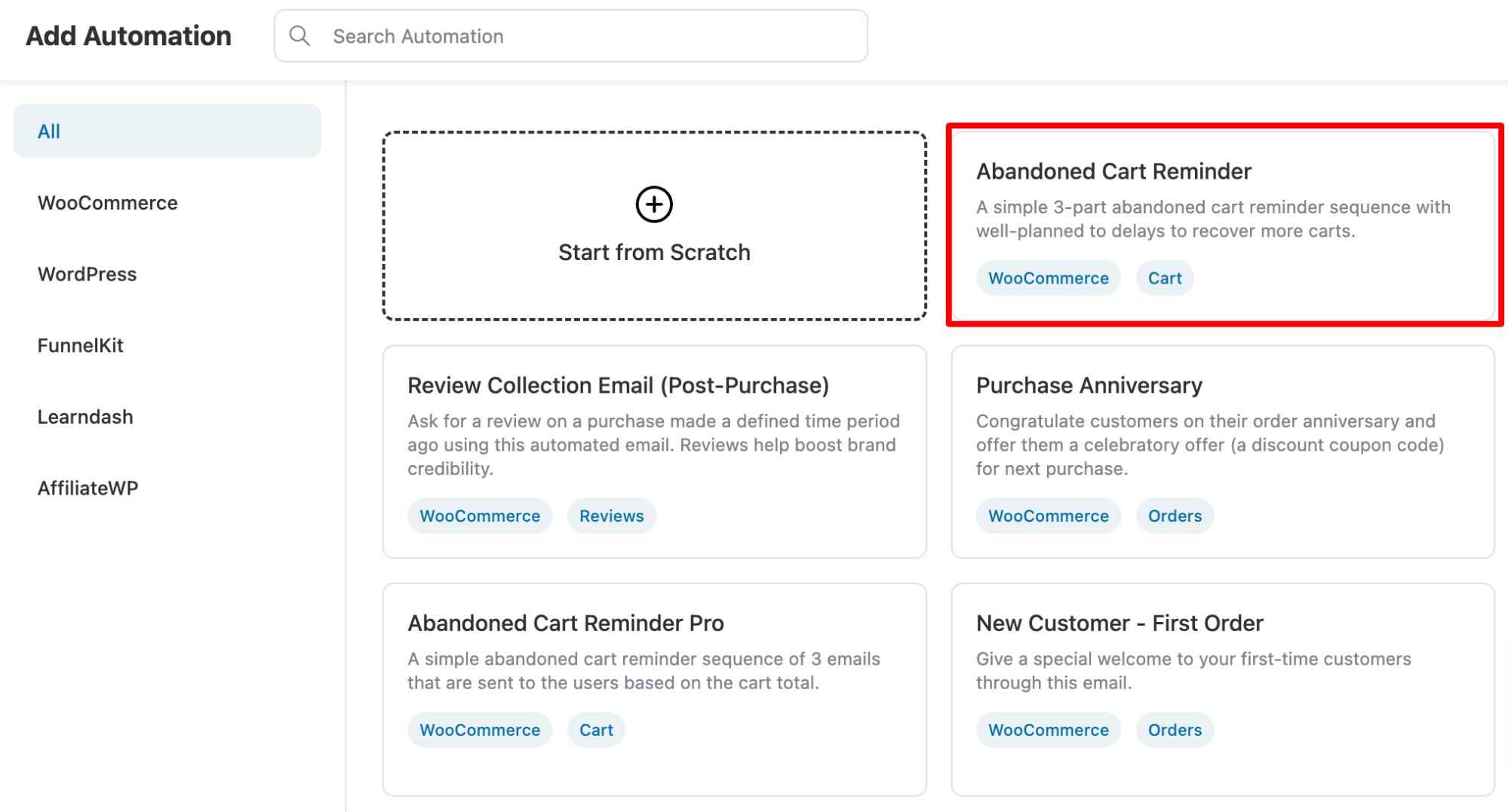
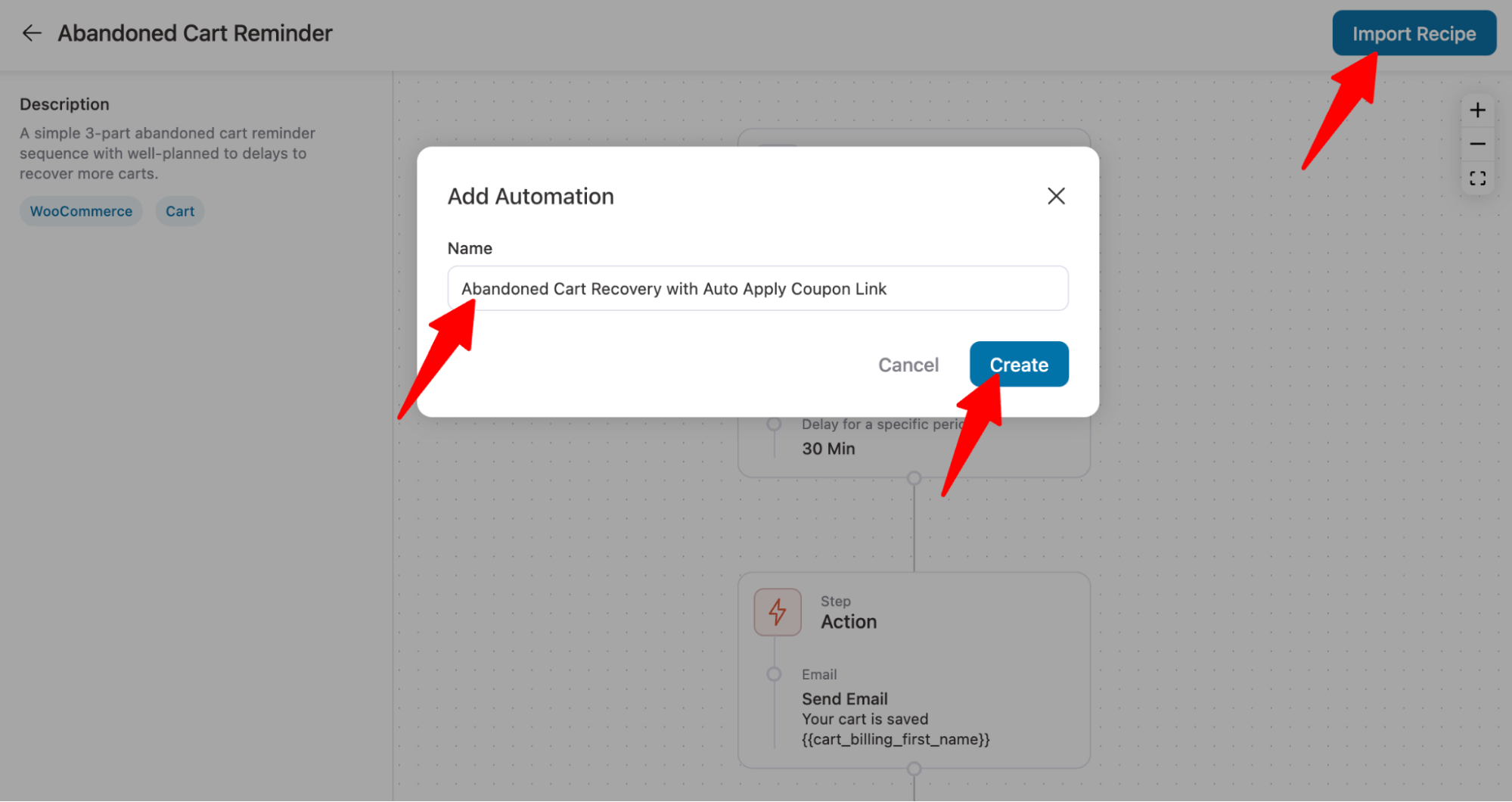
To import this prebuilt template, click on 'Import Recipe', provide a name, and click on 'Create'.
This will add automation that sends three reminder emails to users to encourage them to return and complete the order.
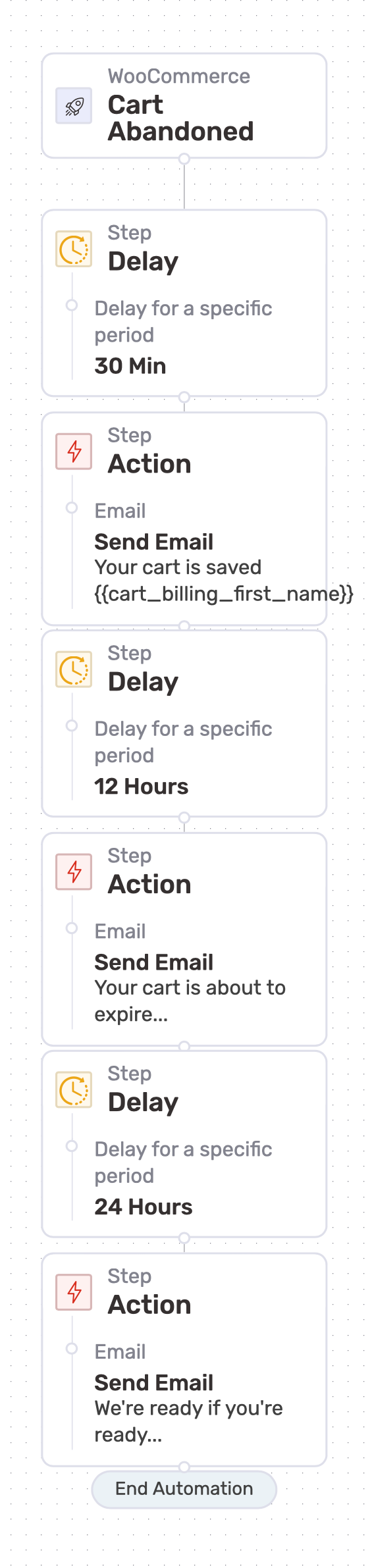
You can use both static and dynamic coupons. If you want to use a static coupon, skip the next step.
Step 3: Create a dynamic coupon (optional)
We need to create a coupon before we can add an auto-apply coupon URL to the email body. To do that, add a new step to create a dynamic coupon.
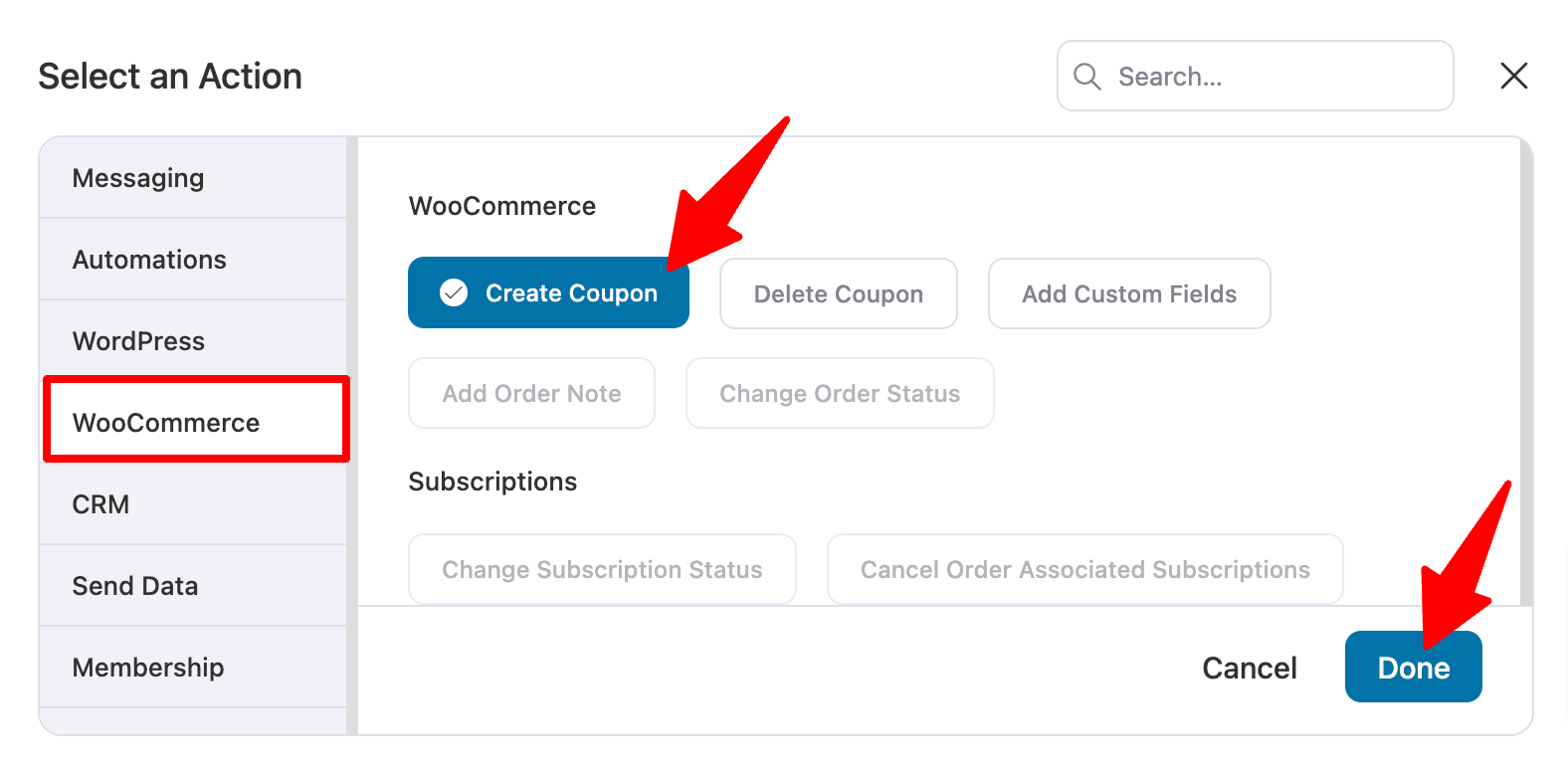
We will send the coupon code URL with the first email, so we need to add an event before that. After the first delay, click on the + icon and choose Action.
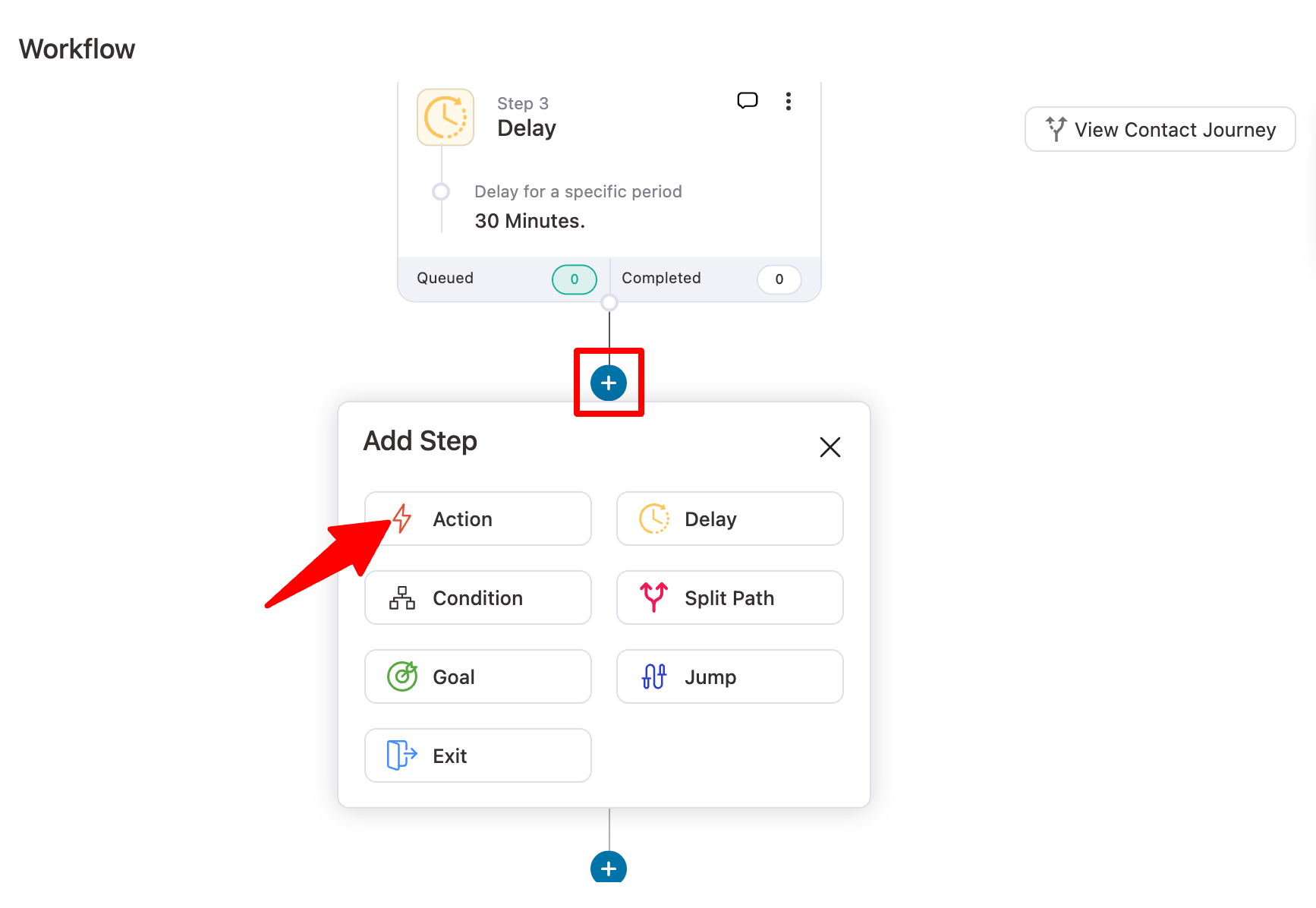
Move to the WooCommerce tab, choose Create Coupon, and click on Done.
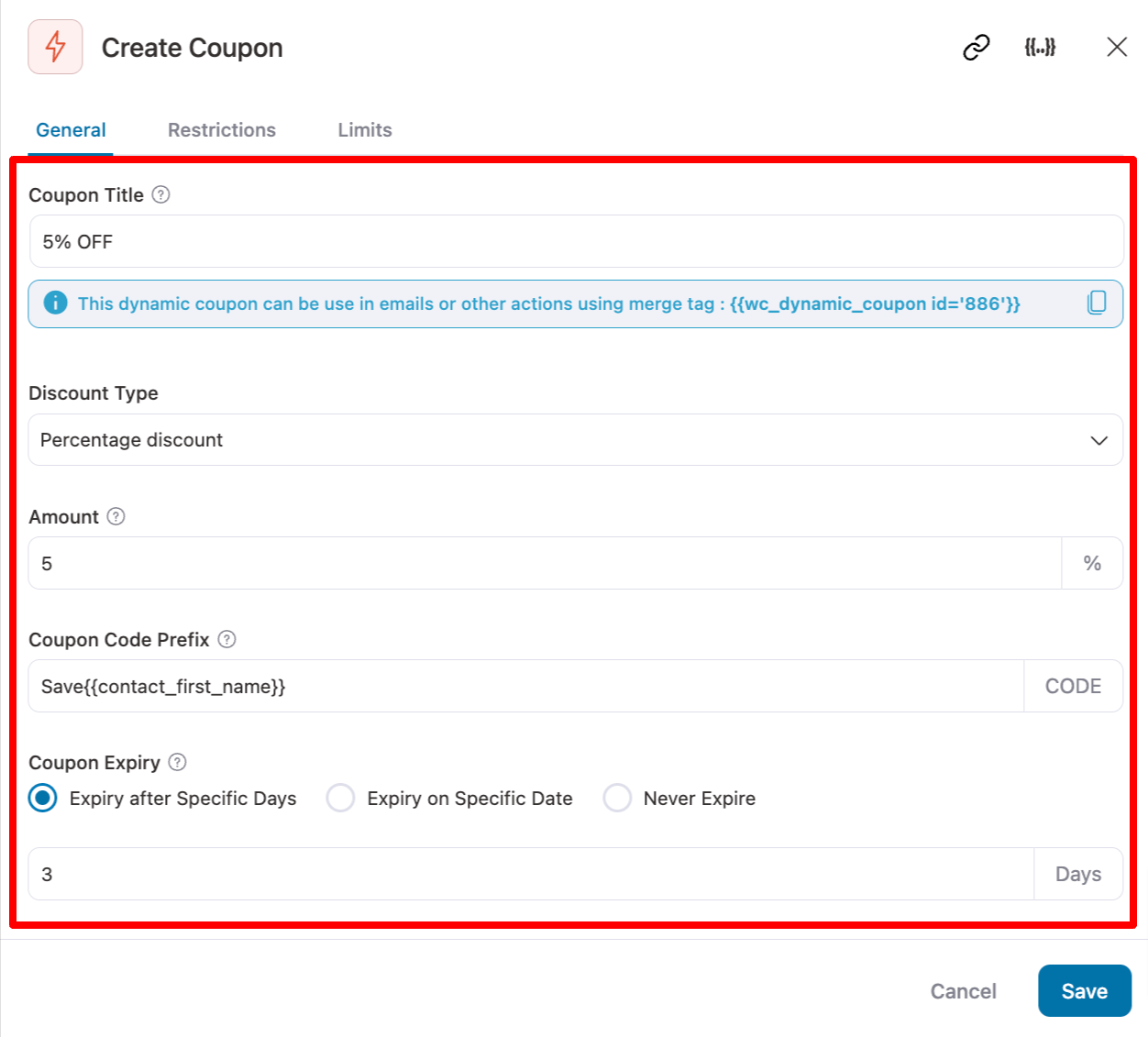
Now enter the coupon title, discount type, amount, coupon code prefix, etc., then click ‘Save’ to save the discount coupon code.
For more details, read our documentation on personalized coupon codes.
Step 4: Add the auto-apply coupon code URL in the email body
Now, add the coupon code URL to the first email. To do so, click on the first email step.
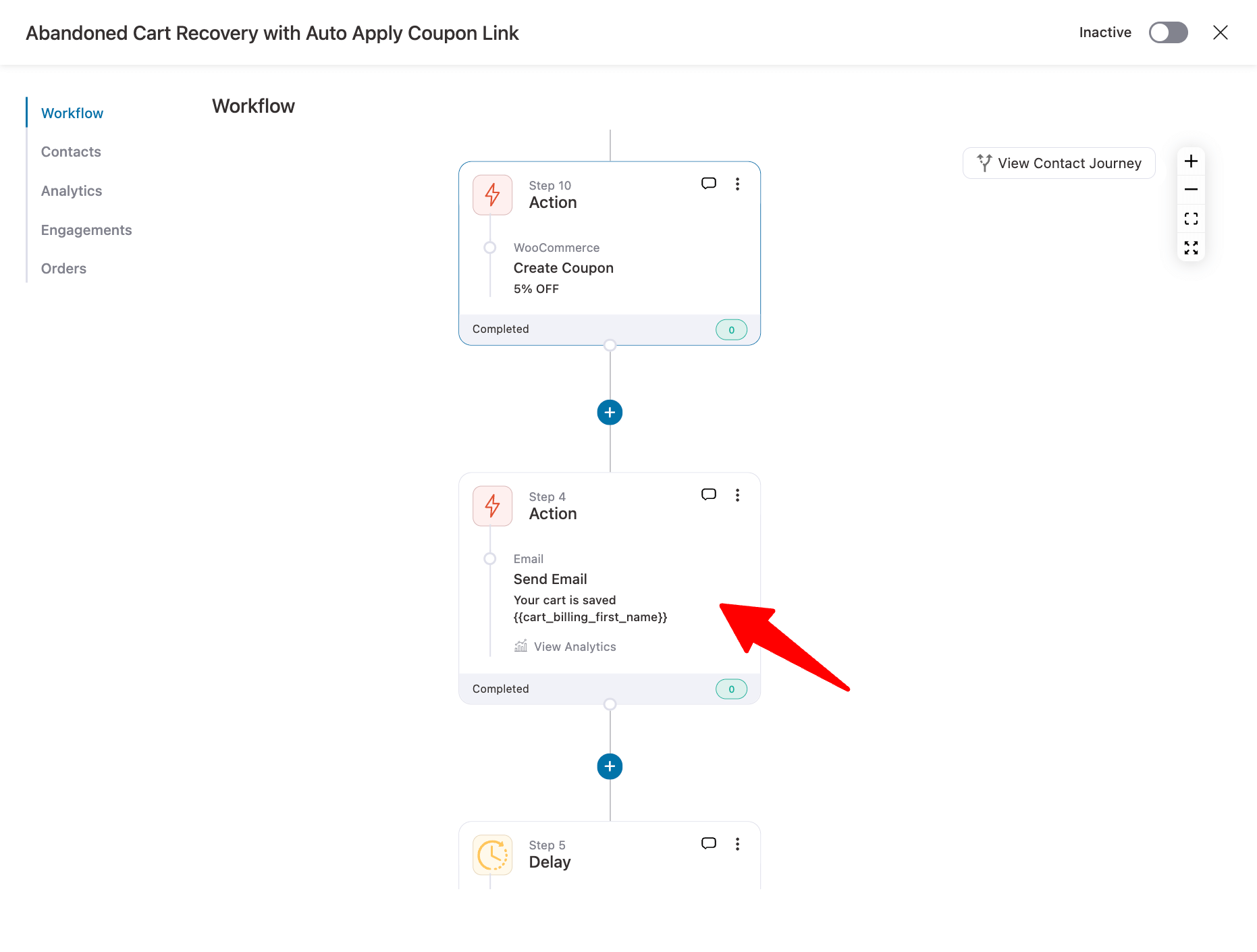
You can design your email using four methods: Visual Builder, Rich Text, and Raw HTML.
Here, we'll show you how to add an auto-apply coupon using Rich Text and Visual Builder.
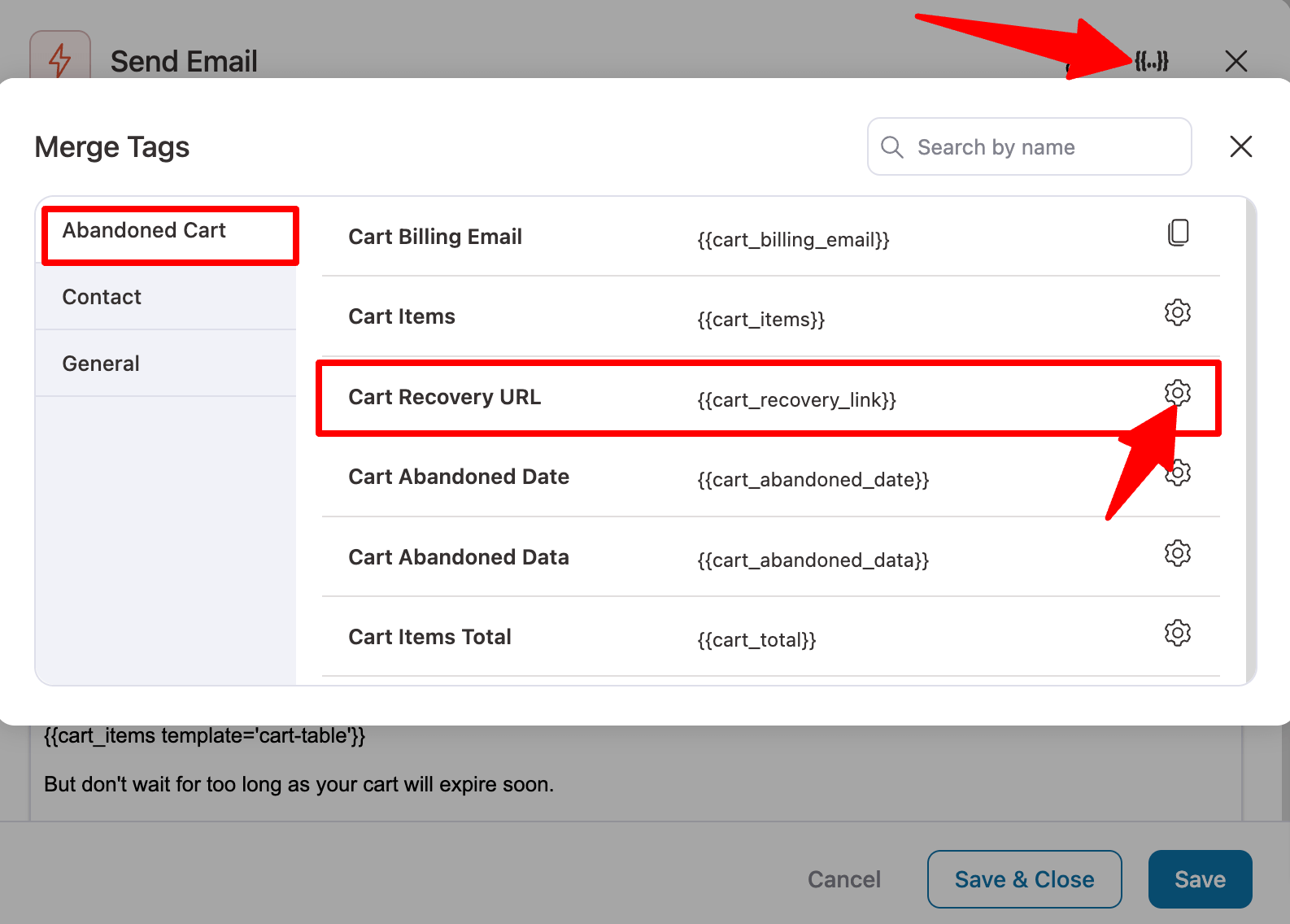
By default, the abandoned cart recipe comes with a text-based email template. To add an auto-apply coupon URL, click the {{..}} merge tag icon. Then, look for the Cart Recovery URL merge tag and click on the ⚙️icon.
After that, you can choose whether you want to use a static coupon or a dynamic coupon.
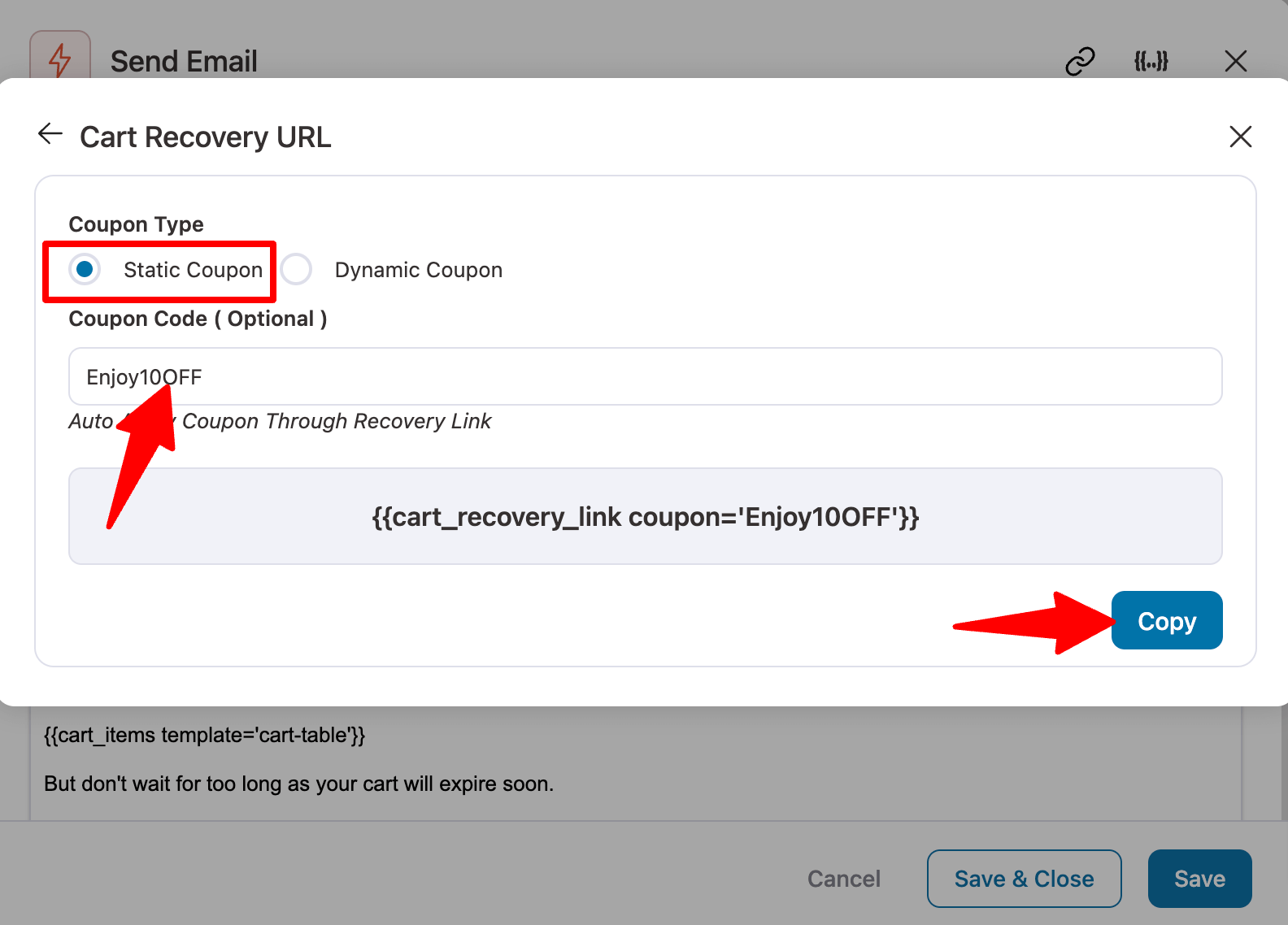
Use a static coupon
Select Static Coupon, then enter the coupon you want to use. This will generate a dynamic link that takes users directly to the checkout page.
Click on “Copy” to copy the link.
Use a dynamic coupon
Choose the coupon type as a dynamic coupon, and select the coupon code you created in the previous step from the drop-down. This will generate a dynamic link that takes users directly to the checkout page.
Click on “Copy” to copy the link.
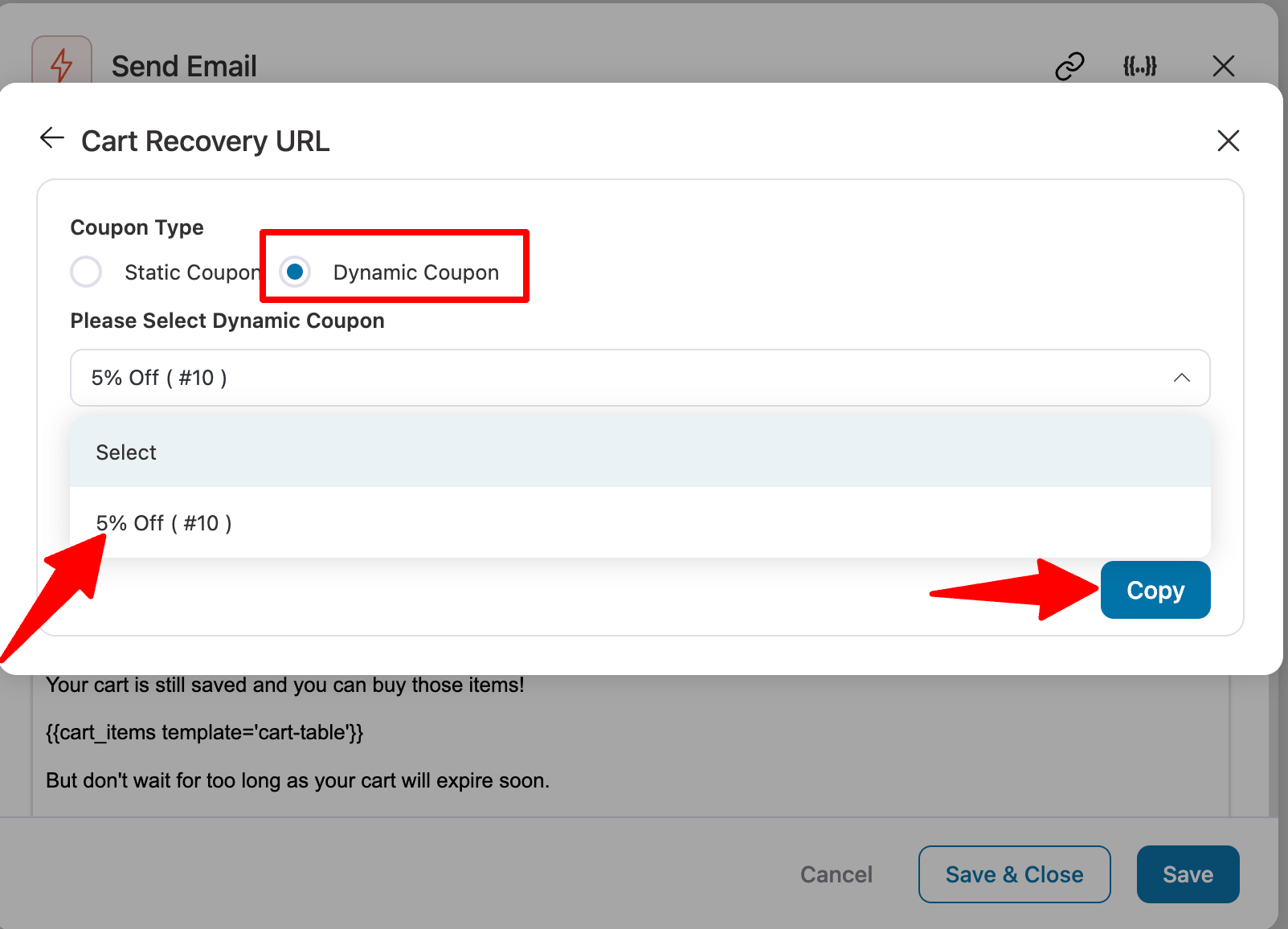
Here, we're using a dynamic coupon.
You can now add the link as a URL or as anchor text in your email body.
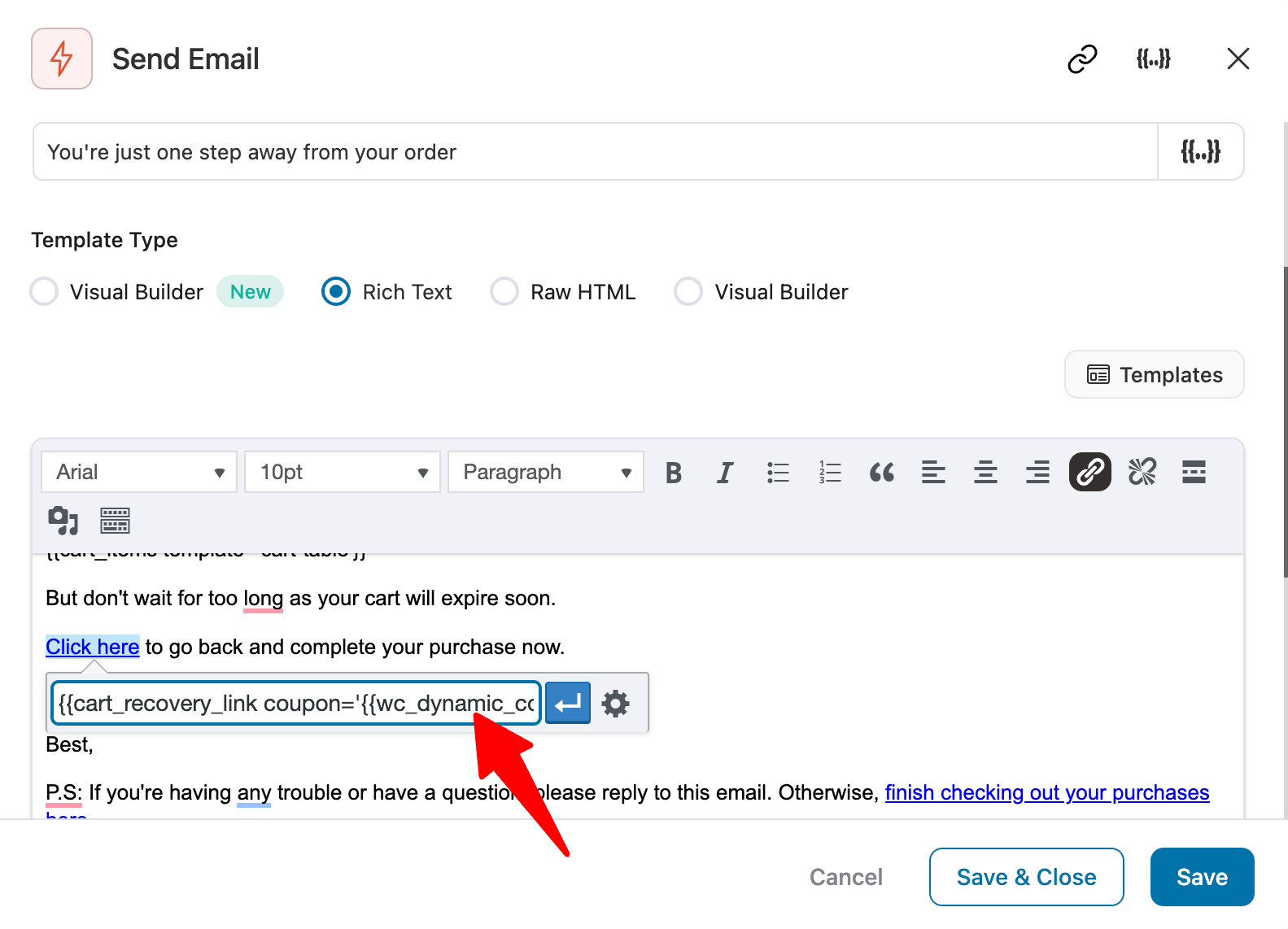
After adding the cart recovery link with the applied coupon code, save the email.
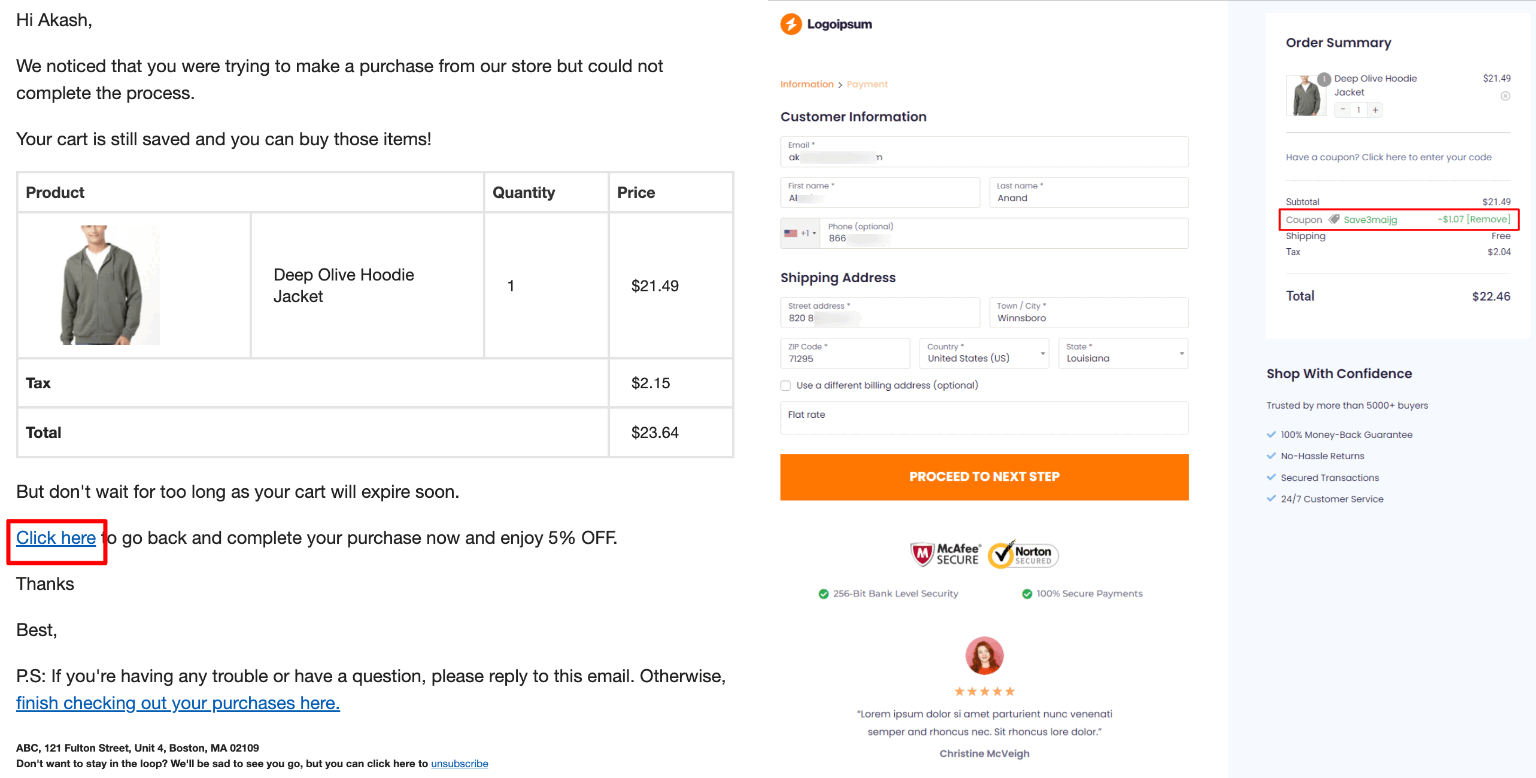
Here is a preview of the email with the auto-apply coupon Woocommerce URL. The coupon is applied automatically at checkout.
Step 5: Add auto-apply coupon link using cart link block (optional)
You can also use Visual Builder, as it offers many ready-to-use, prebuilt email templates.
Here, we are importing the Abandoned Cart template.
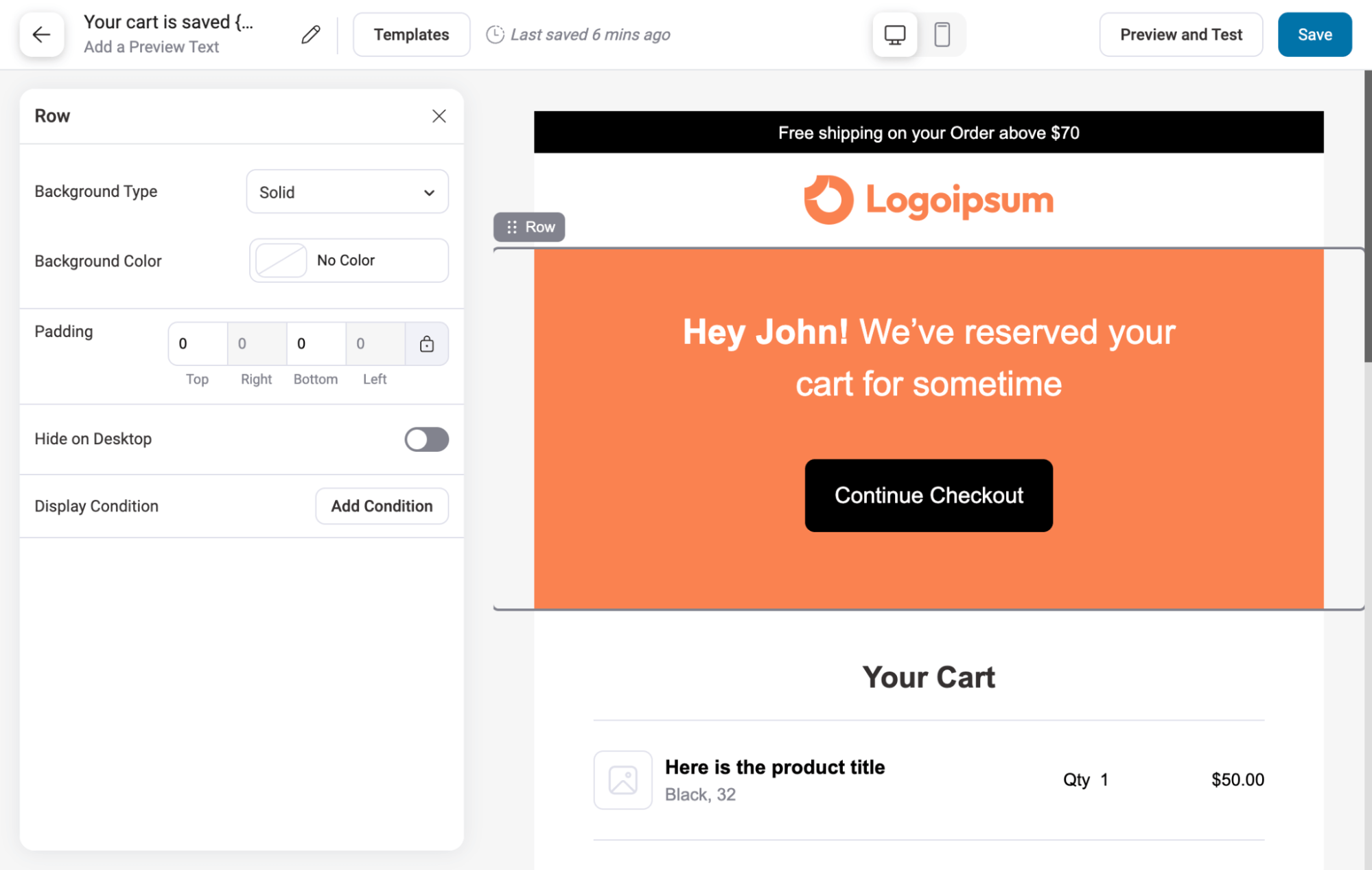
Now, you can customize the email template according to your preference.
The Visual Builder includes a "Cart Link" block that adds a cart recovery URL to a CTA. This URL directs users to the website where their cart items have already been added.
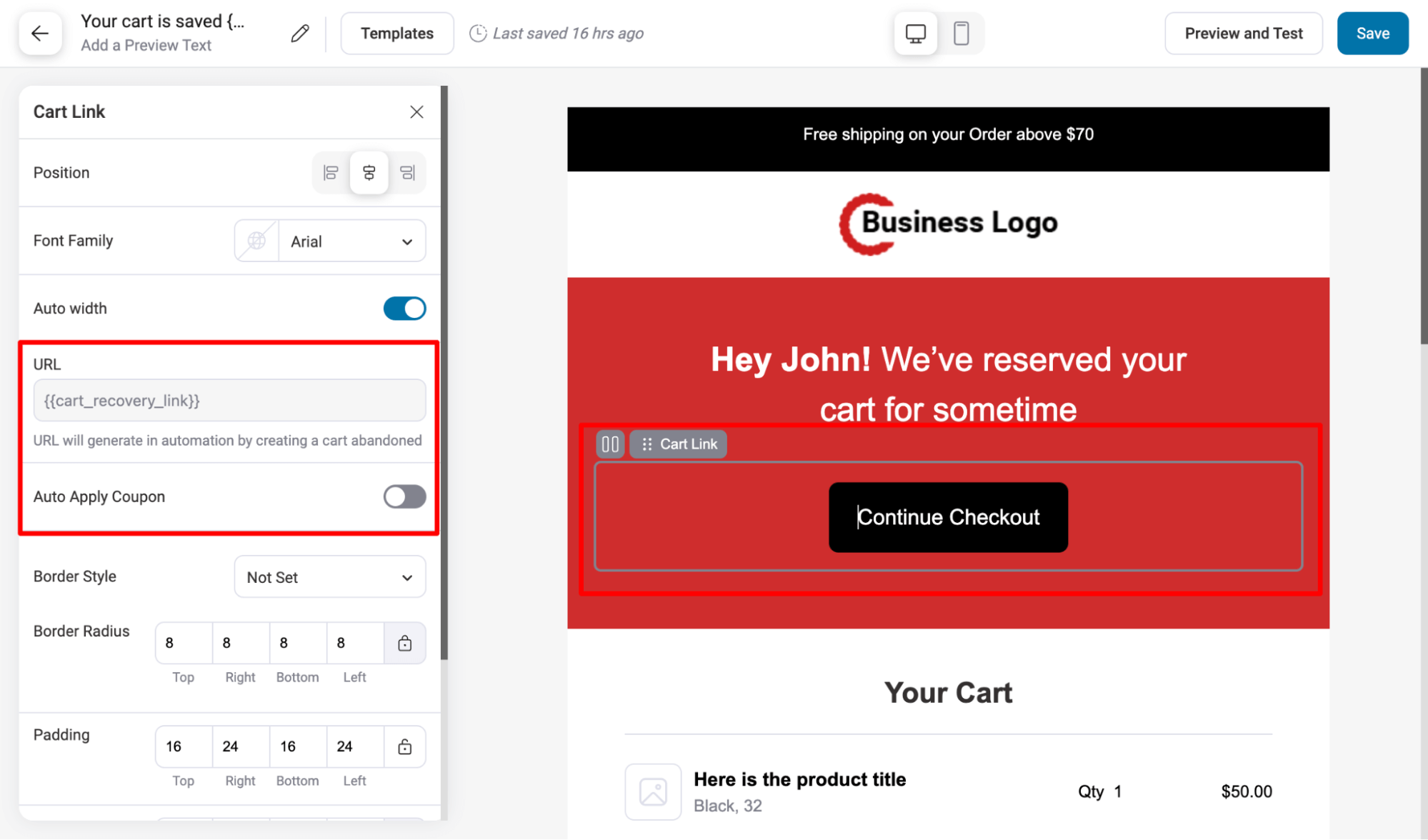
To ensure the coupon applies automatically when users click the CTA, enable "Auto Apply Coupon" and enter the generated coupon code.
Depending on your preference, you can insert the code manually or dynamically. In this case, we are using an automatically generated coupon.
For this, choose the Coupon type “Automation” and select the coupon you created in the previous step.
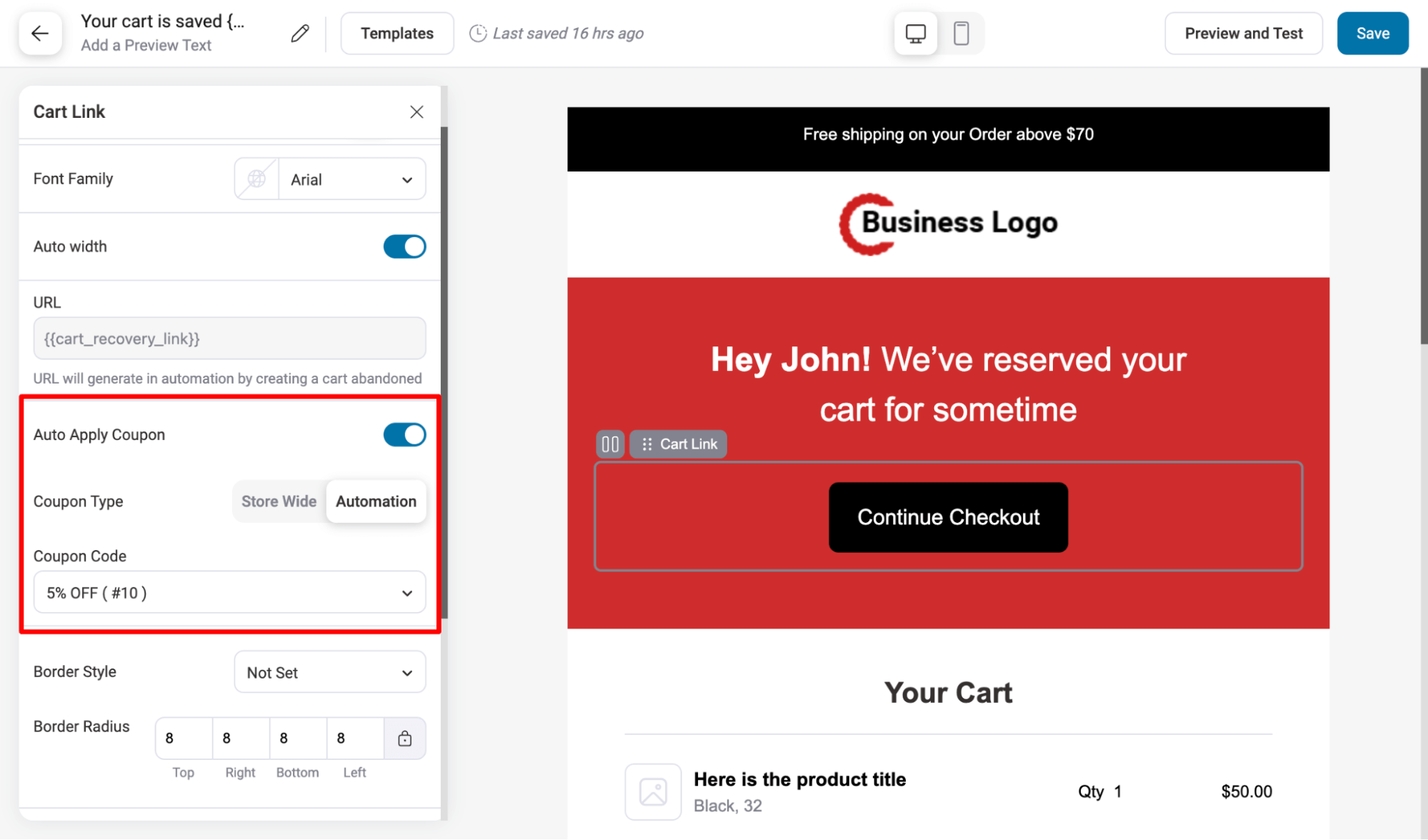
Save the email after adding the auto-apply coupon URL and making the customizations.
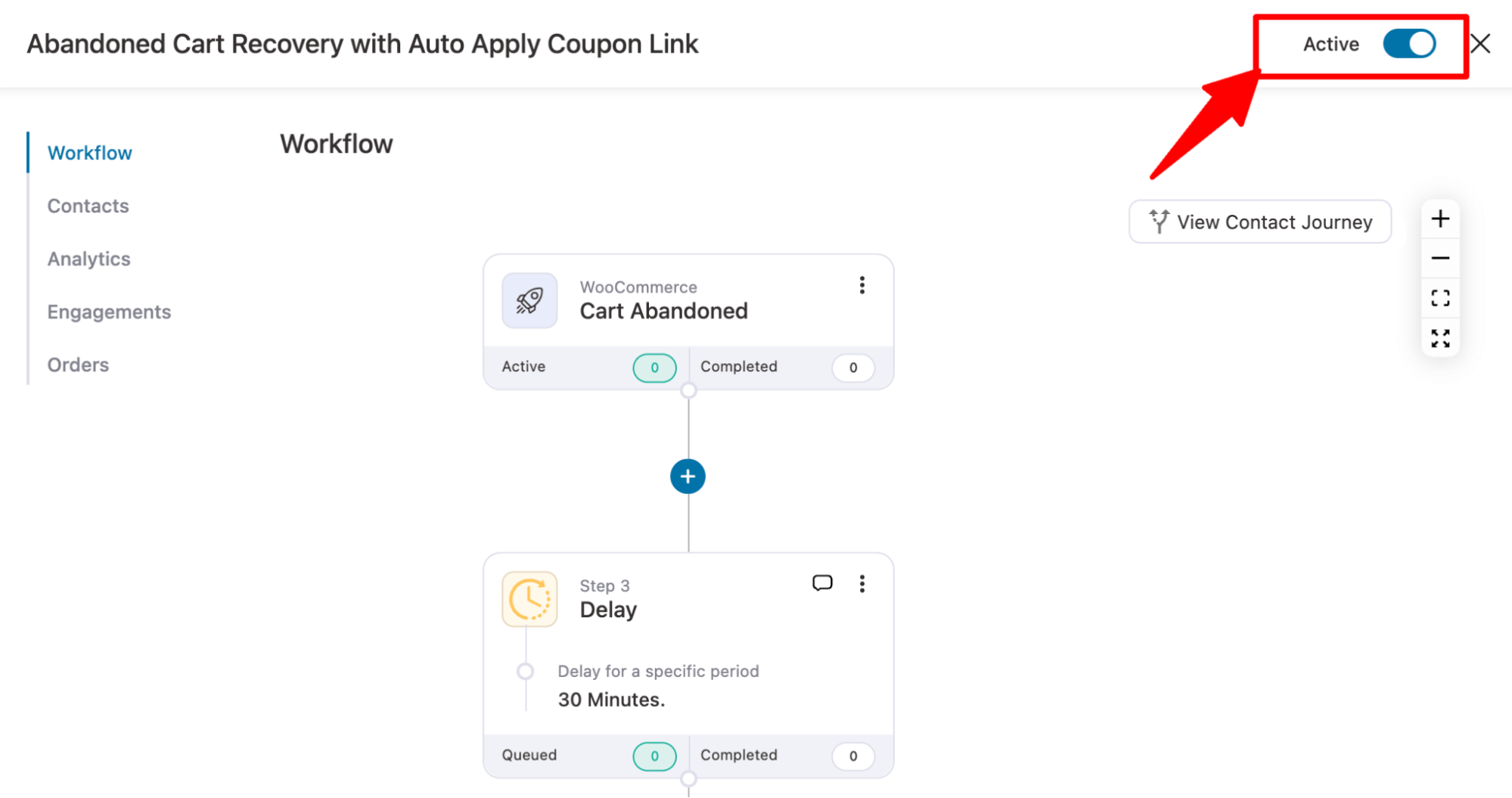
Lastly, to make your auto coupon automation go live, turn on the toggle button.
And that’s it. Your automation to send abandoned cart emails with an auto-applied WooCommerce coupon URL is ready.
Note: You can include an auto-apply coupon link in all your post-purchase emails using the same process with FunnelKit Funnel Builder.
Method 5: Add an Auto-Apply Toggle With a Free Plugin
This is the quickest way to get a coupon applying itself. The plugin adds an option to each coupon.
Switch it on, and the coupon applies itself whenever the cart meets the restrictions you've already set.
We'll use Auto Coupons for WooCommerce, which has a free version.
Go to Plugins ⇨ Add New, search for Auto Coupons for WooCommerce, then install and activate it.
Open Save10 under Marketing ⇨ Coupons and turn on the plugin's auto-apply option in the coupon settings.
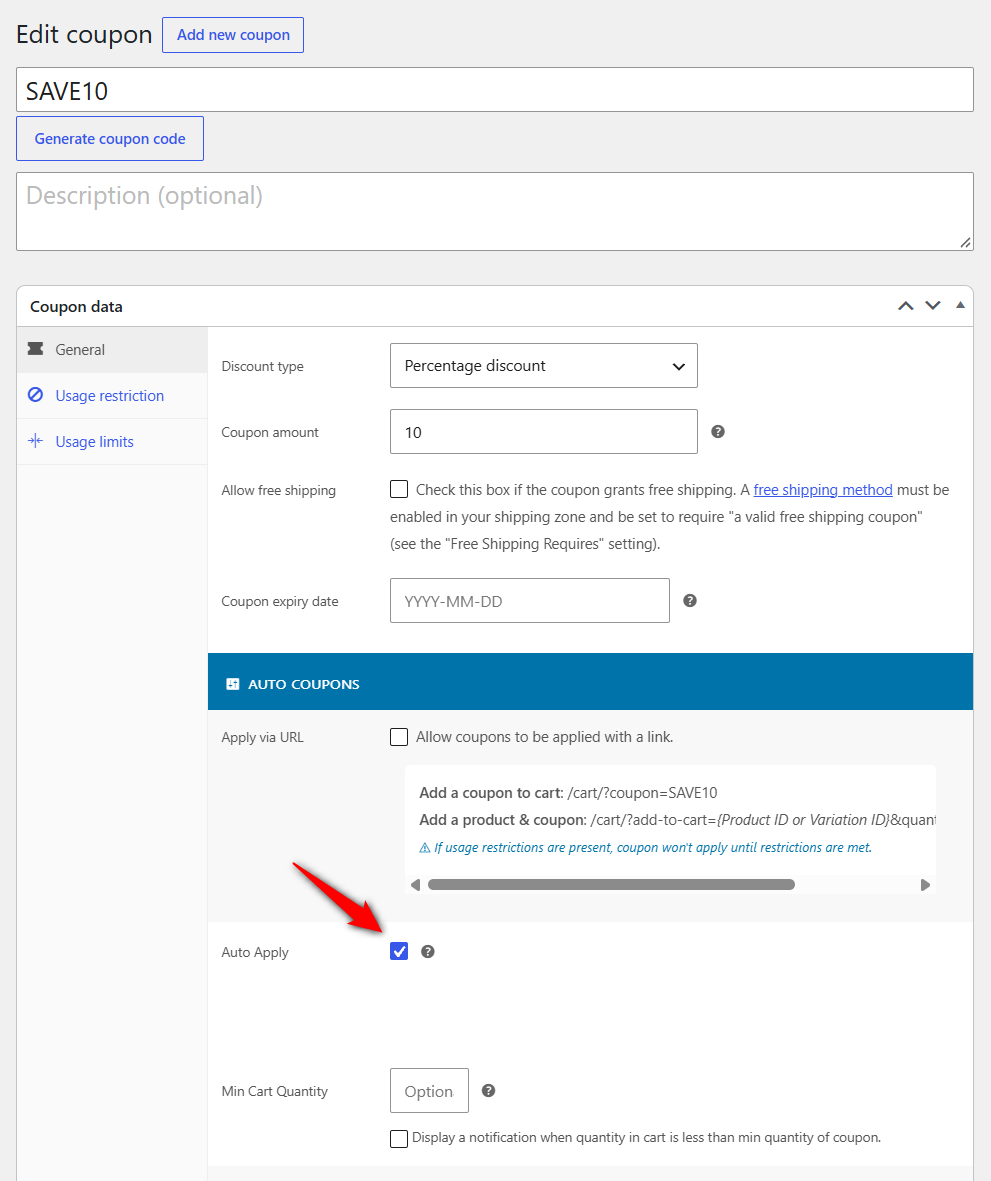
Click Update. Then test it in a private browser window. Add two $35 shirts and check that nothing happens at $70. Add the $12 pocket square and confirm save10 takes $8.20 off the $82 cart.
If the coupon doesn't apply, check WooCommerce ⇨ Auto Coupons ⇨ Status. The status page shows why each coupon was or wasn't applied.
Free and paid coupon plugins compared
| Plugin | Price | How it works | Conditions beyond native restrictions | Coupon links | Worth knowing |
|---|---|---|---|---|---|
| Auto Coupons for WooCommerce | Free version available | Option on each coupon; uses native restrictions | Minimum product quantity | Applies when a chosen page is visited | Blocks-compatible. Won’t re-apply a coupon the shopper removed. |
| Smart Coupons | $129/year | Auto-apply checkbox on each coupon, plus a global setting | Adds restrictions such as user role and payment method | Yes, several codes per link | Applies up to 5 coupons at once by default. Can't automatically apply gift cards or store credit. |
| Advanced Coupons | Free plan. Premium starts at $99.50/year | Settings on each coupon | Cart conditions, including order history, quantity, shipping method, payment gateway, day of week | Yes | Handles BOGO natively |
| Discount Rules for WooCommerce | Free; Pro starts at $68/year | Rule-based discount, optionally tied to a coupon | Subtotal, country, user role, and more | Pro | Can also discount without any coupon |
| WooCommerce Extended Coupon Features | Free version available. Pro costs €35/year excluding VAT | Auto coupon checkbox | Customer role, first purchase, BOGO, shipping method, payment method, and more. | Yes | Long-standing option |
Free auto-apply plugins are usually enough when you’re working with WooCommerce's built-in restrictions, such as minimum spend, specific products, categories, or customer emails. That covers our Save10 example.
If you need the coupon to depend on something more specific, such as a wholesale role, previous orders, a shipping method, or a payment gateway, look for a plugin with its own cart conditions or use the code from Method 6.
Before installing anything, check its compatibility with Blocks.
New WooCommerce stores use the block checkout by default, and plugins that depend on classic checkout hooks may not work there even if they don't show an obvious error.
Note: If you need BOGO offers, tiered discounts, or store credit, see our roundup of WooCommerce coupon plugins we've tested.
Method 6: Apply a Coupon Programmatically (Block Checkout Safe)
If you would rather not depend on a plugin, a short snippet can do the same job with more flexibility.
You’ll find plenty of older tutorials that hook into woocommerce_before_cart or woocommerce_before_checkout_form. Those are classic template hooks, so they don't run on the block Cart and Checkout that WooCommerce now uses by default.
The result is usually a snippet that quietly does nothing.
The snippets here use woocommerce_after_calculate_totals instead. It runs after WooCommerce has calculated the cart totals, including when the block checkout updates them.
Each rule only needs to answer one question: does this cart qualify? A shared helper handles everything else:
- Checks before applying: WooCommerce validates the coupon first, so an invalid coupon fails quietly instead of showing the shopper an error.
- Removes the coupon when the rule stops matching: Remove the pocket square, for example, and the $70 cart loses its 10% discount.
- Respects "Individual use only": If the shopper already has an individual-use coupon in the cart, the helper leaves the cart alone.
- Avoids loops: The helper ignores the recalculation it triggers itself, so multiple rules don't keep triggering each other.
Step 1: Add the helper (once)
/**
 * Helper: add or remove one coupon based on a yes/no rule.
 * Add this once. Every rule below calls it.
 */
function fk_sync_auto_coupon( $cart, $code, $qualifies ) {
	static $busy = false;

	// Skip the recalculation this function triggers itself.
	if ( $busy ) {
		return;
	}

	$applied = $cart->has_discount( $code );

	// Rule no longer matches: take the coupon off.
	if ( ! $qualifies ) {
		if ( $applied ) {
			$busy = true;
			$cart->remove_coupon( $code );
			$cart->calculate_totals();
			$busy = false;
		}
		return;
	}

	if ( $applied ) {
		return;
	}

	// Respect an "Individual use only" coupon already in the cart.
	foreach ( $cart->get_applied_coupons() as $existing ) {
		if ( ( new WC_Coupon( $existing ) )->get_individual_use() ) {
			return;
		}
	}

	$coupon = new WC_Coupon( $code );

	if ( ! $coupon->get_id() ) {
		return; // Code doesn't exist or is in the trash.
	}

	// Let WooCommerce check expiry, limits and restrictions quietly first.
	if ( true !== ( new WC_Discounts( $cart ) )->is_coupon_valid( $coupon ) ) {
		return;
	}

	$busy = true;
	$cart->apply_coupon( $code );
	$cart->calculate_totals();
	$busy = false;
}
Then add only the rules you need, each with its own coupon code.
Apply the coupon when the cart total reaches $75
add_action( 'woocommerce_after_calculate_totals', 'fk_auto_coupon_cart_total', 20 );

function fk_auto_coupon_cart_total( $cart ) {
	if ( ( is_admin() && ! wp_doing_ajax() ) || ! function_exists( 'fk_sync_auto_coupon' ) ) {
		return;
	}

	$minimum = 75;

	// Same number WooCommerce uses for "Minimum spend" (includes tax if your cart shows prices with tax).
	$qualifies = (float) $cart->get_displayed_subtotal() >= $minimum;

	fk_sync_auto_coupon( $cart, 'save10', $qualifies );
}
Keep the coupon's own Minimum spend at 75 too. The snippet decides when to apply the coupon, while the restriction prevents someone from manually entering save10 on a $40 cart.
Test it: With the helper and this rule active, repeat the Method 1 test. Nothing should happen at $70, save10 should apply at $82, and it should disappear when you remove the pocket square.
Apply it when a specific product or category is in the cart
add_action( 'woocommerce_after_calculate_totals', 'fk_auto_coupon_product_or_category', 20 );

function fk_auto_coupon_product_or_category( $cart ) {
	if ( ( is_admin() && ! wp_doing_ajax() ) || ! function_exists( 'fk_sync_auto_coupon' ) ) {
		return;
	}

	$product_ids  = array( 123, 456 );   // Product IDs (parent ID for variable products).
	$category_ids = array( 15 );         // Product category IDs. Use array() to skip.
	$qualifies    = false;

	foreach ( $cart->get_cart() as $item ) {
		$product_id = (int) $item['product_id'];

		if ( in_array( $product_id, $product_ids, true )
			|| ( $category_ids && has_term( $category_ids, 'product_cat', $product_id ) ) ) {
			$qualifies = true;
			break;
		}
	}

	fk_sync_auto_coupon( $cart, 'save10', $qualifies );
}
To find a product ID, hover over the product under Products ⇨ All Products.
For a category ID, go to Products ⇨ Categories. For example, 123 is the shirt and 456 is the trousers.
For variable products, product_id is the parent product ID, so every size and color qualifies. If you only want one variation, compare $item['variation_id'] instead.
If the product or category is your only trigger, you can skip the code altogether. Add the condition under Usage restriction and let a Method 1 plugin handle the auto-apply part.
Apply it based on the number of items
This example applies bundle15 once the cart contains three or more items.
add_action( 'woocommerce_after_calculate_totals', 'fk_auto_coupon_item_count', 20 );

function fk_auto_coupon_item_count( $cart ) {
	if ( ( is_admin() && ! wp_doing_ajax() ) || ! function_exists( 'fk_sync_auto_coupon' ) ) {
		return;
	}

	$minimum_items = 3;
	$qualifies     = $cart->get_cart_contents_count() >= $minimum_items;

	fk_sync_auto_coupon( $cart, 'bundle15', $qualifies );
}
For per-product tiers such as "buy 2, save 10%; buy 4, save 30%", a pricing rule is usually a better fit.
It changes the product price directly, so there's no coupon to apply or remove.
For tiered setups, see our guide to WooCommerce quantity discounts.
Apply it for first-time or returning customers
add_action( 'woocommerce_after_calculate_totals', 'fk_auto_coupon_first_order', 20 );

function fk_auto_coupon_first_order( $cart ) {
	if ( ( is_admin() && ! wp_doing_ajax() ) || ! function_exists( 'fk_sync_auto_coupon' ) ) {
		return;
	}

	$is_new = null; // Unknown until we have an account or an email.

	if ( is_user_logged_in() ) {
		$is_new = 0 === (int) wc_get_customer_order_count( get_current_user_id() );
	} else {
		$email = $cart->get_customer() ? $cart->get_customer()->get_billing_email() : '';

		if ( $email ) {
			$past_orders = wc_get_orders(
				array(
					'billing_email' => $email,
					'status'        => array( 'processing', 'completed', 'on-hold' ),
					'limit'         => 1,
					'return'        => 'ids',
				)
			);
			$is_new = empty( $past_orders );
		}
	}

	// Change to `false === $is_new` to reward returning customers instead.
	fk_sync_auto_coupon( $cart, 'welcome10', true === $is_new );
}
For logged-in shoppers, WooCommerce checks the orders associated with their account. For guests, it checks the billing email once WooCommerce has it, which usually happens during checkout.
Test this on your own checkout. If the discount doesn't appear after the shopper enters their email, make the offer account-only instead.
A guest can technically check out with a new email address, so setting the usage limit per user to 1 adds an extra safeguard.
If you want new customers to see the offer before checkout, send them a unique coupon when they sign up.
Note: For the signup flow, see our guide to WooCommerce first-order discounts.
Apply it by user role (wholesale, members)
add_action( 'woocommerce_after_calculate_totals', 'fk_auto_coupon_user_role', 20 );

function fk_auto_coupon_user_role( $cart ) {
	if ( ( is_admin() && ! wp_doing_ajax() ) || ! function_exists( 'fk_sync_auto_coupon' ) ) {
		return;
	}

	$roles     = (array) wp_get_current_user()->roles;
	$qualifies = is_user_logged_in() && in_array( 'wholesale_customer', $roles, true );

	fk_sync_auto_coupon( $cart, 'wholesale20', $qualifies );
}
Replace wholesale_customer with your actual role slug. For example, it could be the role assigned to boutiques buying at trade prices.
Because the helper removes the coupon when the rule stops matching, a retail shopper who finds and enters wholesale20 will lose the discount on the next cart update.
Offer free shipping above a threshold
If you only need free shipping on orders over $75, you don't need a coupon.
Go to WooCommerce ⇨ Settings ⇨ Shipping, open the relevant shipping zone, add Free shipping, and set Free shipping requires to 'A minimum order amount' of 75.
Use a coupon when free shipping needs to be part of a named promotion, have usage limits, or be available only to certain customers.
- Create a freeship coupon with Discount type set to Fixed cart discount, Coupon amount set to 0, and Allow free shipping enabled.
- In the zone's Free shipping method, set Free shipping requires to A valid free shipping coupon. Otherwise, the coupon can apply while the customer is still charged for shipping.
- Copy the cart-total rule, give the function a new name, and change the coupon code to freeship.
Running save10 and free shipping together? By default, WooCommerce checks the free shipping minimum after applying coupon discounts.
So the $82 cart becomes $73.80 after save10, which puts it below the $75 free-shipping threshold.
Enable Apply minimum order rule before coupon discount in the Free shipping settings if you want the original $82 subtotal to determine eligibility.
Note: For threshold strategy and zone setup, see our guide to free shipping in WooCommerce.
5 Rules That Keep Automatic Discounts From Eating Your Margin
- Always give the coupon a condition
An automatic coupon with no restrictions will discount every order. After launching one, check its usage count under Marketing ⇨ Coupons within the first 24 hours.
If the number is higher than expected, you'll catch the problem before it costs much.
- Set the threshold above your average order value
A 10% save10 coupon costs $7.50 on a $75 order. If your average order value is $62, a $75 threshold gives shoppers a reason to spend more.
Set the threshold at $50, though, and you may just be discounting orders that would have happened anyway.
- Keep automatic coupons from stacking unless that's intentional
Overlapping rules can turn a small discount into a much bigger one.
Use Individual use only or make sure your conditions don't overlap. Then test the combinations before you launch.
- Give campaign coupons an end date
Set both a start date and an expiry date for limited-time promotions.
This way, the discount switches off automatically instead of relying on someone to remember to remove it.
- Compare the results with a baseline
Look at your average order value and conversion rate for the two weeks before and after launching the discount.
For a cleaner comparison, you can also split-test two checkouts with FunnelKit A/B testing.
Auto Apply Coupon Not Working? 8 Fixes
Test each fix in a private browser window. A cached page or an old WooCommerce session can make it look like the coupon isn't working when it actually is.
1. Coupons are switched off
Go to WooCommerce ⇨ Settings ⇨ General and make sure coupon codes are enabled.
Some snippets that hide the coupon field set the woocommerce_coupons_enabled filter to false, which disables coupons altogether, including automatic coupons.
If you only want to hide the field, use CSS or a template change instead.
2. The coupon stopped applying after the shopper removed it
Auto Coupons intentionally won't re-apply a coupon after the shopper removes it, unless another coupon is added and removed first.
The snippets in this guide put the coupon back on the next cart update.
Smart Coupons can prevent shoppers from removing an automatically applied coupon by using the wc_sc_is_auto_apply_coupon_removable filter and returning 'no'.
3. Some visitors get the discount and others don't
Page caching is the first thing to check. Exclude the cart, checkout, and account pages from caching, along with URLs that contain your coupon parameter.
Then clear the existing cache and test again.
4. The coupon appears in the cart but disappears at checkout
Allowed emails and usage limits per user are checked against the billing email, so those restrictions can fail after the shopper enters their email.
With the block checkout, WooCommerce removes the coupon and shows the reason.
Also check your minimum spend against the way your store handles and displays tax.
5. It works on the classic checkout but not the block checkout
Your code may be relying on a classic template hook such as woocommerce_before_cart.
Use the Method 3 snippets instead, or switch to a plugin that supports WooCommerce Blocks.
6. Variable products don't trigger the coupon
A coupon restricted to the parent product also covers its variations.
Custom code is different: $item['product_id'] contains the parent product ID, while $item['variation_id'] contains the variation ID.
If your condition checks the wrong one, the rule won't match.
7. Two automatic discounts are stacking
Make sure the conditions don’t overlap, or enable Individual use only on the coupon that should apply on its own.
Keep in mind that when an individual-use coupon is applied automatically, WooCommerce can remove other coupons already in the cart.
8. A coupon link says "coupon is not applicable to selected products"
The coupon was checked before a qualifying product was added to the cart.
Send shoppers directly to the product or use an add-to-cart link so the product is already there.
The Method 2 snippet handles this differently by keeping the coupon until the cart qualifies.
Frequently Asked Questions (FAQs)
To schedule a coupon in WooCommerce, you need to use a top coupon plugin. Then set the start and expiry dates when creating or editing the coupon.
Yes, with the Advanced Coupons plugin, you can use cart conditions to check a customer's order history. Set a condition requiring the customer to have no previous orders. When a new customer adds products to their cart, the coupon will apply automatically. Returning customers will not see the discount.
WooCommerce checks all active auto apply coupons during cart calculation. It then evaluates each coupon's usage restrictions and cart conditions against the current cart contents.
If a coupon's conditions are met, it is applied. If multiple auto-apply coupons qualify, WooCommerce applies them all unless one has the "Individual use only" setting enabled. In that case, WooCommerce applies only the first matching individual-use coupon.
Create a new coupon with the discount type set to "Fixed cart discount" at $0 and check the "Allow free shipping" box.
Then set your cart condition (such as a $75 minimum subtotal) and enable auto-apply.
Once done, configure a WooCommerce shipping zone with the "Free shipping" method that requires a valid free shipping coupon.
Yes, as long as the coupon is configured to support subscription products and subscription products aren't excluded from using this coupon.
With default WooCommerce settings, you can’t auto-apply gift cards or store credits. However, additional plugins can.
Auto Coupons for WooCommerce is a free WordPress plugin that adds a toggle to the coupon edit screen and builds on the restrictions you already set, so save10 at $75 works with nothing more than flipping the switch. It handles unlimited coupons and links as well.
But it only acts on conditions native coupons already understand, so payment method, shipping zone, and order history are out of reach.
Its status screen under WooCommerce ⇒ Auto Coupons ⇒ Status is worth knowing about regardless of which method you run, because it reports exactly why a coupon did or did not apply.
Smart Coupons adds an "Auto apply?" checkbox on the coupon screen and validates every restriction before firing.
By default, it applies up to five coupons at once and covers gift cards and store credit, which nothing else here does. Its official documentation walks through the setup.
Advanced Coupons takes a rules engine approach instead, triggering on order history, cart quantity, shipping method, payment gateway, or day of the week, and it handles BOGO natively.
Yes, conditional discounts work on the block checkout if the rule runs in the right place.
The Cart and Checkout Blocks are now the default for new WooCommerce stores. They render through the Store API rather than the classic PHP templates, so code hooked into woocommerce_before_cart or woocommerce_before_checkout_form never runs.
Coupon application still happens at cart calculation, which is why every example here hooks woocommerce_before_calculate_totals. It fires for both.
Start Converting More Shoppers With WooCommerce Auto Apply Coupons!
If save10 only needs to apply when the cart reaches $75, a free auto-apply coupon plugin or the Method 6 snippet can handle it today.
The bigger gains come from what happens around the coupon.
Remove the field that sends shoppers searching for a code. Show the $5 gap while they can still add the pocket square. And save the discount for carts that actually need a push, so shoppers who were ready to buy don't get a discount they didn't need.
With FunnelKit, you can go beyond coupons by creating sales funnels and adding offers like order bumps and upsells to boost revenue.
FunnelKit brings these pieces together across your checkout, cart, and recovery emails, with a 14-day money-back guarantee.
Editorial Team
October 7, 2026WooCommerce upsells are products you recommend in place of the one a shopper is viewing, usually a better or higher-priced version of it. WooCommerce has a built-in upsell field for...
Editorial Team
October 6, 2026WooCommerce taxes start with a rate table you set up yourself. If you leave a state out of that table, orders going there can pass through with no tax. Say...
Editorial Team
October 5, 2026A WooCommerce Shopify checkout recreates the parts of Shopify’s checkout that shoppers already know. It includes a logo-only header, email first, express payment options at the top, address autocomplete, a...






