


Customize the WooCommerce checkout page the wrong way and you’ll spend an hour editing a page that never changes on the front end.
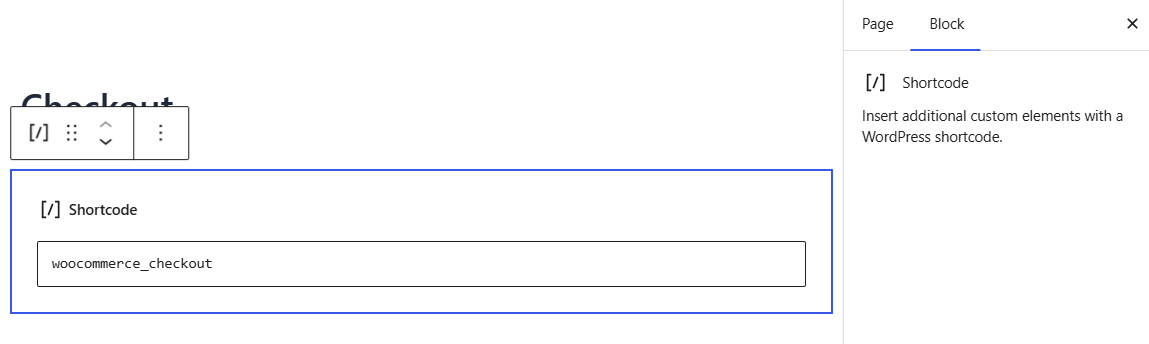
Open Pages → Checkout. If you see one Checkout block, you’re on WooCommerce’s block checkout. If you see [woocommerce_checkout] sitting inside a shortcode block, you’re on the classic checkout.
That single difference decides which of the four methods below will do anything at all.
In this post, we’ll walk you through the checkout customization process and how to optimize the page to reduce cart abandonment and increase completed orders.
We will also cover what to do when a change breaks your payment options, which is the problem store owners hit most often after editing this page.
Watch this mini masterclass to get 20 proven tips on WooCommerce checkout page customization:
Table of Contents
- 1 Block or Classic Checkout? Check This First
- 2 Which Method Should You Use?
- 3 Method 1: Edit the checkout block in the block editor (free, no plugin)
- 4 Method 2: Edit Checkout Fields With a Free Plugin (Classic Checkout)
- 5 Method 3: Replace the Checkout With a Funnel Builder
- 6 Method 4: Customize the Checkout With Code (CSS and PHP Hooks)
- 7 When Checkout Customization Breaks: 5 Common Failures
- 8 9 Best Practices to Customize Your WooCommerce Checkout for Conversions
- 8.1 1. Simplify the checkout journey
- 8.2 2. Audit theme performance and optimize load time
- 8.3 3. Design for mobile-first shoppers
- 8.4 4. Use clear, action-oriented call-to-actions (CTAs)
- 8.5 5. Increase average order value with smart order bumps and upsells
- 8.6 6. Reinforce trust with security seals and compliance messaging
- 8.7 7. Support local and flexible payment options
- 8.8 8. Automate cart recovery and follow-up workflows
- 8.9 9. Run A/B tests to optimize for what actually converts
- 9 Frequently Asked Questions
- 10 Ready to Build a Checkout That Actually Converts?
Block or Classic Checkout? Check This First
Before you customize anything, find out which checkout your store runs. This will help you decide which method works for you.
Go to Pages ⇨ Checkout and open the page in the editor.
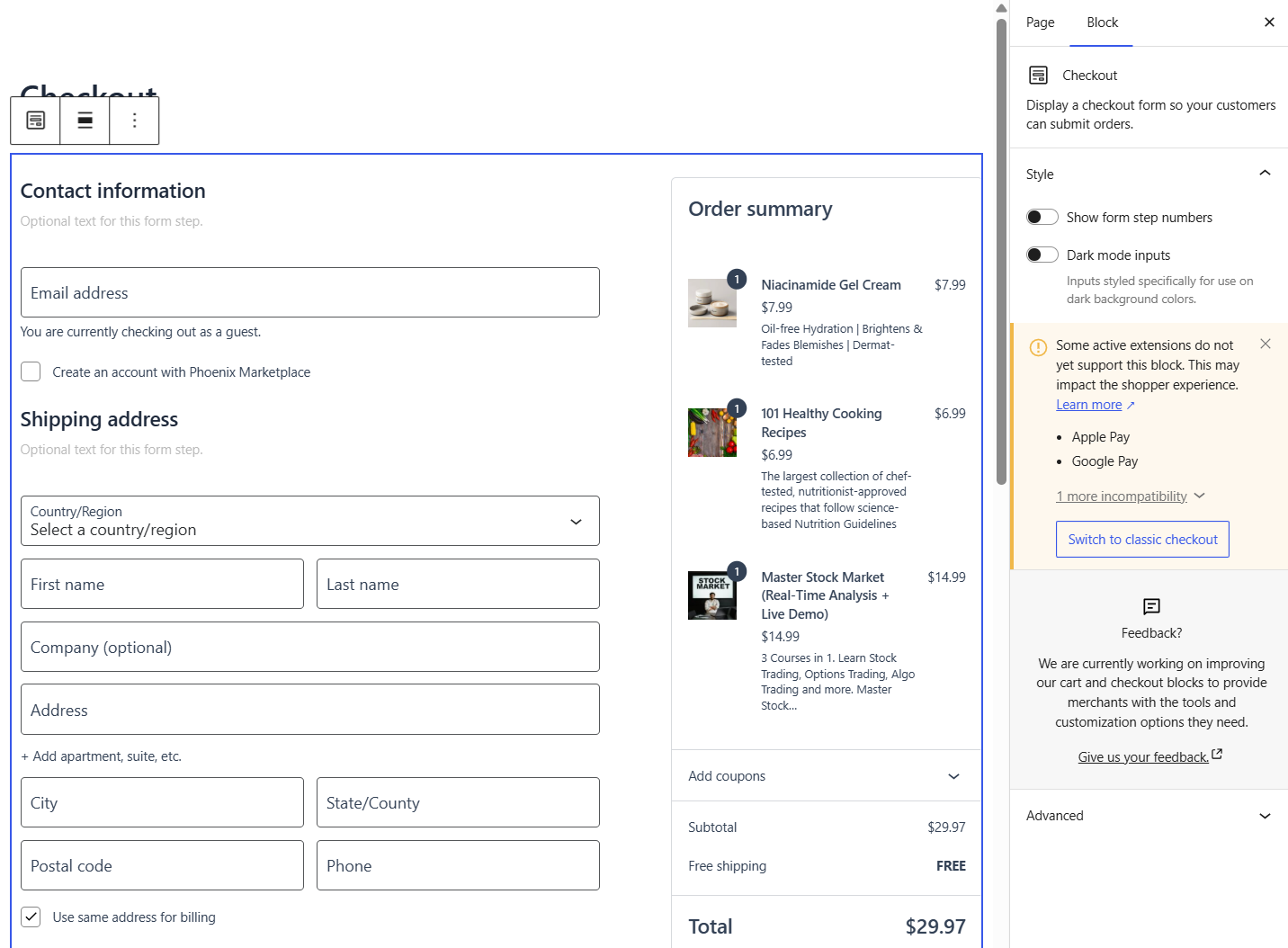
If you see a single Checkout block with its own settings panel, you're on the modern block checkout.
If instead you see the shortcode [woocommerce_checkout] sitting in a classic/shortcode block, you’re on the classic checkout.
The block checkout has been the default for new stores since WooCommerce 8.3 in November 2023, but only on sites using a block theme.
Stores built before that date, or running a classic theme, almost always still use the shortcode.
Most established WooCommerce stores are on classic and do not realize it.
To switch from classic to block, select the shortcode block, click Transform in the block toolbar, and choose the Checkout block.
To go the other way, select the Checkout block, click Transform, and choose Classic Shortcode.
Do the same on your cart page, because the two work as a pair.
Which Method Should You Use?
| Method | Works on | Best for | Cost | Skill |
|---|---|---|---|---|
| 1. Native block editor | Block | Toggling fields, reordering sections, colors | Free | Beginner |
| 2. Free checkout field plugin | Classic | Adding, renaming, reordering fields with no code | Free | Beginner |
| 3. Checkout customizer plugin with page builder | Replaces both | Rebuilding checkout as a conversion flow with bumps and upsells | Free and paid | Beginner to Intermediate |
| 4. Code (CSS/PHP) | Both | Custom fields, conditional logic, precise control | Free | Developer |
Most stores need the first row. Work down the table only when the method above cannot do what you need.
Method 1: Edit the checkout block in the block editor (free, no plugin)
If your store uses the block checkout, you can make a fair number of changes without installing anything. Try this first.
Go to Pages ⇨ Checkout to open the editor and click the Checkout block.
Toggle, hide, or require fields
Under Address Fields, WooCommerce exposes three toggles (Company, Address Line 2, and Phone), each of which you can hide, show, or make required.
These three cover the fields most stores want gone, and they’re the only default fields with editor controls.
Put the Address Line 2 off, company name off, and phone on.
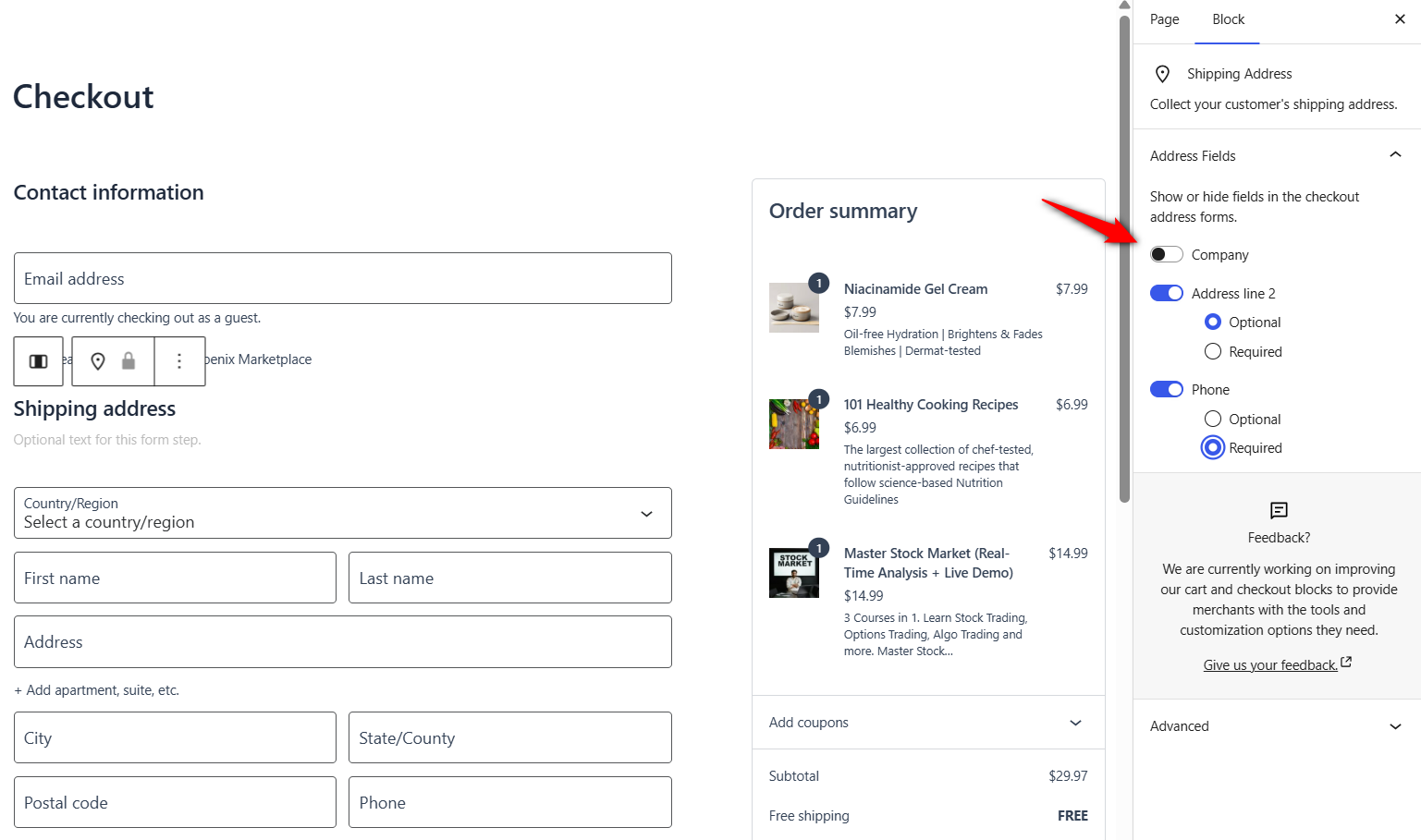
Two more removals live in the inner blocks rather than a settings panel:
- Policies (shipping and returns links): Toggle off in its block settings.
- Additional Information (the order notes box): Select it in List View and remove it if you don’t act on order notes.
A default WooCommerce checkout asks for roughly 23 fields. A tight one does the job in 12 to 14.
Baymard’s research puts about 18% of abandonments down to a checkout that’s too long or complicated, which makes this panel the cheapest friction you’ll ever remove.
Reorder sections and change the layout
Open List View (the icon top-left of the editor).
Every inner block can be dragged and renamed, such as moving Contact Information below Delivery or renaming "Additional Information" to "Delivery instructions".
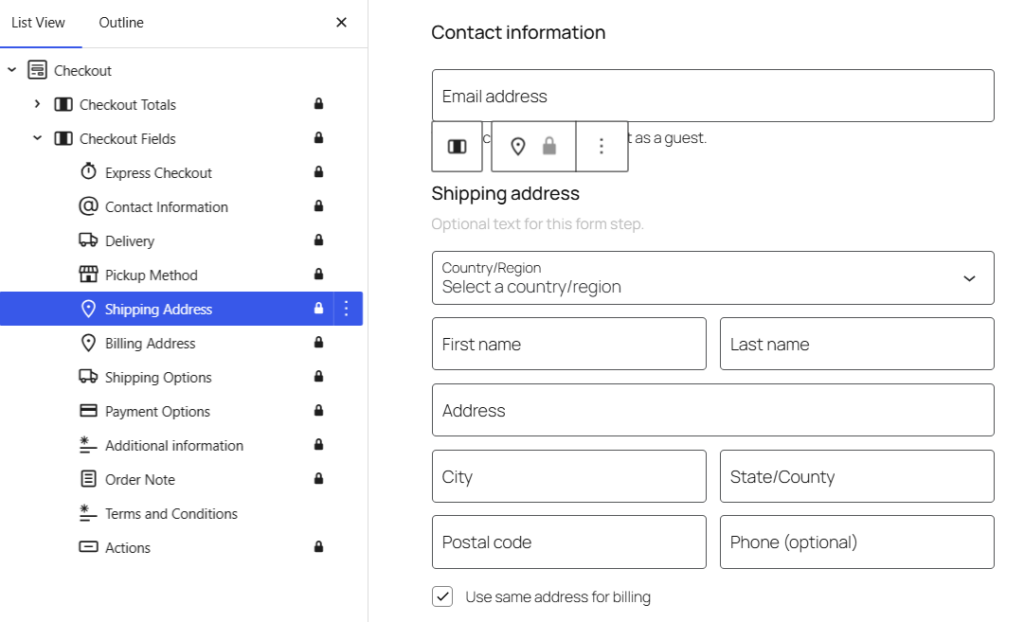
The Order Summary sidebar also accepts new blocks.
An Image block with a payment-security badge or a Paragraph with your returns promise is the cheapest way to improve trust on this page.
One column usually reads better on mobile and on stores with very few fields.
Adjust colors and typography
On a block theme, go to Appearance ⇨ Editor ⇨ Styles.
Typography, colors, button radius, and spacing set here apply site-wide, checkout included.
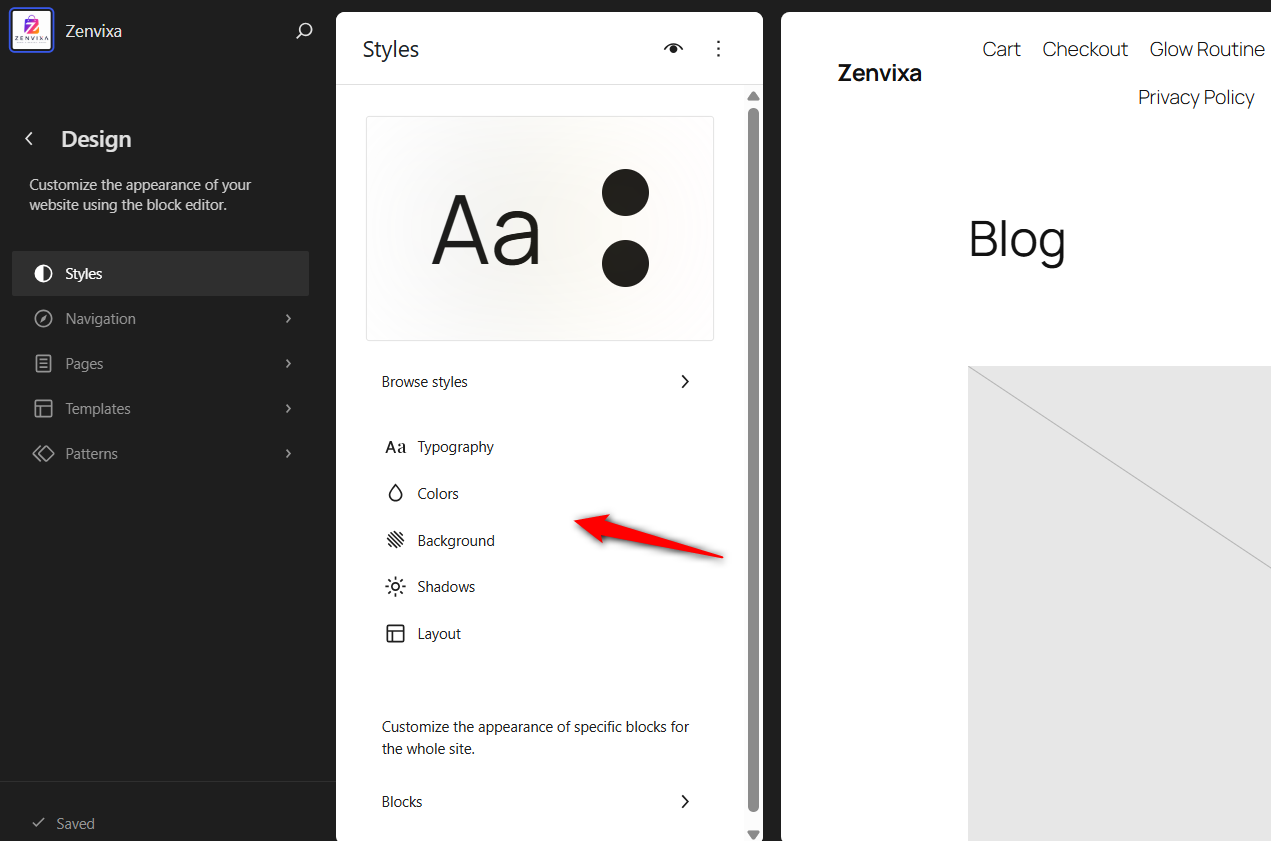
Under Blocks in the Styles panel, you can style individual WooCommerce blocks without touching the rest of the site.
The Checkout block has exactly one setting of its own, Dark Mode Inputs, which restyles form inputs for dark backgrounds.
If your checkout sits on a dark section and the fields look wrong, that’s the toggle.
Edit the checkout template (remove the header and footer)
Distraction-free checkouts convert better, and on a block theme you don’t need a plugin for one.
Go to Appearance ⇨ Editor ⇨ Templates ⇨ Page: Checkout, select the header template part, and delete it.
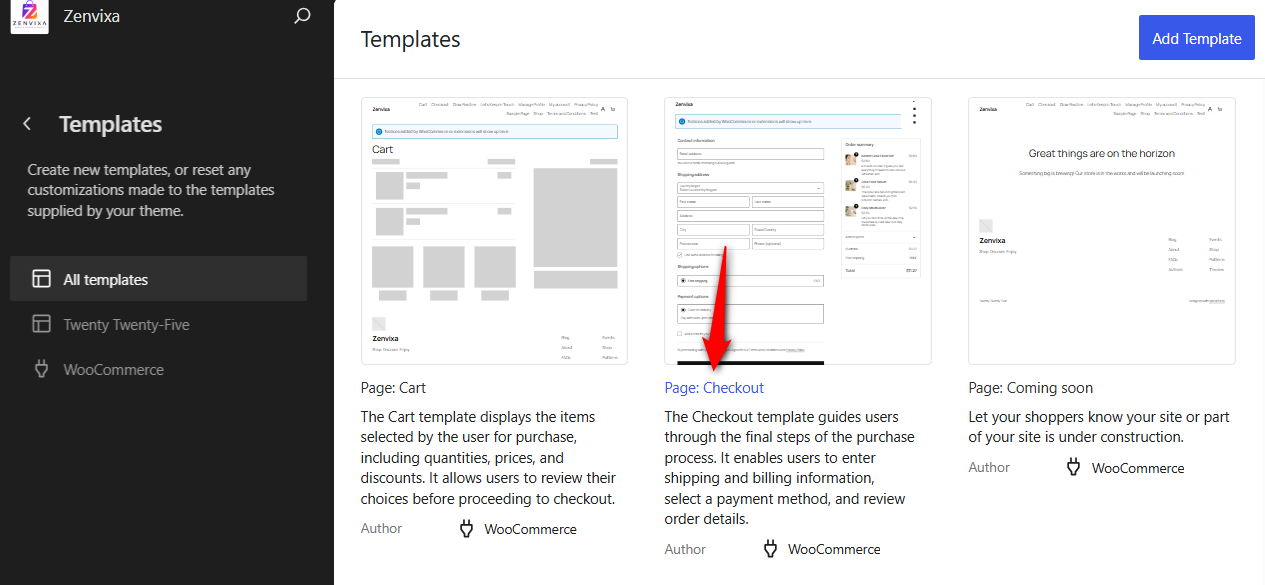
Same for the footer.
Once done, hit 'Save'.
Classic theme? You’ll need CSS targeting the checkout page ID, or a distraction-free checkout option in your page builder.
What the block editor can’t do
You cannot add genuinely custom fields, split the form into steps, reorder fields freely, apply conditional rules, or add elements like reviews or product offers.
That ceiling is what drives most store owners to look for the next method.
Method 2: Edit Checkout Fields With a Free Plugin (Classic Checkout)
If you’re on the classic checkout, or you want more field control than the block checkout, a free field-editor plugin is the simplest no-code option.
The two most widely used free options are Checkout Field Editor for WooCommerce and Checkout Field Editor (Checkout Manager) for WooCommerce.
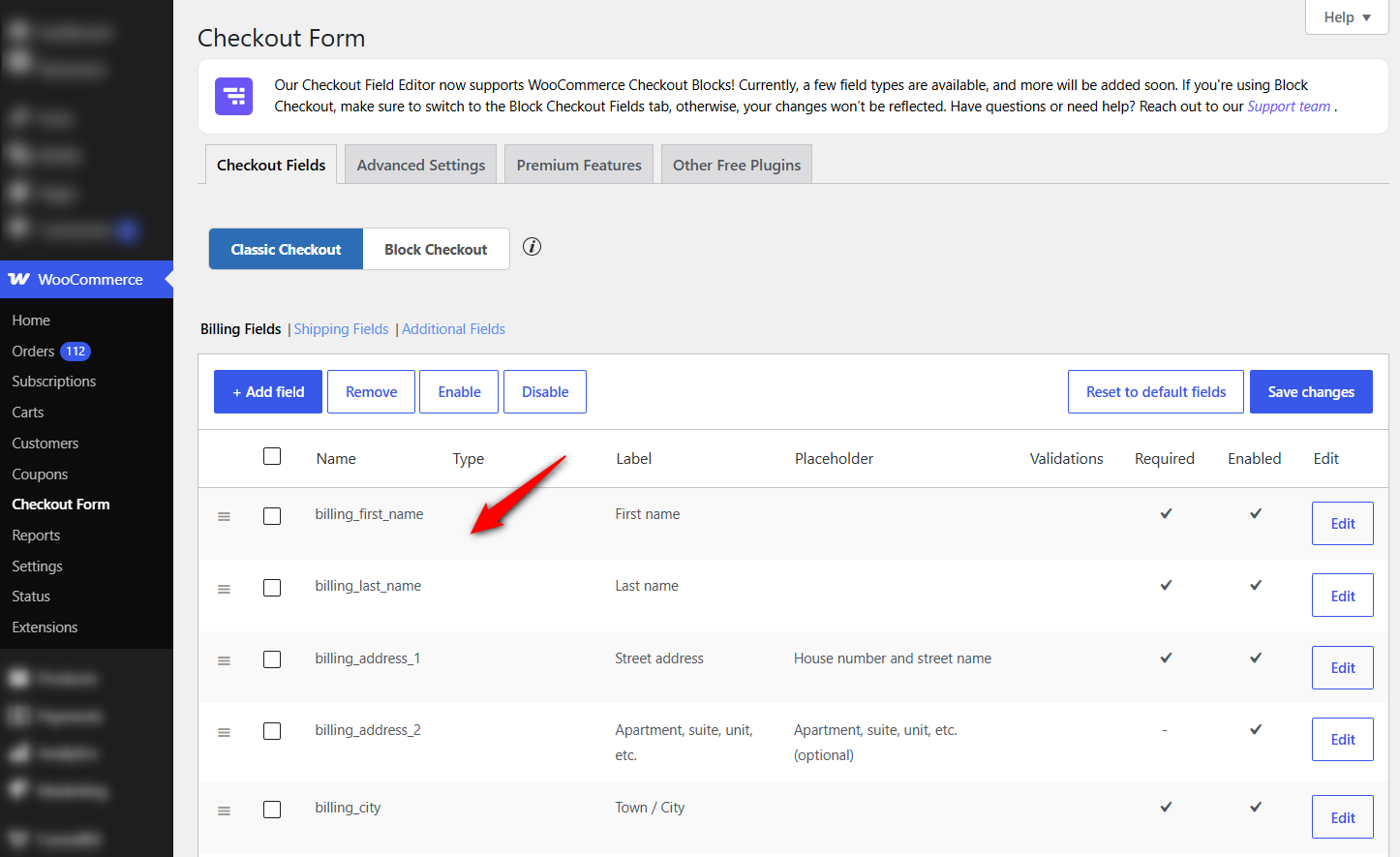
Both give you one admin screen for billing, shipping, and additional fields.
With either one you can add new fields including text inputs, dropdowns, radio buttons, checkboxes, and date pickers.
You can edit labels, placeholders, and default values, drag fields into a new order, set them as required or optional, and delete the ones you do not need.
There is one limitation that matters more than the rest.
These plugins were built for the classic checkout and generally do not control fields on the block checkout.
WooCommerce says the same about its own Checkout Field Editor extension, noting that it works only with the legacy checkout.
If you are on blocks and a field plugin appears to do nothing, that is why.
They also cannot split fields across steps or apply conditional rules. For that, you need Method 3.
For a deeper look at managing fields across both checkout types, see our WooCommerce checkout field editor guide.
Method 3: Replace the Checkout With a Funnel Builder
Everything above edits the checkout WooCommerce hands you. Once you hit the ceiling of those edits, the remaining option is to replace the page.
This method is worth checking when you need something the default cannot produce.
It includes a multi-step form, an order bump on the payment screen, express wallet buttons above the fold, or a checkout that reports its own drop-off.
FunnelKit Funnel Builder replaces the default checkout with a custom page, while WooCommerce continues to handle orders, tax, shipping, and payments.
Because it manages its own form, it behaves the same whether your store started on blocks or the shortcode.
FunnelKit offers a free version with importable checkout templates and the visual field editor.
The Pro plan starts at $99.50 per year and includes order bumps, one-click upsells, A/B testing, express checkout, and funnel analytics.
Here are the simple steps to follow.
Step 1: Create a store checkout
Head to FunnelKit ⇨ Store Checkout and click on the ‘Create Store Checkout’ button.
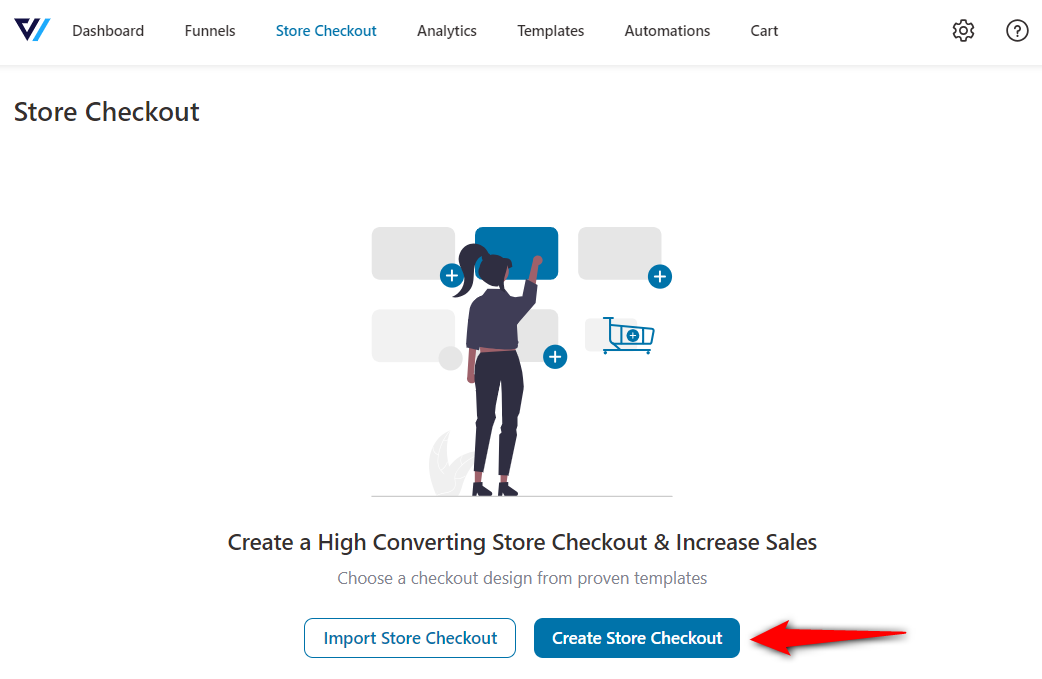
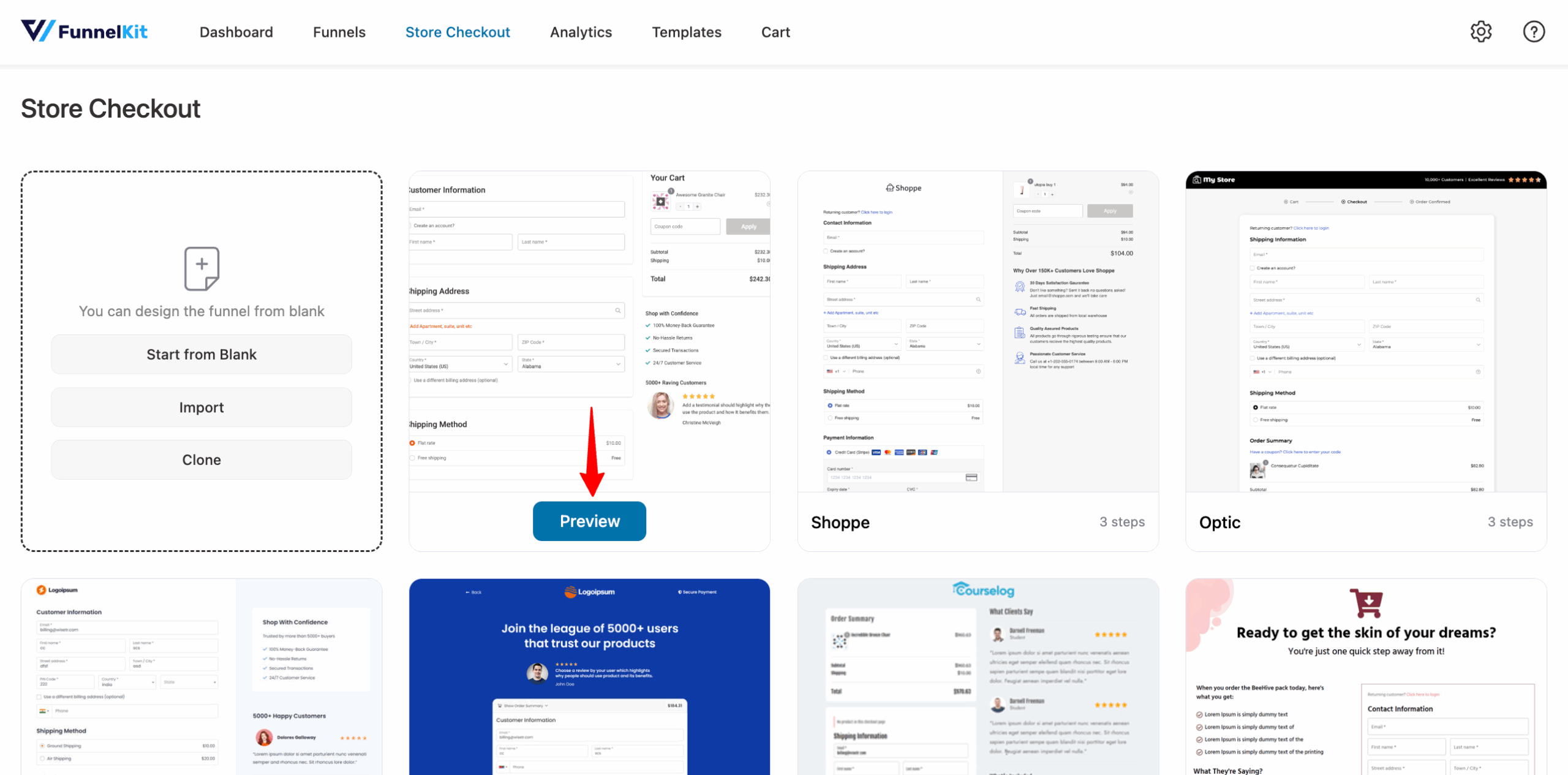
Pick a conversion-optimized template in one-step, two-step, or three-step format, then import it.
Use page builders such as Elementor, Divi, Oxygen, Bricks, or Gutenberg blocks to customize your checkout page.
A one-page layout suits low-ticket/impulse buys. A multi-step layout (Contact → Shipping → Payment) suits higher-ticket items by reducing cognitive load.
Hit ‘Import This Funnel’. Name your funnel (e.g., “Main Store Checkout”) and click ‘Done’ to import it into your workspace.
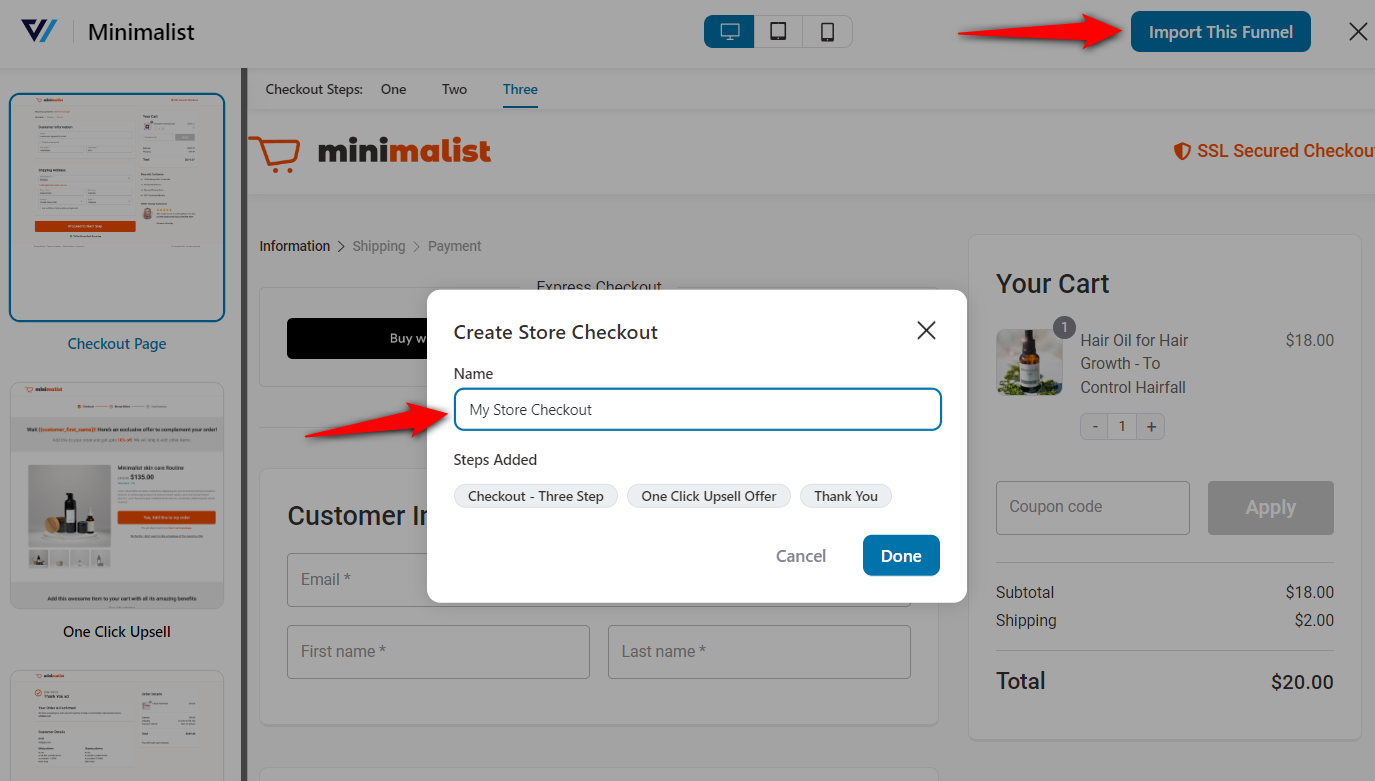
This will import your store checkout.
Step 2: Design the checkout page visually with Elementor
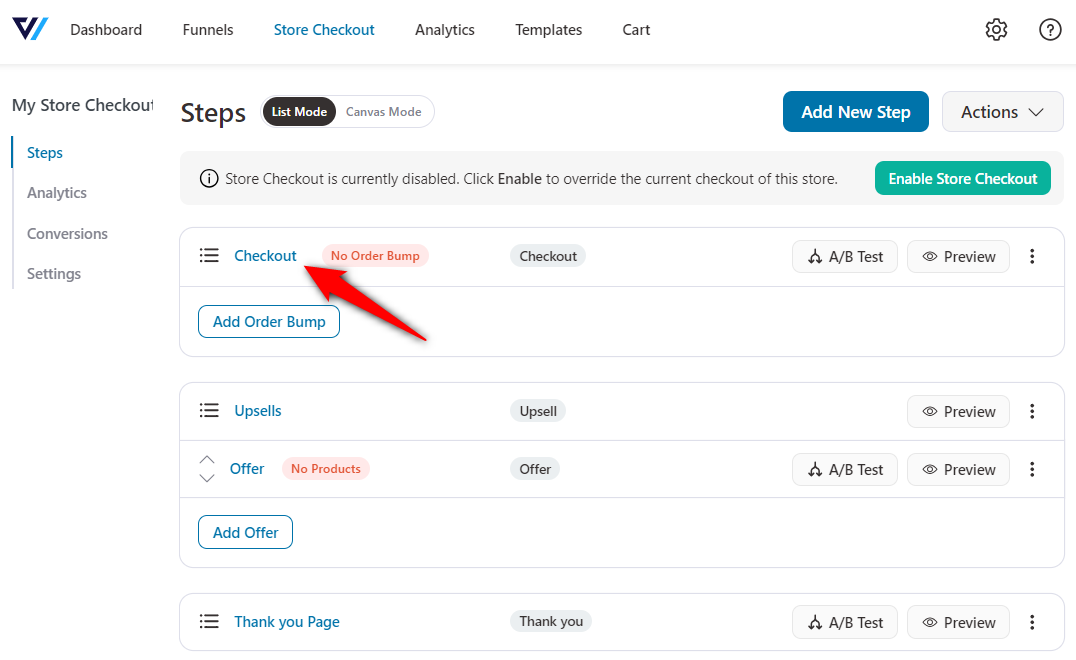
Start by clicking the name of your checkout.
Open the Design tab and click ‘Edit Template’.
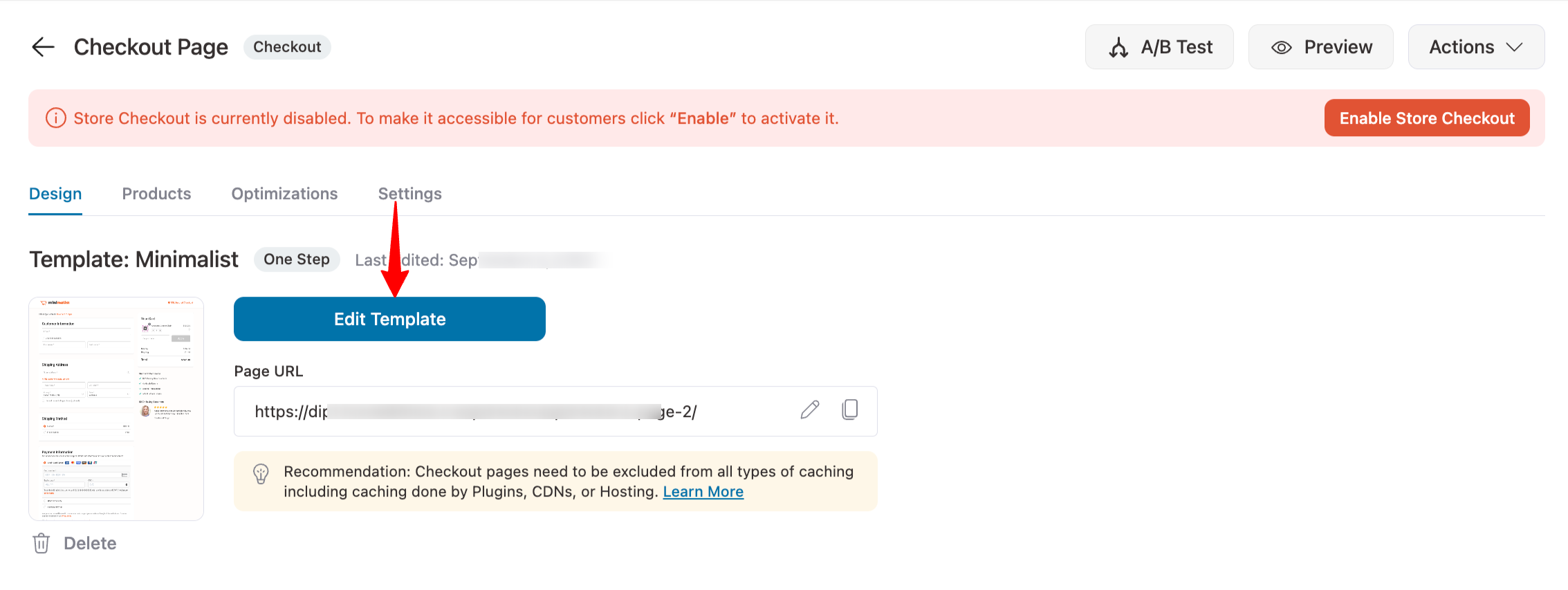
You’re now inside a live visual editor where you can drag, drop, and edit every element of your checkout page without touching a line of code.
Here’s what to customize to build trust, remove friction, and nudge the sale over the line:
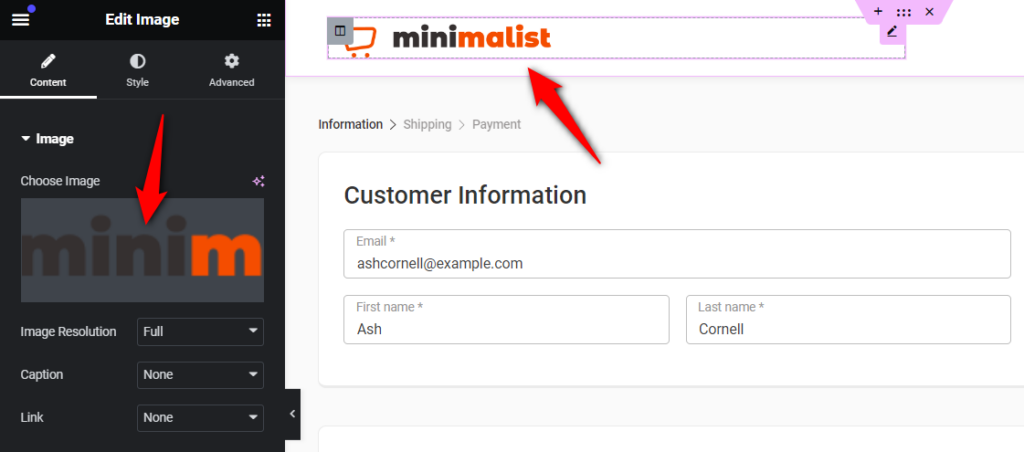
- Add a custom logo to the checkout
Replace the placeholder with your brand logo. Adjust width, alignment, and opacity for greater credibility.
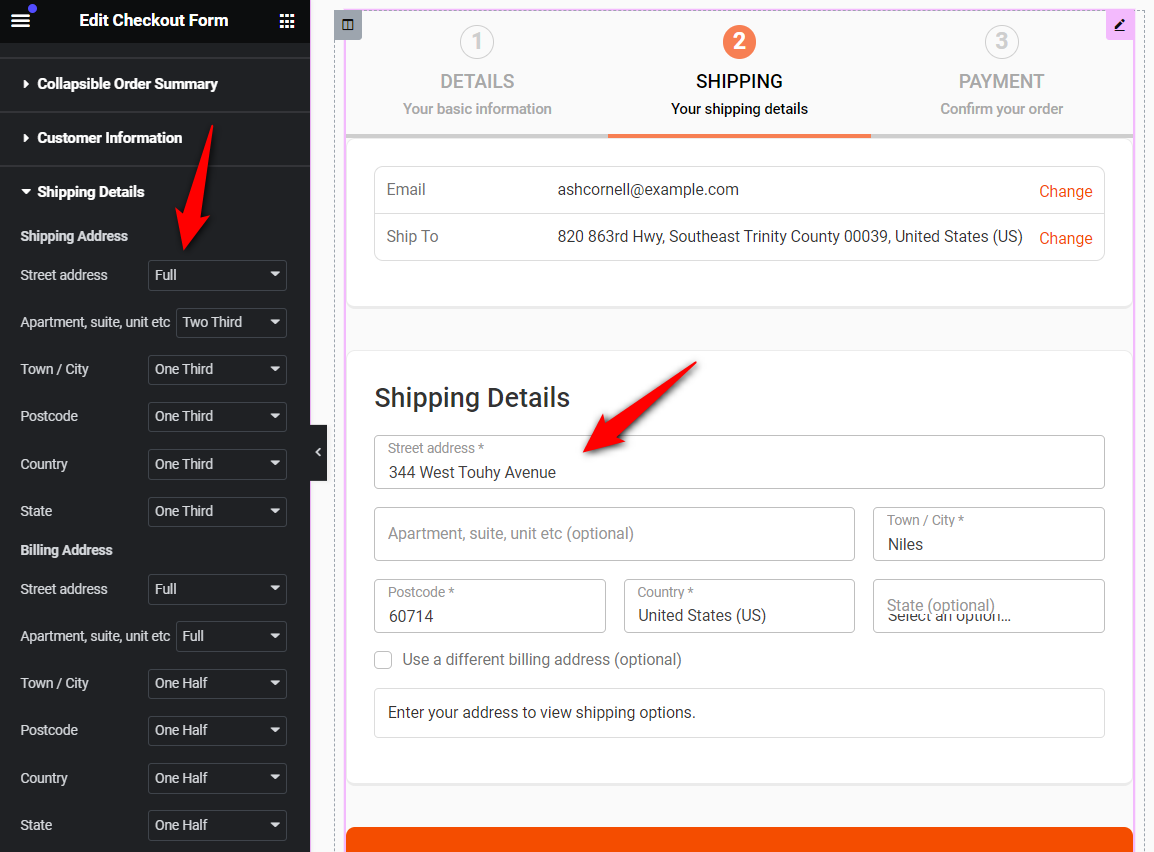
- Simplify the WooCommerce checkout form
Break it into steps (e.g., Customer Info → Shipping → Payment), rename the headings, and simplify the layout by adjusting field widths, enabling collapsible sections, and toggling coupon visibility.
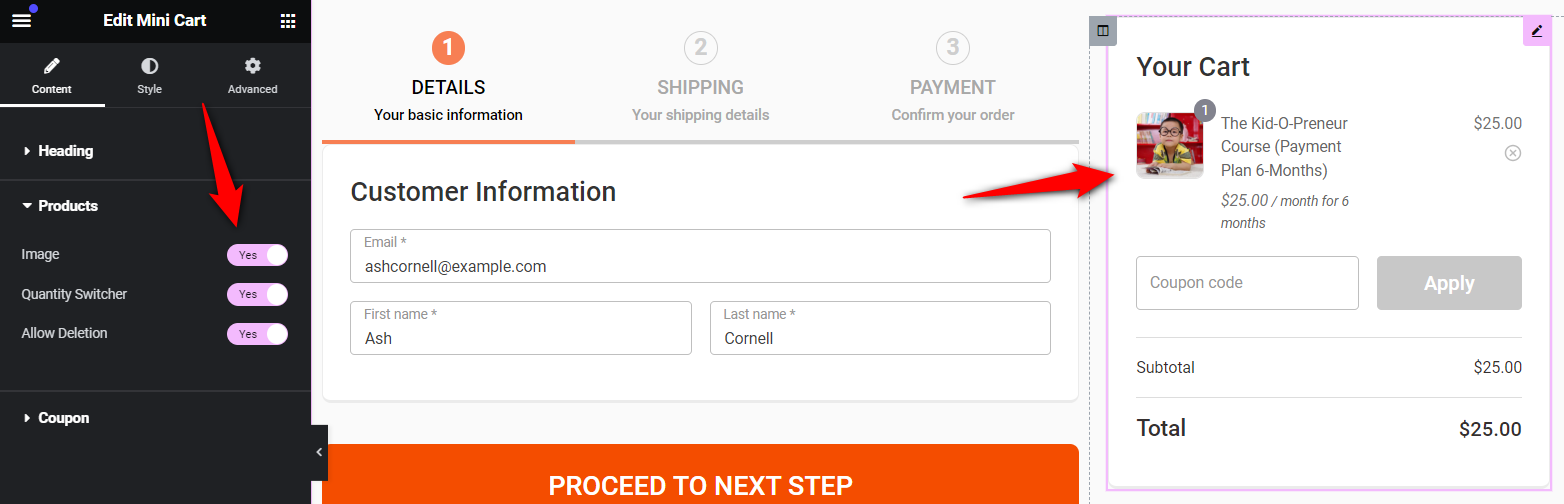
- Enable editing options on the mini cart
Let users view product images, adjust quantities, or remove items directly in the checkout mini cart. This gives them control, reducing decision fatigue and abandoned carts.
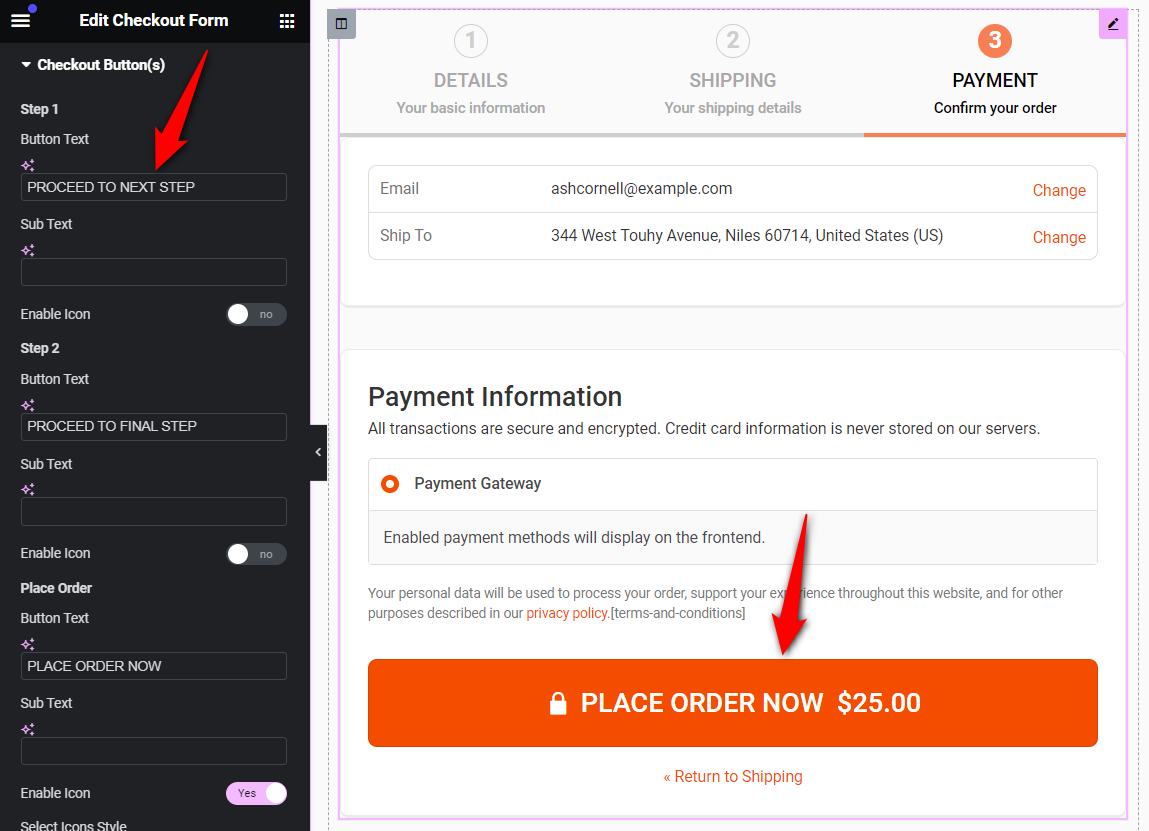
- Style the call-to-action (place order) button
Change the text to something active and benefit-focused (like Place My Order Now), and style the button to match your brand icon, color, hover state, and all.
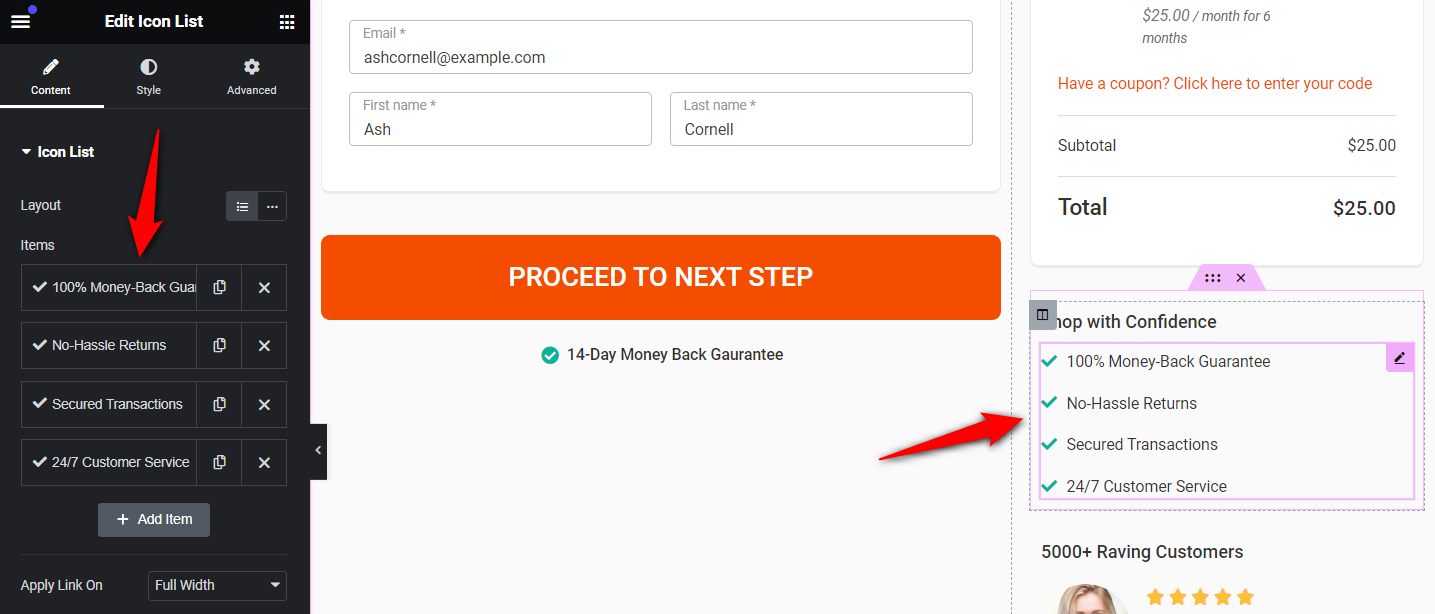
- Add the trust section (visual seals)
Add short, punchy reassurance copy like “100% Secure Checkout” or “Free Returns”, and tweak the styling to keep it consistent.
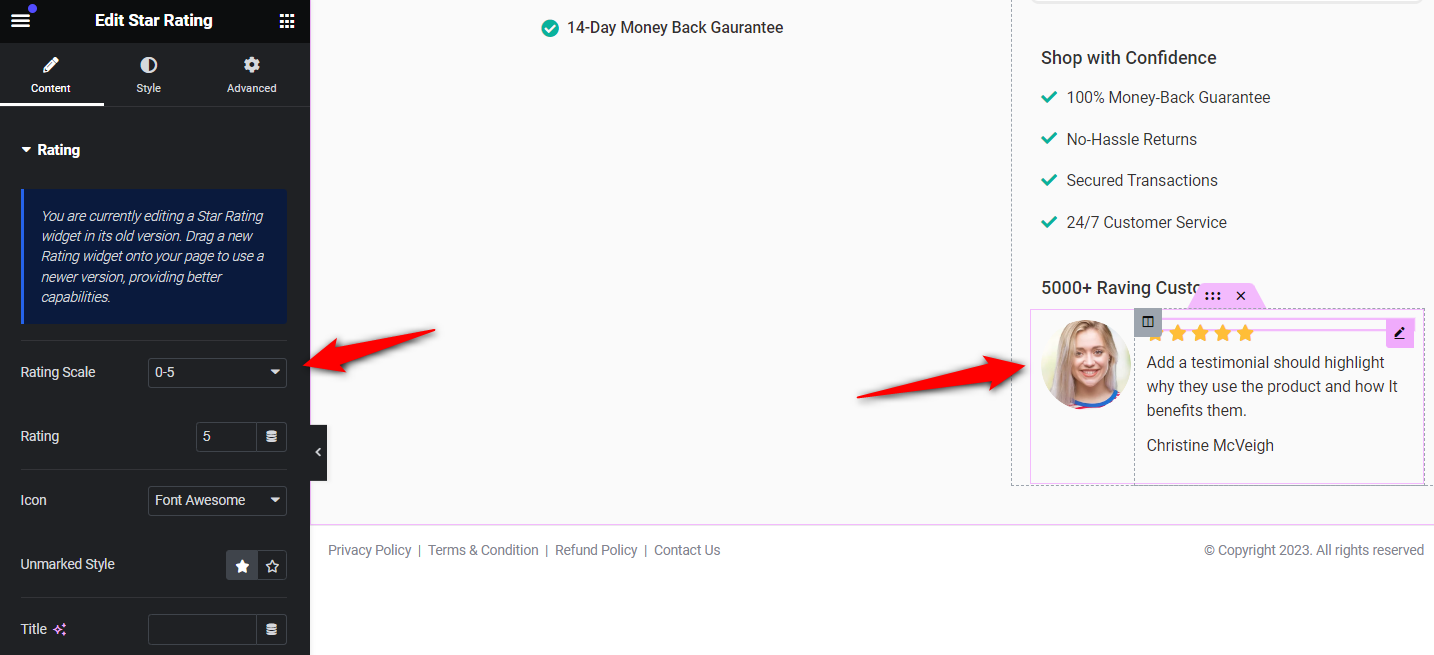
- Insert the social proof (customer reviews)
Add a single, powerful customer review with real names, photos, and star ratings in a sidebar or box next to the checkout form. These are subtle, high-converting nudges that reduce resistance at the moment of decision.

To change the checkout page background:
Under Styling options, find the “Page Background” setting in Elementor. Click the color picker and choose your brand color or enter a hex code directly.
Once you’re happy with the look and flow, click ‘Update’ and your high-converting, fully custom checkout is ready to go live.
Step 3: Add, reorder, and remove checkout fields
In the Design tab’s Checkout Form Fields section, add, edit, reorder, or remove fields with drag-and-drop.
- Add custom fields like phone number, delivery notes, or VAT info with one click. Choose from text, dropdowns, radio buttons, checkboxes, hidden fields, and more.
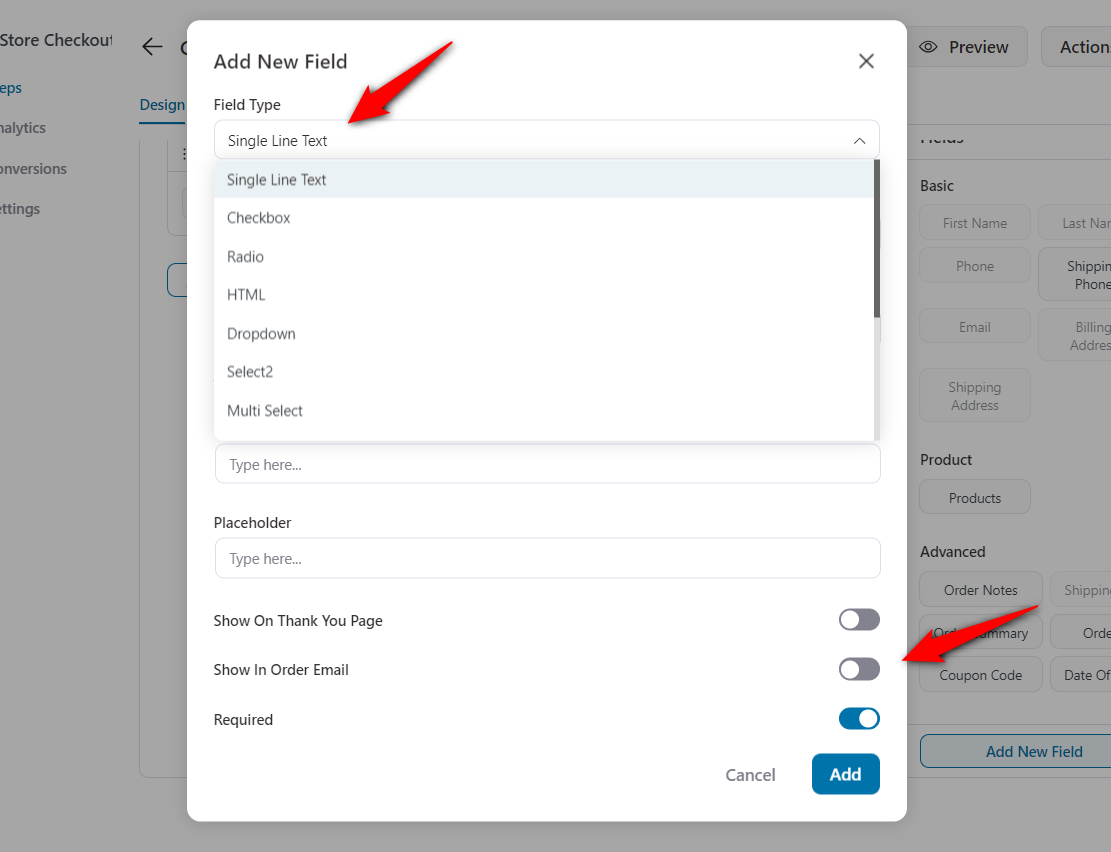
- Edit fields to instantly change labels, placeholders, default values, required status, or visibility on emails and the Thank You page.
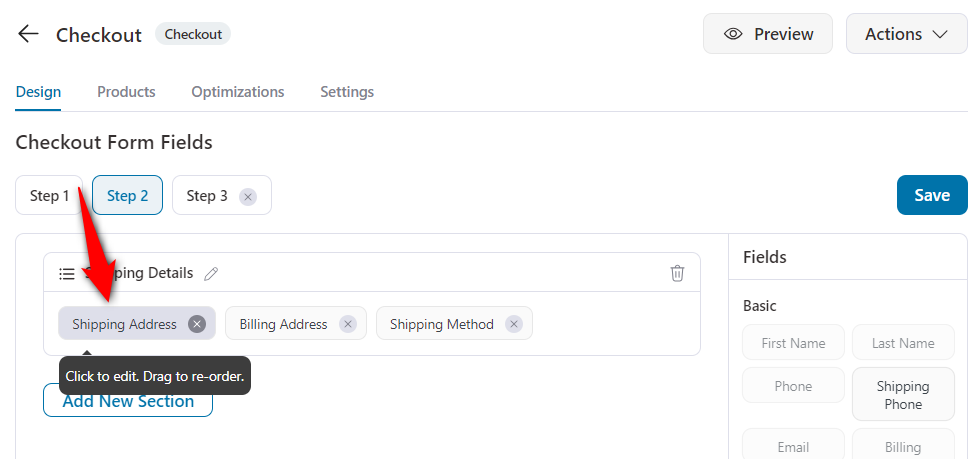
- Reorder fields or sections with simple drag-and-drop, no tech skills required.
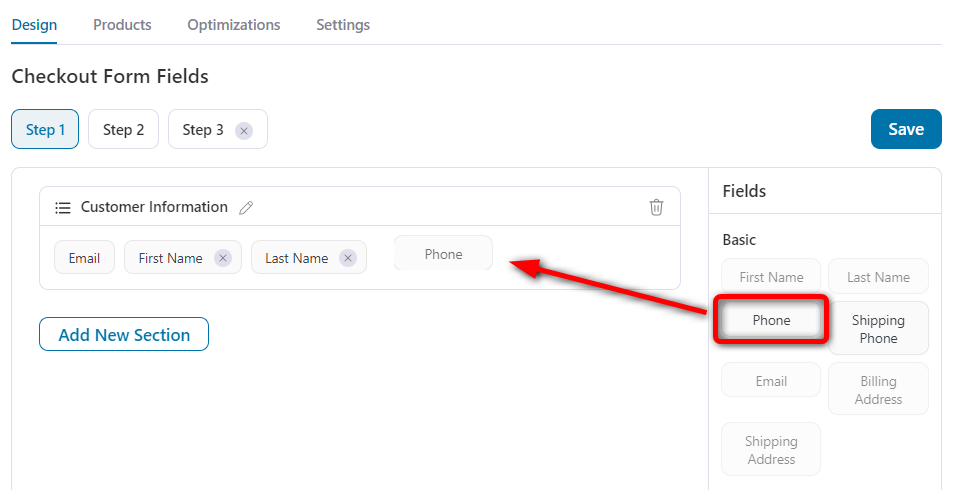
- Add new sections to group related information, such as shipping preferences, business details, or coupon codes.
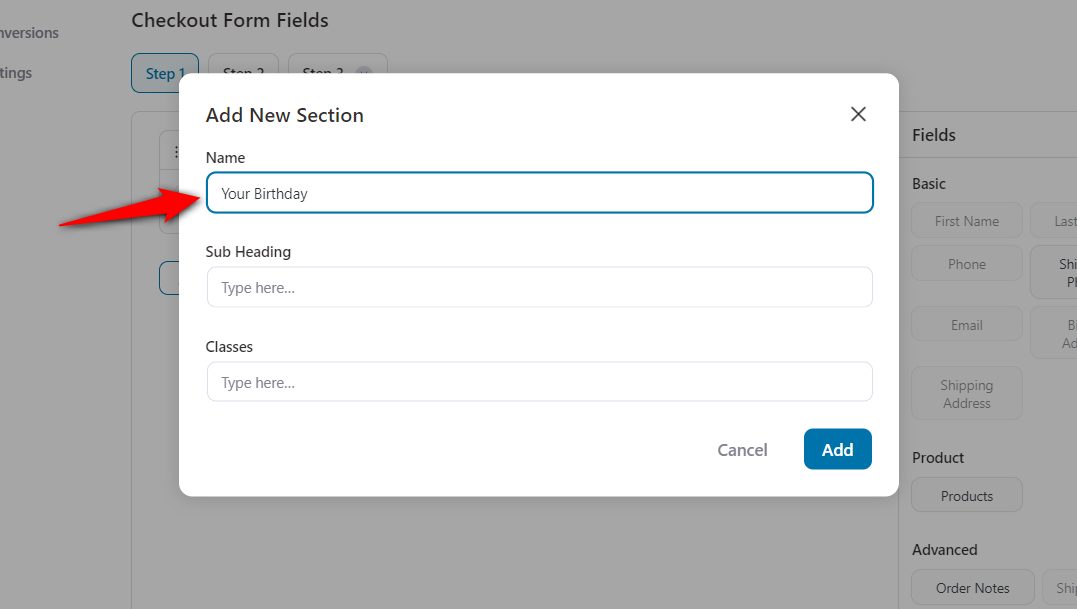
- Remove any field or section you don’t need. Just hover over the field, click delete, and confirm.
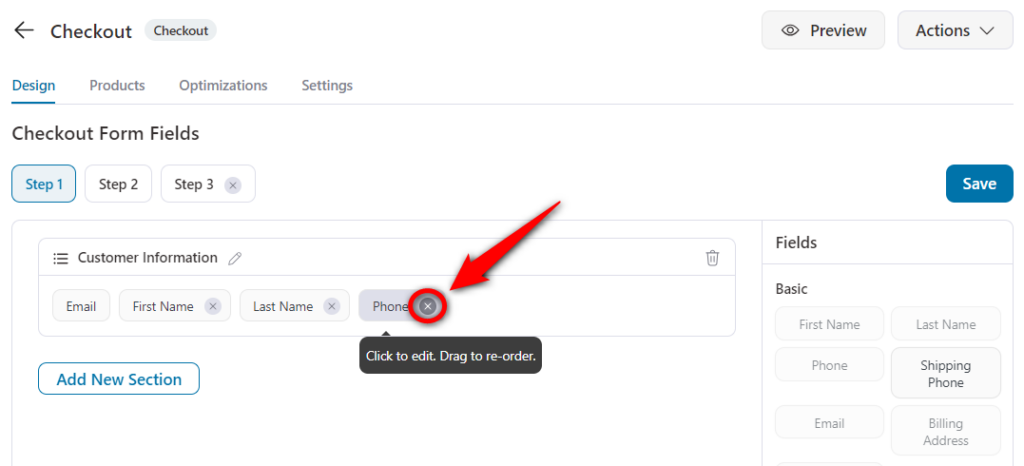
Example: Want to remove “Company Name,” make “Phone Number” required, and add a “Delivery Instructions” text box? You can do all three in under 60 seconds.
You can even add conditions to your checkout fields.
Once you're done, click 'Update' to publish your changes.
Step 4: Turn on the optimizations that remove friction
Open the Optimizations tab and switch on the settings that shorten the path to payment.
For a store with repeat mobile buyers, these are the ones that count:
Turn on these high-impact optimizations:
- Express checkout: Offer Apple Pay, Google Pay, and other one-tap wallets. Fewer clicks = faster decisions.
- Address autocomplete: Pull verified Google addresses as users type. Fewer typos. Fewer delivery issues.
- Multi-step field previews: Show a quick summary of what buyers just filled. Builds confidence. Reduces errors.
- Auto-applied coupons: No more “Where do I find the code?” The discount just works.
- Smarter phone field: Auto-detect country codes. Format the number. Validate it. Done.
- Quick login: Let returning users log in without leaving the page. Keep them in the zone.
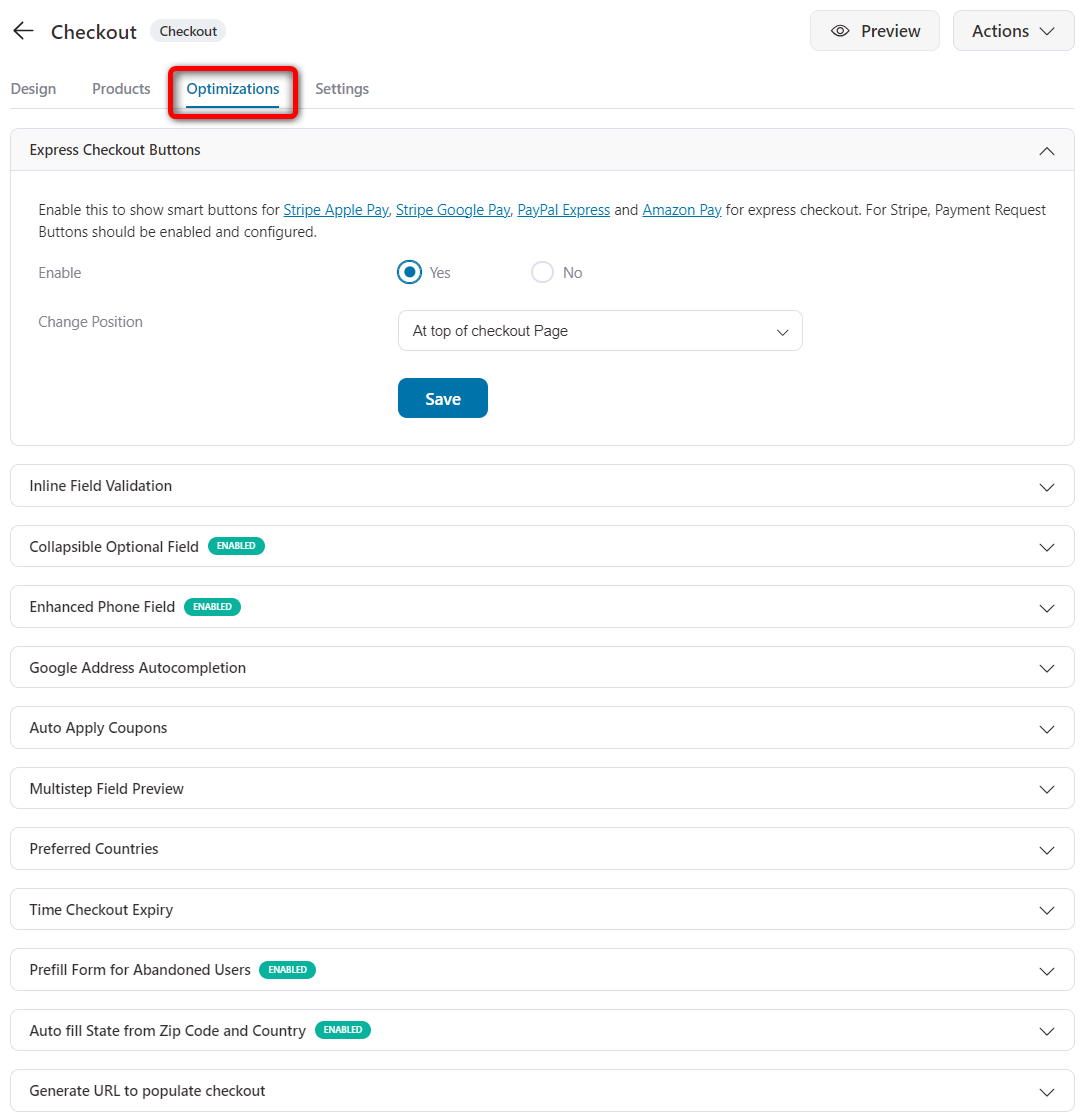
Click Save when done.
👉 Want more conversion wins? Steal our proven WooCommerce checkout optimizations.
Step 5: Add a thank you page to delight shoppers
They just bought and now’s your chance to keep them close.
Use FunnelKit to turn your WooCommerce thank you page into a smart post-purchase touchpoint.
Here’s what to add:
- A real thank-you message that is clear and written by a human
- A next-purchase discount that rewards action with action.
- Relevant products that show what pairs well.
- Social links that get the follow now, not later.
- Order summary + tracking. No confusion or follow-up emails.
The thank you page is your second conversion moment. Treat it like one.
Here’s the full playbook for high-converting thank you pages.
Step 6: Activate and test the checkout
Now that your custom checkout is built and optimized, it’s time to activate it on your store.
To do that, head back to your WooCommerce store checkout funnel in FunnelKit.
Toggle “Enable Store Checkout” to replace the default WooCommerce checkout with your new, fully customized version.
Then run the same test on an actual phone rather than a desktop responsive preview.
Tap every field, check the keyboard does not sit over the order button, and confirm the express payment buttons render.
Responsive previews miss things real devices catch.
Method 4: Customize the Checkout With Code (CSS and PHP Hooks)
Code gives you the most precise control and it is the only free way to add genuinely custom fields.
It is also where the block and classic split bites hardest, because the two checkouts use entirely different APIs.
Test on staging, and put any snippet in a child theme or a code snippets plugin rather than editing theme files directly.
Style the checkout with CSS
CSS works on both checkout types.
Add it under Appearance ⇨ Editor ⇨ Styles ⇨ Additional CSS, or in the Customizer on classic themes.
.woocommerce-checkout input[type="text"],
.woocommerce-checkout input[type="email"],
.woocommerce-checkout input[type="tel"] {
    border: 1px solid #ccc;
    padding: 12px;
    border-radius: 6px;
}
To hide the header and footer on a classic theme, swap in your own page ID:
.page-id-11 #header,
.page-id-11 #footer {
    display: none;
}
Edit fields on the classic checkout with PHP hooks
The classic checkout runs on PHP templates and filters.
The woocommerce_checkout_fields filter allows you to add, remove, and reorder fields.
add_filter( 'woocommerce_checkout_fields', 'remove_checkout_phone_field' );

function remove_checkout_phone_field( $fields ) {
    unset( $fields['billing']['billing_phone'] );
    return $fields;
}
This filter does nothing on the block checkout.
WooCommerce’s own developer documentation states that parts of the classic field guide apply only to the shortcode checkout.
If you are on blocks and a snippet like this appears to have no effect, the code is not broken.
It's simply pointed at a checkout you are not running.
Add fields to the block checkout with the Additional Checkout Fields API
The block checkout has its own registration function, woocommerce_register_additional_checkout_field(), which has been available since WooCommerce 8.9.
Register fields on or after the woocommerce_init action, and put each one in contact, address, or order.
add_action( 'woocommerce_init', 'register_delivery_instructions_field' );

function register_delivery_instructions_field() {
    woocommerce_register_additional_checkout_field(
        array(
            'id'       => 'my-store/delivery-instructions',
            'label'    => 'Delivery instructions',
            'location' => 'order',
            'type'     => 'text',
            'required' => false,
        )
    );
}
The id must be namespaced with a slash as shown. Supported types are text, select, and checkbox.
Fields registered in contact save to the customer’s account and appear in their account details.
The full reference is in the WooCommerce additional checkout fields documentation.
Where the old hooks still work
Classic action hooks like woocommerce_before_checkout_form and woocommerce_review_order_after_submit remain useful for injecting trust badges or notices on shortcode checkouts.
They do not fire on the block checkout; instead, it uses JavaScript slot fills.
For a visual map of every classic checkout hook and where it renders, see our guide to WooCommerce checkout hooks.
When Checkout Customization Breaks: 5 Common Failures
Almost every checkout problem shows up right after a change, and almost all of them trace back to the block and classic split.
1. “There are no payment methods available” appears at checkout
The most common error after switching to blocks, and it usually isn’t the block’s fault.
Work through these in order:
- Gateway not blocks-compatible: Older gateways only register with the classic checkout. Check the changelog.
- Enabled but never saved: Some gateways default to “on” in code without writing to the database, so blocks read nothing. Toggle the method off and on under WooCommerce payment settings to force a save.
- Credentials incomplete: Gateways stay hidden until API keys are saved and verified.
- Not on HTTPS: Many refuse to render without a valid certificate.
- Country, currency, or amount restrictions: A gateway limited to certain countries becomes unavailable to everyone else.
- Page caching plus geolocation: Set the customer location to “Geolocate (with page caching support)” and exclude the cart, checkout, and account from the cache.
2. A plugin stopped working after switching to blocks
Checkout add-ons such as file uploaders, delivery schedulers, gift wrapping, and local pickup extensions were largely written against classic hooks, and the block checkout doesn’t run them.
Check the plugin for block support; if there isn’t any, either switch that page back to classic (below) or replace the plugin.
Don’t wait on an update while orders fail.
3. Custom fields disappeared
Fields added through woocommerce_checkout_fields or a classic field plugin do not carry over to blocks.
Either move them to the Additional Checkout Fields API from Method 4, or revert to classic while you plan the migration.
4. Your styling reverted after an update
CSS or PHP added to a parent theme gets overwritten every time that theme updates.
Move it into a child theme or a snippets plugin.
Block editor changes, global styles, and plugin settings are stored separately and survive updates.
5. The checkout page shows a shortcode instead of a form
Normal on Classic, and only visible in the admin editor.
Open the page on the front end to confirm the form renders.
If the front end is blank too, check that the right page is assigned in your WooCommerce page settings.
9 Best Practices to Customize Your WooCommerce Checkout for Conversions
Customizing your WooCommerce checkout page isn’t just about aesthetics. It’s a strategic move to streamline user experience, boost conversion rates, and build trust across devices.
Below are nine evidence-backed optimization practices for a high-performing checkout experience that meets Google's latest expectations for page experience, trustworthiness, and mobile usability.
1. Simplify the checkout journey
A cluttered checkout is a conversion killer.
Minimize unnecessary fields, remove friction, and segment long forms into bite-sized steps. A multi-step layout not only feels lighter but also reduces cognitive overload.
Why it matters: A smoother experience improves completion rates, especially on mobile, where patience is low.
2. Audit theme performance and optimize load time
Page speed directly impacts conversions and Google's Core Web Vitals.
- Compress product images
- Enable browser caching
- Minify your CSS and JavaScript
Make sure your WordPress theme is optimized for performance, especially on checkout pages where delays can lead to drop-offs.
3. Design for mobile-first shoppers
Mobile commerce accounts for 74% of global retail traffic (Statista, Q1 2023). If your checkout isn’t fully responsive, you’re bleeding sales.
Head to the Design tab and preview your funnel in mobile view to ensure every element (like form fields, payment options, and CTA buttons) is touch-friendly, well-aligned, and fast-loading.
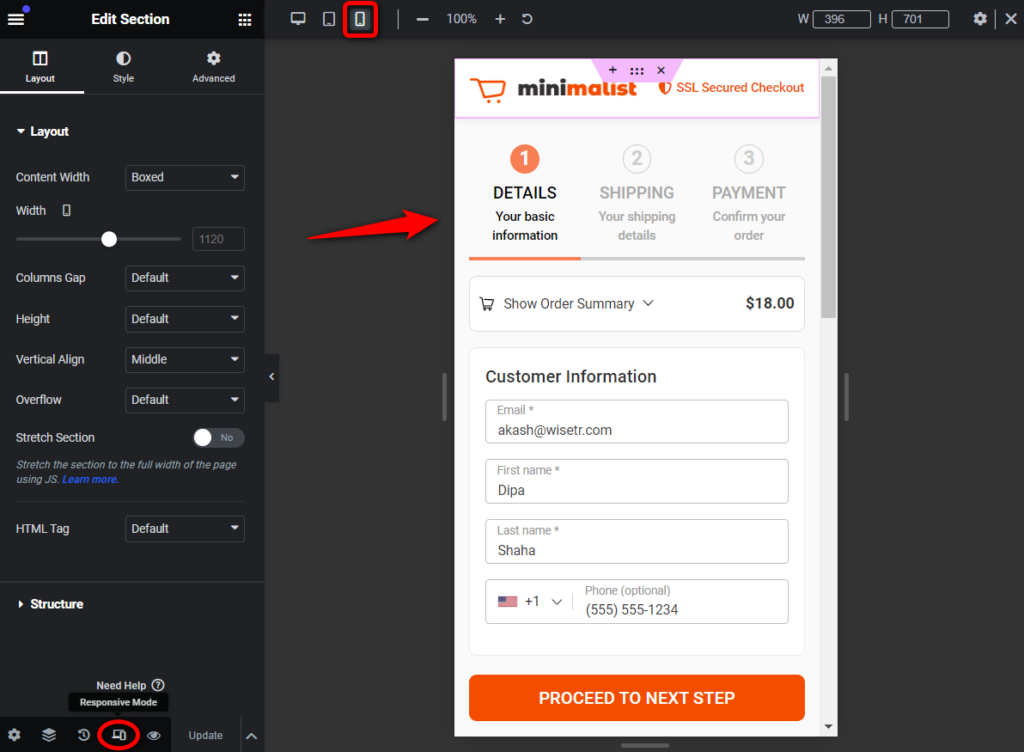
A responsive design not only improves user experience but also aligns with Google’s mobile-first indexing, helping your store rank better and convert more.
4. Use clear, action-oriented call-to-actions (CTAs)
Your checkout button is not just a formality; it’s the final nudge that seals the sale. Avoid vague labels like “Submit” or “Continue”. Instead, use high-converting CTAs that clearly state the outcome, such as:
- Complete My Purchase
- Place Secure Order
- Get Instant Access
Position your primary CTA above the fold on both desktop and mobile. Use color contrast and spacing to make it visually distinct, ensuring it's the first and most obvious action on the screen. A clear, confident CTA reduces hesitation and drives immediate clicks.
5. Increase average order value with smart order bumps and upsells
Boosting revenue per customer doesn’t require pushing harder. It requires presenting the right offer at the right time.
Strategically place order bumps directly on the checkout page to offer low-friction add-ons, such as warranty extensions or small complementary products.
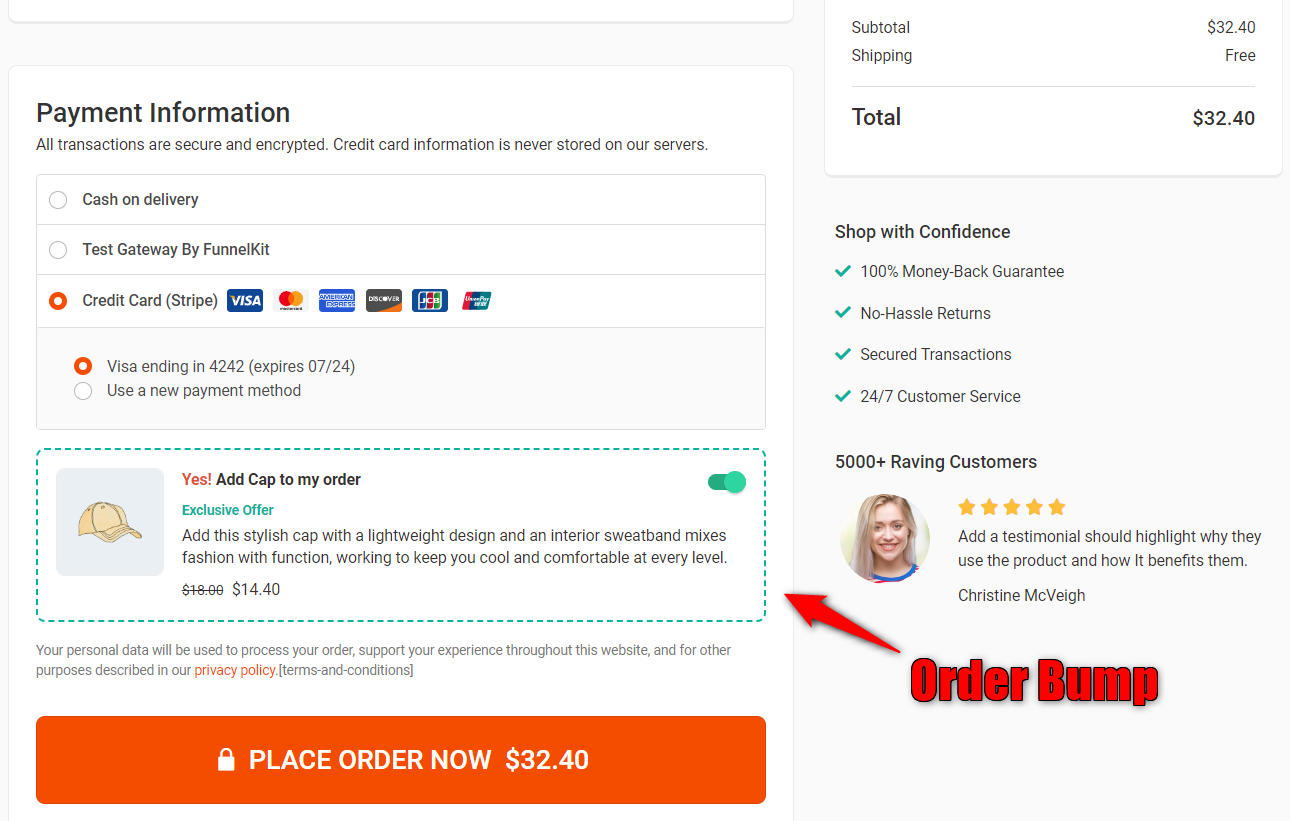
Post-purchase, use one-click upsells to present higher-ticket offers before the customer reaches the thank-you page. Since the buyer has already committed, these well-timed offers feel natural rather than intrusive.
6. Reinforce trust with security seals and compliance messaging
At checkout, trust is everything.
Visually reinforce your store’s credibility by displaying SSL certificates, secure payment logos, and clear privacy assurances near your purchase button. If your store complies with regulations like GDPR or CCPA, make that visible too.
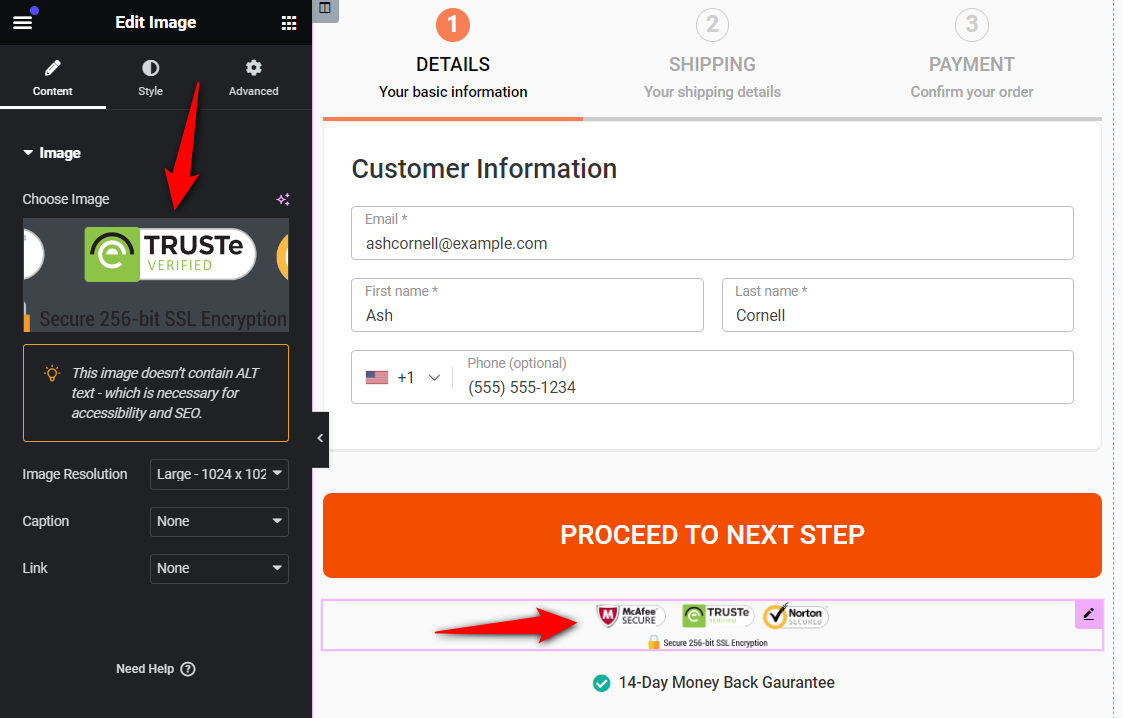
These trust signals don’t just reassure customers; they reduce friction, lower abandonment rates, and align with Google’s emphasis on trustworthy, user-focused web experiences.
7. Support local and flexible payment options
Today’s shoppers expect options and if their preferred method isn’t available, they may not complete the purchase. Optimize your WooCommerce checkout to support:
- Credit and debit cards (Visa, MasterCard, American Express, etc.)
- Digital wallets (Google Pay, Apple Pay)
- PayPal
- Buy Now, Pay Later (BNPL) services like Klarna, Afterpay, and Affirm
- Localized methods such as iDEAL (the Netherlands), Bancontact (Belgium), SEPA (EU), and others.
With the Stripe Payment Gateway for WooCommerce, you can enable many of these with minimal setup. Offering diverse payment methods builds trust and helps you cater to a global audience.
8. Automate cart recovery and follow-up workflows
The average cart abandonment rate hovers around 70%, with mobile shoppers abandoning at an even higher rate of 85% (Baymard Institute Research).
To win back these lost sales, set up automated cart recovery sequences that:
- Remind users of their incomplete orders
- Offer personalized incentives or limited-time discounts
- Nurture leads via email follow-ups and win-back campaigns
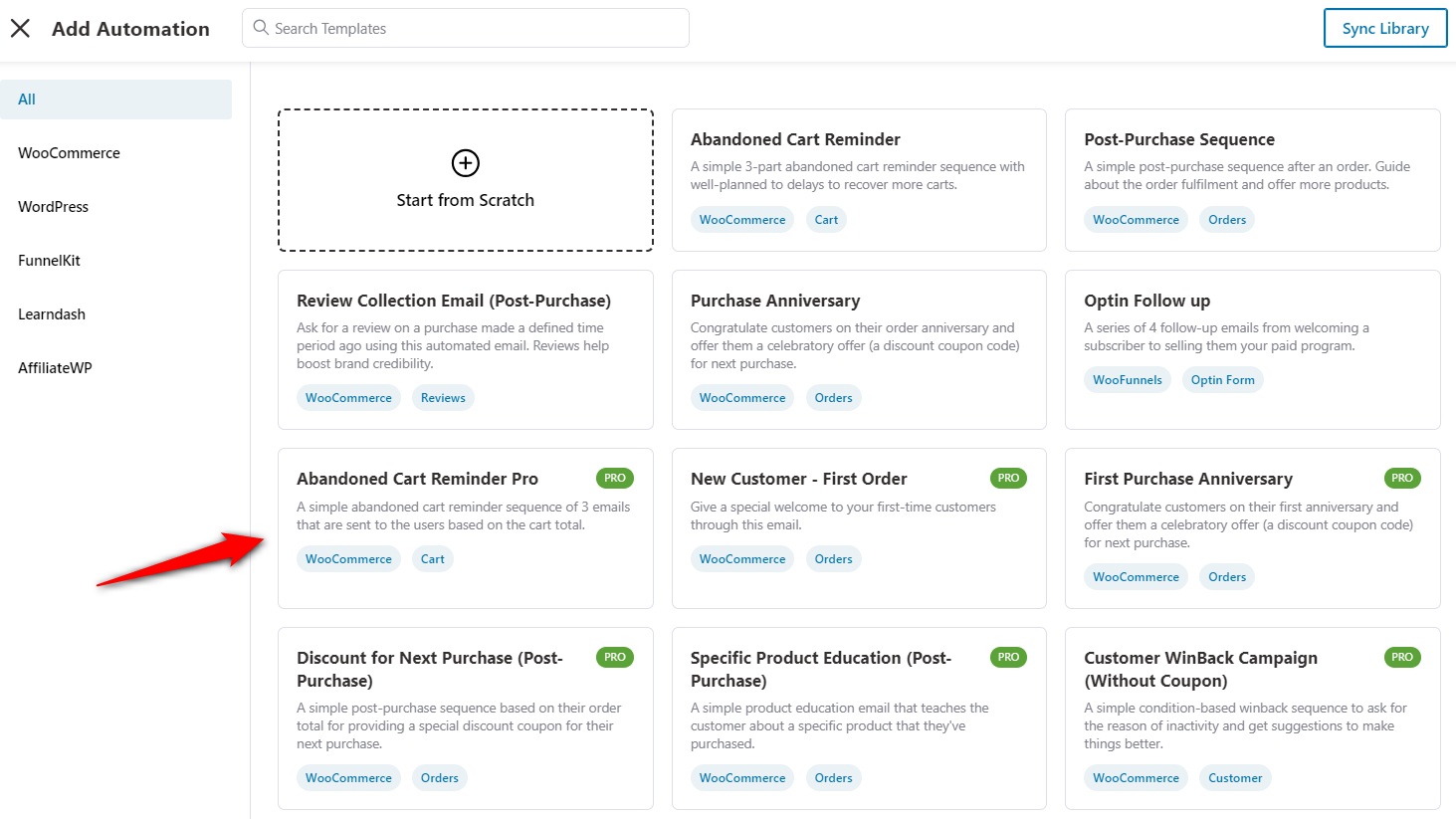
FunnelKit Automations lets you import prebuilt, high-performing cart-recovery workflows. Just tweak the copy, hit publish, and let automation do the rest.
9. Run A/B tests to optimize for what actually converts
Even the most intuitive ideas need to be tested. Use FunnelKit’s A/B testing tools to experiment with:
- Headline and subheading variations
- Different checkout layouts and field structures
- Button copy, size, and placement
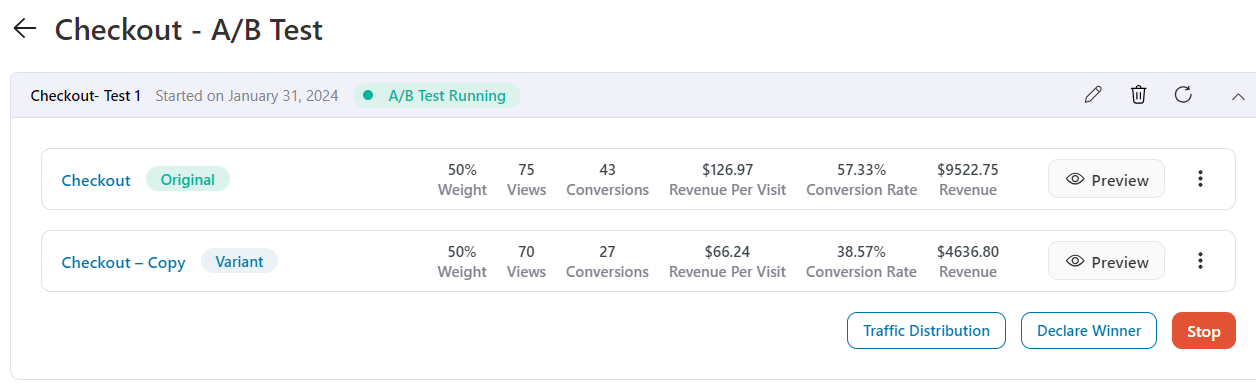
Track real-time performance based on views, clicks, conversions, and revenue impact. Then, double down on what works and replace what doesn’t. Continuous testing is key to a high-converting WooCommerce checkout.
Start with a simple A/B test on your headings. Changing the top headline from "Checkout" to "Securely Complete Your Order" can yield a surprisingly high lift in conversions.
Frequently Asked Questions
You are almost certainly on the classic checkout page, which contains only a [woocommerce_checkout] shortcode.
The form is generated from template files, so there is nothing visual to edit on that page.
Use a field plugin, a checkout builder, or code instead.
Usually a gateway without block support, or one whose settings were never written to the database.
Toggle the gateway off and on under WooCommerce → Settings → Payments, confirm that credentials are saved, and check that HTTPS is enabled.
If it still doesn’t render, use "Switch to classic checkout".
No. The block checkout doesn’t run that filter. That’s the single most common reason old snippets appear to do nothing.
Use woocommerce_register_additional_checkout_field() instead for new fields, and the woocommerce_get_country_locale filter for core address fields.
Elementor Pro includes a Checkout widget you place on a page and assign under WooCommerce → Settings → Advanced. Free Elementor can’t.
The widget ships with the Pro WooCommerce Builder. The result renders a classic-style checkout, so re-test your gateways after switching.
An alternative way is to use FunnelKit with Elementor free to customize the WooCommerce checkout page.
Yes, you can show different checkout fields for different products in three ways.
Use a field editor plugin with conditional rules, PHP conditions inside woocommerce_checkout_fields on the classic checkout, or separate checkout pages per product.
Conditional support on the block checkout is thinner, so check your plugin’s block compatibility first.
Switch if every gateway and checkout extension you run declares block compatibility and you can test on staging.
Stay on classic if you have custom PHP hooked into the checkout or an add-on that doesn't support blocks.
Either way, don’t migrate during your busiest quarter.
Not if the work lives in a child theme, a code snippets plugin, or Additional CSS, all of which survive updates.
Direct edits to a parent theme’s files or WooCommerce core files get overwritten on every release.
Cut every field you don’t act on, keep it to one screen, show total cost including shipping before the payment step, offer express wallet payments, and put trust signals beside the order summary.
Design has a ceiling; field count is the bigger lever.
Not with the default checkout. Neither the block editor nor CSS changes the flow.
Both need a page builder or a checkout plugin that owns the page. Our one-page checkout guide covers when each layout performs better.
Yes. Hooks like woocommerce_checkout_fields let developers add, remove, and reorder fields. This method is code-heavy and can conflict with theme or plugin updates, so always use a child theme and test in staging.
Yes, it is safe to remove checkout fields in WooCommerce as long as the field isn’t required for payment, tax, or shipping logic. Test changes in staging first. Removing genuinely unnecessary fields reduces friction without harming order accuracy.
Ready to Build a Checkout That Actually Converts?
There’s no single right way to customize the WooCommerce checkout page.
Start at the top of the table and stop at the first method that meets your needs.
Block checkout with a few fields to remove: Method 1, ten minutes, free.
Classic checkout with custom fields to add: Method 2.
Go with Method 3 to rebuild a high-converting checkout.
Choose Method 4 if you’re comfortable with a snippet.
Whatever you change, place one real test order before you walk away.
Checkout is the only page on your store where a broken edit costs you money the same afternoon.
When the checkout stops being a form to tidy and starts being the thing you want to sell harder, with one-page layouts, order bumps at the point of payment and one-click upsells after it, that’s the job FunnelKit Funnel Builder does.
Editorial Team
October 9, 2026A downsell gives customers a cheaper option after they turn down your main offer. If you show it too soon, you might convince them to skip the original offer and...
Editorial Team
October 8, 2026WooCommerce guest checkout lets shoppers buy from your store without creating an account. They enter an email, their billing details, and payment, and the order goes through. It's a built-in...
Editorial Team
October 7, 2026WooCommerce upsells are products you recommend in place of the one a shopper is viewing, usually a better or higher-priced version of it. WooCommerce has a built-in upsell field for...






