You can offer multiple products in a single order bump by using the slider format. The setup process closely mirrors that of a standard order bump, with a few key differences outlined below.

Step 1: Select the Multi-Product Slider Skin
When creating your order bump, choose the multi-step slider skin from the available options.
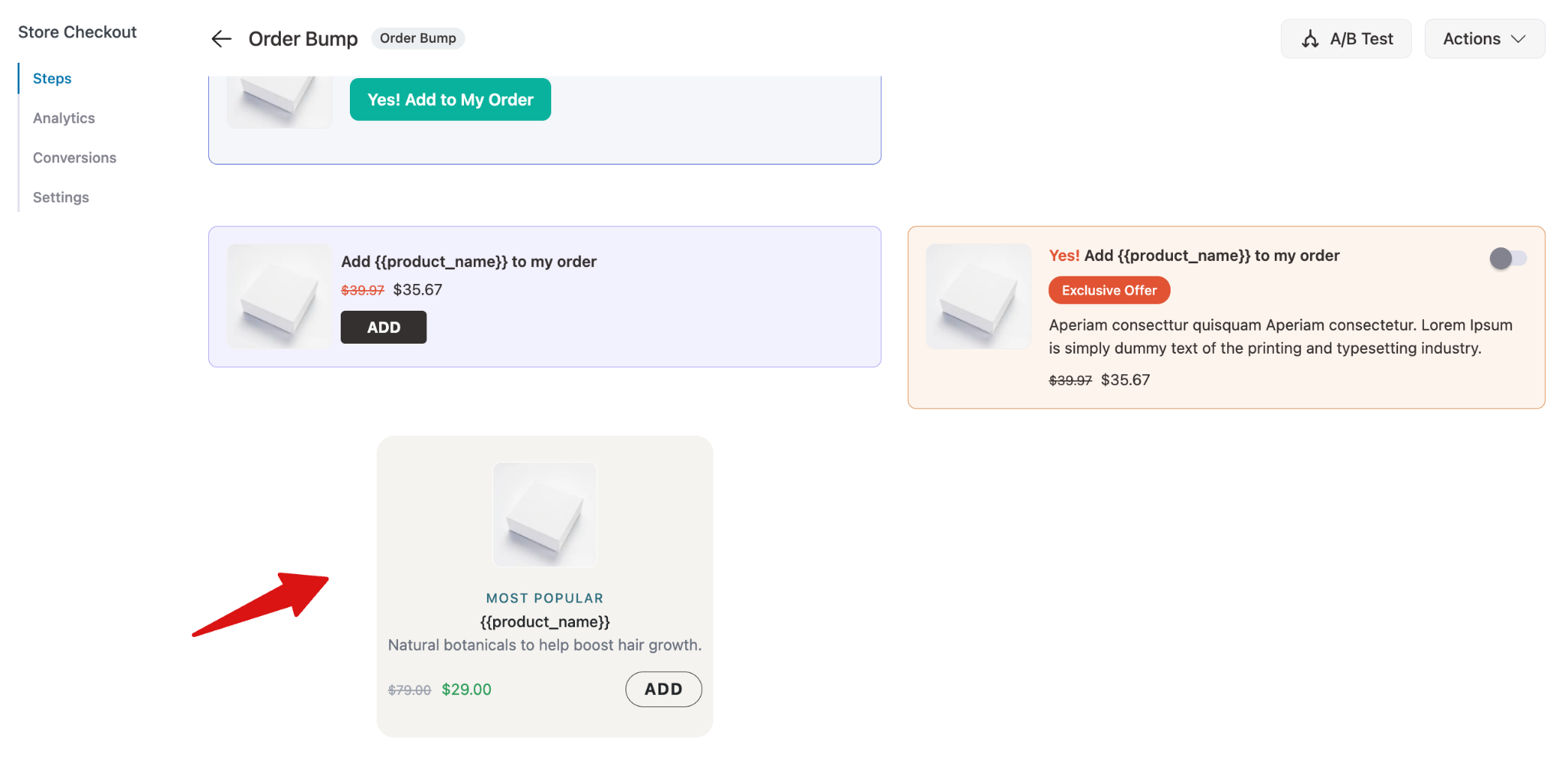
All other customization settings remain the same as a standard order bump.
Step 2: Add Multiple Products to the Slider
Search for and add each product you want to include in the slider, one at a time. You can customize settings such as quantity and discounts for each product individually.
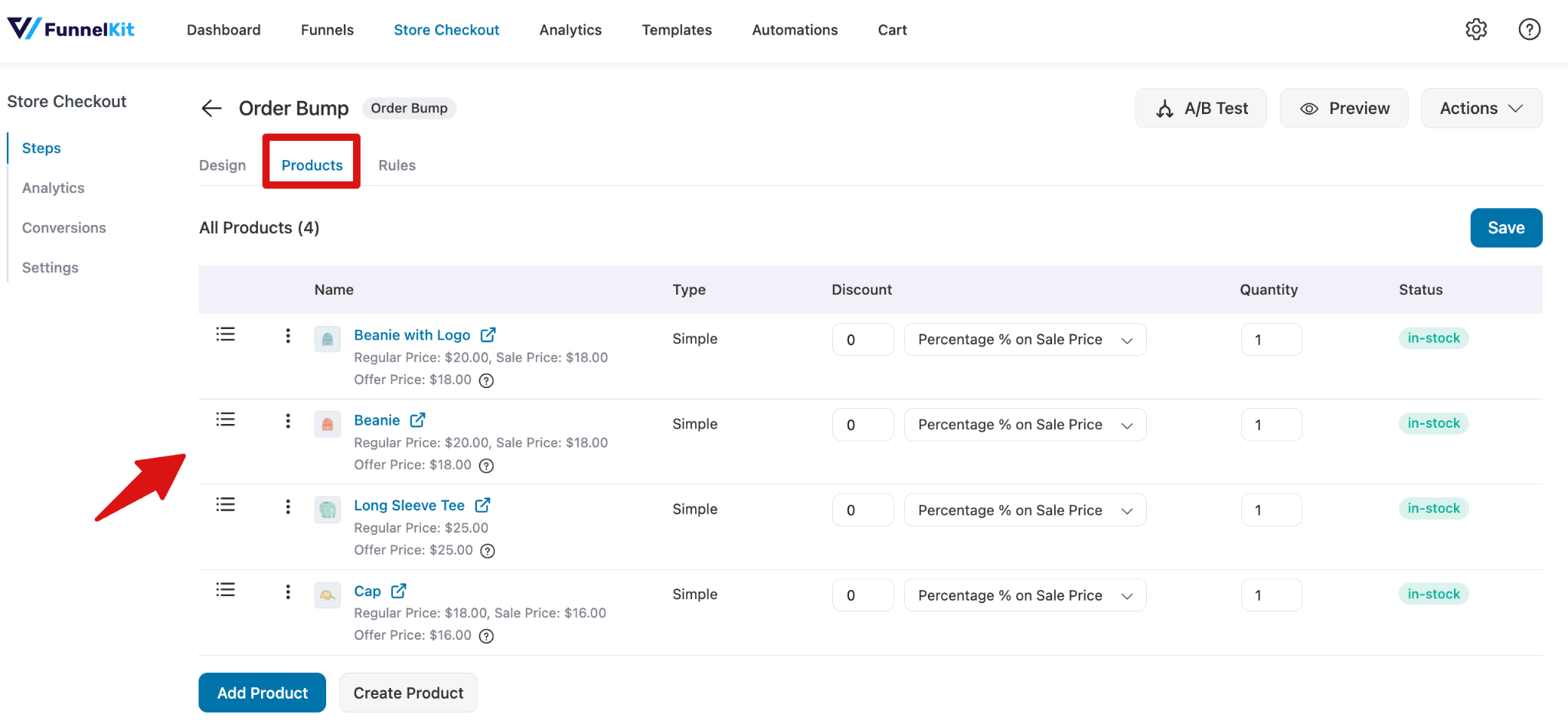
Once you have added all the desired products, save your changes.
Step 3: Test The Order Bump
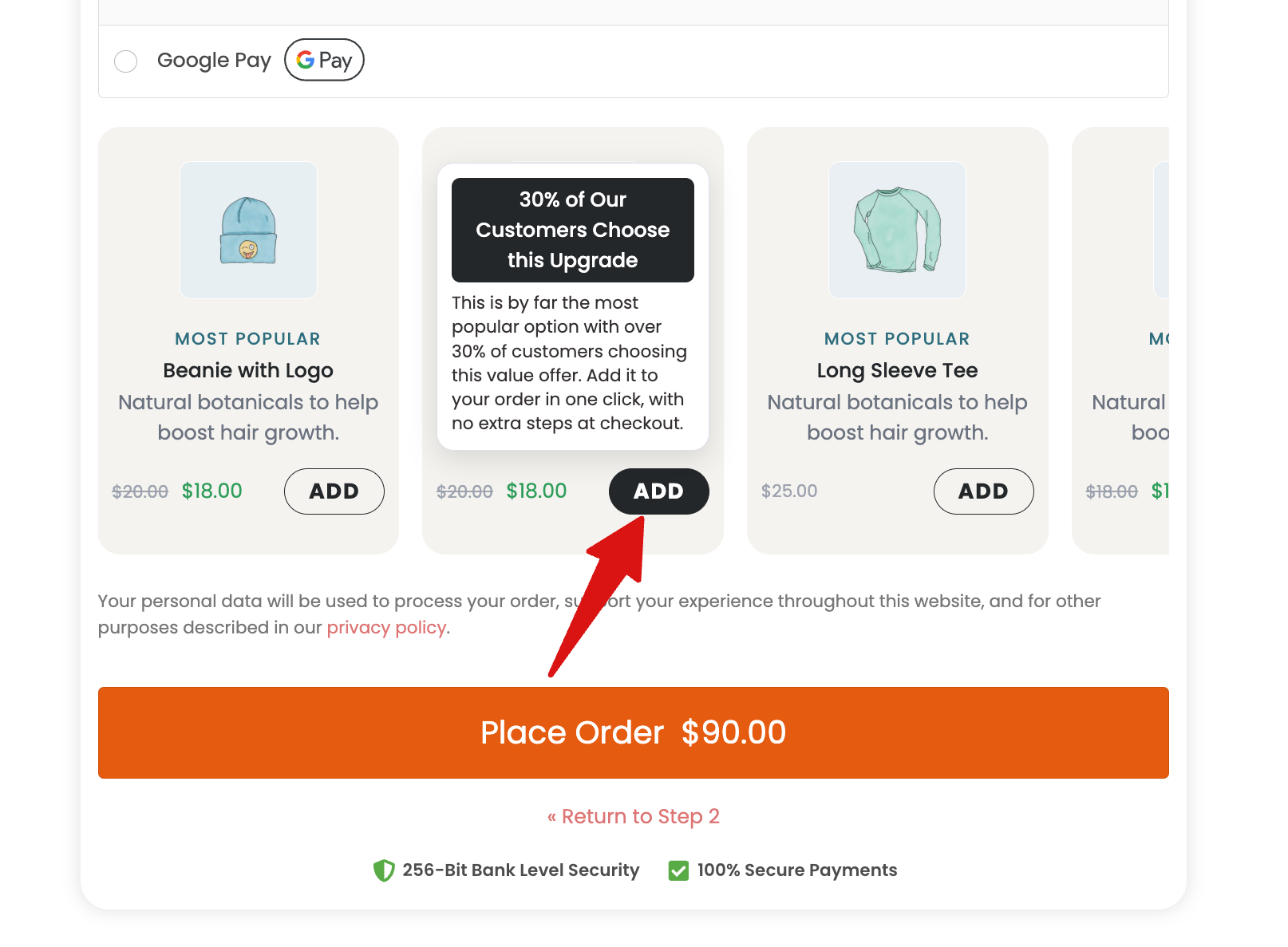
Place a test order to confirm everything works as expected. The order bump will appear with a slider interface and an "Add to Cart" button.
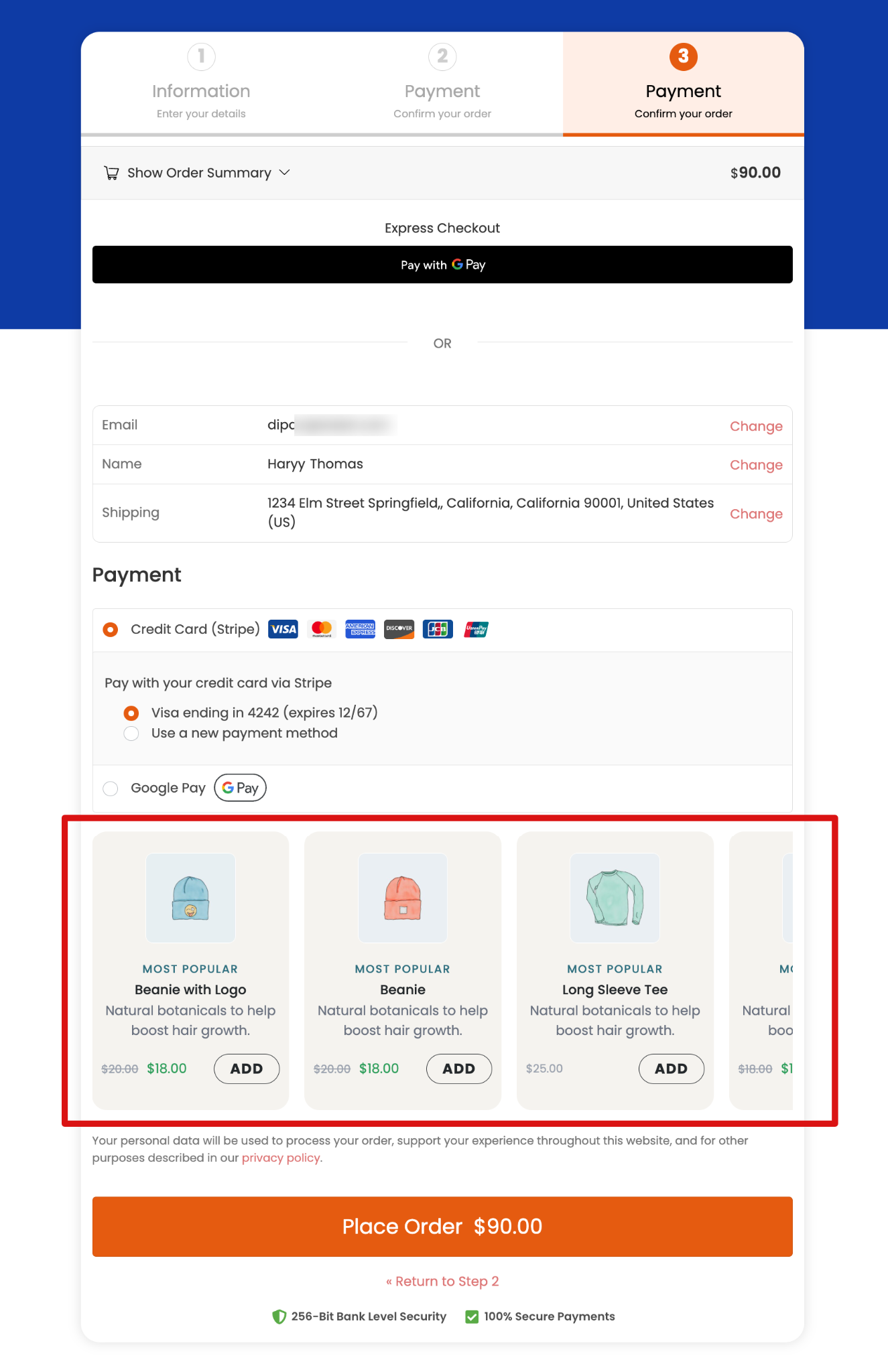
Customers can swipe through the available products and select the "Add to Cart" button to include their chosen item in the order.
Converting a Multi-Product Order Bump into a Slider
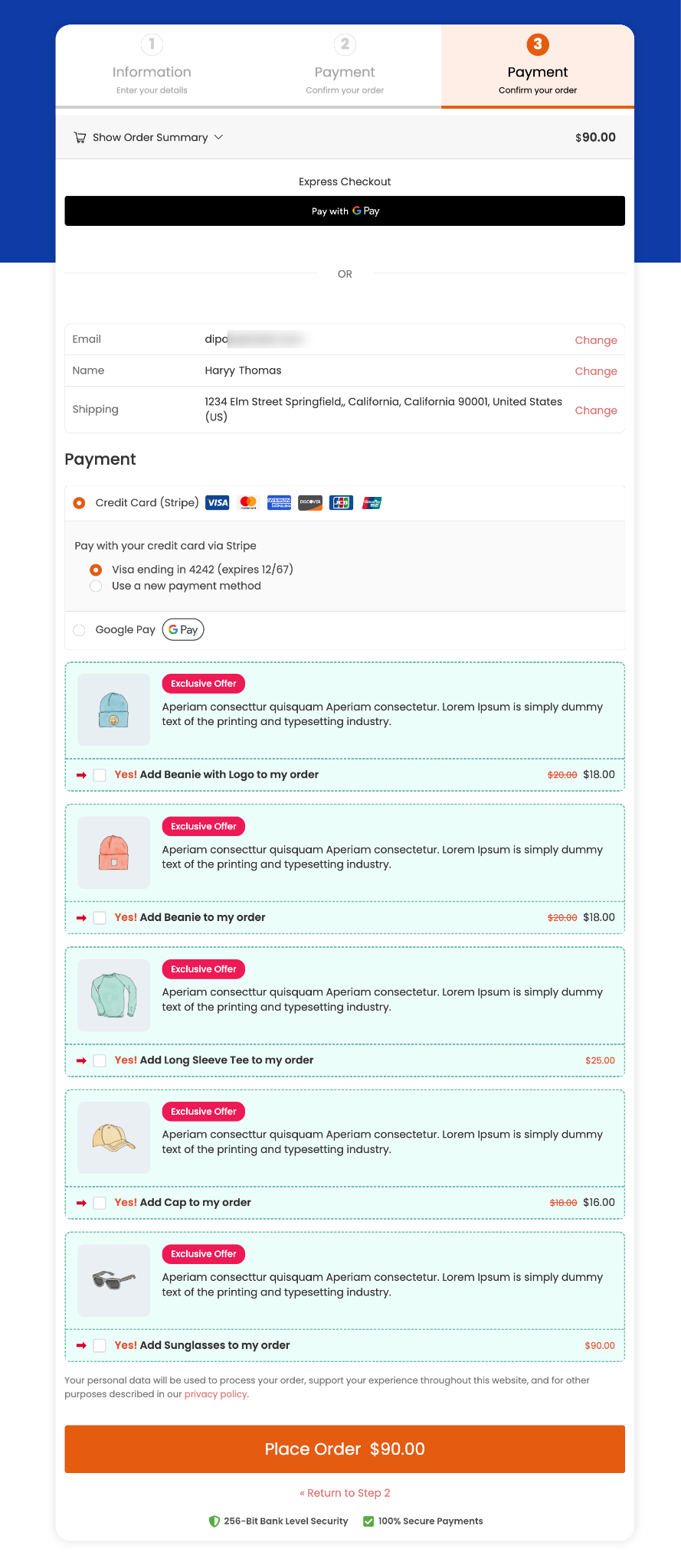
If you already have a multi-product order bump set up, you can easily convert it into a slider without rebuilding it from scratch.
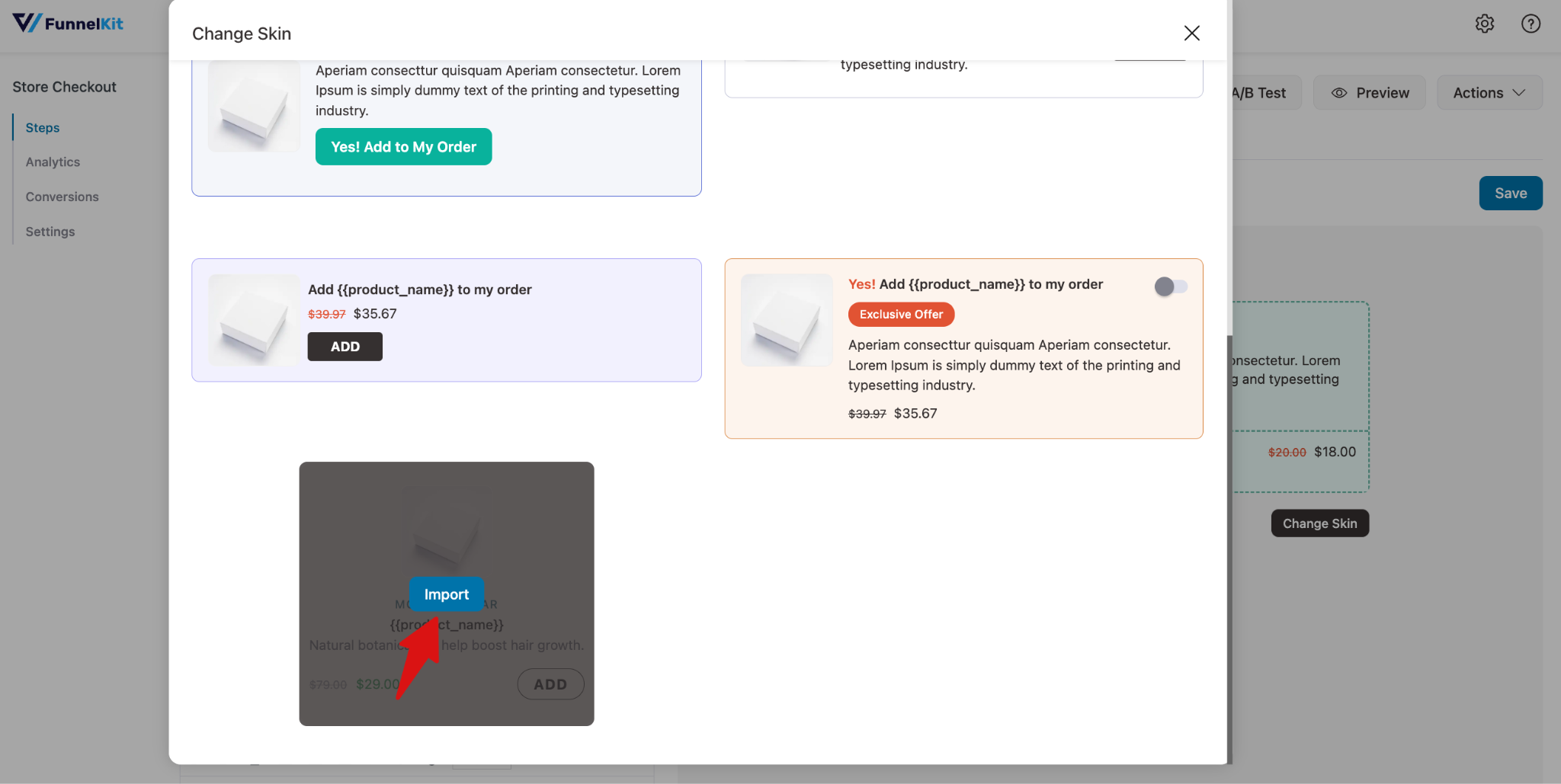
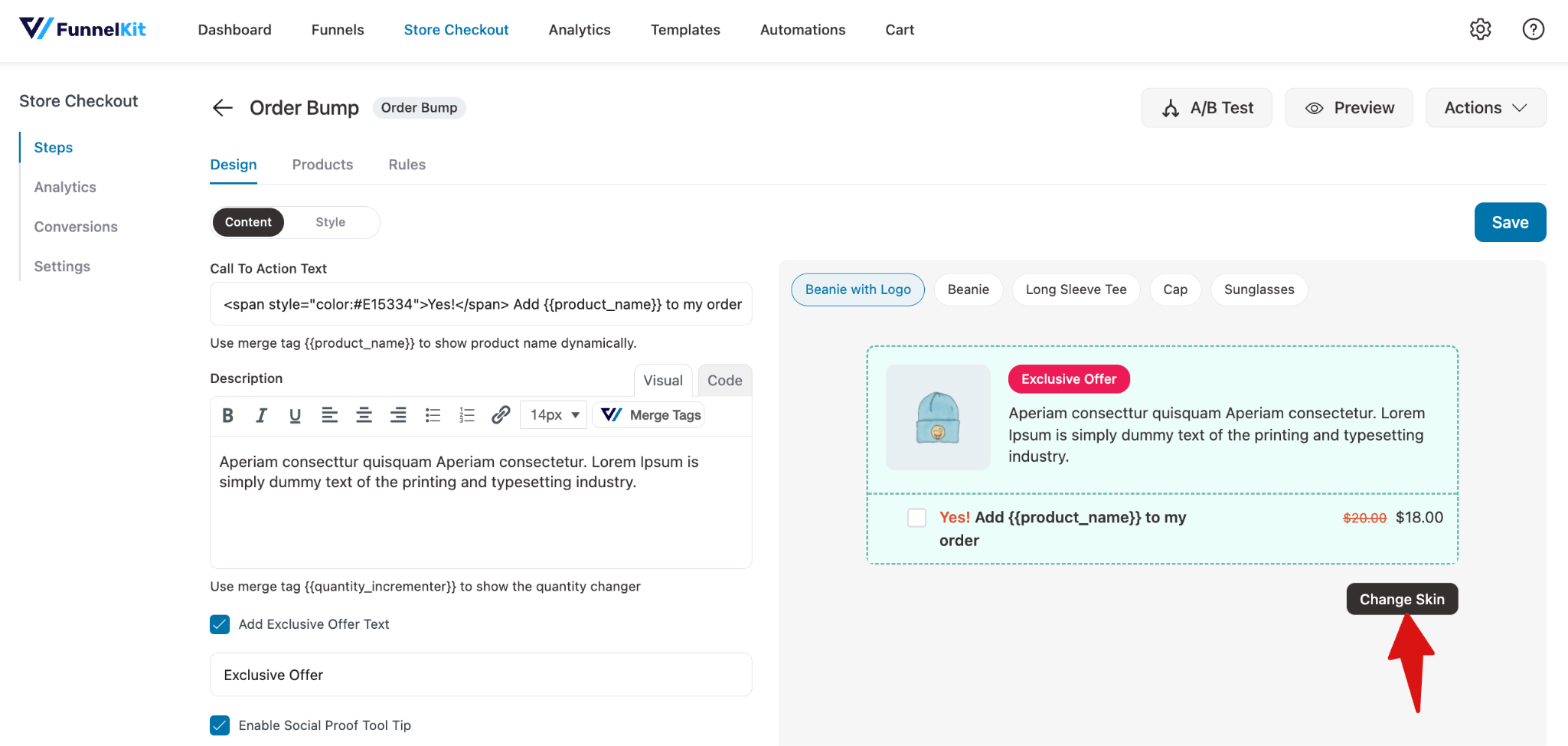
Simply navigate to the order bump, go to the design tab, and in the content settings, hit the “Change Skin” button.
Now hover over the multi-slider one and hit “Import”. Next, make sure to hit Save to update the changes.