


The WooCommerce thank you page is like a cashier who hands over a receipt, then looks past you at the next person in line. It confirms the transaction and ends the conversation.
However, a good counter works differently. The person at the register tells you when the order will arrive, mentions the item that pairs with it, and gives you a reason to come back next month.
Your WooCommerce store should do the same.
The default order confirmation screen covers the receipt part. It confirms the purchase and shows the order details, but it doesn't know what your customer needs after buying.
Most store owners hit a wall long before that because they can't find the page.
WooCommerce does not create it the way it creates the Cart and Checkout. You can look under Pages all day, and it will not be there.
In this guide, we will show you where the order received page actually lives, then walk through three ways to change it.
The free block editor comes first. WooCommerce hooks come second, for anyone who writes PHP. A page builder plugin comes third, for stores that want per-product pages and post-purchase offers.
We will also cover conversion tracking, what belongs on the page, and how to fix a confirmation screen that is not showing at all.
Short on time? Watch this video to customize the thank you page in minutes 👇
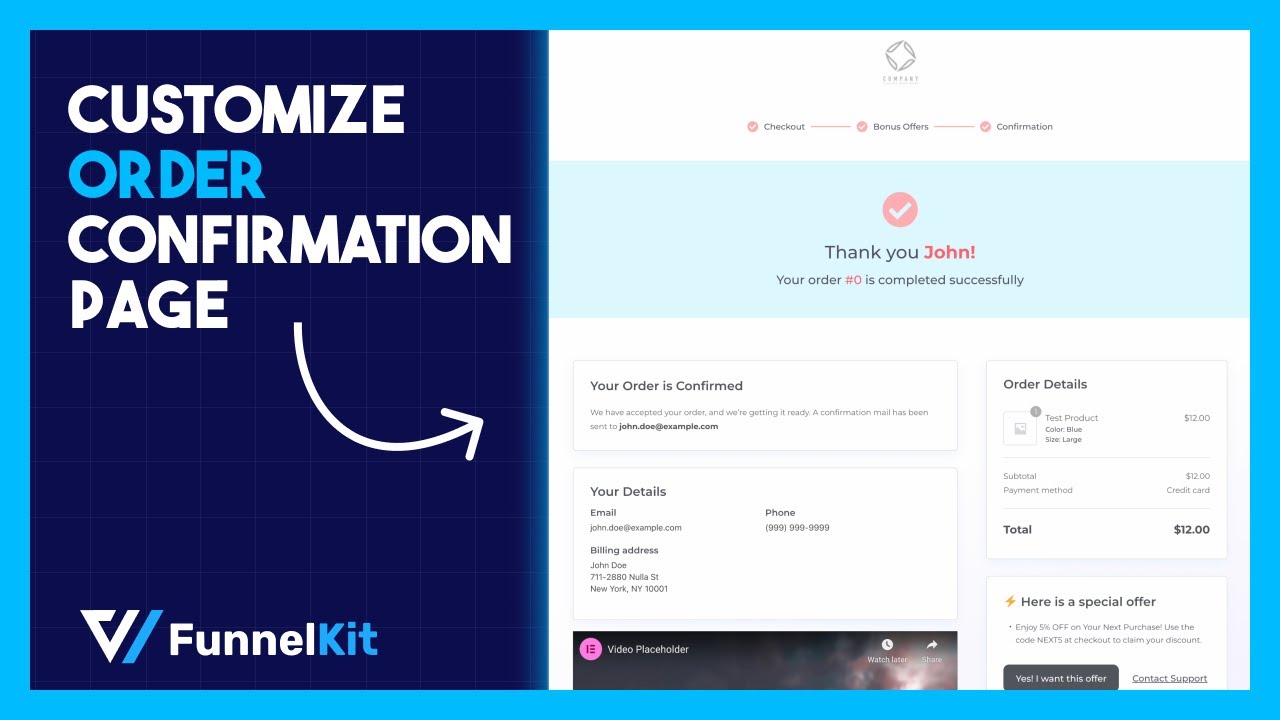
Table of Contents
- 1 What Is the Order Confirmation Page?
- 2 3 Ways to Customize the WooCommerce Thank You Page (Compared)
- 3 Method 1: Customize the Order Confirmation Template (Free)
- 4 Method 2: Build a Custom Thank You Page With a Plugin
- 5 Method 3: Customize the Thank You Page With WooCommerce Hooks
- 6 5 Best WooCommerce Thank You Page Plugins
- 7 5 Ways to Encourage Brand Loyalty and Repeat Purchases on Your Thank You Page
- 8 Tracking Conversions on the Order Thank You Page
- 9 WooCommerce Thank You Page Not Showing? Common Fixes
- 10 Frequently Asked Questions (FAQs)
- 11 Turn Your WooCommerce Thank You Page Into the Start of the Next Order
What Is the Order Confirmation Page?
The order confirmation page, also called the thank you page or the order received page, is the screen that appears the second a customer’s payment goes through.
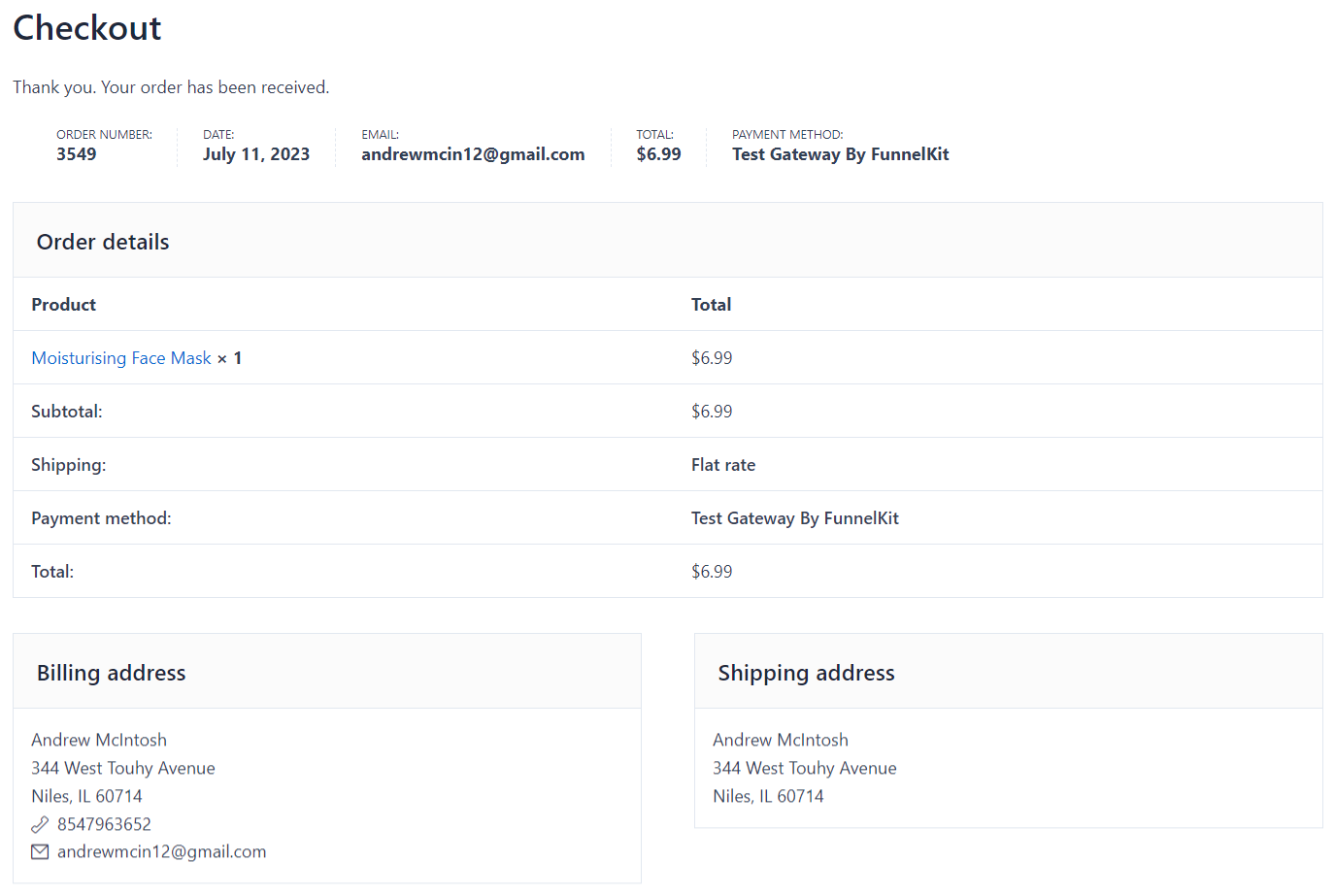
It confirms the order, and in most stores it does nothing beyond that. By default, it provides the following information about your order:
- Order number for easy tracking
- Date of purchase for reference
- Customer email to send a confirmation receipt via email
- Items purchased with product details
- Total amount spent on the order
- Billing and shipping address for verification
- Payment method used for the transaction
- Shipping fee or any other charges
This is how the default WooCommerce thank you page looks:
WooCommerce renders it dynamically at the order-received endpoint instead of storing it as a WordPress page, and that single design decision is why it never shows up in your Pages list.
That is also why so many guides send you looking somewhere that doesn't exist.
However, with a few changes, it can thank customers properly, reduce post-purchase support tickets, recommend the next product, and turn a one-time buyer into a repeat one.
The order received URL (where can you find it):
A typical confirmation page URL looks like this:
https://yourstore.com/checkout/order-received/1234/?key=wc_order_AbCdEf123456It has four parts, and three of them matter.
The word checkout is the slug of your checkout page, order-received is the endpoint, 1234 is the order ID, and key is a unique order key WooCommerce uses to match the page to that specific order.
That key is a security feature rather than clutter, because it is what stops one customer from viewing another customer’s order by editing the ID in the address bar.
Never strip it from a URL you share or redirect through.
Renaming the order received endpoint
You can change the endpoint under WooCommerce ⇨ Settings ⇨ Advanced. Under the "Checkout endpoints" tab, you'll find the 'order received' option.
You can easily change this to thank-you or order-confirmed. These changes appear only in the address bar URL, not in the page design.
That endpoint-based design is exactly why you can't find a thank-you page to edit under Pages.
How to preview the page without placing a real order
Testing is where most store owners get stuck, because the page only exists once an order does.
The reliable method is to place one real test order using a free coupon or a cash-on-delivery payment method, then bookmark that order URL.
Because the URL carries the order key, you can reload it as an administrator whenever you make changes, without checking out again.
Refund or delete the test order once you are finished.
3 Ways to Customize the WooCommerce Thank You Page (Compared)
Customizing the order received page depends on whether your theme is block-based and whether you want the page to look better or to earn money.
Here's how the three methods stack up so you can pick before you scroll.
| Parameters | Method 1: Block Editor | Method 2: Plugin | Method 3: Code (Hooks) |
|---|---|---|---|
| Best for | Store owners who want a quick visual refresh, no code | Marketers who want branded designs, A/B tests, and rule-based pages | Developers who want precise, lightweight control |
| Cost | Free (built into WooCommerce) | Free and paid (depending on your requirements) | Free |
| Effort | Low | Low | Medium-High |
| Coding required | None | None | Yes (PHP) |
| Design flexibility | Limited (color & typography on core blocks; free layout for added blocks) | High, with a visual builder | Full, but you build it yourself |
| Upsell offers | No | Yes | Manual |
| Per-product/Rule-based pages | No | Yes | Manual (conditional code) |
| Built-in conversion tracking | No | Yes | Manual |
Block theme plus cosmetic changes puts you in Method 1.
Method 2 is the only route that gets you a different page for a first-time buyer than for a returning customer, or a post-purchase offer, or an A/B test.
Anyone who writes PHP should go to Method 3, which handles most common requests in a few lines and works on any theme.
Method 1: Customize the Order Confirmation Template (Free)
WooCommerce moved this page into a block template in WooCommerce Blocks 11.2, and made block-based Cart, Checkout, and Order Confirmation the default for new installs from WooCommerce 8.3.
If you are running a block theme, you can redesign the page in the Site Editor with no plugin and no code.
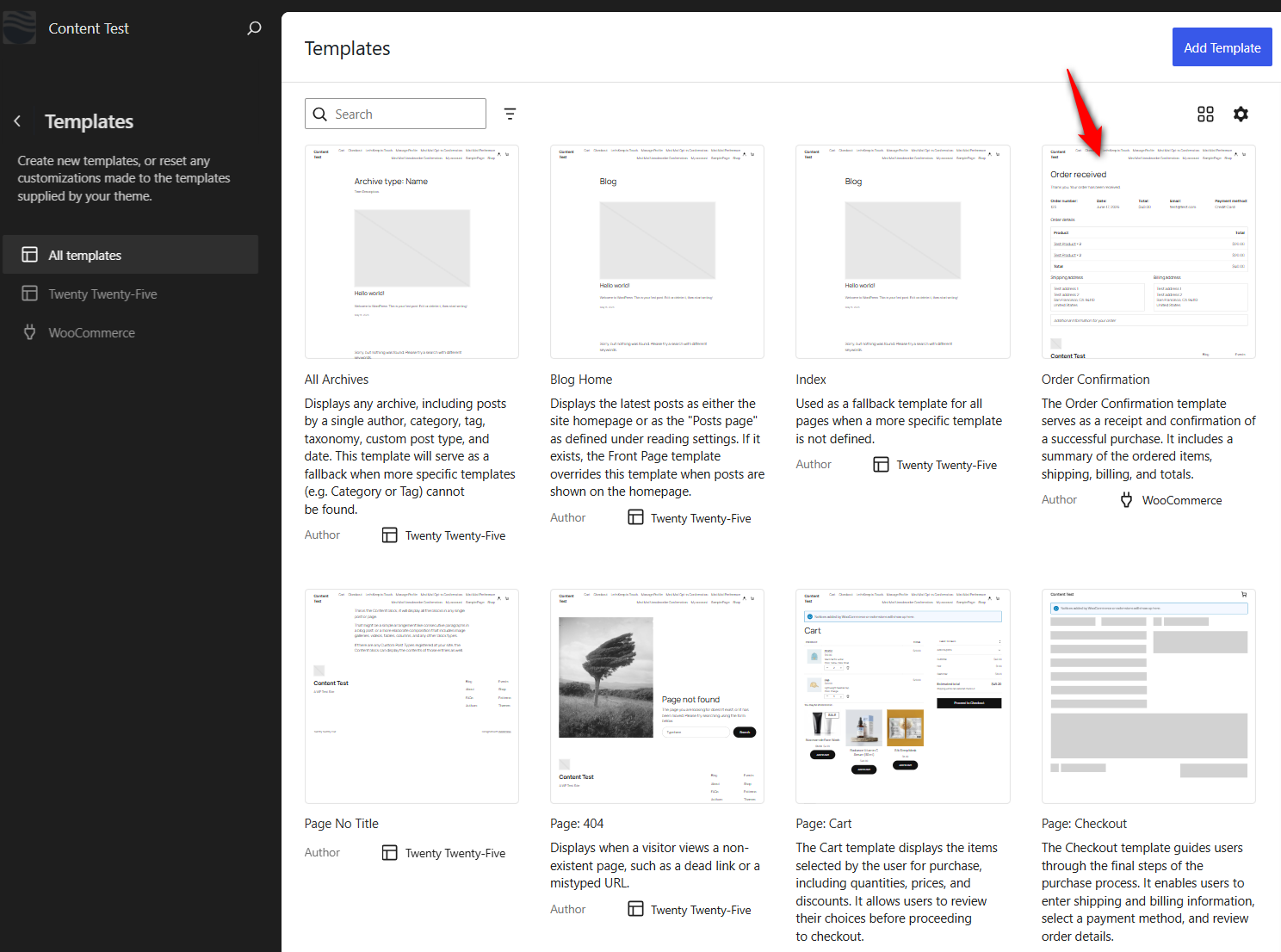
Step 1: Open the order confirmation template
From your WordPress dashboard, go to Appearance → Editor → Templates.
Open the 'Order Confirmation' template.
Step 2: Edit the order confirmation blocks
Use the 'List View' (the layered-icon button) to see every block, such as order status, order summary, totals, downloads, and the shipping/billing details, and customize them on the page.
Adjust the color and typography of the core order-confirmation blocks, and click the + inserter to add your own blocks above or below.
You can add a custom thank-you heading, an image, a coupon, an instructions section, or product recommendations.
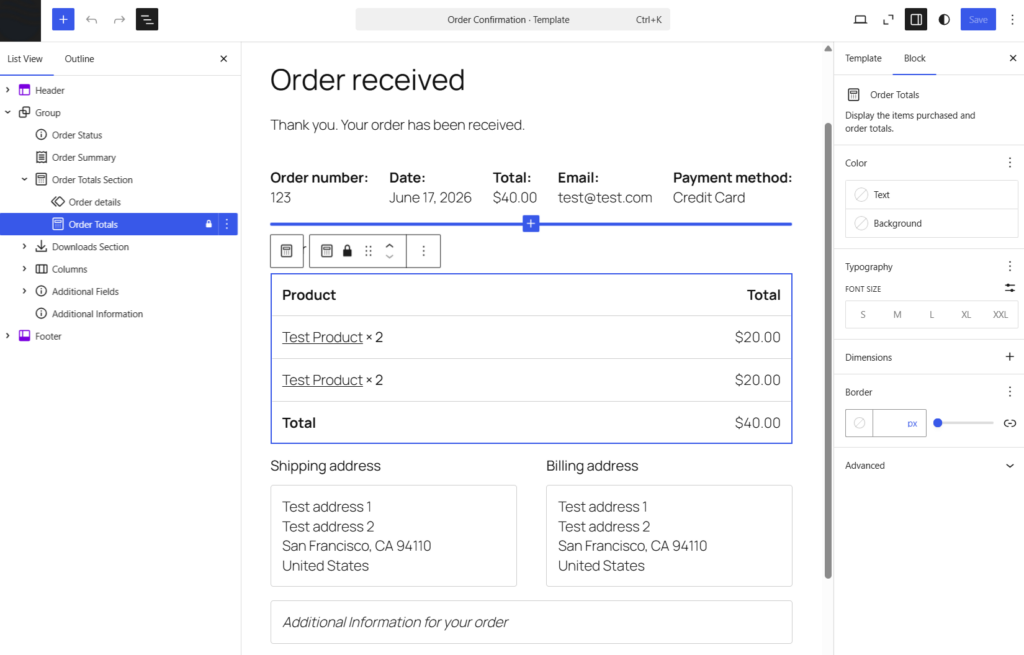
- The special Order Confirmation blocks (order status, items, totals, etc.) only let you change color and typography, not their internal layout. The blocks you add around them are fully editable.
- If you'd rather use the classic order-confirmation template, open the List View, delete the parent group holding the special blocks, then insert the single Order Confirmation Block placeholder and save (for block themes only).
Once done, hit 'Save'.
What you can and cannot change
The special Order Confirmation blocks expose color and typography settings only, so you cannot rearrange what sits inside them, split them apart, or restructure the order table.
Everything you add around those blocks is fully editable, which means the practical result of this method is a branded wrapper around a fixed order summary.
For many smaller stores, that is genuinely all you need.
What to do if your theme is classic
If there is no Order Confirmation template under Appearance ⇨ Editor, your theme is not block-based, and there is no workaround because the Site Editor is simply not available to you.
This is the most common complaint we see from store owners running Astra, Flatsome, and older Storefront child themes.
Your options are Method 2 or Method 3, since switching themes for one template is rarely worth the migration.
The reverse case is worth knowing too. There is a way back if you are on a block theme with custom code already hooked into the classic template.
Open the Order Confirmation template, delete the parent group that holds the special blocks, insert the “Order Confirmation Block” placeholder, and save.
Your legacy template runs again with custom code.
WooCommerce documents this switch in its order confirmation page guide.
Method 2: Build a Custom Thank You Page With a Plugin
The block editor and hooks are great for design and one-off tweaks. But neither one handles showing a different page to a first-time buyer than to a returning customer, running an A/B test, or placing a one-click offer after checkout.
For that, we will use FunnelKit Funnel Builder, which replaces the default confirmation screen with a page you design visually in Elementor, Divi, Bricks, Oxygen, or the block editor.
It adds a rule engine on top, so the page can change based on the product, category, order total, payment method, or whether it is the customer’s first order.
FunnelKit Funnel Builder has a free version on WordPress.org that includes the visual builder and importable templates.
The Pro plan adds the rule engine for per-product pages, A/B testing, and one-click upsells.
Before we start, make sure to install and activate FunnelKit Funnel Builder on your WordPress site.
Now follow these steps:
Step 1: Create a store checkout and import a template
Go to FunnelKit ⇨ Store Checkout and click Create Store Checkout.
A store checkout is the global flow that applies to every order regardless of what the customer buys.
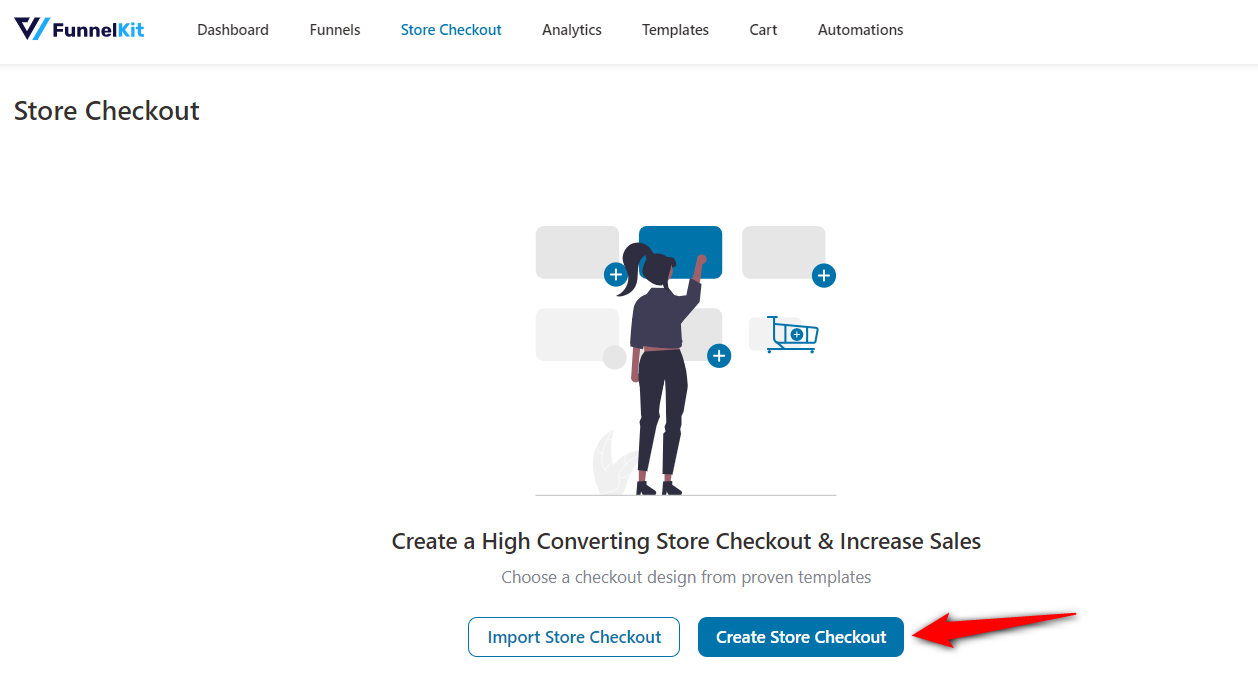
Pick your page builder, preview the templates, and import the one closest to your brand.
Each template arrives as a funnel containing two steps: the checkout page and the thank you page. Restyling a template that is already close beats building from scratch, so choose a layout rather than color.
Hover over the template you like and click on ‘Preview’.
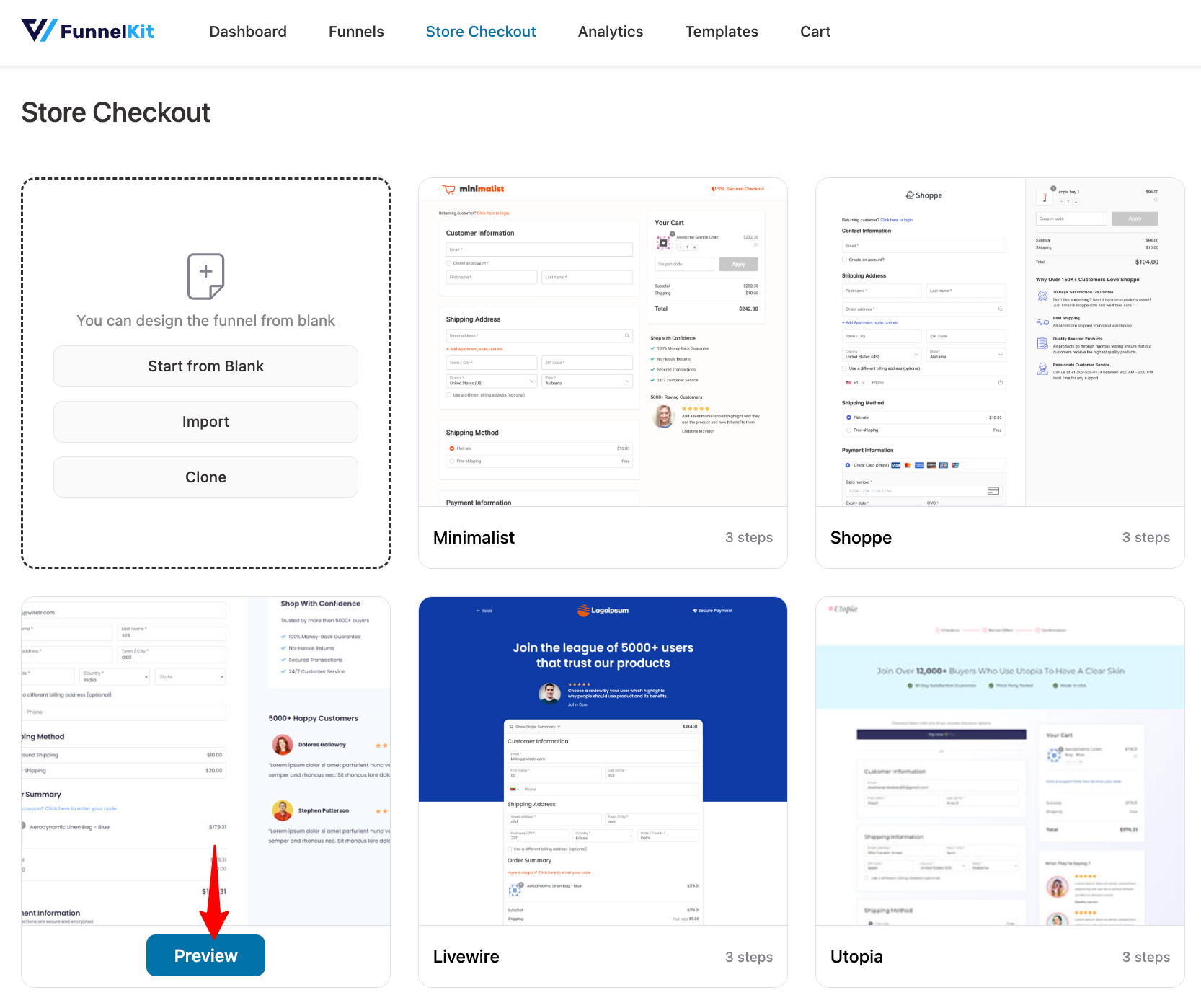
Preview and import the template that you like.
For that, hit the ‘Import This Funnel’ button and name your funnel template.
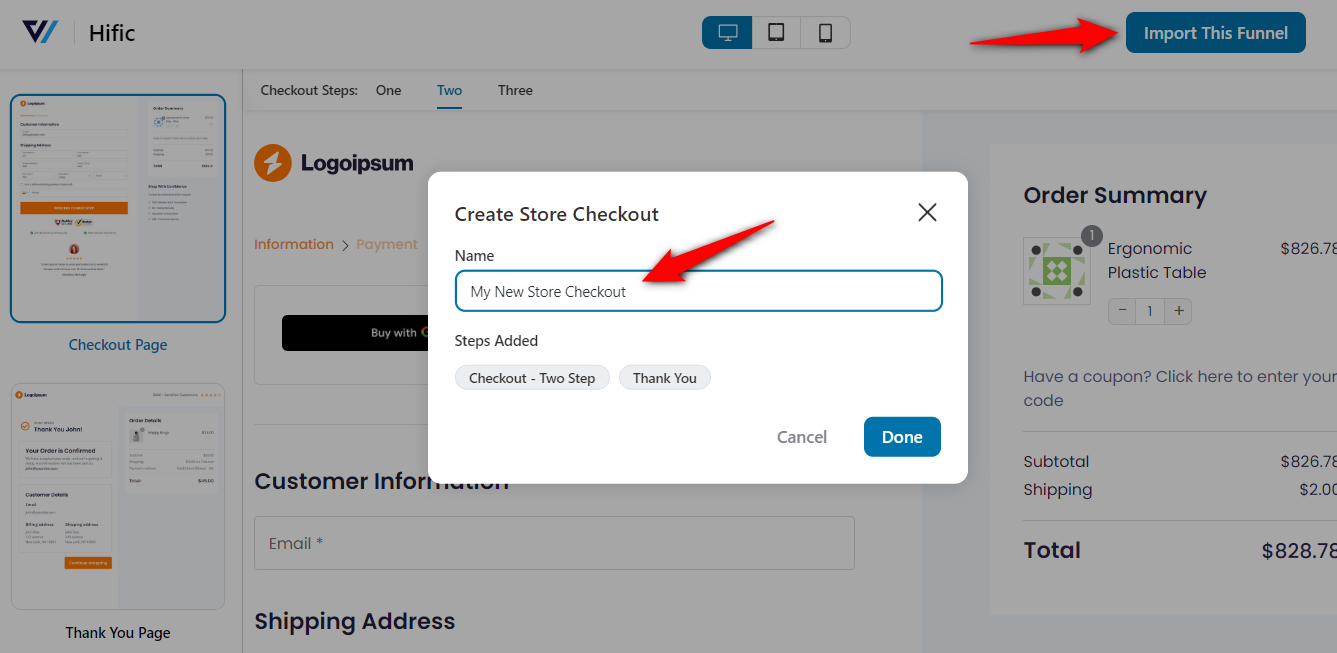

In this post, we will focus on the thank you page.
Step 2: Customize the thank you page design
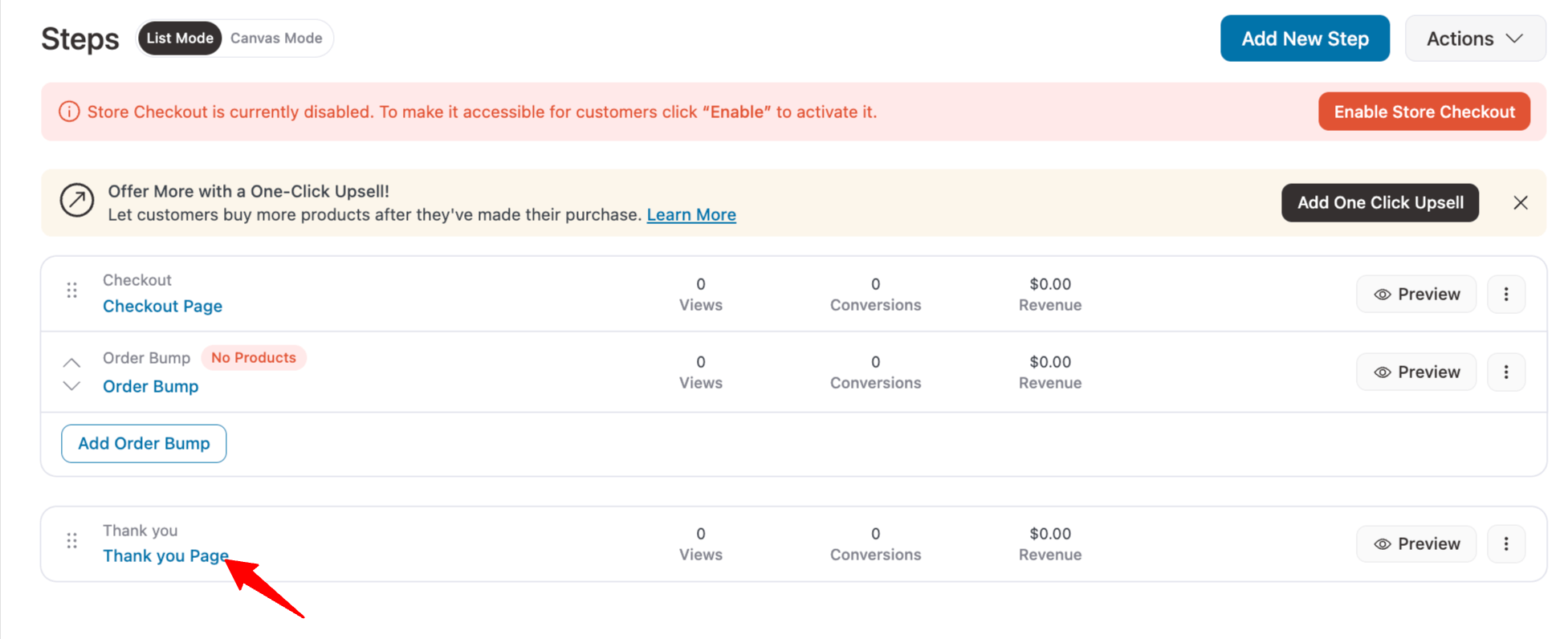
Click on the name of your thank you page to start customizing it.
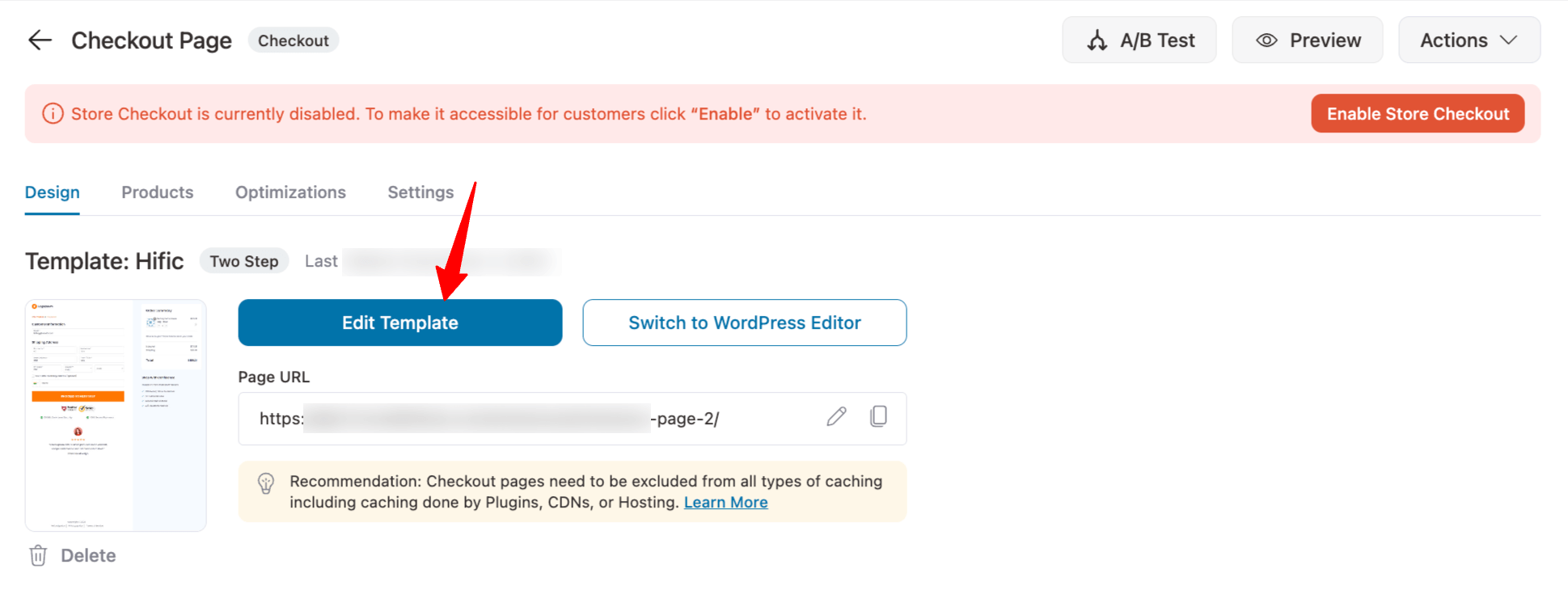
Under the Design tab, click on ‘Edit Template’ to start customizing your thank you page design.
You can alter all the content of the thank you page.
Adding your business logo
Click on the logo, choose an image by inserting the media and done!
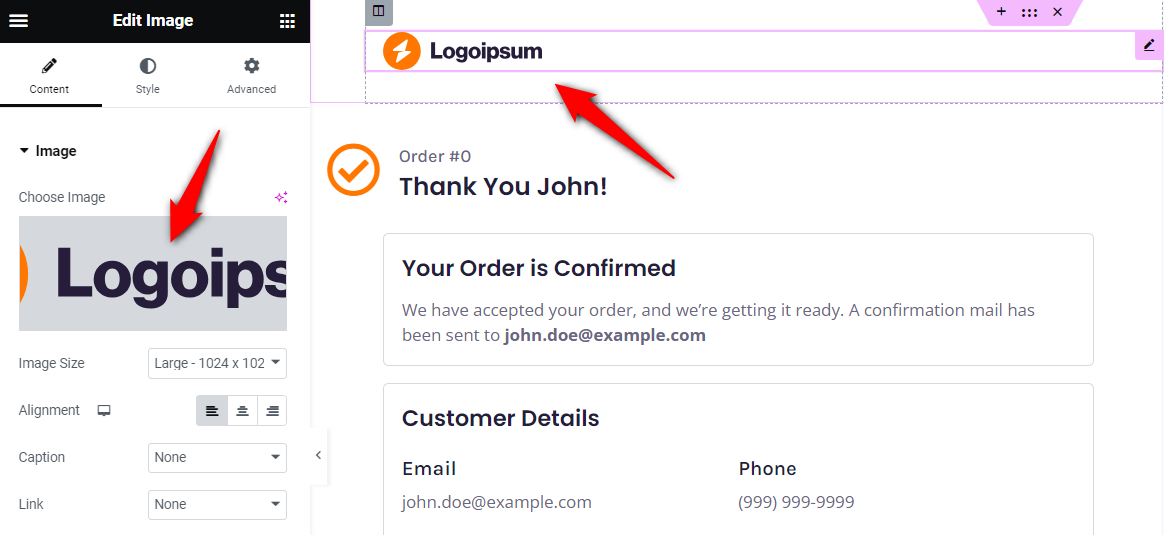
You can change the image resolution, set captions, and link it to the home or shop page of your website.
Once done, your brand logo will be up and running.
Personalizing text on the thank you page
Just click on the text you want to edit and add the new text from the Elementor dashboard on the left.
You can use personalization shortcodes to use customers' email addresses, names, order numbers, and more.
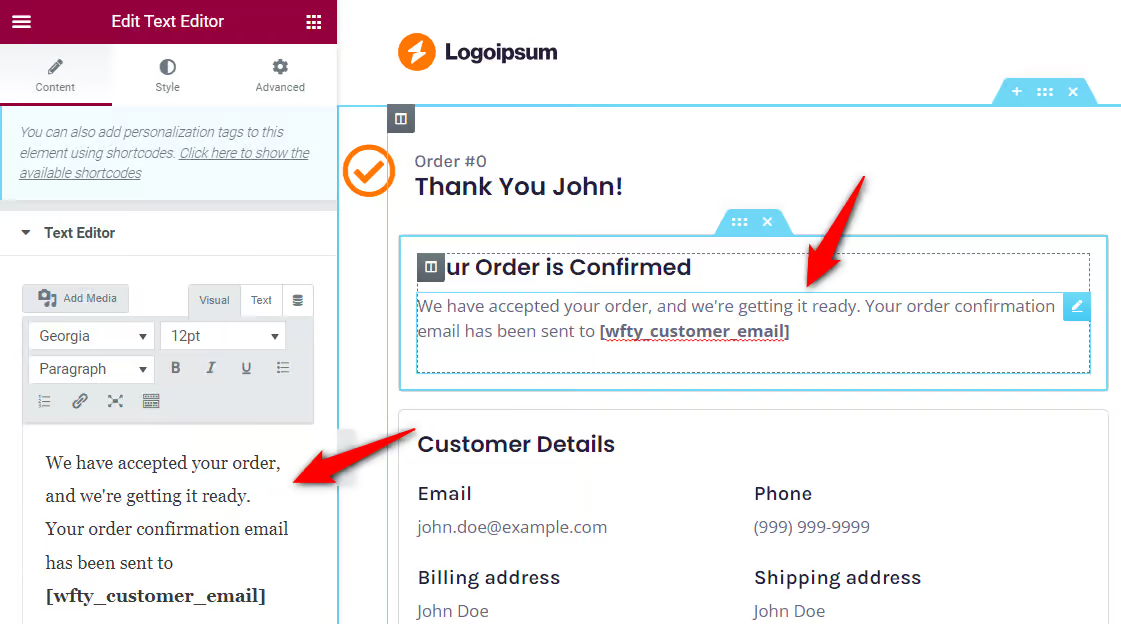
Create a high-converting copy and thank the customer for the purchase. Also, encourage them to take the next step.
Displaying visual elements
On the WooCommerce custom thank you page, you can add a personal image or video and engage with your shoppers.
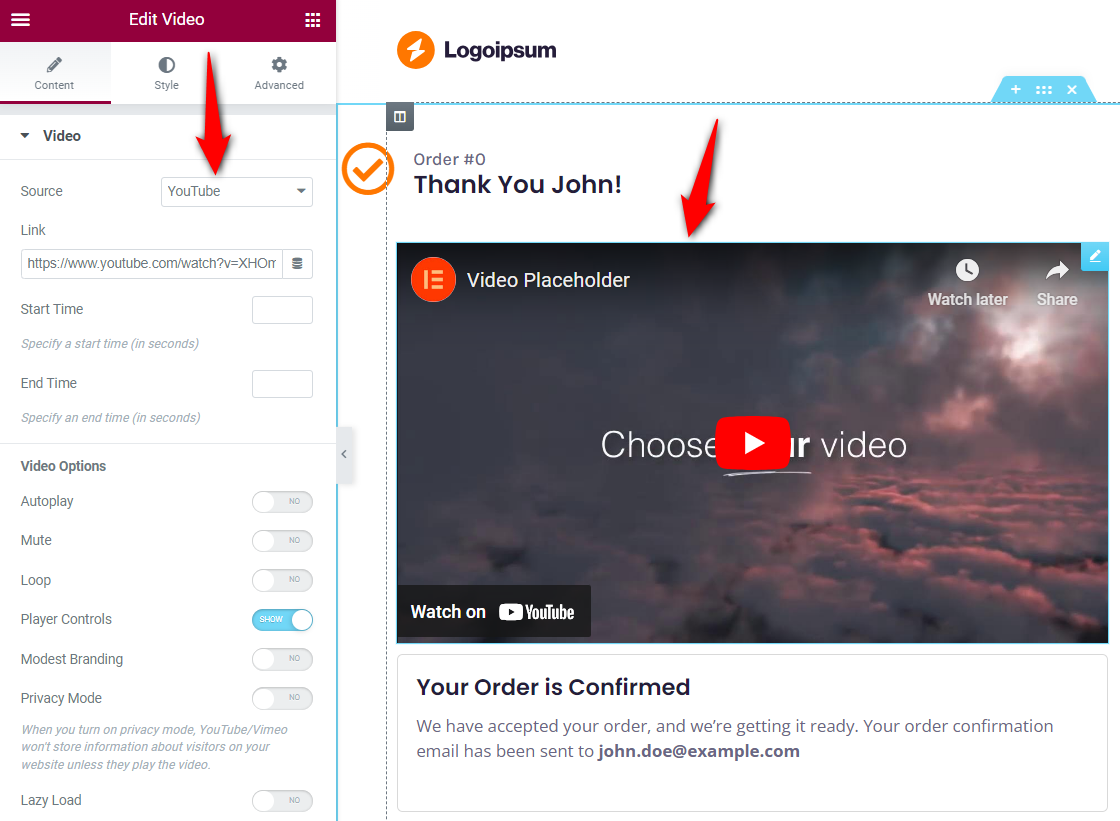
This way, you can build a healthy bond with your customers right from the beginning.
Inserting social media sharing icons
Invite your customers to your online communities and treat them to the latest offers, share cool tips and tricks, product recommendations, and more.
Just search for ‘Social Icons’ and drag the widget on the thank you page wherever you want.
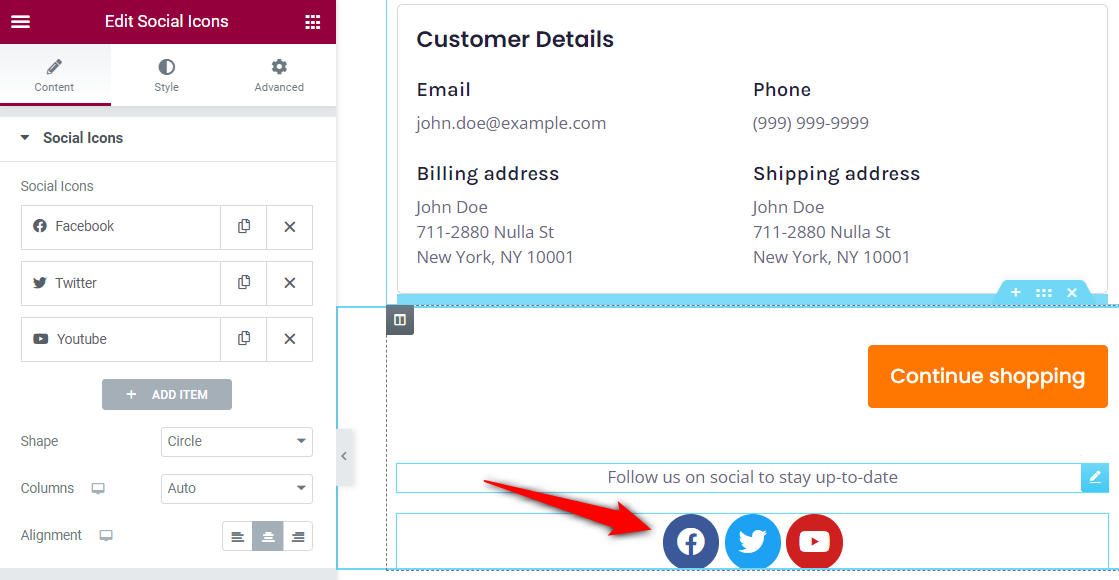
You can add a text widget below the buttons and encourage people to hop into your online groups.
Customizing continue shopping or the CTA button
Click the button, set its type, enter text, add a link, update its icon, and more.
You can link the CTA to the shop or best-selling products page to explore.
If you want to add recommendations, you can set it up using your page builder.
Step 3: Add order and customer details with personalization shortcodes
Use the Order Details widget on your WooCommerce custom thank you page to display the details related to your shopper’s order, such as total cost, shipping cost, item details, and payment information.
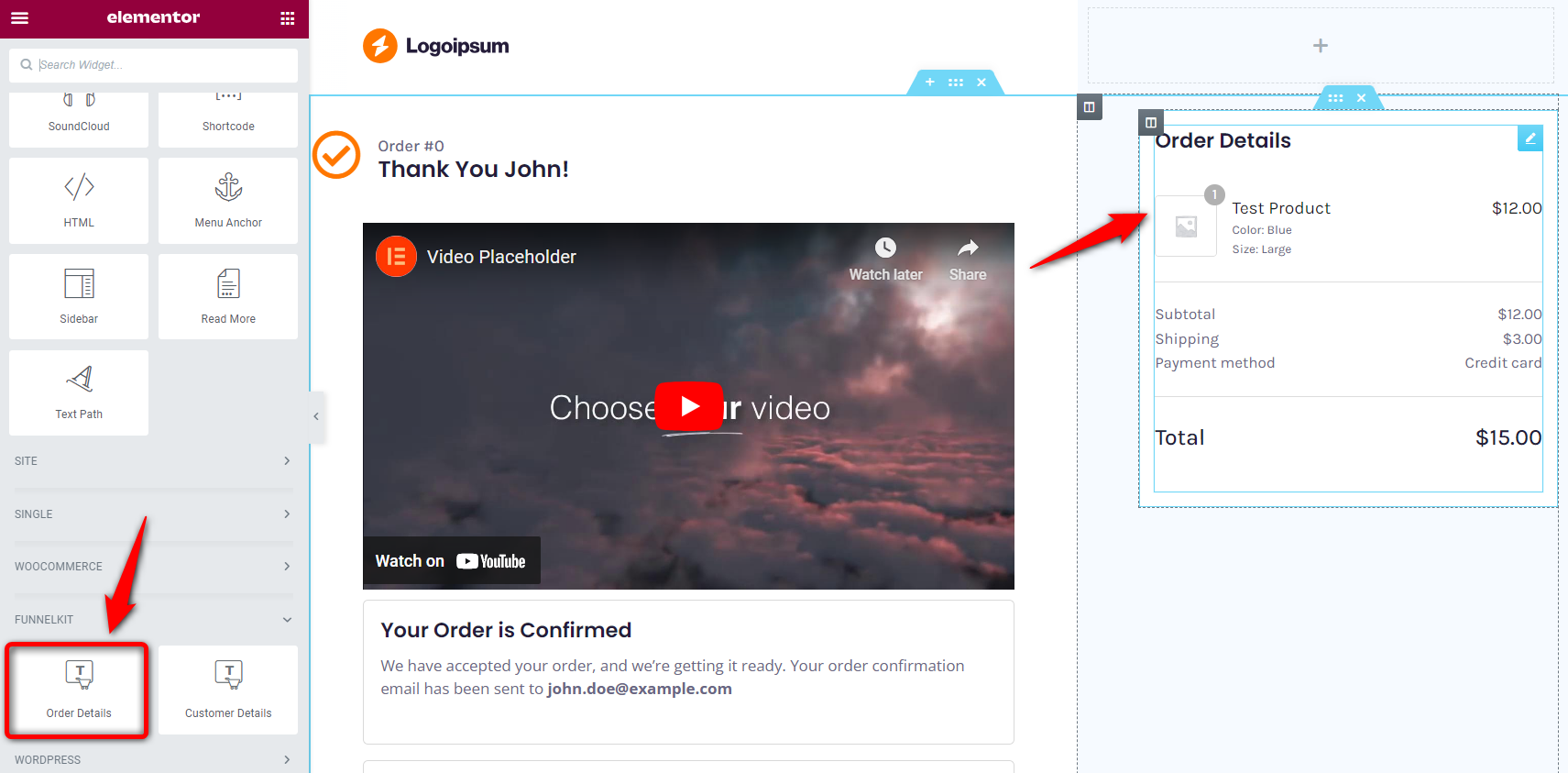
If you provide downloadable items (i.e., digital products), you can customize settings related to them.
Show download preview, show file download column, or show file expiry column.
In addition, it also has options to display complete details of product subscriptions purchased from your store.
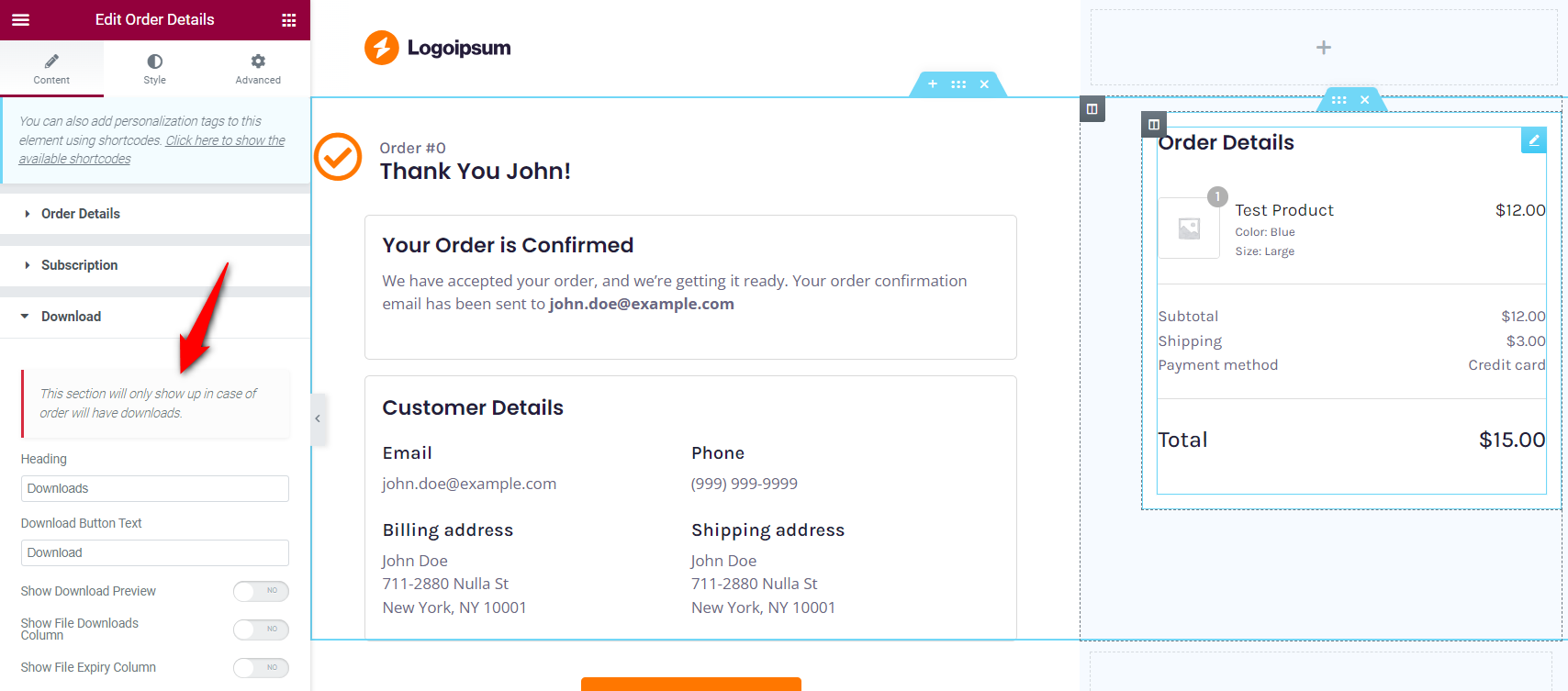
Next, use the Customer Details widget to display your customer's details at a glance.
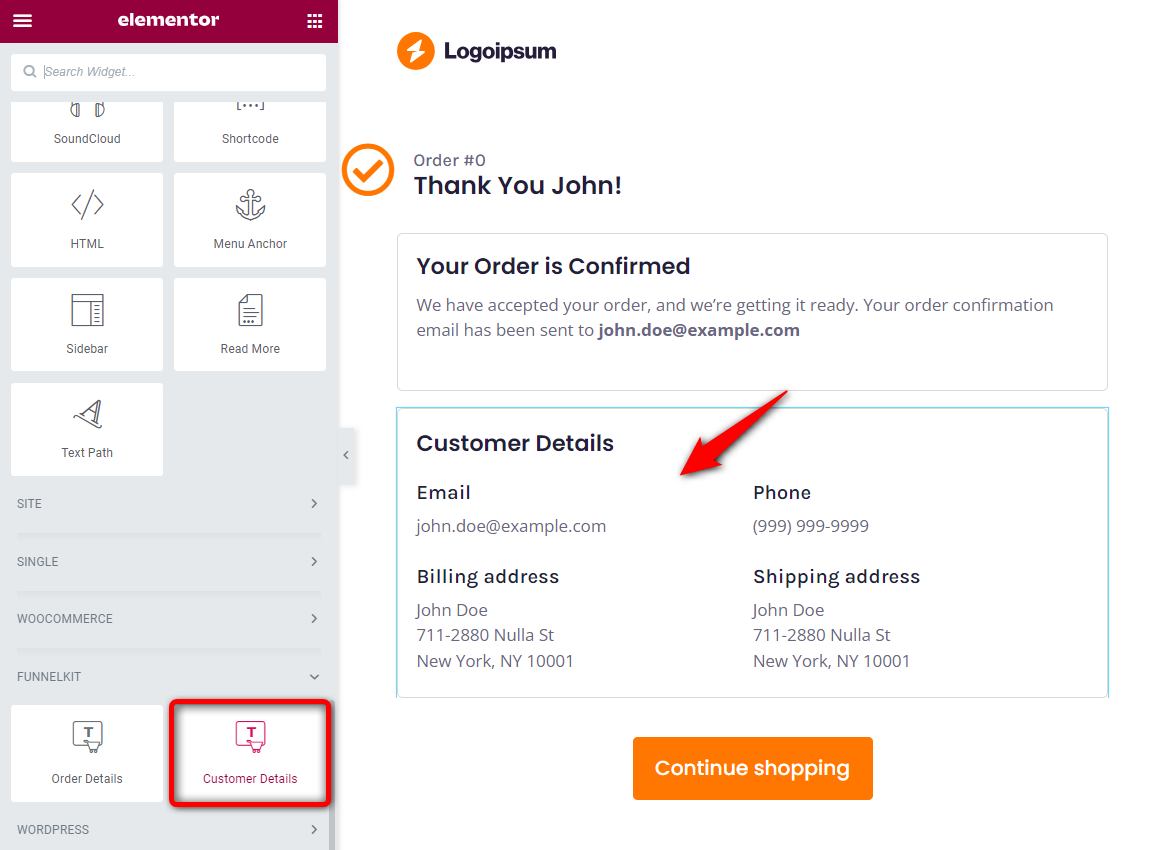
You can easily customize the customer details section and display the information the way you want.
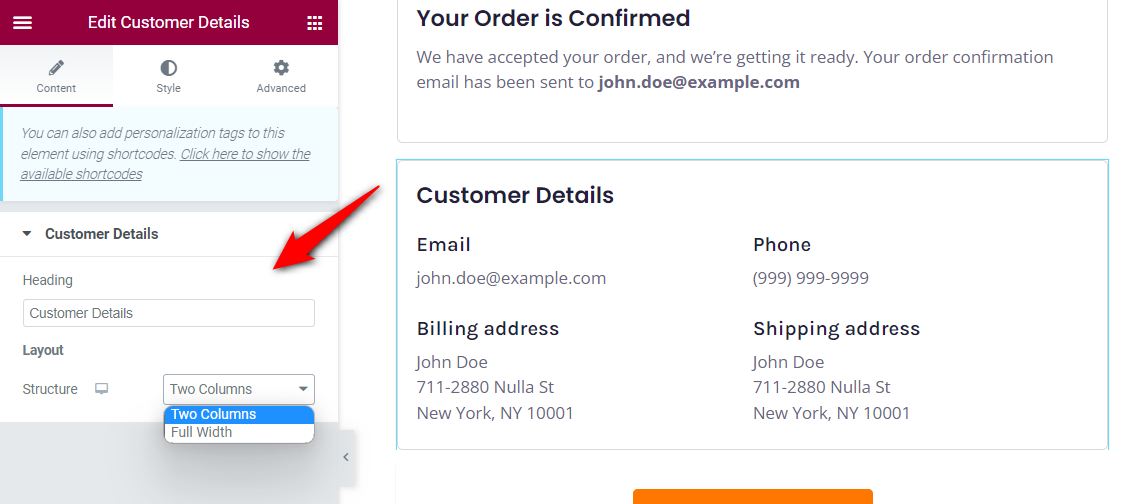
Whatever you want to do - add headings, modify the text, insert media, display socials, add a logo, cross-sell with CTA buttons, change color, and more.
One of the biggest turn-offs for any new customer would be a generic thank you page - made for robots, not humans.
That’s why it is crucial that you take the time to personalize your WooCommerce custom thank you page for each new customer.
No, you don’t have to create thank you pages for hundreds of customers. There is an easy way: Personalization Shortcodes.
Check out the WooCommerce order received shortcodes available in FunnelKit under the Design tab:
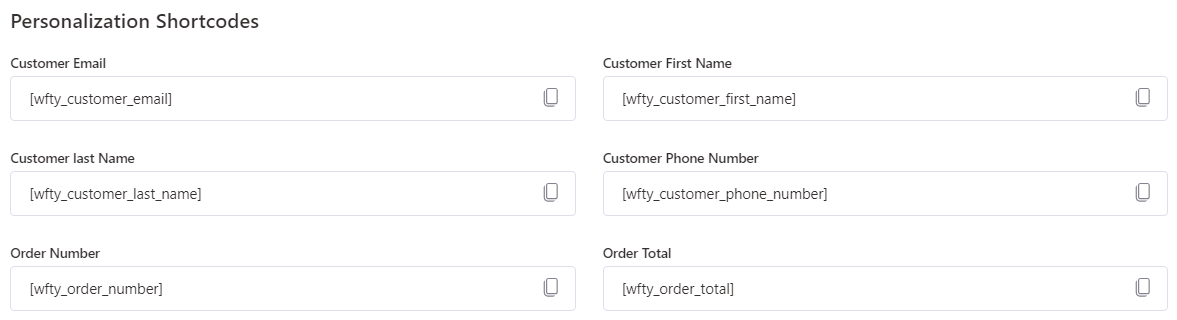
All the templates come with pre-added personalization shortcodes that fetch dynamic data from checkout form fields - first name, order number, etc.
| Shortcode | Displays |
|---|---|
| [wfty_customer_first_name] | Customer’s first name |
| [wfty_customer_last_name] | Customer’s last name |
| [wfty_customer_email] | Customer’s email address |
| [wfty_customer_phone_number] | Customer’s phone number |
| [wfty_order_number] | Order number |
| [wfty_order_total] | Order total |
| [wfty_order_meta key=""] | Any custom order meta value |
Test the appearance and functionality of your thank you page on different screen sizes to provide a seamless user experience.
Click on the ‘Responsive Mode’ and choose the mobile device when editing your thank you page:
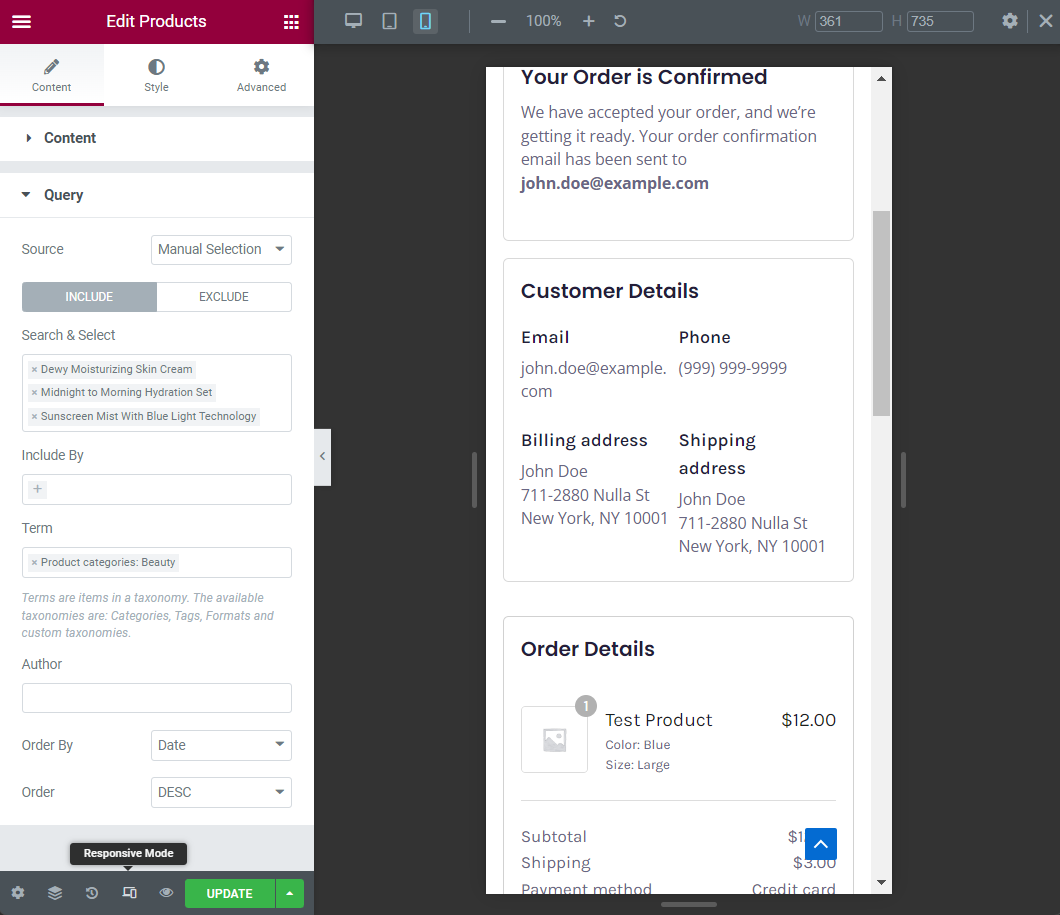
Make sure to hit ‘Update’ to save all your changes.
Step 4: Set rules so the right buyer sees the right page
Add a second thank you page step, design it for repeat customers, then open the Rules tab on that page and click 'Add Rules'.
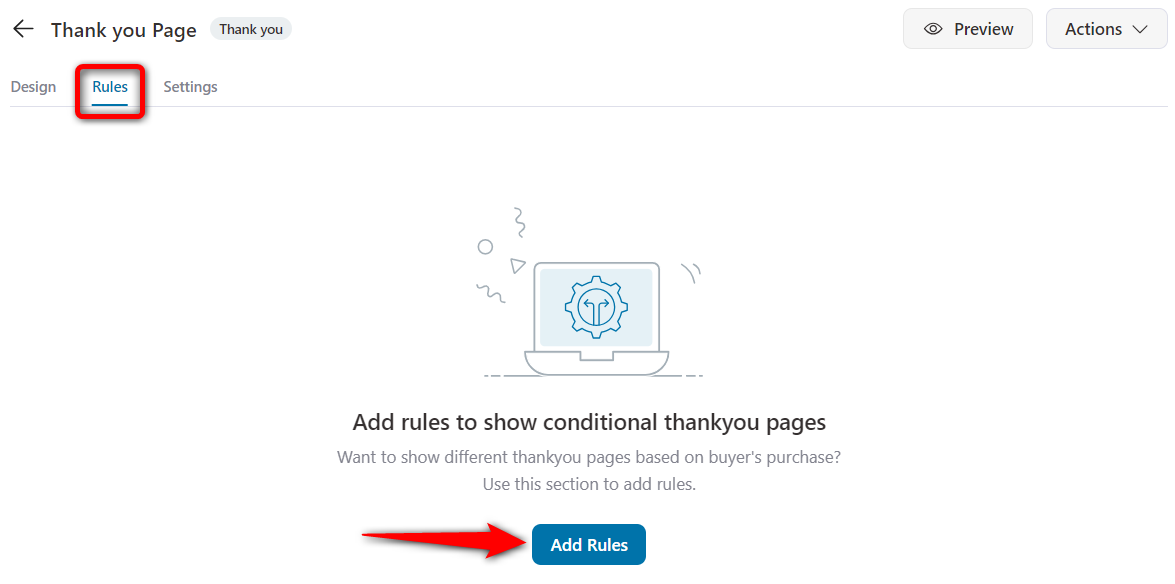
You can target on order attributes such as product, category, tag, order total, item count, payment gateway, shipping method, or coupon used.
You can also target customer attributes such as first order, guest checkout, user role, or anything they have purchased before, and geography and order date work the same way.
Conditions stack, so you can combine several into one rule group.
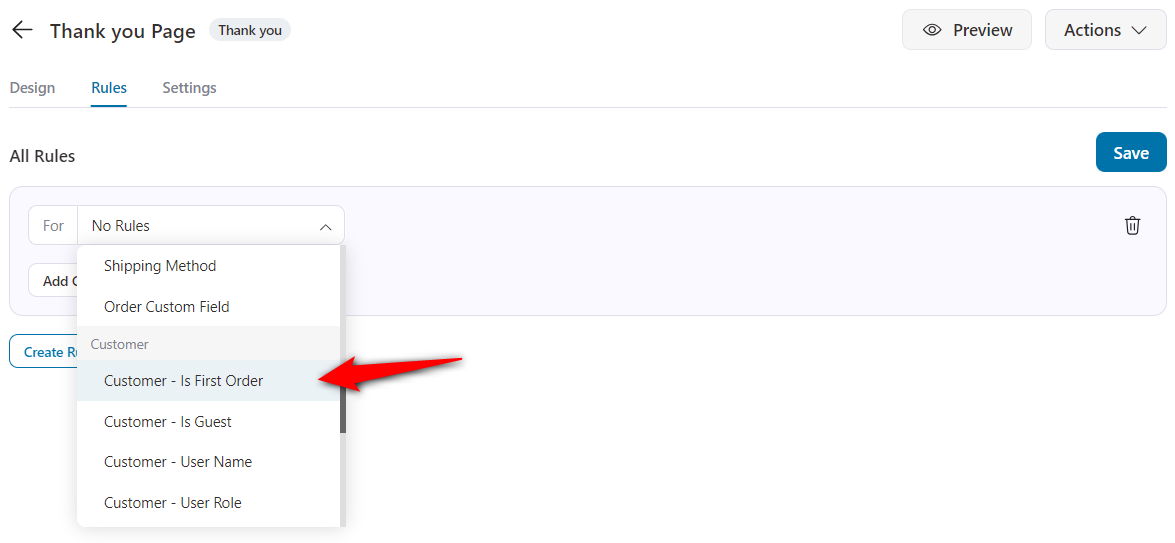
In this example, we will create a rule-based thank you page for your first-time customers.
For that, select the ‘Customer - Is First Order’ rule.
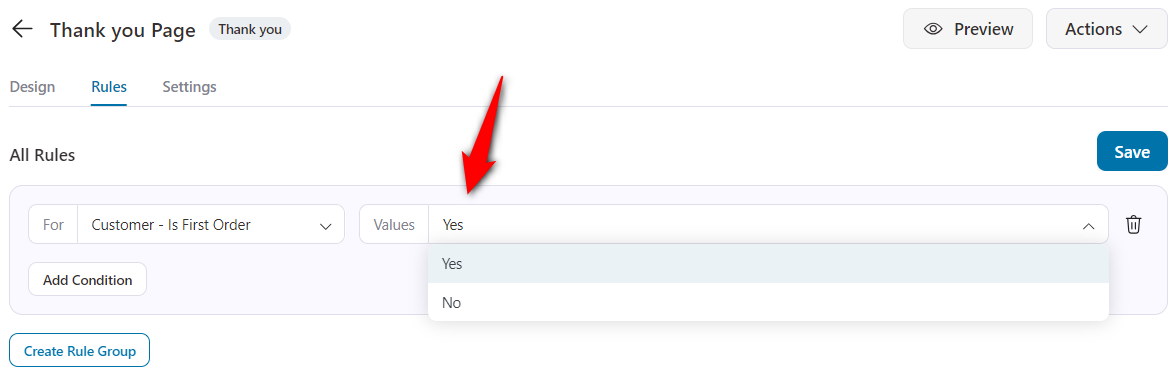
Next, click on ‘Yes’ and save the changes.
Step 5: Activate the store checkout and test it
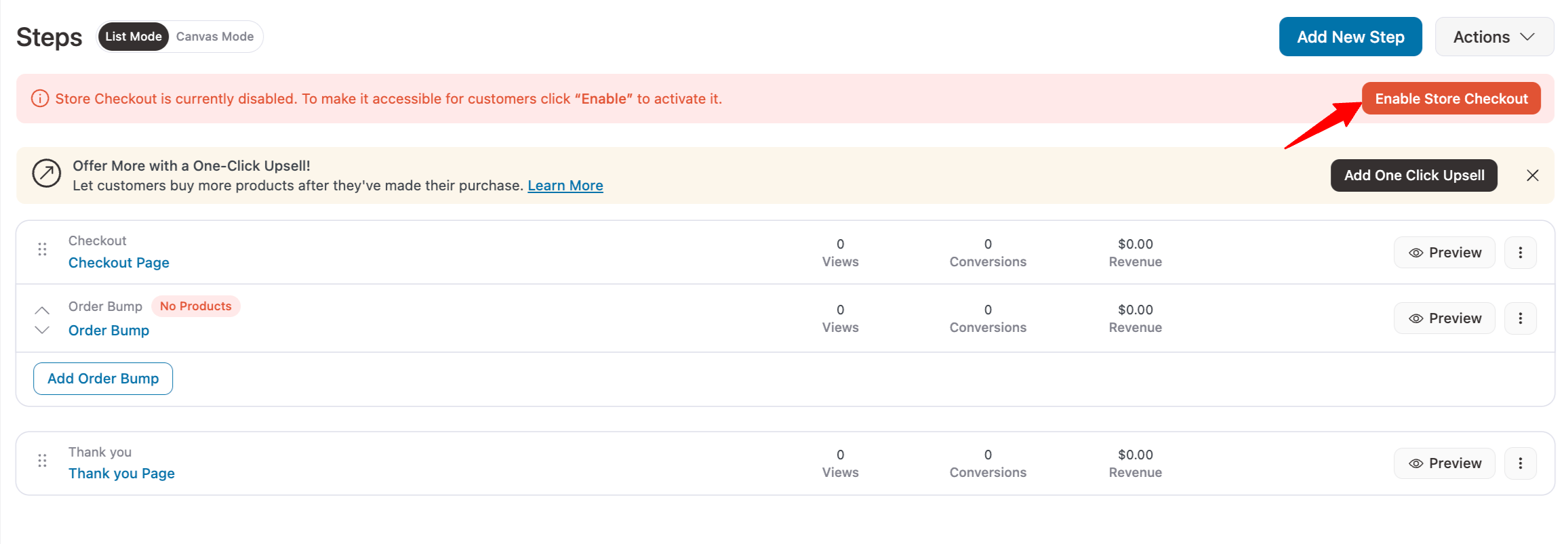
Now, it’s time to make your store checkout go live.
For that, go back to the funnel and hit the toggle to ‘Enable Store Checkout’ from there:
To test, add the serum to the cart, complete checkout, and place a real test order.
Check three things while you are there: that the order details populate, that the merge tags resolve to real values instead of printing the shortcode, and that a first-time buyer actually lands on the first-order page rather than the fallback.
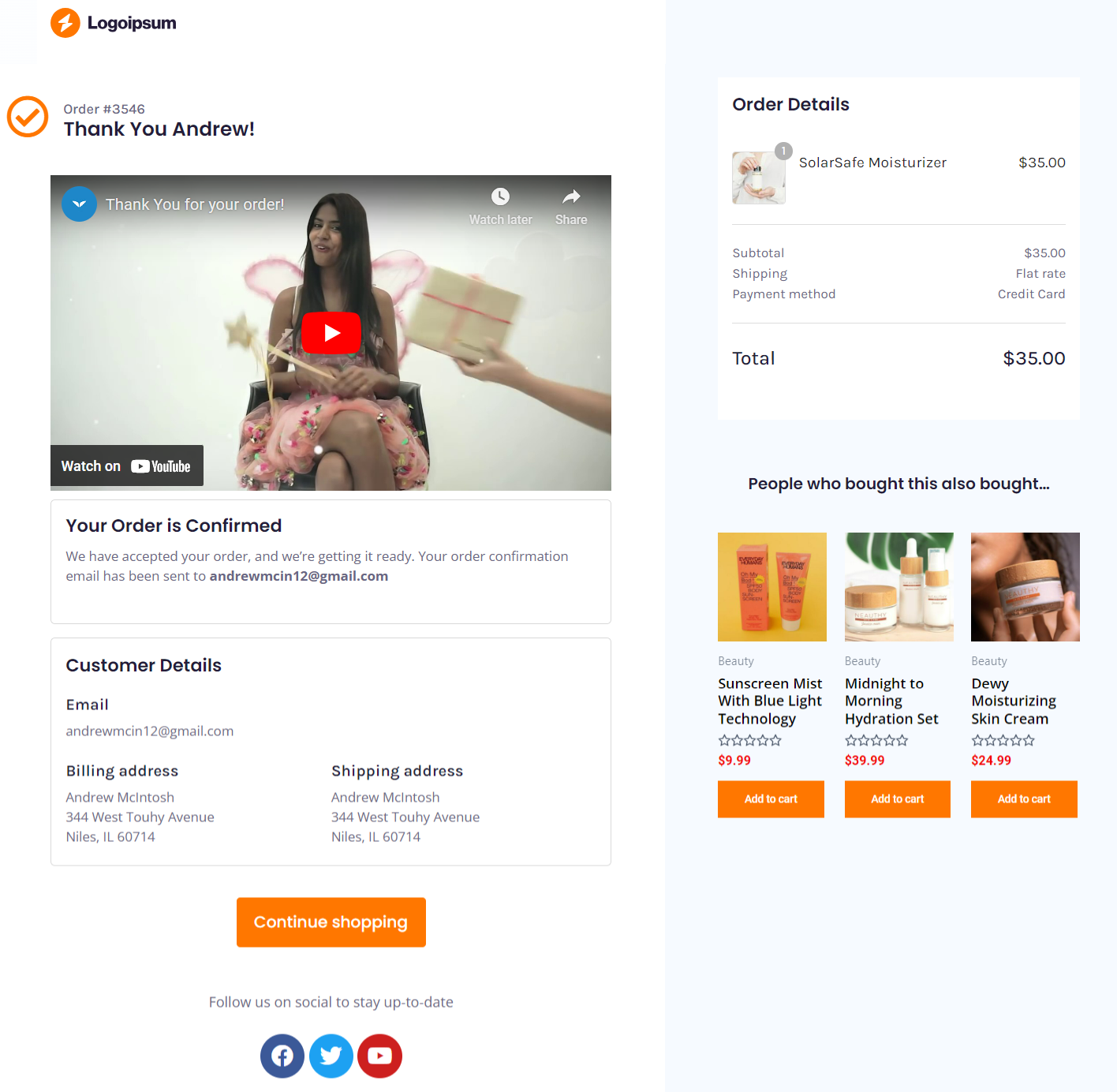
Then open it on a phone, because personalized confirmation pages often break on mobile.
A two-column order summary that looks balanced on desktop can push your video and your coupon three screens down.
Method 3: Customize the Thank You Page With WooCommerce Hooks
If you’re comfortable with PHP, hooks give you precise control on any theme, block or classic, without adding a plugin to the stack.
Every snippet below belongs in your child theme’s functions.php or in a code snippets plugin.
Never edit WooCommerce core or a parent theme directly, because the next update will overwrite it.
WooCommerce thank you page hooks reference
These are the hooks you will reach for most often, listed in roughly the order they fire.
| Hook | Type | Fires | Common use |
|---|---|---|---|
| woocommerce_before_thankyou | Action | Before order details | Banners, alerts, tracking scripts |
| woocommerce_endpoint_order-received_title | Filter | Page title | Replace the “Order received” heading |
| woocommerce_thankyou_order_received_text | Filter | Confirmation message | Personalize the confirmation message |
| woocommerce_thankyou | Action | After order details, receives $order_id | Coupons, videos, conditional content |
| woocommerce_thankyou_{payment_method} | Action | After order details, per gateway | Bank transfer instructions, COD notes |
| woocommerce_order_details_before_order_table | Action | Above the order table | Delivery estimates |
| woocommerce_order_details_after_order_table | Action | Below the order table | Cross-sells, support links |
| woocommerce_order_details_after_customer_details | Action | Below customer details | Referral or review prompts |
Check the full list in the WooCommerce hook reference.
Change the heading and confirmation message
These are two separate filters, which is the detail that trips most people up:
add_filter( 'woocommerce_endpoint_order-received_title', 'custom_thankyou_title' );

function custom_thankyou_title( $title ) {
    return 'Thank you for your order';
}

add_filter( 'woocommerce_thankyou_order_received_text', 'custom_thankyou_text', 20, 2 );

function custom_thankyou_text( $text, $order ) {
    if ( ! $order ) {
        return $text;
    }
    return 'Thanks ' . esc_html( $order->get_billing_first_name() ) . ', your order is confirmed and on its way.';
}
Add content below the order details
The main woocommerce_thankyou action passes the order ID, so you can pull whatever order data you need:
add_action( 'woocommerce_thankyou', 'custom_thankyou_content', 20 );

function custom_thankyou_content( $order_id ) {
    if ( ! $order_id ) {
        return;
    }

    $order = wc_get_order( $order_id );

    echo '<div class="custom-thankyou-note">';
    echo '<h3>What happens next</h3>';
    echo '<p>We are preparing your order now. A shipping confirmation will arrive at ' . esc_html( $order->get_billing_email() ) . ' within 24 hours.</p>';
    echo '<p>Here is 10% off your next order. Use code <strong>THANKS10</strong> at checkout.</p>';
    echo '</div>';
}
If you are running logic on template_redirect or inside a shortcode, gate it with an endpoint check so it only fires on the confirmation screen:
if ( ! is_wc_endpoint_url( 'order-received' ) ) {
    return;
}
Override the template file
For deeper structural changes, copy WooCommerce’s template into your child theme and edit the markup there.
Copy:
wp-content/plugins/woocommerce/templates/checkout/thankyou.phpto:
wp-content/themes/your-child-theme/woocommerce/checkout/thankyou.phpWooCommerce loads the theme copy first, so yours takes over while staying update-safe.
Recheck it after major WooCommerce releases in case the source template has moved.
Redirect buyers to a different page entirely
Sometimes editing the default page is not the goal, and what you actually want is to send the buyer somewhere else depending on what they bought:
add_action( 'template_redirect', 'conditional_thankyou_redirect' );

function conditional_thankyou_redirect() {
    if ( ! is_wc_endpoint_url( 'order-received' ) || empty( $_GET['key'] ) ) {
        return;
    }

    $order_id = wc_get_order_id_by_order_key( sanitize_text_field( wp_unslash( $_GET['key'] ) ) );
    $order    = wc_get_order( $order_id );

    if ( ! $order ) {
        return;
    }

    foreach ( $order->get_items() as $item ) {
        if ( 456 === $item->get_product_id() ) {
            wp_safe_redirect( home_url( '/course-welcome/' ) );
            exit;
        }
    }
}
One warning applies to every redirect method, plugins included.
If you send the buyer away from the order received page, your purchase tracking may never fire, and we cover how to handle that further down.
For the full map of where you can hook into the buying journey, see our guide to WooCommerce checkout hooks.
5 Best WooCommerce Thank You Page Plugins
If FunnelKit is more tool than you need, these are the alternatives worth weighing.
| Plugin | Best for | Free version | Notable limitation |
|---|---|---|---|
| Thank You Page for WooCommerce | Simple global or per-product redirects to a page you build elsewhere | Yes | Redirects only, with no visual editor for the confirmation page itself |
| YITH Custom Thank You Page | Multiple confirmation pages with rules by product, category, or payment method | No | Built on WordPress pages, so design depends on your theme or builder |
| Custom Thank You Pages for WooCommerce | Per-product pages with related product recommendations, sold through WooCommerce | No | No post-purchase offer flow and no A/B testing |
| NextMove Lite | Coupons, social sharing, and product recommendations on the default page | Yes | Works on the order received page only, with no full page builder |
| FunnelKit Funnel Builder | Rule-based pages, one-click upsells, and A/B testing across the whole funnel | Yes | Broader than a thank you page tool, so it takes more setup than a single-purpose plugin |
Disclosure: FunnelKit Funnel Builder and NextMove are both ours. FunnelKit was formerly WooFunnels, and NextMove is published under our XLPlugins brand, so we list them alongside third-party plugins to let you compare features rather than take our word for it.
The practical difference with FunnelKit is scope.
The others customize the confirmation page, while FunnelKit treats it as the last step of a funnel, which means the same tool also runs the checkout page, order bumps, and one-click upsells that come before it.
If all you need is a better heading and a coupon, a single-purpose plugin can be a good choice and we would rather you took it.
5 Ways to Encourage Brand Loyalty and Repeat Purchases on Your Thank You Page
Here are simple yet effective ways to encourage brand loyalty and repeat purchases with your custom WooCommerce thank you pages.
1. Invite customers to join your online communities
Social communities are a great asset for your business. They are more likely to buy from you time and again. They'll also spread positive word of mouth about your products and services.
Who doesn’t want free marketing? In exchange, you can exclusively share discount coupons, festive deals, and more with them.
So, it’s a win-win for both. Thus, display social media handles on your WooCommerce custom thank-you page and invite customers to join.
Invite your customers to join your online communities on Facebook, YouTube, Twitter, Pinterest, and more.
2. Build customer relationships with a personalized thank-you video
Displaying a simple, all-text thank you page feels outdated and boring.
It’s the new era of digital presence, and in this era, you need captivating media (images, videos, or GIFs) to hold your customer’s attention a little longer.
As we discussed above, you can record yourself greeting your customers and welcoming them to your brand.
Or, you can display a walkthrough video where you unbox the item and show them how to use it.
This one cool hack can significantly boost your WooCommerce custom thank you page conversions.
3. Give a coupon that only works on the next order
Who doesn’t like discount coupons? In fact, according to Statista, 92% of shoppers used discount coupons while buying something last year.
So, give people what they love: discount coupons.
Create static discount coupons inside WooCommerce and paste the code on your thank-you page. Create a rule-based thank you page, and you are good to go.
This strategy works really well with first-time buyers. They get a good discount, and you get a repeat sale.
4. Promote frequently bought together products and boost sales
Remember when we said the WooCommerce thank you page isn't just about thanking your customers and confirming their order details?
This is what we meant - promote upsell and cross-sell offers on your thank you page and boost sales.
Some businesses even promote their high-ticket products on the thank you page, generating higher revenue from the same lead.
You can create multiple rule-based thank you pages and display frequently bought items based on the product the customer purchased.
5. Add setup instructions for the thing they bought
A short how-to, an unboxing clip, or a first-steps checklist reduces returns and refund requests.
Pair it with a per-product rule so the instructions match the item instead of covering your whole catalog.
6. Show delivery expectations and a tracking link
Give the window, the carrier, and either a link or a clear note that one will follow by email.
This is the cheapest way to cut inbound support volume, and you are paying for the page either way.
Whichever combination you land on, A/B test it rather than assuming, since confirmation pages are unusually easy to test when every visitor arrives having done exactly the same thing.
Tracking Conversions on the Order Thank You Page
Purchase events fire here, because this page only loads after a completed order.
If you get it wrong, your ad platforms will under-report revenue and quietly corrupt every bidding decision you make afterward.
Make sure to get these two things right:
- GA4: Fire the purchase event on the order-received page with the order value, transaction ID, currency, and items. Many WooCommerce-GA4 integrations handle this automatically. If you’re firing it manually via the woocommerce_thankyou hook, pull the values from the order object to keep them accurate.
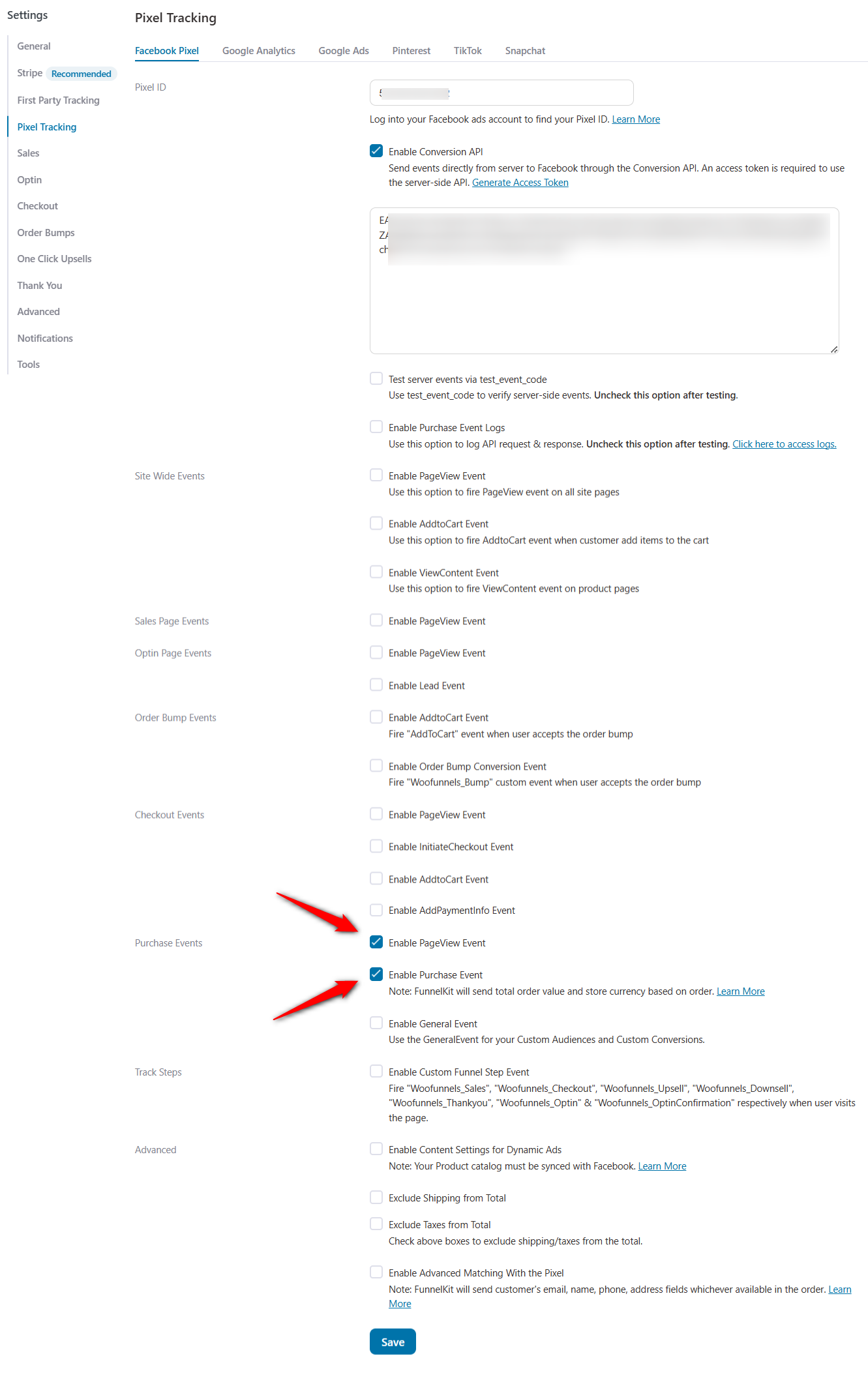
- Meta (Facebook) Pixel, TikTok Pixel, Snapchat, Pinterest, etc.: Fire the Purchase standard event with value and currency on the same page.
Why redirects and caching break it
Two things cause almost every case of under-reported conversions on this page.
- Redirects
If a plugin or a snippet moves the buyer to another page before your pixel fires, the purchase event never happens.
Use redirects by all means. Just make sure the tracking fires on the destination page, and that the destination can read the order.
- Caching
Page caches, object caches, and CDNs will happily serve a stale copy of a page that is unique to every order, so exclude the order-received endpoint from every cache layer.
Then verify with a real test order in GA4 DebugView and the Meta Pixel Helper rather than assuming it works because the code is present.
When to move server-side
If purchase counts still do not match order counts, stop debugging the browser.
The GA4 Measurement Protocol and the Meta Conversions API both send the purchase event from your server when the order status changes.
That setup survives ad blockers, tracking prevention, and customers who close the tab the second payment clears.
If you don't want to use external plugins, FunnelKit lets you track pixels and integrate with GA4.
WooCommerce Thank You Page Not Showing? Common Fixes
If buyers complete checkout and never reach the order received page, or land on a blank one, go down this list rather than changing five things at once.
- Flush permalinks: Go to Settings ⇨ Permalinks and click Save Changes without editing anything; this re-registers the endpoint and fixes most cases.
- Clear and exclude caches: Purge your page cache, object cache, and CDN, then add the order-received endpoint to your exclusion list so the problem does not return next week.
- Check for redirect conflicts: A redirect plugin, a funnel rule, an LMS, or a security plugin may be intercepting the endpoint, so disable redirect logic temporarily to isolate it.
- Confirm the order actually completed: A failed or pending payment will not render the standard page, so check the order status under WooCommerce ⇨ Orders before assuming anything is broken.
- Test for a plugin or theme conflict: Switch to a default theme, deactivate non-essential plugins, then re-enable them one at a time until the page breaks again.
- Look for an orphaned template override: After a theme switch, your new child theme may be missing a woocommerce/checkout/thankyou.php that the old one supplied, or carrying a stale copy.
If the page loads fine but conversions are not recorded, the problem is tracking rather than the page itself.
Frequently Asked Questions (FAQs)
Digital sellers have a different job here, because nobody is waiting for a parcel. They are waiting for access, and every second between payment and access creates a support ticket.
Put the download or course link above the order summary, since the receipt matters less than the thing they just bought.
If you sell through an LMS, link to the specific course rather than a general dashboard, which is the most common request we see from course sellers on WooCommerce.
Per-product rules earn their place faster here than anywhere else, because a customer who bought one course should not land on a page listing five.
And if you have already built the destination page in Thrive Architect or Elementor, a redirect from the order received endpoint is usually simpler than rebuilding it inside a funnel.
Guest checkouts cannot reach an account area, so either require an account at checkout or make sure the download link works without one.
WooCommerce does not ship a core shortcode that outputs the order received content on an arbitrary page.
Thank you page plugins supply their own merge tags instead, which is why FunnelKit uses [wfty_order_number] and similar tags.
If you need order data on a custom page, read it from the order object using the key in the URL.
Yes, and there are three routes. The Site Editor works for free on a block theme, the hooks method is free on any theme, and several plugins, including FunnelKit Funnel Builder and NextMove Lite, have free versions.
You generally pay for per-product rules, A/B testing, and one-click upsells.
The hooks method works with every theme, while the Site Editor method works only with block themes, which rules out Astra and Flatsome.
Page builder plugins let you design the confirmation page in Elementor, Divi, Bricks, or Oxygen no matter which theme you run.
There is no official WooCommerce design template to import.
You can copy thankyou.php into a child theme as a starting point for code changes, or import a pre-built template through a funnel plugin and edit it in your page builder.
You can change the custom thank you page URL in WooCommerce when editing your page in FunnelKit. On the top, click on the name of your order confirmation page and edit it the way you want.
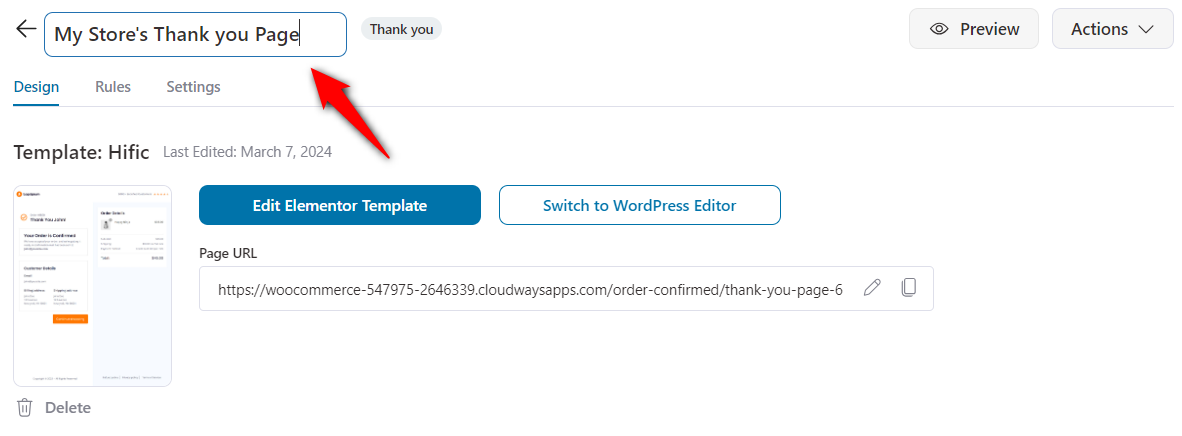
When you're done, click the Edit button next to your Page URL.
This is where you can change your WooCommerce thank you page slug and URL.
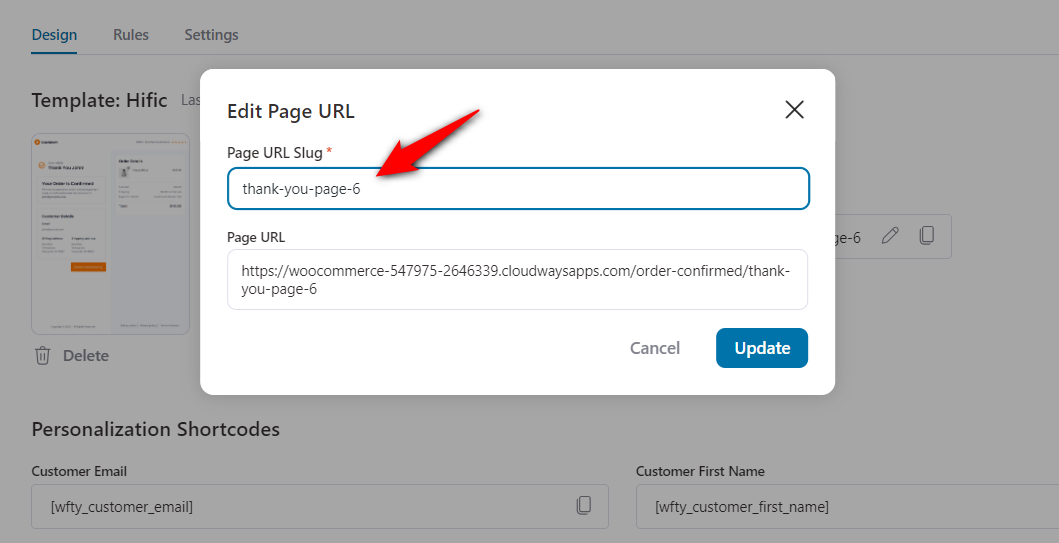
Once done, hit 'Update' to save your changes.
Yes. Create it in WooCommerce with a usage limit of one per customer and an expiry date, then display the code on the page.
Add a minimum spend if you need to protect margin, and keep the expiry short enough to give someone a reason to come back this month.
It is almost always caching. A cached copy is being served to a different customer, which is both a broken experience and a privacy problem.
Exclude the order-received endpoint from every cache layer immediately, including the CDN.
Yes, WooCommerce sends one automatically and separately from this page.
Keep the two consistent, and put anything promotional on the page rather than in the email, since transactional email carries stricter deliverability expectations.
For post-purchase sequences beyond the receipt, see our guide to WooCommerce order confirmation emails.
On a block theme, you can remove those blocks in the Site Editor, and in code you can unhook woocommerce_order_details_after_order_table and its siblings or override thankyou.php.
We would not hide the order summary entirely, because customers use it to confirm they bought the right thing.
Turn Your WooCommerce Thank You Page Into the Start of the Next Order
Every paying customer sees this page. In most WooCommerce stores, it does nothing but print a receipt, leaving revenue on the table at the moment a buyer has already proven they will spend money with you.
You do not need all three methods. Pick the lightest one that does the job: the block editor for a branded refresh, hooks if you write PHP, or a plugin when you want the page to change per product and carry an offer.
The seven in ten shoppers who abandon their cart cost you nothing here, because this page only loads for the three who did not.
If you want the rules, the offers, and the A/B tests without touching code, FunnelKit Funnel Builder handles the whole post-checkout step.
Ready to turn your default WooCommerce thank you page into a revenue-generating asset? Start building with FunnelKit today.
Editorial Team
October 9, 2026A downsell gives customers a cheaper option after they turn down your main offer. If you show it too soon, you might convince them to skip the original offer and...
Editorial Team
October 8, 2026WooCommerce guest checkout lets shoppers buy from your store without creating an account. They enter an email, their billing details, and payment, and the order goes through. It's a built-in...
Editorial Team
October 7, 2026WooCommerce upsells are products you recommend in place of the one a shopper is viewing, usually a better or higher-priced version of it. WooCommerce has a built-in upsell field for...






