


WooCommerce checkout optimization is about making it easier for shoppers to finish their purchase.
A customer can reach your checkout on their phone, look at the form for a few seconds, and decide it’s too much work.
Say you sell houseplants and someone has a $38 monstera in their cart. Your default WooCommerce checkout gives them a few reasons to leave.
They’re asked for a company name they don’t need.
Shipping isn’t clear until the final step.
Then they see a delivery estimate of “3 to 7 business days” for a plant that probably shouldn’t spend a weekend sitting in a depot.
This guide covers 7 WooCommerce checkout optimization fixes, ranked by how many abandoning shoppers they can help and how quickly you can implement them.
For each one, we’ll cover the native WooCommerce settings for both block and classic checkouts, and when a plugin can make the job easier.
Quick answer: Start WooCommerce checkout optimization by removing fields you don’t need. Most stores can get by with around 8 fields.
Enable guest checkout, show shipping and tax before payment, and make Apple Pay and Google Pay easy to find.
Keep the checkout page fast, and ask for the customer’s email early so you can follow up if they abandon their cart.
We’ll also show what happened when we tested these changes on our test store and what to check after each update before going live.
Watch this video to learn about checkout customization and optimization tips to speed up conversions:
Table of Contents
- 1 What Is WooCommerce Checkout Optimization?
- 2 Why Shoppers Abandon the Checkout (And Which Fix Covers Each)
- 3 The 7 Fixes at a Glance
- 4 Before You Change Anything: Measure Your Checkout Conversion Rate
- 5 Fix 1: Ask for Less On the Checkout Form
- 6 Fix 2: Show the Full Cost and Delivery Date Before Payment
- 7 Fix 3: Put Express Wallets Above the Form
- 8 Fix 4: Earn Trust at the Payment Step and Prevent Failed Orders
- 9 Fix 5: Speed Up the Checkout Page
- 10 Fix 6: Make the Checkout Work One-Handed on a Phone
- 11 Fix 7: Choose the Right Checkout Layout
- 12 After Checkout: Recover Abandoned Carts and Raise Revenue Per Order
- 13 What These Fixes Did On Our Test Store
- 14 Test Every Change: A/B Tests and a Checkout QA List
- 15 Do You Need a Checkout Plugin at All?
- 16 Frequently Asked Questions
- 17 Start Your WooCommerce Checkout Optimization With the Quick Wins
What Is WooCommerce Checkout Optimization?
Checkout optimization is the practice of removing friction from your WooCommerce checkout so more of the shoppers who start paying actually finish.
It covers form field reduction, page speed, payment methods, mobile layout, cost transparency, and abandonment recovery.
It really comes down to two numbers.
The first is your checkout conversion rate: completed orders divided by checkouts started. In GA4, that’s purchase divided by begin_checkout.
The second is revenue per checkout. Multiply your checkout conversion rate by your average order value.
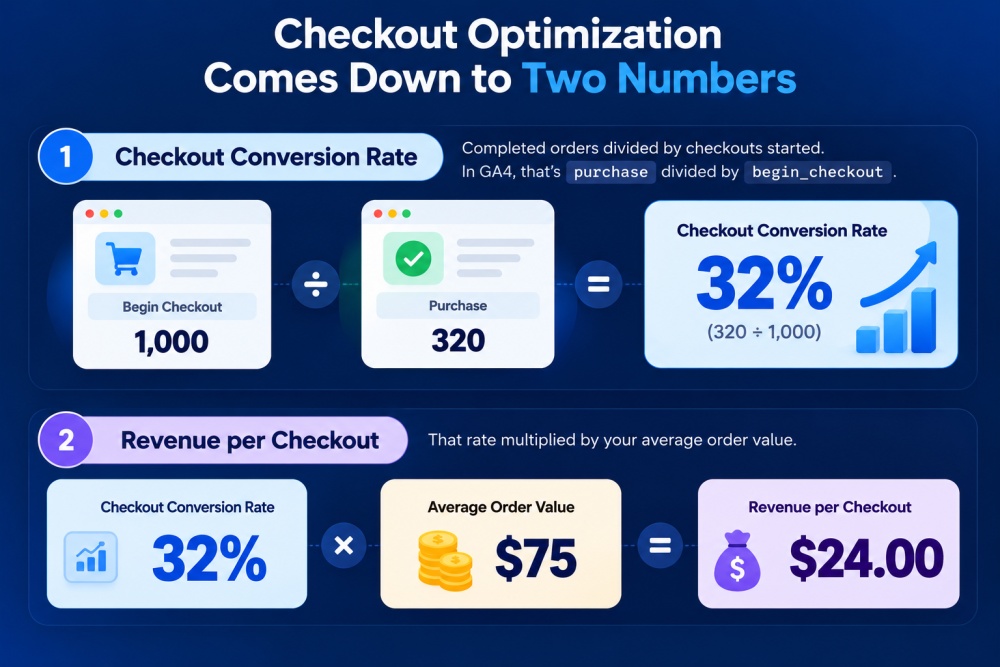
The 7 fixes in this guide focus on the first number. The goal is to get more shoppers who start checkout to actually finish it.
The sections that follow deal with what happens after that.
Recovery emails can bring back some shoppers who leave, while order bumps can increase the value of each completed order.
We track order bumps separately for a reason. A bump might increase your average order value while also causing some shoppers to abandon checkout.
If you only look at revenue, you can miss that trade-off.
Why Shoppers Abandon the Checkout (And Which Fix Covers Each)
Baymard Institute puts the average cart abandonment rate at 70.22% across 50 studies. But not all of those shoppers were going to buy anyway.
42% of US shoppers said they abandoned a cart because they were just browsing.
The rest left for reasons you can actually address:
| Why shoppers abandoned (Baymard, US online shoppers) | Share | Where we fix it |
|---|---|---|
| Extra costs such as shipping, tax, and fees were too high | 40% | Fix 2 |
| Delivery was too slow | 20% | Fix 2 |
| They didn’t trust the site with their card details | 19% | Fix 4 |
| The site wanted them to create an account | 18% | Fix 1 |
| The checkout was too long or complicated | 17% | Fix 1 and Fix 7 |
| The website had errors or crashed | 17% | Checkout QA list |
| The returns policy wasn’t satisfactory | 13% | Fix 4 |
| They couldn’t see or calculate the total cost upfront | 12% | Fix 2 |
| Their card was declined | 10% | Fix 4 |
| There weren’t enough payment methods | 9% | Fix 3 |
Shoppers could select more than one reason, so these percentages overlap.
You’ll also notice that page speed isn’t listed here. It still matters, and Fix 5 covers the evidence, but fewer shoppers mention it as the direct reason they abandoned checkout.
We ranked these fixes based on two things: how many abandonment reasons each one can address and how quickly a typical store can implement it.
That’s why the checkout form comes first. It tackles two common problems and can often be improved in just a few minutes.
The 7 Fixes at a Glance
| Fix | Abandonment reasons addressed | Typical effort | Who does it | Native WooCommerce? |
|---|---|---|---|---|
| 1. Ask for less on the checkout form | Forced account (18%), too long (17%) | 10 to 20 minutes | Store owner | Yes, except autocomplete and a single name field |
| 2. Show the full cost and delivery date | Extra costs (40%), slow delivery (20%), unclear total (12%) | 15 to 30 minutes | Store owner | Yes, except dynamic delivery dates |
| 3. Put express wallets above the form | Too few methods (9%), too long (17%) | 10 to 20 minutes | Store owner | Yes, through your payment gateway |
| 4. Earn trust and prevent failed payments | No trust (19%), returns (13%), card declined (10%) | 1 to 2 hours | Store owner | Yes |
| 5. Speed up the page you can’t cache | Supports every reason above | 1 to 2 hours | Developer or host | Yes |
| 6. Make the checkout work one-handed on a phone | Too long (17%), worse on small screens | 1 to 3 hours | Store owner, plus a developer on custom themes | Mostly |
| 7. Choose the right checkout layout | Too long (17%) | Half a day, plus testing time | Store owner | Partly, since multi-step needs a plugin |
If you only have an afternoon, do fixes 1 through 3. They carry the most weight per minute.
Before You Change Anything: Measure Your Checkout Conversion Rate
You need a baseline before you start. Otherwise, you won’t know which change actually improved your checkout.
Build a GA4 checkout funnel
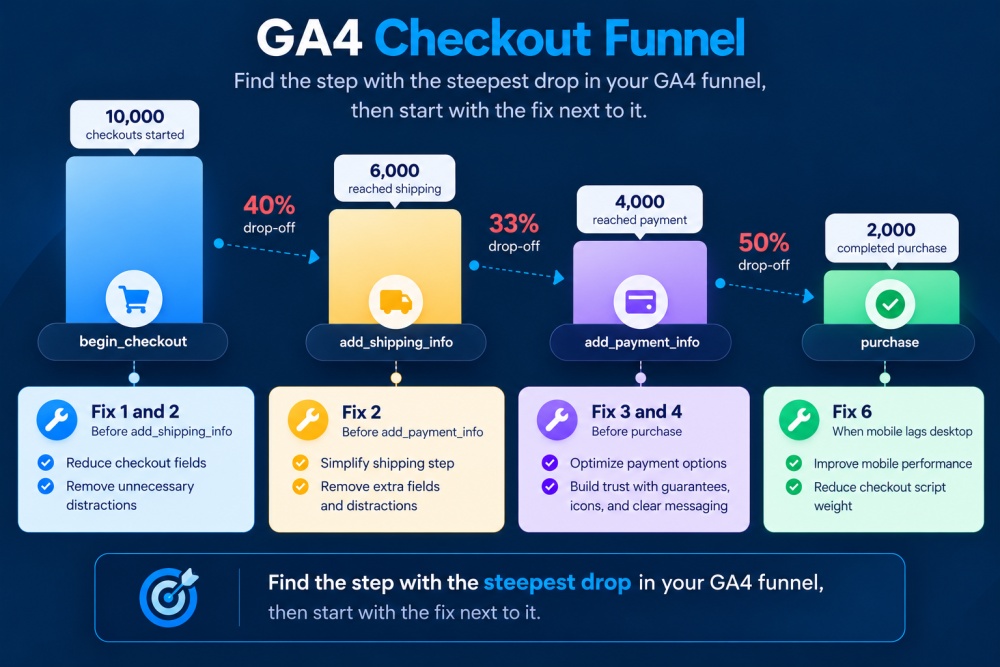
GA4 uses four ecommerce events to track the checkout: begin_checkout, add_shipping_info, add_payment_info, and purchase.
WooCommerce starts sending these events once you connect an analytics integration.
Our WooCommerce Google Analytics integration guide walks through the setup.
Once the events are coming through, create a Funnel exploration in GA4 using those four steps.
Look at where the biggest drop happens:
- Drop before add_shipping_info: Start with Fix 1 (the form) and Fix 2 (costs).
- Drop before add_payment_info: Start with Fix 2, since this is where shoppers see shipping costs and delivery times.
- Drop before purchase: Start with Fix 3 and Fix 4, which cover payment methods, trust, and declined cards.
- Mobile completion is much lower than desktop: Start with Fix 6.
Take a screenshot of the funnel and include today’s date.
Check it again in two weeks for a clear before-and-after comparison.
Check which checkout you're running
Some WooCommerce checkout optimization fixes work differently depending on whether you’re using the block checkout or classic checkout, so check this first.
Go to Pages ⇨ All Pages and click on the checkout page.
If you see a Checkout block, you’re using the block checkout, which is the default on new WooCommerce installations.
If you see the [woocommerce_checkout] shortcode, you’re using the classic checkout.
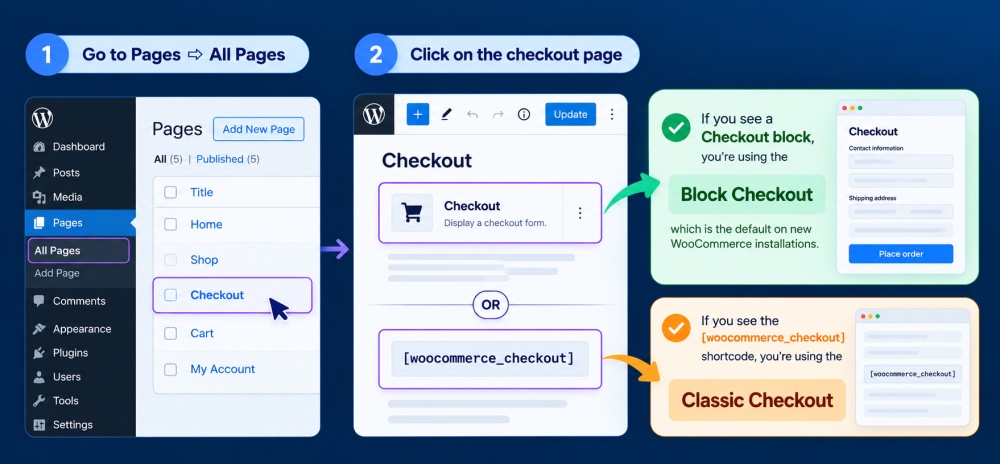
If you see a page builder widget instead, your builder or another plugin is controlling the checkout form.
If you’re in the middle of moving from classic to block checkout, finish the migration before making other changes.
A partially migrated checkout can make it harder to tell whether a problem comes from WooCommerce, your theme, or a plugin.
Fix 1: Ask for Less On the Checkout Form
The form is where most abandonment happens, and it’s the cheapest place to make changes.
Baymard’s checkout research found the average checkout flow asks for 11.3 form fields, while most orders can be completed with 6 to 8.
On a phone, every extra field means more thumb typing.
Hide the company, address line 2, and phone fields
Cut company name, address line 2, and order notes, and make phone number optional unless your shipping carrier truly needs it.
FunnelKit Funnel Builder includes a drag-and-drop checkout field editor for this.
You can add, edit, remove, and reorder fields and sections on your checkout form effortlessly.
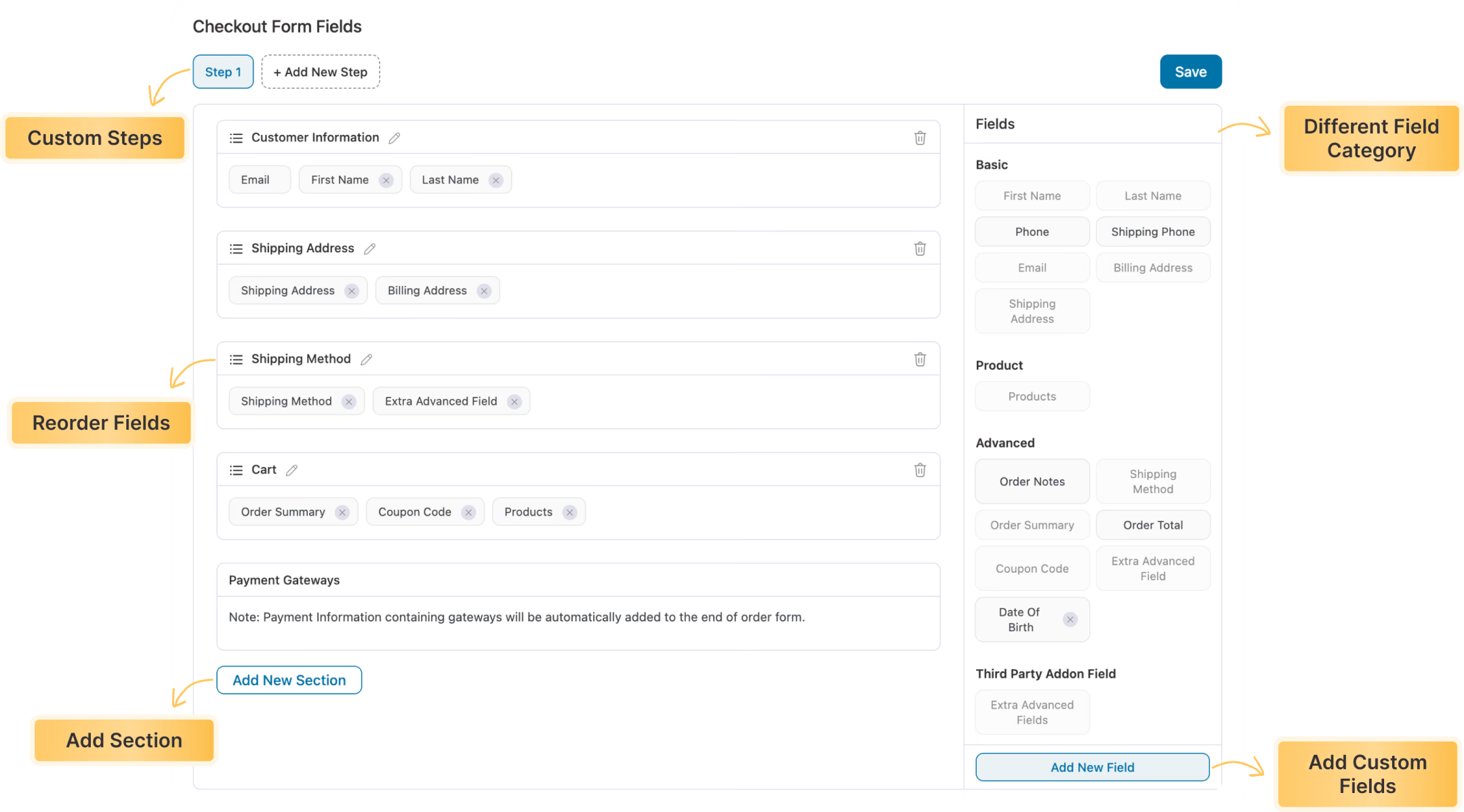
Without a plugin, select the Checkout Fields block in the editor’s List View on the block checkout.
Its Address Fields setting lets you show or hide Company, Address Line 2, and Phone, and decide whether address and phone are required.
On the classic checkout, you’ll find the same three fields under Appearance ⇨ Customize ⇨ WooCommerce ⇨ Checkout, where each one can be optional, required, or hidden.
For most B2C stores, we’d set them up like this:
- Company: Hide it unless you sell to businesses.
- Phone: Make it optional unless your carrier needs it. If you keep it, explain why you need the number.
- Address line 2: Keep it optional so shoppers who need it can still use it.
The block checkout already keeps order notes behind an optional checkbox.
On the classic checkout, you can remove them with one line in your child theme’s functions.php file or with a code snippets plugin:
add_filter( 'woocommerce_enable_order_notes_field', '__return_false' );Classic PHP filters such as woocommerce_checkout_fields don’t affect the block checkout. That’s an easy detail to miss.
If a snippet appears to do nothing, check which checkout you’re using first.
For bigger changes to the classic checkout, see our WooCommerce checkout hooks guide.
Turn on guest checkout and offer an account later
Baymard found that 18% of US shoppers abandoned a purchase because the site wanted them to create an account.
To remove that friction, go to WooCommerce ⇨ Settings ⇨ Accounts & Privacy, allow customers to place orders without an account, and turn off any setting that forces registration.
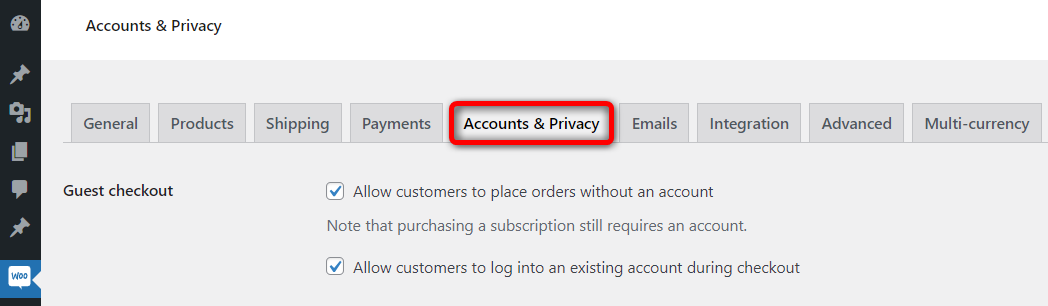
Guest checkout has a trade-off because it's harder to recognize returning customers, and subscription stores often need accounts so customers can manage their subscriptions.
For a one-time purchase like a houseplant, though, removing the account requirement is usually worth it.
You can still offer account creation after the purchase.
Baymard found that asking shoppers to create an account on the confirmation screen works better than asking before checkout because they’ve already entered the information needed to create one.
Our guest checkout guide covers the settings in more detail.
Put the email field first
Putting the email field near the top gives you a way to reach shoppers who leave halfway through checkout.
The recovery emails later in this guide depend on having that address.
The block checkout already starts with contact details. The classic checkout puts the email field below the name and address fields.
You can move it to the top with this snippet:
// Classic checkout only: move the email field to the top of billing details.
add_filter( 'woocommerce_checkout_fields', function( $fields ) {
	$fields['billing']['billing_email']['priority'] = 1;
	return $fields;
} );
Add address autocomplete
Typing a full address is the slowest part of any checkout, especially on a phone.
Google Address Autocomplete suggests the full address after a few keystrokes and fills the street, city, state, and postcode fields in one tap.
Keep two things in mind. Google charges for Places lookups after you pass its free tier, so set a budget alert for your API key.
With FunnelKit, enable Google Address Autocomplete in the optimizations settings and paste your API key.
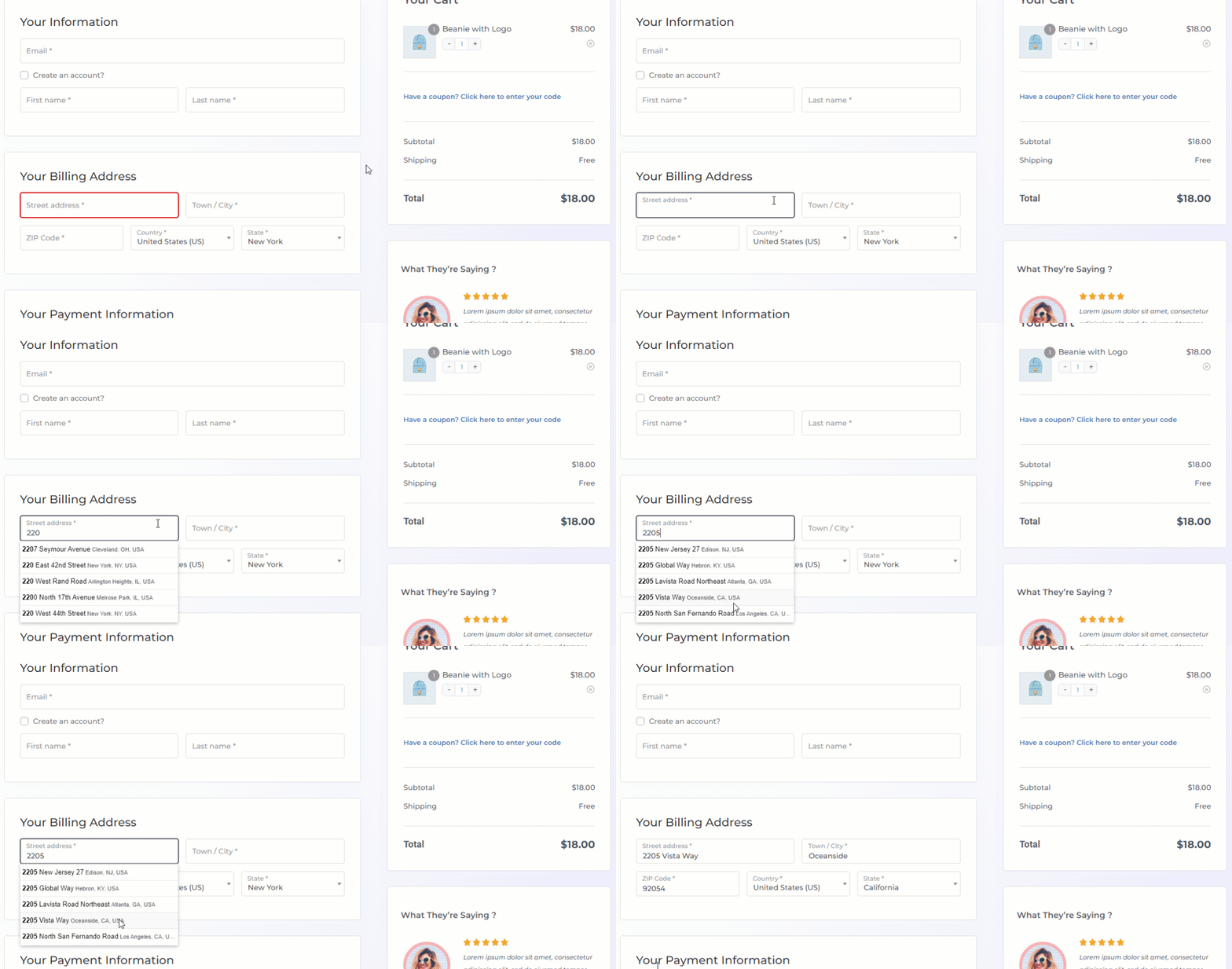
You can also go with any free address-autocomplete plugin that supports the Google Places API.
Make sure to set billing-as-default to WooCommerce's native behavior when “Force shipping to the customer billing address” is intact or the default theme settings are in effect.
Validate fields as shoppers type
Google’s web.dev guidance recommends validating form data as shoppers enter it, as well as when they submit the form.
Inline validation flags a problem the moment the shopper leaves a field, while the mistake is still easy to fix.
Turn on inline field validation when optimizing your checkout in FunnelKit.
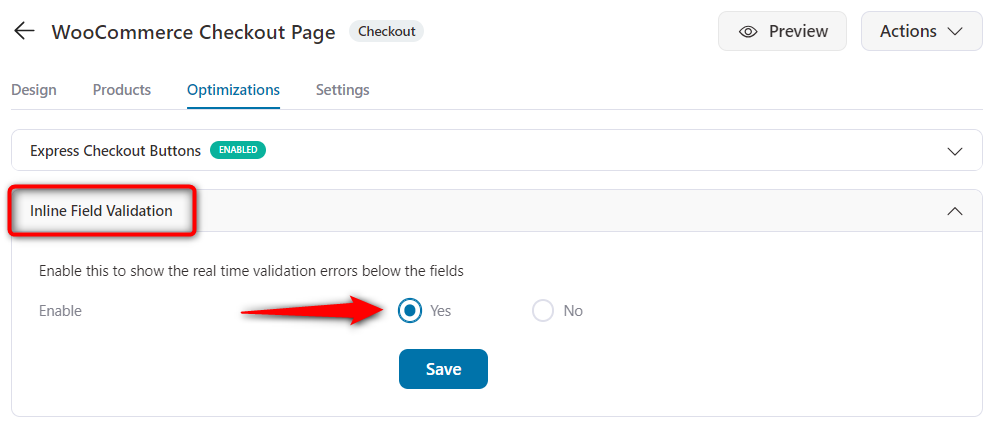
The block checkout validates each field when the shopper moves on to the next one.
The classic checkout generally waits until they click Place order, so you’ll need a plugin or a small script for earlier validation.
A quick way to check is to enter an email address without the @ symbol and then move to the next field.
If the checkout flags it immediately, validation is happening as they go.
Use one column and a single name field
Nielsen Norman Group’s form research favors a single-column layout because people are more likely to skip or misread fields placed side by side.
On a classic theme, a small CSS change to .woocommerce-checkout .col2-set can stack the two columns into one.
Combining first and last name is a smaller optimization, and it comes with a catch.
Baymard found that 42% of test participants entered their full name in the First Name field.
A single full name field avoids that confusion, but you’ll need a checkout field editor or custom code to add it.
Before combining the fields, check your shipping label, accounting, and other integrations. Some expect separate first and last-name values.
A checkout plugin like FunnelKit lets you import one-column templates that you can further customize with your favorite page builders.
Fix 2: Show the Full Cost and Delivery Date Before Payment
Extra costs are the most common fixable reason shoppers abandon checkout.
Baymard found that 40% of US shoppers cited extra costs such as shipping, taxes, and fees, while another 12% said they couldn’t see or calculate the total cost upfront.
A lot of this comes down to timing.
If shipping only appears on the final step, shoppers can feel like they’ve been hit with a hidden charge, even when the price itself is reasonable.
Show shipping and tax early
Give shoppers a clear total before they get to the payment step:
- Shipping calculator: On the classic cart, enable it under WooCommerce ⇨ Settings ⇨ Shipping ⇨ Shipping options. The block cart has its own setting in the block editor.
- Default shipping method: Put the most common shipping method first in each zone so shoppers see a real shipping cost in the total.
- Tax display: Under WooCommerce ⇨ Settings ⇨ Tax, choose whether prices include tax based on what shoppers in your market expect.
- Full total: Show the complete order total in the order summary and next to the Place order button.
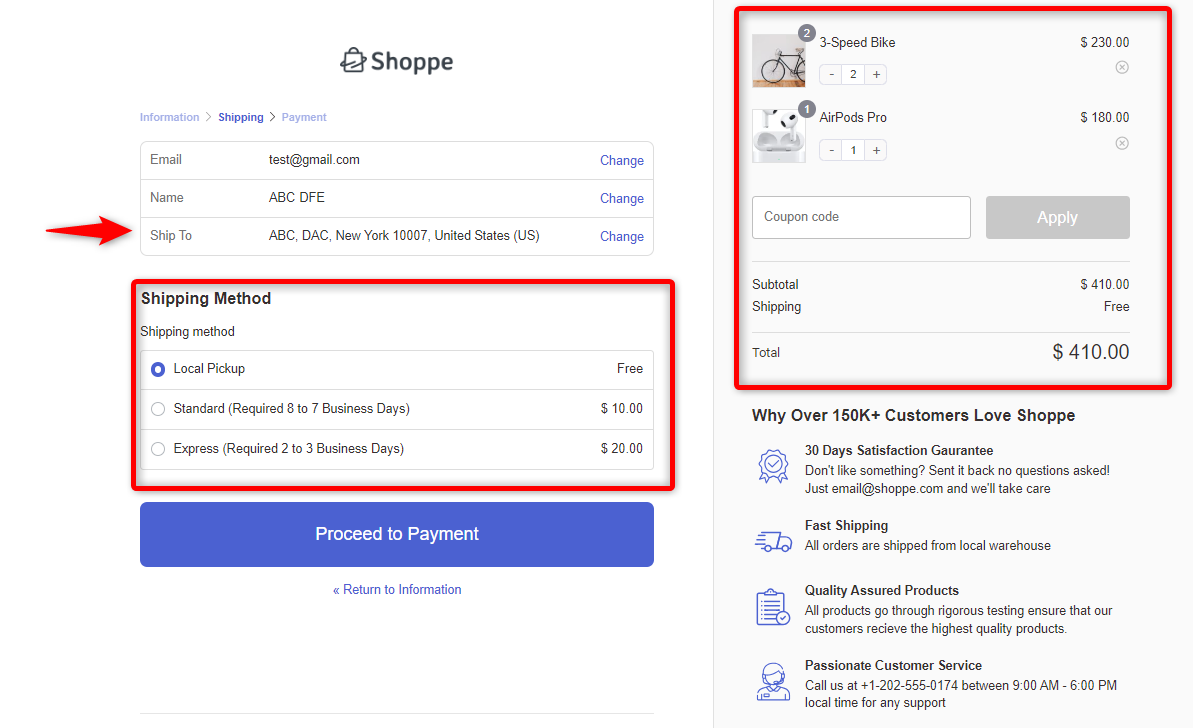
Our guide to adding a shipping calculator to the checkout page covers different ways to set this up.
Set a free shipping threshold and show progress
In your shipping zone, add Free shipping and set a minimum order amount slightly above your current average order value.
If the threshold is much higher than your average order value, most shoppers won’t bother trying to reach it.
If it’s lower, you may end up covering shipping costs on orders that would have happened anyway.
The threshold also needs to be visible. A message such as “You’re $12 away from free shipping” on the cart and checkout tells shoppers exactly how close they are.
FunnelKit Cart can show the same information as a progress bar in the side cart.
Show delivery date estimates
Baymard found that 20% of US shoppers abandoned a purchase because delivery was too slow.
Sometimes the problem is the delivery speed. Other times, shoppers simply don’t know when their order will arrive.
“3 to 5 business days” makes them work out the actual date themselves.
WooCommerce lets you rename shipping methods, so you can include realistic timing in the method name, such as Standard (arrives in 3 to 4 days).
Avoid using specific calendar dates in the method name because they’ll need to be updated constantly.
For dynamic delivery dates, you’ll need a shipping plugin or custom code.
If you sell perishable products, consider removing slower shipping methods before a Friday dispatch. It also helps to offer a faster paid option for shoppers who need their order sooner.
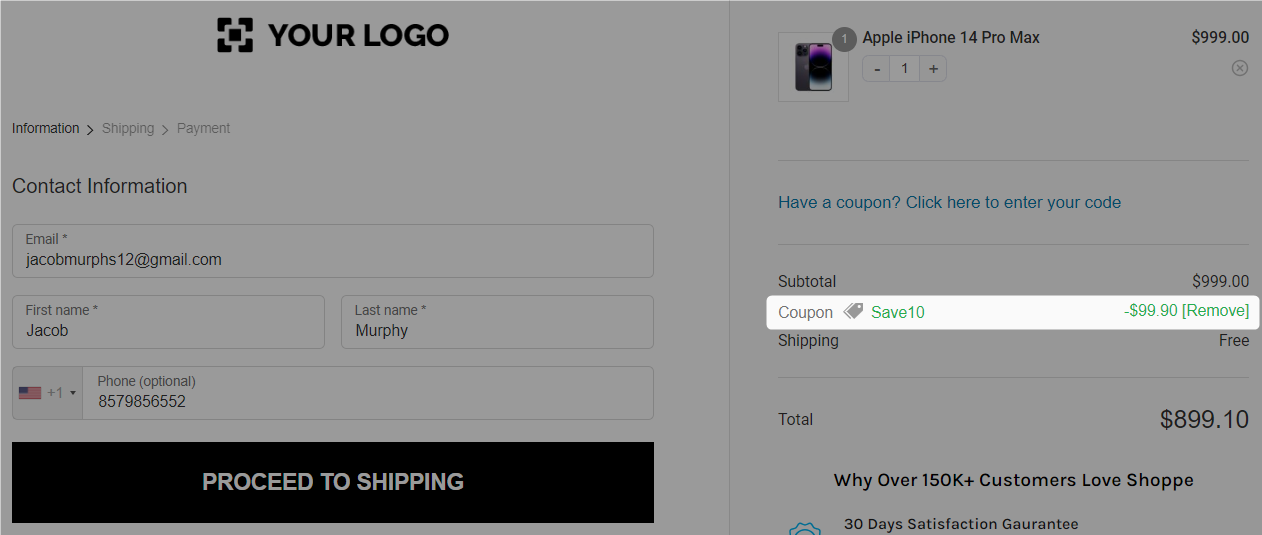
Collapse, hide, or auto-apply the coupon field
Baymard observed shoppers leaving checkout to search for promo codes and recommends keeping the coupon field behind a link instead of displaying an empty box by default.
- Rarely run promotions? Turn coupons off under WooCommerce ⇨ Settings ⇨ General. This disables coupons across the store.
- Run promotions regularly? Apply discounts automatically so shoppers don’t have to search for a code. Our guide to auto-applying coupons in WooCommerce shows how.
- Need to keep the field? Hide it behind a "Have a promo code?" link. The block checkout already uses this approach.
Fix 3: Put Express Wallets Above the Form
According to Worldpay’s Global Payments Report, digital wallets account for about half of global ecommerce transaction value.
For a returning customer, a wallet can remove most of the address and card fields from checkout.
But that only helps if shoppers can see the wallet buttons before they start filling out the form.
Place Apple Pay and Google Pay above the form
The block checkout shows an express checkout area at the top when your payment gateway supports wallets.
On the classic checkout, the position of these buttons depends on your gateway's express checkout settings.
If the buttons aren’t showing, check these first:
- Apple Pay: It only appears in supported Safari or Apple-device setups when the shopper has a card saved in Apple Wallet, and the site must use HTTPS. If it’s missing on an iPhone with a saved card, check that your domain is registered in your gateway settings.
- Google Pay: It appears in supported browsers when the shopper has a saved card.
Once everything is set, go to the Apple Pay or Google Pay tab and enable it. Configure the visibility of the Google Pay and Apple Pay express checkout buttons here.
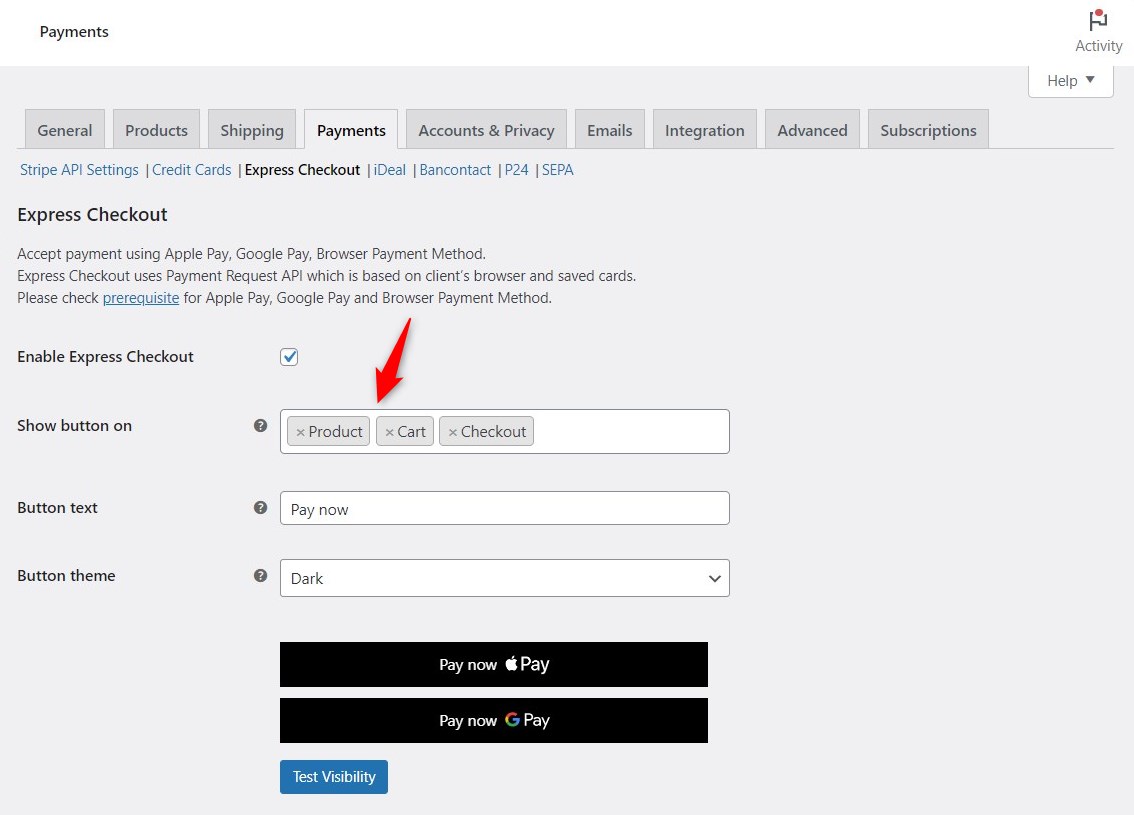
Our guides to Apple Pay and Google Pay cover the setup in more detail.
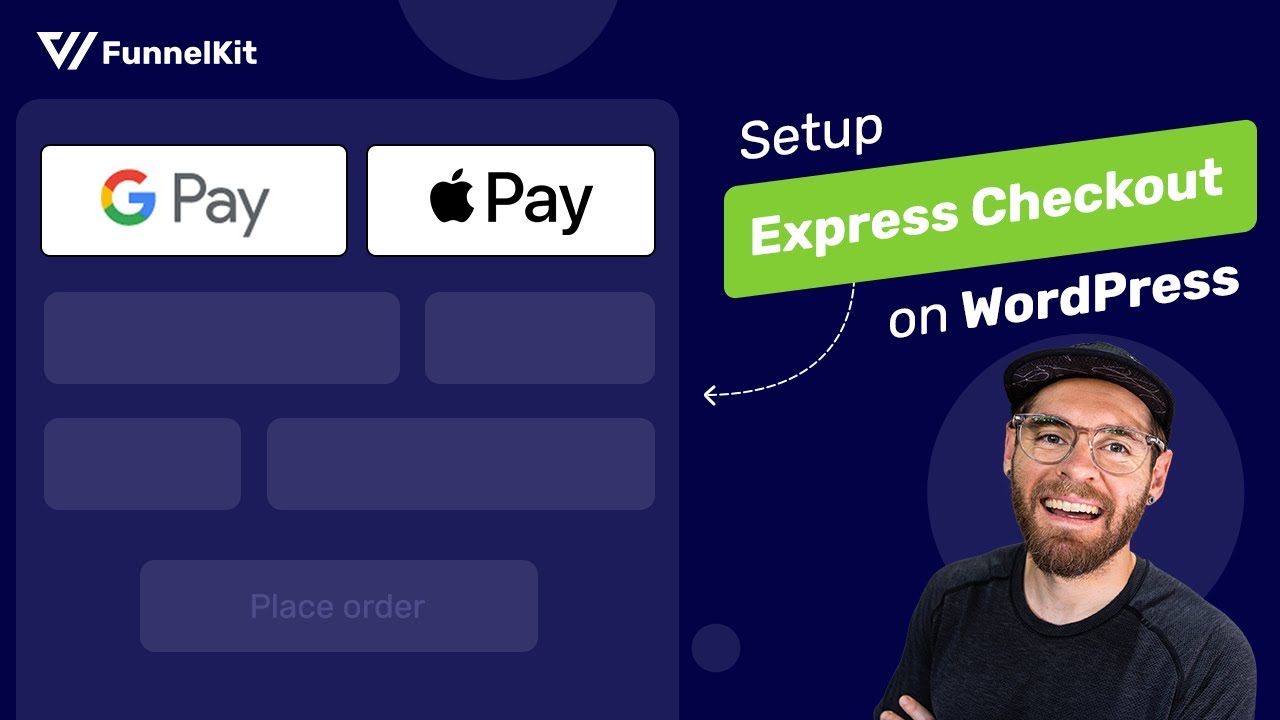
Check our video tutorial to set up express checkout below:
Check that Stripe’s Optimized Checkout Suite is on
If you use the WooCommerce Stripe extension, its Optimized Checkout Suite uses machine learning to choose which enabled payment methods to show each shopper.
It also enables Adaptive Pricing, which lets eligible international customers pay in their local currency.
Since version 10.8.0, the suite is enabled by default for eligible merchants. Not every store qualifies, so check your settings:
- Go to WooCommerce ⇨ Settings ⇨ Payments ⇨ Stripe ⇨ Settings and scroll to Advanced Settings.
- Make sure the option to dynamically display the most relevant payment methods is enabled, then choose the accordion or tabs layout.
- Check that settings sync is enabled. If it isn’t, reconnect your Stripe account.
- Move Stripe to the top of your payment provider list, where the suite works best.
Stores that still use manually entered API keys may need to reconnect before they qualify.
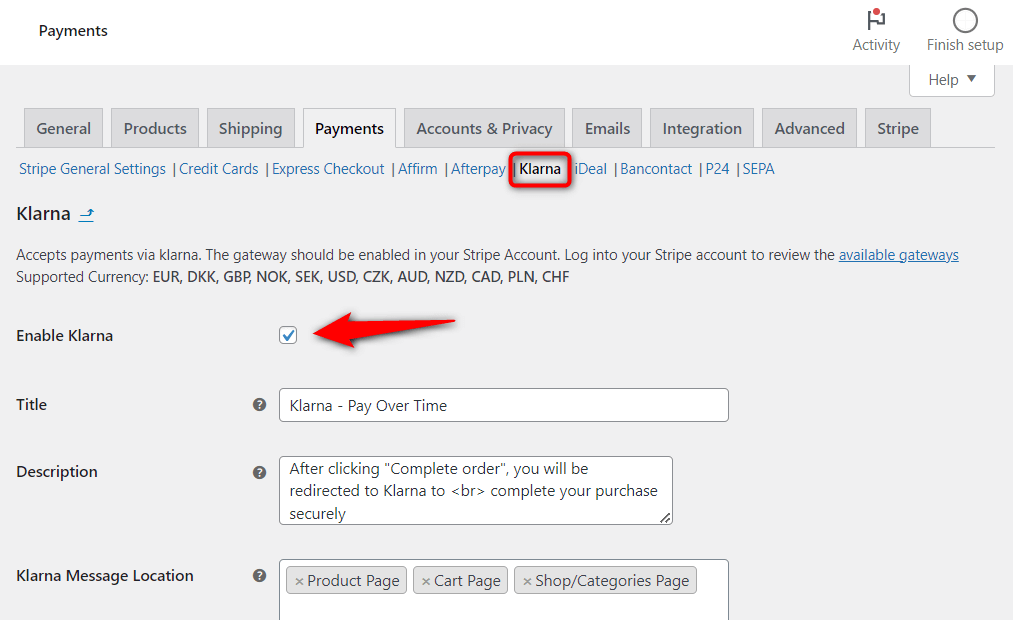
Offer the payment methods your buyers use
Baymard found that 9% of US shoppers abandoned a purchase because there weren’t enough payment methods.
Start with cards, Apple Pay, Google Pay, and PayPal. For higher-priced products, consider adding buy now, pay later options.
If you sell internationally, add local payment methods like iDEAL where customers expect them.
Then look at what people actually use. Check your payment gateway reports each quarter and remove methods that nobody uses.
Every extra payment method adds scripts and requests to checkout, so there’s no reason to load methods your customers never select.
Fix 4: Earn Trust at the Payment Step and Prevent Failed Orders
Three of Baymard’s common abandonment reasons show up at the payment step.
Its survey found that 19% of US shoppers didn’t trust the site with their card details, 13% weren’t happy with the returns policy, and 10% abandoned because their card was declined.
All three can happen at the same point in checkout, when shoppers stop entering their address and start entering their payment details.
Put reassurance next to the payment fields
Shoppers often look around the card fields for signs that the payment is safe.
The most useful reassurance answers the question they have at that moment:
- Card brand logos: Show the payment methods you accept. Your gateway can usually display these automatically.
- Card fields on your own checkout: Keeping the payment form on your site feels more familiar than sending shoppers to an unfamiliar domain.
- Returns and contact information: A short returns policy and an easy way to contact you can remove last-minute doubts.
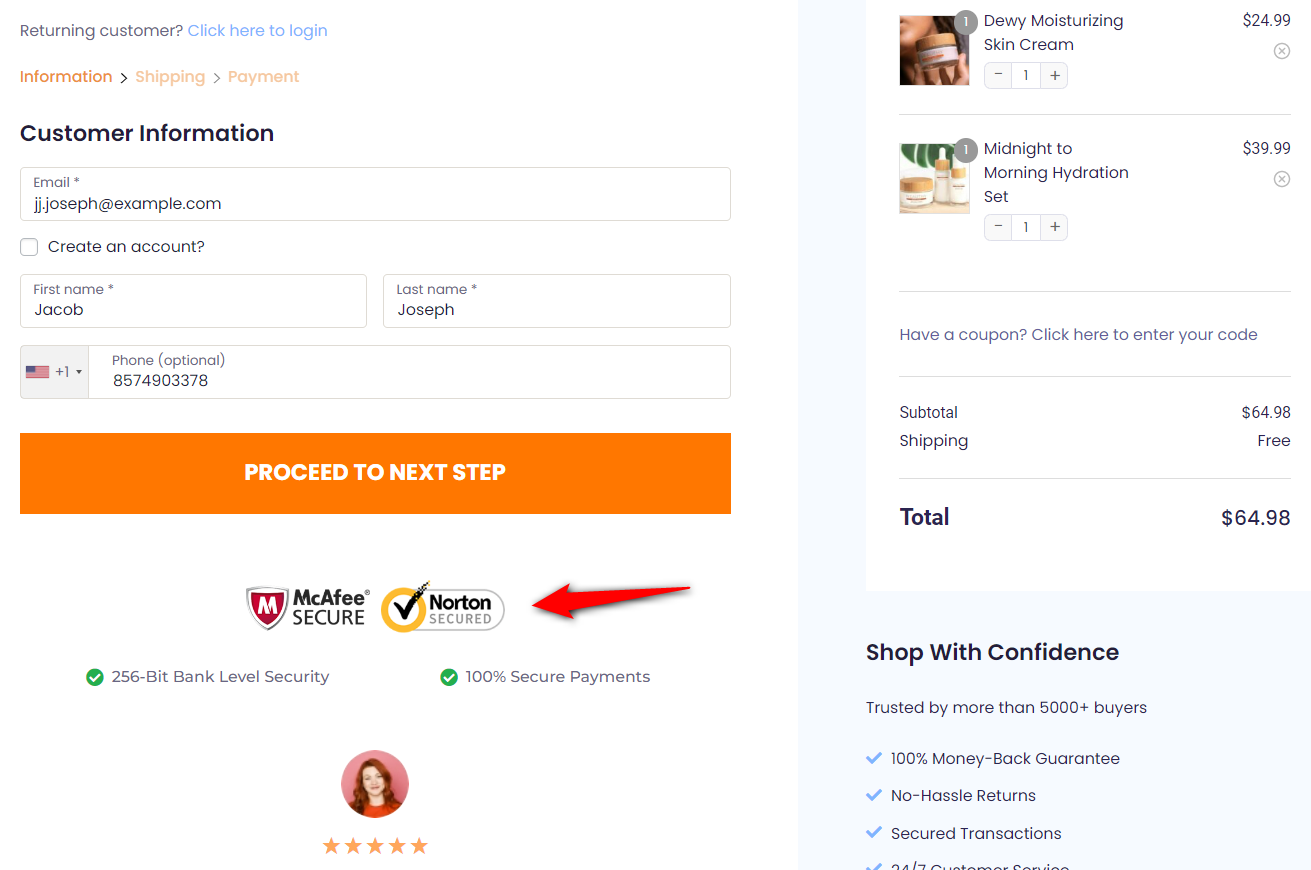
You only need one recognizable security signal near the payment button.
Adding a row of badges usually adds clutter without doing much more.
Handle declined cards without losing the buyer
A declined payment doesn’t always have to mean a lost sale. Give shoppers a clear way to recover:
- Use plain-language error messages: “Your bank declined this card. Try another card or PayPal.” is more useful than showing a raw gateway error code.
- Keep the information they already entered: Don’t make shoppers fill out the checkout form again just because their payment failed. Show another payment option near the error.
- Review your fraud rules regularly: Overly strict rules can block legitimate customers, so check declined and blocked payments for false positives.
- Test 3D Secure on mobile: Use your gateway’s test cards to make sure the authentication flow works properly on a phone.
Once a week, filter WooCommerce ⇨ Orders by Failed status.
If failed payments suddenly increase, check for recent gateway updates or changes to your fraud rules.
Fix 5: Speed Up the Checkout Page
Deloitte’s Milliseconds Make Millions study found that a 0.1-second improvement in mobile site speed was associated with an 8.4% increase in retail conversions and a 9.2% increase in average order value.
The study looked at overall site speed rather than checkout specifically, but checkout performance still matters because that is where shoppers try to complete a purchase.
Checkout pages are also harder to cache.
They have to load each shopper’s cart, totals, session, and other dynamic data, so performance depends heavily on your server response time and the scripts running on the page.
Measure TTFB and INP on the checkout page itself
Run your speed test on the actual checkout URL, while logged out and with a product in the cart.
Many speed tests default to the homepage, which won't tell you much about a slow checkout.
Two metrics are especially useful here:
- Time to First Byte (TTFB): Shows how quickly your server starts responding. Google considers 0.8 seconds or less a good result.
- Interaction to Next Paint (INP): Measures how quickly the page responds to clicks, taps, and typing. Google considers 200 milliseconds or less good.
INP matters on checkout because WooCommerce can make background requests when shoppers change their address or other checkout details, which can slow page response.
Query Monitor can help you find slow database queries and plugin functions. Start by looking at anything taking more than 100 milliseconds.
Exclude cart, checkout, and My Account from every cache
A cached checkout can show stale cart contents, incorrect totals, or session errors.
Exclude the Cart, Checkout, and My Account pages from your caching plugin, server cache, and CDN.
Good caching plugins automatically exclude /cart/ and /checkout/; verify yours does.
Cache static pages at the CDN and server levels, compress images to WebP or AVIF, and minify CSS and JavaScript.
The goal is a checkout that loads in under two seconds on a mid-range phone, measured with PageSpeed Insights field data, not lab scores.
For the full setup, see our WooCommerce caching guide.
Replace WP-Cron with a real server cron
WP-Cron runs scheduled tasks when visitors load your site.
On a busy store, that can mean background jobs are running at the same time shoppers are trying to check out.
In one Reddit discussion, a store owner reported 5-to-7 second add-to-cart and checkout redirects during peak hours before switching to a server cron.
First, disable WP-Cron in wp-config.php:
define( 'DISABLE_WP_CRON', true );Then set up a server cron to run every five minutes, or use your host’s one-click option if it provides one:
*/5 * * * * wget -q -O - https://yourstore.com/wp-cron.php?doing_wp_cron >/dev/null 2>&1Scheduled tasks keep running. Buyers stop paying for them.
Many hosts expose this as a one-click toggle, so check your control panel first.
Turn on HPOS and a persistent object cache
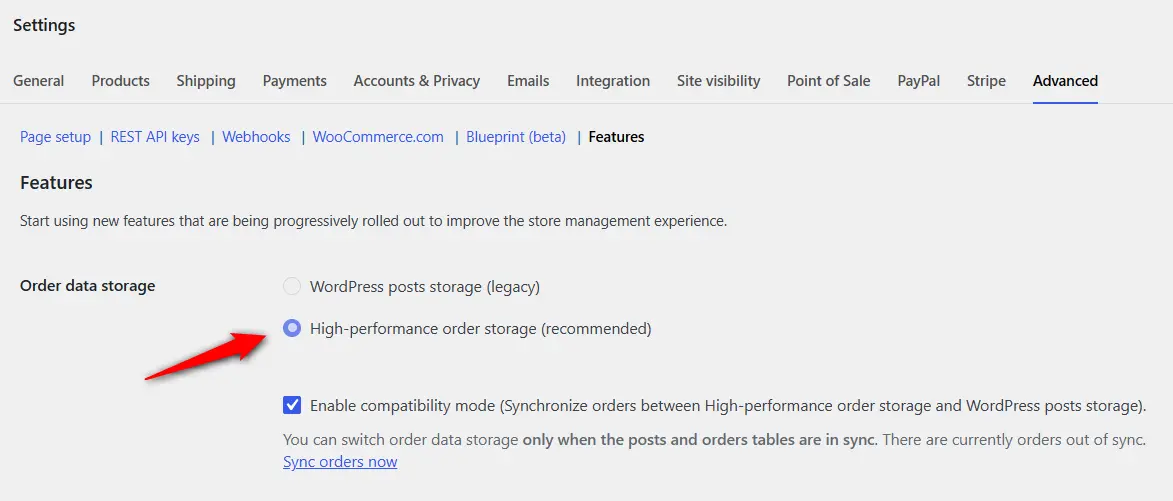
High-Performance Order Storage (HPOS) stores orders in dedicated database tables instead of relying on the older WordPress posts and postmeta tables.
It’s enabled by default on new WooCommerce stores.
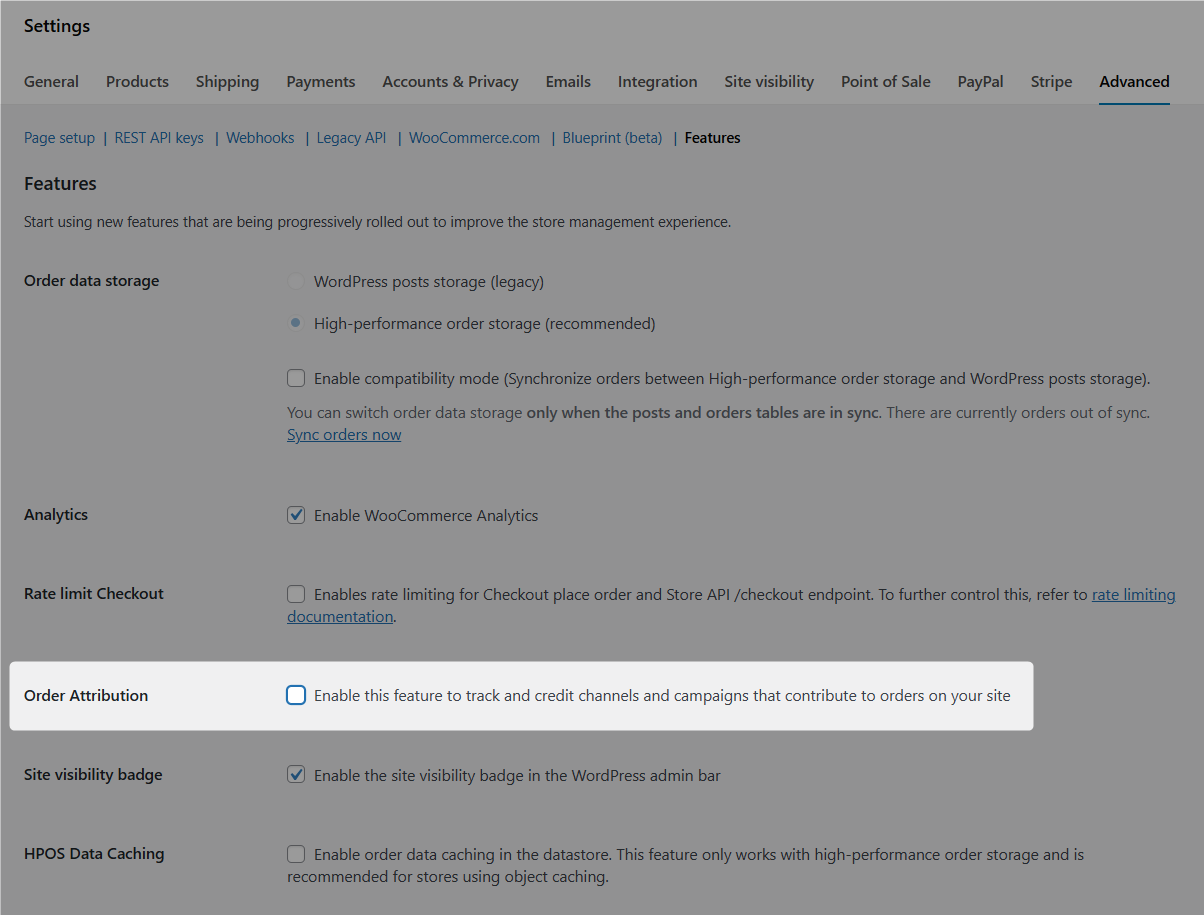
On an older store, you can enable it under WooCommerce ⇨ Settings ⇨ Advanced ⇨ Features after checking that your order-related plugins support it.
Keep compatibility mode enabled until your orders are syncing correctly, then switch over fully.
A persistent object cache such as Redis keeps frequently requested data in memory instead of querying the database every time.
Many managed hosts offer it as a setting alongside a small plugin.
While you’re working on database performance, clean up expired transients, old sessions, and completed Action Scheduler logs too.
Strip extra scripts and cart fragments from the checkout
Every chat widget, heatmap, analytics script, and marketing pixel adds work to the checkout page.
An asset manager such as Perfmatters or Asset CleanUp can help you disable scripts that aren’t needed on checkout.
You can also limit cart fragments, which are background requests used to keep mini-cart information updated, to the pages that actually need them.
Don’t disable or delay your payment gateway’s scripts without testing them. Payment fields can stop loading if their scripts are deferred, combined, or delayed incorrectly.
The same goes for outgoing HTTP requests.
If your server blocks them, make sure your payment, shipping, tax, and fraud services are still allowed to connect. Then place a real test order.
Defer transactional emails
WooCommerce can send order emails before displaying the thank-you page.
If your email service is slow, that can leave the customer waiting while the order finishes processing.
You can enable background sending with this filter:
add_filter( 'woocommerce_defer_transactional_emails', '__return_true' );Then test the full flow. Since you changed how scheduled tasks run earlier in this section, place a test order and make sure the confirmation email still arrives promptly.
If you're running email customizers like FunnelKit Automations, Omnisend, etc., transactional emails go through this queue automatically and don't block checkout.
And while you’re in the Features screen, disable order attribution if you never read that data; it adds scripts and processing to every checkout submission.
Fix 6: Make the Checkout Work One-Handed on a Phone
Mobile is where the checkout leaks most and mobile checkout optimization isn't a variant of the desktop work.
It has its own failure points, such as wrong keyboards, cramped tap targets, and an order summary that buries the pay button three screens down.
Set the right keyboards, autofill, and tap targets
- Show the right keyboard: Use a number pad for phone and postcode fields and an email keyboard for email addresses.
- Set autocomplete attributes: This lets browsers and password managers fill in the form with less typing.
- Use at least 16px text in form fields: Smaller text can cause iPhones to zoom in when shoppers tap a field.
- Make tap targets at least 44 by 44 pixels: Leave enough space between fields and buttons so shoppers don’t tap the wrong one.
The block checkout handles much of this already. If you’re using the classic checkout or a custom theme, check the form’s HTML to make sure these settings are in place.
Keep the pay button and total in view
On a phone, a long order summary can push the payment section down several screens.
Collapse the summary into a bar that still shows the total, then keep the Place order button visible as the shopper scrolls.
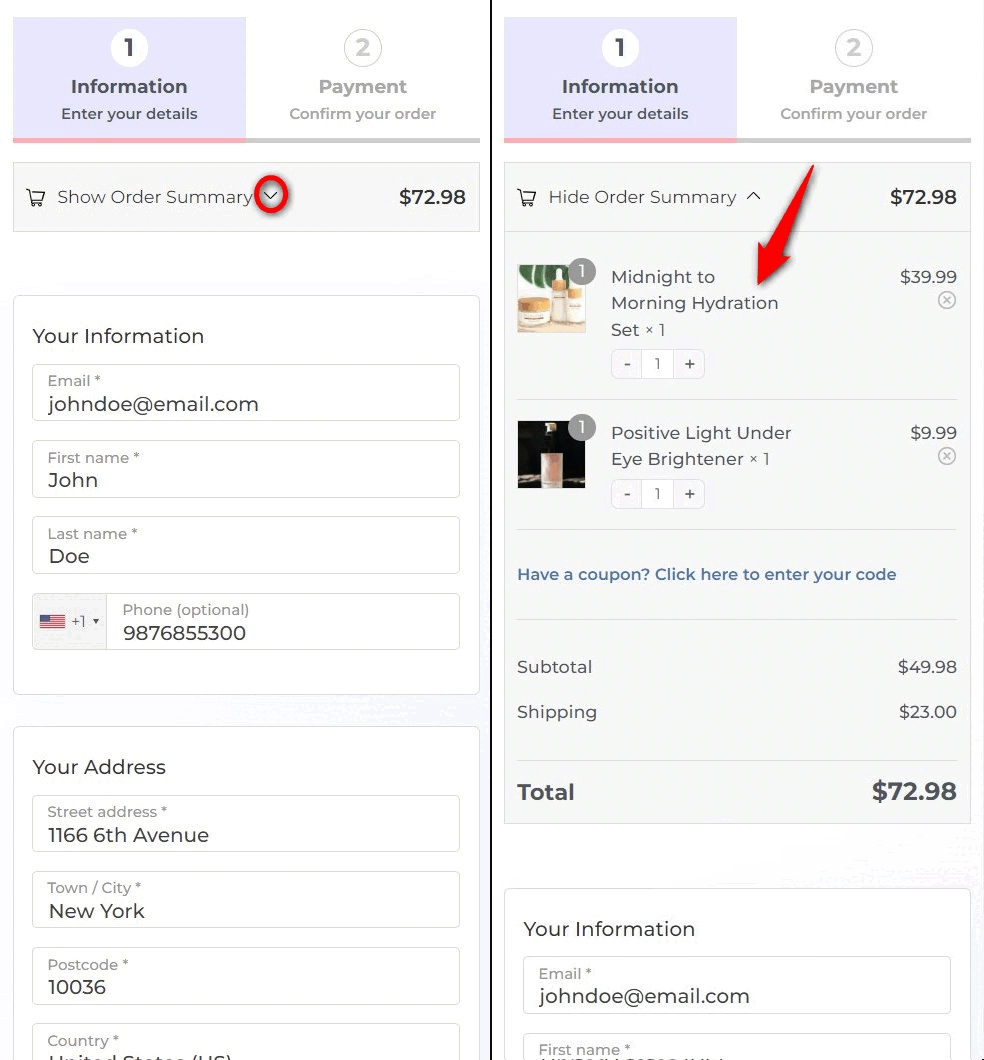
Pair that with a sticky “Place order” button that stays in view as the shopper scrolls.
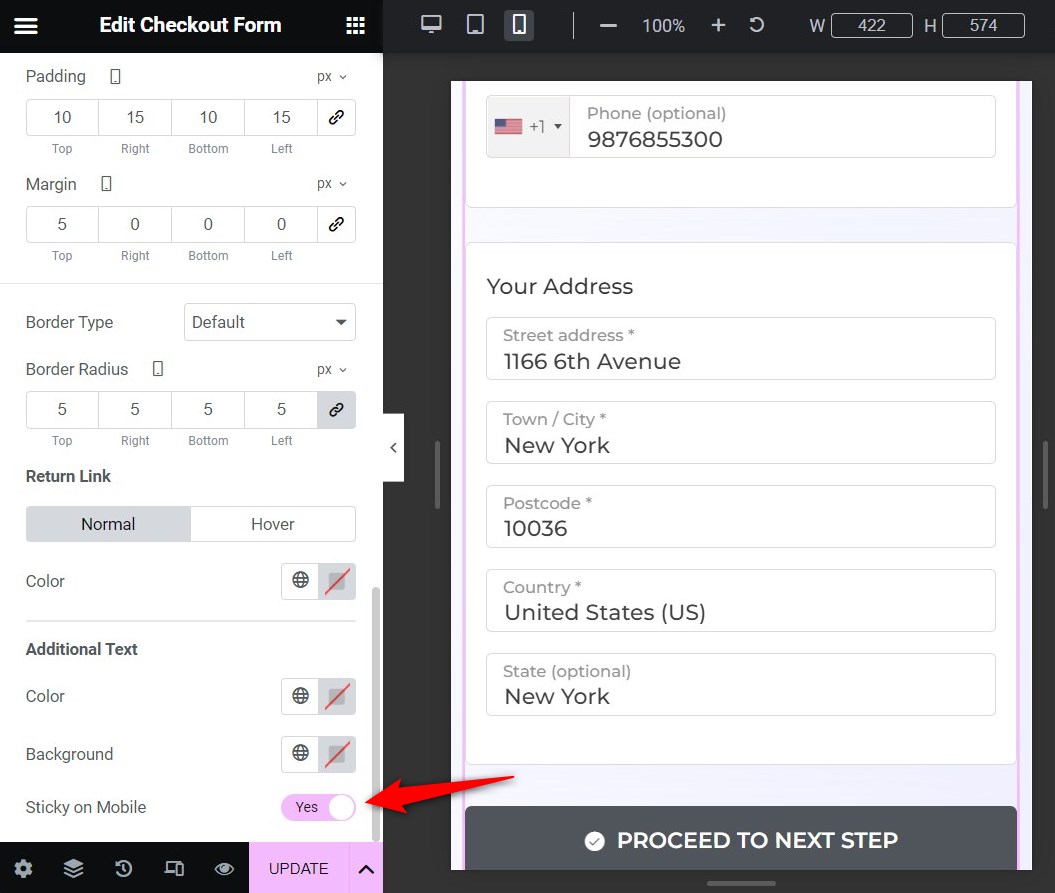
The buyer always knows the total and always sees the way to finish.
Most conversion-focused checkout templates include both patterns; on custom themes, a few lines of CSS get you there.
Run five accessibility checks
An accessible checkout is easier for everyone to use, not just shoppers using assistive technology.
These five checks are based on the W3C’s forms guidance.
- Keep labels visible: The field should still have a visible label after the shopper starts typing.
- Check keyboard order: Pressing Tab should move through the form in a logical order and eventually reach Place Order.
- Put errors next to the field: Make sure screen readers also announce error messages.
- Check text contrast: Normal text should have a contrast ratio of at least 4.5:1.
- Don’t rely on color alone: Use an icon or clear wording alongside color to identify errors.
Finally, run through the entire checkout on your own phone over mobile data.
Pay attention to every point where you hesitate, have to zoom, scroll back, or wonder what to do next. Those are the parts worth fixing first.
Fix 7: Choose the Right Checkout Layout
Baymard found that 17% of US shoppers abandoned their purchase because the checkout was too long or complicated.
The layout can make that problem better or worse, even when the number of fields stays the same.
Choose your checkout: Block, Classic, or plugin template
| Capability | Block checkout | Classic checkout | Checkout plugin |
|---|---|---|---|
| Default on new stores | Yes | No | No |
| Hide company, address line 2, and phone without code | Yes, in block settings | Yes, in the Customizer | Yes |
| Inline field validation | Built in | Needs a plugin or script | Usually built in |
| Express wallet area at the top | Built in when your gateway supports it | Depends on your gateway | Usually built in |
| Works with classic PHP field hooks | No | Yes | Depends on the plugin |
| Compatibility with older checkout add-ons | Growing, so check each add-on | Widest | Depends on the plugin |
| Multi-step layouts | No | No | Usually |
| Custom templates and A/B testing | No | No | Depends on the plugin |
WooCommerce documents the block checkout in its cart and checkout editing guide.
If you’re sticking with classic checkout, our guide to customizing the block or classic checkout covers both.
One-page or multi-step checkout: Decide by store type
| Your store | Start with | Why |
|---|---|---|
| One product or digital downloads, few fields | One-page checkout | There’s nothing worth splitting into steps |
| Physical goods, one shipping zone, short form | One-page checkout with the summary beside the form on desktop | Shoppers see everything without extra clicks |
| Several shipping options, separate billing, or B2B fields | Multi-step checkout with a progress indicator | Three short screens feel lighter than one long one |
| Mostly mobile traffic with a long form | Multi-step checkout | Each step fits on one phone screen |
If you choose a multi-step checkout, add a progress indicator and show a preview of the information the shopper has already entered.
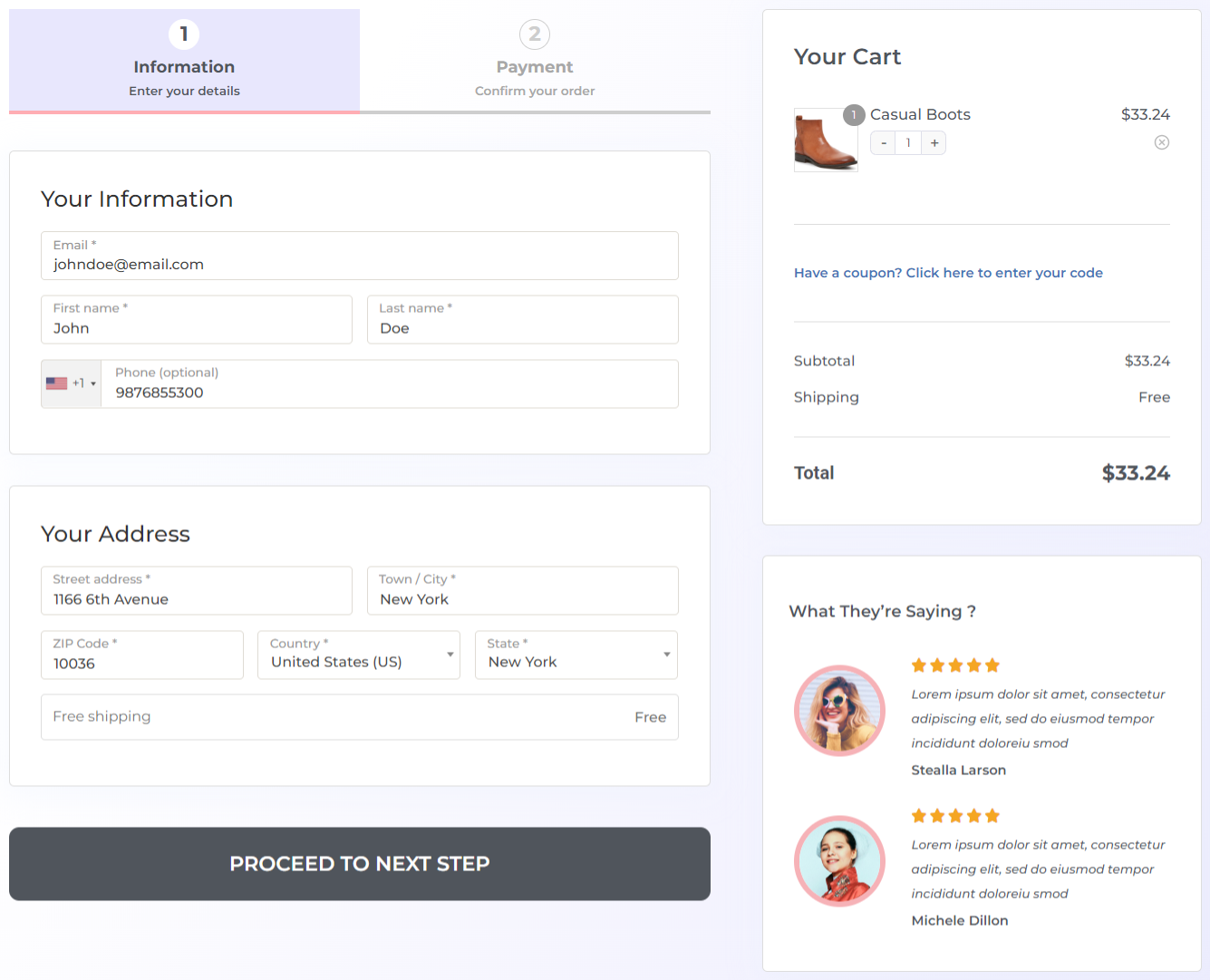
Then test the other layout with your own traffic because no single winner fits every store.
Watch this step-by-step tutorial to set up one page checkout in WooCommerce here:
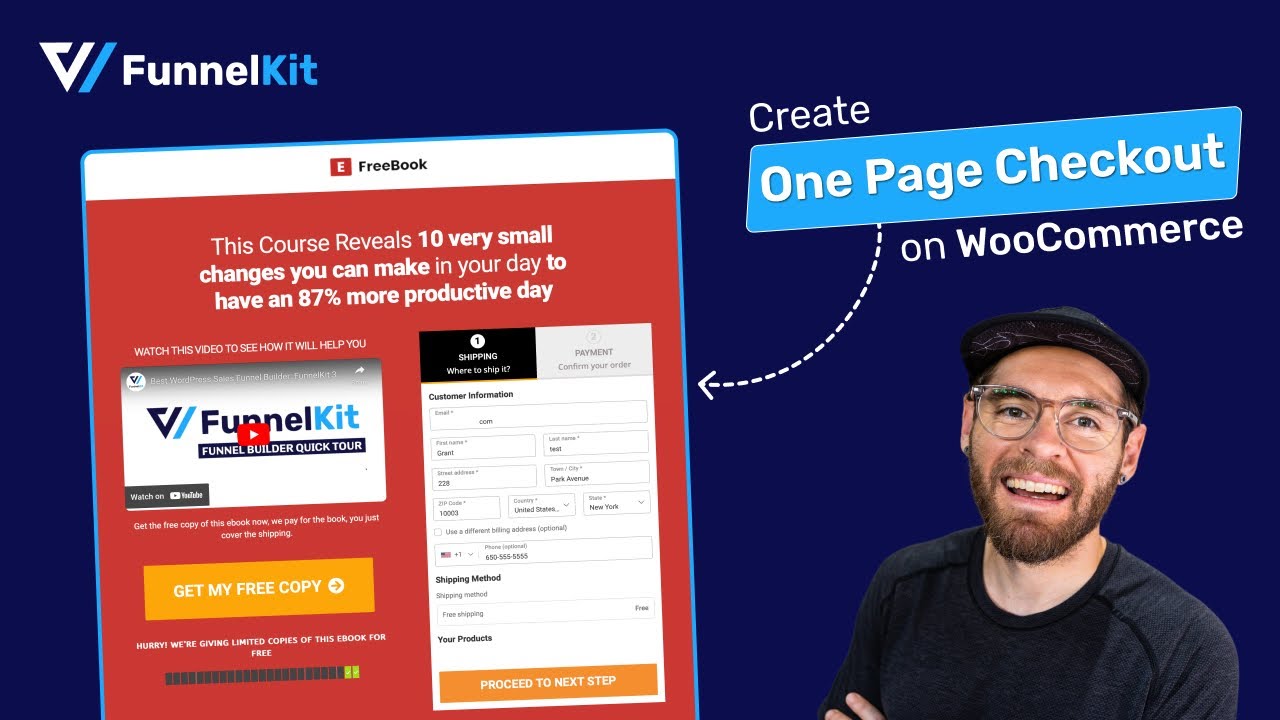
Our guides cover one-page checkout and multi-step checkout in more detail.
Remove distractions from the checkout
Your header menu, footer links, sidebar, and promo banners are all exits.
A distraction-free checkout keeps the logo (linked nowhere or to a confirm-exit prompt), the form, the order summary, and the pay button.
Make sure to remove the following distractions from the checkout:
- Header navigation menus
- Sidebars
- Footer link forests
- Newsletter signup banners
- Live chat popups that auto-open on checkout
- Exit-intent popups firing on the checkout page itself
Several themes include a slim checkout header option, and checkout plugins ship distraction-free checkout page templates by default.
If you build it yourself, hide navigation with a checkout-specific template part rather than with CSS alone, so the links are truly gone and the page loads more lightly.
You can customize your checkout page with page builders such as Elementor, Bricks, Divi, Oxygen, the Gutenberg Block Editor, or others.
Let shoppers edit the cart at checkout or skip the cart page entirely
Bouncing back to the cart page to change a quantity creates friction.
Show an editable mini-cart in the checkout's order summary, including a quantity stepper, a remove button, and, ideally, a "you removed an item, undo?" recovery link.
FunnelKit handles this. It lets users change item quantities in the cart and delete or even recover them.
Enable the quantity switcher option and allow deletion when customizing the checkout page with a page builder.
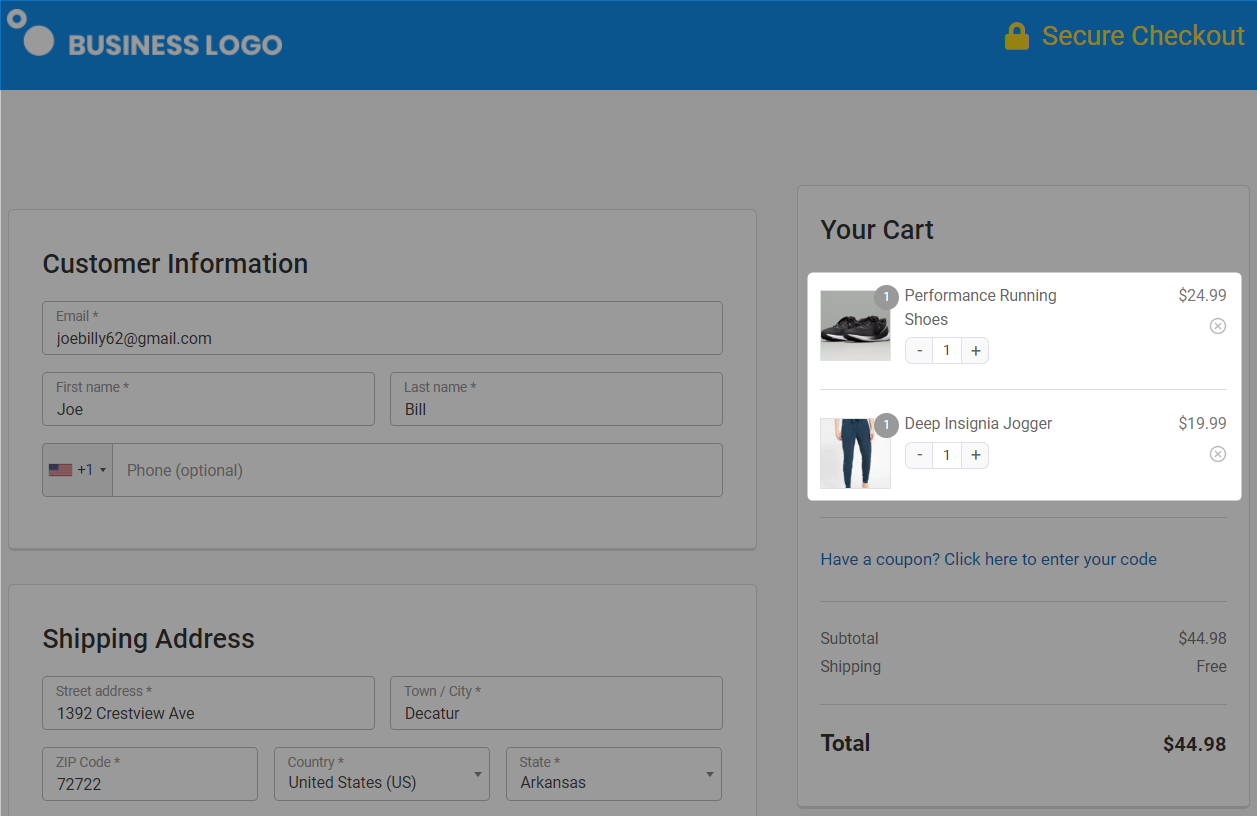
Better still, cut the cart page from the journey.
FunnelKit Cart handles this with a slide-out panel that opens on Add to Cart, lets shoppers adjust quantities and see relevant suggestions, and carries them straight to checkout.
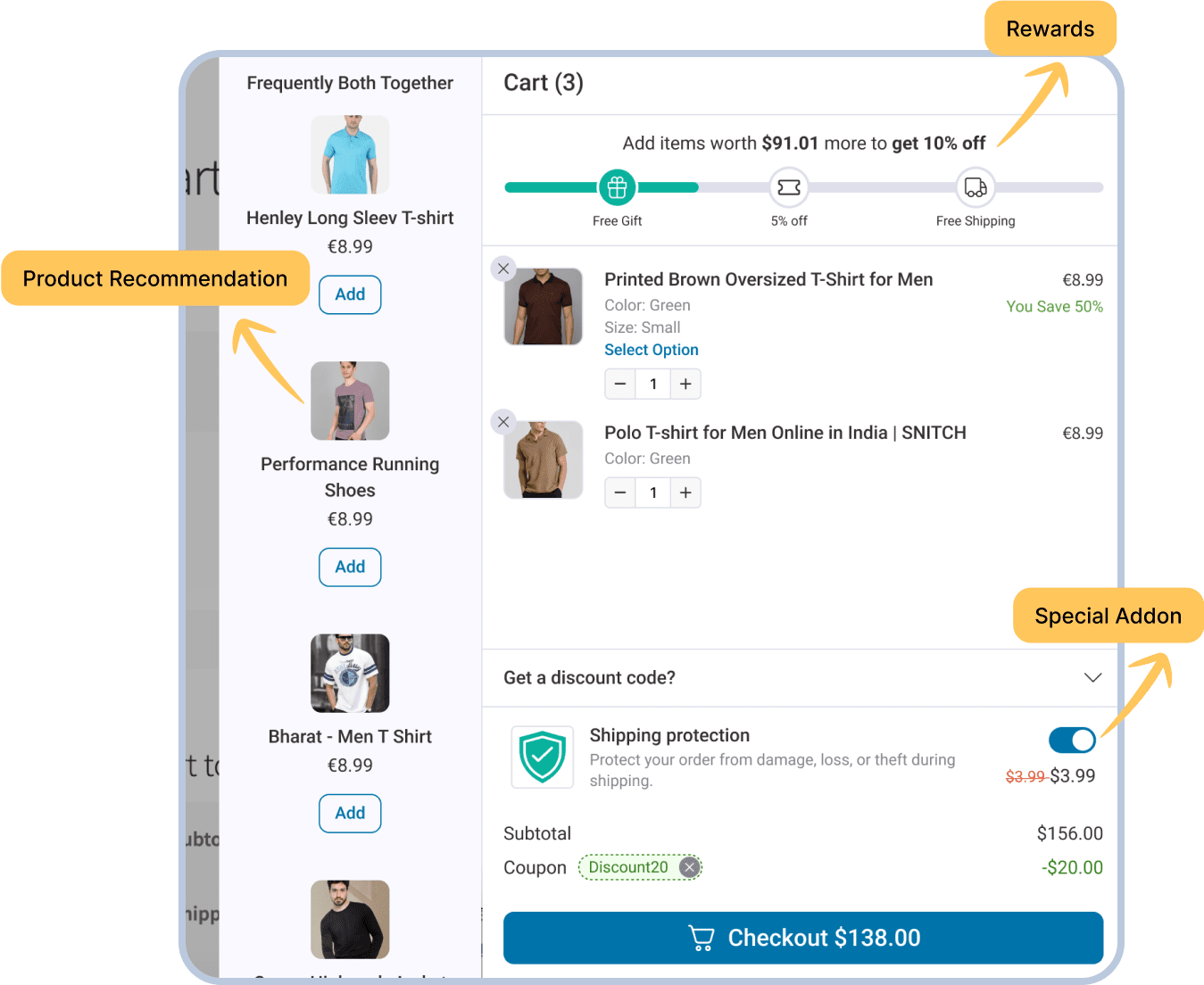
Stores selling one flagship product or digital downloads benefit most from pairing it with direct checkout; compare the two paths in your GA4 funnel from the baseline section.
After Checkout: Recover Abandoned Carts and Raise Revenue Per Order
Some shoppers will still leave, even after you improve the checkout.
Recovery emails can bring some back, while an order bump can increase what shoppers who do complete their purchase spend.
Capture email first and automate cart recovery
If you ask for the email near the top of the form, as covered in Fix 1, you can reach shoppers who leave before paying.
Send the first reminder within an hour, followed by another the next day.
Each email should link back to the exact cart they left.
Start with the product they were considering. And don’t automatically offer a discount in every email.
If shoppers learn that abandoning the cart always gets them a coupon, some will wait for the discount instead of buying at full price.
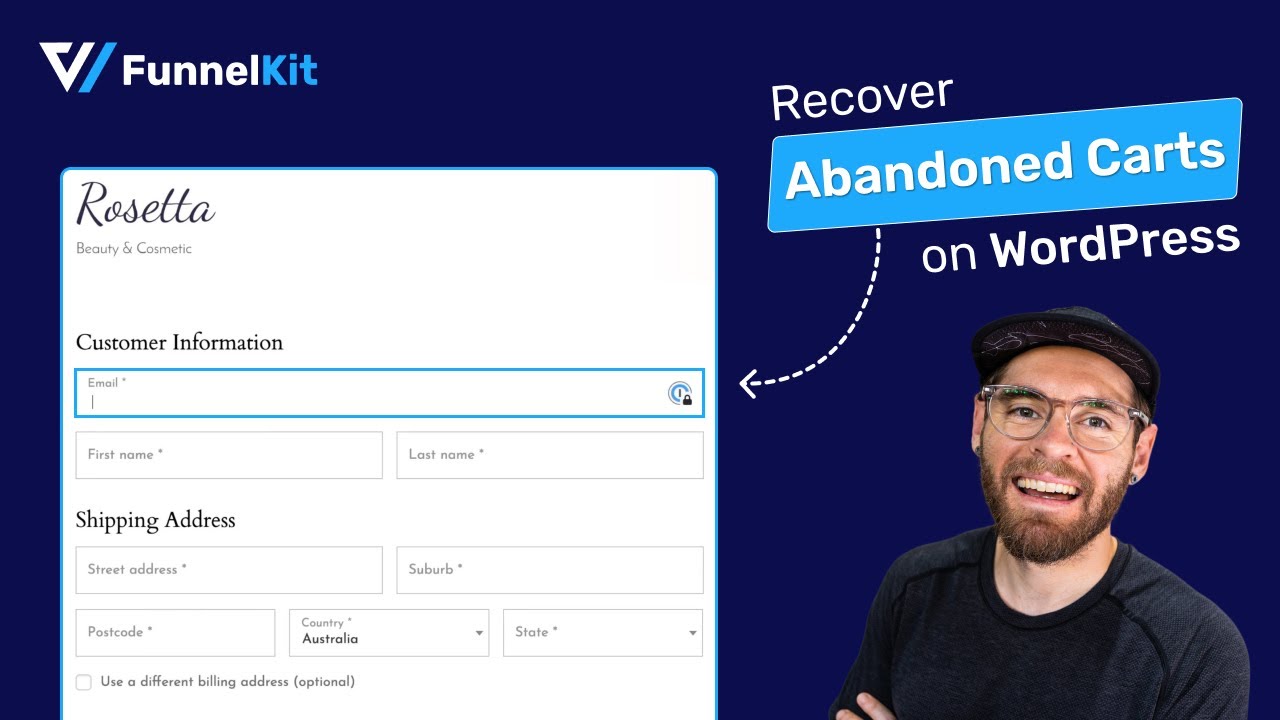
FunnelKit Automations runs this abandoned cart recovery flow with the cart-restore link built in.
Recovered checkouts are your highest-margin revenue because the marketing cost was already spent.
Watch this video tutorial to set up abandoned cart recovery automation in WooCommerce:
Add one relevant order bump, then watch completion
An order bump is a low-priced, relevant add-on offered on the checkout page with a single checkbox: gift wrapping, a warranty, a complementary accessory.
The rules that keep bumps converting: one offer, clearly relevant to the cart, priced well below the main purchase.
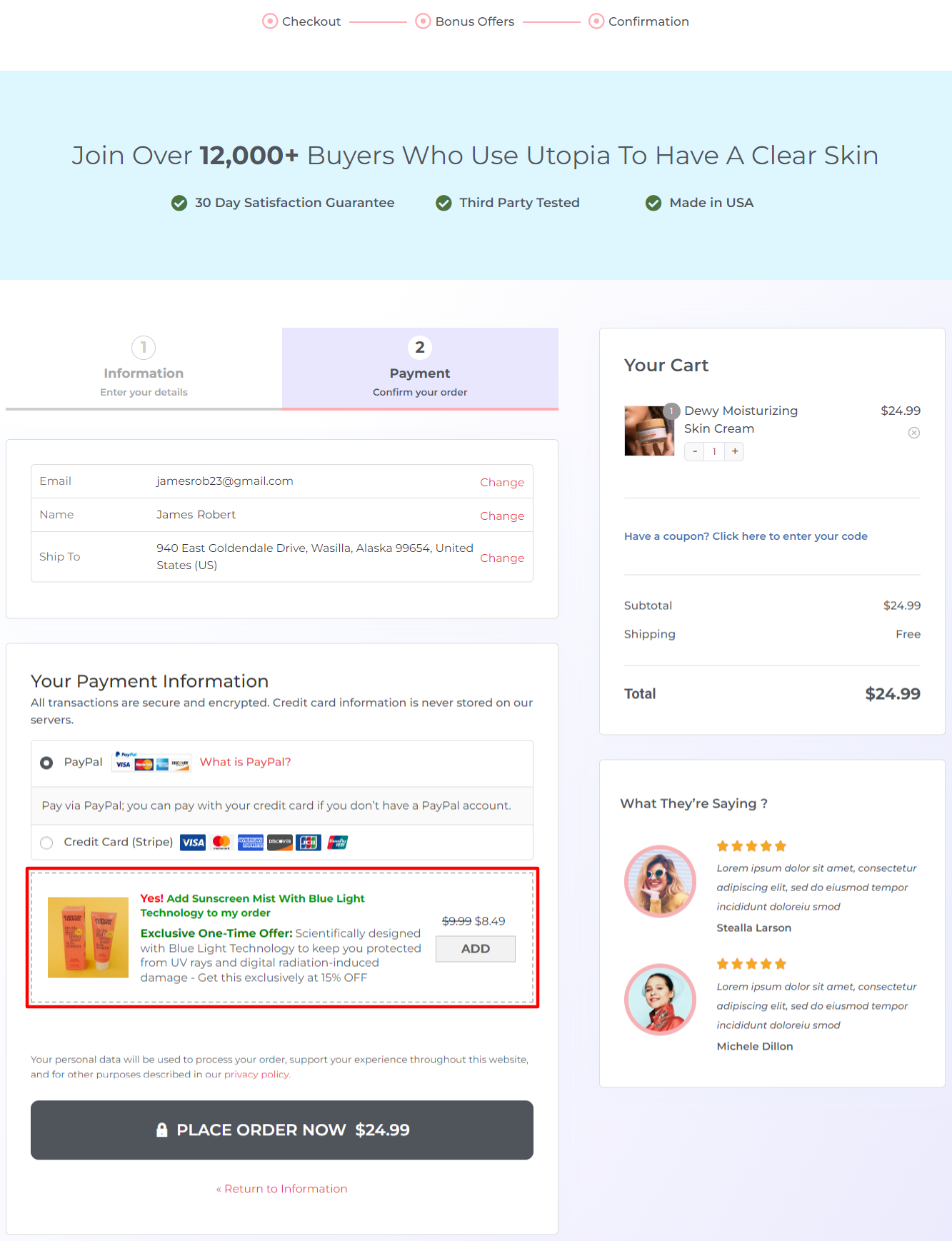
Keep it to one offer that clearly fits the cart and costs much less than the main product.
The goal is to increase revenue per order without making the checkout harder to complete.
Run it for two weeks, then compare the results.
If revenue per checkout increases but checkout completion drops noticeably, the bump may be costing you more orders than it adds in revenue.
There’s no universal cutoff for that trade-off because it depends on the store.
Use exit-intent on the cart page only
An exit-intent offer, such as free shipping, can bring back some shoppers who are about to leave the cart page.
Keep it off the checkout itself. Someone who is already entering payment details doesn’t need another popup getting in the way.
OptinMonster is the standard tool here.
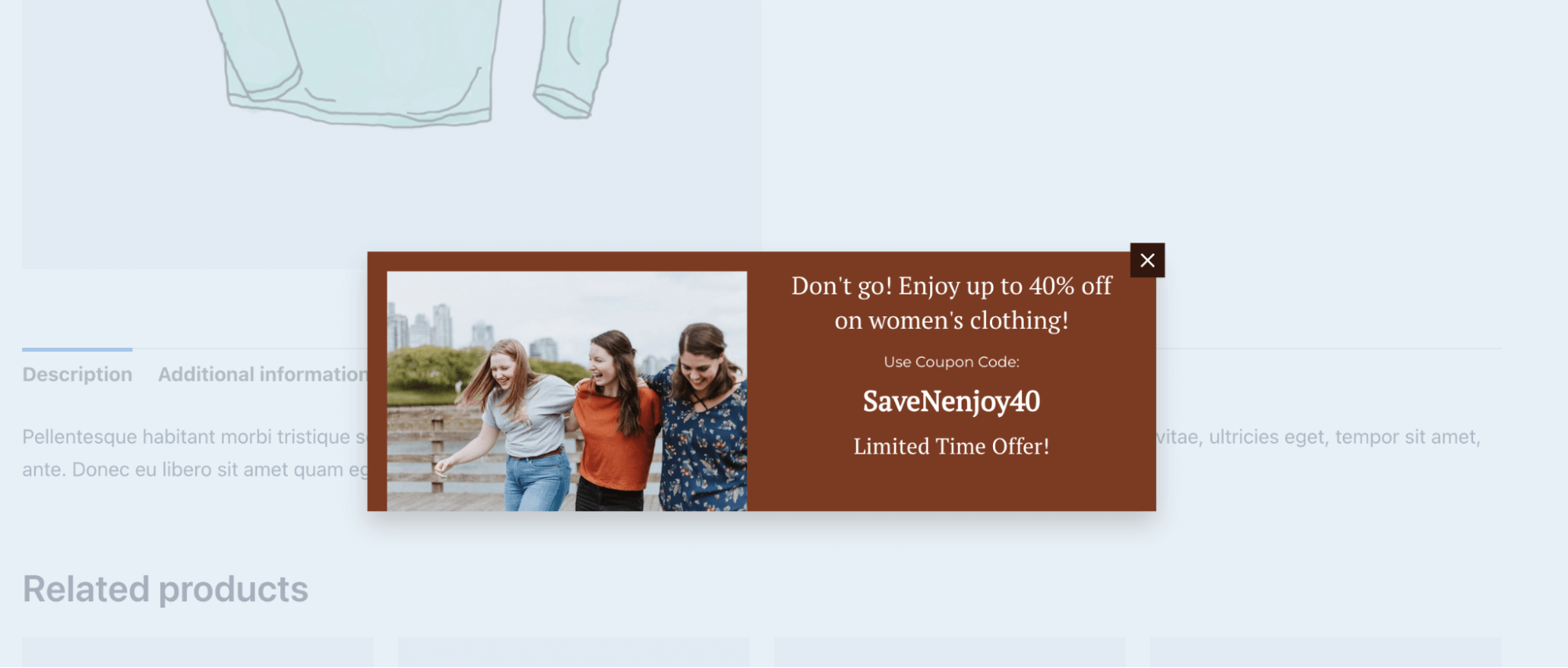
Pair it with FunnelKit Cart for the side-cart experience.
What These Fixes Did On Our Test Store
We started with a stock WooCommerce checkout and applied the fixes one at a time, using the same host and test setup throughout.
We measured each stage to see how the changes affected the checkout experience.
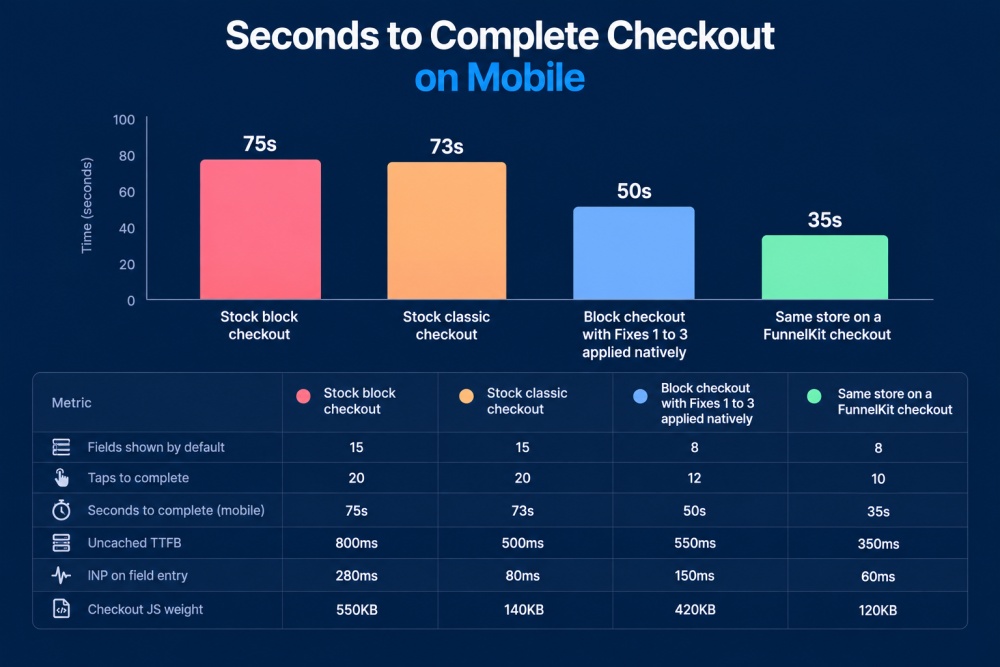
How we tested: We used WordPress 7.1.2, WooCommerce 11.1.2, Storefront theme, and a Kinsta WP Starter plan.
Every run was logged out, with one physical product in the cart.
Mobile timings came from an iPhone 16 over throttled 4G. Each figure is the median of five runs by three testers.
| Setup | Fields shown by default | Taps to complete | Seconds to complete (mobile) | Uncached TTFB | INP on field entry | Checkout JS weight |
|---|---|---|---|---|---|---|
| Stock block checkout | 15 | 20 | 75 | 800ms | 280ms | 550KB |
| Stock classic checkout | 15 | 20 | 73 | 500ms | 80ms | 140KB |
| Block checkout with Fixes 1 to 3 applied natively | 8 | 12 | 50 | 550ms | 150ms | 420KB |
| Same store on a FunnelKit checkout | 8 | 10 | 35 | 350ms | 60ms | 120KB |
What we learned: The stock classic checkout beat the default block checkout in sheer performance, keeping JavaScript weight low and input delay (INP) minimal.
Applying fixes to the block checkout improved mobile completion time significantly by cutting form fields, but it couldn't match the classic setup's raw responsiveness.
The FunnelKit checkout outperformed all native setups by leveraging a multi-step layout and address autocomplete, dropping mobile completion time to just 35 seconds.
One outside data point: A reviewer at IsItWP reported that cart abandonment on a client store fell from 64% to 41% two weeks after switching to a two-step checkout template with express payment buttons.
We see similar patterns on our own platform.
Wardee Harmon of TraditionalCookingSchool replaced her default single-page setup with a streamlined FunnelKit multi-step design, immediately reducing form friction and increasing checkout completions.
In another instance, an eCommerce retailer removed six unnecessary fields and added express payment buttons, lifting their checkout completion rate from 38% to 56% within thirty days.
Test Every Change: A/B Tests and a Checkout QA List
Every checkout change can fix one problem and create another. Test each change as you go instead of waiting until the end to find out what broke.
What to A/B test first
Start with the changes that affect the most shoppers.
Test one-page versus multi-step checkout, where the wallet buttons appear, how many fields you show, and whether you use an order bump.
Change only one thing per test so you can tell what caused the result.
A reliable A/B test usually needs at least 100 orders per variant over one to two full weeks.
If your store gets 200 completed checkouts a month, that means waiting a full month to reach 100 orders for each variant.
If you get fewer than roughly 400 completed checkouts a month, compare two-week periods before and after a change instead.
Avoid periods that include a sale, holiday, or other unusual traffic spike.
FunnelKit includes built-in A/B testing if you want to split checkout traffic directly.
Eight checkout breakages to check after every change
Baymard found that 17% of US shoppers abandoned a purchase because a site had errors or crashed.
These are some of the problems most likely to appear after you change the checkout.
- Cached checkout pages: Shoppers see the wrong totals or get “session expired” errors.
- Order totals don’t update: The total stays the same after an address change, often because of a script conflict.
- Shipping methods are missing or don’t update: Some addresses or shipping zones show the wrong options.
- Express buttons don’t appear: Check HTTPS, Apple Pay domain registration, and any script delay settings.
- The payment form doesn’t load: An optimization plugin may have minified or delayed the gateway’s scripts.
- Order emails don’t arrive: Check whether recent cron or email changes are stopping transactional emails.
- Coupons conflict: Auto-apply rules can sometimes clash with coupon codes shoppers enter manually.
- The pay button is hidden on mobile: A chat widget or cookie banner can cover it.
Run through this list after every plugin, theme, or WooCommerce update.
Open the store logged out in a private window, add a physical product, and complete a test payment with each gateway.
Also test a wallet payment on a real phone, apply a coupon, and use at least two different shipping zones.
Do You Need a Checkout Plugin at All?
Honest answer: not always. Most of the fixes in Fixes 1 to 6 work with a standard WooCommerce install, using native settings or a small snippet.
Address autocomplete, dynamic delivery dates, and a single name field are the main exceptions. Those usually need a plugin or custom code.
You probably don’t need one if you have a small catalog, a short checkout form, and the block checkout’s fields and payment options already cover what you need.
If you’re comfortable working with snippets and your hosting setup, there’s no reason to add another plugin just for the sake of it.
A checkout plugin makes more sense when you want:
- Conversion-focused checkout templates, including multi-step layouts, without custom development.
- Order bumps, one-click upsells, and A/B testing in one tool instead of managing several plugins.
- Per-step analytics that show where shoppers drop off during checkout.
| Plugin | Approach | Best for | Free version |
|---|---|---|---|
| FunnelKit Funnel Builder | Replaces the checkout with templates and adds a field editor, express pay, order bumps, upsells, A/B testing, and analytics | Stores that want checkout, offers, and testing in one tool | Yes |
| CheckoutWC | Shopify-style checkout templates that put order review and payment on one page | Stores that want a familiar, Shopify-like checkout | Yes |
| Flux Checkout | Mobile-first, multi-step checkout with address autocomplete and a sticky pay button | Mobile-heavy stores that want a guided flow | Paid extension |
| Checkout field editor plugins | Add, remove, reorder, and require checkout fields only | Stores that only need field control | Yes, several |
For a full comparison, see our roundup of the best WooCommerce checkout plugins and our FunnelKit vs CheckoutWC comparison.
What FunnelKit Checkout adds over native WooCommerce
FunnelKit Funnel Builder puts the plugin-based parts of this guide in one place.
It replaces the default checkout with one-page, two-step, and three-step templates that work with Gutenberg, Elementor, Divi, Bricks, and other page builders.
It also adds a field editor, express payment placement, Google Address Autocomplete, inline validation, and an editable order summary.
For wallets, FunnelKit also offers its own Stripe gateway plugin.
Its free version on WordPress.org includes checkout templates.
Paid plans start at $99.50/year and add features such as order bumps, one-click upsells, and A/B testing.
Frequently Asked Questions
Not by itself. Baymard’s research found that the number of form fields affects checkout usability far more than the number of steps, so cut fields first and then test the layout.
Yes, to a meaningful degree. Field trimming via hooks, guest checkout in settings, server cron, HPOS, Redis, and script cleanup all work on stock WooCommerce.
Deeper conversion features such as one-click upsells, order bumps, and express checkout templates typically require a dedicated solution to run reliably.
Published benchmarks vary widely by product, price, and traffic source, so your own baseline matters most.
Track purchases divided by begin_checkout in GA4 and watch the trend after each change.
It depends on what you need. FunnelKit Funnel Builder covers checkout templates, field editing, express payments, bumps, and A/B testing in one tool.
CheckoutWC and CartFlows are strong alternatives with different feature mixes.
Our checkout plugins comparison breaks down all the leading options.
Phones have slower processors and connections, so heavy third-party scripts hit them hardest.
Strip those scripts from the checkout first, then check your server response time, because the checkout can’t be cached.
Shopify tunes one hosted checkout for every store, which gives you consistency but very little control.
WooCommerce gives you the control, so the work in this guide falls to you. Once it’s done, your checkout can be just as short and fast.
Most of Fixes 1 to 4, plus Fix 6, use native settings and only cost you time.
Speed work may need a few hours from a developer or a better hosting plan.
Checkout plugins add templates, offers, and testing, and many offer a free version to start.
Keep it light. A short review count or a “Why buy from us” line near the payment step can reassure first-time buyers.
Personalized offers belong in an order bump or after purchase, where they don’t get in the way of paying.
Any plugin adds code, so measure the checkout’s TTFB and INP before and after you install one.
A well-built checkout plugin often replaces several smaller add-ons, which can leave the page lighter overall.
Yes, as long as every plugin that reads orders supports it.
In one Reddit thread, a store owner was still waiting for an ERP connector to add support, so check your accounting and fulfillment integrations before you switch.
Start Your WooCommerce Checkout Optimization With the Quick Wins
None of these fixes will transform a store on its own.
A shorter form helps. Clear costs and visible wallet buttons can help even more. A faster checkout and a recovery email that actually reaches the shopper add another lift.
These small improvements add up.
A store that works through the whole list will usually be in a much better position than one that makes a single change and stops there.
If you’re not sure where to start, start with the form.
Most of the basic changes take 15 to 30 minutes using native WooCommerce settings, and the form is the first thing the buyer sees on their phone.
Run your baseline today, make Fixes 1 and 2, then check the funnel again in two weeks.
That gives you a clear starting point and enough time to see whether the changes moved the numbers.
When you’re ready for checkout templates, multi-step layouts, order bumps, and A/B testing in one place, FunnelKit Funnel Builder covers the plugin side of this list.
So go ahead and start implementing the checkout page optimizations you like.
Editorial Team
October 9, 2026A downsell gives customers a cheaper option after they turn down your main offer. If you show it too soon, you might convince them to skip the original offer and...
Editorial Team
October 8, 2026WooCommerce guest checkout lets shoppers buy from your store without creating an account. They enter an email, their billing details, and payment, and the order goes through. It's a built-in...
Editorial Team
October 7, 2026WooCommerce upsells are products you recommend in place of the one a shopper is viewing, usually a better or higher-priced version of it. WooCommerce has a built-in upsell field for...






