


Adding a field to WooCommerce checkout is the difference between a delivered parcel and a courier stranded at a locked gate with no gate code.
The failed delivery rides back to the depot, and the store pays for the second attempt plus the support ticket that follows. All of it traces back to one question the checkout never asked.
One extra input at the right moment captures the gate code, the VAT number, or the gift message your fulfillment actually depends on, while the customer is still on the page and still motivated to answer.
The catch is that WooCommerce ships without a field editor, and the method that works depends on which checkout your store runs.
Code written for the classic checkout does nothing on the newer block checkout, which is why so many custom fields silently fail to appear.
In this guide, we’ll cover the no-code method, the code method for both checkouts, how to surface the data in orders and emails, and the fixes for a field that refuses to show.
Let’s build it.
Table of Contents
- 1 First, Check Which WooCommerce Checkout Your Store Uses
- 2 Types of Custom Checkout Fields You Can Add
- 3 Method 1: Add a Checkout Field Visually with FunnelKit (No Code)
- 4 Method 2: Checkout Field Editor Plugins
- 5 Method 3: Add a Field to the WooCommerce Block Checkout with Code
- 6 Method 4: Add a Field to the Classic Checkout with Code (HPOS-Safe)
- 7 6 Best Practices for Extra Checkout Fields
- 8 Use Cases: Examples of Extra Fields on WooCommerce Checkout
- 9 Frequently Asked Questions
- 10 Ready to Add Fields Your Store Actually Needs?
First, Check Which WooCommerce Checkout Your Store Uses
Before you install anything or paste any code, check whether your store runs the block checkout or the classic shortcode checkout. This is the most common reason custom checkout fields fail to appear.
Plenty of field editor plugins and most older tutorials only work on the classic checkout, and store owners usually find out after the new field refuses to show.
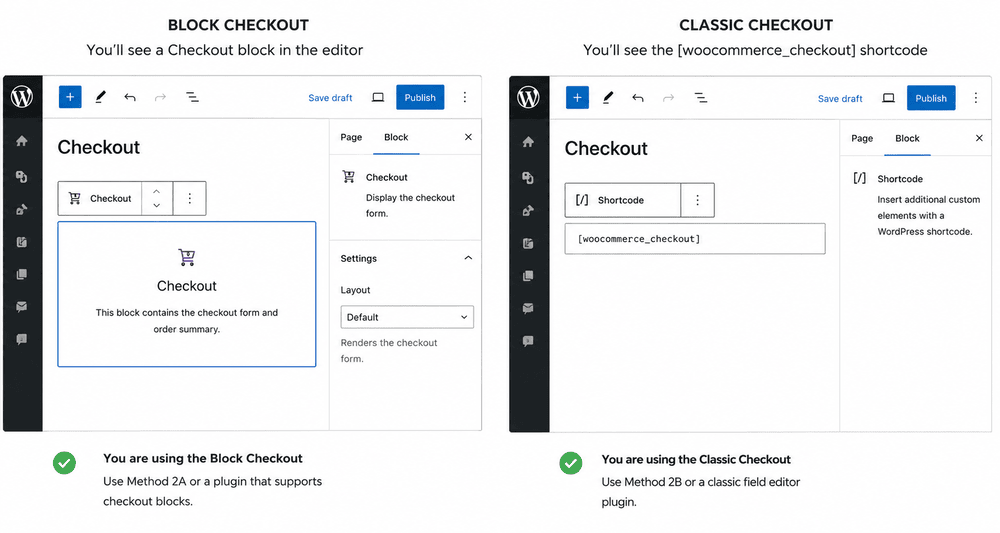
Open Pages ⇨ Checkout and edit the page:
- A Checkout block in the editor means your store uses the block checkout. WooCommerce ships new stores with this by default.
- The [woocommerce_checkout] shortcode means your store uses the classic checkout.
- If a checkout plugin such as FunnelKit has replaced the page entirely, you're on a custom checkout and manage fields inside that plugin.
Here is which method works where:
| Your checkout | What works |
|---|---|
| Block checkout | The block fields API in Method 2A, or a field editor plugin that explicitly supports checkout blocks |
| Classic (shortcode) checkout | The classic hooks in Method 2B, or most classic field editor plugins |
| FunnelKit or another custom checkout | The plugin’s own field editor (Method 1) |
Quick note: Method 1 below builds its own checkout page, so the block versus classic question stops mattering entirely here. That’s half the reason we start there.
Types of Custom Checkout Fields You Can Add
WooCommerce checkout customization goes well past plain text field boxes.
Depending on the method, you can add:
- Single-line text input for short titles or names
- Number field to enter numerics
- Checkbox for multiple selections from given options
- Radio buttons to choose one option from a set
- Multi-line text area for longer responses, like comments or special instructions
- Select dropdowns for a collapsible menu
- Email address to collect users' email IDs with proper validation
- Multi-select to opt for multiple options
- Phone number with international contact numbers and validation
- Hidden field to store data for internal use (not visible to shoppers)
- Password entry that secures sensitive information
- Date to select a specific date from a calendar pop-up
- DateTime combination input
- Time in hours and minutes
- File uploads that let users upload files for custom orders
- Billing and shipping address details
- Conditional fields that appear or disappear based on input selections
- Custom validation fields that require input in a specific format (for example, VAT numbers or date of birth)
- Terms and conditions to add a user agreement checkbox on WooCommerce checkout for legal compliance
- Google reCAPTCHA to ensure the user is human
The block checkout’s native API currently supports only text, select, and checkbox types, so date pickers and file uploads need a plugin route.
And product-level options like engraving text belong on the product page with a product fields plugin, not at checkout. The checkout is for order-level data.
Method 1: Add a Checkout Field Visually with FunnelKit (No Code)
The fastest way to add a custom checkout field is with FunnelKit Funnel Builder.
Rather than patching the default form, FunnelKit replaces your checkout with its own page where every field, default or custom, is managed with drag and drop.
The field editor sits inside a checkout built for conversion, so you fix the form and the page in one move.
FunnelKit offers a free version, and the custom field editor below is part of the Pro plan, which starts at $99.50/year and adds conditional fields, order bumps, and one-click upsells.
Make sure to install both the free and pro versions of FunnelKit Funnel Builder.
Step 1: Set up your store checkout
Go to FunnelKit ⇨ Store Checkout, click 'Create Store Checkout'.
Choose a checkout template, select your page builder (Elementor, Bricks, Divi, Gutenberg, and others are supported), and choose a one-page or multi-step layout.
Import the template, name your store checkout and click on 'Done'.
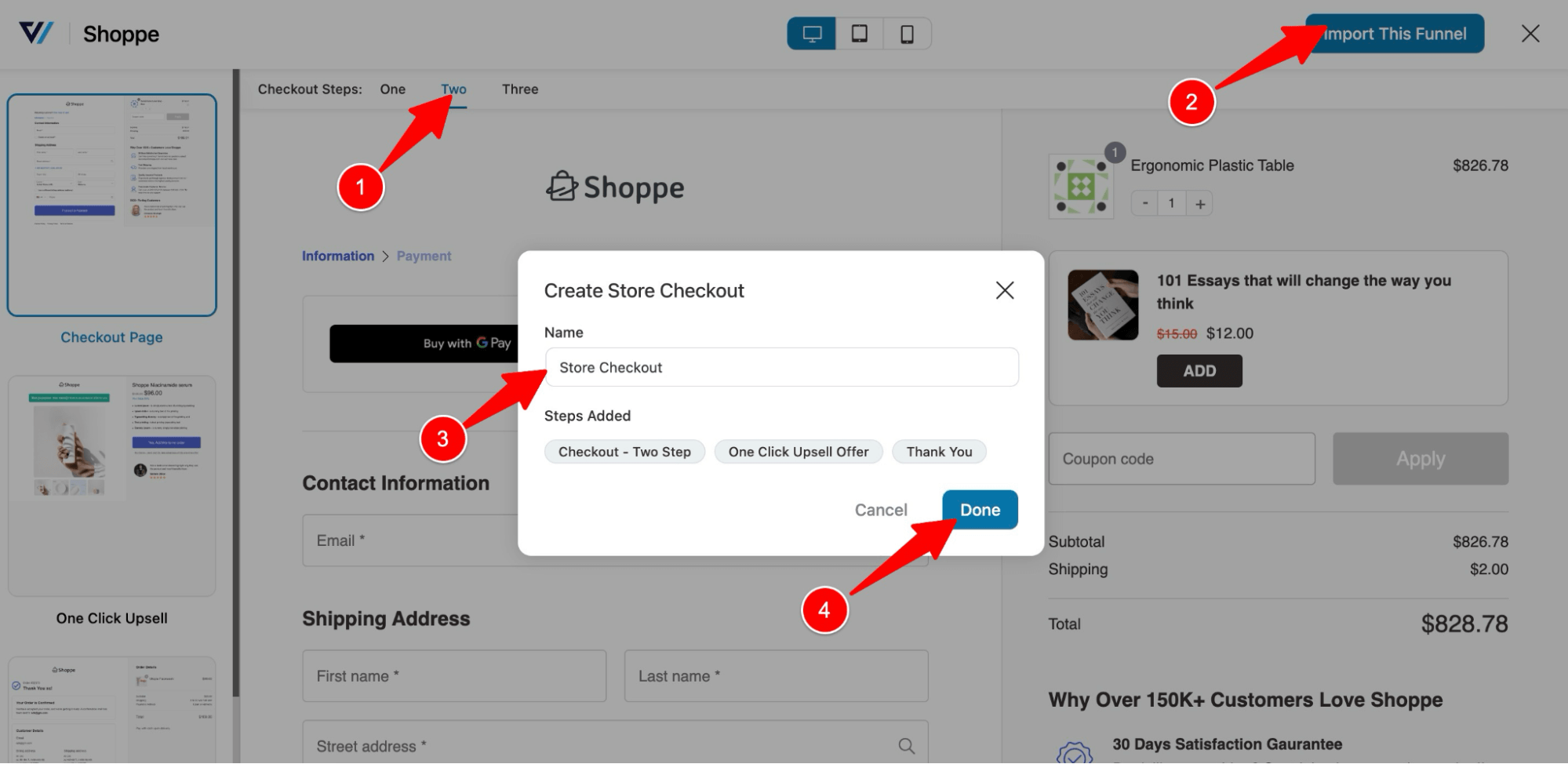
This will import a store checkout with three steps: Checkout, One Click Upsell, and Thank You page.
For the full setup walkthrough, see our guide to creating a store checkout in WooCommerce.
Step 2: Create a new custom checkout field
To edit the WooCommerce checkout page and add an extra field, click on the ‘Checkout’ step.
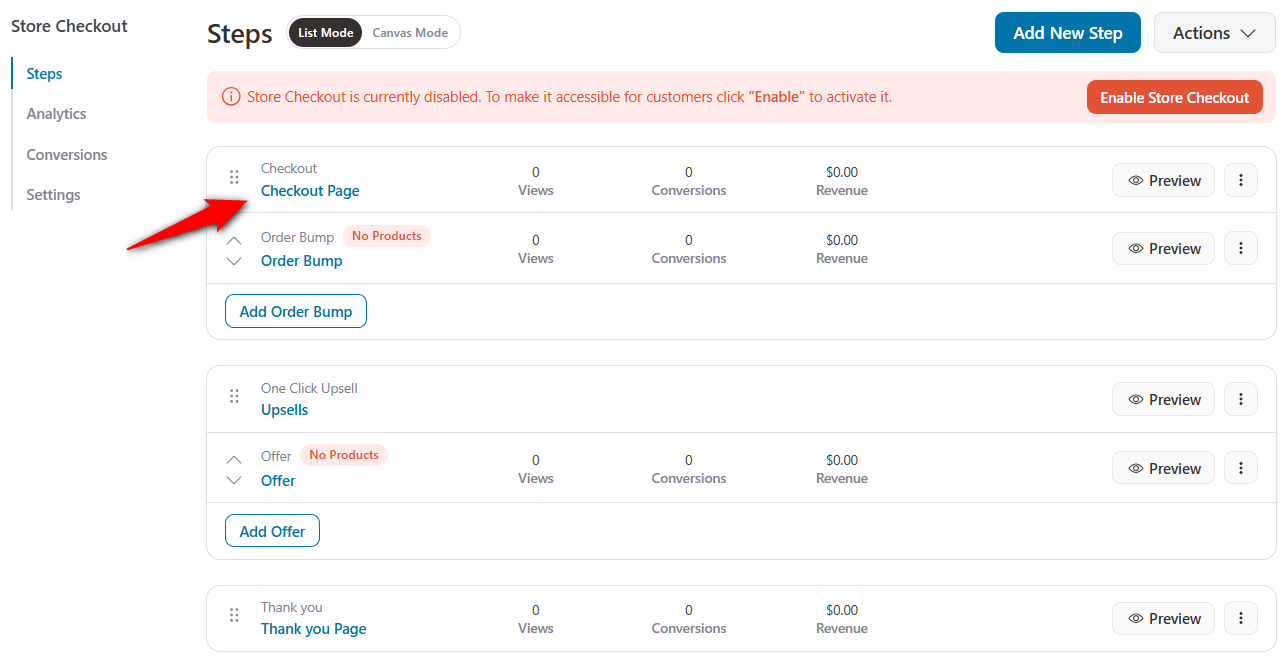
Under the Design tab, customize the layout and content of your checkout page using your chosen page builder.
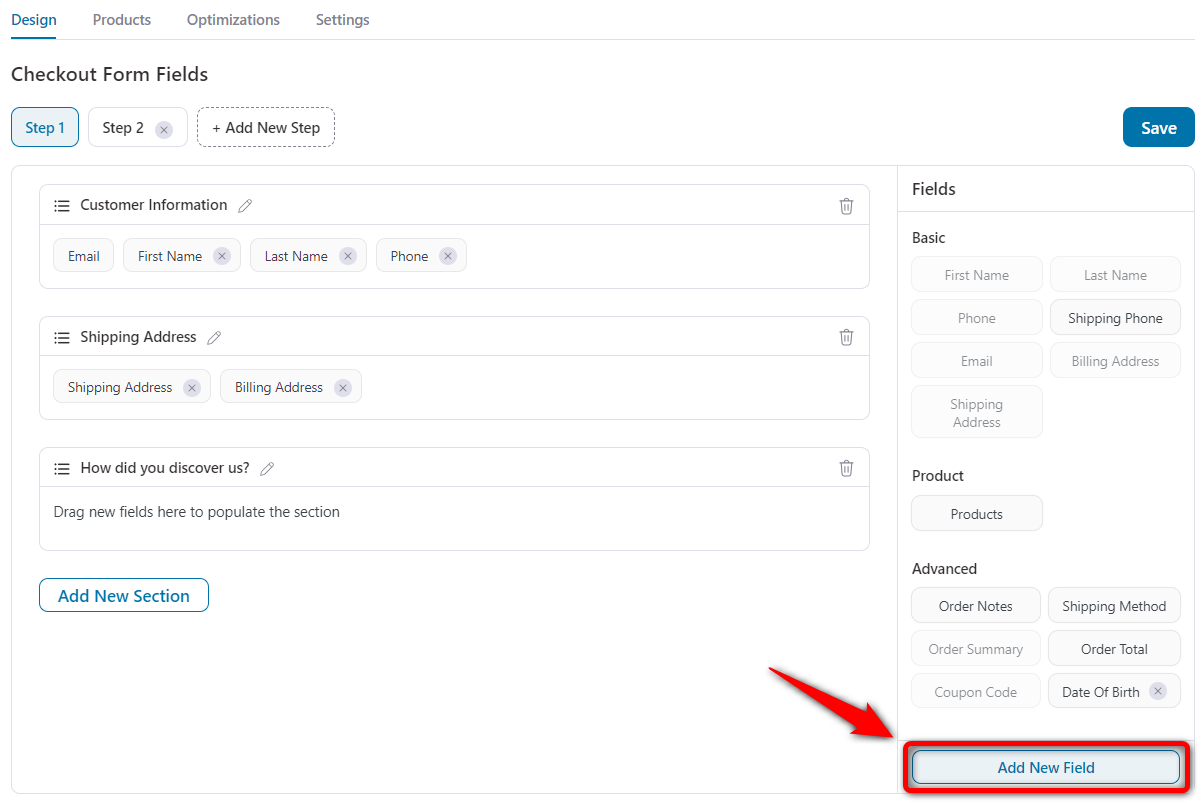
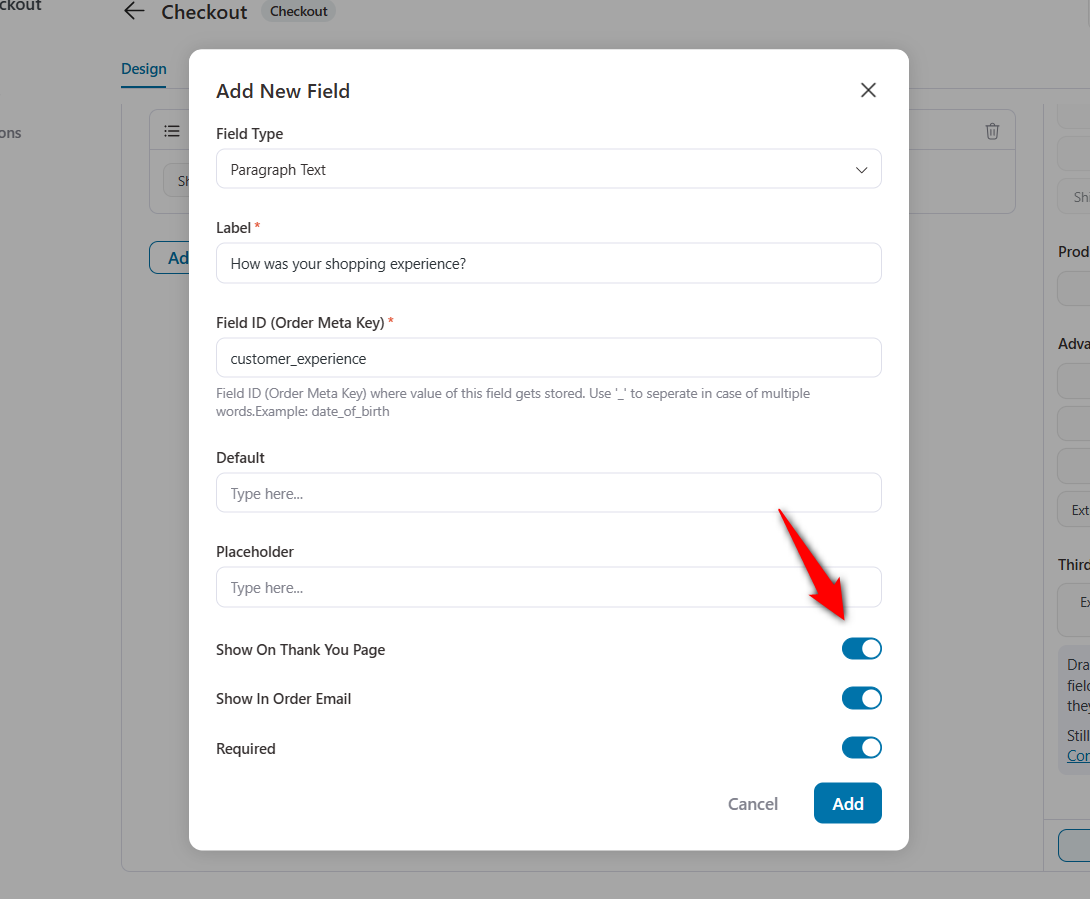
To create a new field, go to the Advanced section and click ‘Add New Field’.
Note: FunnelKit also supports adding a Date of Birth field, which is perfect for sending birthday emails via automations.
FunnelKit supports 13+ field types: single line text, paragraph text, number, email, telephone, checkbox, radio, dropdown, select2, multi-select, hidden, password, and HTML.
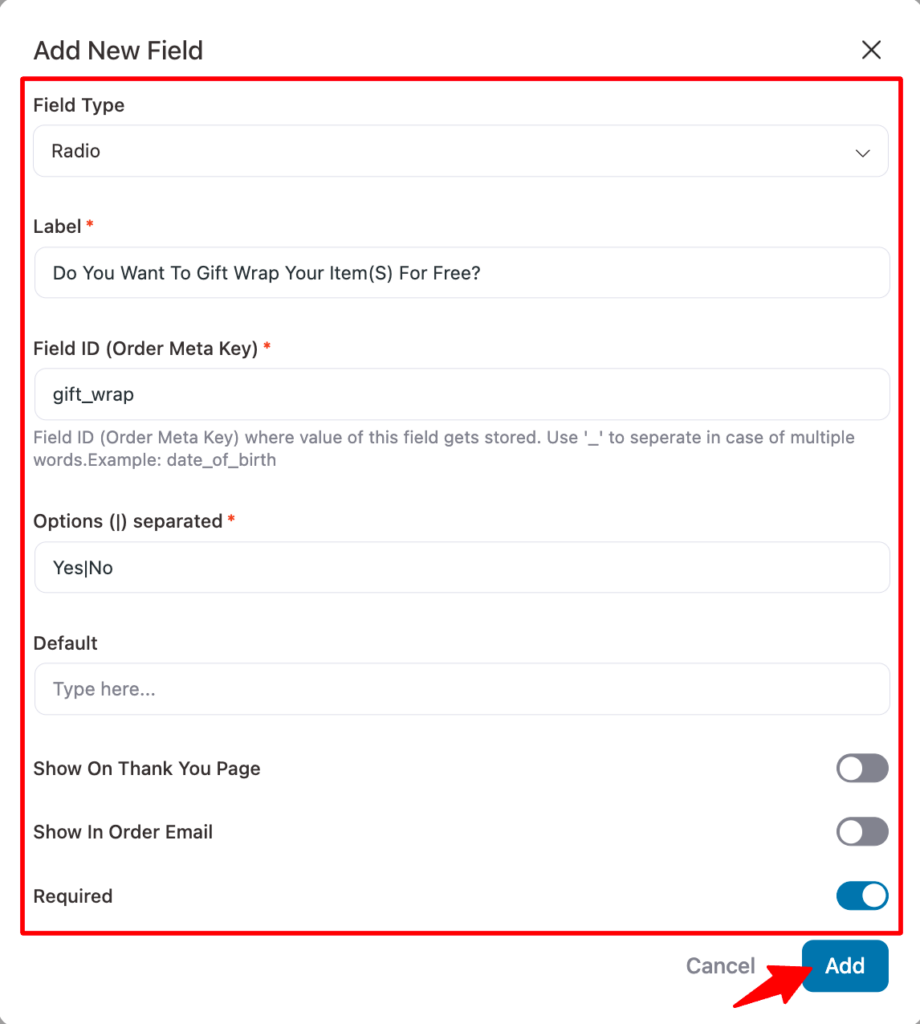
For the gift wrap field, pick Radio so customers have the respective options.
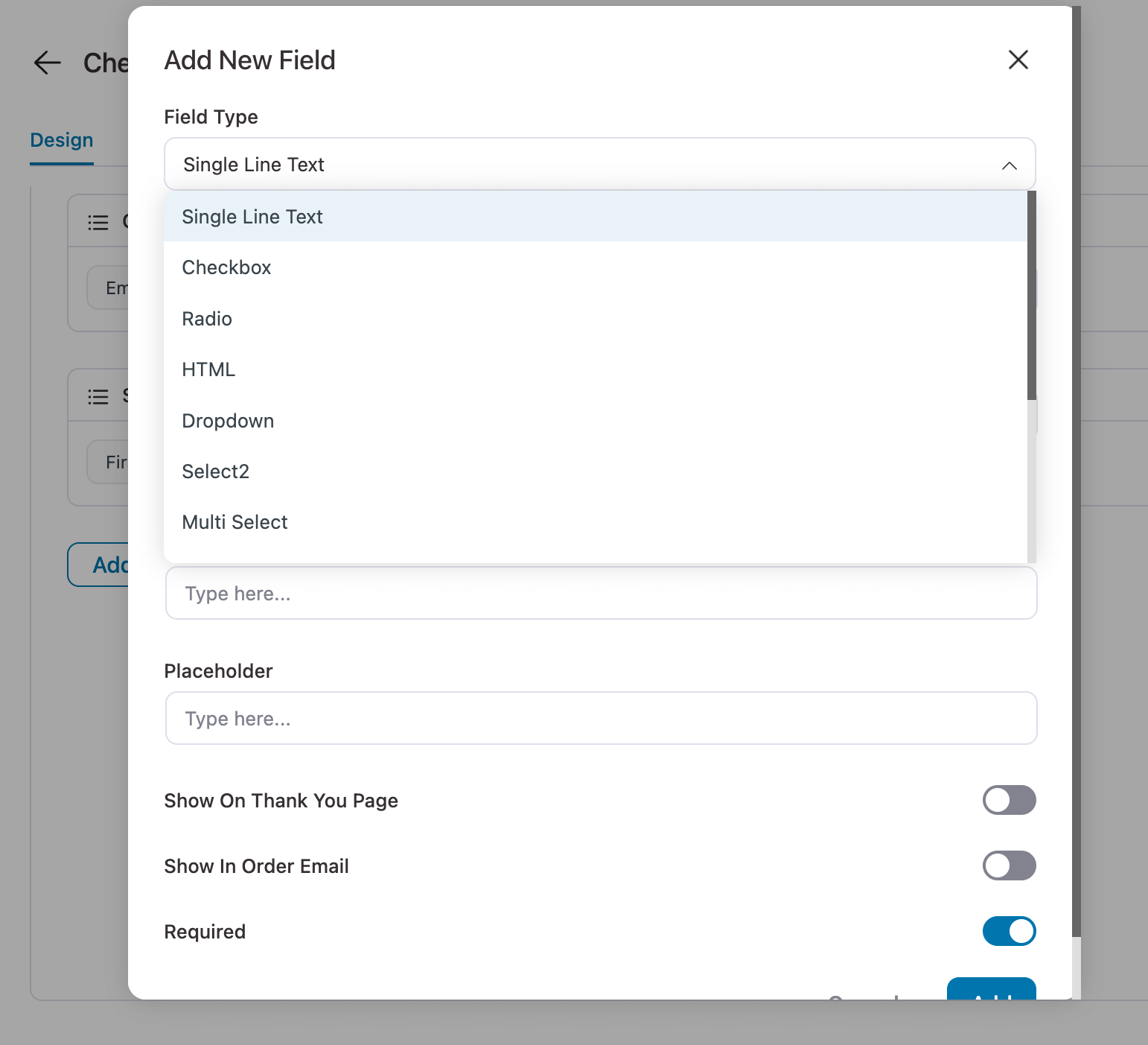
Then configure the settings:
- Label: Provide a custom label for the checkout field.
- Field ID (Order Meta Key): Add a field ID; use multiple words by appending “_”.
- Options (|) separated: Add the options separated by “|”. We are adding two options: yes and no.
- Default: Provide the default value for this custom field. However, this is optional.
- Show On Thank You Page: Check this option if you want the value passed by this field to be shown on the thank you page.
- Show In Order Email: If you want to include this field in your order emails, check this option.
- Required: To make the custom WooCommerce checkout field required, check this option. To make it optional, leave it unchecked.
Finally, click on ‘Add’ to create the field.
Your new checkout field will now appear in the Advanced section.
To place it within your checkout form, simply drag and drop it to your desired position.
In this example, we’re adding it to the Shipping Address section.
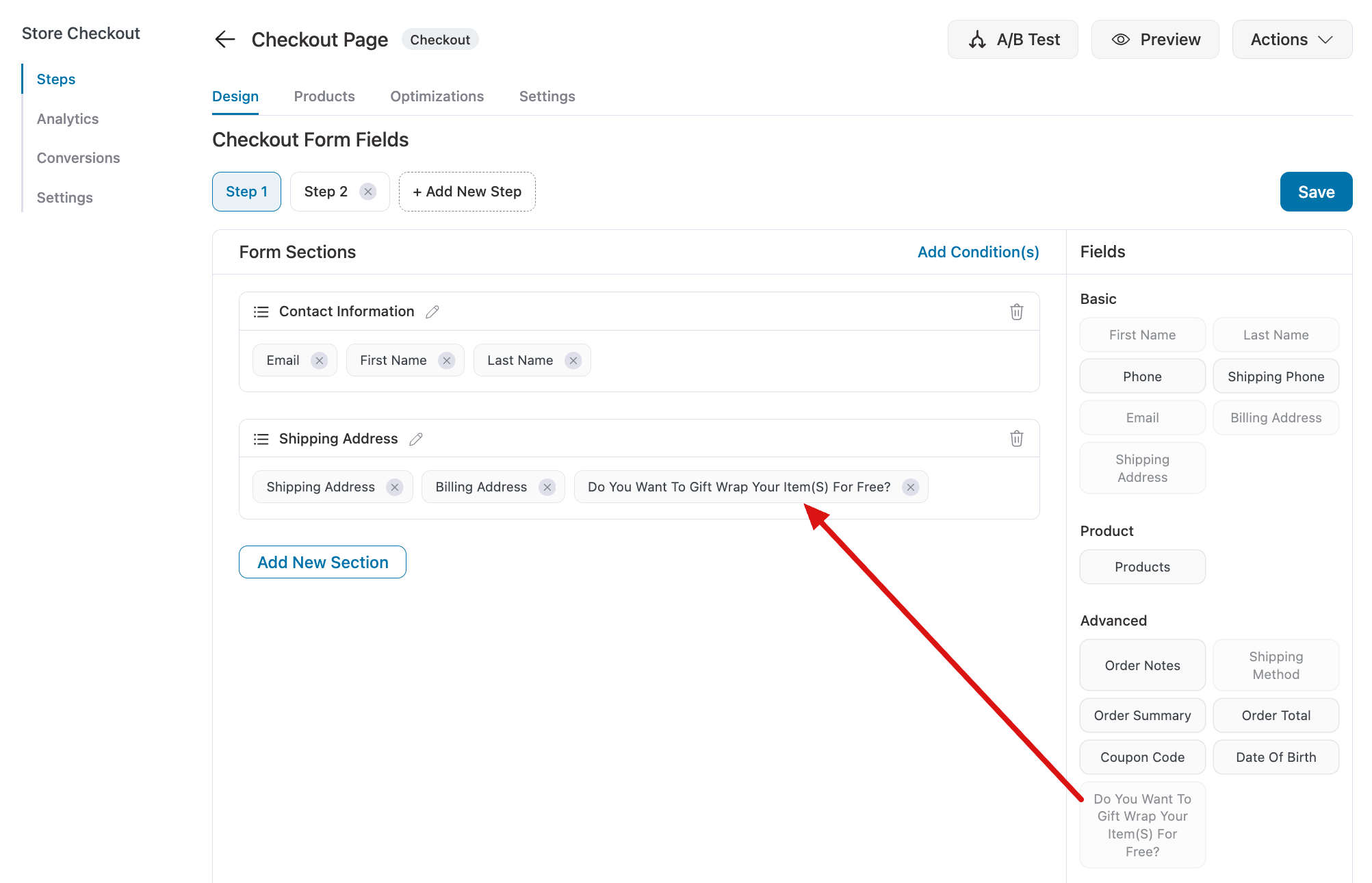
Want to make changes? You can edit, move, or delete any field right from the form builder interface.
Once you're happy with the placement, click ‘Save’ to lock all your changes.
Note: You can add as many WooCommerce custom fields as needed by repeating this process.
Step 3: Add a display condition to the custom field
Now the part that keeps the form short. Click 'Add Conditions' on the field and set a rule so it only shows when that condition is only met.
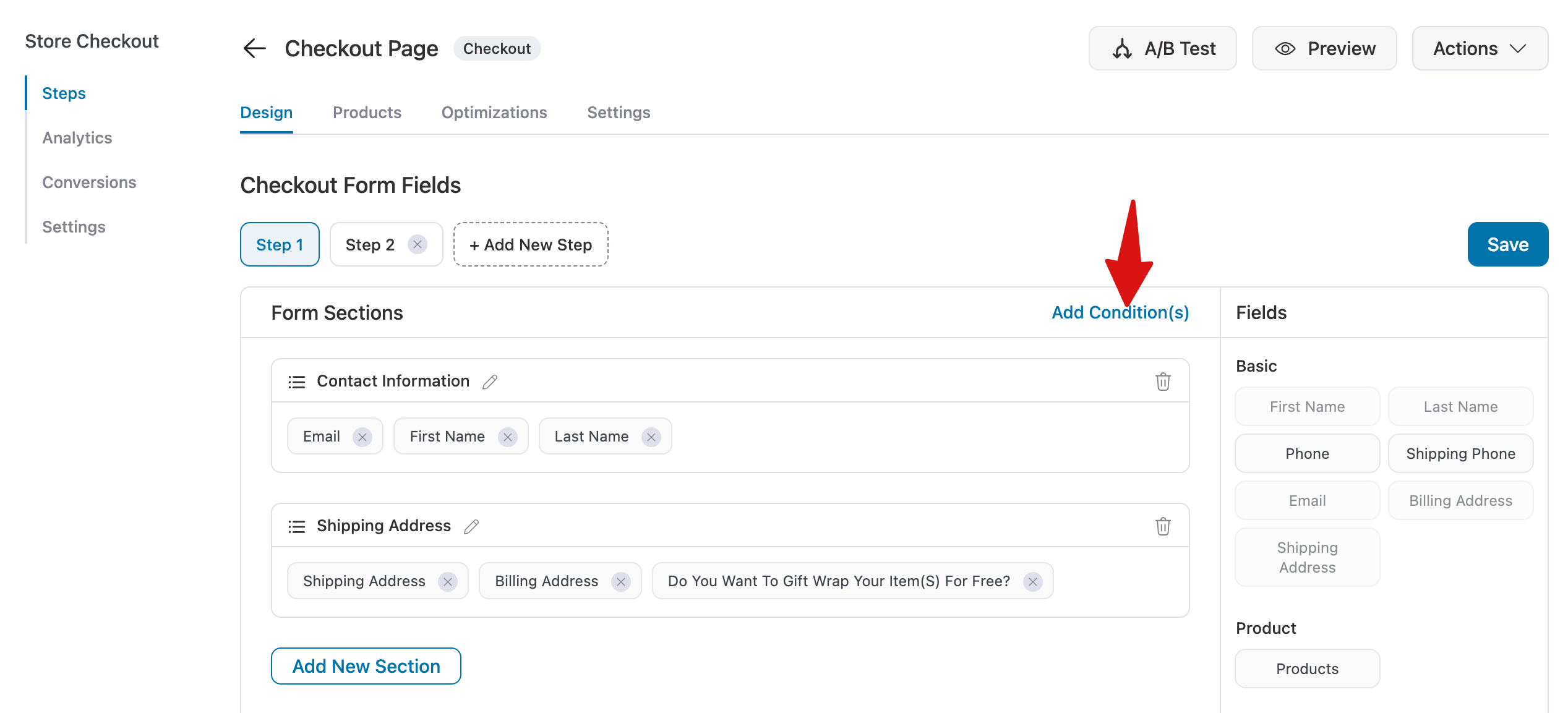
Select 'Apply to specific fields', then click + Add Field and choose the target field.
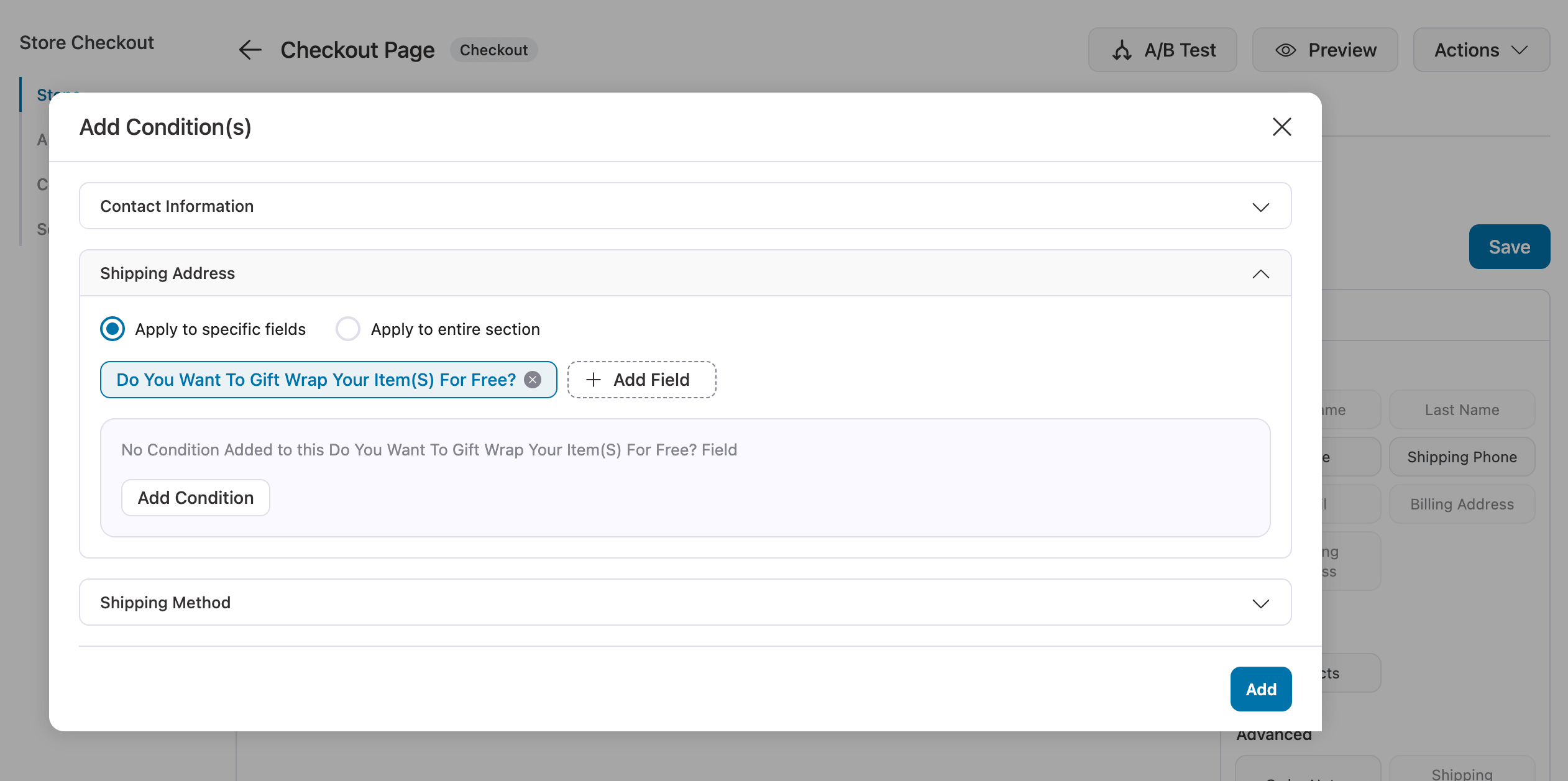
Next, click “Add Condition”, select the condition field, and set the rule, for example, if the cart item category is “gift”.
This helps you show only relevant fields to users, making the form cleaner and improving the overall user experience.
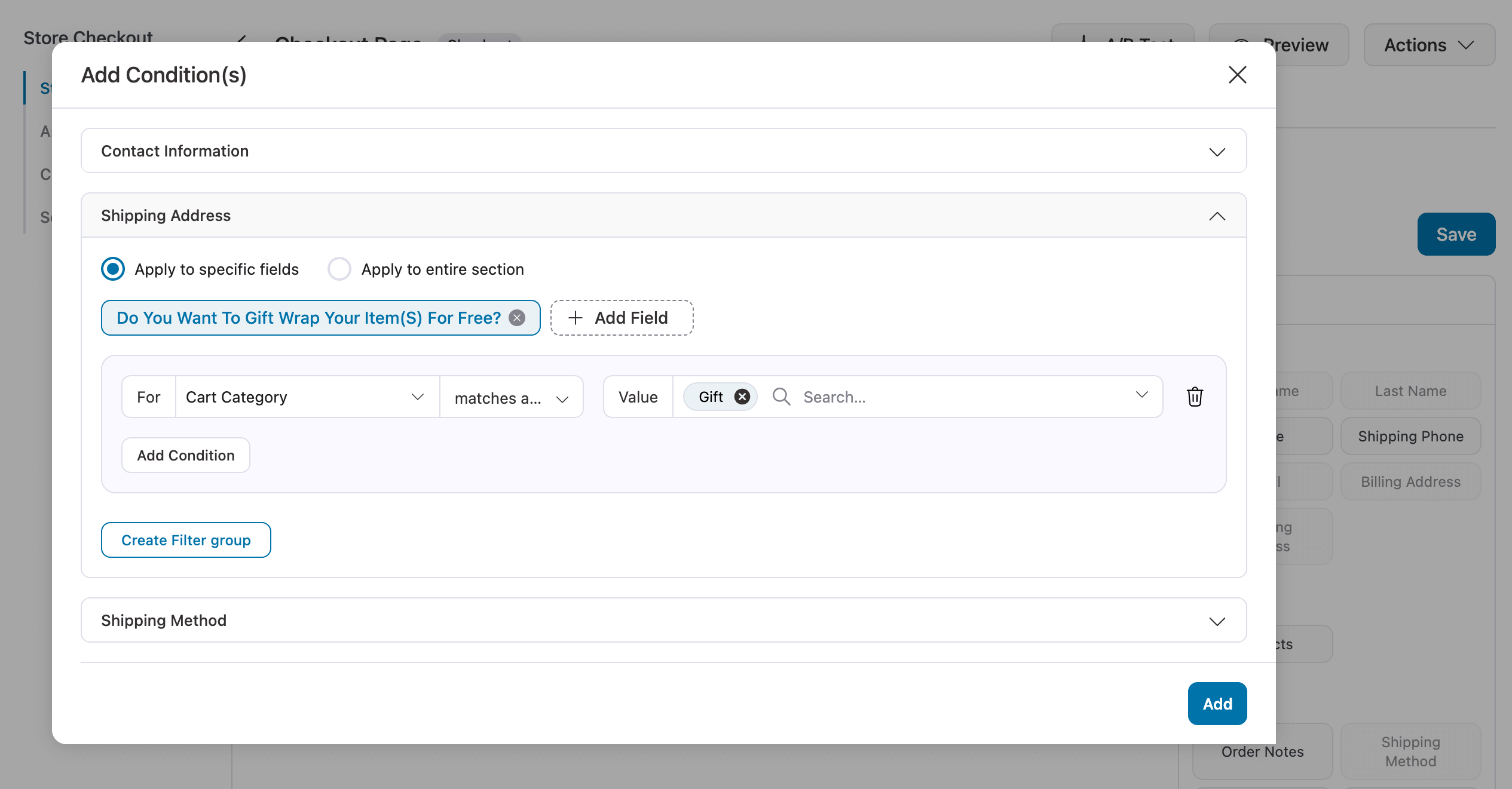
 Note: You can add multiple condition a well. For more details, check our blog on
 Step 4: Style the field with your page builder
Click Edit Template to open the checkout in your page builder.
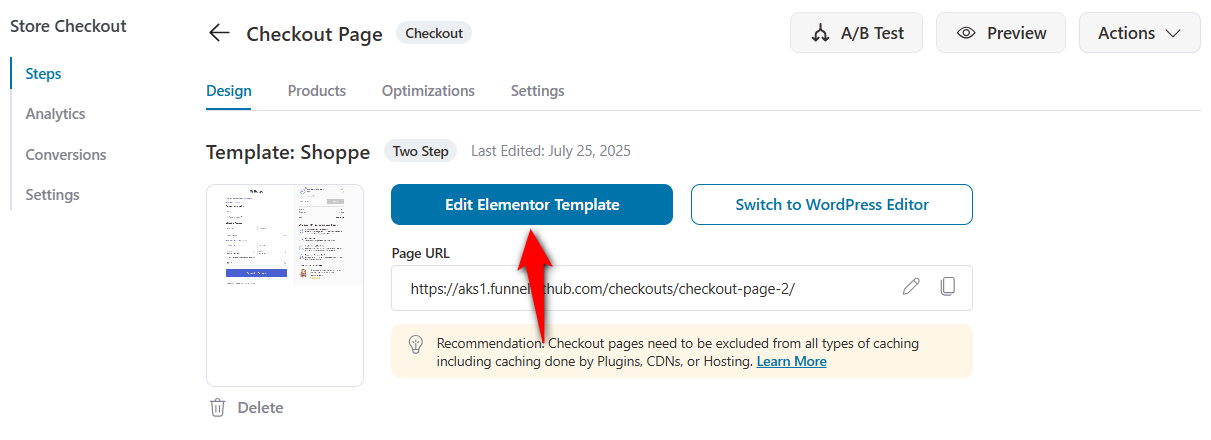
Customize the steps and name them for your multi-step checkout.
Set the field to full width so the text area has room, match the label typography to the rest of the form, and check the spacing so the form still reads as one clean column.
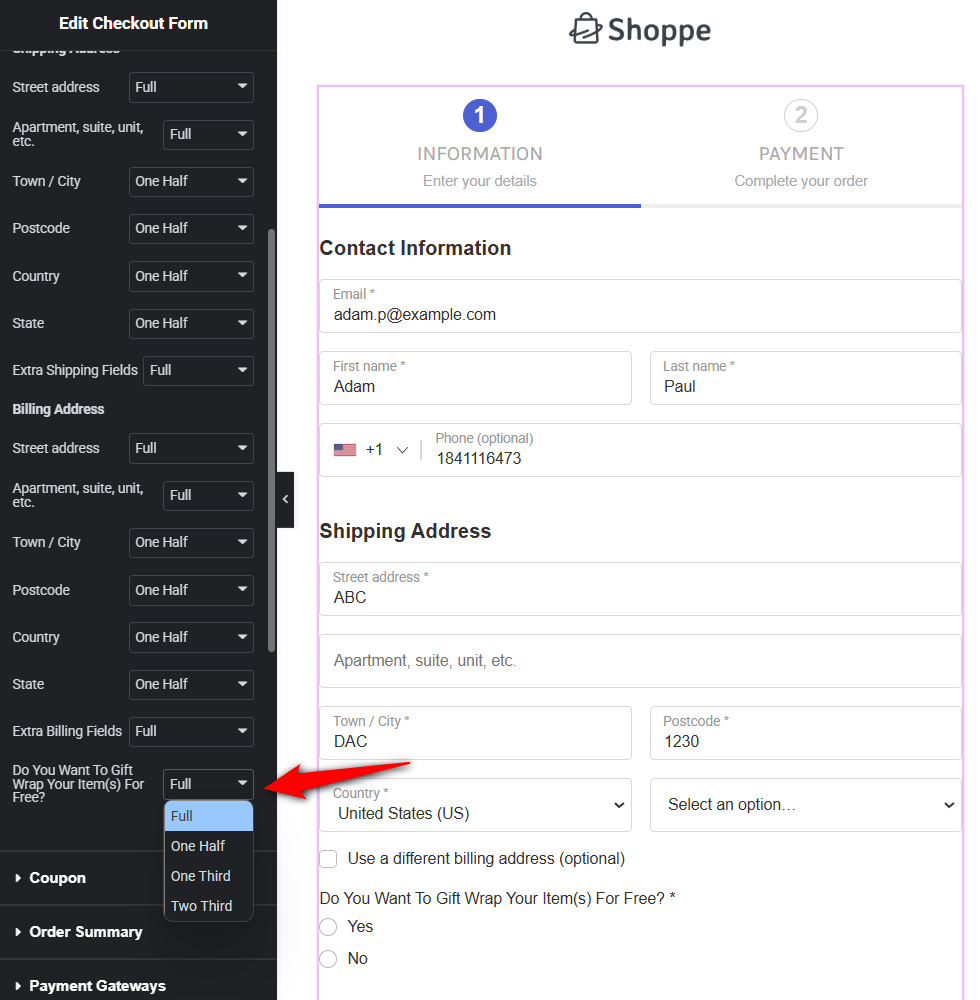
Once you're done customizing, click ‘Publish’ to save the changes.
Step 5: Activate and test the field
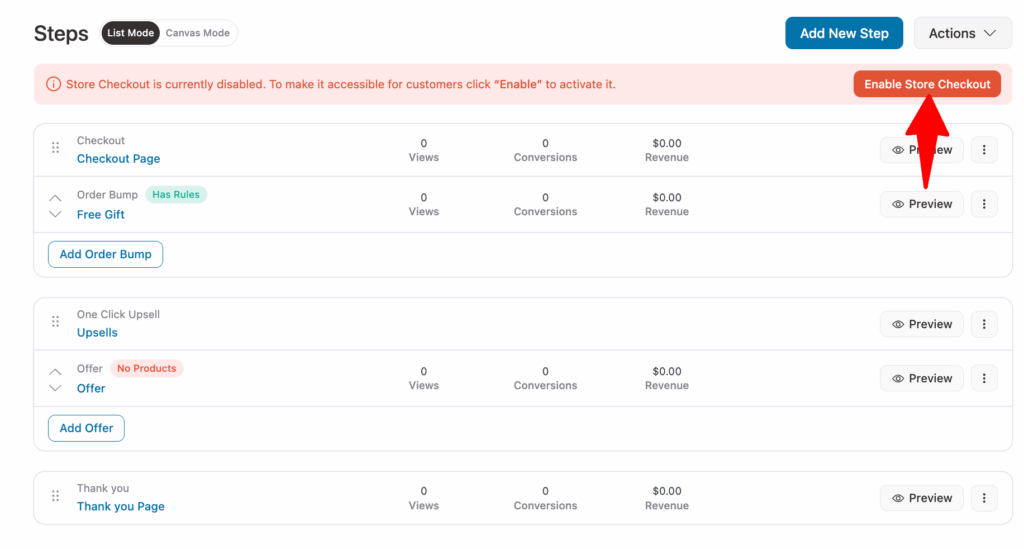
Activate the store checkout so it replaces the default WooCommerce checkout.
To test your setup, add a large item to your cart, proceed to checkout, type a test instruction into the field, and place a test order.
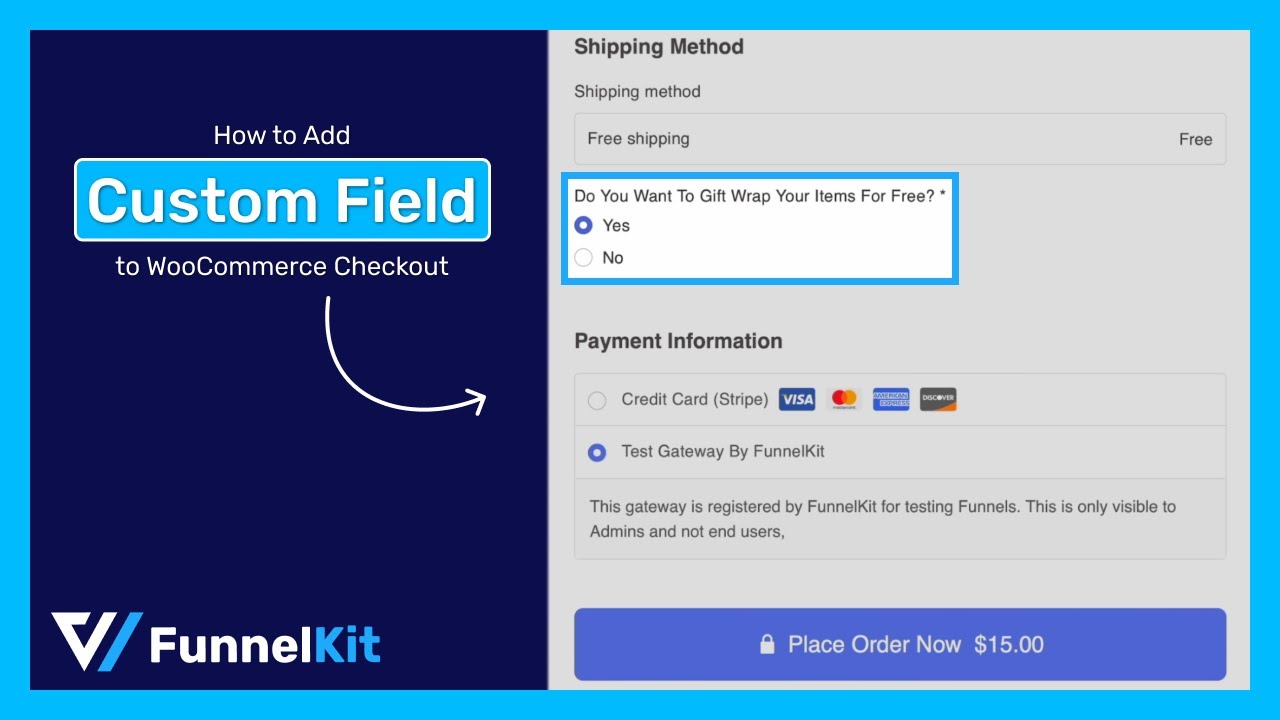
Here’s what the WooCommerce checkout page created with FunnelKit with a custom extra field looks like:
Note: If you set any condition for the custom field, it will only show up when the conditions are met.
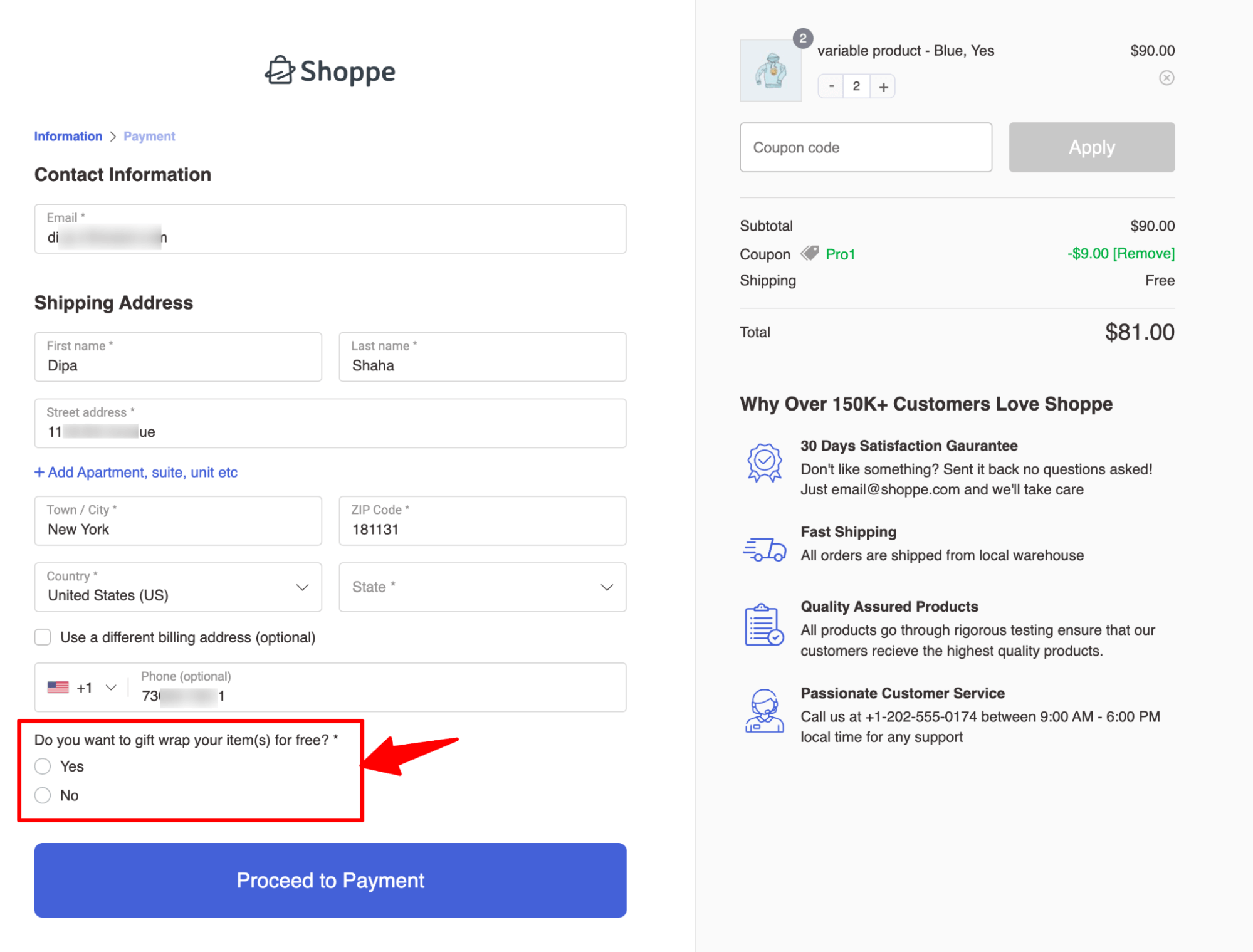
Select an option and proceed to make the test payment. This will place your order and redirect you to the order confirmation page.
Next, navigate to WooCommerce ⇨ Orders to access the custom field.
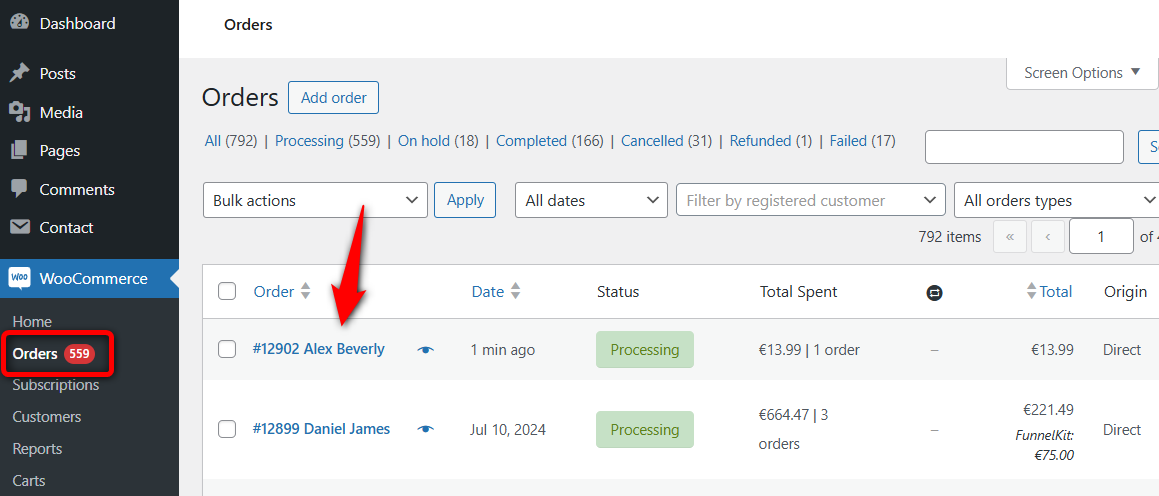
Here, you’ll be able to see the custom field:
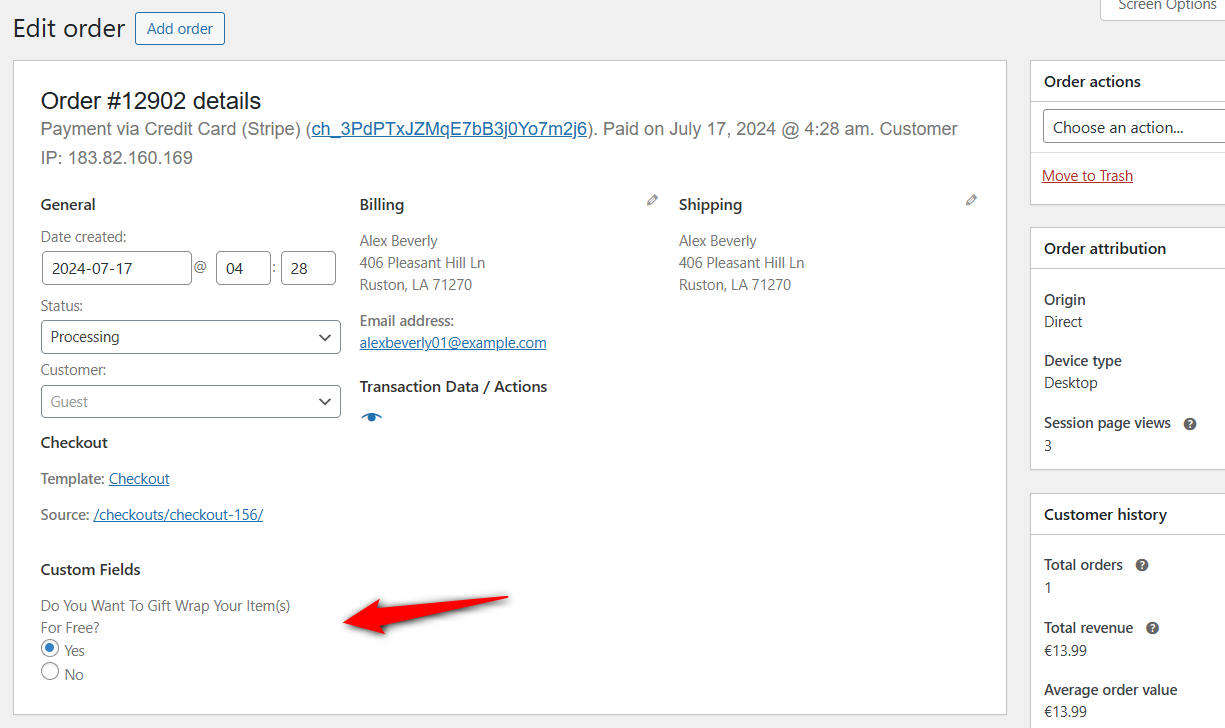
You can use this custom field order during order processing by adding it to automated order emails and sending it to customers.
Then run one more test with a small item in the cart and confirm the field stays hidden. Repeat on mobile, where a cramped text area is easy to miss.
Or you can even include WooCommerce checkout custom fields in PDF invoices and packaging slips.
That’s how easily you can add an extra custom field to the WooCommerce checkout page using FunnelKit Funnel Builder.
Method 2: Checkout Field Editor Plugins
If you only need a field or two and you’re not changing anything else about your checkout, a single-purpose free plugin is the honest answer.
Checkout Field Editor (Checkout Manager) for WooCommerce by ThemeHigh is free, with 400,000+ active installs, and it handles both checkouts, but not equally.
On the classic checkout, you get around 20 field types, including date, time, URL, and checkbox groups.
On the block checkout, the free version currently supports four: text, select, radio, and checkbox, with email, phone, and URL validation. The date picker on Block Checkout is a Pro feature.
Step 1: Install and activate the plugin
First, you need to install the Checkout Field Editor (Checkout Manager) for WooCommerce on your WordPress website.
When done, activate it.
Step 2: Add a field to the checkout page
In your dashboard, go to WooCommerce ⇨ Checkout Fields.
Pick the Classic Checkout Fields or Blocks Checkout Fields tab that matches your store, click 'Add Field', and build the same Gift message field as above.
Type Radio, name gift_message, label “Gift message”, required off. Save.
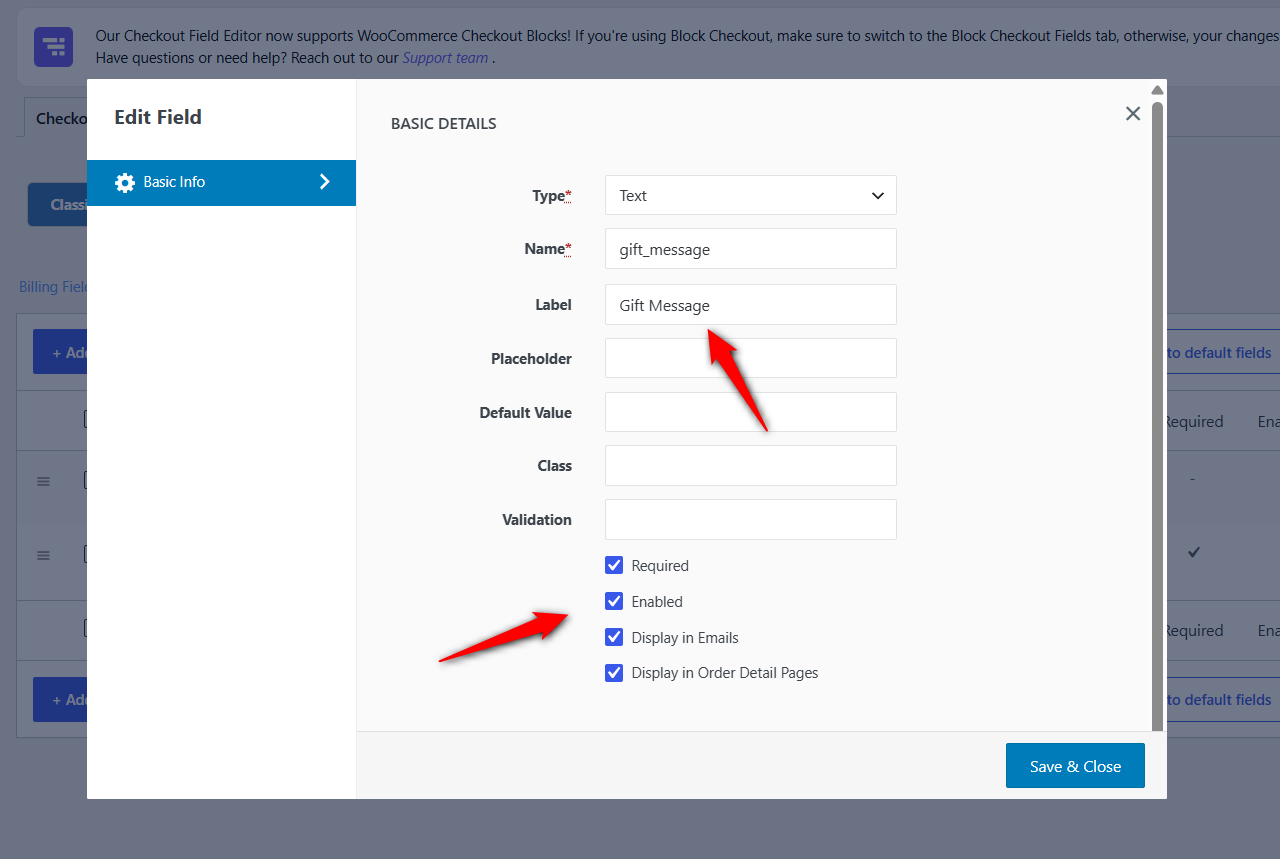
The tab you’re on matters more than anything else in that flow.
Adding your field to the Classic tab when your store runs the block checkout is the single most common reason people conclude the plugin is broken.
WooCommerce’s own Checkout Field Editor extension overrides custom checkout field code in your theme’s functions.php when it’s active. However, it only runs on the legacy checkout currently.
Pick the plugin route or the code route and running both means one silently wins.
Method 3: Add a Field to the WooCommerce Block Checkout with Code
This is the modern API, and it’s the one almost no tutorial covers.
Register additional checkout fields with woocommerce_register_additional_checkout_field(), hooked on woocommerce_init; hooking earlier causes initialization and translation problems.
You can register it into three locations:
| Location | Where it renders | Where the value is saved |
|---|---|---|
| contact | Contact information, at the top of the form | Customer account and order |
| address | Inside both the shipping and billing address forms | Customer and order (two values, one per address) |
| order | The Order information block, last step by default | Order only |
A gift message belongs in order, which is about this purchase only and not about the customer.
Make sure to use functions.php in your child theme or use a code snippets plugin.
add_action( 'woocommerce_init', function () {

	woocommerce_register_additional_checkout_field(
		array(
			'id'            => 'funnelkit/gift-message',
			'label'         => 'Gift message',
			'optionalLabel' => 'Gift message (optional)',
			'location'      => 'order',
			'type'          => 'text',
			'required'      => false,
			'attributes'    => array(
				'maxLength'    => 200,
				'autocomplete' => 'off',
				'title'        => 'Printed on the gift card, 200 characters max',
			),
		)
	);

} );
Make rules of the API enforce:
- The id must be namespaced for vendor/field-name. A bare gift_message will not register.
- Supported types are text, select, and checkbox. Nothing else, for now.
- A field renders in one location only. Register it twice if you genuinely need it twice.
Add a dropdown to the block checkout
Select fields need an options array of value/label pairs, and take an optional placeholder:
woocommerce_register_additional_checkout_field(
	array(
		'id'          => 'funnelkit/gift-wrap-style',
		'label'       => 'Gift wrap style',
		'placeholder' => 'Choose a wrap',
		'location'    => 'order',
		'type'        => 'select',
		'options'     => array(
			array( 'value' => 'kraft',  'label' => 'Recycled kraft' ),
			array( 'value' => 'linen',  'label' => 'Linen ribbon' ),
			array( 'value' => 'none',   'label' => 'No wrapping' ),
		),
	)
);
Checkboxes take an error_message used when the box is required and left unchecked. This is the exact pattern for an age-confirmation or terms field.
Validate the field
Sanitization runs first and only reformats the value; validation runs after and decides whether the order can proceed.
Use woocommerce_sanitize_additional_field to clean, and woocommerce_validate_additional_field to reject:
add_action( 'woocommerce_validate_additional_field', function ( WP_Error $errors, $field_key, $field_value ) {

	if ( 'funnelkit/gift-message' === $field_key && strlen( $field_value ) > 200 ) {
		$errors->add( 'gift_message_too_long', 'Please keep your gift message under 200 characters.' );
	}

}, 10, 3 );
That callback must add to the WP_Error object it receives. Returning a fresh WP_Error swallows the message and the shopper sees nothing.
When a field’s validity depends on another field in the same section, use the location-level hook instead, such as woocommerce_blocks_validate_location_order_fields, …_contact_fields, or …_address_fields, which fires twice for addresses (once billing, once shipping).
For the wider set of checkout validation patterns on both checkouts, see our guide to WooCommerce checkout field validation.
Method 4: Add a Field to the Classic Checkout with Code (HPOS-Safe)
On the classic shortcode checkout, you’re working with the original WooCommerce checkout hooks.
Put this in a child theme’s functions.php or, better, a code snippets plugin. Editing functions.php through Appearance ⇒ Theme File Editor on a live store means one syntax error takes the site down with no way back in.
Step 1: Render the field
add_action( 'woocommerce_after_order_notes', function ( $checkout ) {

	woocommerce_form_field(
		'gift_message',
		array(
			'type'        => 'text',
			'class'       => array( 'form-row-wide' ),
			'label'       => __( 'Gift message', 'your-textdomain' ),
			'placeholder' => __( "We'll print this on a card", 'your-textdomain' ),
			'required'    => false,
			'maxlength'   => 200,
		),
		$checkout->get_value( 'gift_message' )
	);

} );
woocommerce_after_order_notes is one of several placement hooks.
While woocommerce_before_checkout_billing_form, woocommerce_after_checkout_billing_form, and woocommerce_review_order_before_submit cover most other positions.
To modify or add fields inside the existing billing and shipping groups instead, filter the array:
add_filter( 'woocommerce_checkout_fields', function ( $fields ) {

	$fields['billing']['billing_vat_number'] = array(
		'label'    => __( 'VAT number', 'your-textdomain' ),
		'required' => false,
		'class'    => array( 'form-row-wide' ),
		'priority' => 120,
	);

	return $fields;

} );
Fields defined inside the checkout_fields array save to the order automatically. Fields printed with woocommerce_form_field() do not save to the order, which is Step 3.
Step 2: Add custom validation
Built-in required validation is fine for this field must have a value. But sometimes you need to check the value matches a specific format like a VAT number, a postal code, or a five-digit ID.
Validate it with the code:
add_action( 'woocommerce_checkout_process', function () {

	if ( ! empty( $_POST['gift_message'] ) && strlen( $_POST['gift_message'] ) > 200 ) {
		wc_add_notice( __( 'Please keep your gift message under 200 characters.', 'your-textdomain' ), 'error' );
	}

} );
Step 3: Save the field data (HPOS-safe)
If a snippet still tells you to use update_post_meta( $order_id, … ), it predates High-Performance Order Storage.
With HPOS enabled, orders no longer live in wp_posts, and post-meta writes go somewhere your order object will never read from.
Use the CRUD methods:
add_action( 'woocommerce_checkout_update_order_meta', function ( $order_id ) {

	if ( empty( $_POST['gift_message'] ) ) {
		return;
	}

	$order = wc_get_order( $order_id );
	$order->update_meta_data( '_gift_message', sanitize_text_field( wp_unslash( $_POST['gift_message'] ) ) );
	$order->save_meta_data();

} );
Read it back with $order->get_meta( '_gift_message' ).
That one swap is the difference between code that works on a 2026 store and code that quietly loses data.
Step 4: Show the field data in order admin, emails, and the thank-you page
Collecting the value is half the job. Here’s the other half, code and toggle side by side.
| Where it needs to appear | FunnelKit | Code |
|---|---|---|
| Order edit screen | “Show in order details” toggle | woocommerce_admin_order_data_after_billing_address |
| Order emails | “Show in emails” toggle | woocommerce_email_order_meta_fields |
| Thank-you page & My Account | Built into the field settings | woocommerce_order_details_after_order_table |
| CSV exports | Included with the field | Order meta key, mapped in your export tool |
Order edit screen:
add_action( 'woocommerce_admin_order_data_after_billing_address', function ( $order ) {

	if ( $message = $order->get_meta( '_gift_message' ) ) {
		echo '<p><strong>' . esc_html__( 'Gift message', 'your-textdomain' ) . ':</strong> ' . esc_html( $message ) . '</p>';
	}

} );
Order emails: This filter puts the value in every transactional email, customer and admin.
add_filter( 'woocommerce_email_order_meta_fields', function ( $fields, $sent_to_admin, $order ) {

	if ( $message = $order->get_meta( '_gift_message' ) ) {
		$fields['gift_message'] = array(
			'label' => __( 'Gift message', 'your-textdomain' ),
			'value' => wp_kses_post( $message ),
		);
	}

	return $fields;

}, 10, 3 );
Thank-you page and My Account order view:
add_action( 'woocommerce_order_details_after_order_table', function ( $order ) {

	if ( $message = $order->get_meta( '_gift_message' ) ) {
		echo '<p><strong>' . esc_html__( 'Gift message', 'your-textdomain' ) . ':</strong> ' . esc_html( $message ) . '</p>';
	}

} );
6 Best Practices for Extra Checkout Fields
Adding custom fields to your WooCommerce checkout page can enhance user experience and help you collect important customer information.
But if not implemented thoughtfully, they can slow down checkout and reduce conversions.
Follow these best practices to create effective and user-friendly checkout fields in WooCommerce:
- Define the purpose of each field
Before adding a field, be clear about why you need it. Is it for personalization, delivery preferences, or extra customer info?
Only add fields that serve a clear purpose, as unnecessary fields can increase friction and lead to cart abandonment.
- Place fields strategically
Place fields in sections where they make sense, such as billing-related fields in the Billing section, shipping-specific fields in the Shipping section, and additional notes or preferences under the Order Notes section.
Keep essential fields (like name, email, phone) at the top, and move optional ones toward the end.
- Minimize user effort
Enable pre-fill fields or address suggestions to minimize the user’s effort. Use dropdowns, radio buttons, or checkboxes to reduce typing errors.
FunnelKit Funnel Builder leverages tools such as Google Address Autocomplete to help users enter their addresses faster.
- Ensure mobile optimization
Test the added fields on mobile devices to ensure they are easy to fill out. Use larger input boxes, buttons, and dropdown menus for mobile touchscreens.
Keep the checkout process concise, requiring minimal scrolling on small devices.
- Test field placement and functionality
Field placement impacts conversions.
Try A/B testing one-page checkout with a multi-step checkout page and placing the custom field on different sections of the checkout form.
FunnelKit makes it easy to test different layouts and analyze performance.
- Use conditional logic for better relevance
Use conditional logic to show fields only when they are needed. This keeps the checkout form clean and avoids overwhelming users with unnecessary inputs.
Use Cases: Examples of Extra Fields on WooCommerce Checkout
Let’s look at some examples of custom fields on the WooCommerce checkout page:
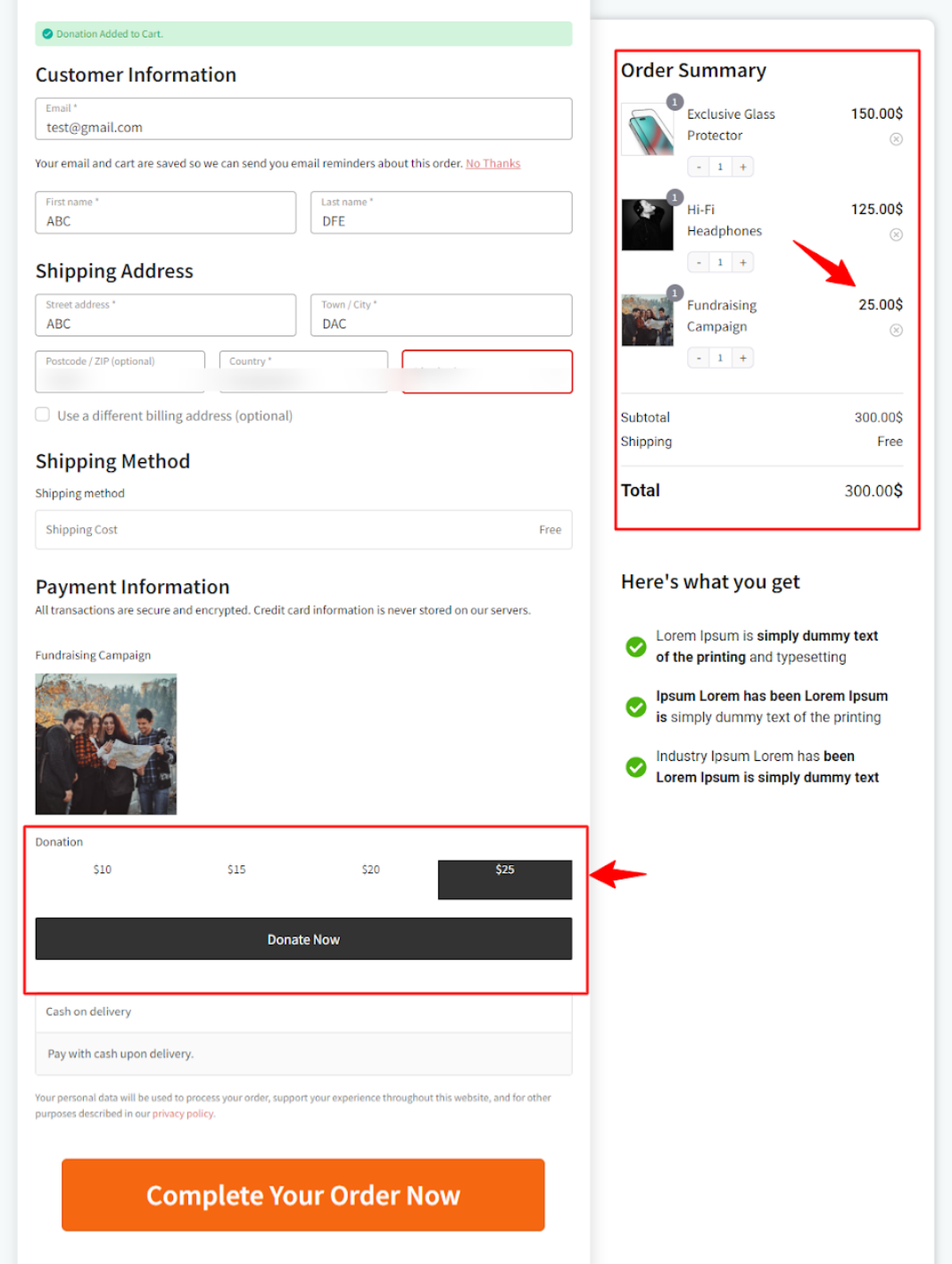
1. Donation campaigns
The donation field on the checkout page allows users to contribute to a cause or select donation preferences.
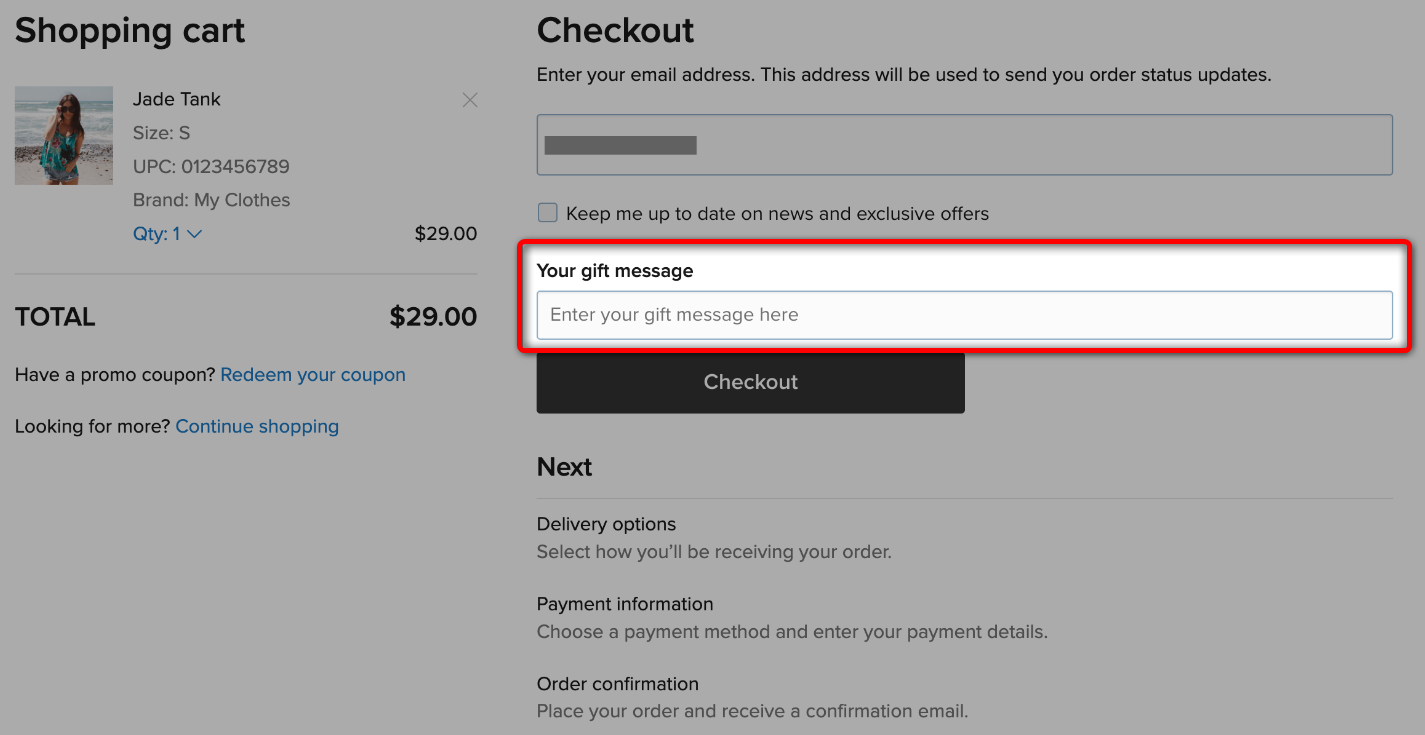
2. Personalized gifts
Additional fields allow customers to add personal touches to their purchases, making them ideal gifts for loved ones.
3. Business customers
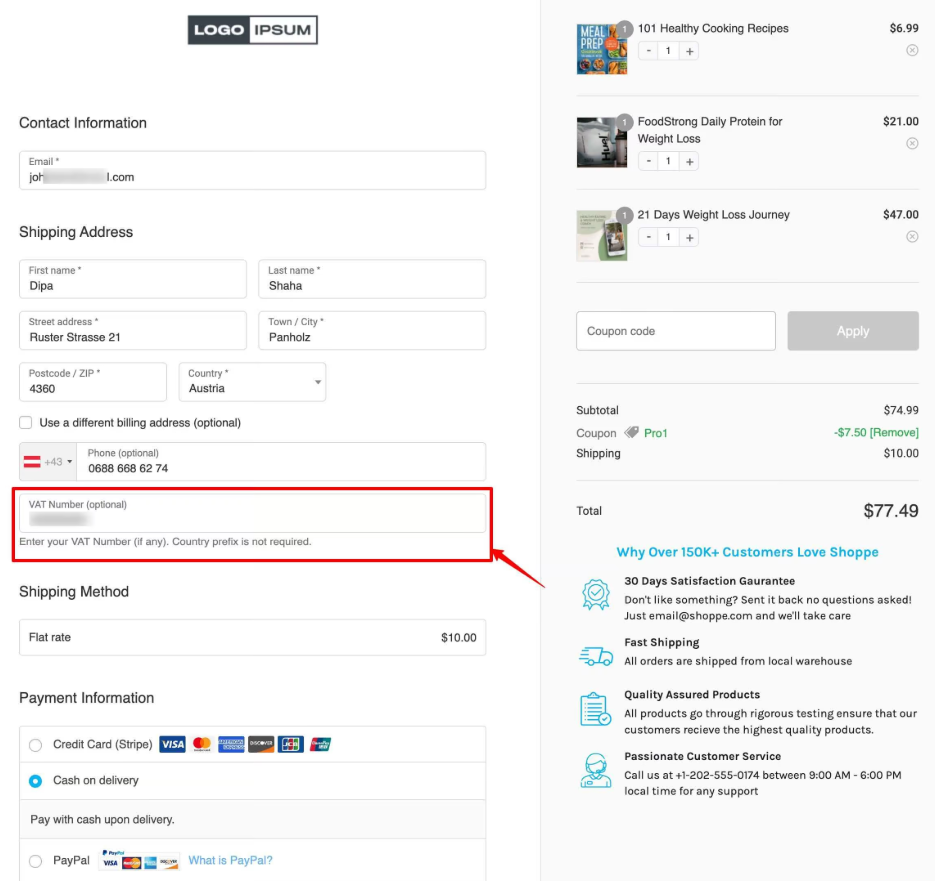
Cater to B2B clients who require specific information for invoicing or tax purposes.
For example, EU VAT numbers or company registration fields can be added to checkout.
4. Delivery scheduling
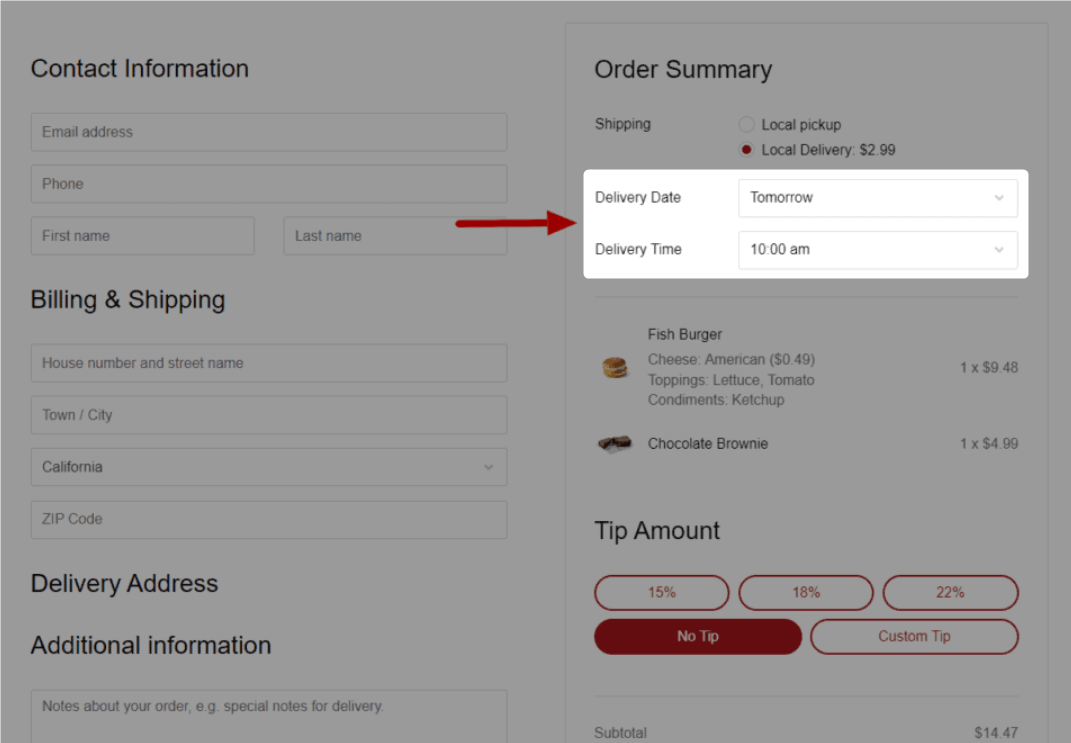
Allows customers to select their preferred delivery date and time.
5. Gift wrapping
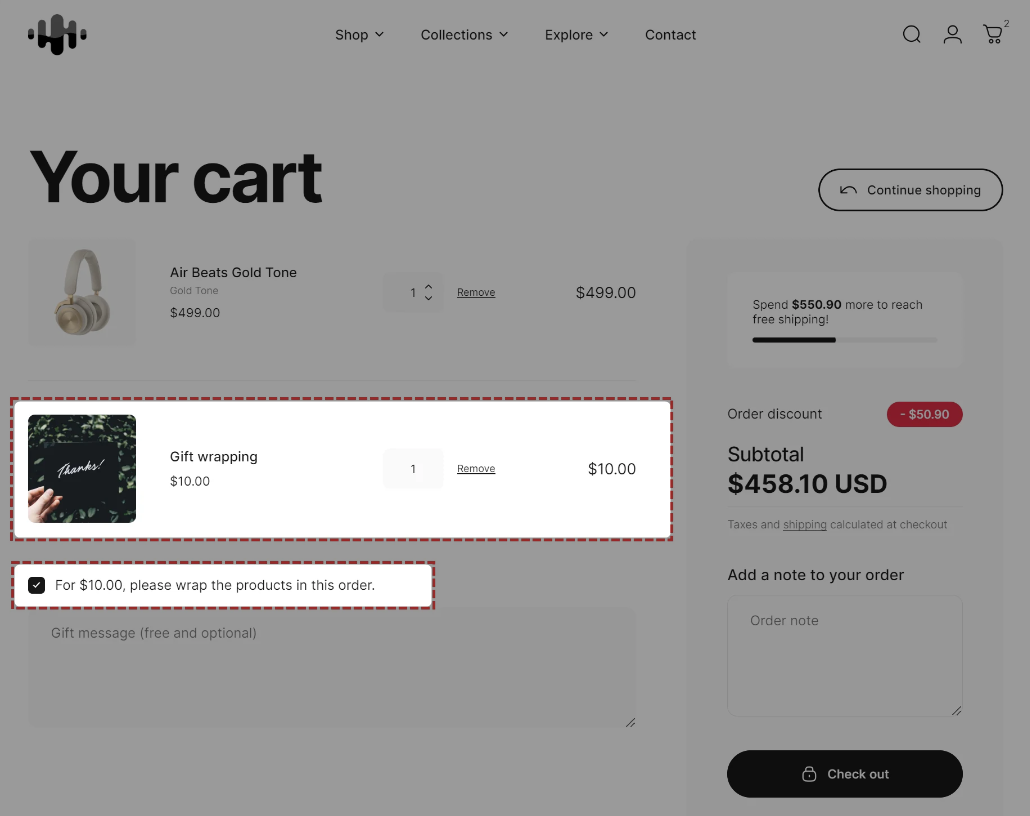
Provide additional services like gift wrapping or packaging.
There are many other custom field examples, such as a shopping experience rating and uploading a design to a T-shirt or mug.
👉 Read our blog on optimizing the WooCommerce order notes section.
Frequently Asked Questions
If you are using method 1 shared in this blog, you can display custom field data in the order details and order confirmation page as well, using the FunnelKit Funnel Builder. Make sure to add the field and drag it into the checkout form (as discussed in this article). On the WooCommerce thank you page, enable the toggle to display the custom field data on the order confirmation page.
The most common hooks for adding custom fields are:
- woocommerce_before_checkout_billing_form
- woocommerce_after_checkout_billing_form
- woocommerce_before_checkout_shipping_form
- woocommerce_after_checkout_shipping_form
- woocommerce_before_order_notes
- woocommerce_after_order_notes
Read our detailed guide on WooCommerce checkout hooks here.
Yes, you can use the “Conditional Fields” option with FunnelKit Funnel Builder and apply a condition “Cart item matches any specific product”. You can even implement it using the code-based method.
The data entered in custom fields is typically stored in:
1. WooCommerce order meta (viewable in the admin order details).
2. Customer profile (if you have a WooCommerce CRM).
3. Custom database tables, depending on your implementation.
To ensure compliance, add a checkbox for user consent. Please note that save only necessary data and provide clear descriptions for each field, and include a link to your privacy policy near the data collection fields.
Nine times out of ten, the method doesn’t match the checkout, i.e., classic code or a Classic-tab plugin field on a block checkout.
Next, a second plugin overriding your field, registration running before woocommerce_init, caching, or a save hook that was never added.
Here's why you should adding fields to WooCommerce checkout is essential:
- Suggest related products: Use custom inputs (interests or preferences) to personalize product recommendations and increase upsell opportunities.
- Enhances order fulfillment: This is the most common reason. Think of fields like delivery instructions, gift message, or a preferred delivery date, allowing customers to specify their exact choices, reducing order errors and improving satisfaction.
- Collects vital marketing data: A simple "How did you hear about us?" (attribution) field can be priceless. You could also add a birthday field to send a coupon later, which we’ve found is a highly effective automation.
- Satisfies legal and tax requirements: Many businesses need to collect a “VAT Number” or have customers tick an “I am over 18” age verification checkbox.
- Improves customer service: Capture customer concerns to help your support team respond more efficiently and effectively.
Different job, different hooks. Use product add-ons attach to the product form, not the checkout, and the values travel through the cart as item meta.
See our guide to WooCommerce product add-ons and custom product fields.
Code wins when the field is fixed, technical, or needs custom validation, it lives in version control and has no settings screen to drift.
A field editor wins when the field will change, when non-developers need to edit it, or when you need conditional rules and email visibility without a deploy. Most stores that start with a snippet end up wanting the second thing about six months in.
Ready to Add Fields Your Store Actually Needs?
The right method comes down to two questions: which checkout you’re on, and whether you’d rather maintain snippets or toggles.
Code gives you exact control and a file to keep in version control.
A field editor gives you drag-and-drop ordering, conditional rules, and email visibility without a deploy which matters more than it sounds like when the field you need is different next quarter.
FunnelKit’s checkout step includes the field editor, conditional display, and the visibility toggles for order details and emails, so adding a gift message field and a VAT field takes the same two minutes as the first one.
What’s more? You can even offer order bumps and one-click upsells to increase the average order value in your WooCommerce store.
So, start collecting custom data with an extra WooCommerce checkout field and enhance customers' shopping experience with a personalized touch today!
Editorial Team
October 11, 2026You can customize the WooCommerce cart page with the Cart block, a page builder like Elementor, or CSS and PHP snippets. Which method works for you depends on the cart...

Editorial Team
October 9, 2026A WooCommerce discount lowers what a shopper pays, either through a reduced product price or a code entered at checkout. Out of the box, WooCommerce gives you two ways to...
Editorial Team
October 9, 2026A downsell gives customers a cheaper option after they turn down your main offer. If you show it too soon, you might convince them to skip the original offer and...






