


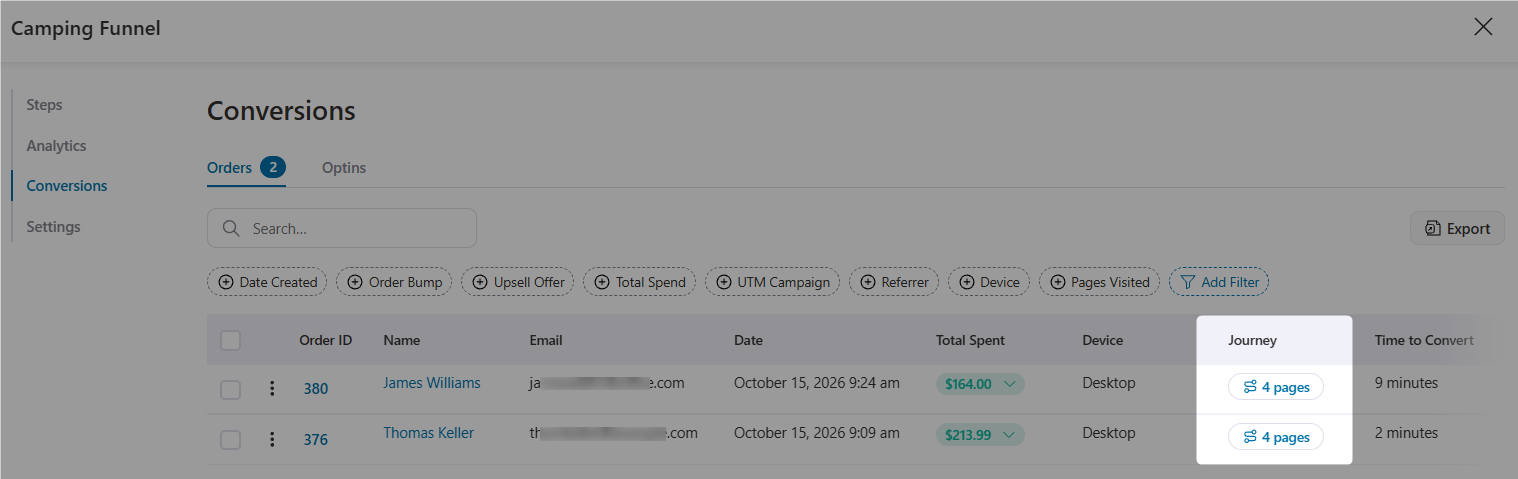
The Customer Journey shows the path a customer took on your store before placing an order. You can see which pages they visited, in what order, and how long they spent on each one.
To view it, go to Conversions and open the Orders tab. You'll find a Journey column showing how many pages the customer visited before ordering. Click on it to open the customer's journey.
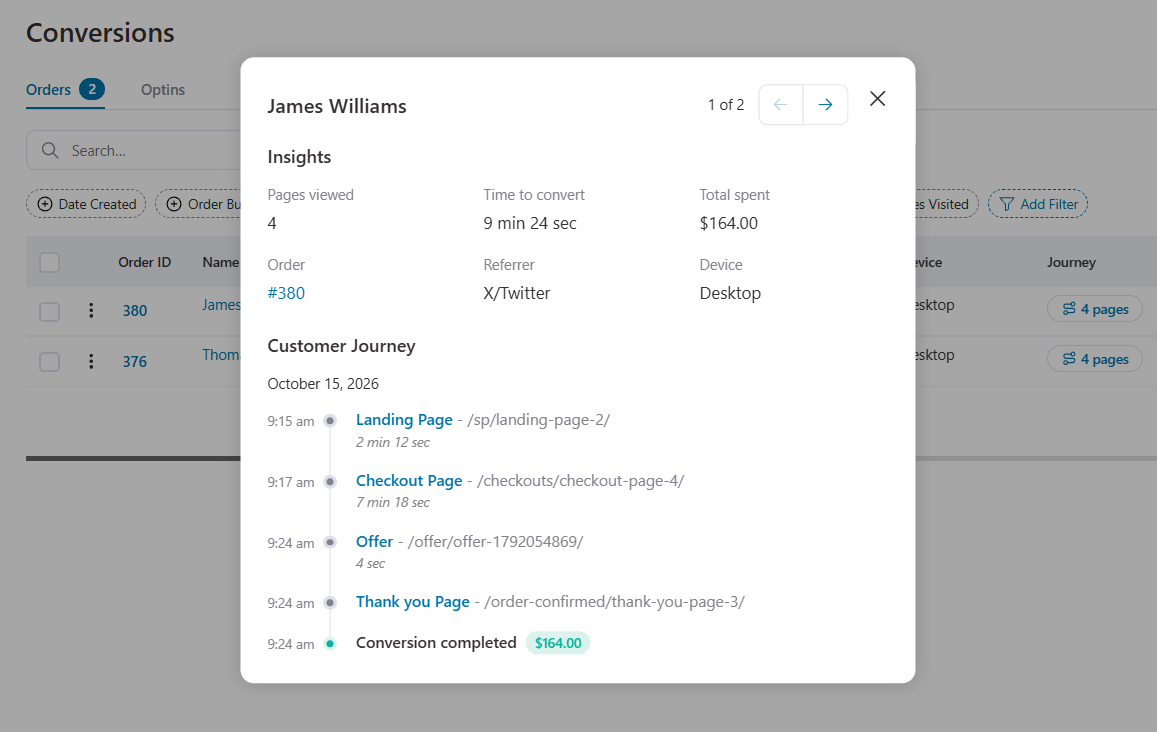
You get the following information under Insights:
- Pages viewed
- Time to convert
- Total spent
- Order ID
- Referrer, such as Direct or X/Twitter
- Device used
Below that, the Customer Journey section shows the full path, starting with the date of the visit. It begins with the first page the customer landed on and walks you through every page after that, right up to the conversion.
For each page, you can see:
- The time they visited it
- The page name and URL
- How much time they spent there
Time spent isn't shown for the last page visited before the conversion. The final step shows the completed conversion along with the order amount.
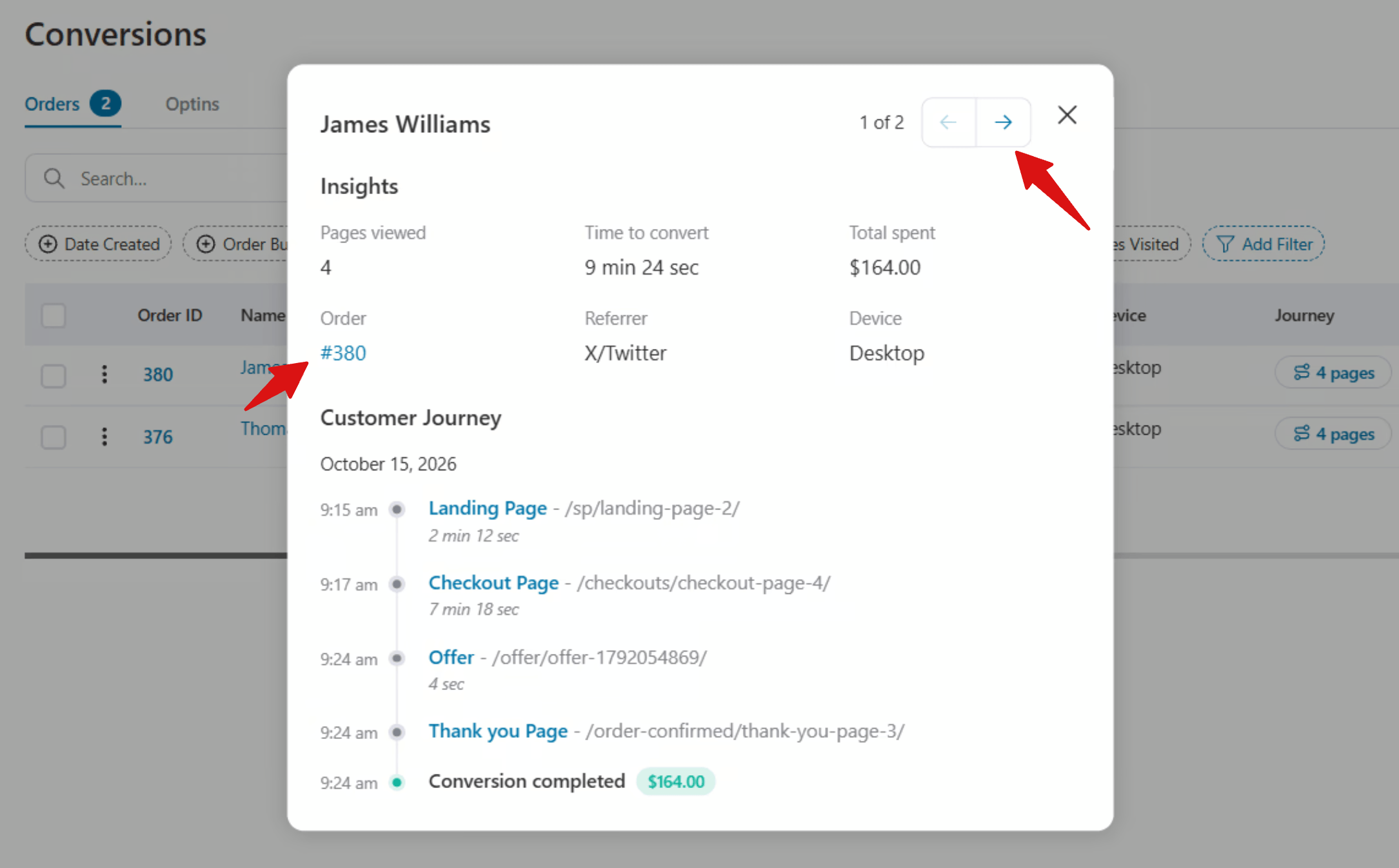
If the customer has placed more than one order, use the pagination at the top right corner of the popup to check the journey for each of their orders.
Clicking the order ID takes you straight to the full order details.
This view helps you understand what a customer looked at before buying, so you can see which pages play a part in your sales.
This was all about customer journey.


