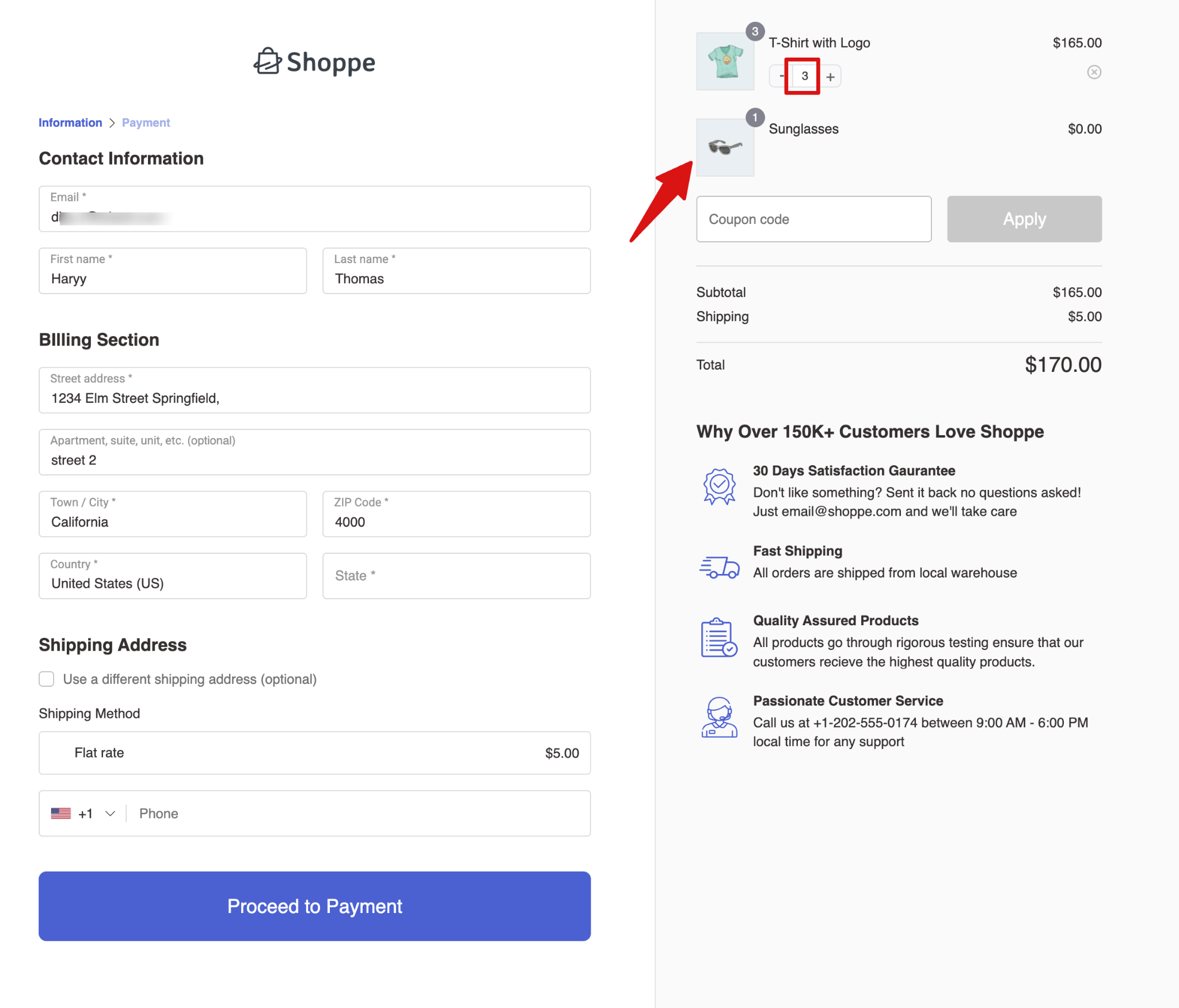
In this documentation, you will learn how to offer a free product to customers when the cart contains more than 2 items.
Note: We will use the order bump feature to do this.
Here are the steps you need to follow:
Step 1: Create an order bump that auto-adds to the cart
For this to to your store checkout and create an order bump.
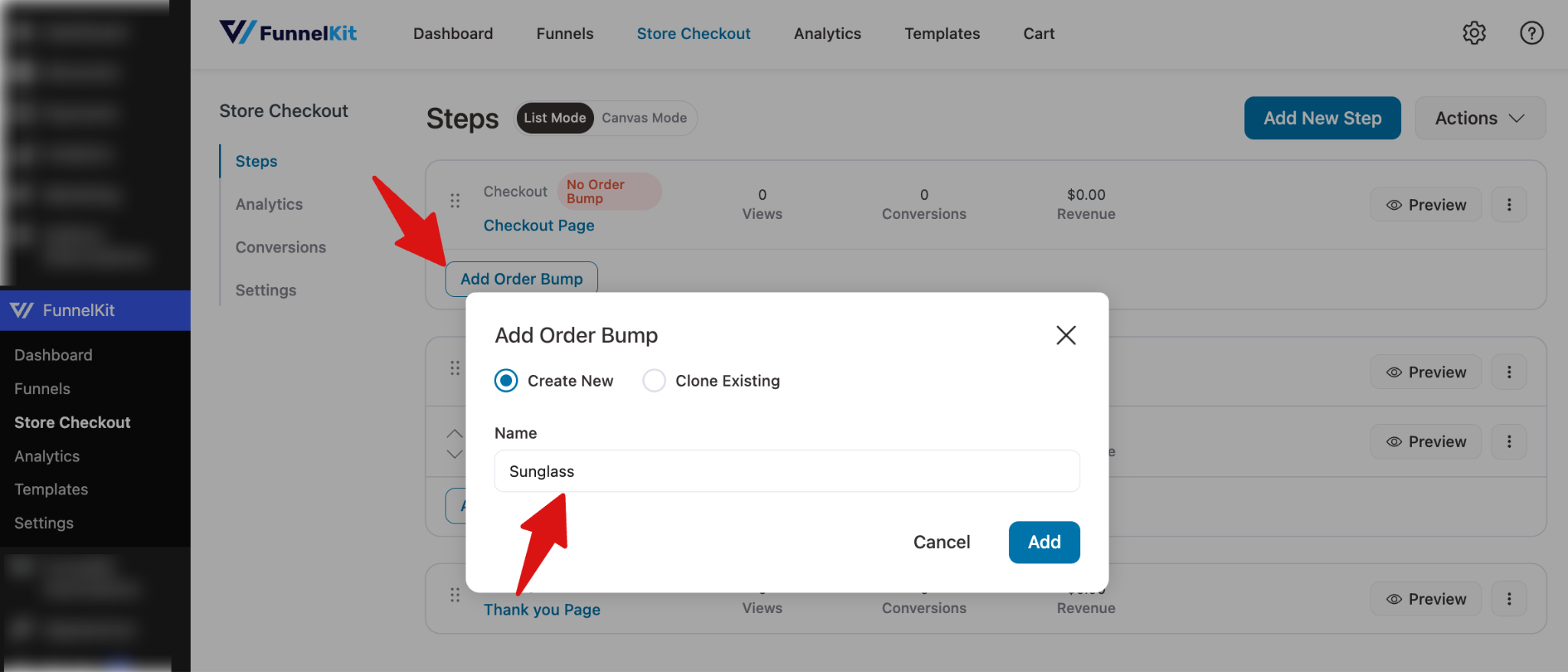
For this hit on the “Add Order Bump”, enter the name of your bump offer and hit Add.
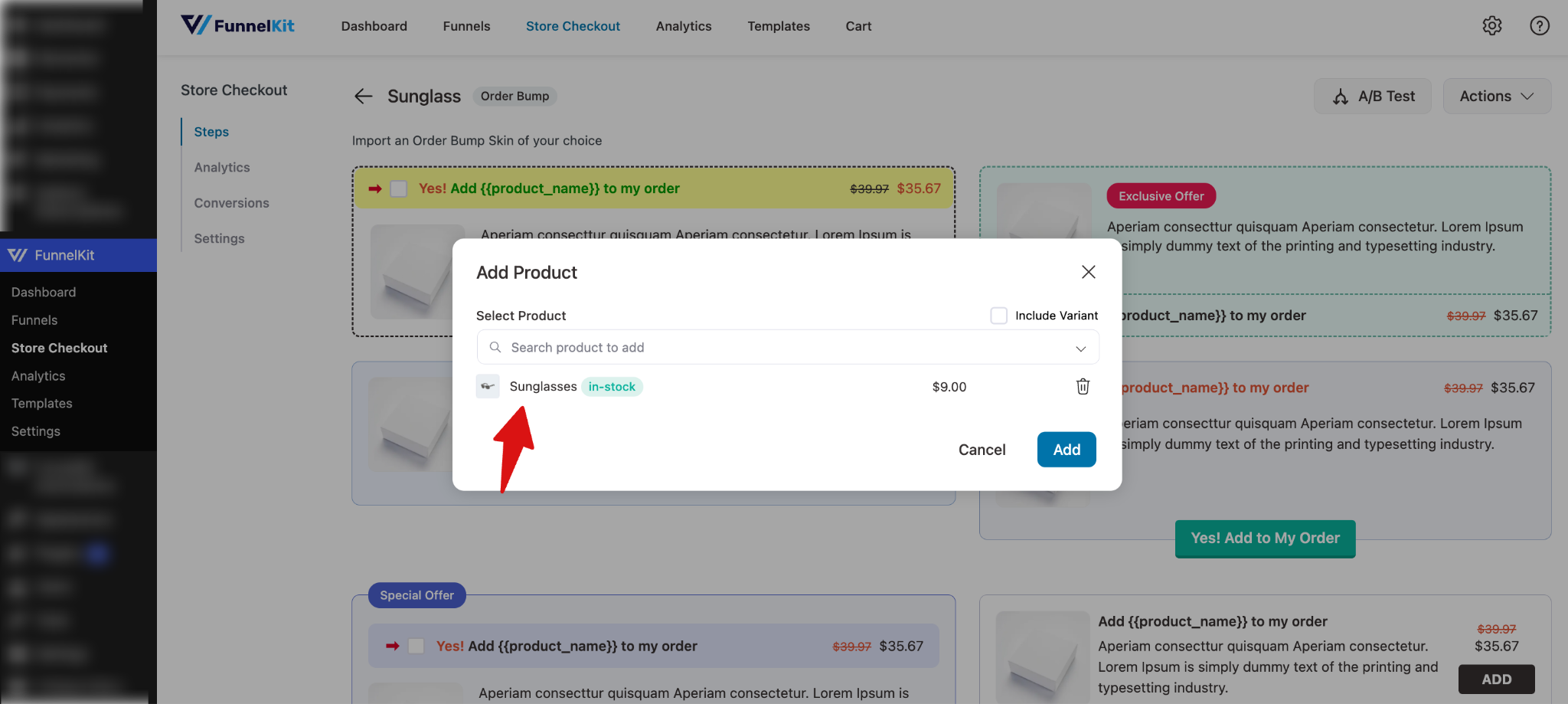
Next, choose the order bump skin by clicking on the 'Import' button. Then search for and add the product. Finally, hit Add.
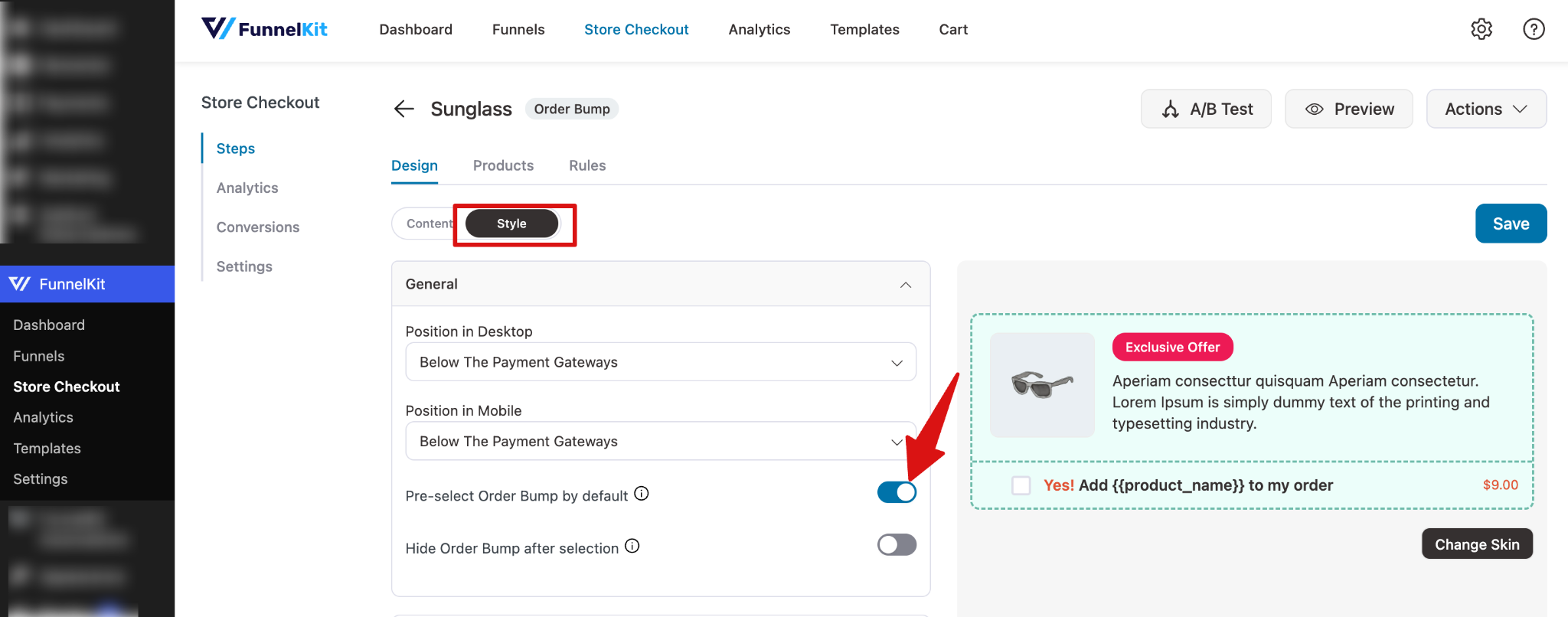
Next, add the product title, description, adjust styling, and so on. For more details, check the documentation.
To automatically add the free product to the cart, move to the “Style” tab and enable the option “Pre-select Order Bump by default”.
Step 2: Add 100% discount to make the product free
Next, move to the “Products” tab and apply 100% discount to make the product free.
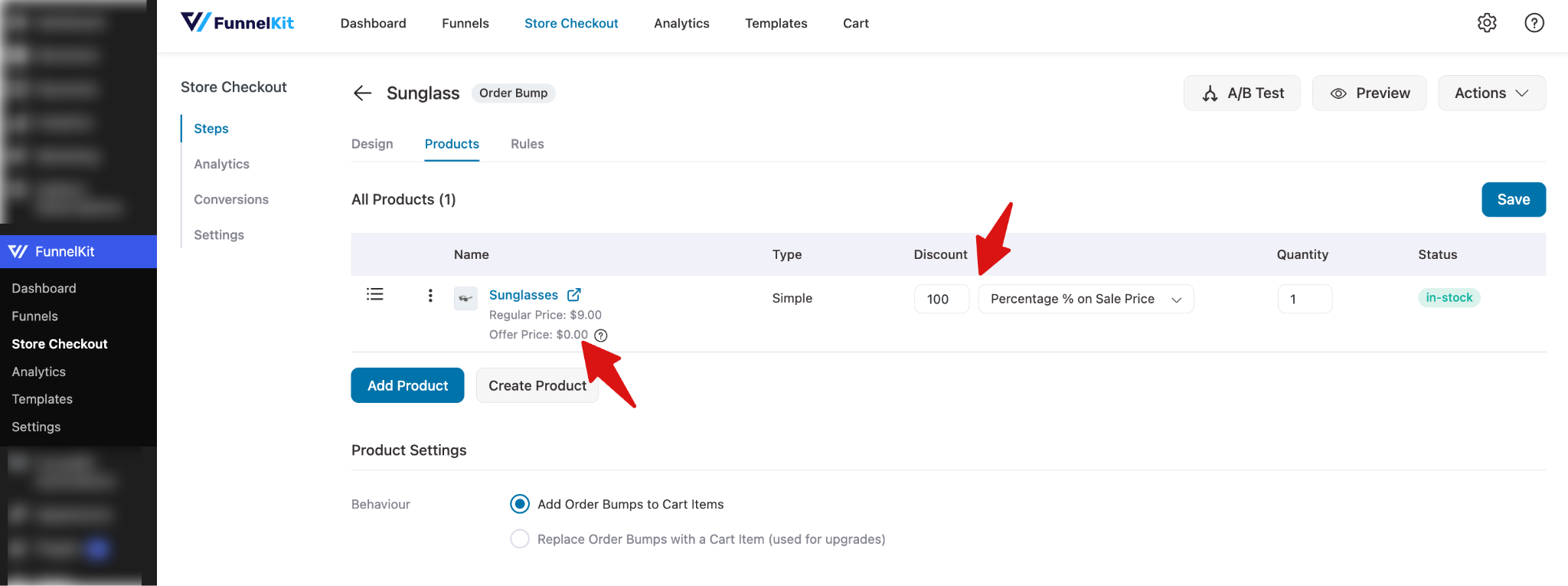
Step 3: Add conditions to add this free product
Next, switch to the Rules tab and apply the condition “Cart All Products Quantity” is greater than 2.
Note: You can add any amount here; we are using 2 as an example just to show the process.
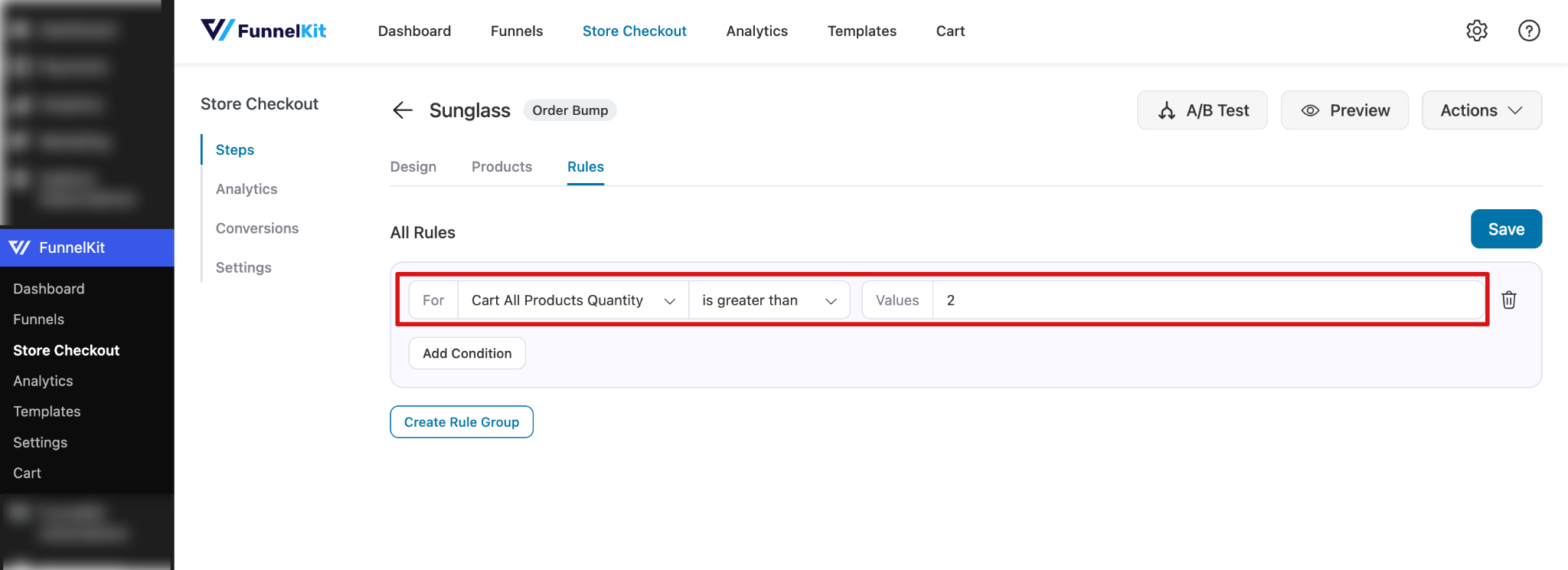
Make sure to hit “Save”.
Step 4: Test the free product offer
Now add more than 2 quantities of any product and place a test order. The free product will automatically be added to the cart.