


Sometimes when you open the FunnelKit dashboard (Funnels, Contacts, Analytics, Store Checkout, etc.), you may see an error screen instead of your data:
Something went wrong
This screen appears when your browser could not successfully talk to your site’s FunnelKit API. All FunnelKit admin pages load their data through your site’s REST API at:
/wp-json/funnelkit-app/
If anything on your site a security plugin, a firewall, broken permalinks, an expired login session, or a server error interrupts these requests, the dashboard cannot load and shows this screen instead.
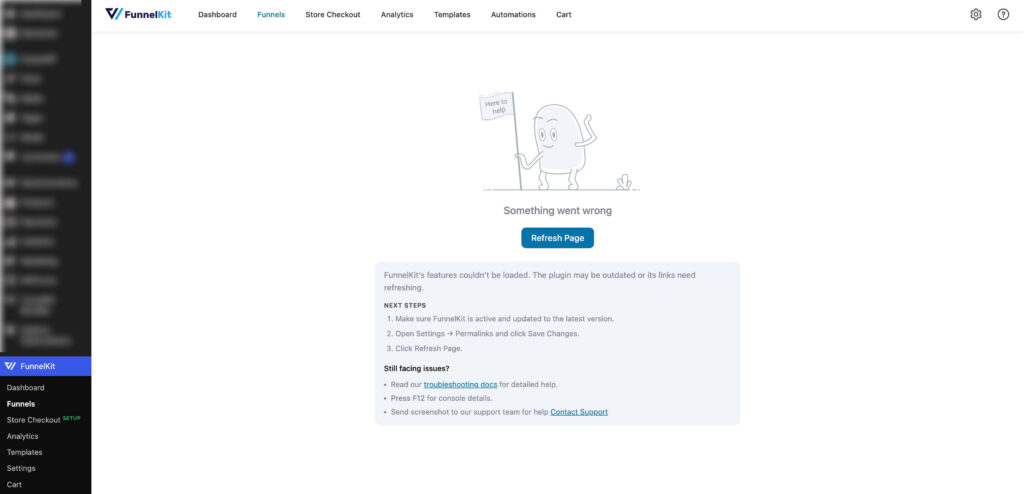
The good news: the error screen tells you what happened and lists next steps to fix it. This guide explains each message in detail.
Quick Fixes (Try These First)
Before diving into specific errors, these three steps resolve the majority of cases:
- Click the “Refresh Page” button on the error screen. This re-verifies FunnelKit’s connection and reloads the page. Temporary glitches and expired sessions are fixed by this alone.
- Re-save your permalinks. Go to Settings → Permalinks in your WordPress admin and click Save Changes (you don’t need to change anything). This rebuilds WordPress’s rewrite rules, which the REST API depends on.
- Update FunnelKit. Go to Plugins and make sure FunnelKit Funnel Builder (and FunnelKit Funnel Builder Pro, if installed) are updated to the latest version.
If the error persists, find your specific message below.
Error: “A security plugin or firewall on your site is blocking FunnelKit from loading”
What it means
A security layer a WordPress security plugin (Wordfence, Sucuri, iThemes/SolidWP Security, All In One WP Security, etc.), a hosting firewall, or a service like Cloudflare — is blocking requests to /wp-json/funnelkit-app/. The server is answering with a “forbidden” response (HTTP 401/403) or an HTML block page instead of the data FunnelKit expects.
How to fix it
- Check your security plugin’s firewall log. Look for blocked requests containing /wp-json/funnelkit-app/ around the time you saw the error.
- Allowlist the FunnelKit API path. Add /wp-json/funnelkit-app/ (or the funnelkit-app REST namespace) to your firewall’s allowlist / whitelist:
- Wordfence: Firewall → All Firewall Options → Allowlisted URLs
- Cloudflare: Security → WAF → check the Activity Log for blocked requests to /wp-json/funnelkit-app/, then create a Skip rule for that path
- Sucuri / hosting firewall: contact your host or the firewall provider and ask them to allowlist the path
- Temporarily disable the security plugin to confirm it’s the cause. If the FunnelKit dashboard loads with the plugin disabled, re-enable it and add the allowlist rule instead of leaving it off.
- If you don’t manage the firewall yourself, ask your hosting provider to check their server-level firewall (ModSecurity rules are a common culprit) for blocks on /wp-json/funnelkit-app/.
- Click Refresh Page to try again.
Error: “FunnelKit’s features couldn’t be loaded. The plugin may be outdated or its links need refreshing”
What it means
The FunnelKit API endpoint wasn’t found on your site (HTTP 404 / rest_no_route). This usually means WordPress’s permalink rules are stale, or the plugin files are outdated or incomplete.
How to fix it
- Make sure FunnelKit is active and updated to the latest version under Plugins.
- Go to Settings → Permalinks and click Save Changes to flush the rewrite rules.
- If you recently migrated or cloned your site, re-save permalinks again after the migration and confirm your .htaccess / Nginx rules were carried over.
- Click Refresh Page.
Error: “The server couldn’t complete this request”
What it means
Your server returned an internal error (HTTP 500, 502, 503, or 504). Something crashed or timed out on the server side commonly a PHP fatal error, exhausted PHP memory, or a plugin conflict.
How to fix it
- Click Refresh Page; a one-off timeout often clears on retry.
- If it keeps happening, check your PHP error log (ask your host, or look in your hosting panel) for a fatal error mentioning funnel-builder or wp-json.
- Increase the PHP memory limit to at least 256 MB if your host allows it.
- Test for a plugin conflict: deactivate other plugins temporarily and re-check the FunnelKit dashboard. Re-activate them one by one to find the conflicting one.
Error: “Your account doesn’t have permission for this action”
What it means
Your WordPress user account doesn’t have the capability required for this FunnelKit screen (rest_forbidden). FunnelKit’s admin pages generally require an Administrator (or Shop Manager, for some screens) role.
How to fix it
- Ask a site administrator to give your account the required access, or log in with an administrator account.
- If you use a role/capability editor plugin (e.g. User Role Editor, Members), check that your role hasn’t had manage_options / WooCommerce capabilities removed.
- Log out and back in, then click Refresh Page.
Error: “Your session has expired”
What it means
Your WordPress login session or security token (nonce) is no longer valid — usually because the admin tab was left open for a long time, or you logged out in another tab.
How to fix it
- Click Refresh Page.
- Log in again if you’re asked to.
- If this happens constantly, a caching plugin or server-side page cache may be caching admin pages or REST responses — exclude /wp-admin/ and /wp-json/ from caching.
Error: “You appear to be offline”
What it means
Your browser has no internet connection, so the request never left your computer.
How to fix it
- Check your internet connection (Wi-Fi, VPN, proxy).
- Click Refresh Page once you’re back online.
Error: “We couldn’t reach your server”
What it means
The request left your browser but never got a response from your site. Your site may be down, unreachable, or a browser extension / DNS / SSL issue interrupted the request.
How to fix it
- Check that your site is online open your site’s homepage in a new tab.
- Try in a private/incognito window or with browser extensions (especially ad blockers and privacy extensions) disabled.
- Click Refresh Page to try again.
Error: “The server didn’t accept this request”
What it means
The server rejected the request’s parameters (rest_invalid_param). This is usually a temporary state mismatch between the page and the server.
How to fix it
- Click Refresh Page and try again.
- If it keeps happening, contact our support team with the exact steps that trigger it.
Error: “An unexpected error occurred while loading this page”
What it means
Something failed that doesn’t fit the categories above often a JavaScript conflict from another plugin or theme in the admin area.
How to fix it
- Click Refresh Page and try again.
- Press F12 to open the browser console and look for red error messages (see below).
- Test for a plugin conflict by temporarily deactivating other plugins.
- If it keeps happening, contact support with a screenshot of the console.
Gathering Details for Support
If none of the steps above fix your issue, collect the following before contacting us - it lets us diagnose your case much faster:
- Browser console screenshot - Press F12 (or right-click → Inspect), open the Console tab, reproduce the error, and screenshot any red messages.
- Network response - In the same developer tools, open the Network tab, reproduce the error, click the failing request to /wp-json/funnelkit-app/..., and screenshot its Status and Response.
- The error screen itself - screenshot the full “Something went wrong” screen, including the “What happened” and “Next steps” text.
- Recent changes - note anything you changed just before the error appeared (new plugin, update, migration, firewall change).
Then reach out via our support page with these screenshots attached.
FAQ About Troubleshooting “Something Went Wrong” Errors
- Does this error affect my live funnels or checkout?
No. This screen only affects the FunnelKit admin dashboard. Your published funnels, checkouts, and store pages continue to work for visitors.
Why does FunnelKit need /wp-json/funnelkit-app/?
- The FunnelKit admin is a modern app that loads all of its data (funnels, contacts, analytics, settings) through the WordPress REST API under this namespace. If the path is blocked, the app has no data to show.
- I allow listed the path but still see the error, why?
Some firewalls have multiple layers (plugin + Cloudflare + server ModSecurity). Check each layer’s log for blocks on /wp-json/funnelkit-app/, and confirm with your host that no server-level rule is matching. Also clear any server/proxy cache after changing firewall rules.


