


In this documentation, we will demonstrate how to utilize a Select2 field to add a conditional field in checkout using FunnelKit.
Depending on the option users select in the Select2 field, another field will be displayed.
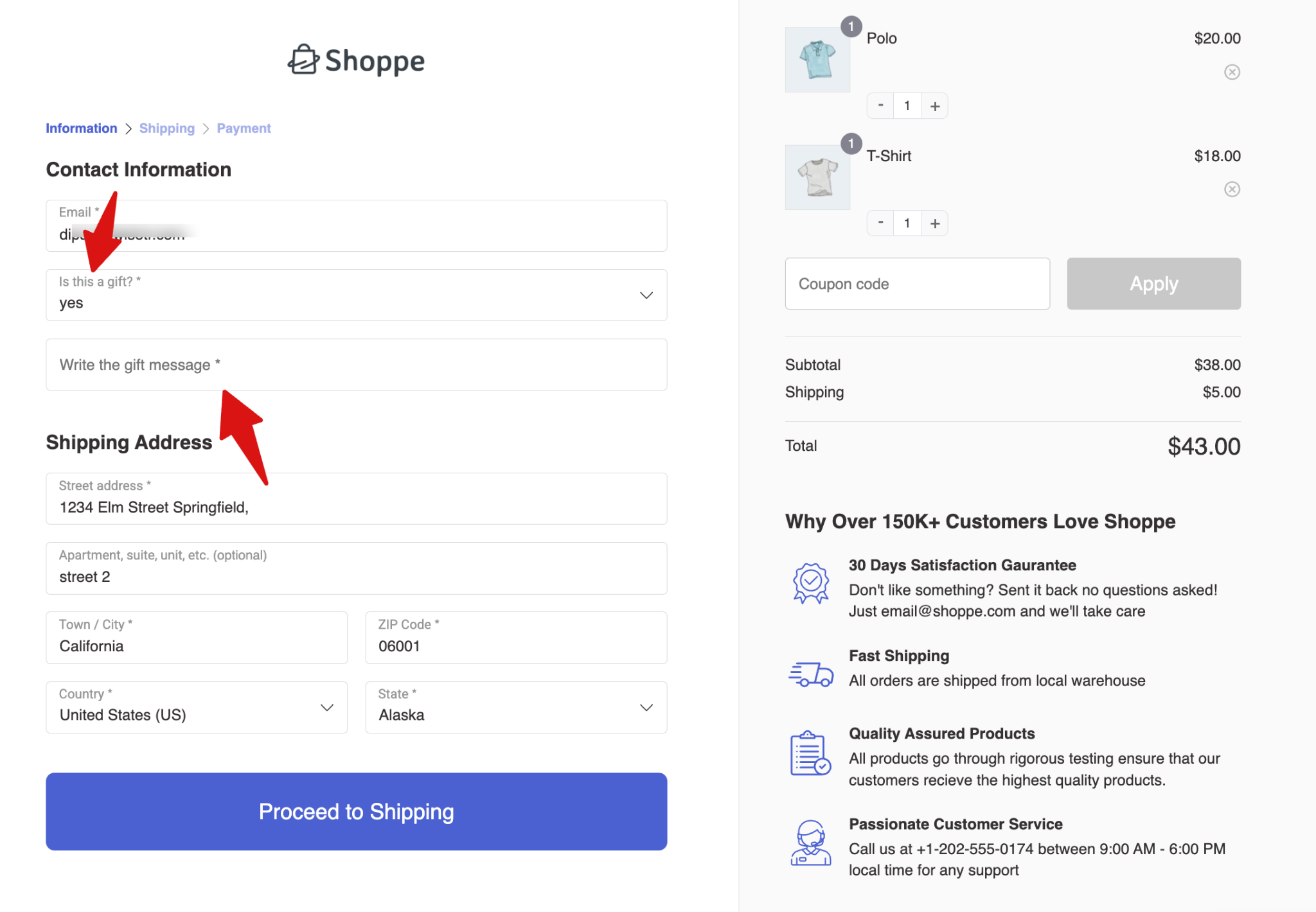
Example: We will use a conditional field called Gift Option using the Select2 type. If users select “Yes” for gift wrapping, a Gift Message field will appear, allowing them to enter a custom message.
Step 1: Create the Select2 field
The first step is to create the Select2 field. The value selected in this field will determine when the conditional field is shown to the users.
To do so, click the Add New Field button and set up the following fields:
- Field Type: Choose Field Type as “Select2”.
- Label: Enter the Field Label. For example: “Gift Option”.
- Set the Field ID (Order Meta Key): This key determines where the value of this field is stored. Use underscores _ if the ID has multiple words (e.g., gift_option).
- Options (|) separated: Add Options, separated by a pipe |. Example: Yes|No.
- Default : Add a default Value, Example: No.
- Show on Thank You Page: Enable to display of the field value on the order confirmation page.
- Show in Order Email: to include the field value in the customer’s order email.
- Required: Must make it required to collect the conditional data.
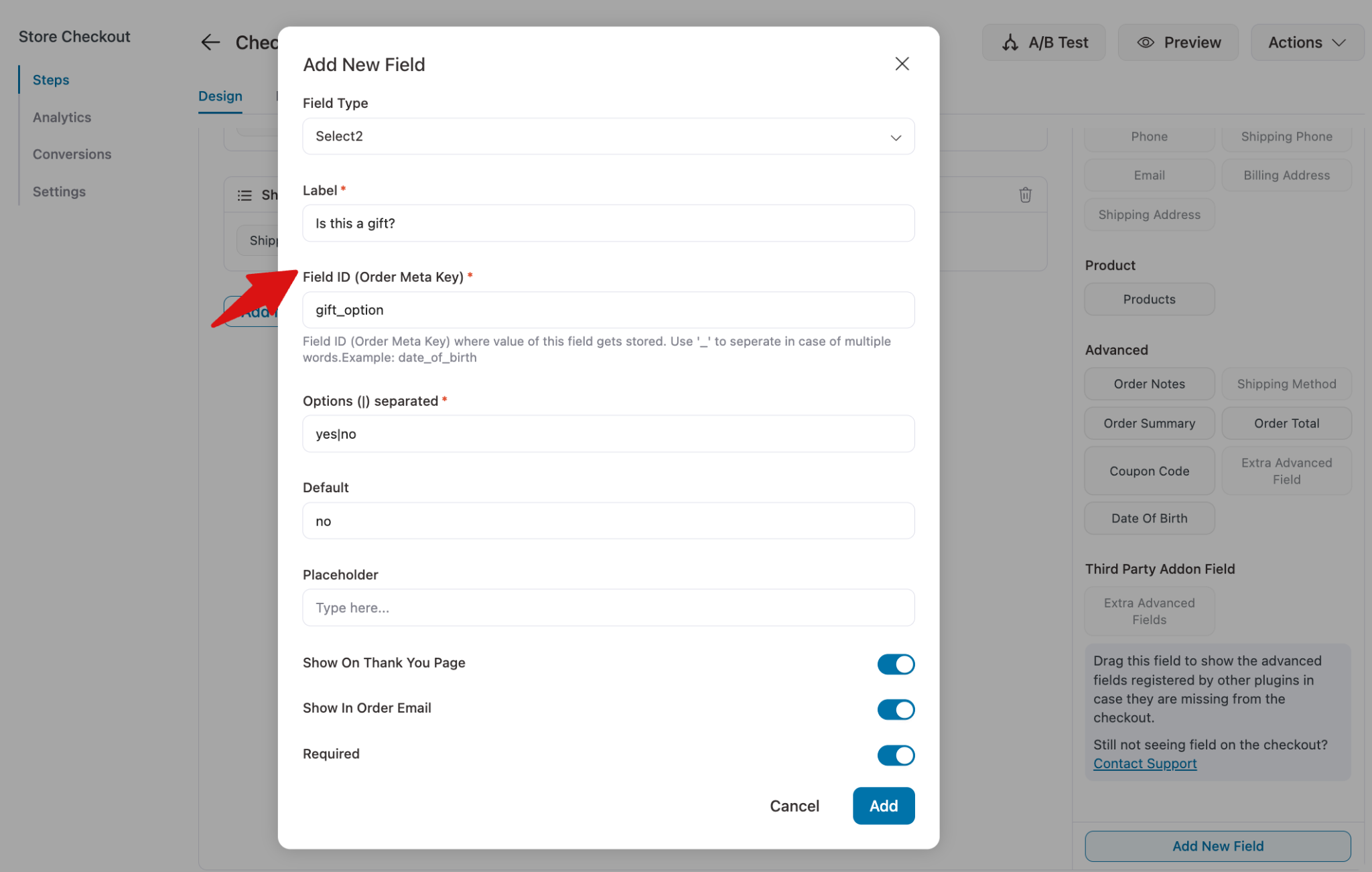
Then hit Add to add the Select2 field.
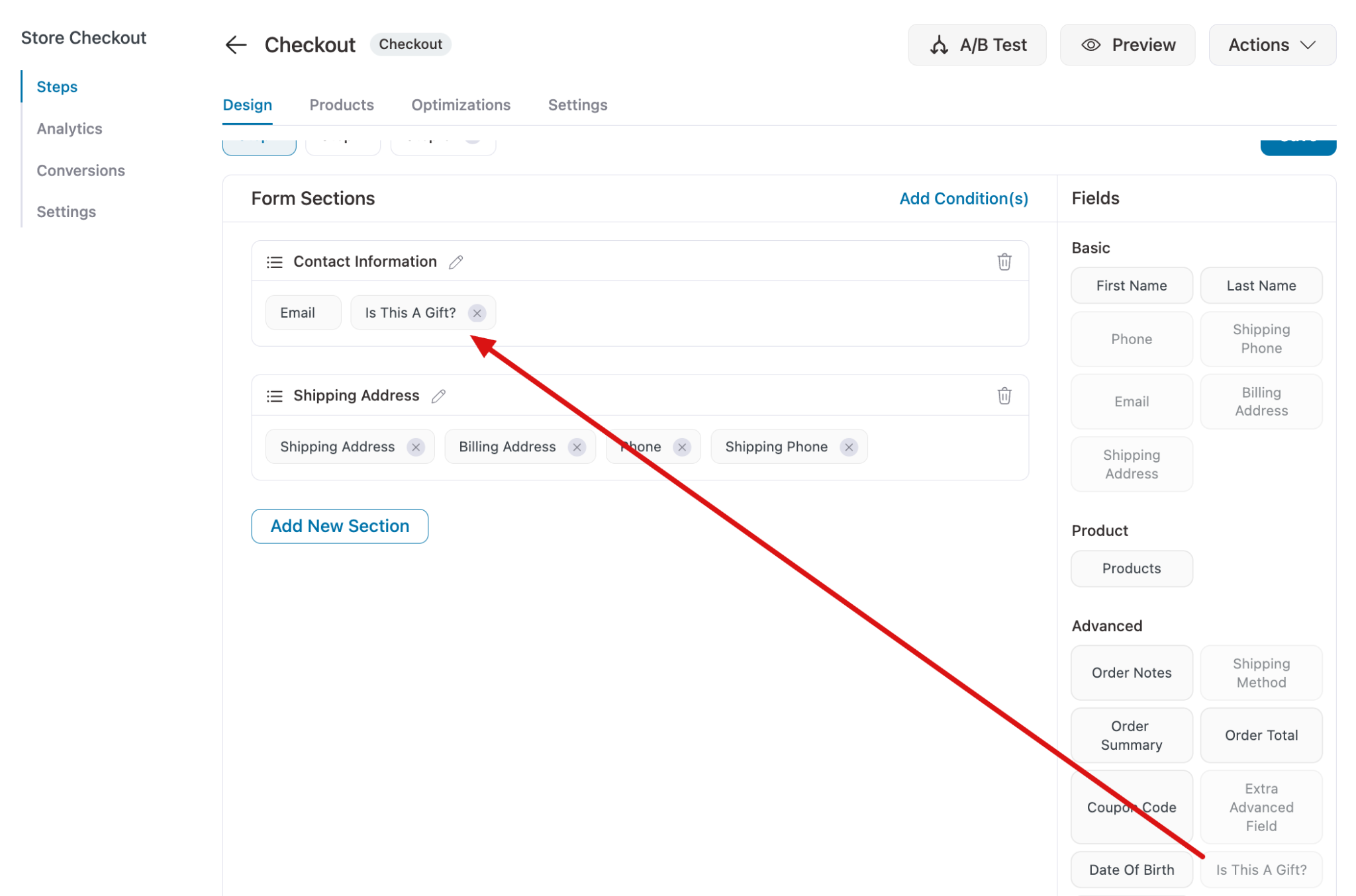
Next, drag and drop the field to your desired section on the checkout page.
Step 2: Add the conditional field
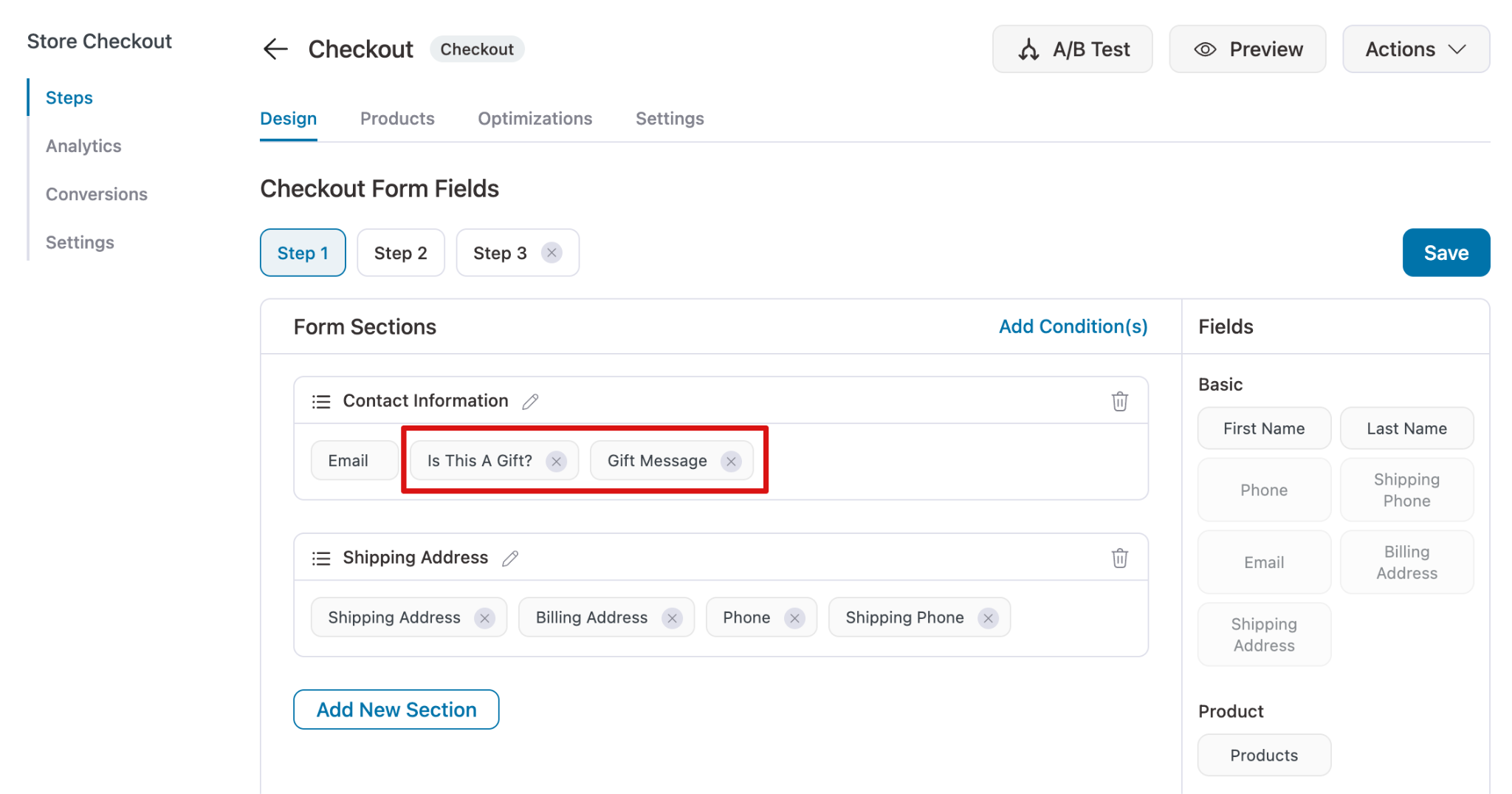
Next, create the conditional field. In our example, this is a Gift Message. Place it right after the Gift Option field on the checkout form.
Step 3: Add Conditions
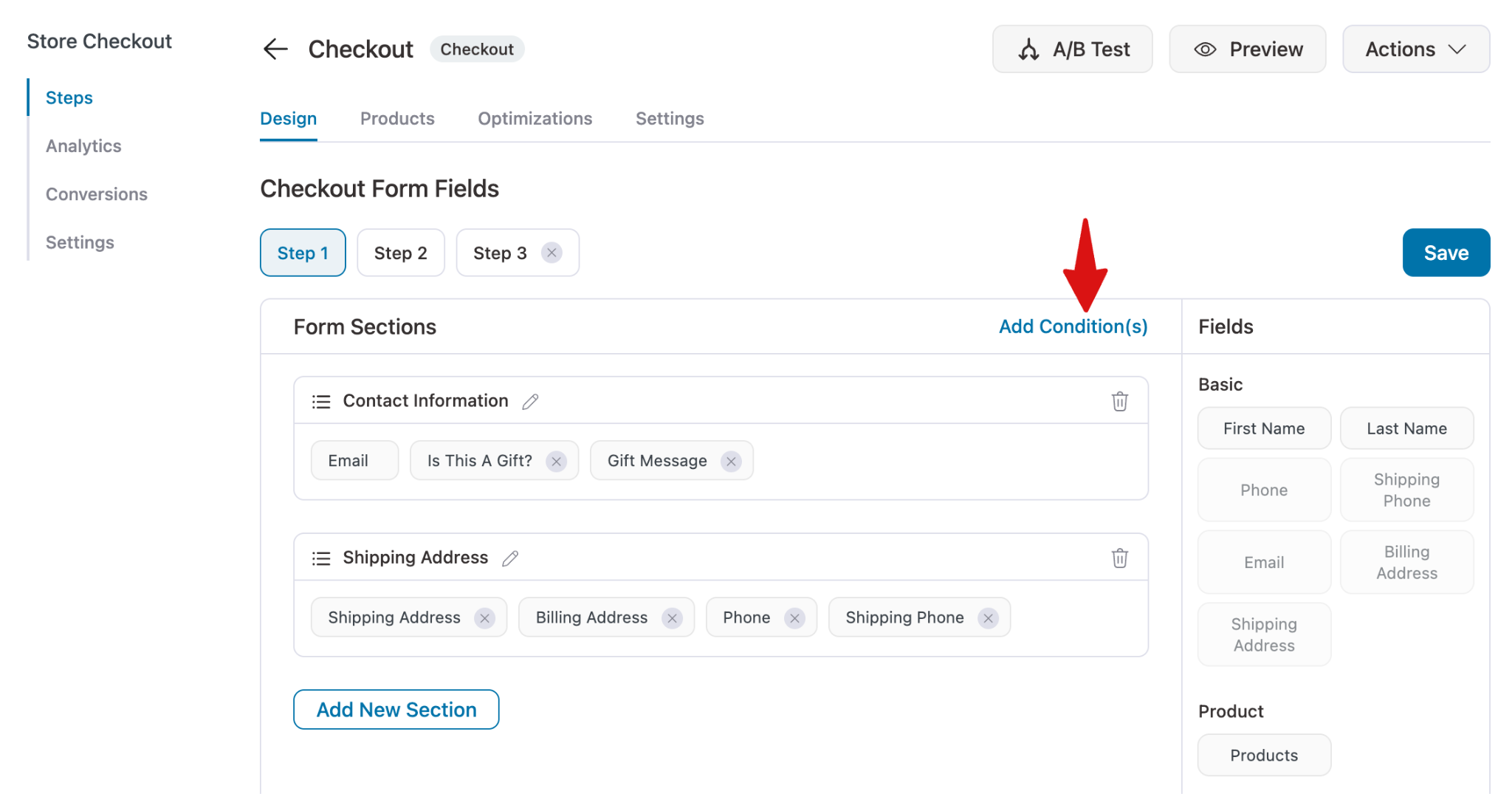
To make a field appear only when a specific option is selected, we need to add a condition. Click “Add Conditions”.
Next, expand the section that contains the conditional field and select “Apply to specific fields”. Hit “+ Add Field” and choose the field you want to make conditional.
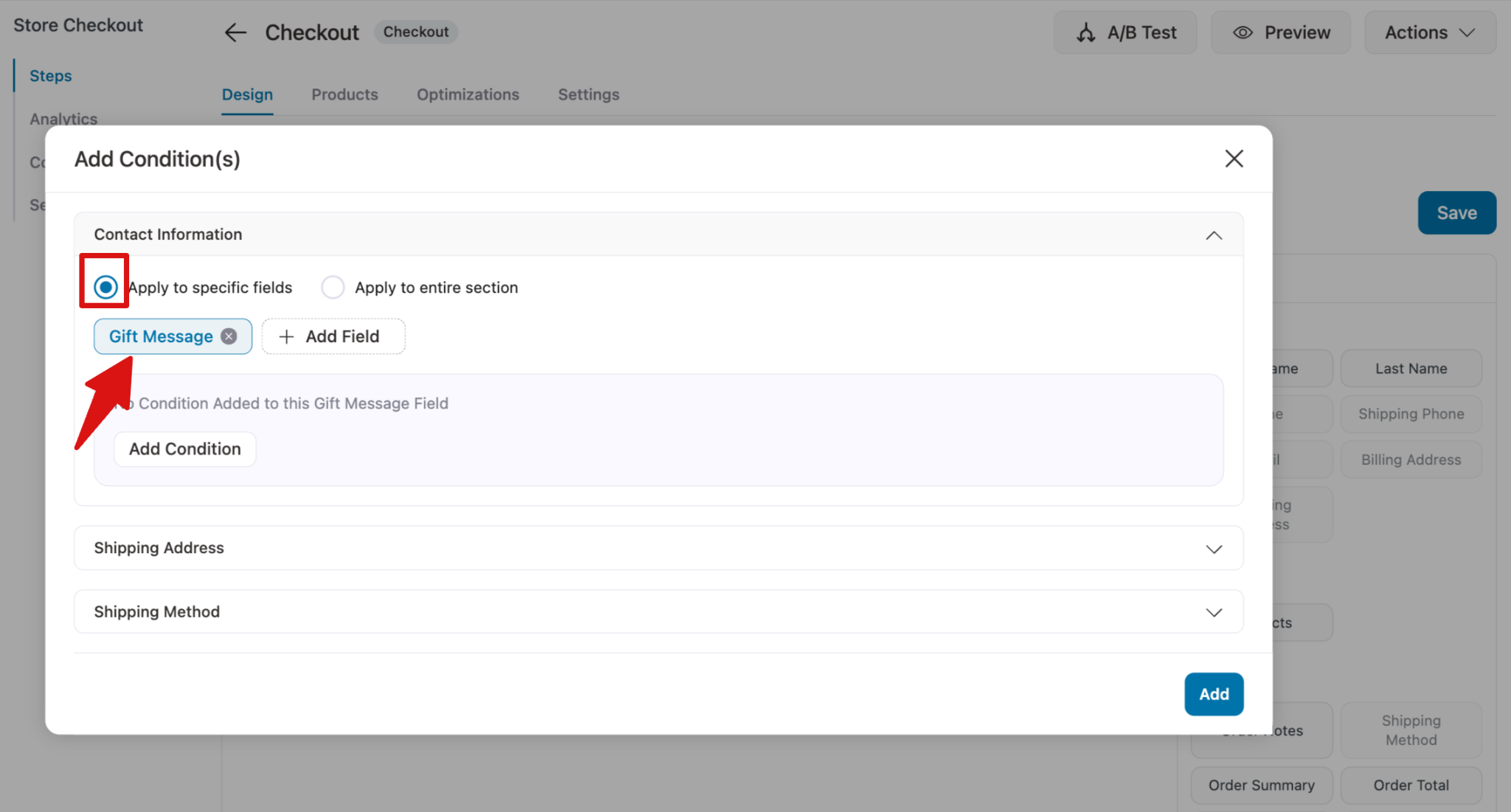
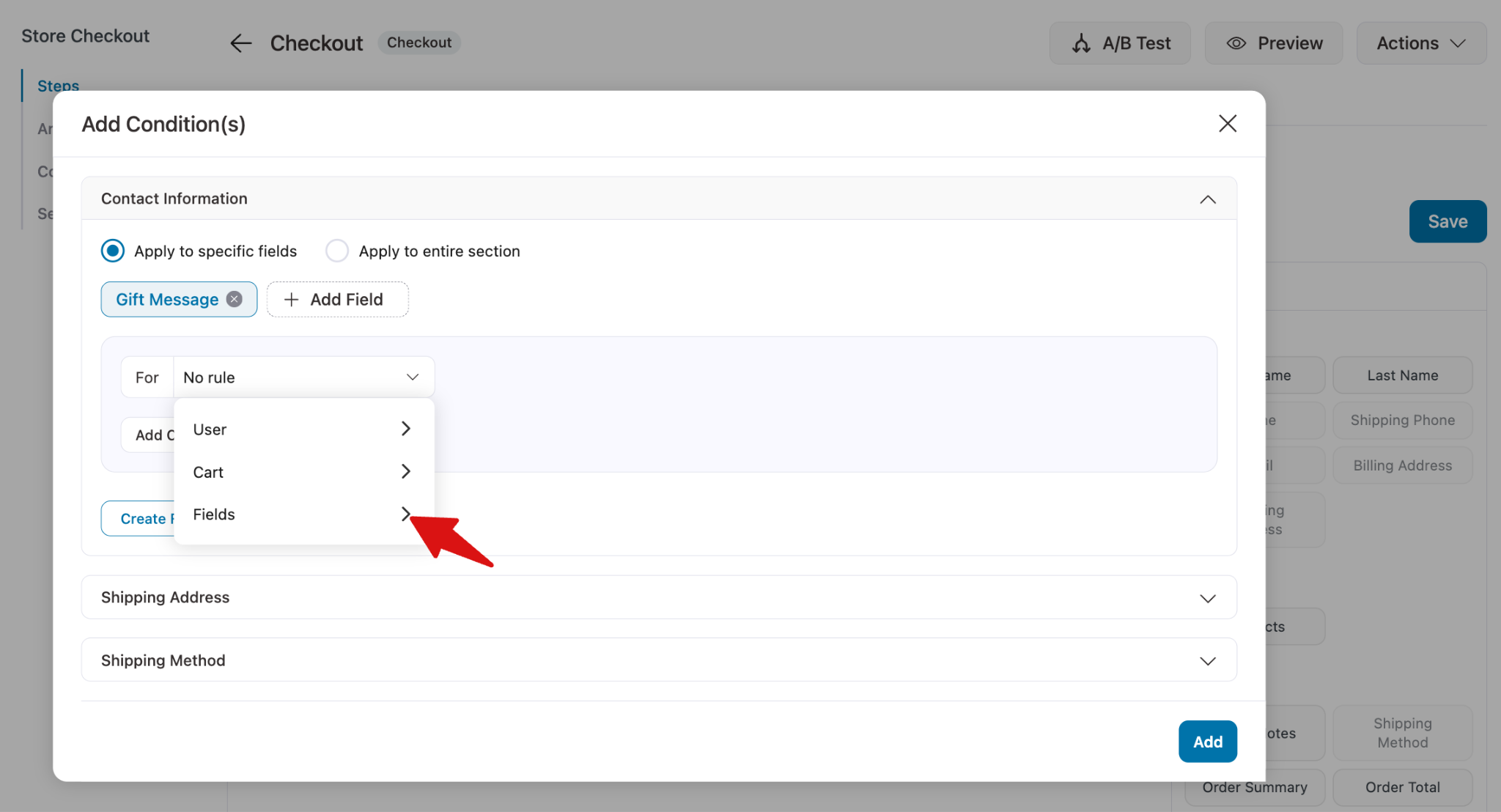
Next, click “+ Add Field” again, select “Fields” to expand. and view existing fields.
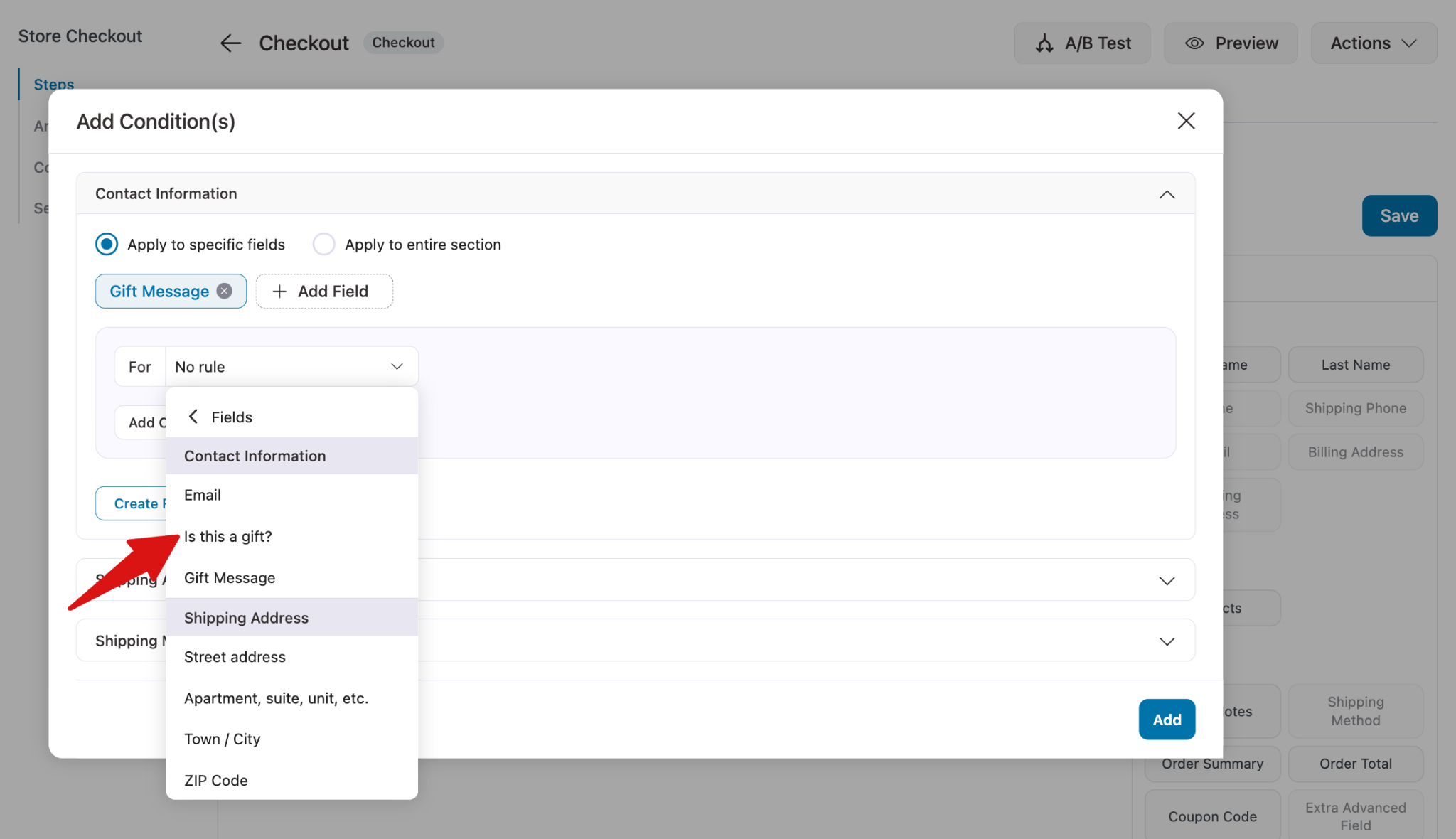
Then search for and select the field whose value will trigger the conditional field.
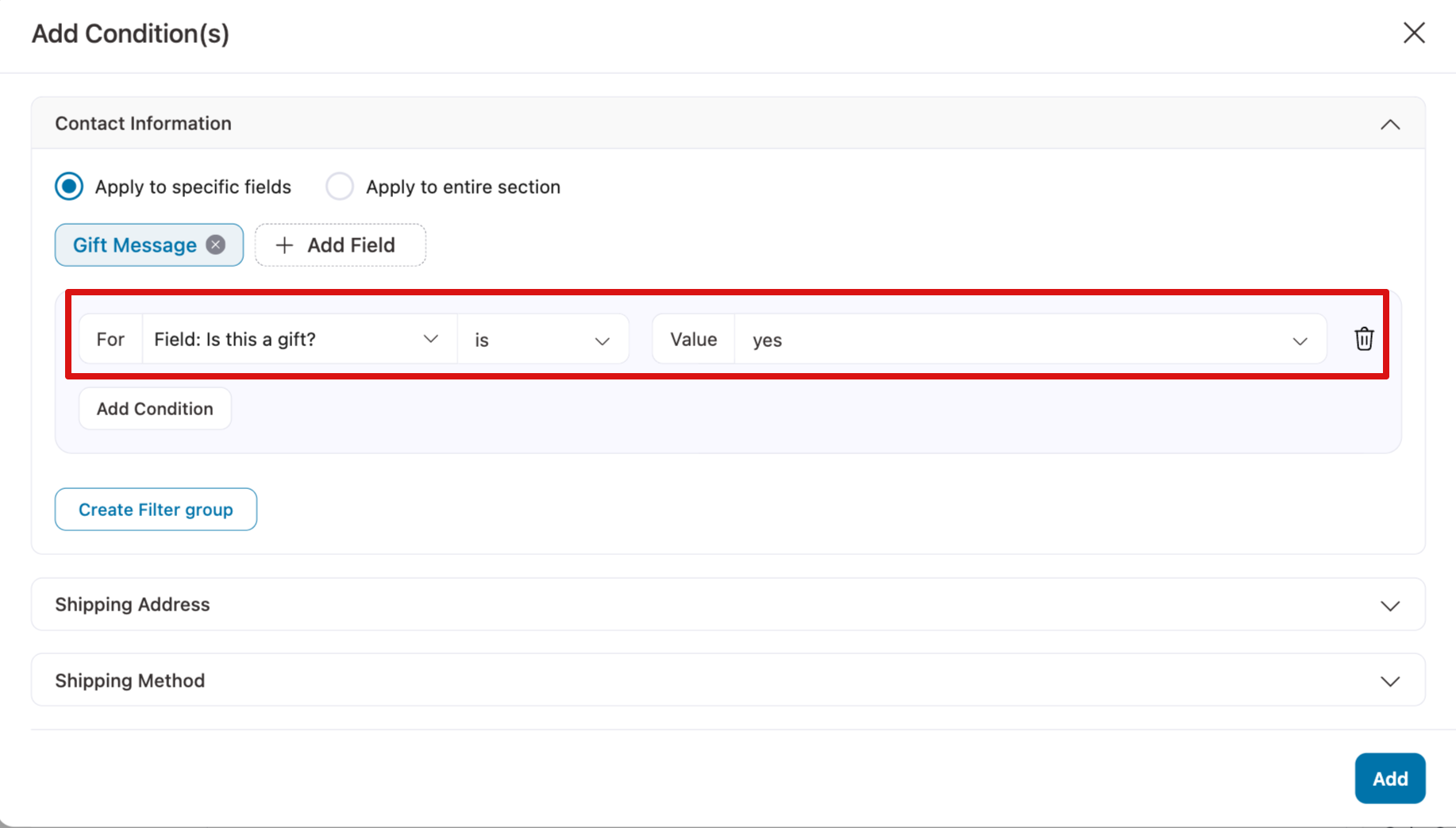
Set the condition, for example:
- Tax Example: Show “Gift Message” only if “Is This a gift” (Select2) is Yes.
Finally, click “Add” and save the checkout page with the custom fields.

Step 4: Test the conditional checkout field using a select2 field
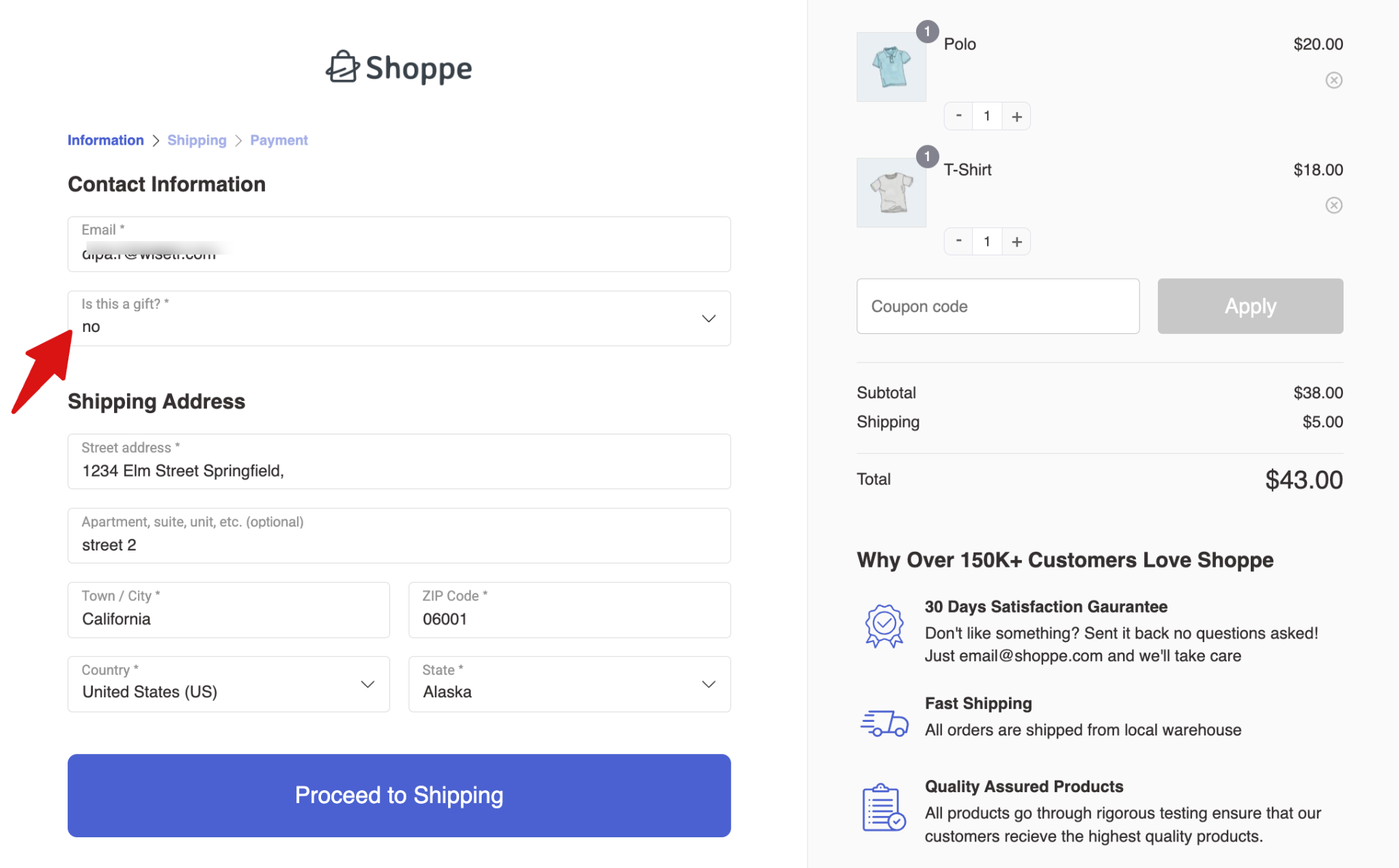
Try placing a test order, and on the checkout page, you will only see the Select field and no conditional field since the default value is No.
If you choose “Yes”, you will see the conditional field.
You can follow this process to create any conditional field using a Select2 field and add it to your checkout form.


