


Conditional fields appear only when certain criteria are met.
In this documentation, we will show you how to set up different conditional fields in Funnelkit Checkout.
For example, we will share that we require a “Company Name” only in the "Wholesale" category in the cart.
How To Set Up Conditional Fields In Checkout Form
Step 1: Add the conditional field to the checkout form
First, add the field you want to make conditional to the WooCommerce checkout form. In our case, this is Company Name.
But if you want to create a custom one, you can do that as well. For help, check our guide on custom fields.
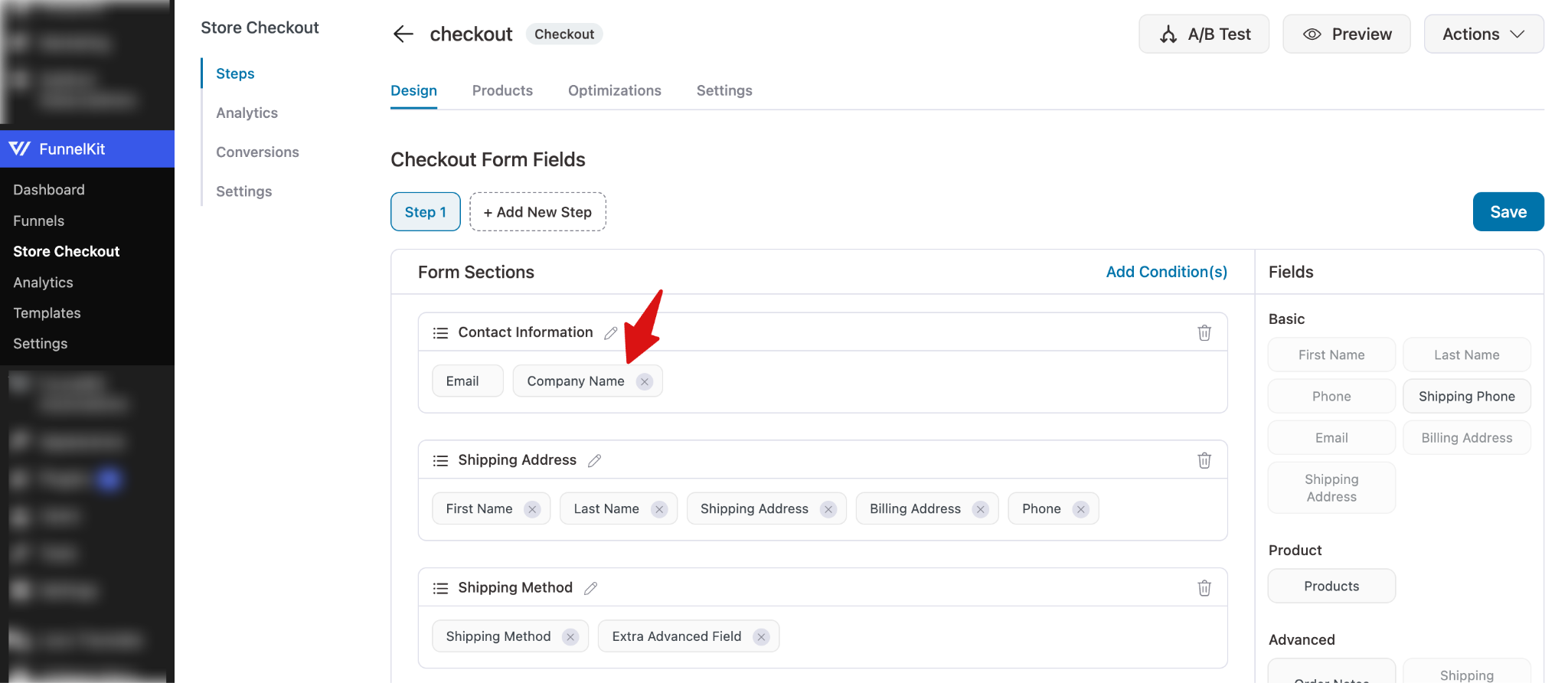
Step 2: Add a condition
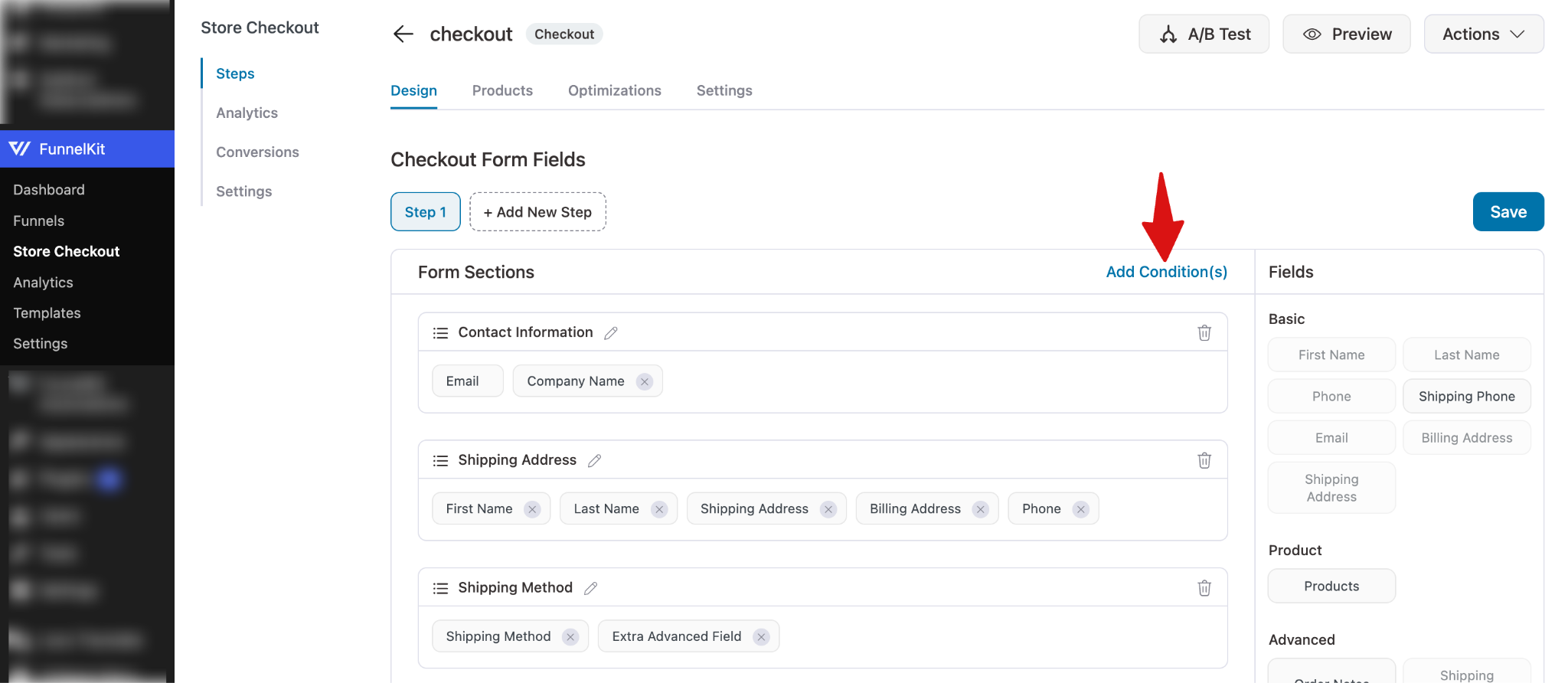
Next, navigate to the checkout step and then scroll down to the “Checkout Form Fields” section and hit the option “Add Condition”.
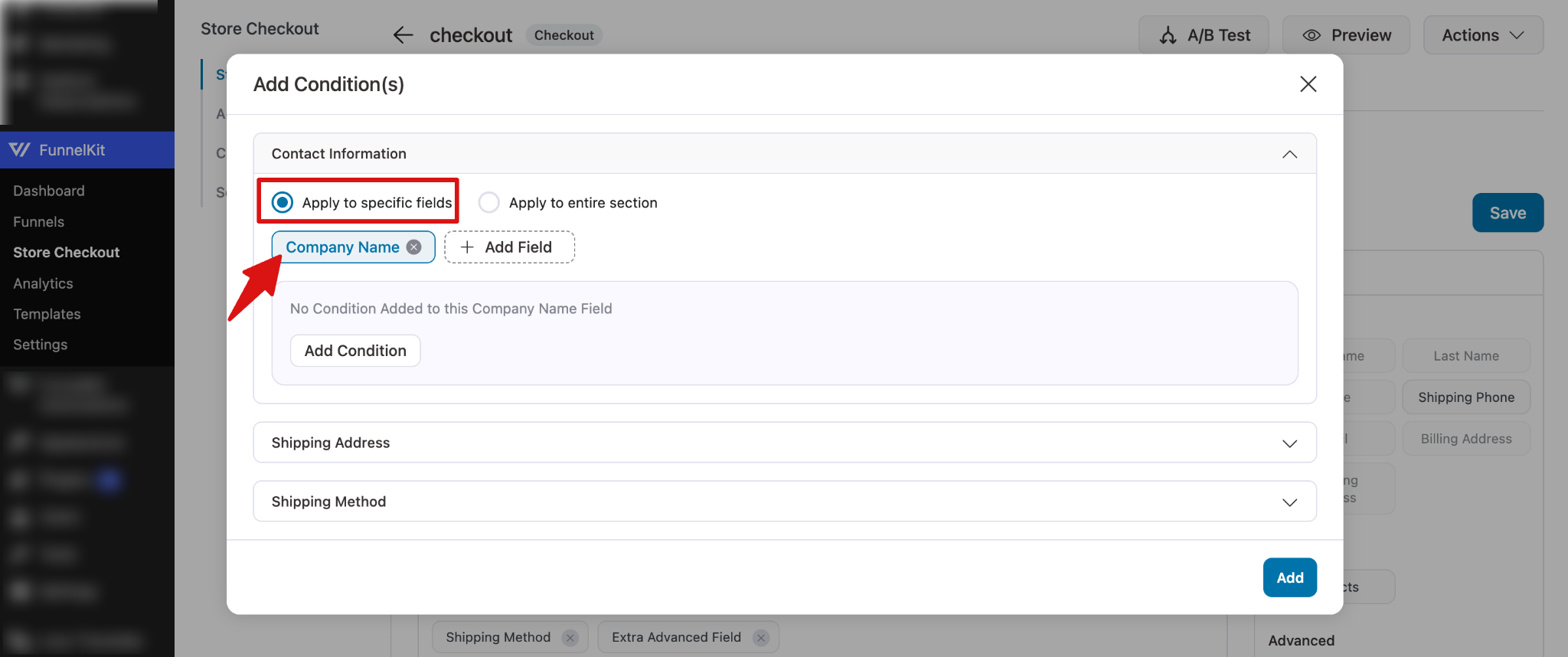
Expand your target section and select “Apply to specific fields.” Then choose the field that you want to make conditional.
Note: You can hit on “+ Add Field” to add multiple fields under the same condition that we will set in the next step.
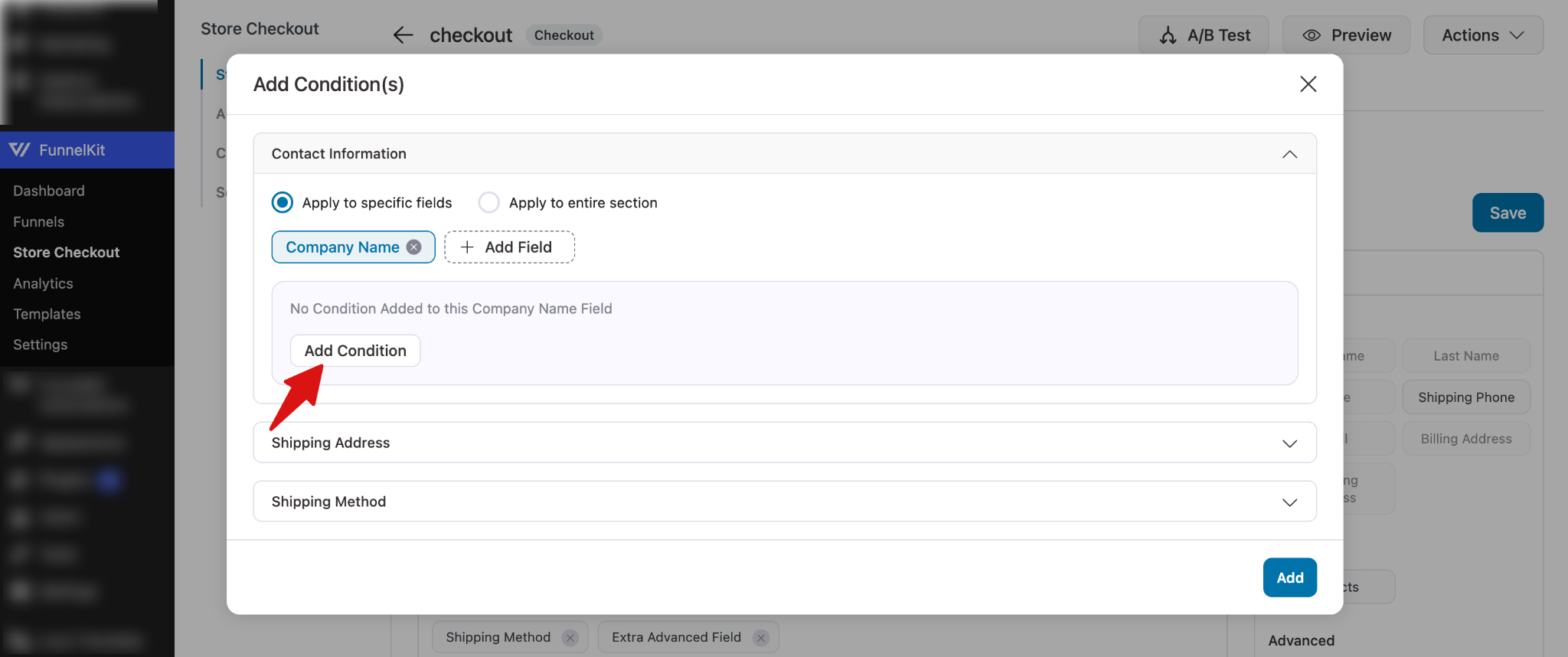
Step 3: Set up the condition
To start setting up a condition, hit the " Add Condition " button.
Next, you need to select a condition type. There are three types: User, Carts & Fields.
Note: Later in this documentation, you will find all the available parameters.
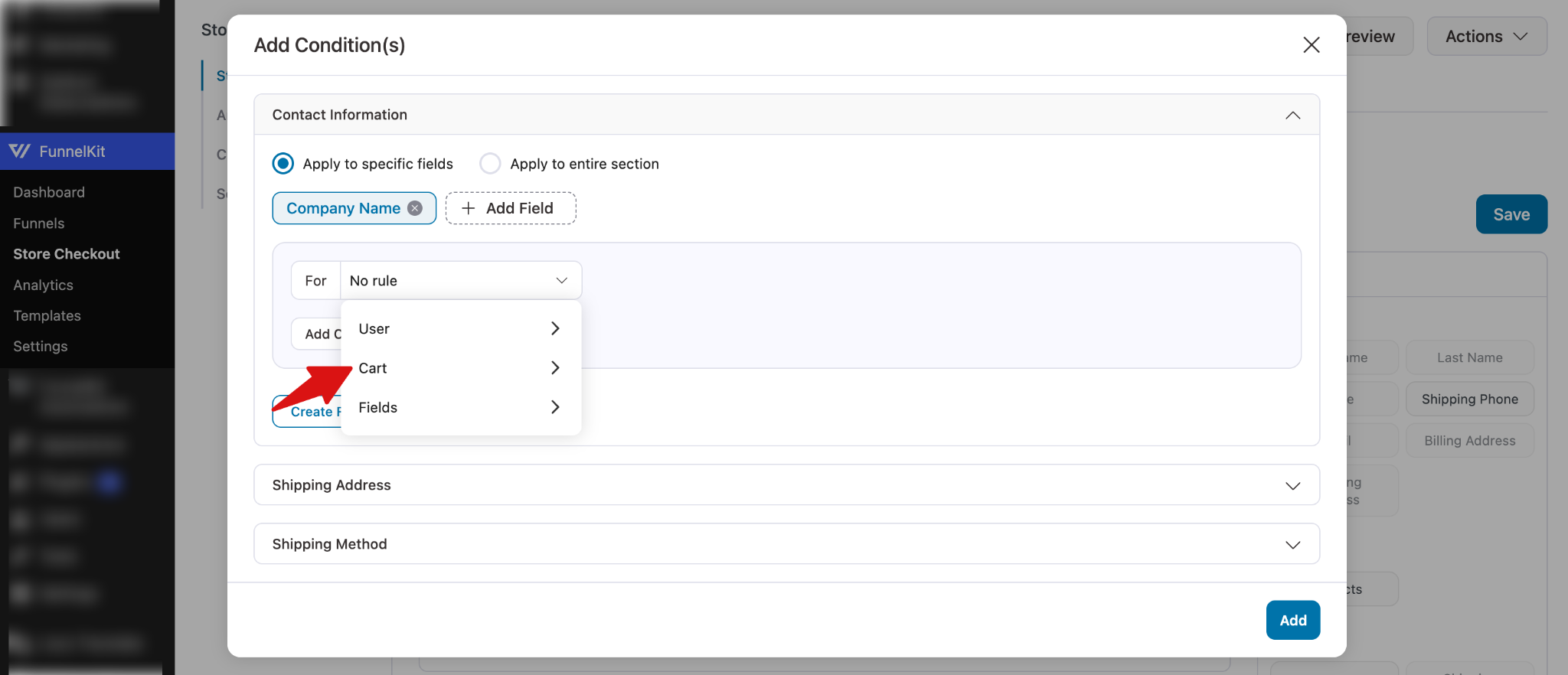
Once you select each condition, you can select from different parameters.
Here, we are going with the Cart Category under Cart.
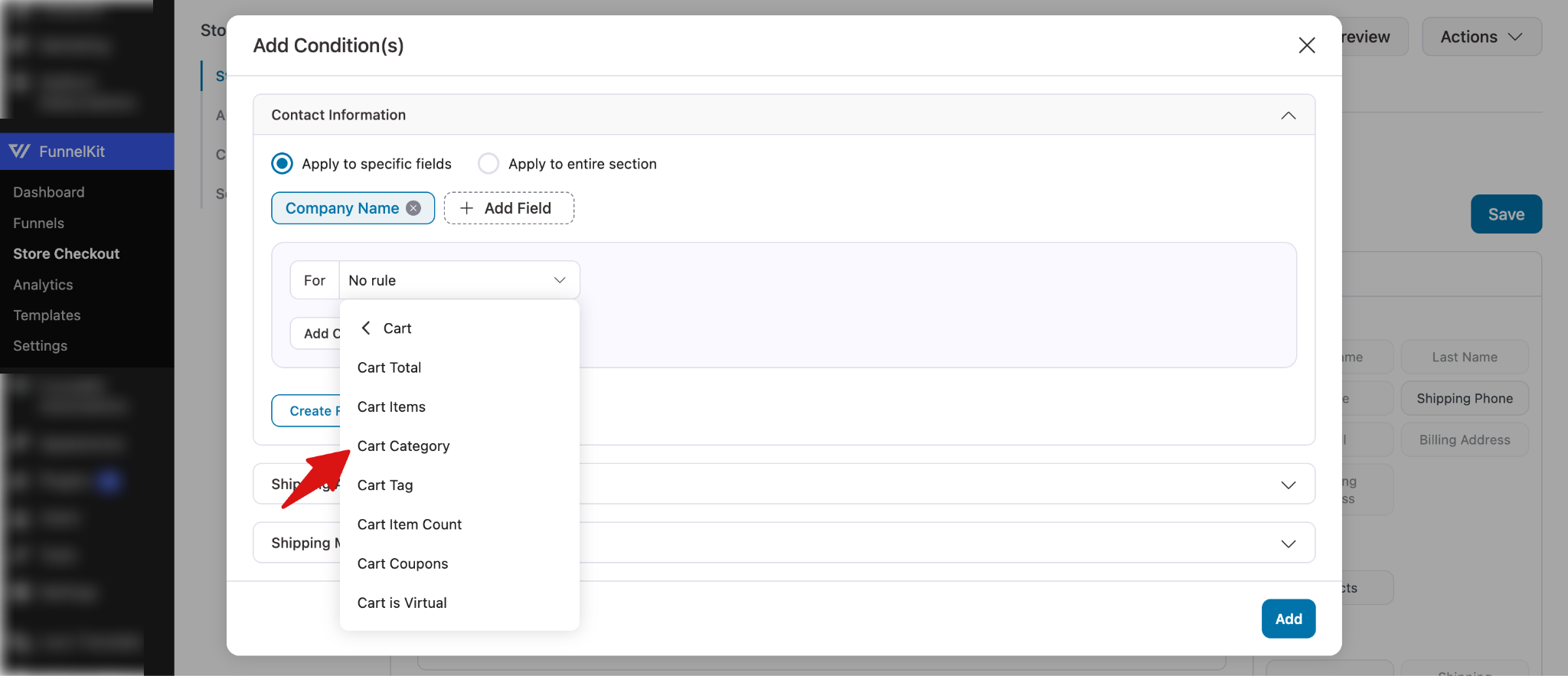
After you select the category, you can set the condition. Example: Cart Category matches “Wholesale”.
Finally, hit Add to save the checkout field.
Step 4: Test the conditional field
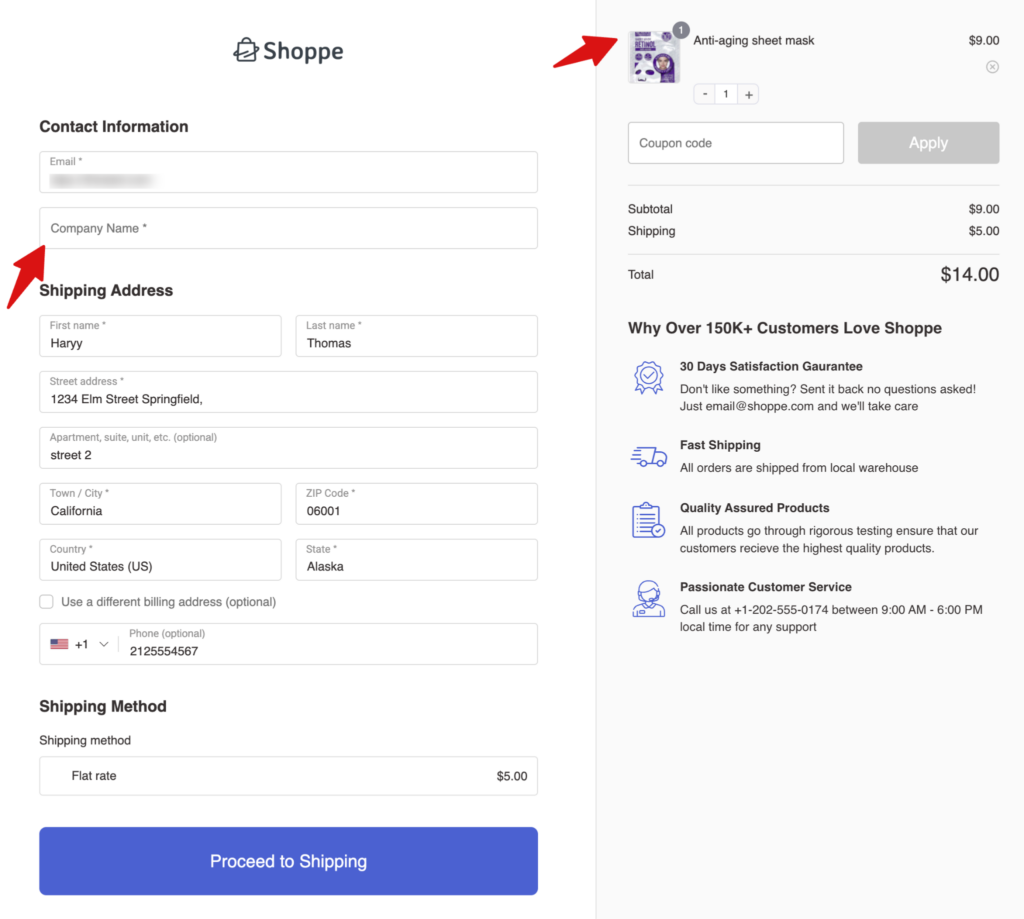
Now, to test, place an order that meets the criteria. In this case, the cart should contain a product from the “Wholesale” category to show the company name field.
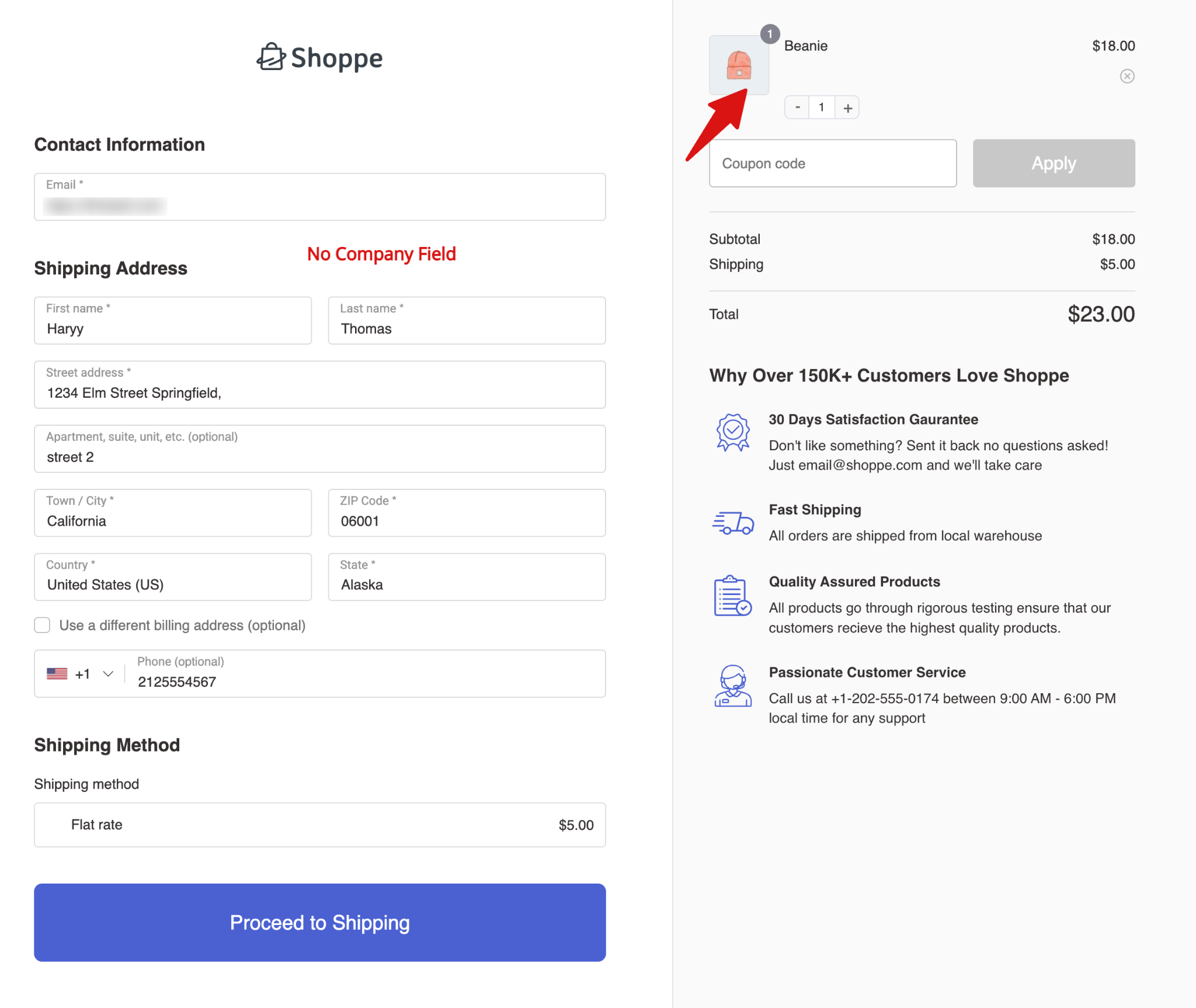
If conditions are not met, then the field will not show up.
Set Up Multiple Conditions for a Specific Field
With Conditional Fields by FunnelKit Funnel Builder, you can set multiple conditions in two ways: within the same group using the “AND” operator, or by creating different groups to apply the “OR” logic.
- In the same group (AND): All conditions must be met for the field to appear.
- In different groups (OR): The field will appear if any one group’s conditions are satisfied.
For example, to use the “AND” operator, along with “Cart Category is Wholesale,” you can add another condition like “User Role is Subscriber.”
This ensures the field is shown only when:
- The cart contains wholesale products
- AND the user is logged in (registered customer)
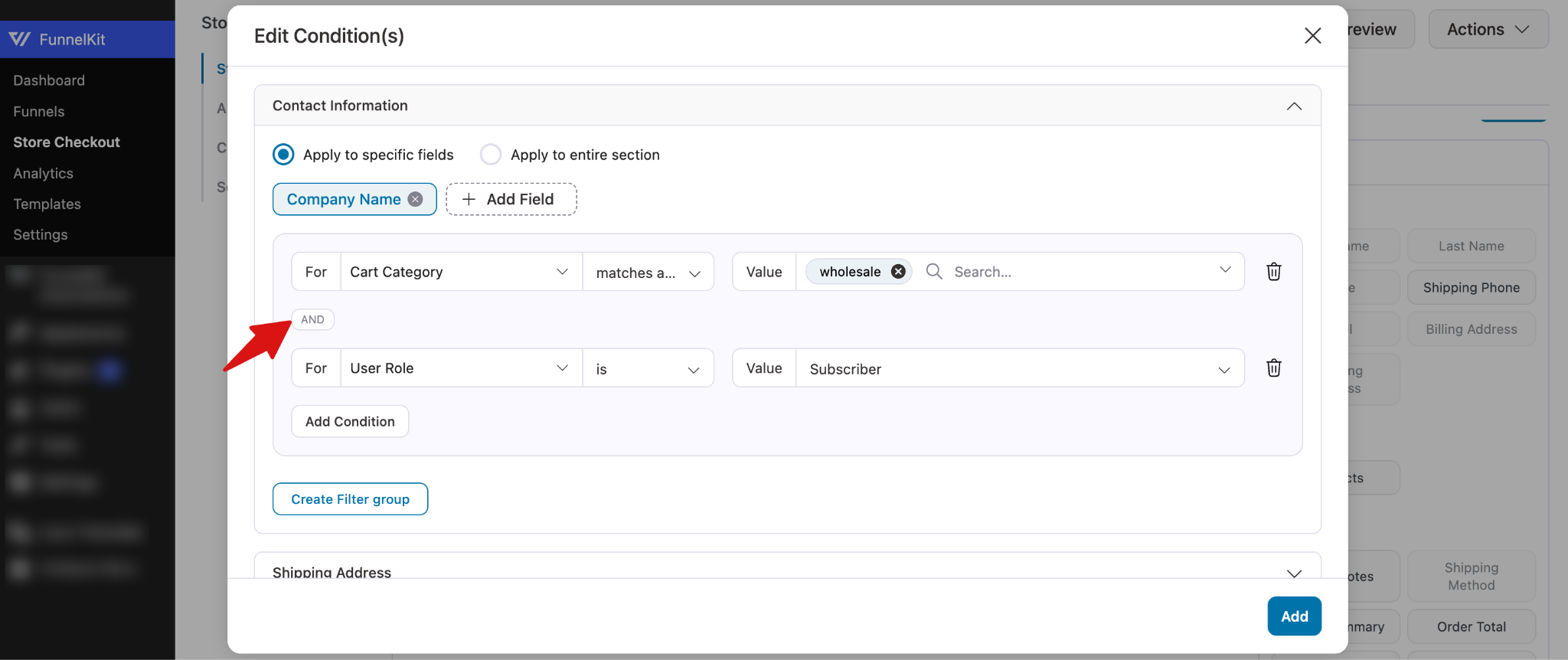
To use an “OR operator”, hit on “Create Filter Group”.
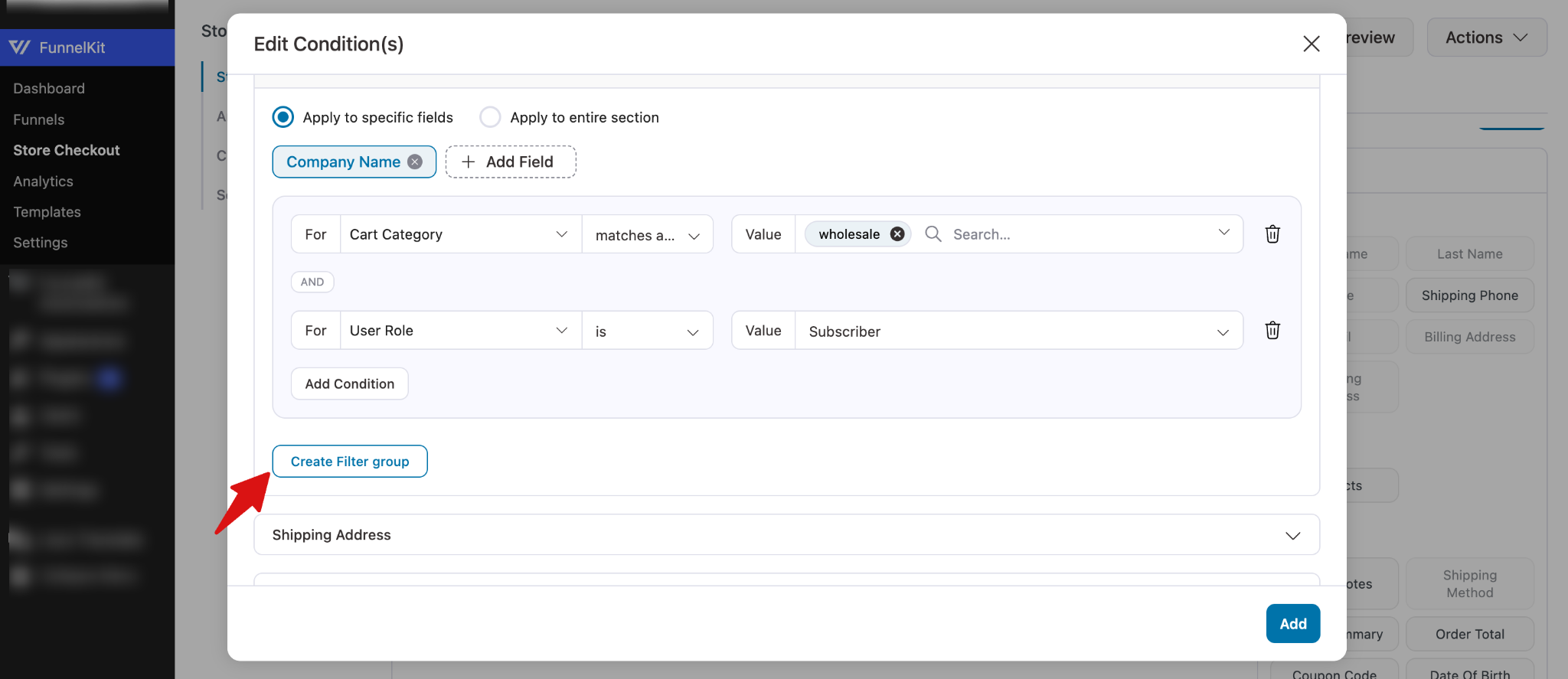
This will add the “OR” condition, then you can set the condition. For example, the cart total is greater than 1000.
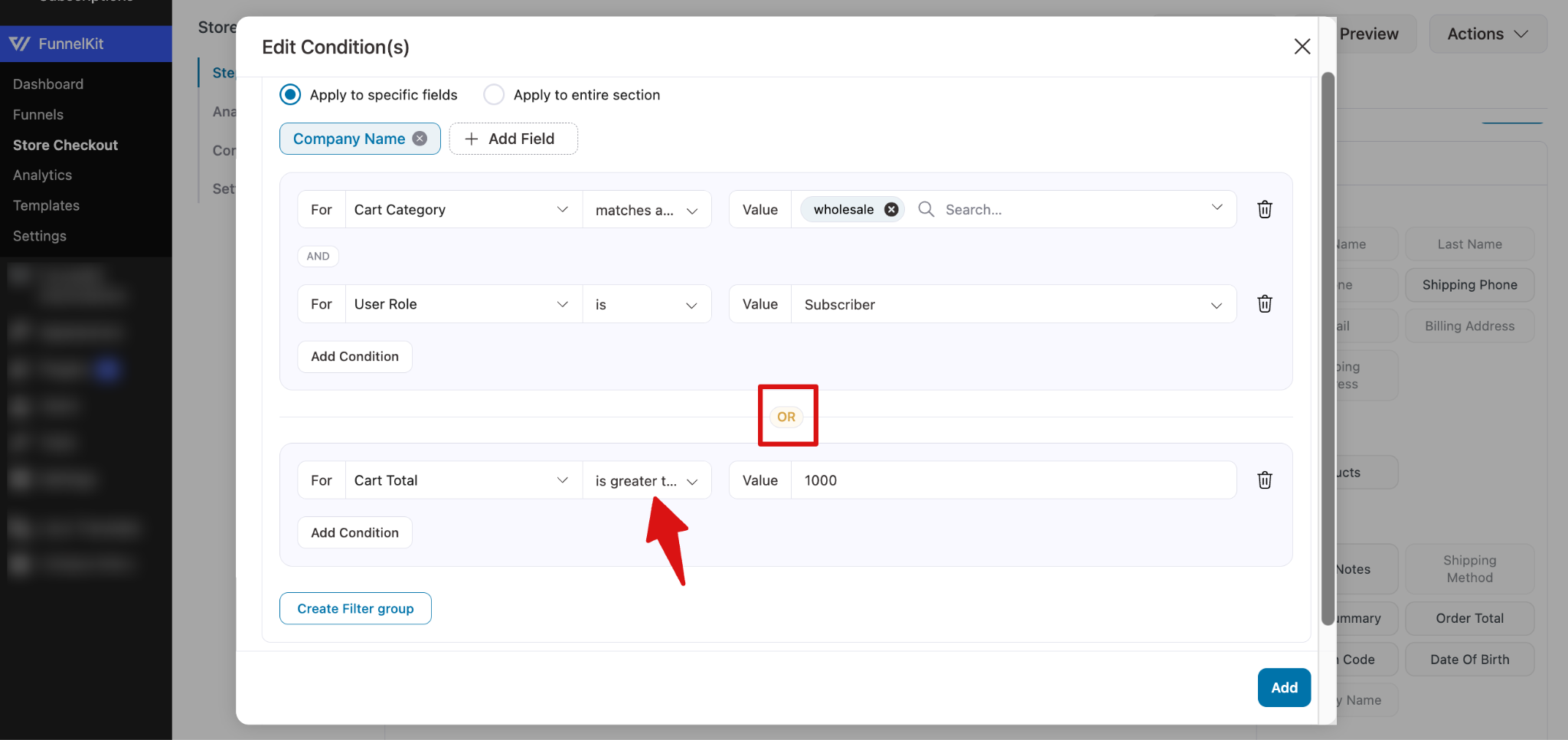
Make sure to click “Add” and then save the checkout field by clicking “Save.”
That’s how you can set up multiple conditions for a conditional field.
Available Parameters For Conditional Field
User
This is applicable when you want to show or hide fields based on the customer’s account details. These conditions help you target users based on their role or login status.
| Condition | Description | Example Usage |
| User Role | Checks the role assigned to the user in your store (e.g., Subscriber, Customer, Wholesale) | Show a field only if the user role is “Subscriber” to target logged-in users |
| User Status | Checks whether the user is logged in or browsing as a guest | Display a special note or field only for logged-in users and hide it for guests |
Cart
These conditions let you show or hide fields based on the contents and properties of the customer’s cart.
| Condition | Description | Example Usage |
| Cart Total | Checks the total amount of the cart | Show a field only if the cart total is greater than $500 |
| Cart Items | Checks for specific products in the cart | Show a field if the cart contains the product “Premium T-Shirt” |
| Cart Category | Checks if products from a certain category are in the cart | Show a field if the cart contains items from the “Wholesale” category |
| Cart Tag | Checks if products with a specific tag are in the cart | Display a field if the cart has products tagged “Summer Sale” |
| Cart Item Count | Checks the total number of items in the cart | Show a field if the cart has more than 3 items |
| Cart Coupons | Checks if a specific coupon is applied | Display a field when the coupon “WHOLESALE10” is used |
| Cart is Virtual | Checks if the cart contains only virtual/downloadable products | Show a field if all items in the cart are virtual products |
Fields
These conditions let you show or hide fields based on the information the customer enters at checkout.
Contact Information
| Condition | Description | Example Usage |
| Checks the customer’s email address | Display a field for users with a company email (e.g., ending with @company.com) | |
| Company Name | Checks the company name field | Show a field only if a company name is entered |
| Phone | Checks the phone number field | Show a field only if a phone number is provided (e.g., 555-123-4567) |
Shipping Address
| Condition | Description | Example Usage |
| First Name | Checks the first name field | Show a field if first name is “John” |
| Last Name | Checks the last name field | Show a field if last name is “Doe” |
| Street Address | Checks the street address field | Display a field if street address is “123 Main St” |
| Apartment, Suite, Unit, etc. | Checks additional address line | Show a field if apartment/unit is “Apt 4B” |
| Town / City | Checks the city field | Display a field if city is “New York” |
| ZIP Code | Checks the postal/ZIP code | Show a field if ZIP code is “10001” |
| Country / Region | Checks the country or region | Display a field if country is “United States” |
| State | Checks the state/province | Show a field if state is “NY” |
Billing Address
| Condition | Description | Example Usage |
| Street Address | Checks the street address field | Display a field if billing street address is “456 Elm St” |
| Apartment, Suite, Unit, etc. | Checks additional address line | Show a field if billing apartment/unit is “Suite 210” |
| Town / City | Checks the city field | Display a field if billing city is “Los Angeles” |
| ZIP Code | Checks the postal/ZIP code | Show a field if billing ZIP code is “90001” |
| Country / Region | Checks the country or region | Display a field if billing country is “United States” |
| State | Checks the state/province | Show a field if billing state is “CA” |


