FunnelKit now supports Google's Places API (New), the API that powers address autocomplete on your checkout.
Google has deprecated the original Places API. Address autocomplete on your checkout still works with it, but new Google Cloud projects can no longer enable the legacy API. So every store will eventually need a key that supports Places API (New).
This guide shows how to check your current key, create a new one, and switch your store over.
How FunnelKit Tells You Your Key Needs Updating
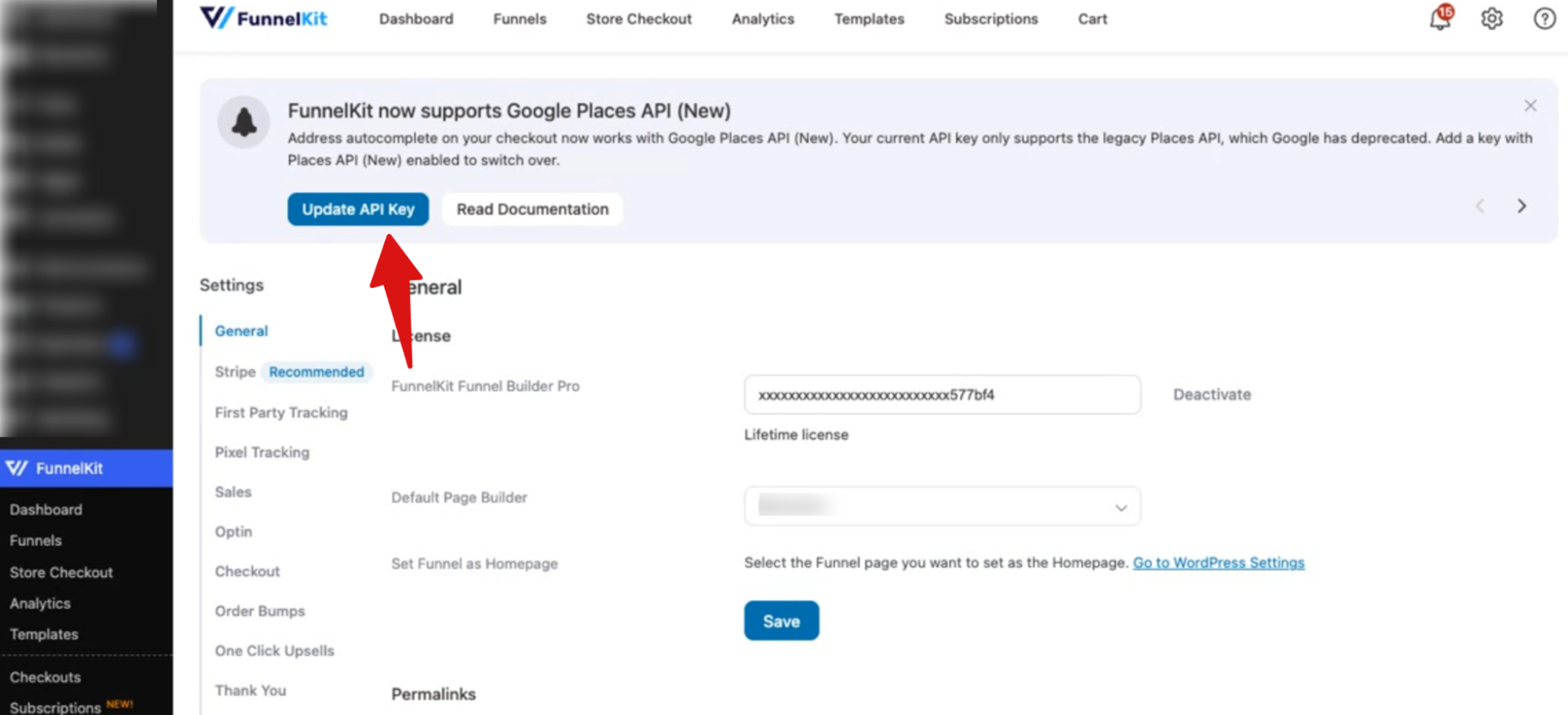
If your saved key only works with the legacy API, FunnelKit shows a notice right inside the Funnel Builder screens.
The notice explains what changed, takes you straight to your settings, and links to the documentation. Once you've dealt with it, you can dismiss it and it won't come back.
Where Your API Key Lives
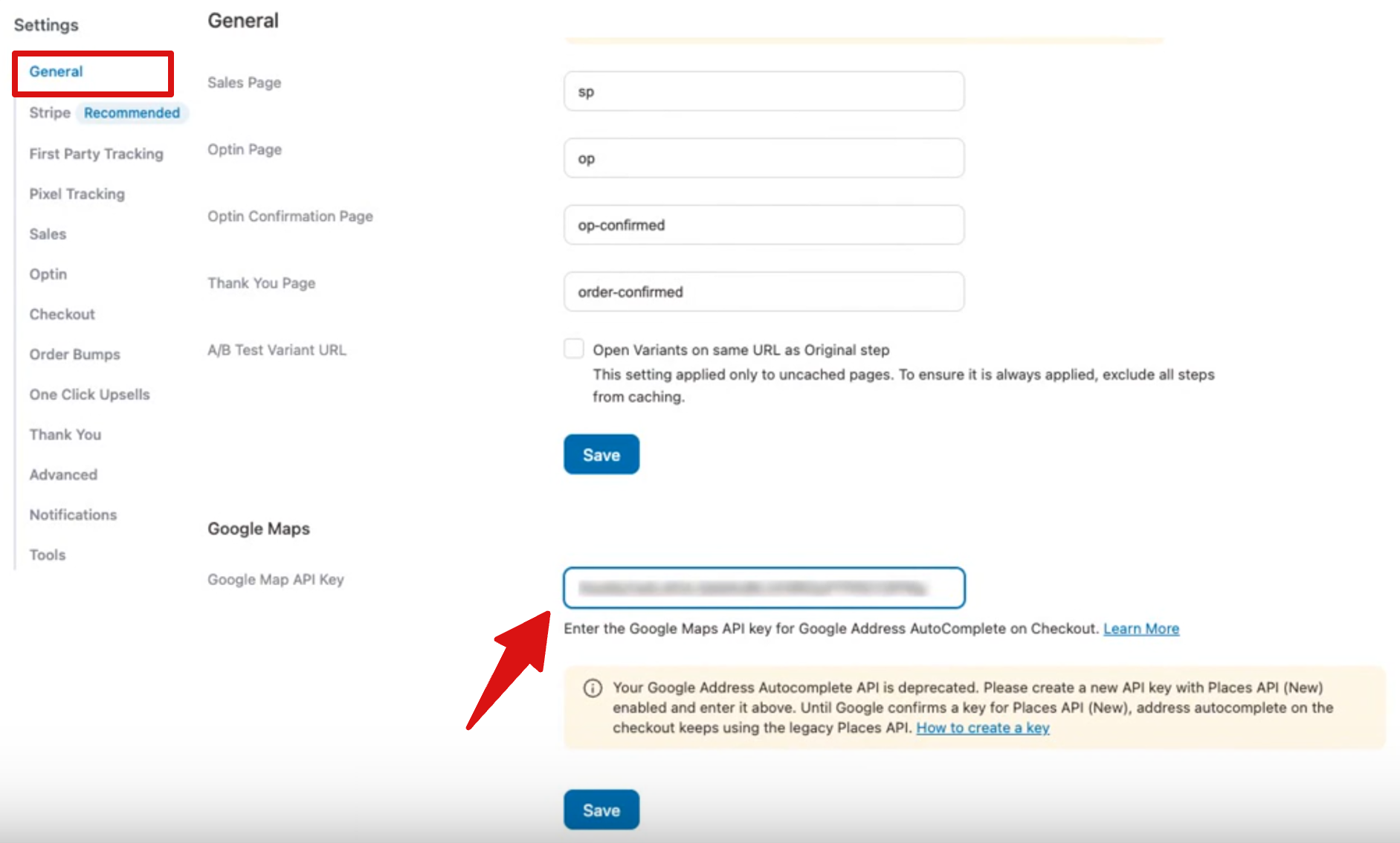
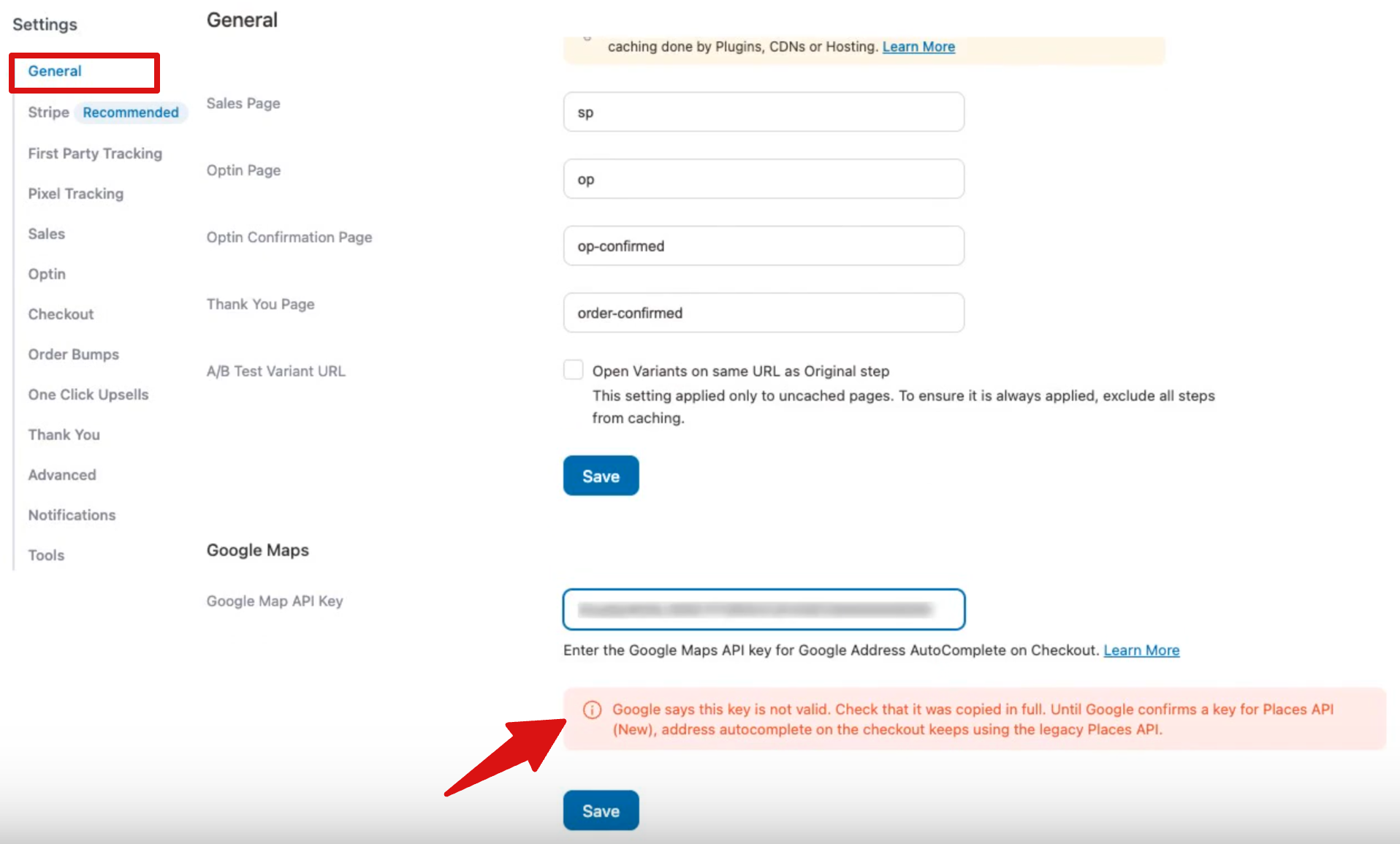
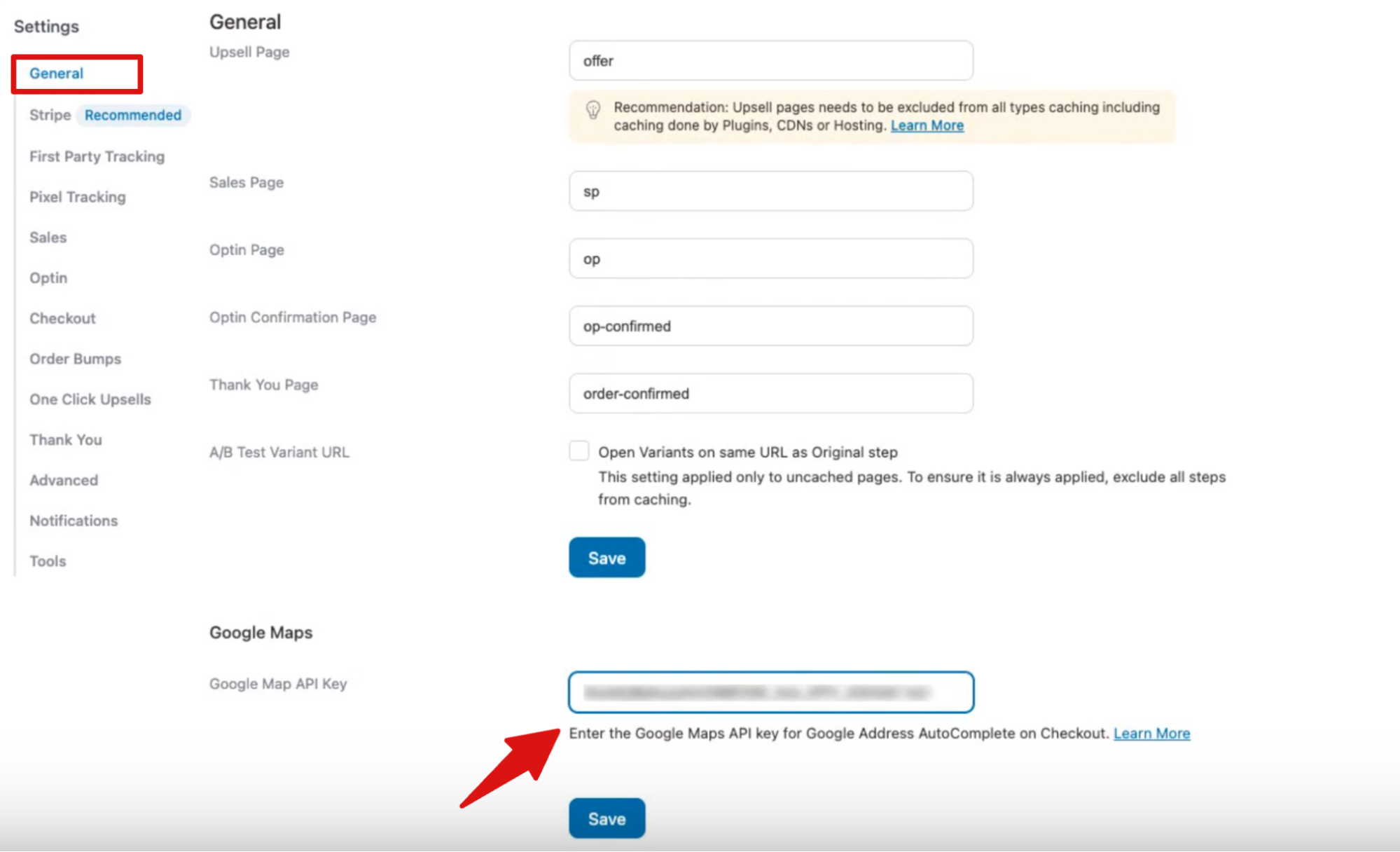
Your API key sits under FunnelKit > Settings > General, in the Google Maps section. FunnelKit checks the key with Google in the background and shows one of three results under the field.
- Warning under the field: The key only supports the legacy Places API. Checkout keeps working on the legacy API until you replace the key.
- Red error under the field: Google rejected the key, for example due to a typo, the wrong project, or restrictions that block this site. The error shows the reason Google gave. Address autocomplete won't work until the key is fixed.
- No badge: There's no badge or green tick for a working key. If there's no message under the field, your key is good.
How to Create a Places API (New) Key
You'll create the key in Google Cloud Console. It takes a few minutes. If you want more detail on any step, see Google's official guide to set up the Places API (New).
- Open console.cloud.google.com and pick the project your store uses.
- Make sure billing is enabled on that project.
- Open the API Library and enable Places API (New). It's listed as places.googleapis.com.
- Go to Google Maps Platform > Keys & Credentials and choose Create Credentials > API Key.
- In the Create API Key panel, open Select API restrictions. Clear everything this key doesn't need and leave Places API (New) selected.
- While you're there, add a website restriction for your store's domain.
- Copy the key.
How to Add the New Key in FunnelKit
Go to FunnelKit > Settings > General and find the Google Maps section.
Paste your new key into the Google Maps API key field.
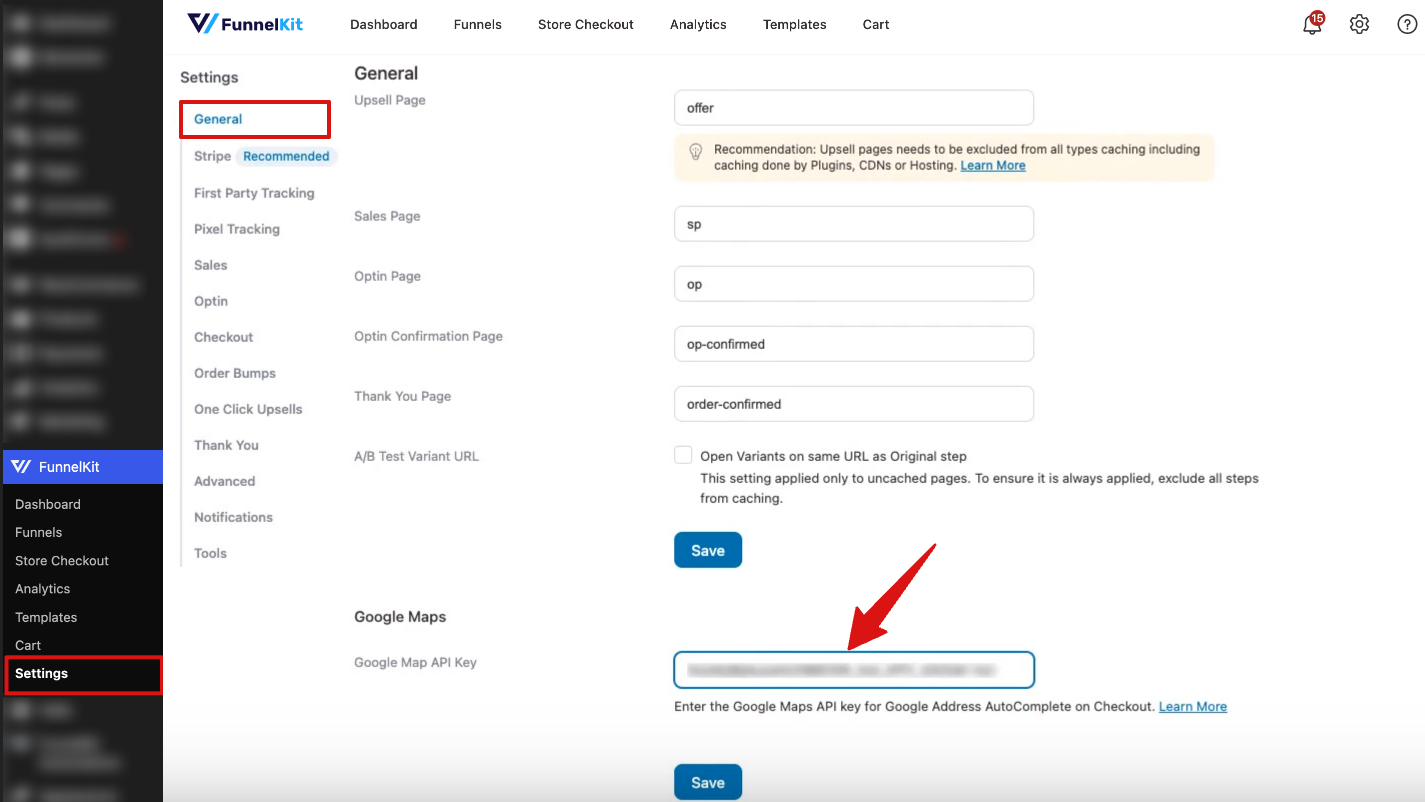
Click Save.
Once saved, the warning disappears, and the Funnel Builder notice stops appearing. Address autocomplete on your checkout will run on the Places API (New).