


In this guide, we will test link triggers that automatically log existing WordPress users into your WordPress site.
We will create an automation that:
- Sends a link via email to existing users, allowing them to log in automatically
- For non-existing users, first create the user, then share the link trigger via email
This is because auto-login will only work when a WordPress user is associated with the contact.
Follow these steps to set it up:
Step 1: Set up your automation
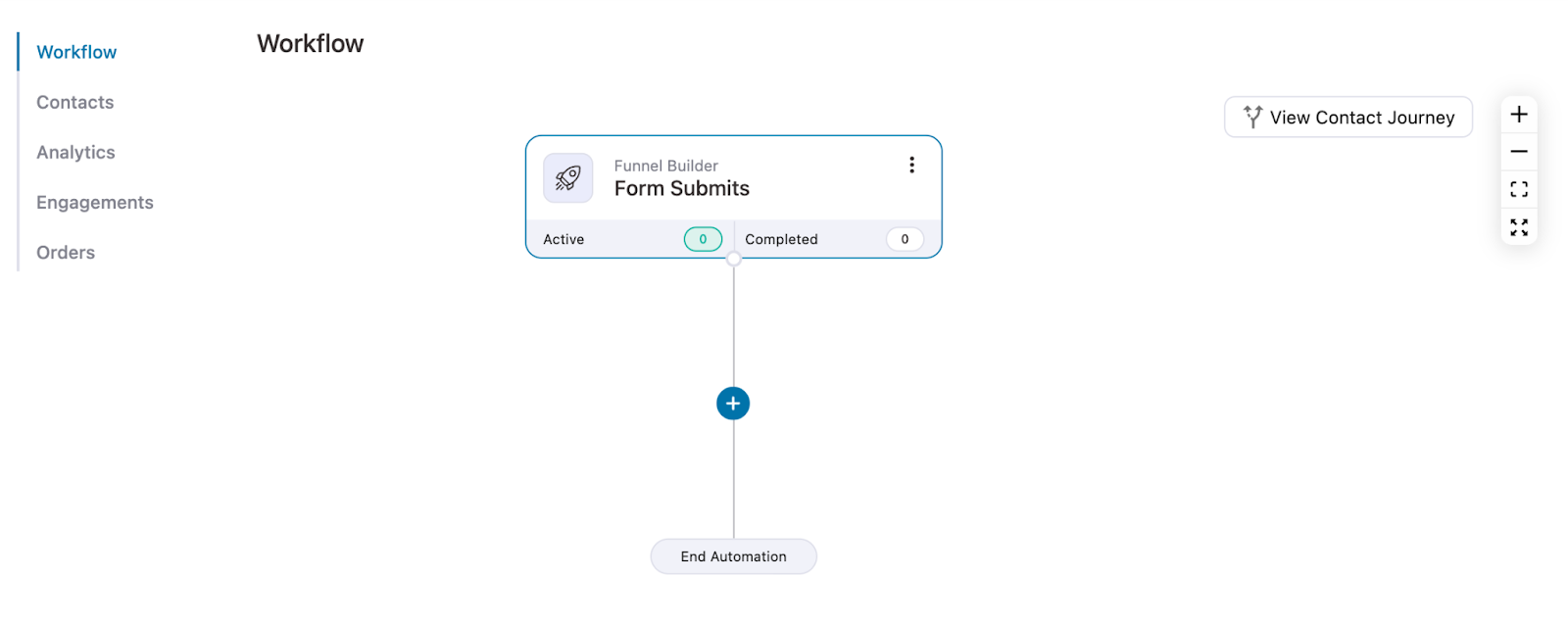
First, set up your automation with an event. Here, we created an automation for the form submit event.
For more details, see our documentation on creating automation.
Step 2: Check if the user has an account or not
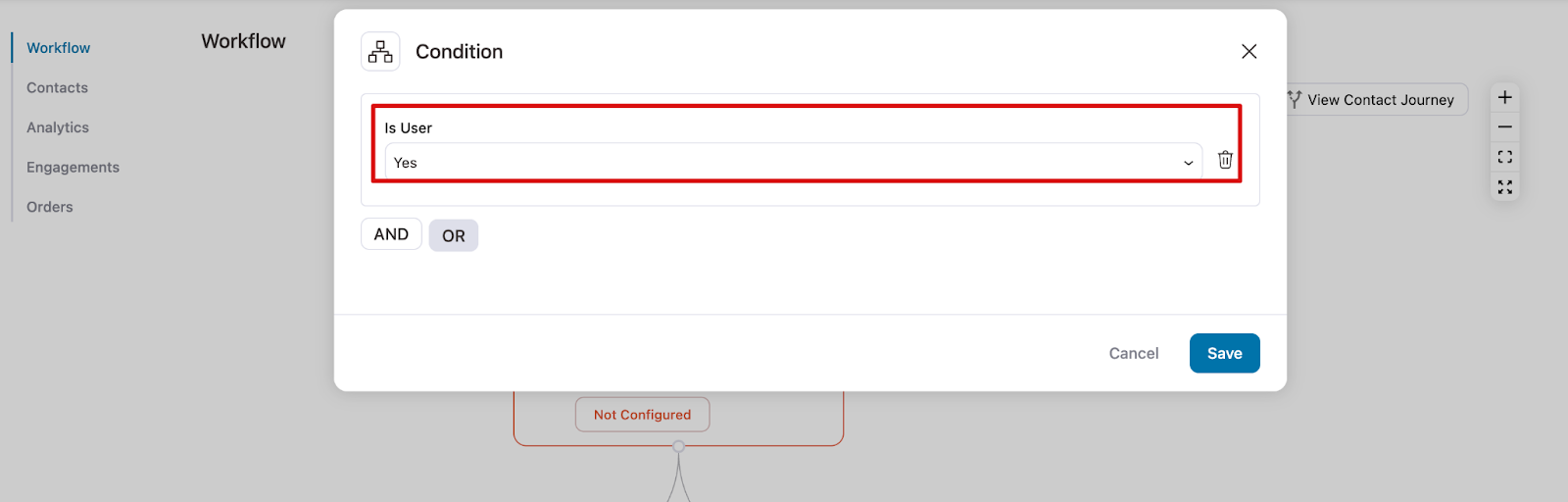
Now, set a condition to check if the user exists or not.
Step 3: Add an action to send an email to existing users
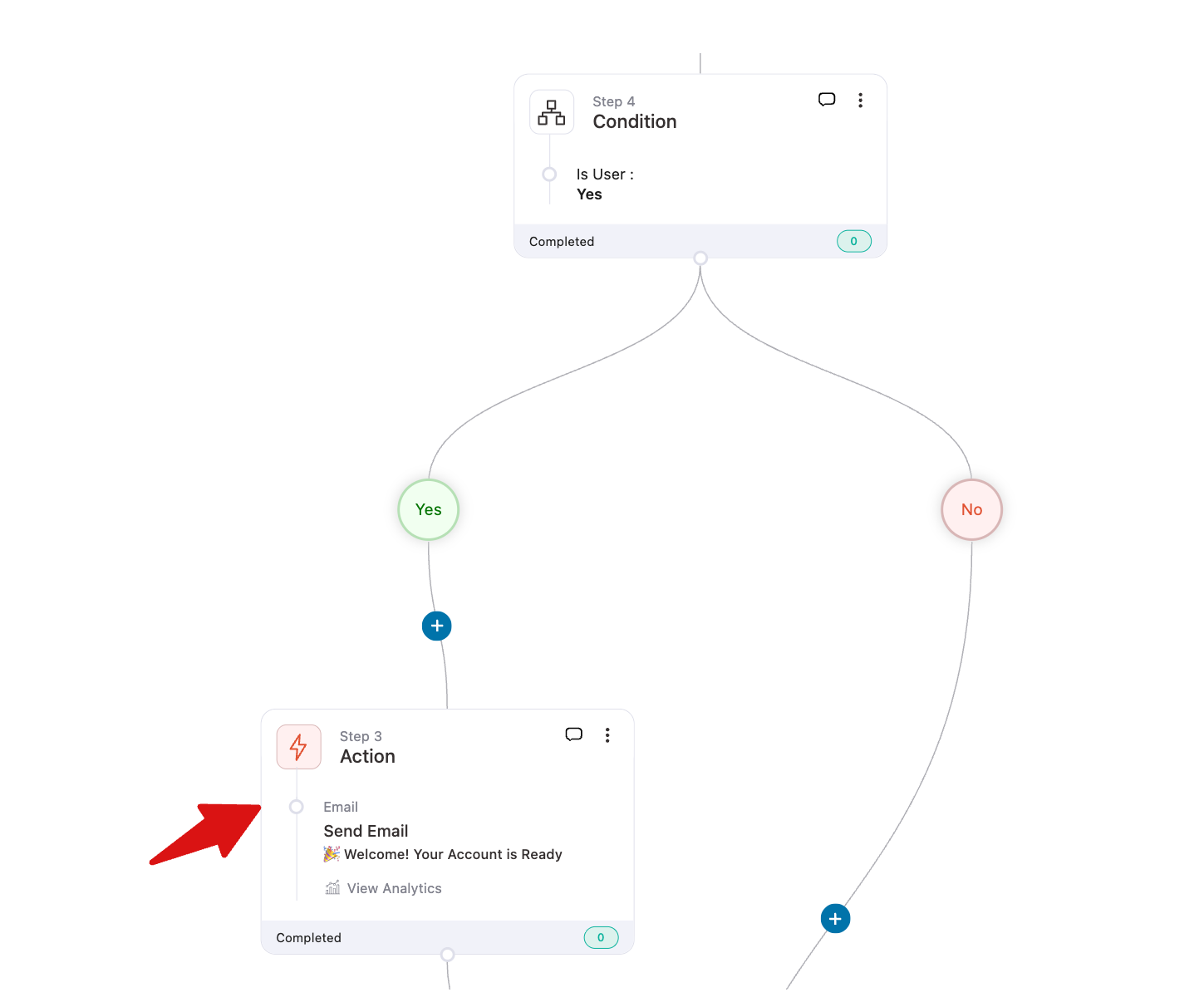
Next, add an action “Send Email” if the condition is true.
Then configure it to share the link trigger for auto login.
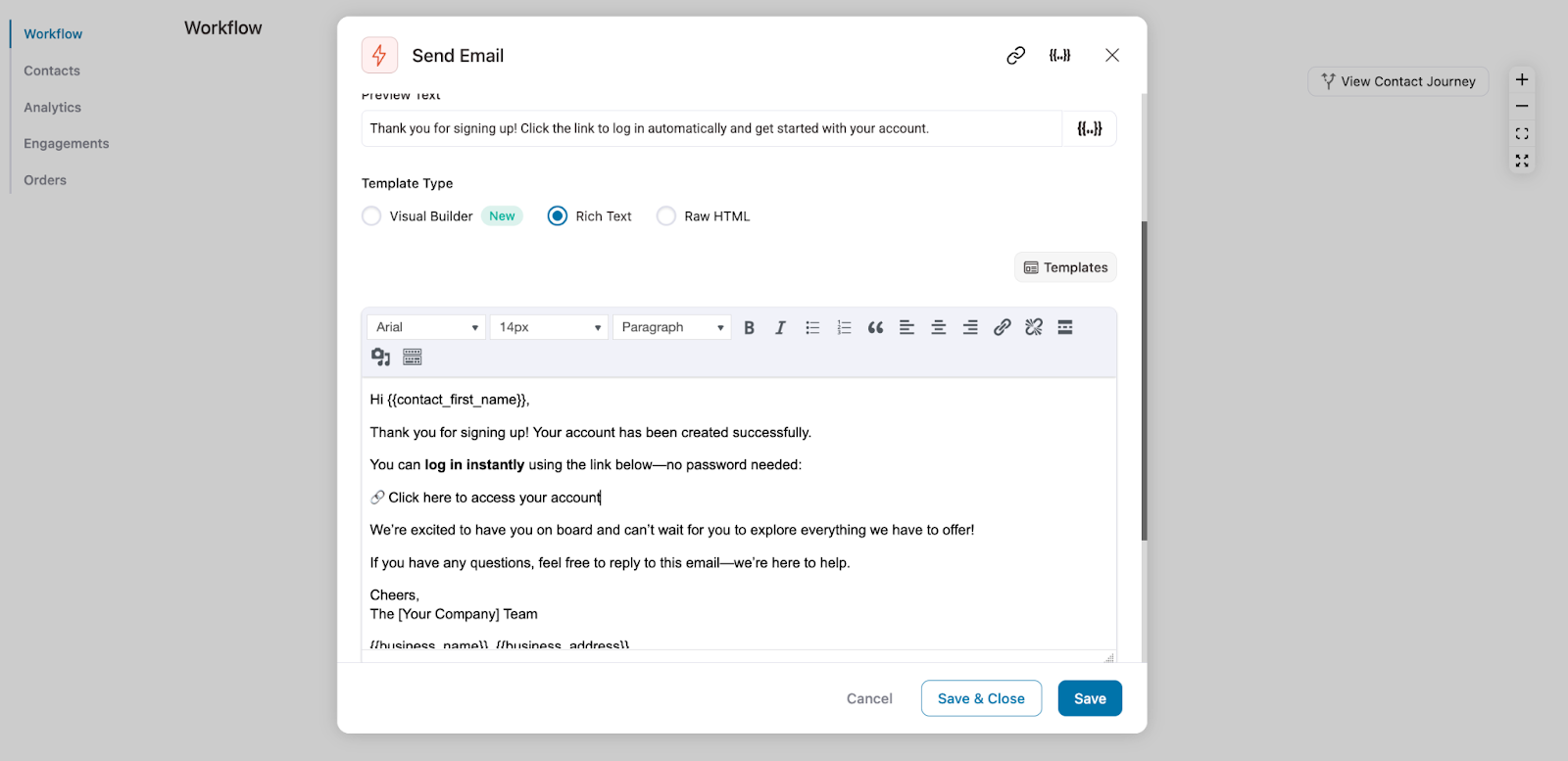
Step 4: Add a link trigger to your email body
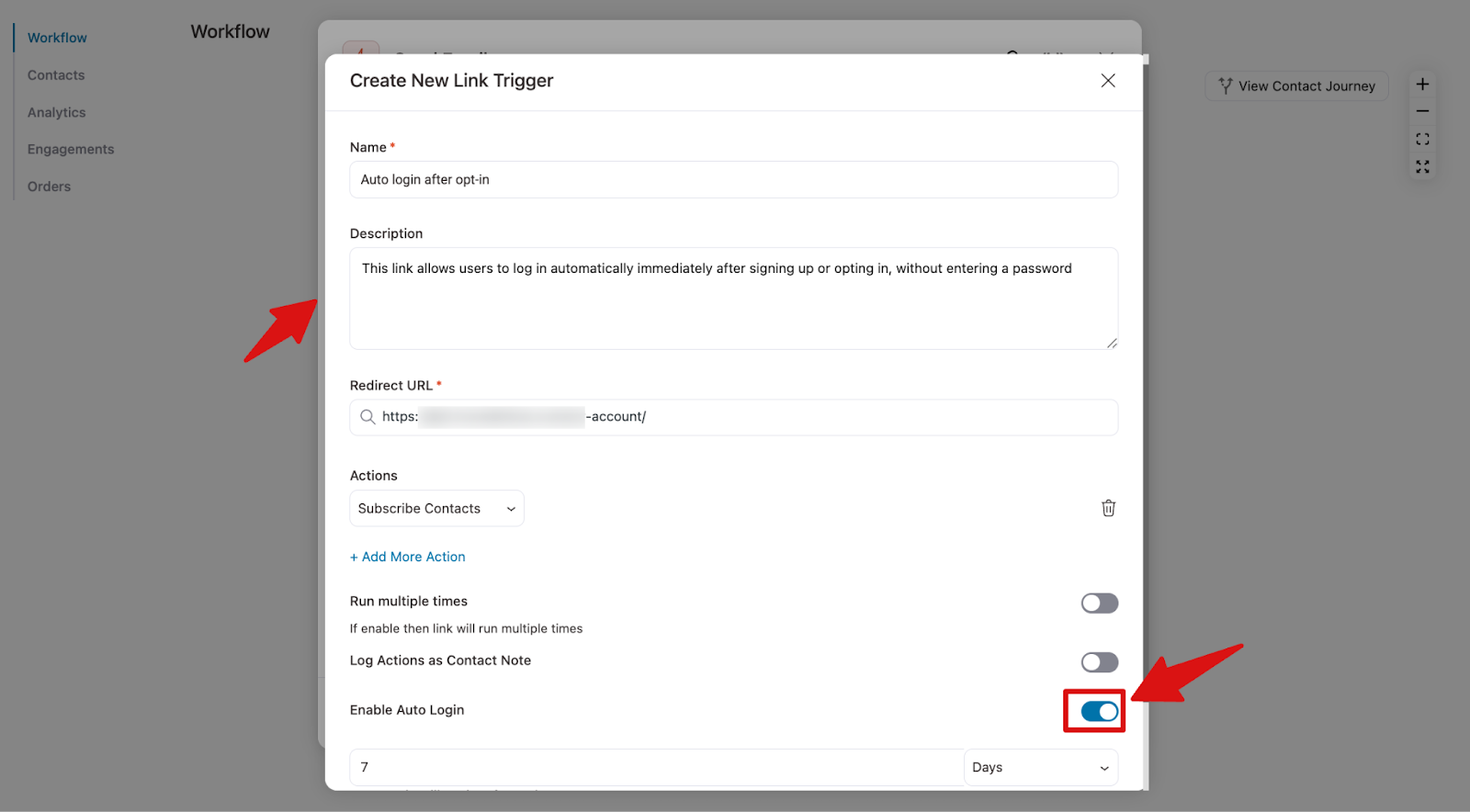
Next, create your link trigger and make sure the auto login option is on.

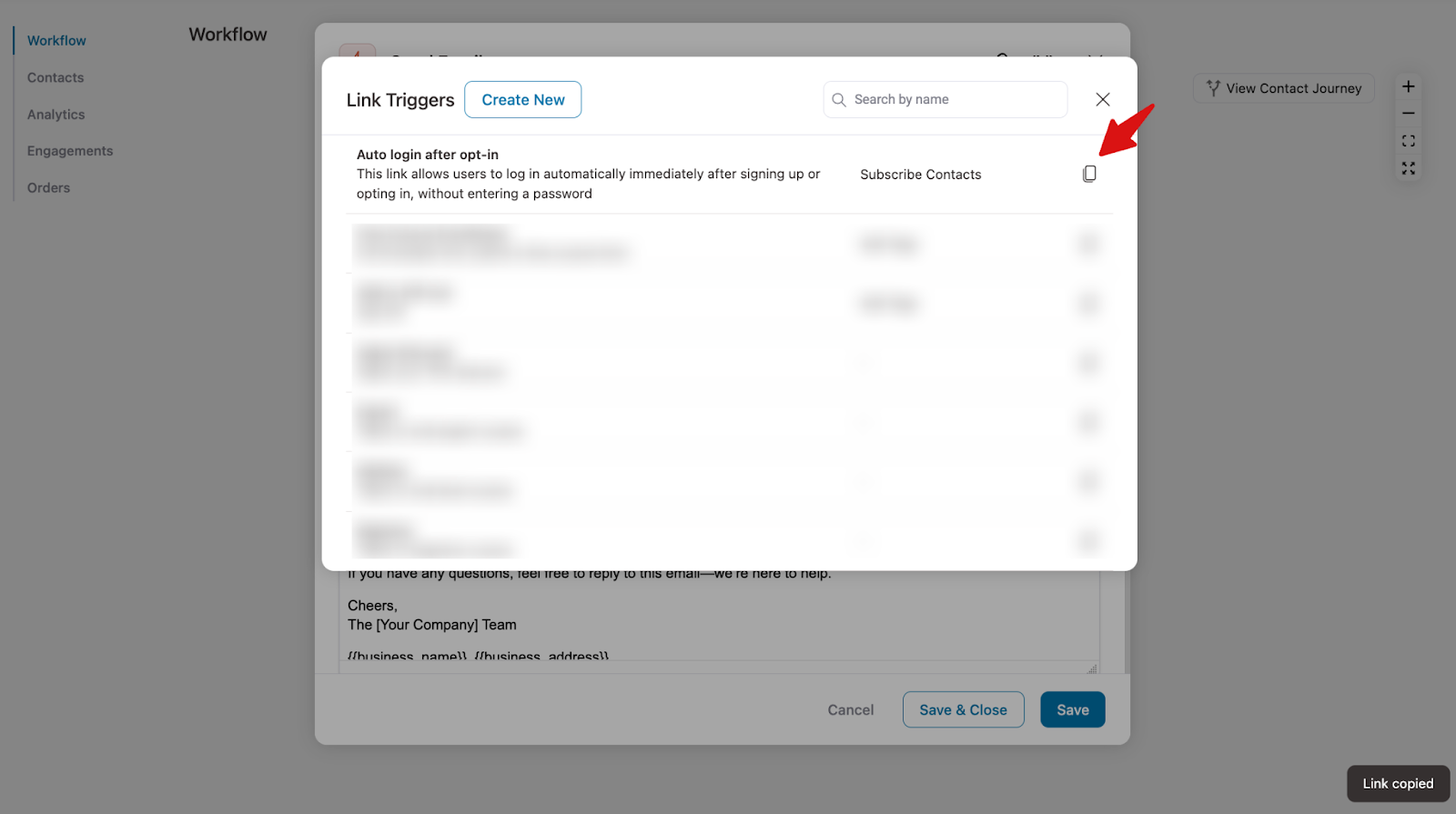
Next, copy the link trigger.
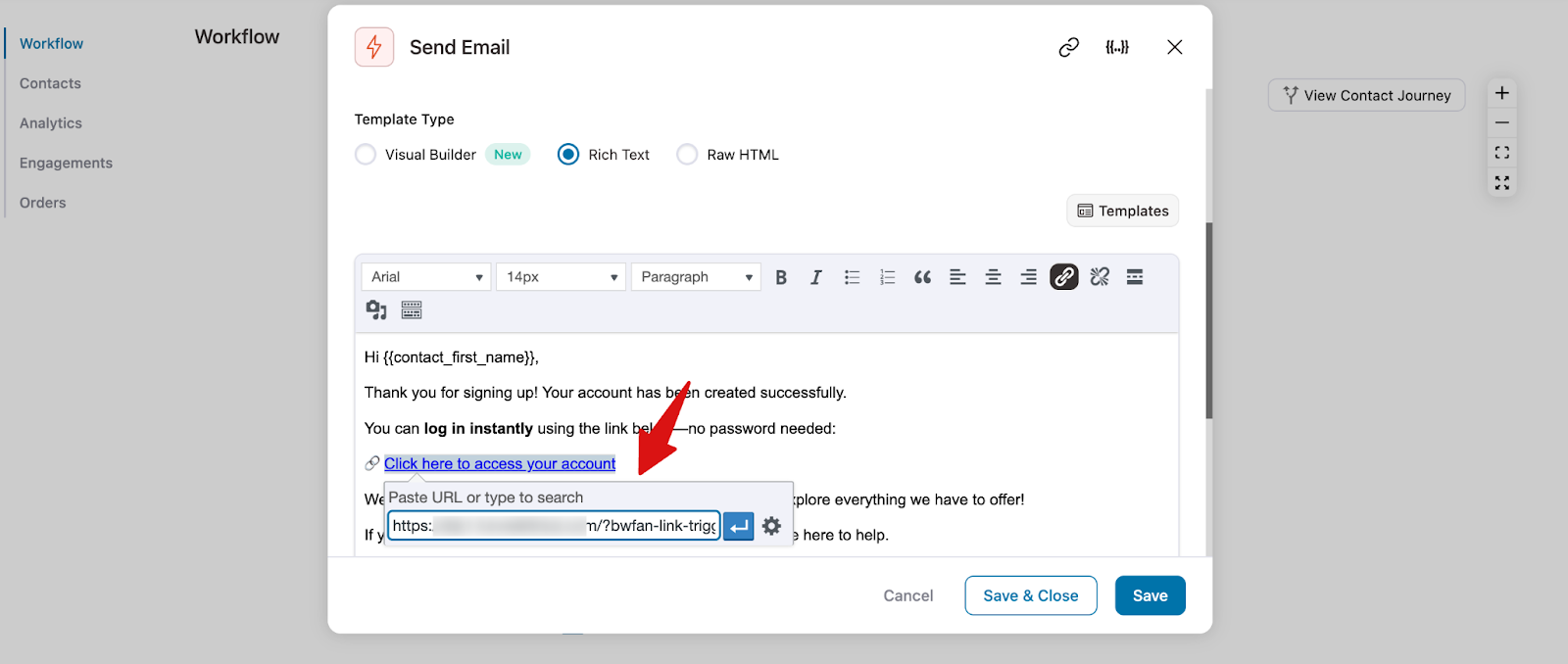
Insert the URL into your clickable anchor text wherever you want users click to log in automatically.
Step 5: Add action to create an account for a non-user
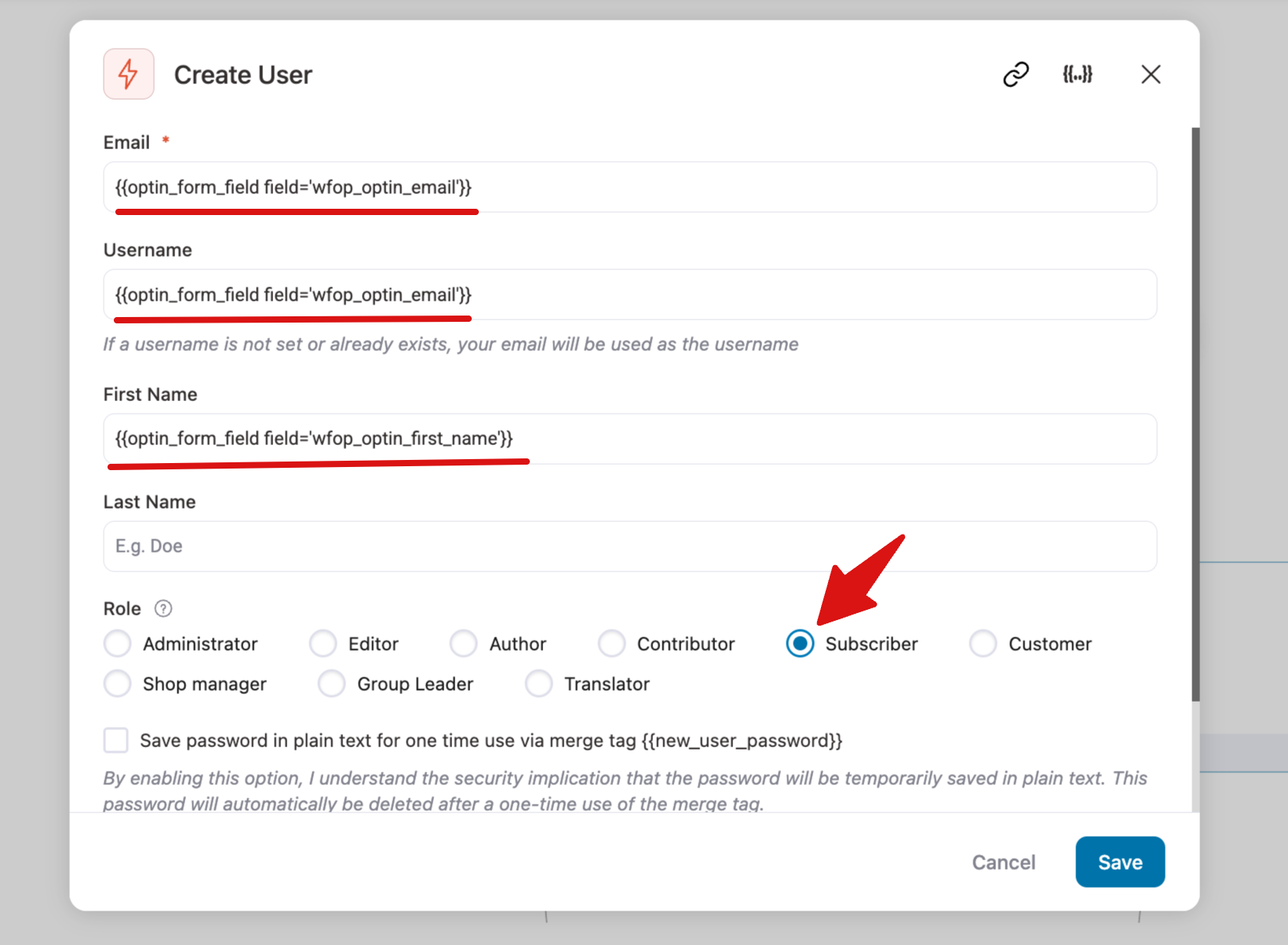
Now, for the contacts who don’t have a WordPress account, we will add an action “Create User” and configure it. To create the user, you can use form field data. Also, assign them the role of “Subscriber”.
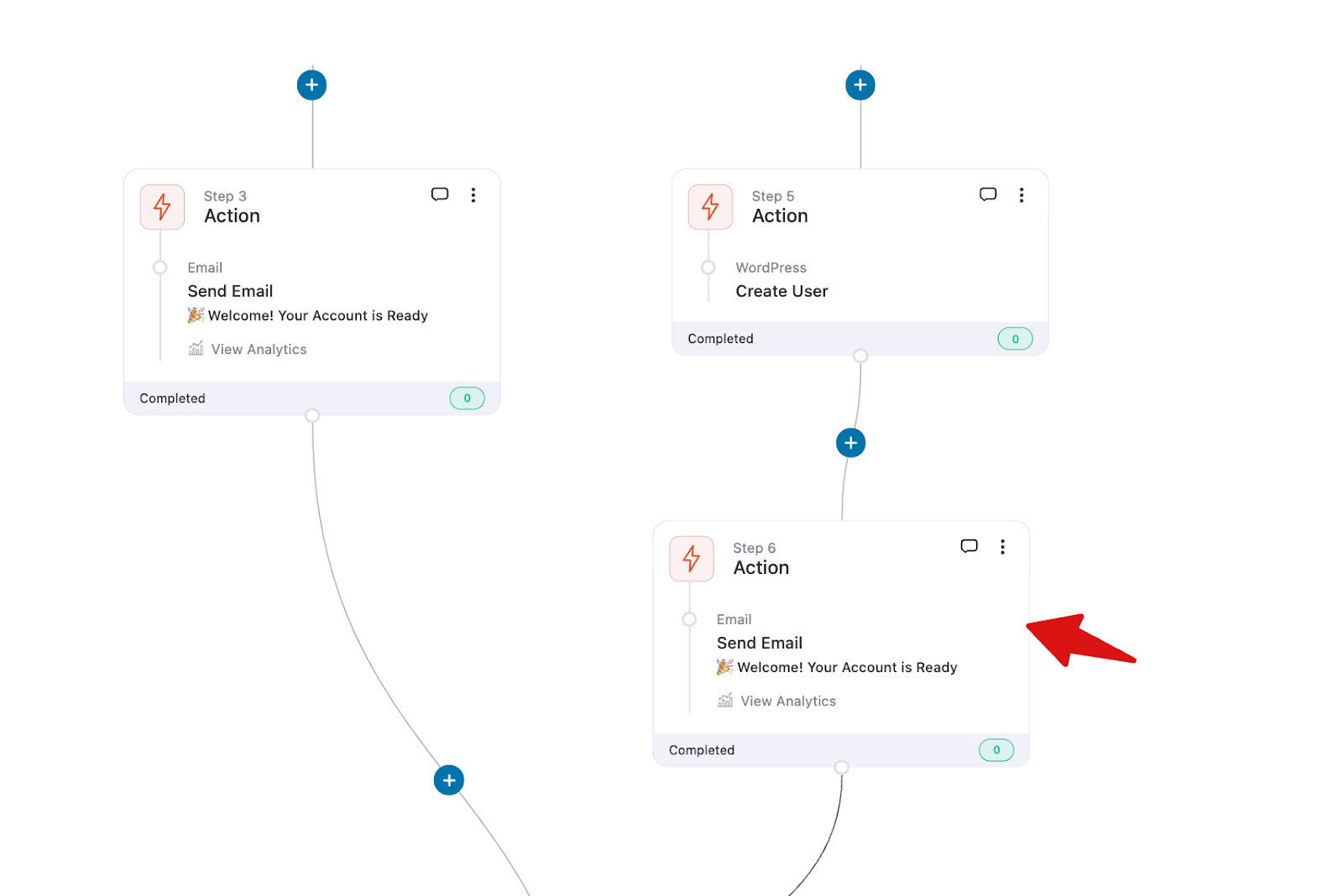
Step 6: Add an action to send an email to new users with link triggers
Next, after the “Create User” action, add another “Send Email” action for the newly created users. Include the link trigger in this email so they can log in automatically.
Note: You can copy and paste the earlier Send Email action to save time.
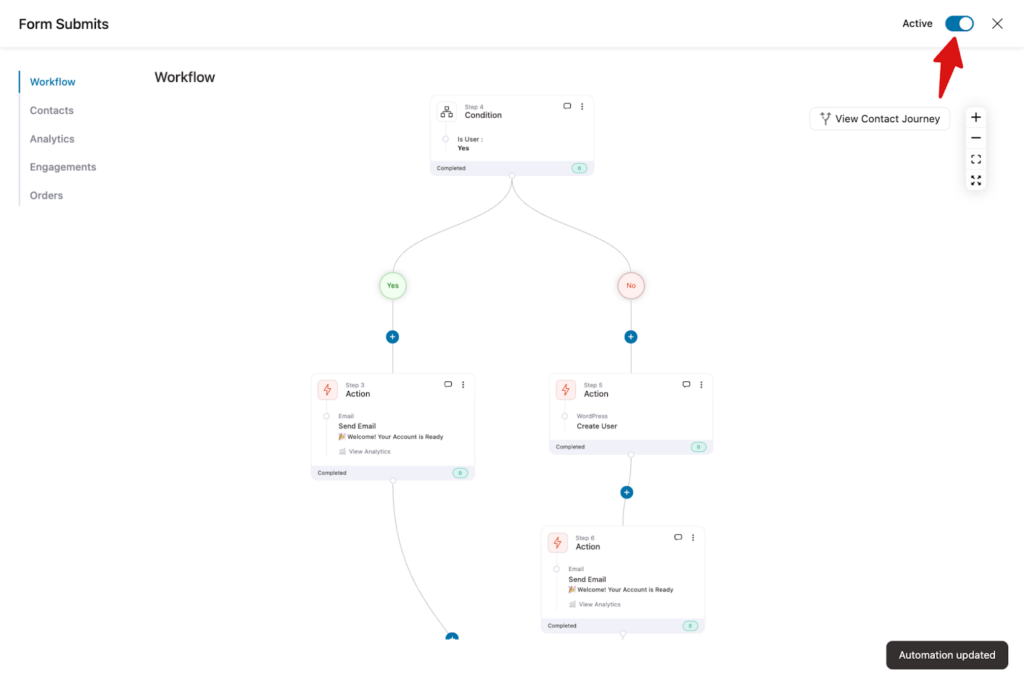
Once the automation is set properly, activate it.
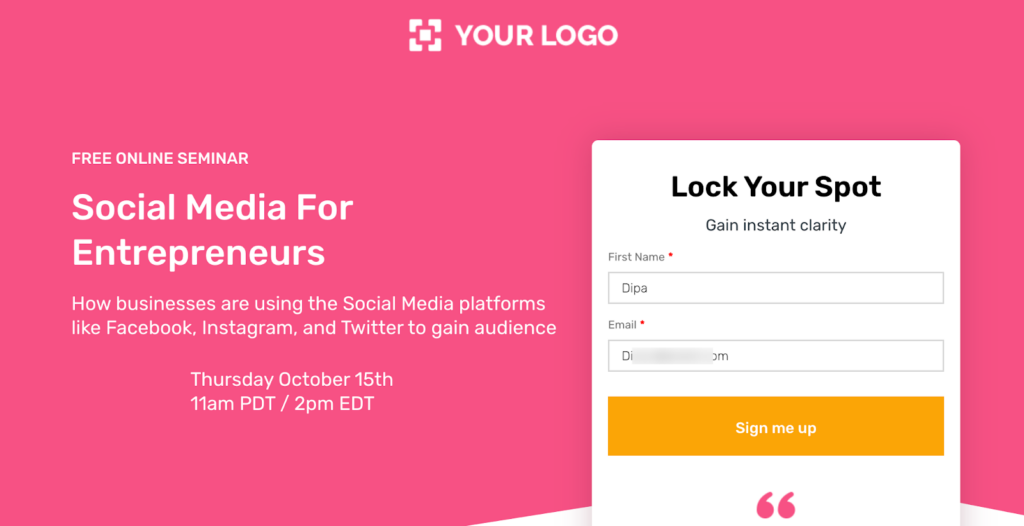
Testing the Link Triggers
To test the link triggers, sign up for the optin form.
After signing up, they will receive an email with a link trigger.
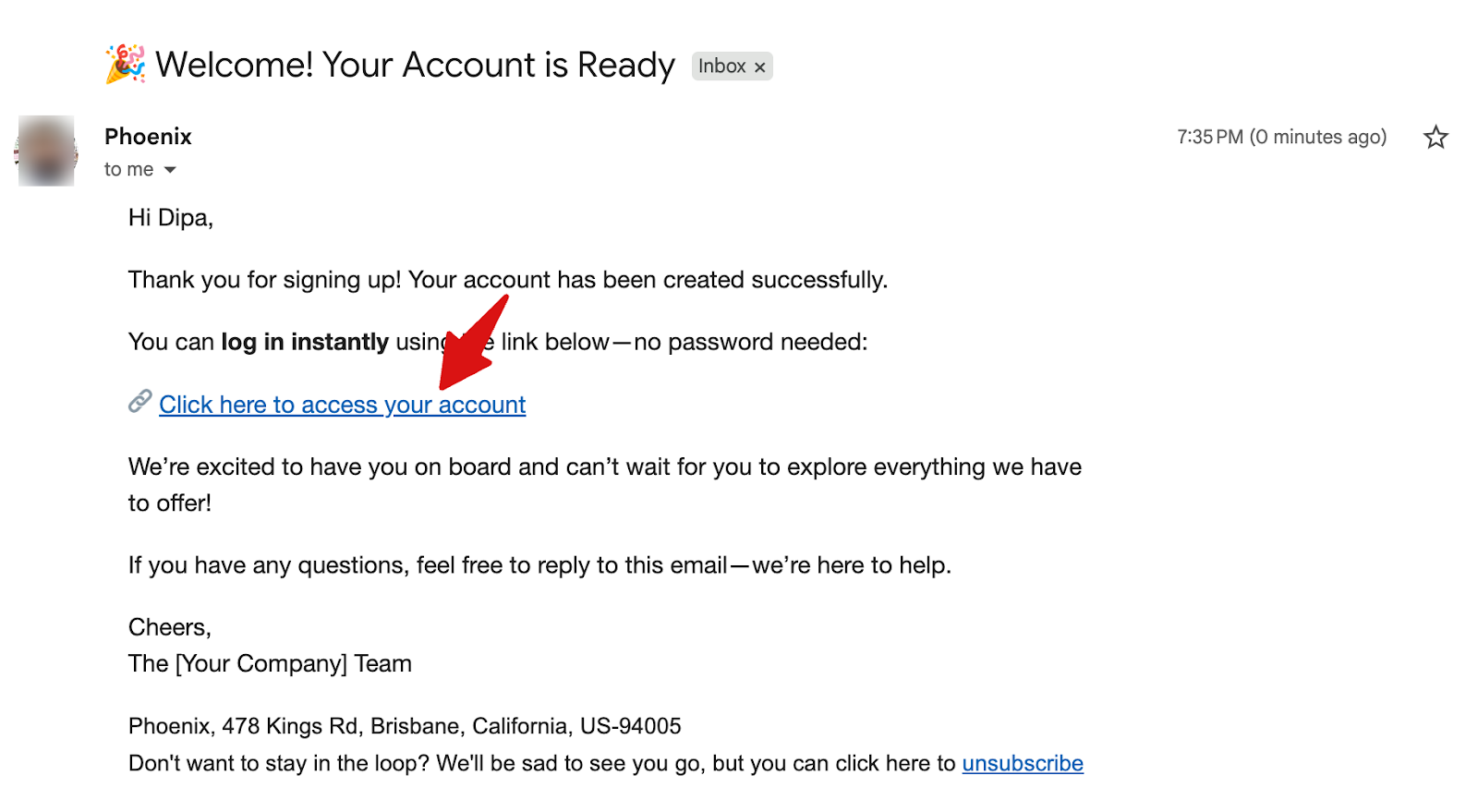
Whenever a user clicks on a particular link, they will be redirected to the URL you have specified. In this case, the my account page.
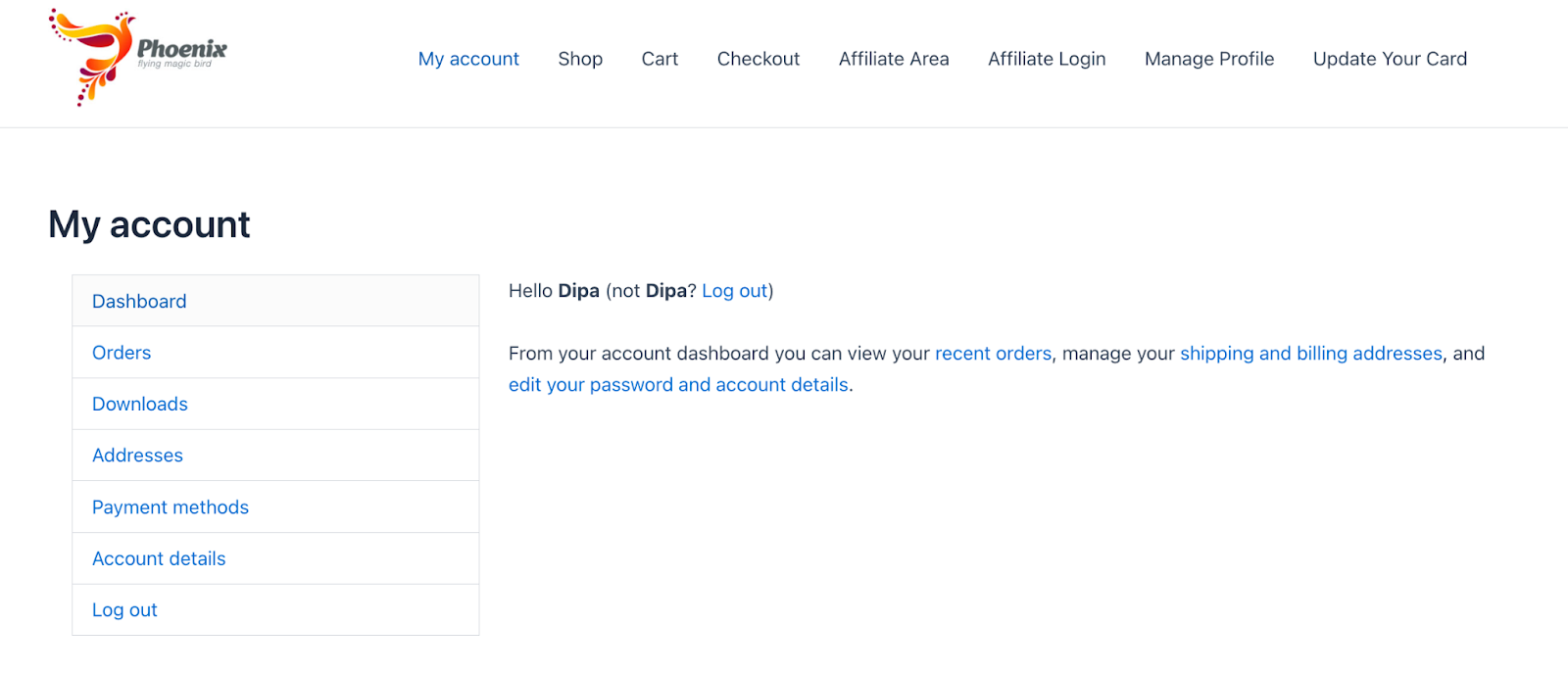
Well done! You have successfully created and tested the Link Triggers in FunnelKit Automations.


