


This documentation explains how to apply Conditional Content in Transactional Emails in FunnelKit Automations.
Conditional content displays specific email sections based on order details, customer data, or other criteria, ensuring each recipient sees only relevant information.

How to Apply Conditional Content In Transactional Emails
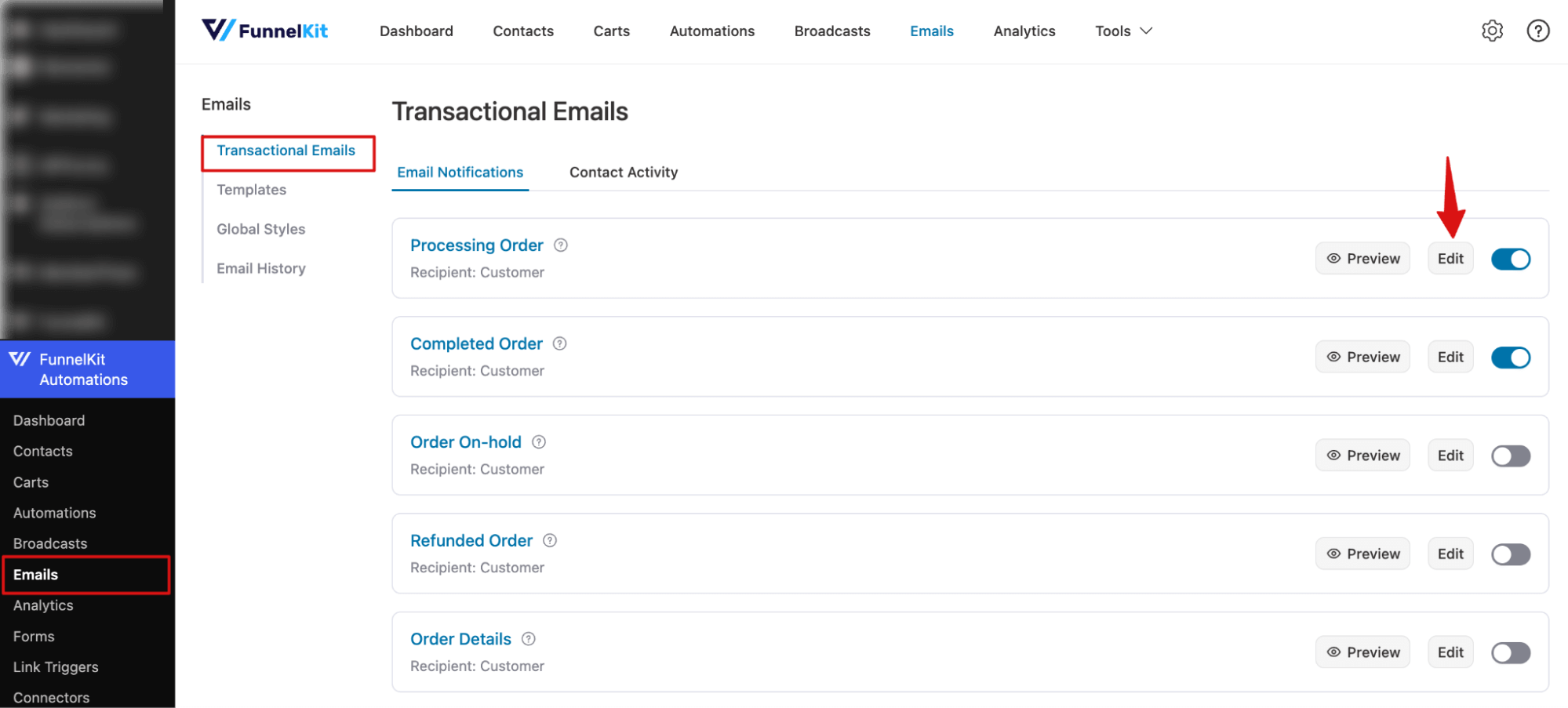
Step 1: Navigate to the email template
Go to FunnelKit Automations ⇒ Emails ⇒ Transactional Emails. Select the email you want to edit and click Edit to open the visual email builder.
Step 2: Add Condition
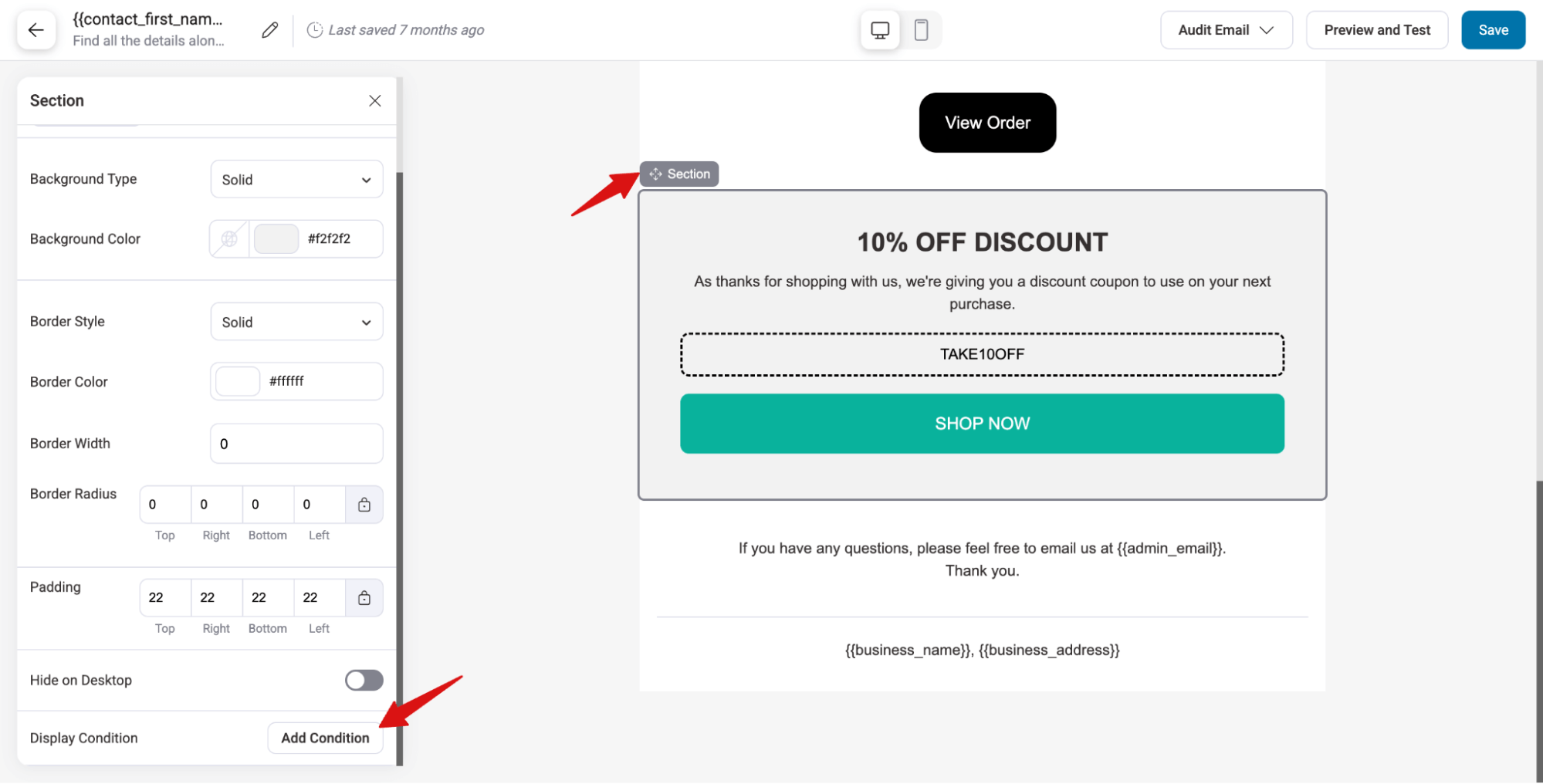
Select the block or section you want to make conditional, then click “Add Condition” next to Display Condition in the left panel.
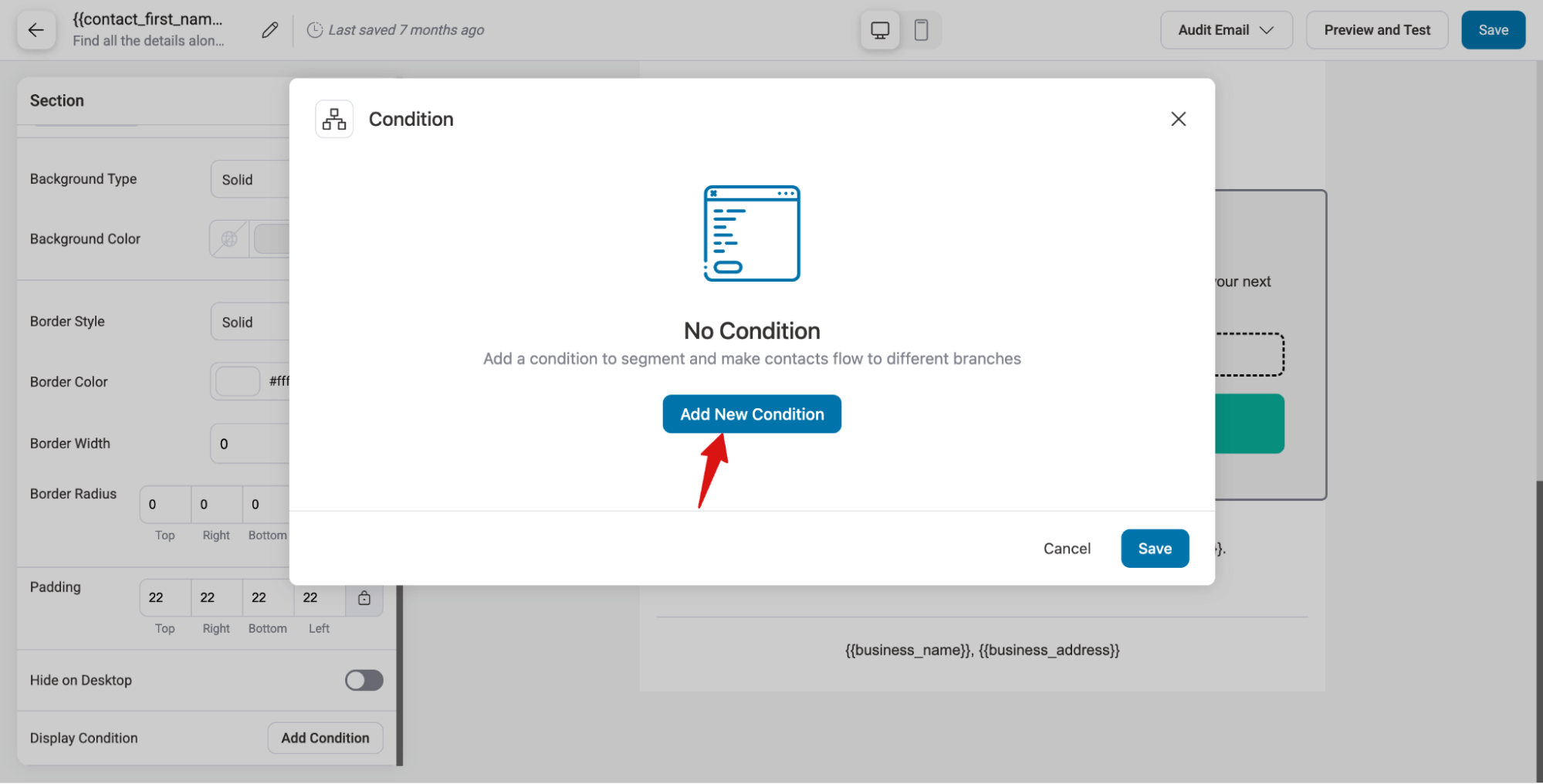
Click “Add New Condition”.
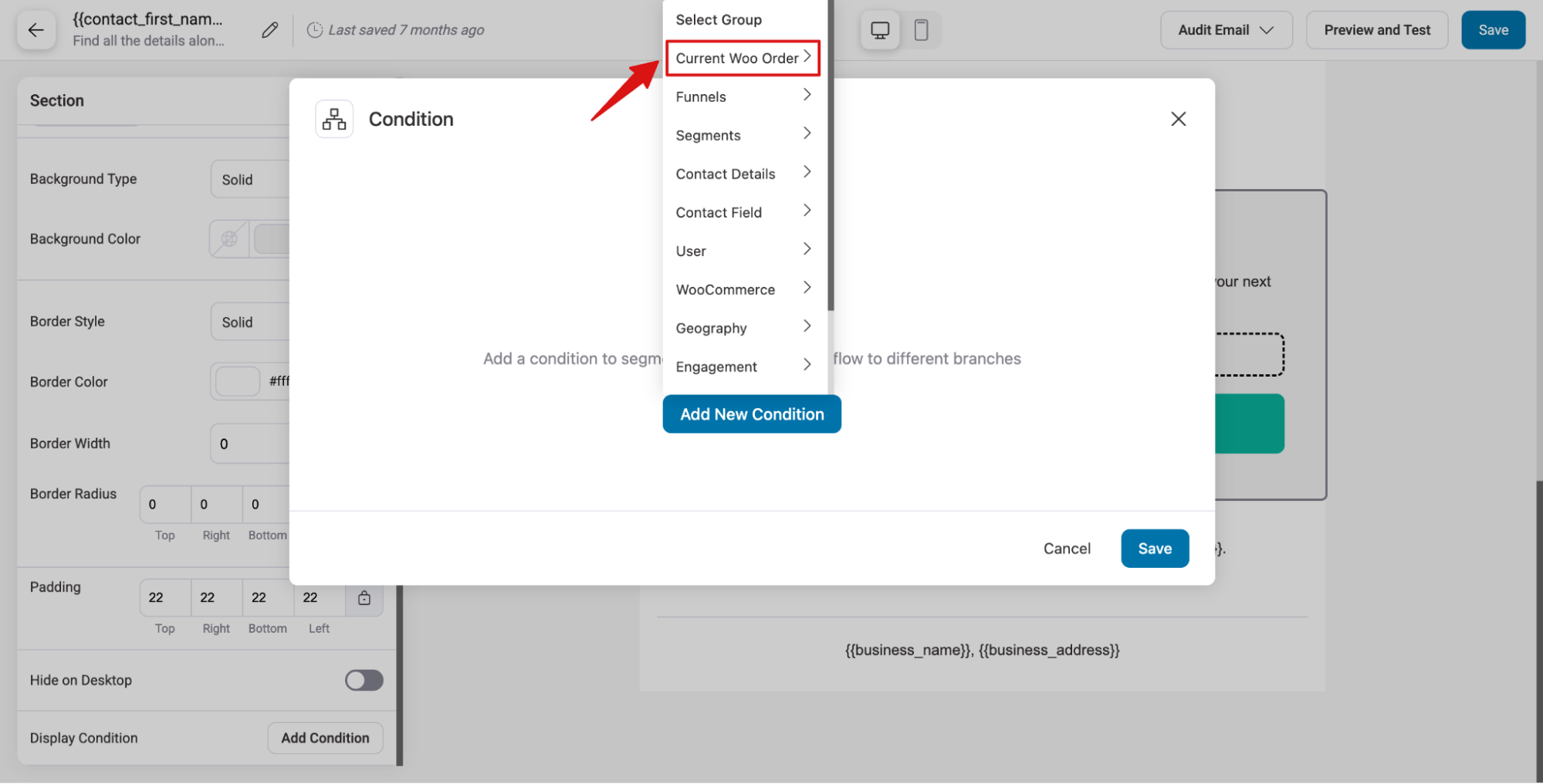
Select a Condition Group to control which content displays. Each group contains a set of conditions you can combine.
Example: To display the Discount Section only for orders over $200, use a condition to set this threshold.
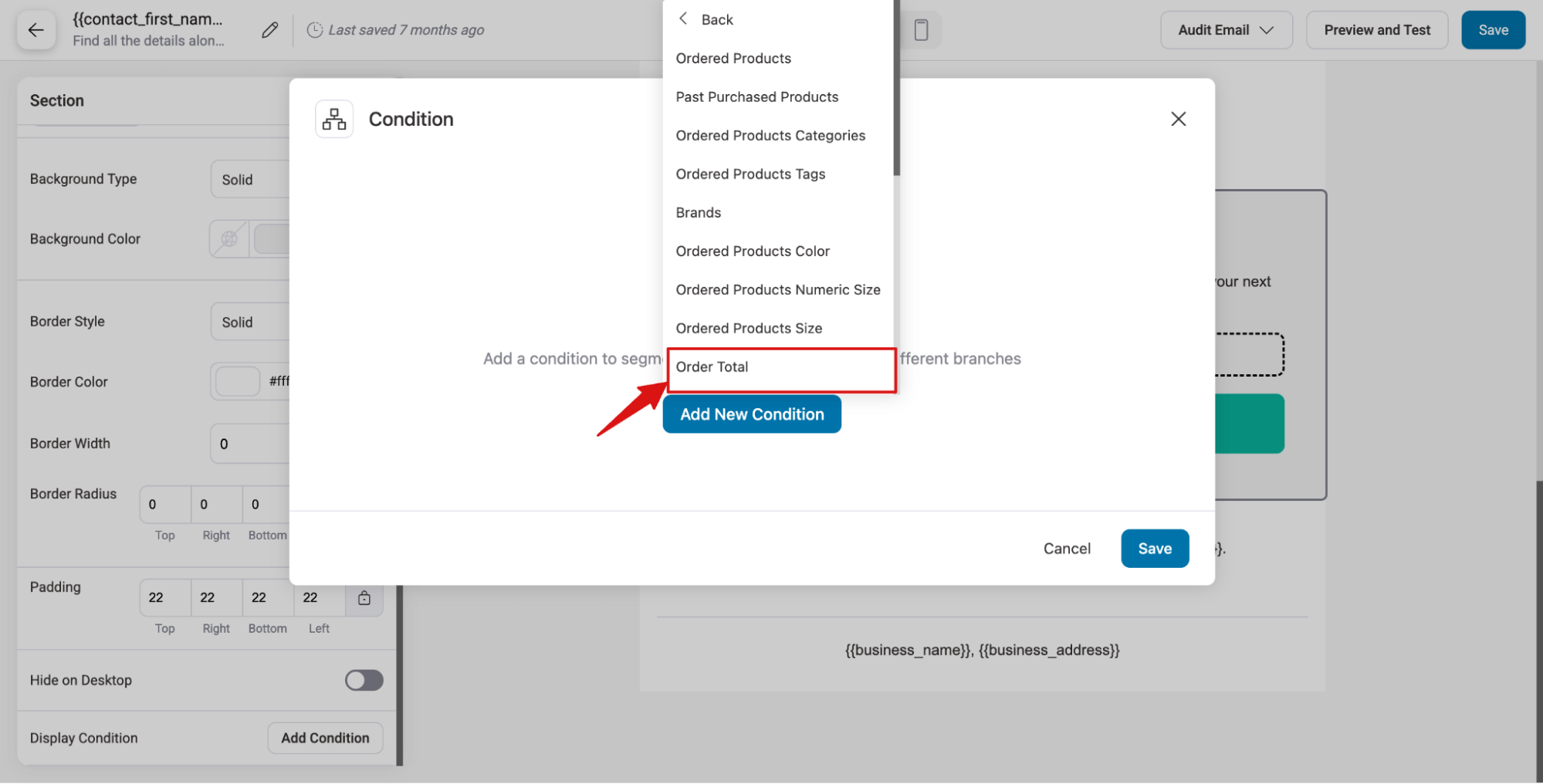
For this example, select the “Current Woo Order” group.
Then select “Order Total”.
Now you can set the condition. Choose the operator and then enter the value.
In this example, we select “Is greater or equal to” as the operator and enter 200 as the value.
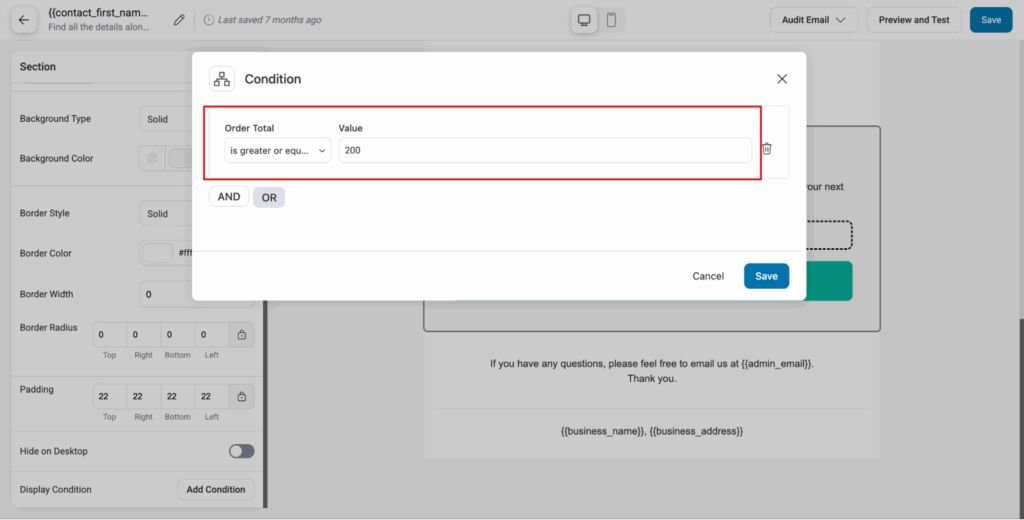
Save to make the section conditional.
Step 3: Place Two Test Orders
Place two test orders:
Create one order that meets the condition (e.g., order total ≥ 200) and another that doesn’t. This verifies that conditional content displays correctly.
This will allow you to verify that the conditional content is displaying correctly.
How to Apply Multiple Conditions to Content In Transactional Emails
Apply multiple conditions to control when content displays.
Use two operators: AND and OR.
- Use AND to require that all conditions are true for the block to appear,
- Use OR to allow the block to appear if any one condition is true.
AND Operator
For example, along with the existing condition of Order Total over $200, we can also check if the person is a VIP (user has a VIP tag). This way, we will only offer the discount to high-value orders.
For this, hit the AND icon to select a group.
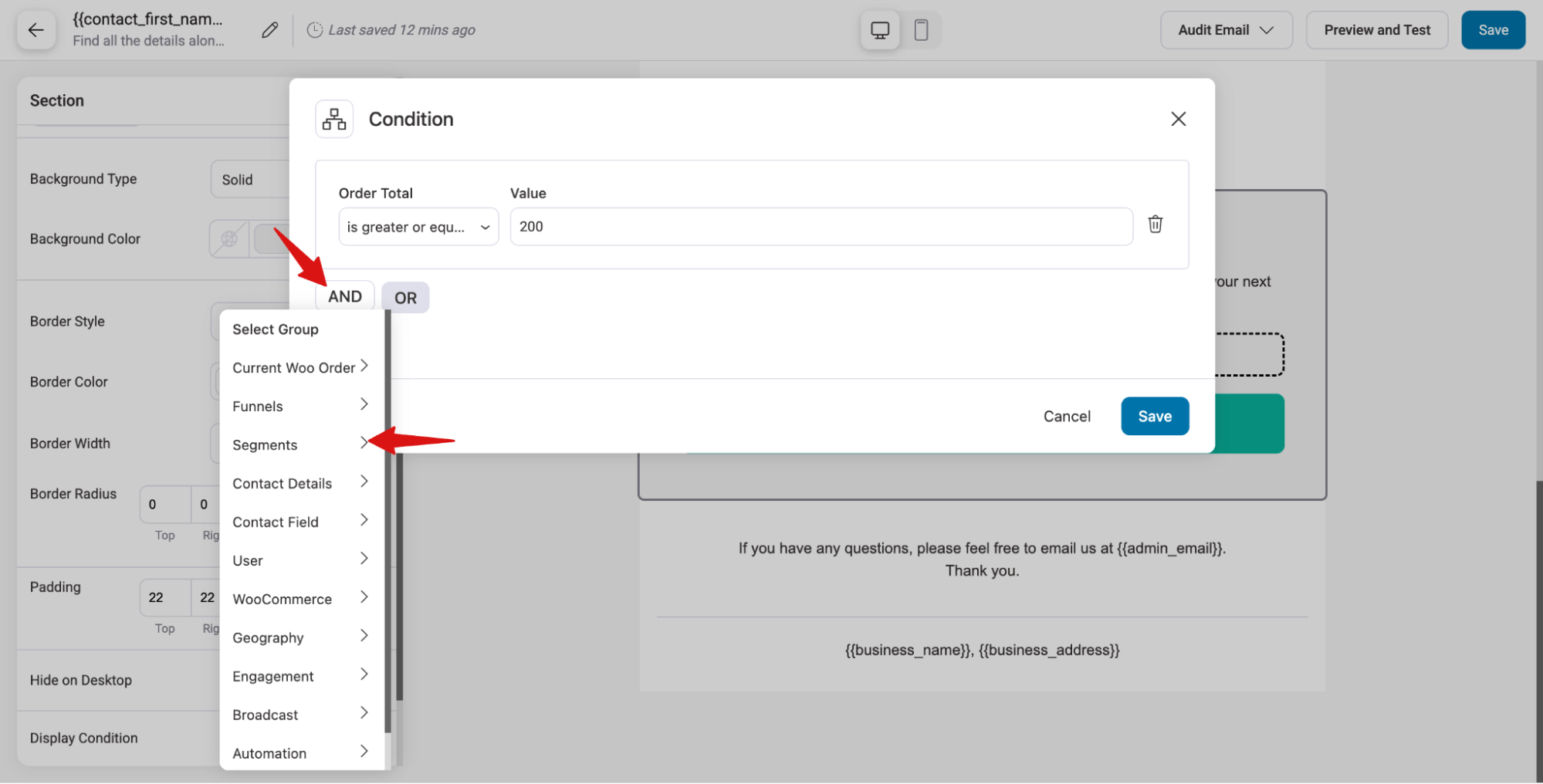
Then select the value and set the condition. In this example, we choose Tags under Segments and set it to have a tag “VIP.”
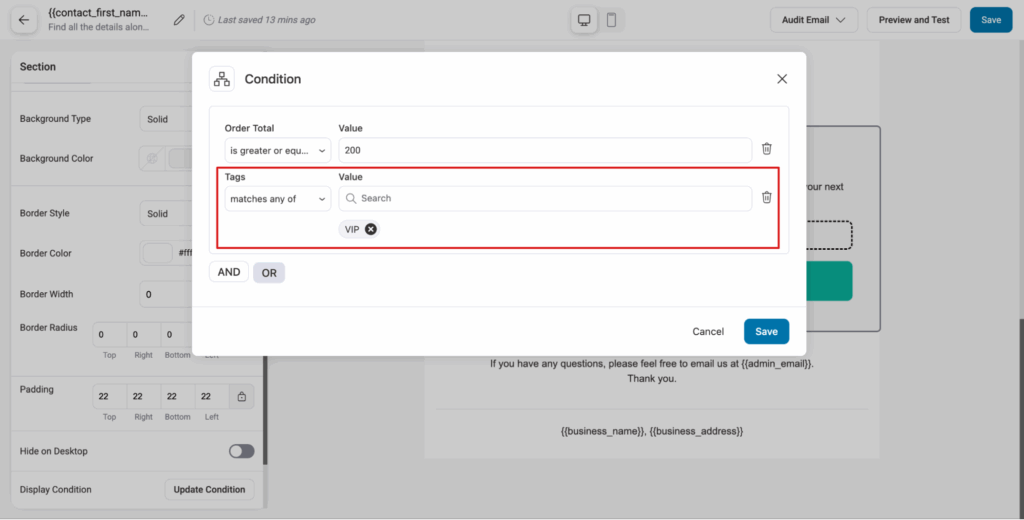
Now the block will be visible when both conditions are met.
OR Operator
The OR operator comes into play when you want the block to appear if any one of the conditions is met.
Continuing with the example, we want to provide a discount to high-value customers. Using the AND operator, we check that the customer is a VIP and the current order total is over $200.
Alternatively, with the OR operator, we can show the discount if either of those conditions is true, or if the customer’s average order value is over 150. This allows us to target high-value customers even if the current order alone does not meet the threshold.
For this, hit the OR button, then select the Group. Here, we are going with “WooCommerce”.
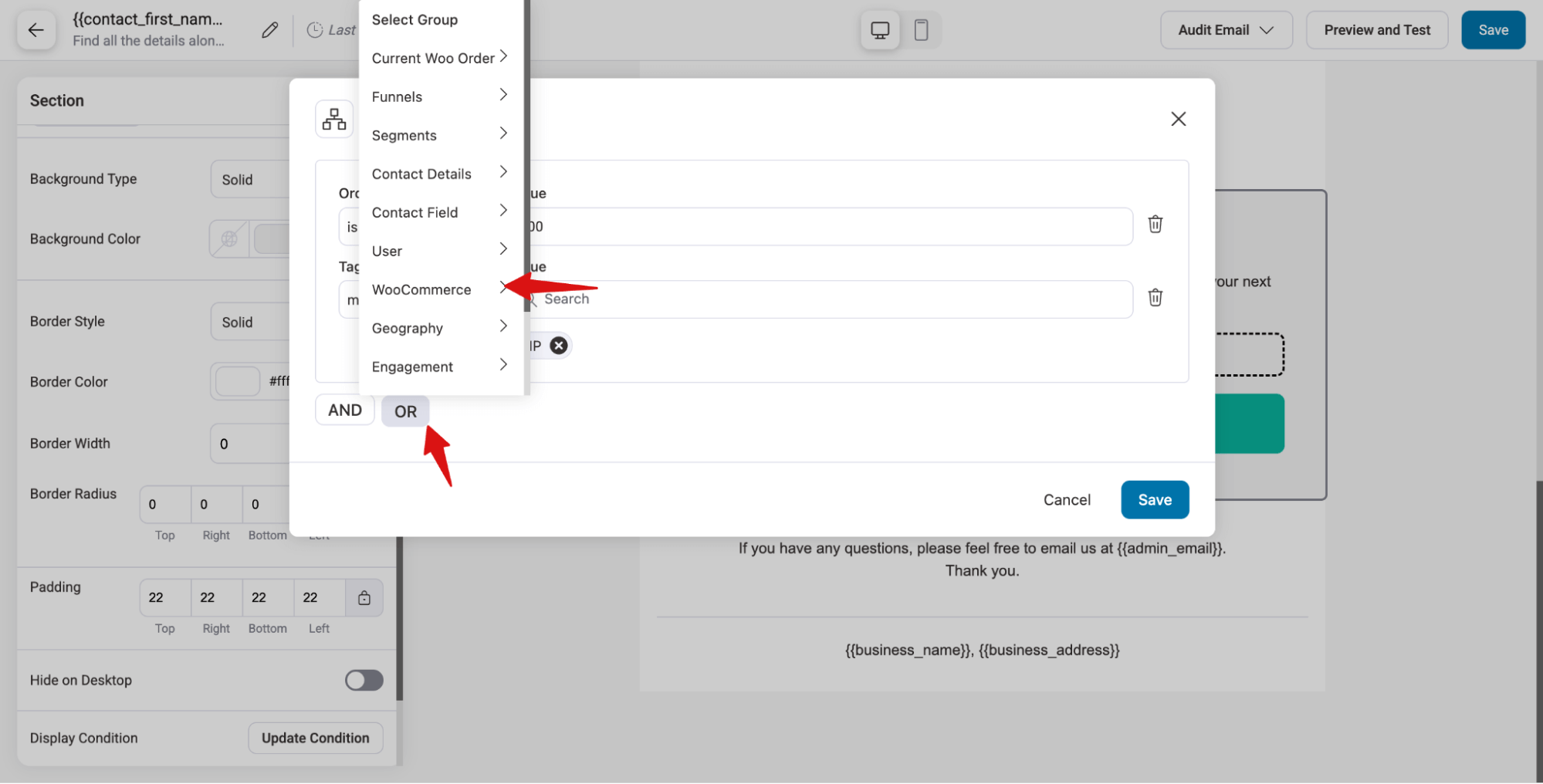
Next, select the value and set the condition. In our case its “Average Order Value” is more than $150.
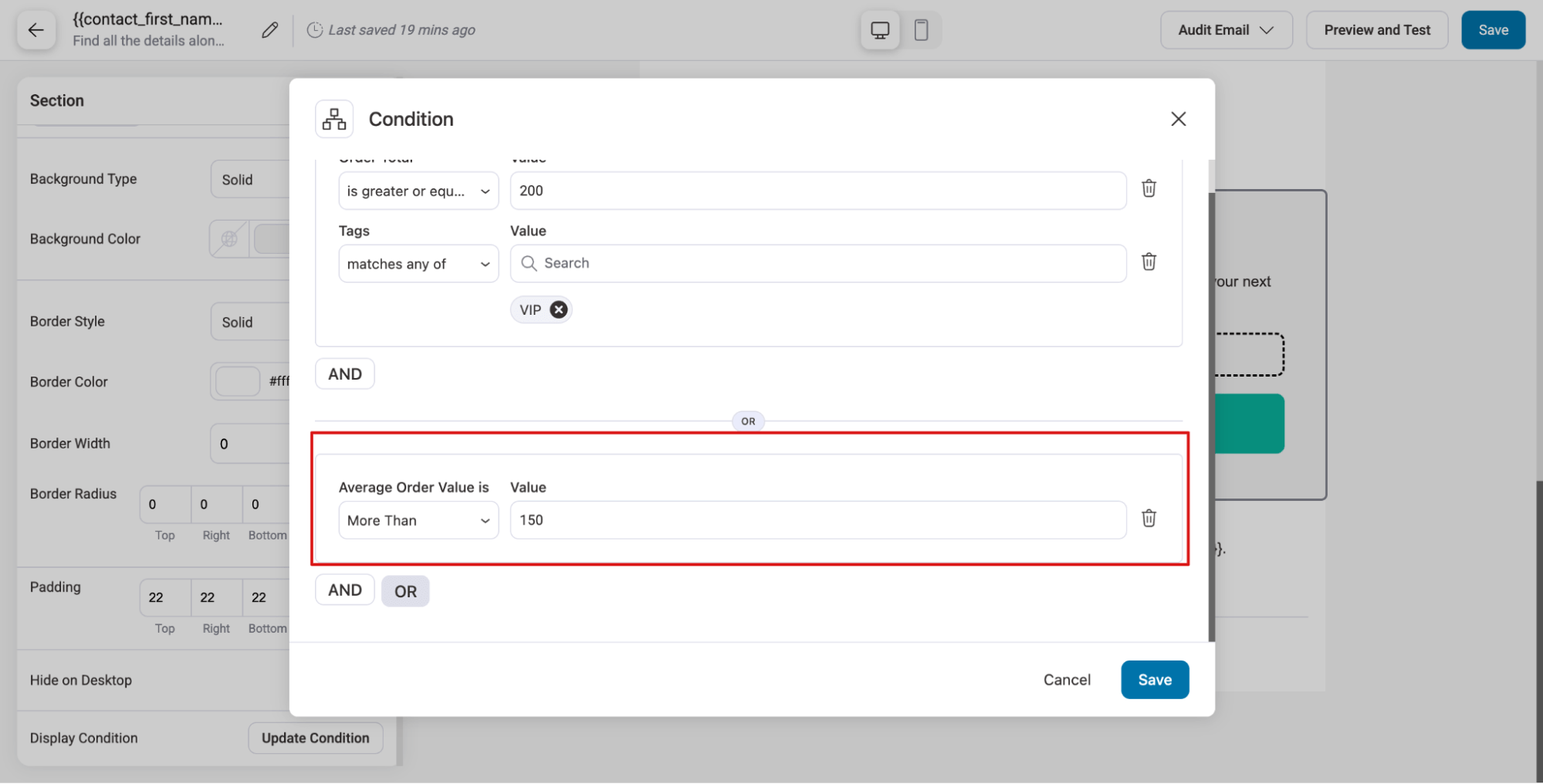
Make sure to hit Save to update.
This is how you can set multiple conditions for transactional emails.
List of Condition Groups and Parameters For Transactional Emails
Current Woo Order
Under this, you get 20 + parameters:
| Ordered Products | Past Purchased Products | Ordered Products Categories |
| Ordered Products Tags | Brands | Ordered Products Color |
| Ordered Products Numeric Size | Ordered Products Size | Order Total |
| Order Subtotal | Order Coupons | Order Has Coupon |
| Order Coupon Text | Order Payment Gateway | Order Shipping Method |
| Order Shipping Method Zone | Order Billing Country | Order Shipping Country |
| Order Custom Field | Is Guest Order | Is First Order |
| Order Status |
WooCommerce
Under WooCommerce, you get 12 parameters:
| Total Revenue | Total Orders Count | Purchased Products |
| Purchased Products Categories | Purchased Products Tags | Has Made A Purchase |
| Has Used Coupons | First order was | Last order was |
| Last order Days | Average Order Value is | Used Coupons |
Funnels
Under this, you get only one parameter: the checkout page.
Segments
Under segments, you get four: Tags, Lists, Audience and Status
Contact Details
Here, you get 9 parameters
| First Name | Last Name | |
| Phone | Contact Created | Contact Created (Days) |
| Company | Gender | Date of Birth |
Contact Field
Here, you get two: Campaign ID and Campaign Name
User
Here you get two values: Is User and User Role
Geography
Here you get 6 parameters: Country, State, Address 1, Address 2, City, and Post Code.
Engagement
Here, you get 8 parameters:
| Email Opens | Unengaged | Last Sent |
| Engaged | Link Trigger Clicked | Last Clicked |
| Last Login | Last Open |
Broadcast
Here, you get 3 parameters: Broadcast Sent, Broadcast Open, and Broadcast Clicked.
Automation
Here, you get 3 parameters: Has Ever Entered in Automation, Currently Active in Automation, and Completed the Automation.
DateTime
Here you get 6 parameters:
| Current Year | Current Day Of Month | Current Time |
| Current Month | Current Day Of Week | Current Date Time |


