Categories are used to group similar items based on type, purpose, or shared characteristics. They make it easier to organize, manage, and find forms efficiently.
Form Categories in FunnelKit Automations help you organize, manage, and filter your Forms efficiently for better workflow and clarity.
Create a Category
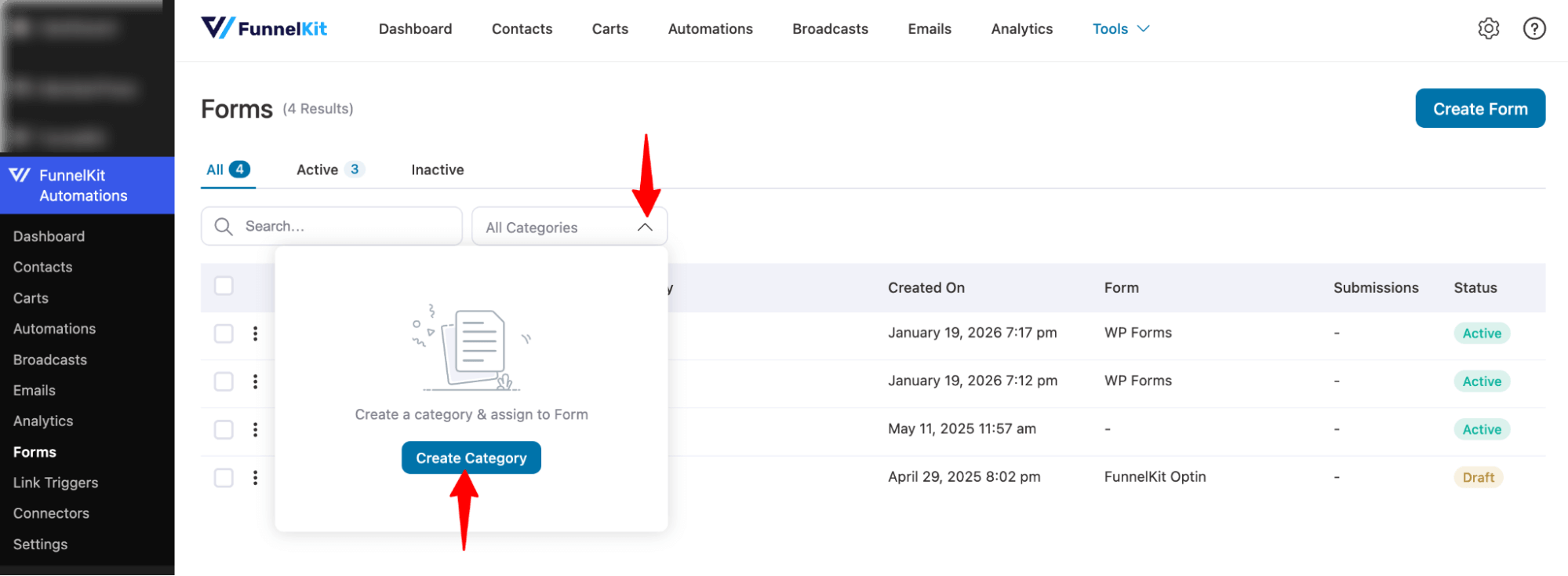
To create a category for Forms, expand the “All Categories” section and hit “Create Category”.
Next, provide a name and hit Create.
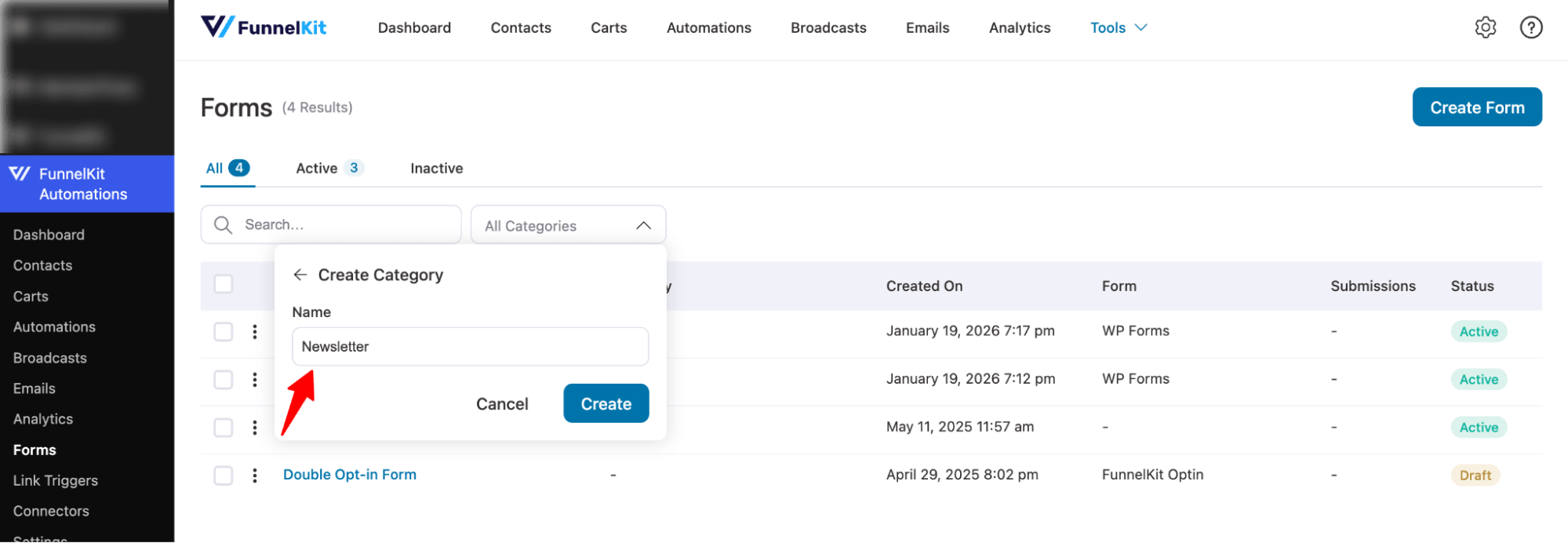
This will create a category for Forms.
Assign a Category to Forms
To assign a category to any single Form, hit the three vertical dots (⋮), then from the options select Assign category.
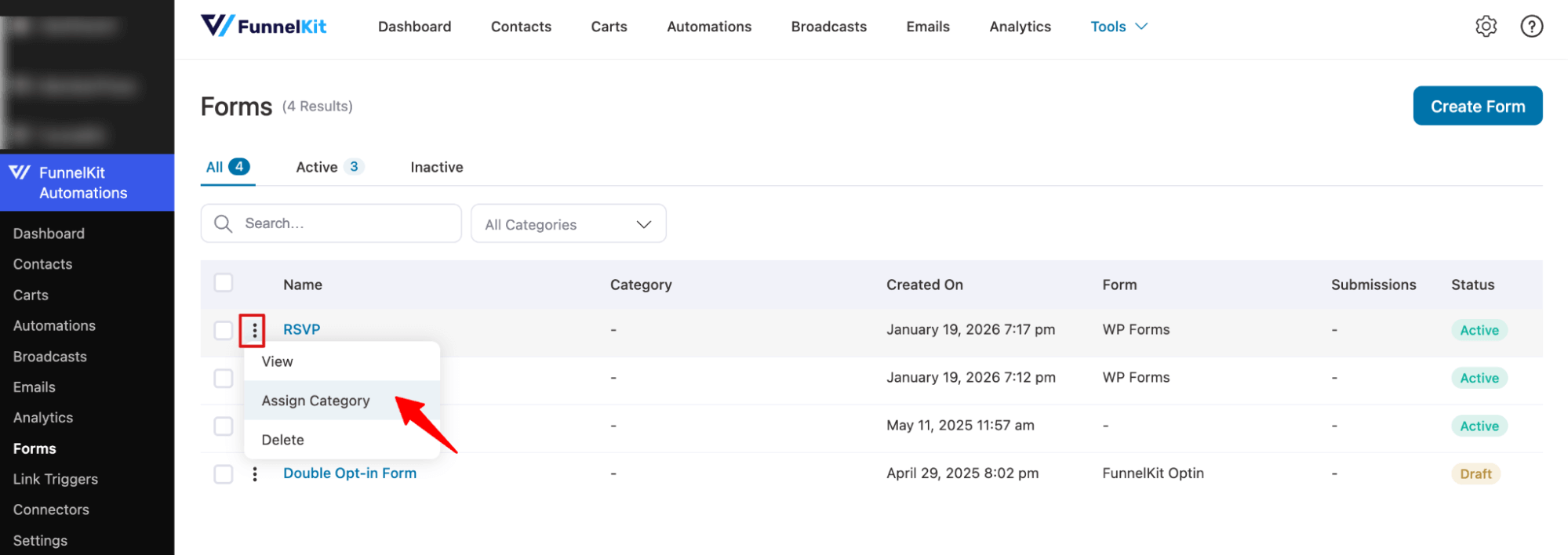
Now search and assign a category. You can assign multiple categories if you want.
Make sure to hit Save.
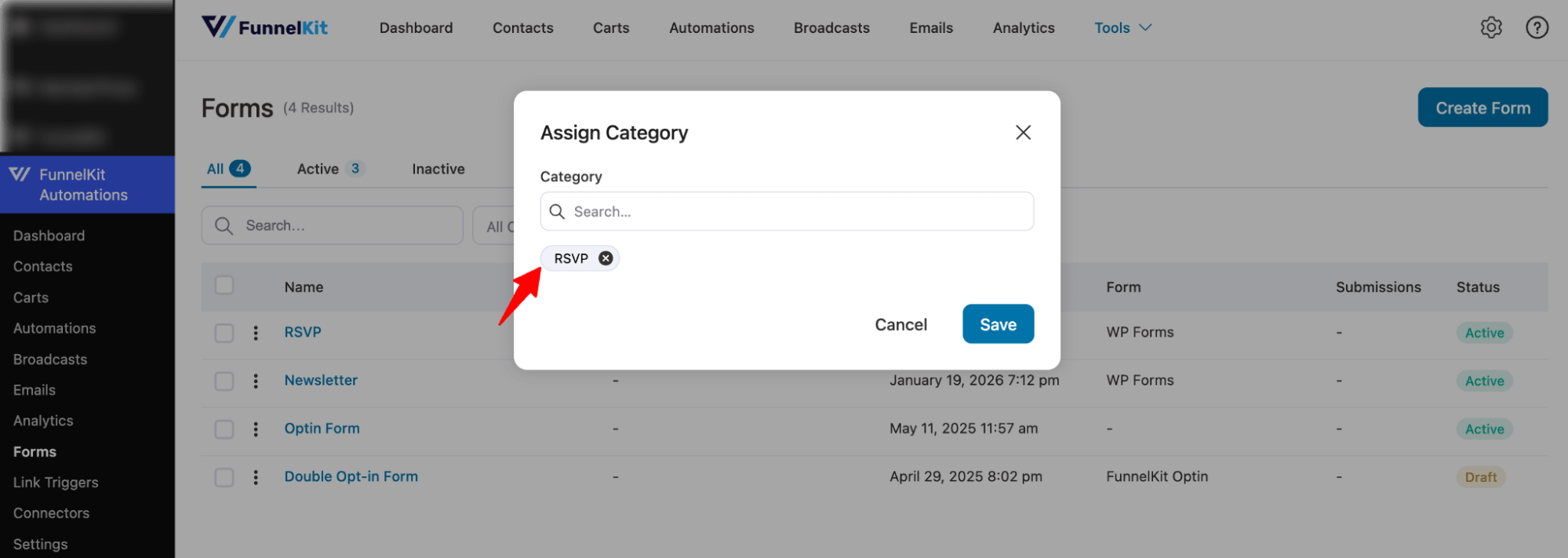
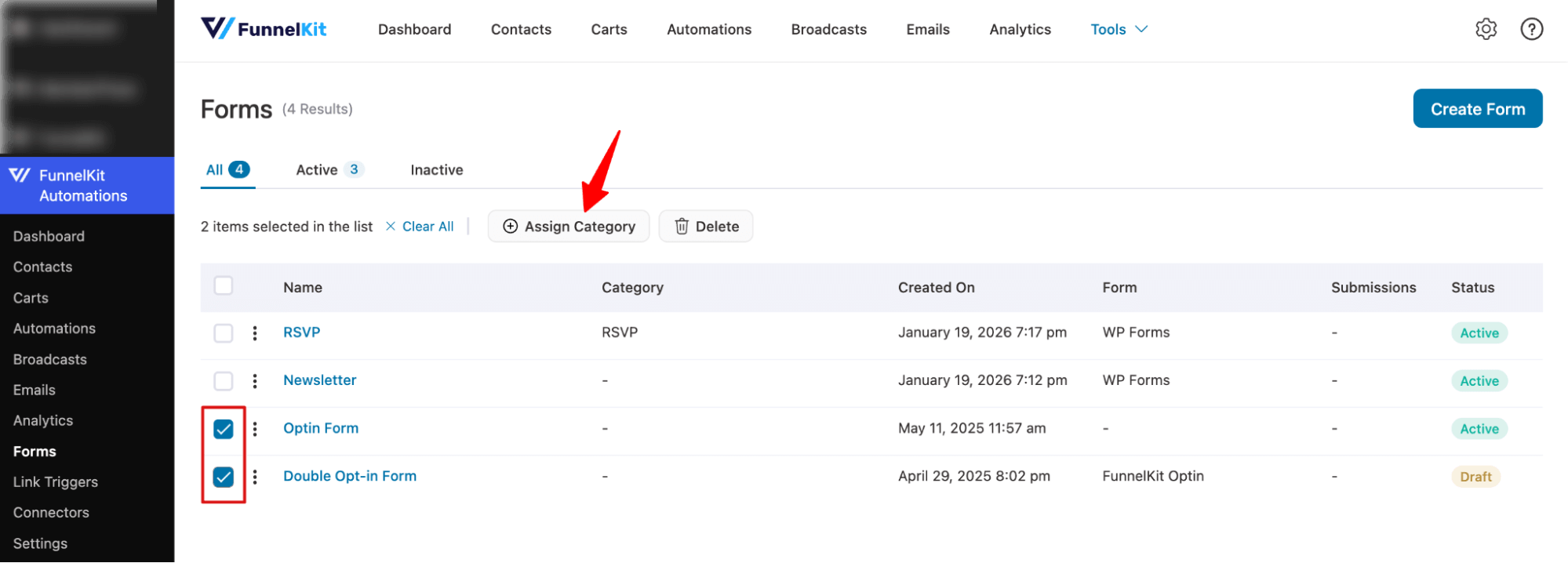
If you want, you can select multiple Forms and assign a category at the same time.
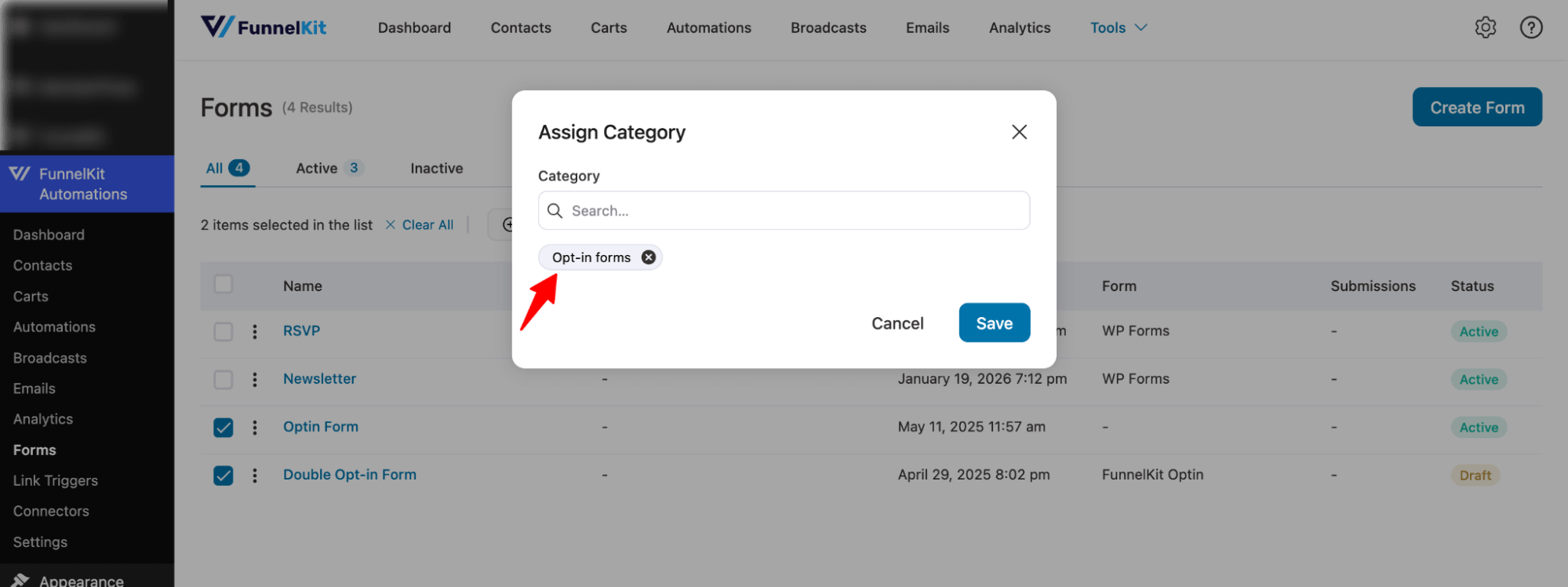
For this, click on the check box next to each Form, then hit Assign category on top.
Next, search for and add the category.
Unassign a Category
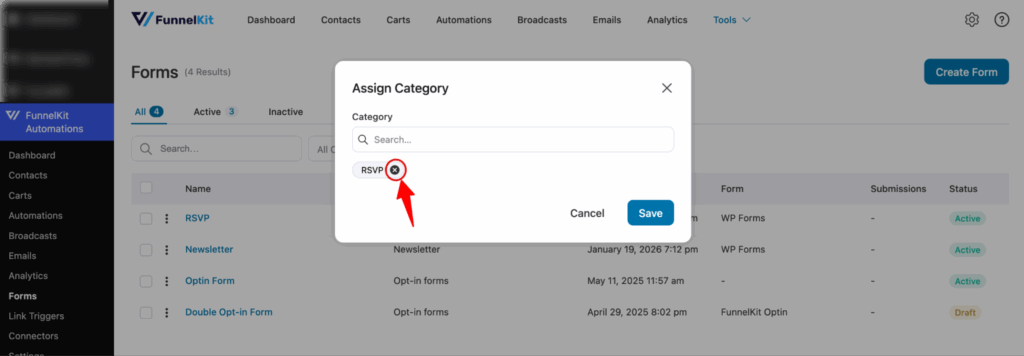
To unassign a category from any single Form, hit the three vertical dots (⋮) (⋮), then select Assign category from the options.
Next, click the X icon next to the assigned category. Make sure to hit Save to apply the changes.
Filter By Category
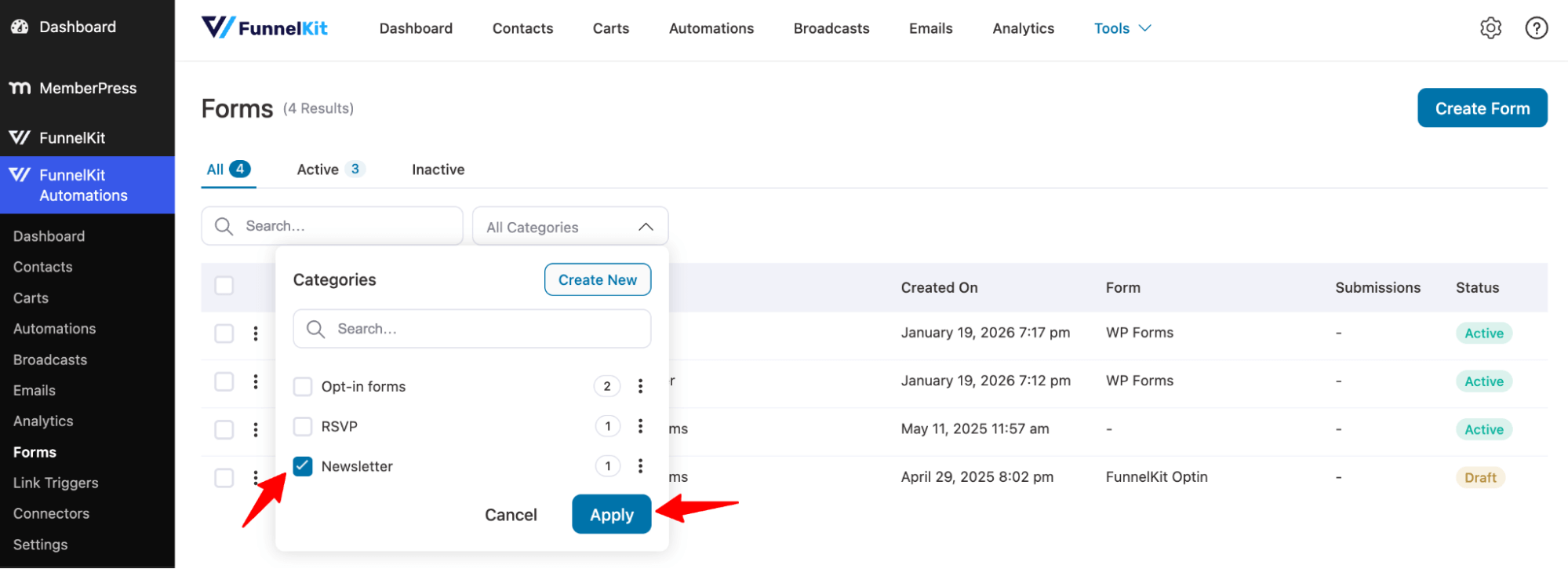
To filter by Form category, select any of the categories by checking and hit Apply.
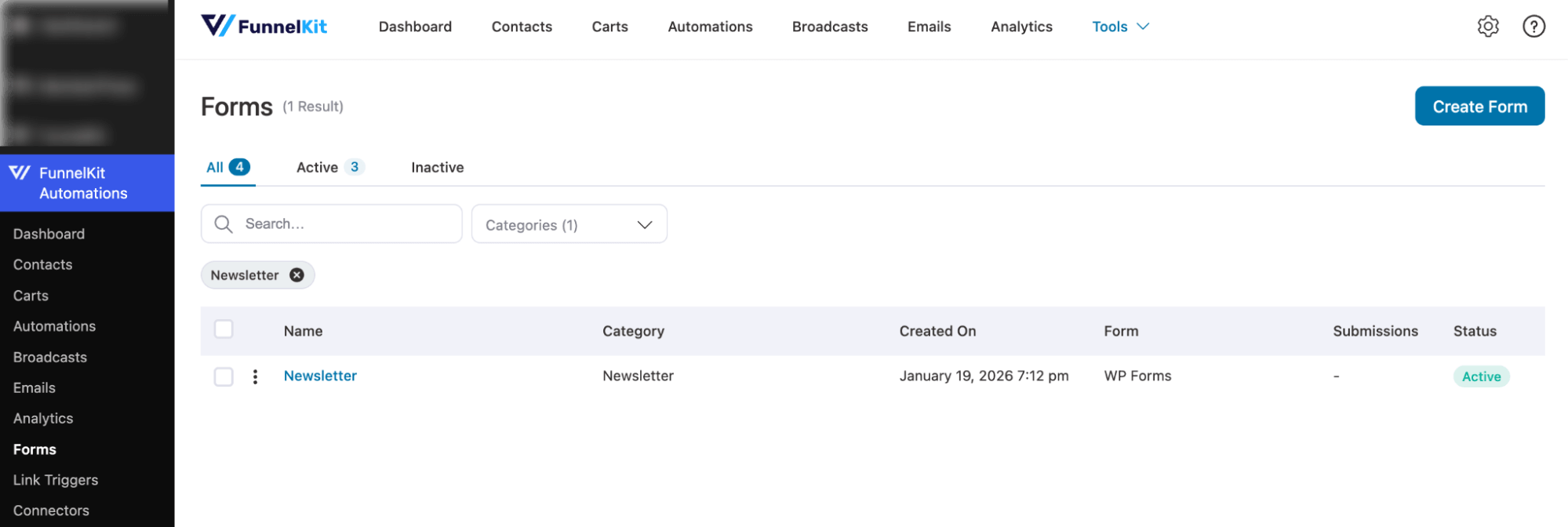
Now you should see the filtered categories.
Delete Category
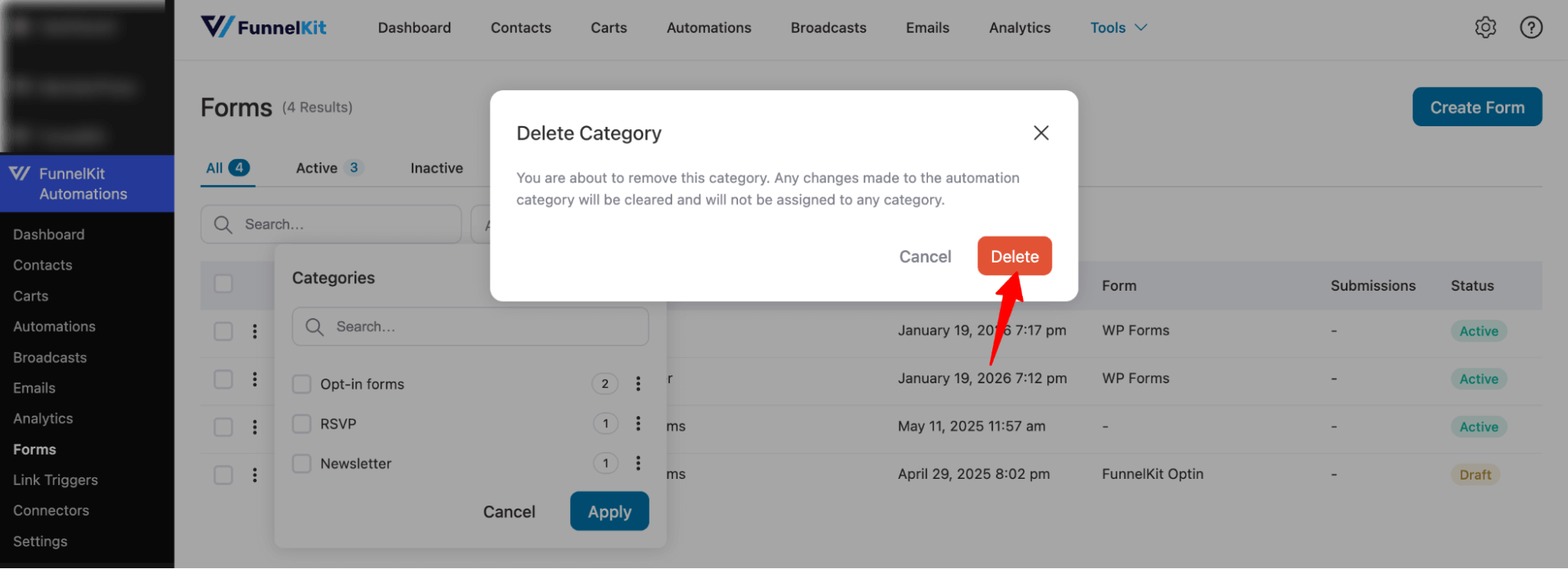
To delete any category, expand All Categories, click on the three vertical dots, and hit the Delete option.
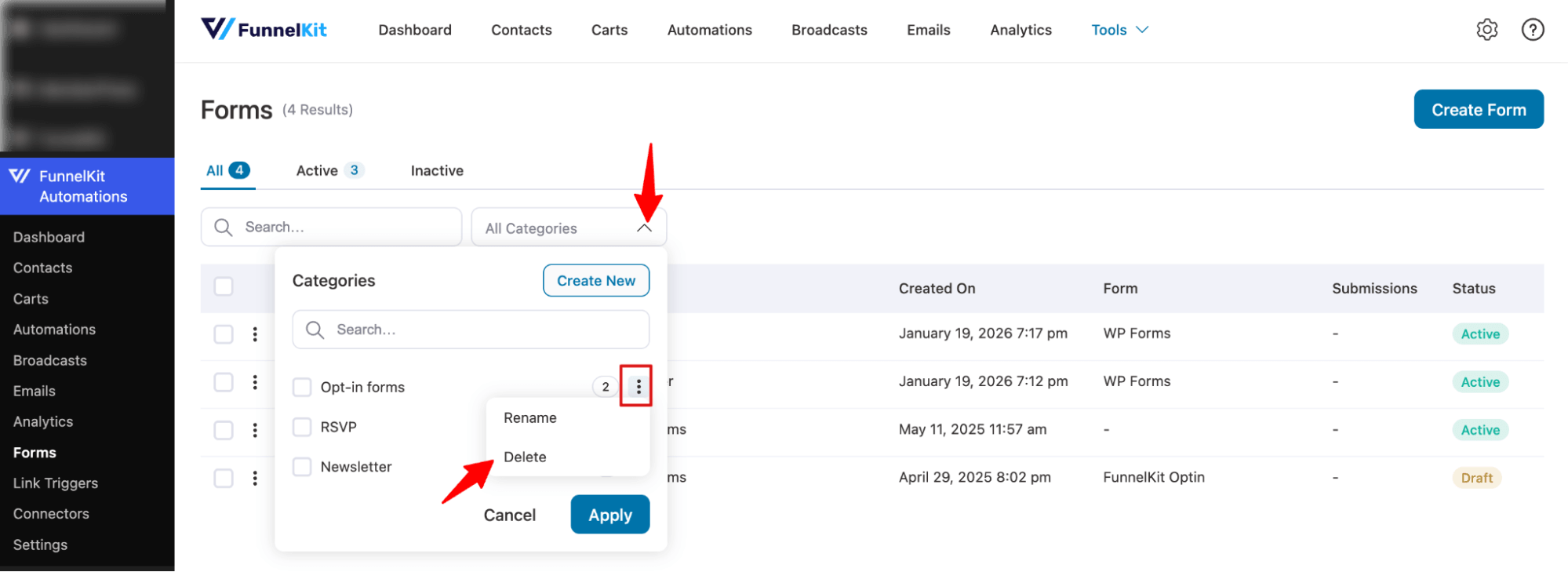
Finally, confirm the deletion to permanently delete it.