This document explains how FunnelKit Automations links WooCommerce orders to contacts and what steps are required when a customer’s email address is updated.
How FunnelKit Automations Links Orders to Contacts
FunnelKit Automations fetches and syncs order data from WooCommerce based on the customer or billing email address.
- If a contact profile already exists with that email, the order is linked to the existing profile.
- If no profile exists, FunnelKit Automations automatically creates a new contact profile.
FunnelKit Automations maintains separate database tables for:
- Contact data (email address, first name, last name, etc.)
- Order data
Orders are linked internally to a contact profile ID, not dynamically updated based on later email changes.
What Happens When You Update a Contact Email
When you update the email address directly on an FunnelKit Automations contact profile:
- The email is updated in the FunnelKit Automations contact table
- Existing orders remain unchanged
- Orders are still associated with the original email and profile linkage
This means simply editing the contact email does not move or relink orders to the updated email address.
How to Correctly Update an Email and Relink Orders
To change a customer’s email address and ensure all orders are linked correctly, follow these steps:
Step 1: Update the Email in WordPress and Orders
Update the user’s email address in the WordPress user account (if applicable). Edit the relevant WooCommerce orders and update the billing email address to the new email

Ensure all affected orders use the correct customer email.
Step 2: Resync Orders Using WooCommerce Import
After updating the email address in orders, you must resync the data:
For this, in FunnelKit Automations, go to the FunnelKit Automations ⇒ Contacts tab, click Import, and choose Create New.

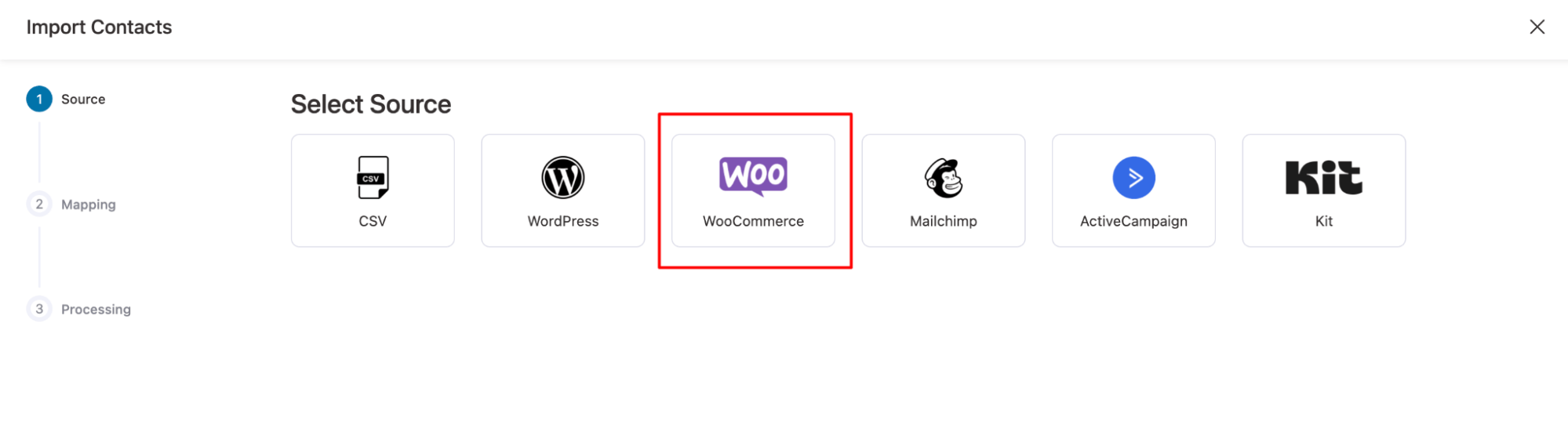
Select WooCommerce as the source.
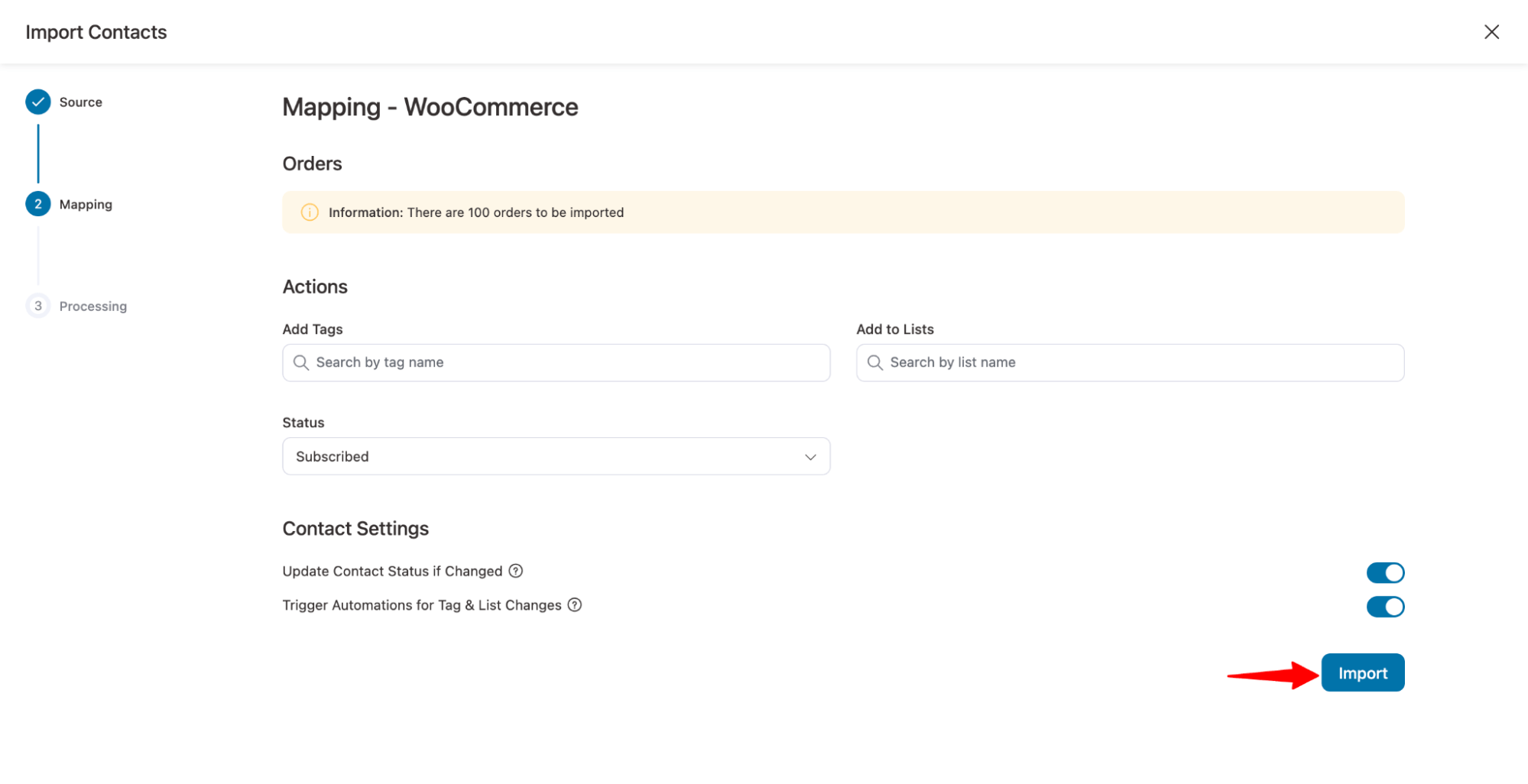
Configure contact settings, tags, lists, etc, and Import.
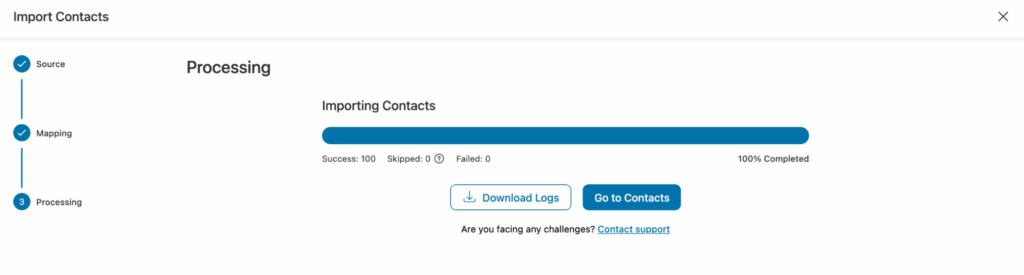
Once the import is completed, WordPress user data and WooCommerce orders are synced. As a result, orders are linked to the correct FunnelKit Automations contact profile, and automation triggers and contact data work as expected.