


Follow the step-by-step guide to import your contacts from the AffiliateWP plugin into FunnelKit Automations.
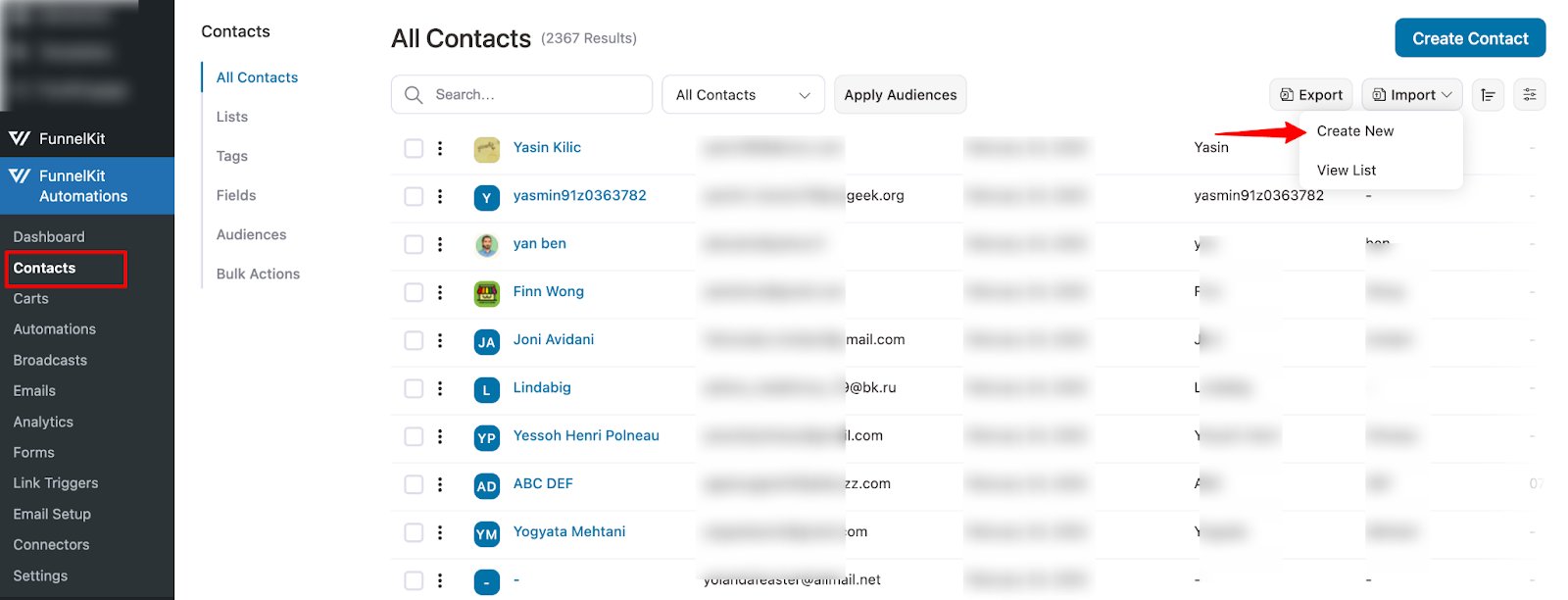
Step 1: Go to the Contacts tab in FunnelKit Automations and click on Import
Navigate to FunnelKit Automations ⇒ Contacts. Then,click on the 'Import' button and hit Create New.
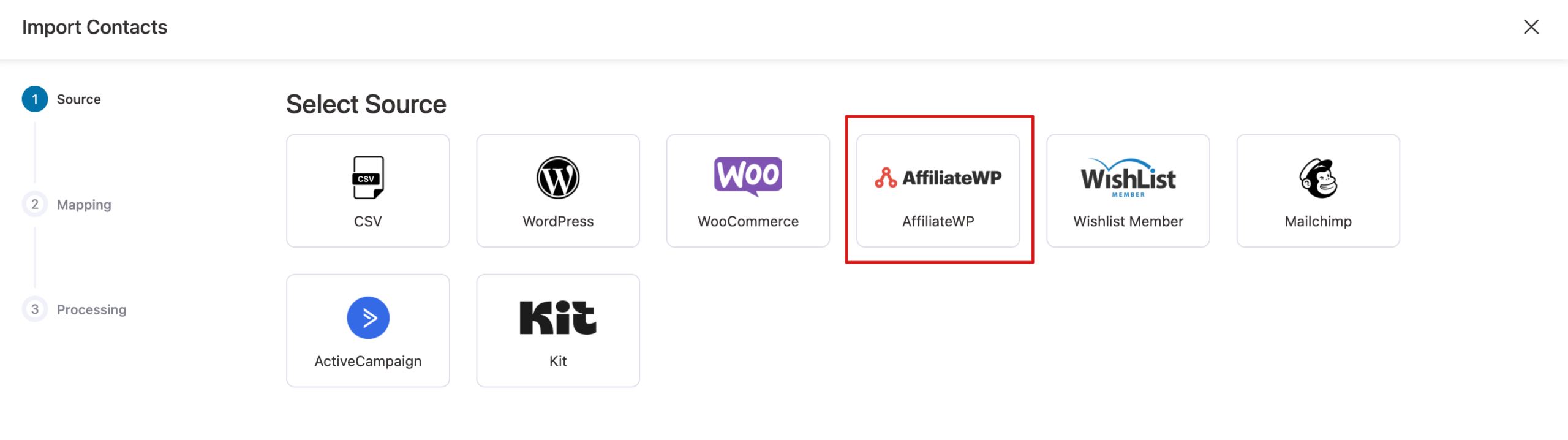
Step 2: Select AffiliateWP as the source
Select source as AffiliateWP
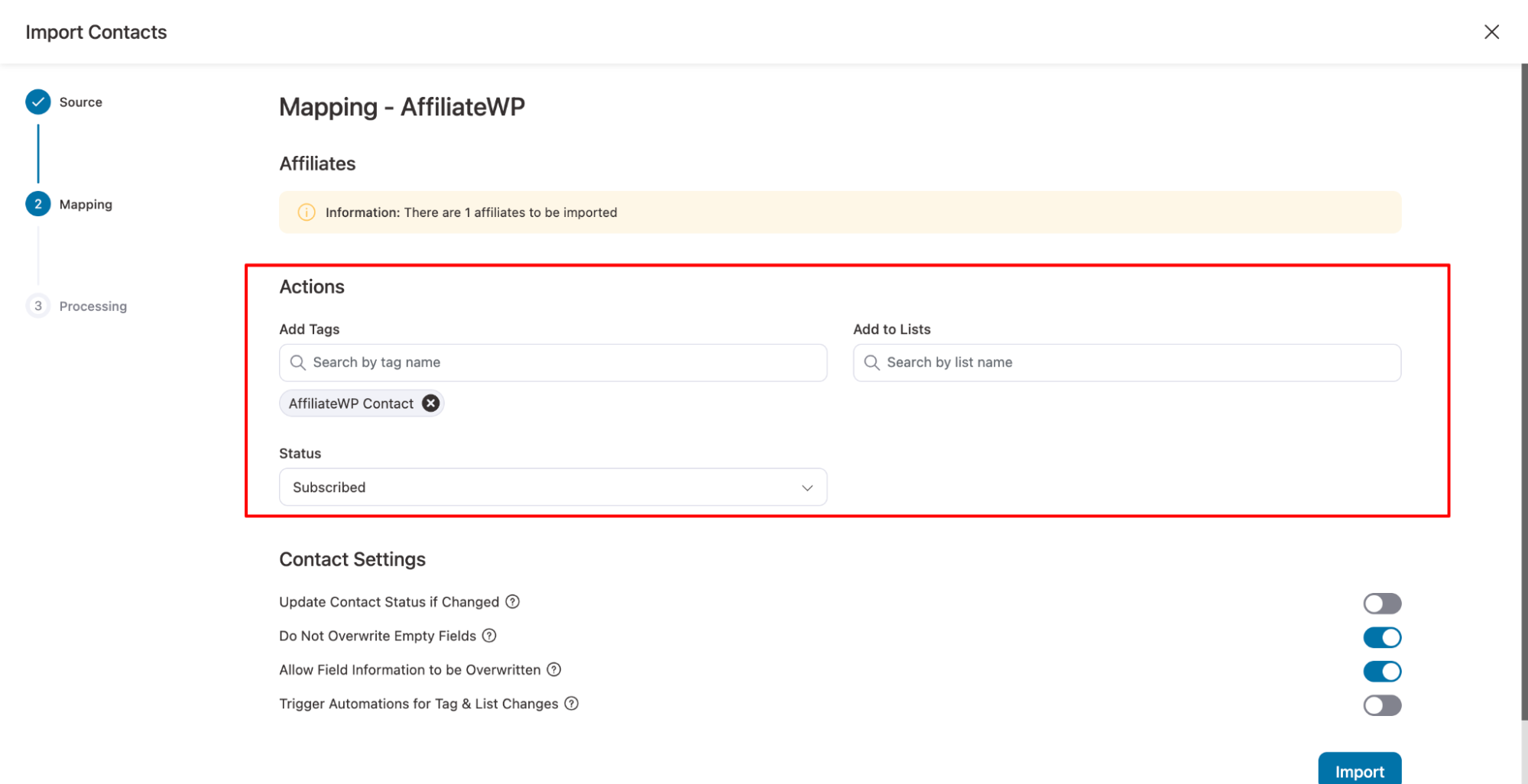
Step 3: Set the actions
Under Actions, you can add tags, add to lists, and set subscription status.
Step 4: Configure the contact profile
After that, set the following:
- Update Contact Status if Changed: Automatically update a contact’s status (like from lead to customer) if it changes in the imported data.
- Do Not Overwrite Empty Fields: Prevents blank fields in your import file from replacing existing contact information.
- Allow Field Information to be Overwritten: Lets the import update and overwrite existing contact fields with new values.
- Trigger Automations for Tag & List Changes: Enables automation workflows to run when a contact’s tag or list is updated during import.
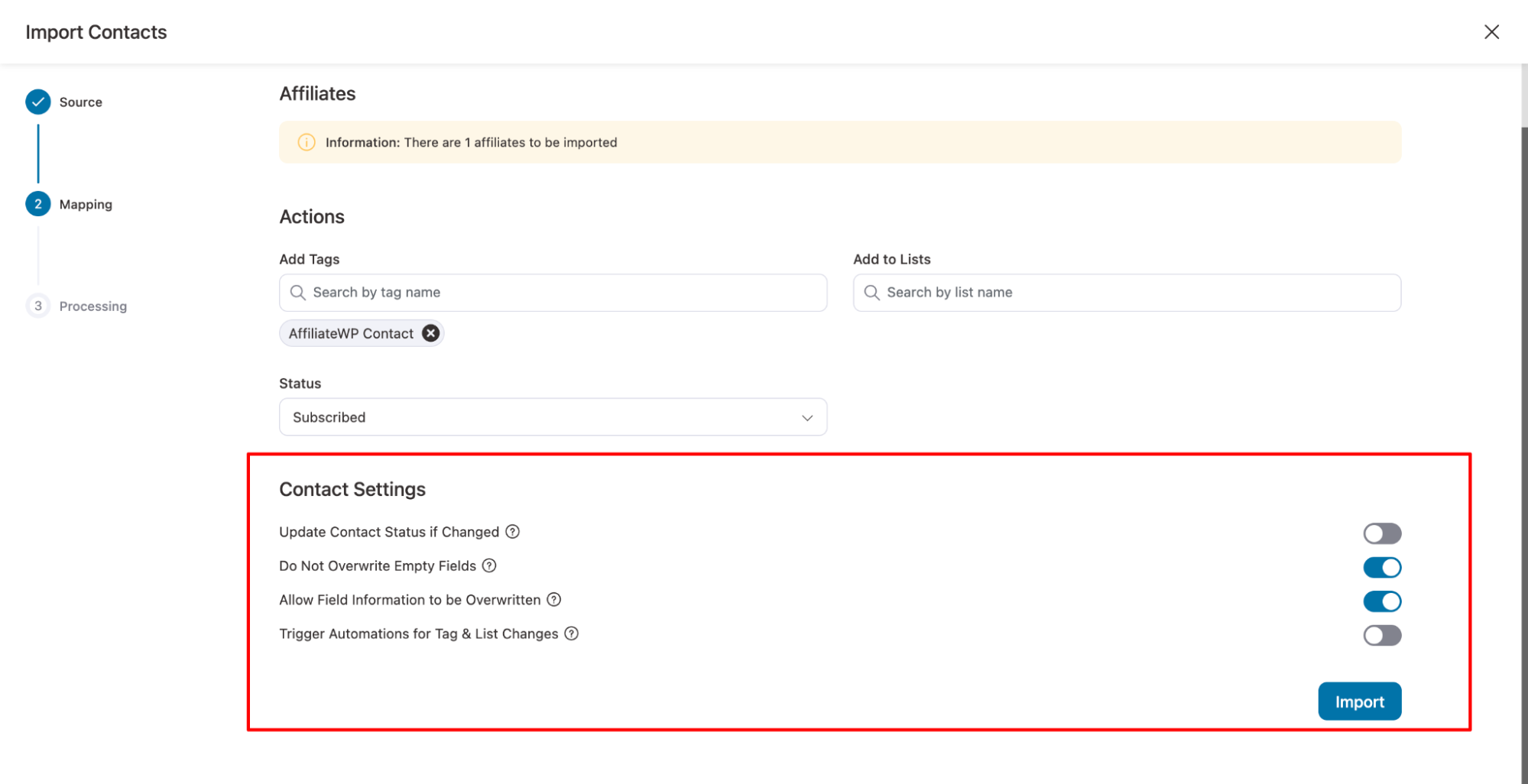
Finally, hit Import.
Step 5: Wait for your import to complete
Please wait for a few seconds, depending on the number of contacts. You will find a progress bar of how many contacts were skipped, failed, or successfully imported.
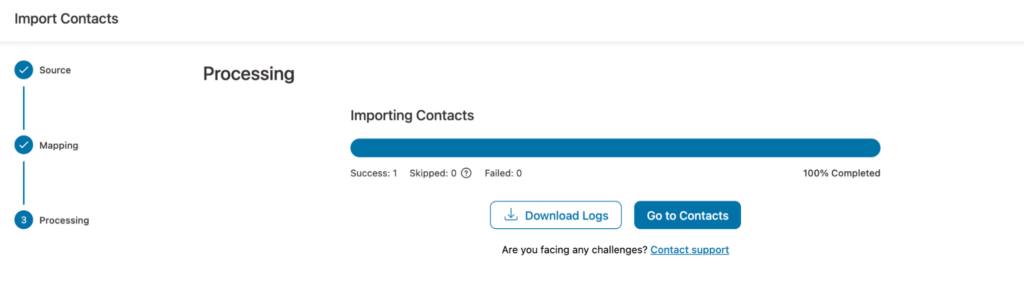
Go to contacts to see your imported contacts.
This is how you can import contacts to FunnelKit Automations from AffiliateWP.


