


This guide explains how to automatically add tags to a contact when they view WordPress posts using the WP Fusion plugin (free version).

Method 1: From tags settings
This method allows you to automatically assign tags to users when they view posts with specific tags.
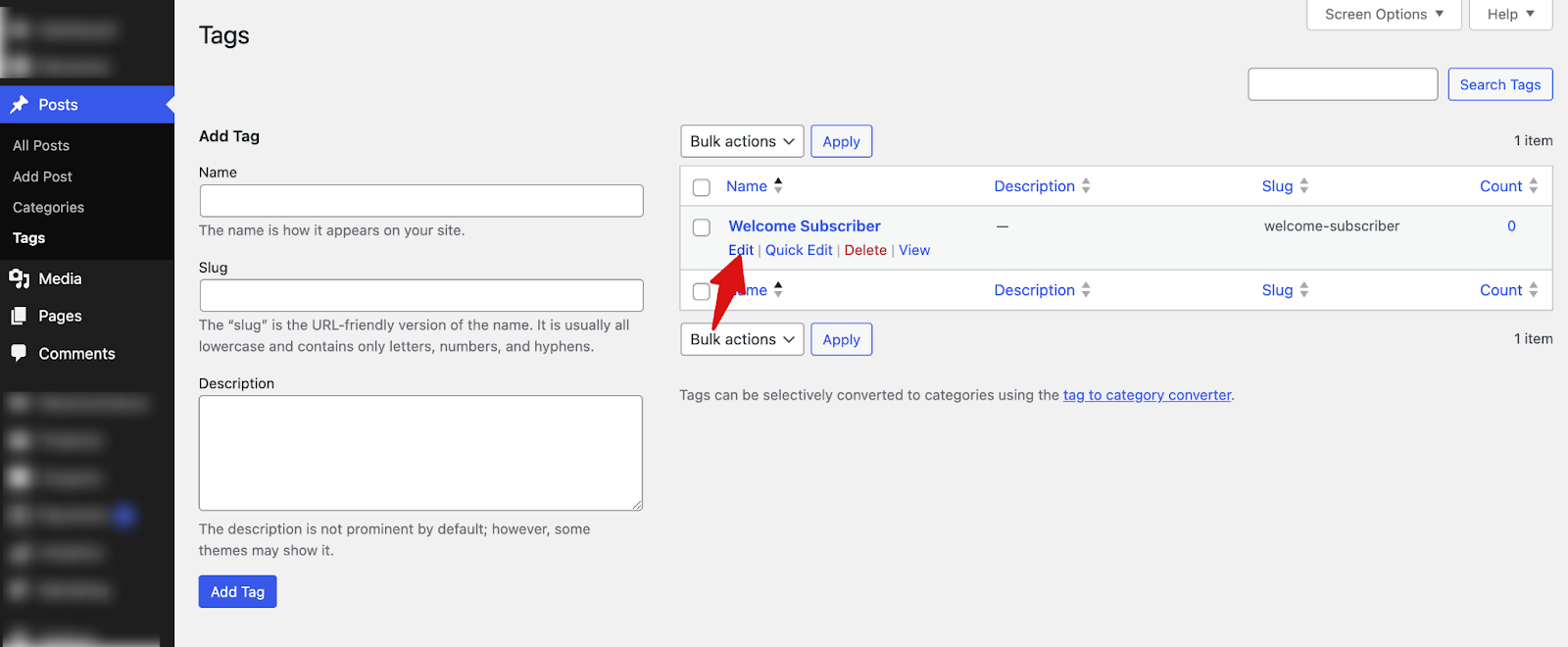
For this, navigate to Posts ⇒ Tags. Here, you can add any new tag or edit any existing tags.
Next, scroll down to the “Apply tags” under “WP Fusion - Access Settings” and select the Tags that will be added to the users.
Note: You can apply multiple tags.
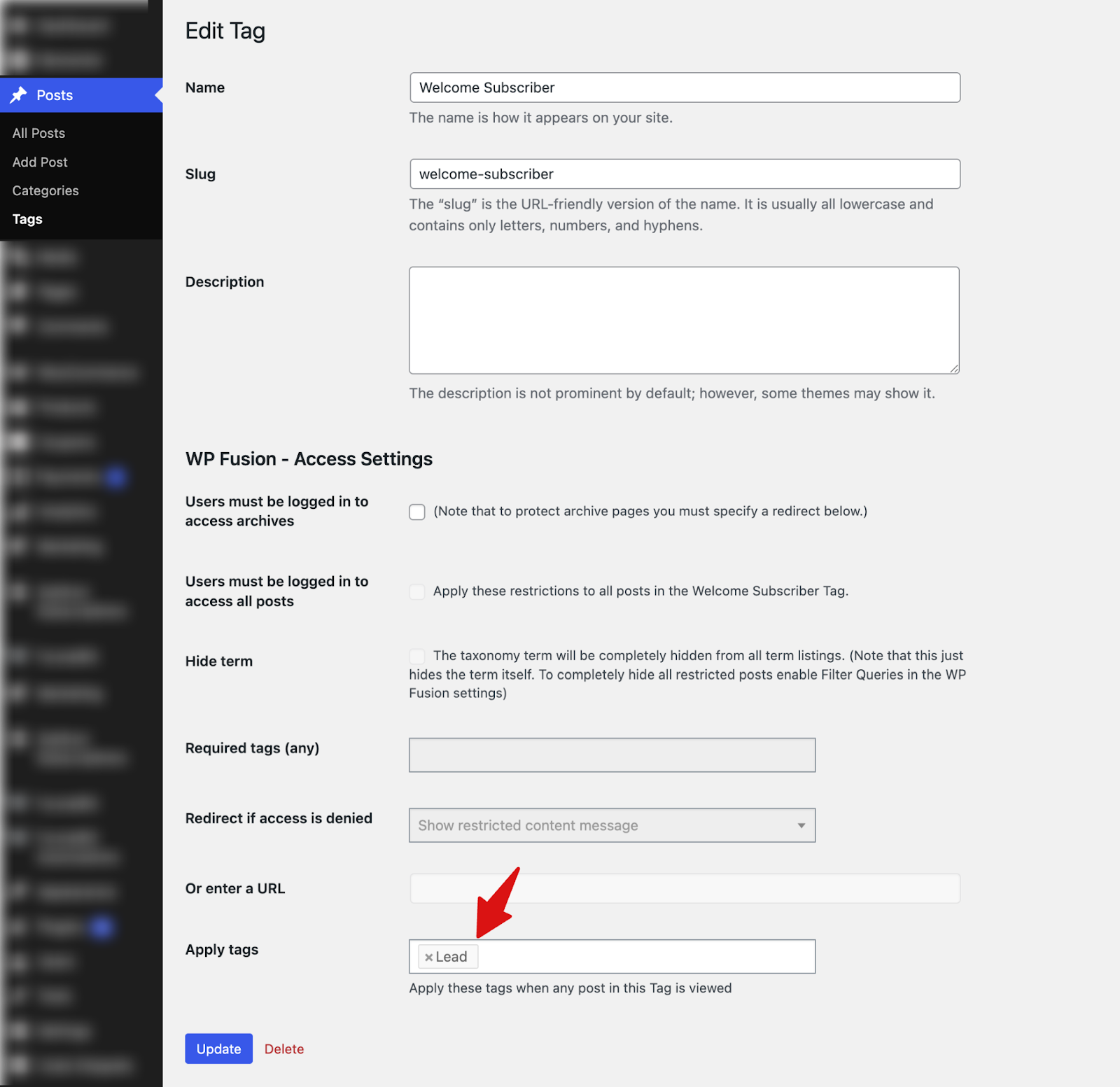
Make sure to update.
Method 2: Assign Tags to Individual Posts
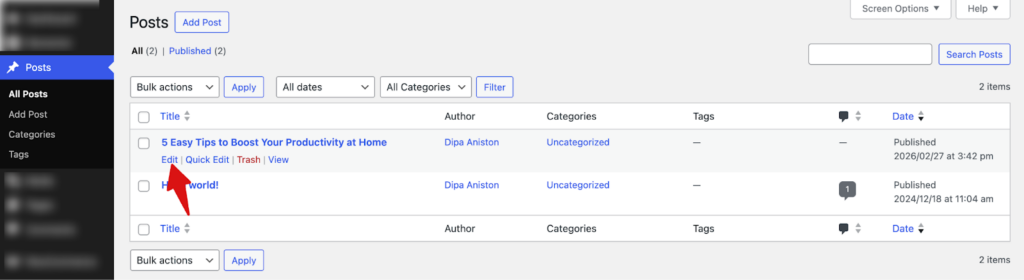
For this, go to All Posts >Posts and edit the post for which you want to add tags to users.
Under the “WP Fusion” meta data section, set tags to the field “Apply tags on view”.
Next, set the “Delay (in ms) before applying/removing tags” to set the waiting period before a tag is added.
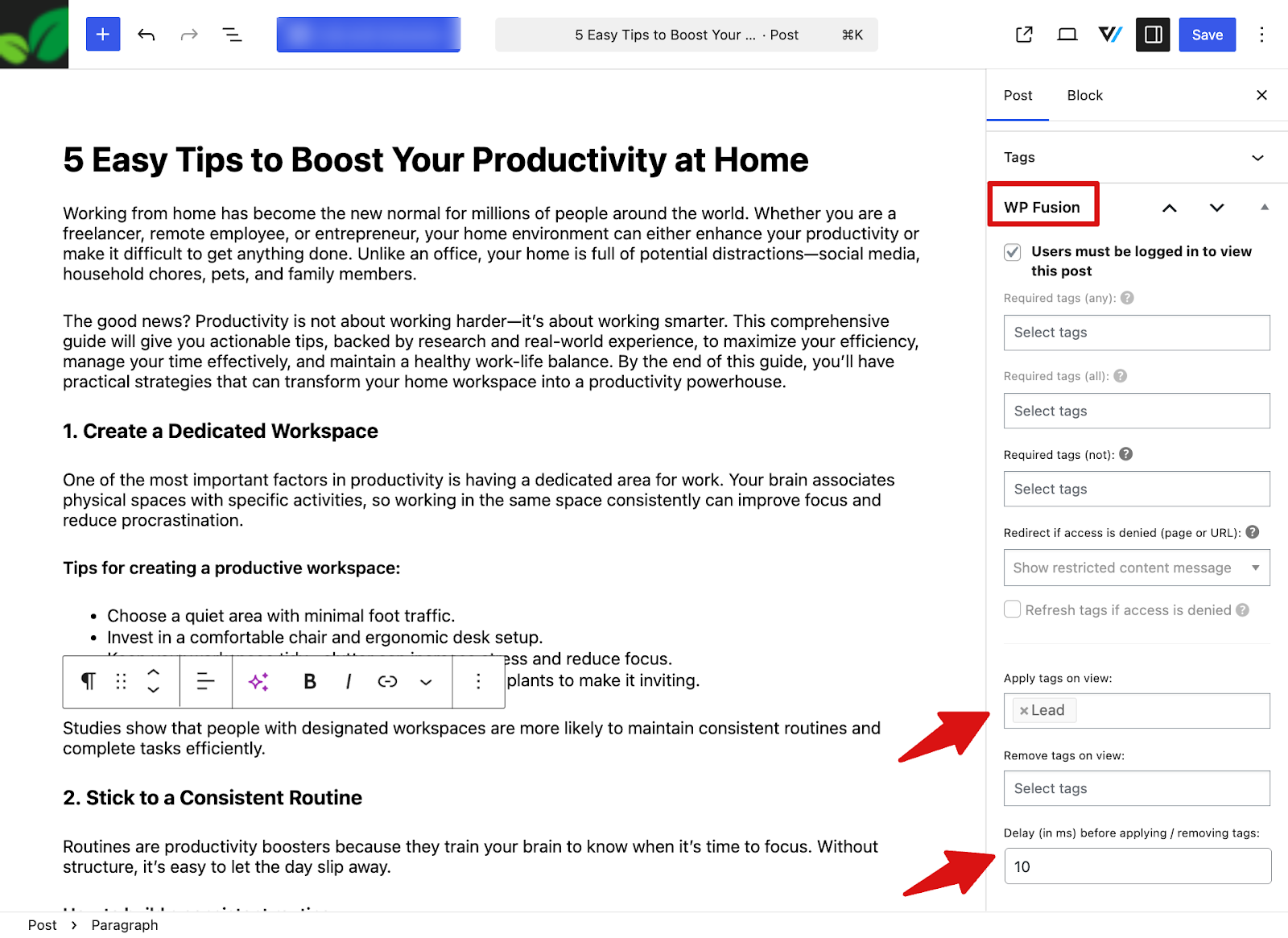
Make sure to hit Save changes.
When a known contact views a WordPress post that has WP Fusion tags assigned, the plugin detects the page view and automatically applies the configured tags to the contact. The delay ensures that the page has loaded before the tags are applied.
To test the whole thing, view the post from a logged-in user.
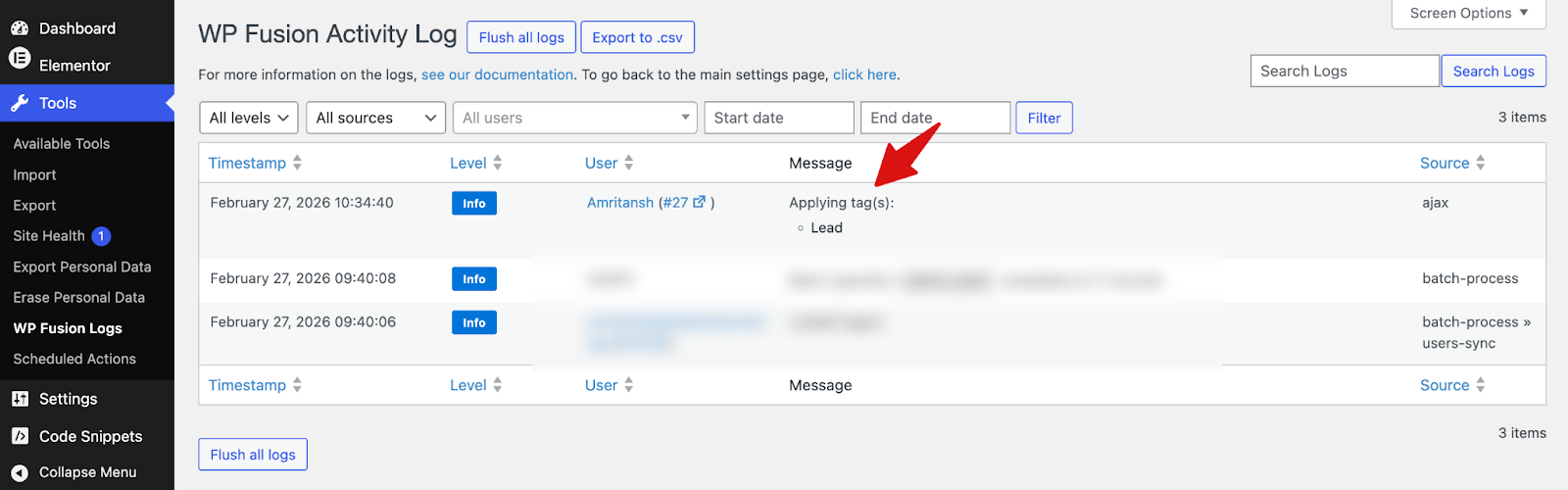
Under WP Fusion logs, you will find the action, Applying tags.
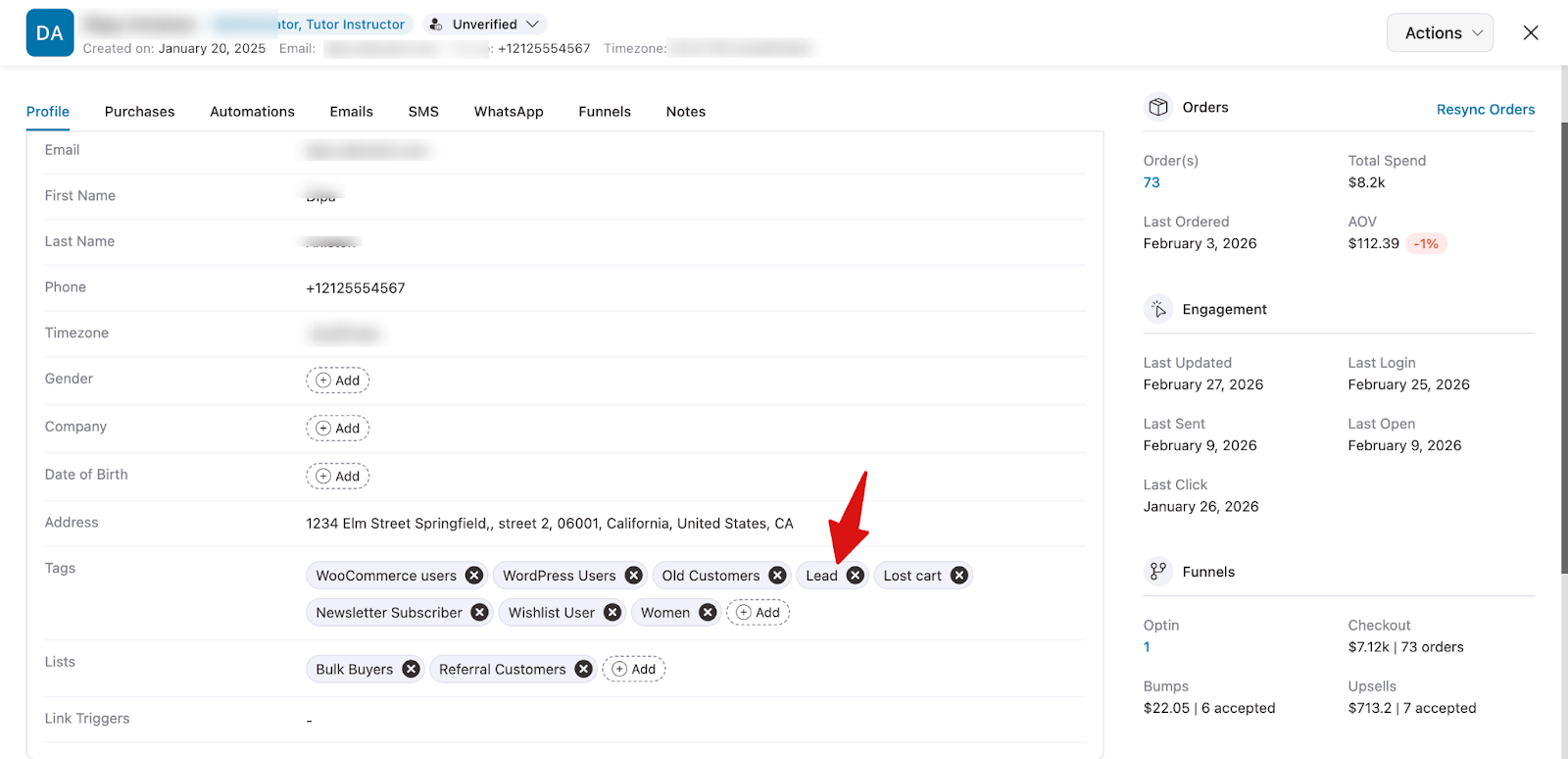
Under the contact field in FunnelKit Automations, you can see the tag has been added.
How to Apply Tags on Funnel Page Visits Using WP Fusion and FunnelKit Automations
This method is applicable if you are using FunnelKit Funnel Builder. You can check our documentation on how to create a funnel.
This document explains how to automatically add a tag to a contact when they visit a specific funnel page, using WP Fusion (free version) in combination with FunnelKit Automations.
Step 1: Connect WP Fusion With FunnelKit Automations
After you install and activate WP Fusion, make sure to connect it with FunnelKit Automations. For this, navigate to Settings ⇒ WP Fusion ⇒ Set up.
Step 2: Open a funnel page to add a tag when visiting the page
Next, go to any of your sales funnels and open the page where you want to add the tag. This could be the Landing, Checkout, Upsell, or Thank You page.
For this example, we’ll add a tag when a user visits the Thank You page.
To open the page in editing, click on the three vertical dots and hit Edit.
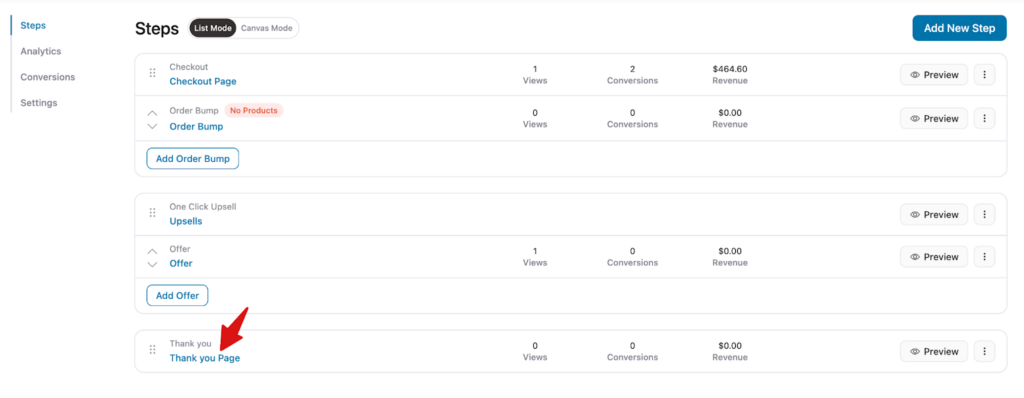
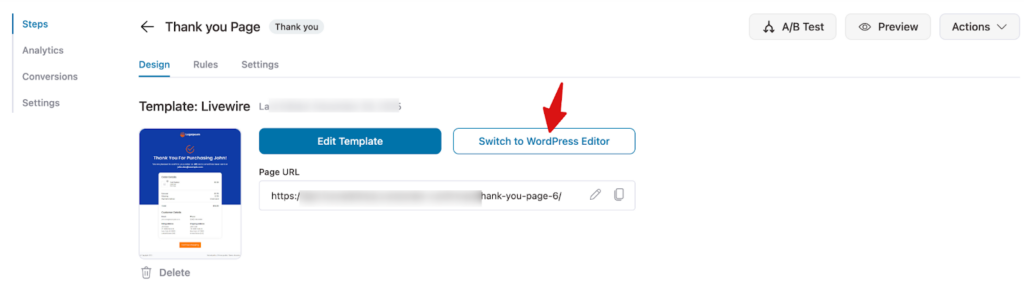
Next, hit “Switch to WordPress Editor”.
Now, under the “WP Fusion” metadata section, set tags to the field “Apply tags on view”.
Next, set the “Delay (in ms) before applying/removing tags” to set the waiting period before a tag is added.
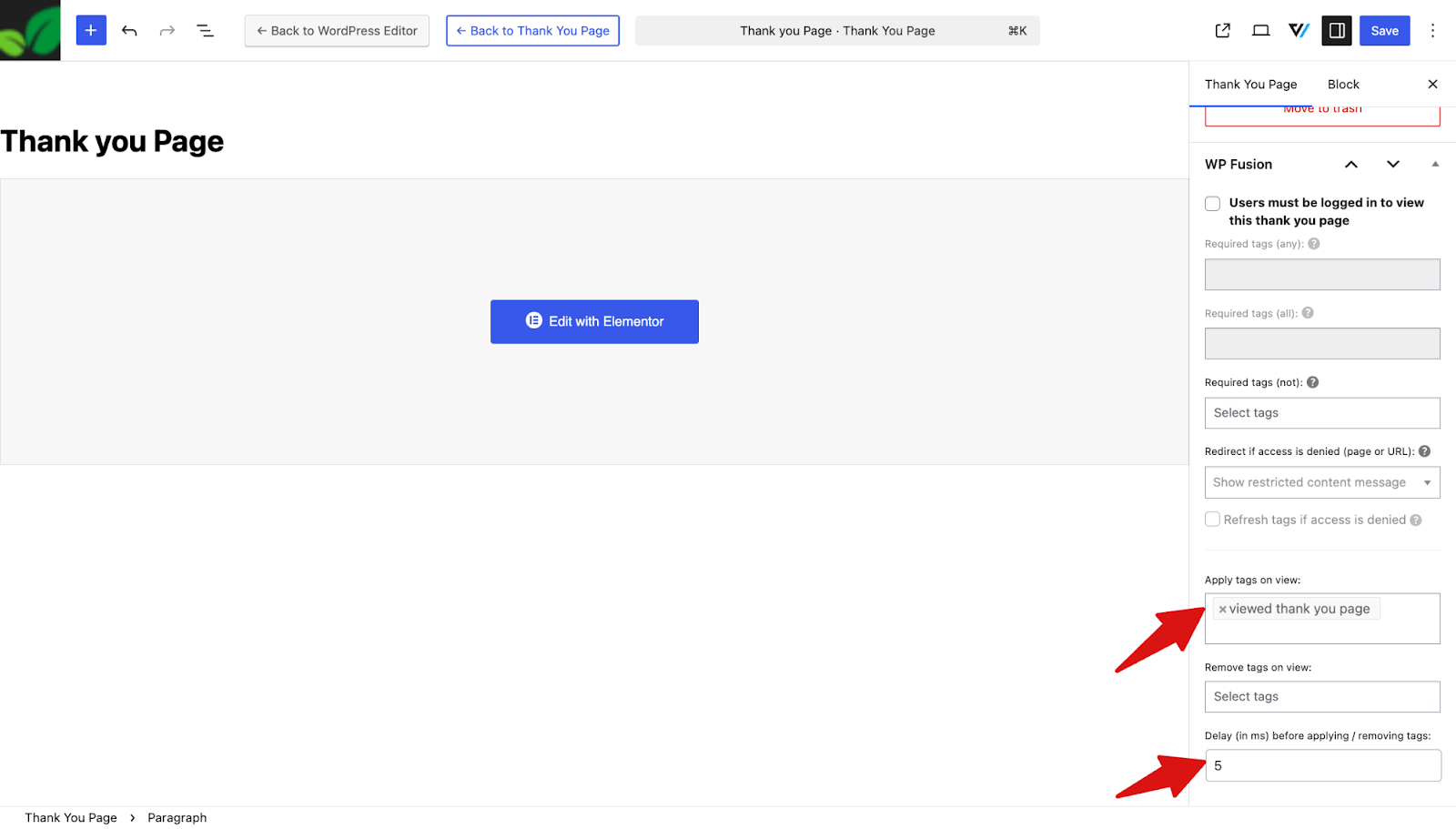
Make sure to Save changes.
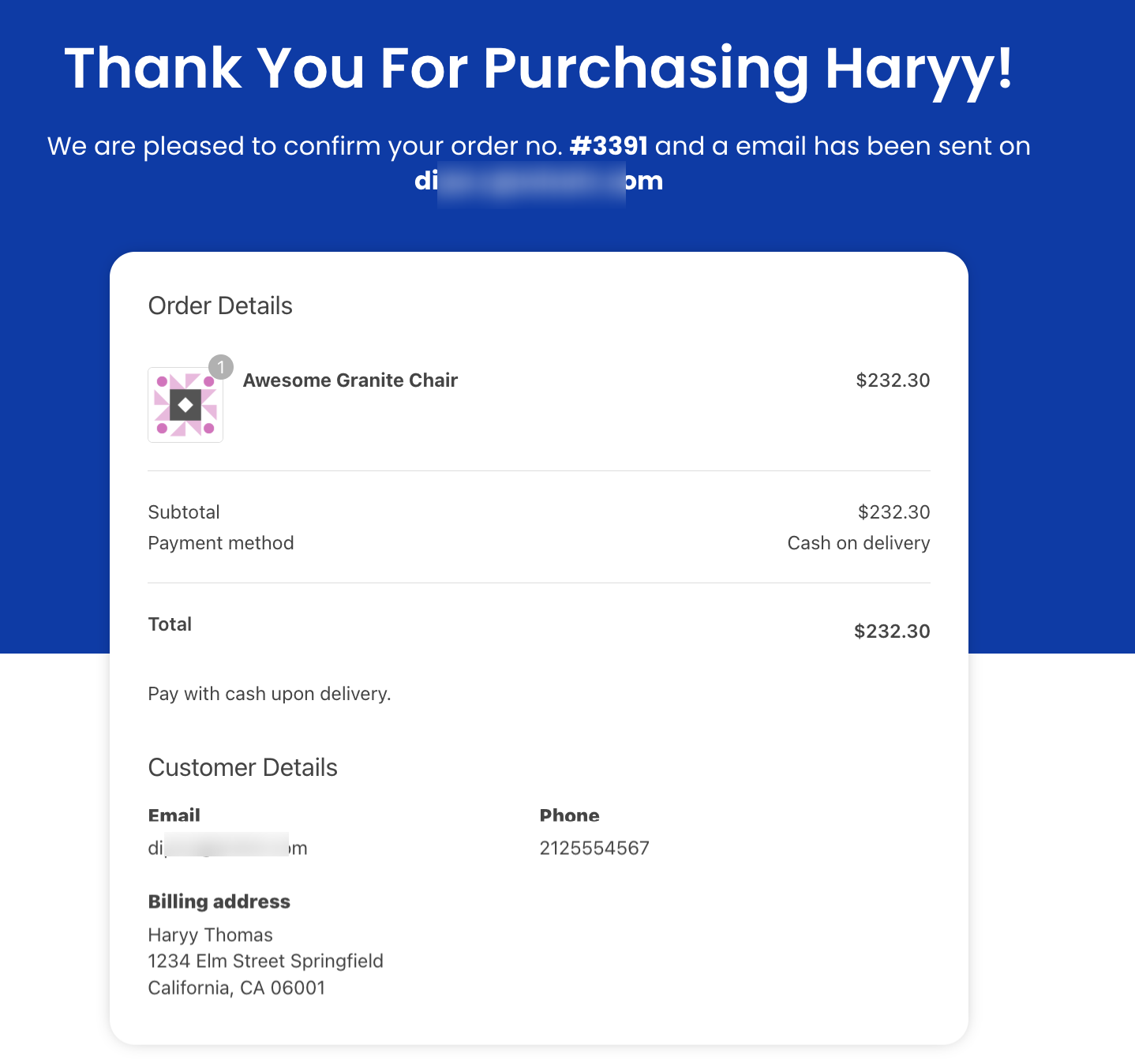
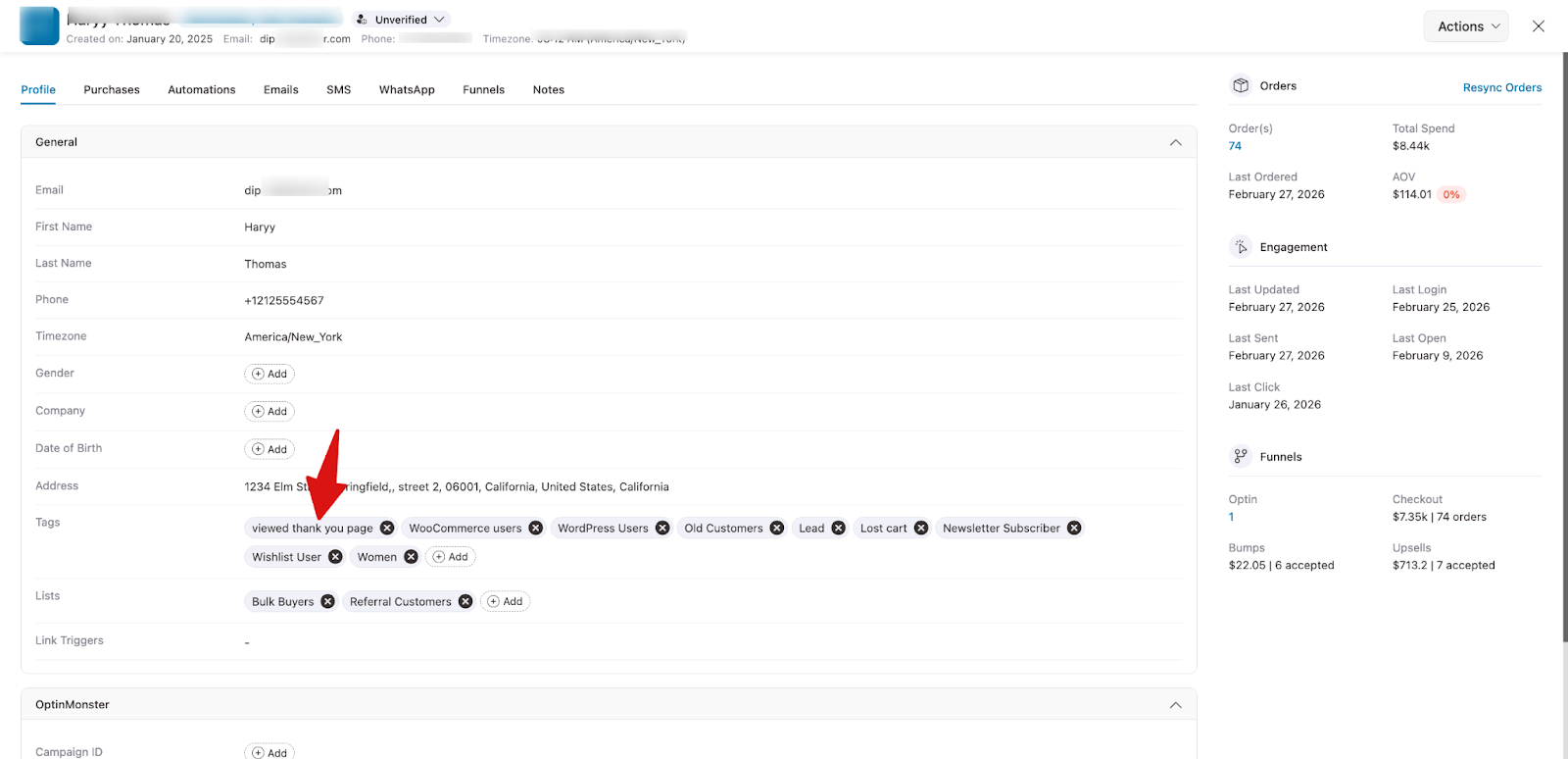
Now try placing an order from a FunnelKit contact email, and when you visit the thank-you page, a tag will be added under contact.
You can check the tags under that contact.
The ‘TAG IS ADDED’ event can also trigger when a contact is assigned this tag as a result of viewing a specific post
This is how to add tags to contacts on page visit using WP-Fusion.


