


Bulk Actions lets you perform specific actions on your segmented contacts.
You can add actions to your contacts, such as add tags, add them to a list, delete contacts, end automation, add them to a subscriber’s list, update fields, and many more.
Step 1: Create a bulk action
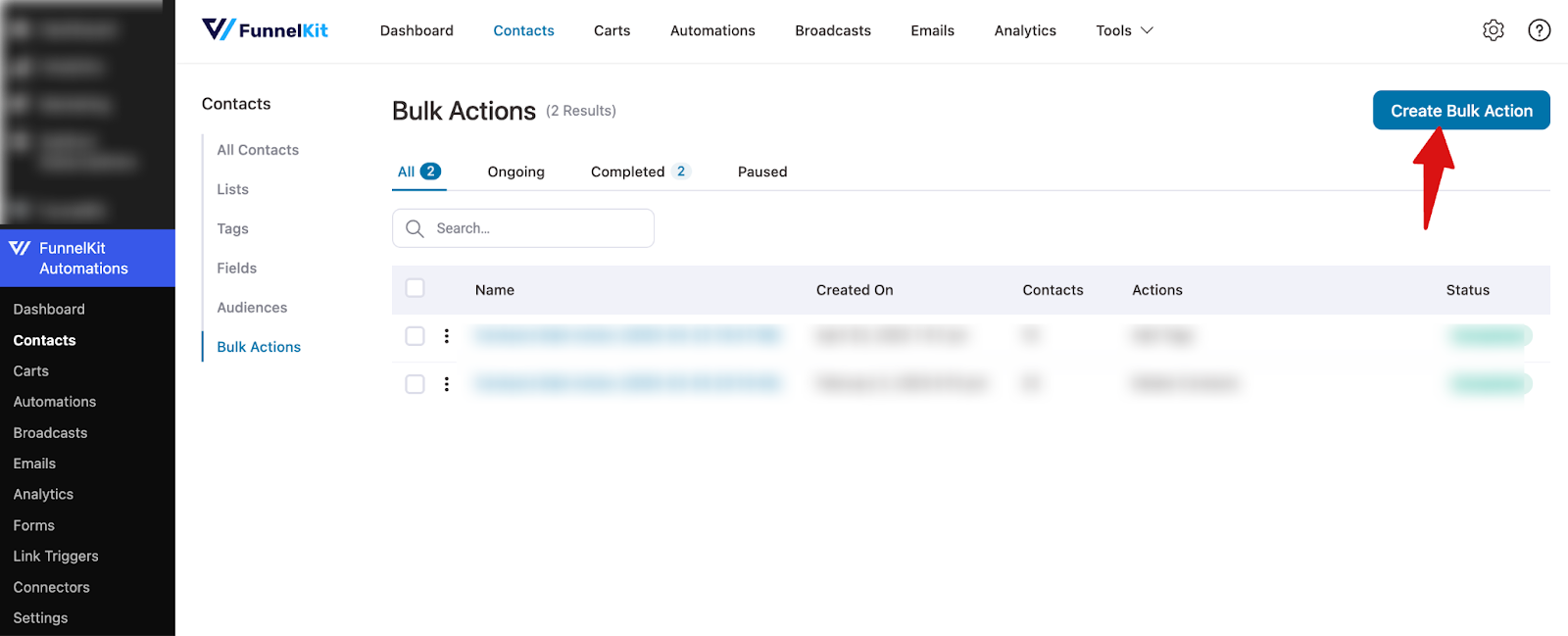
To get started, go to Contacts ⇨ Bulk Actions.
Next, click on the Create Bulk Action button.
Enter the name of the bulk action.
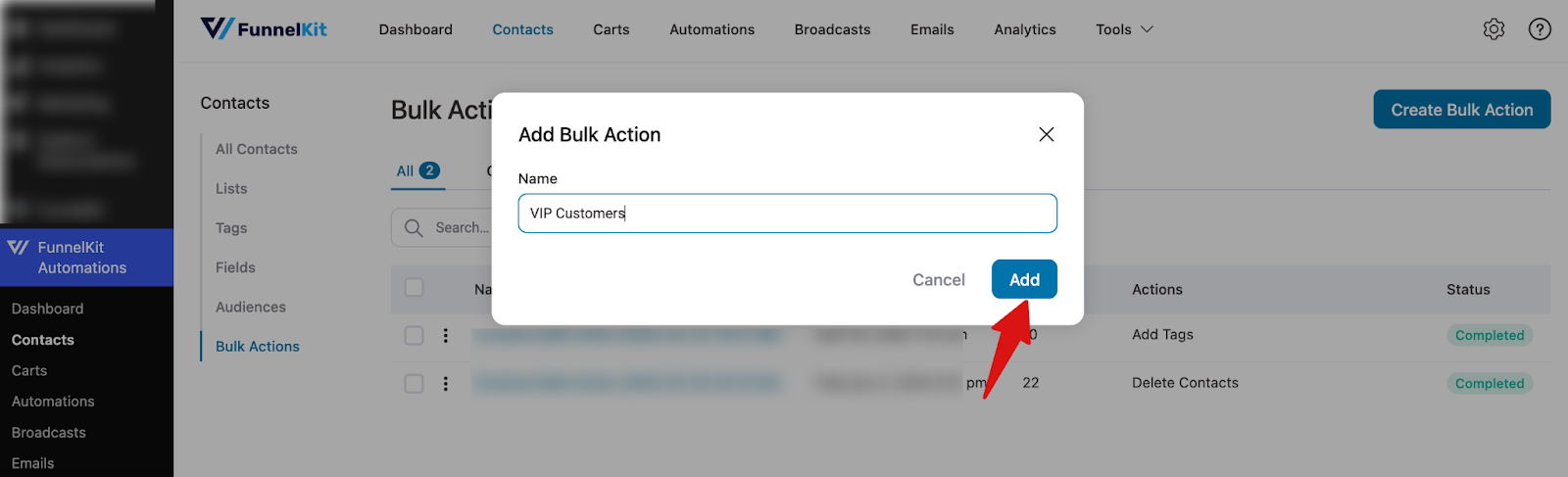
Click on Add.
Step 2: Segment Contacts
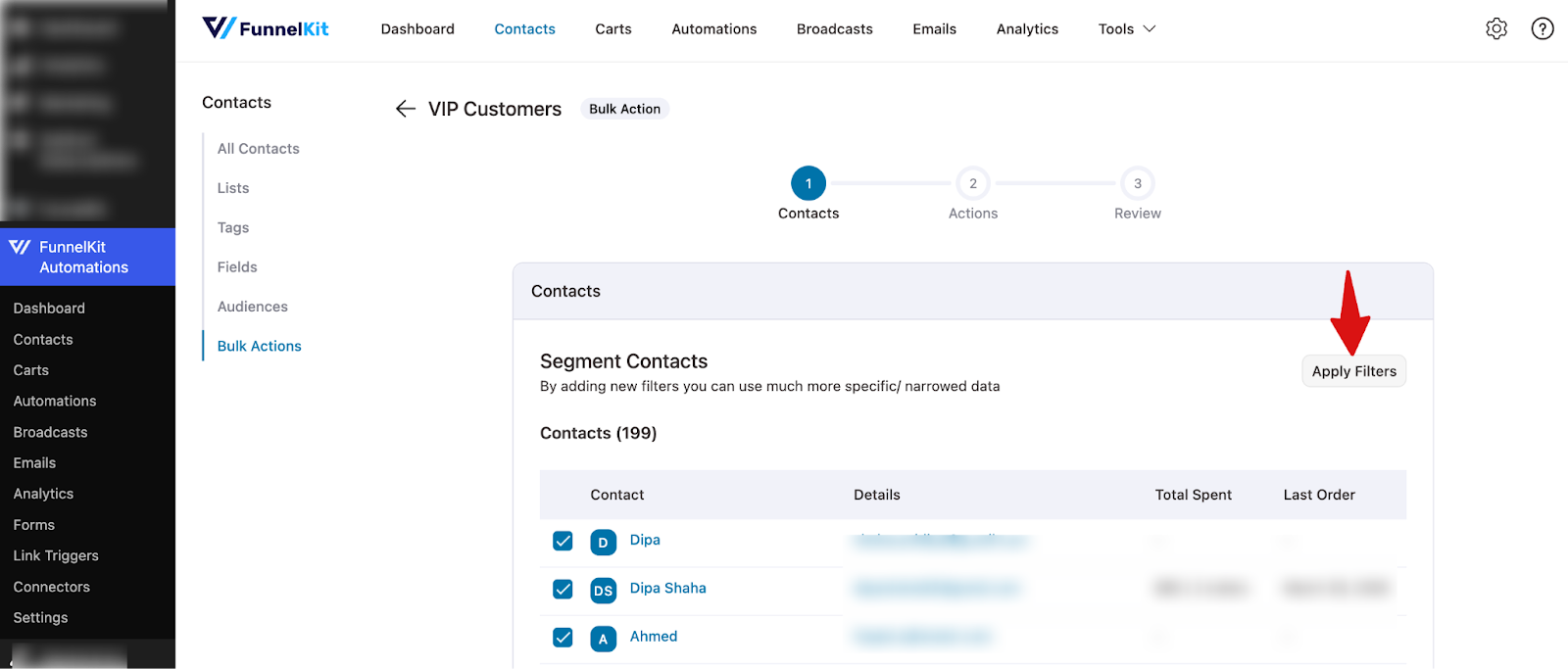
First, you need to segment your contacts to add a bulk action.
To start, hit “Apply Filters”.
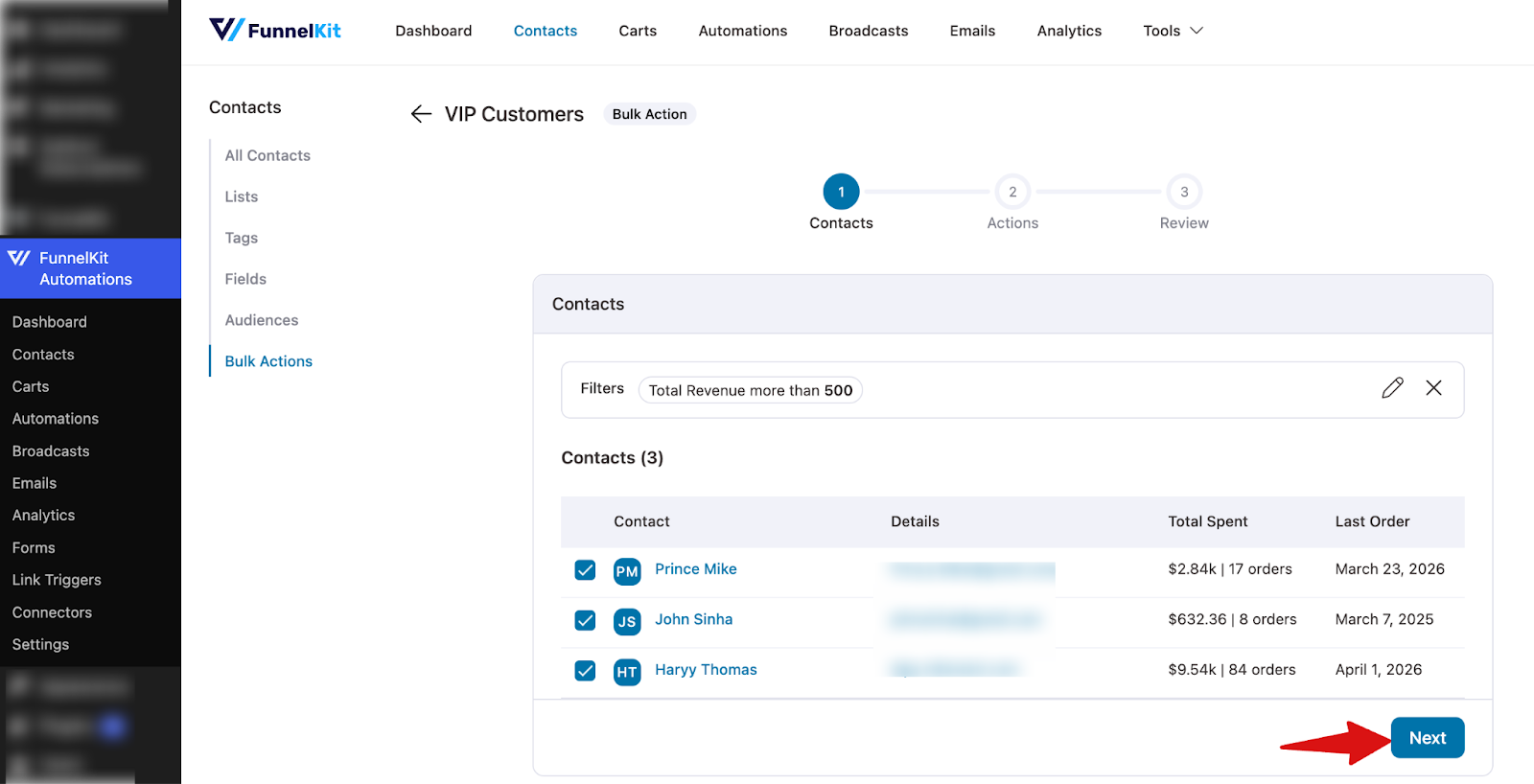
Select the filters you want to segment your contacts and click on the Filter button.
Here, we'll select the Total Revenue greater than $500 filter.
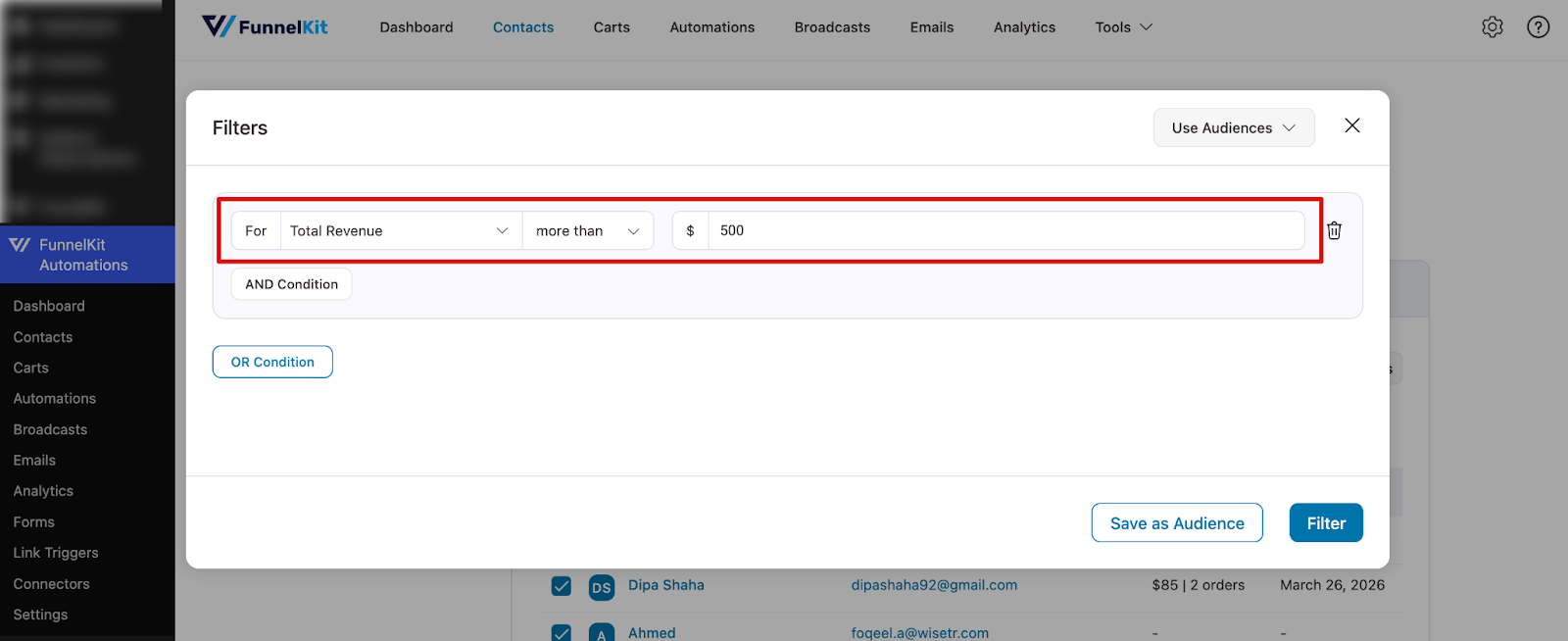

Hit the filter to get the filtered audience.
If you want, you can save these filtered contacts as an Audience.
Next, go to the next steps:
Step 3: Specify the action
Add actions for the selected contacts.
Here, we’ve selected Add Tags.
Now, enter the name of the tag and click on Save.
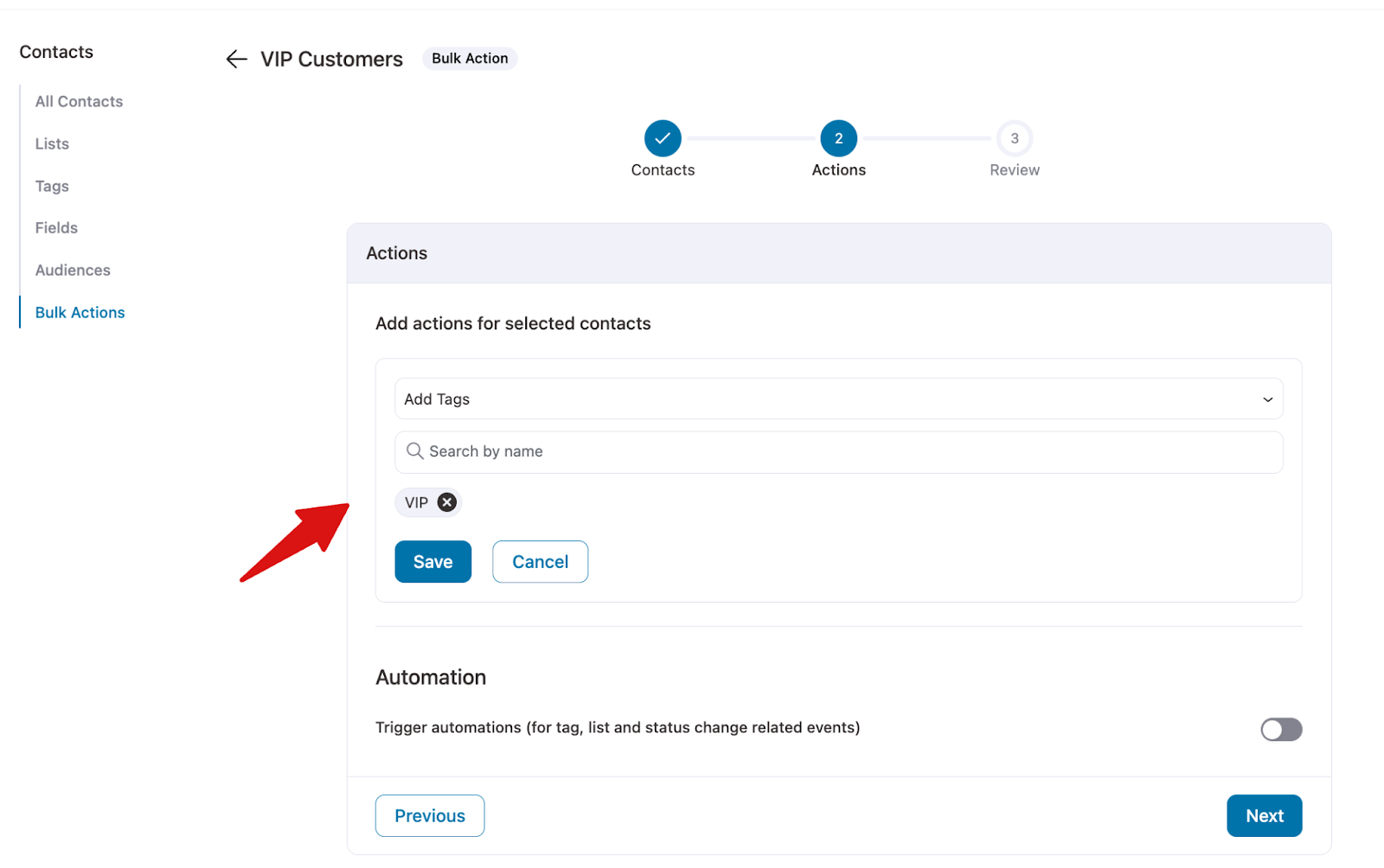
Click on the Next button once done.
Step 4: Review everything
Review everything you’ve added with respect to the bulk actions you’re going to perform. Click on Start if everything looks good.
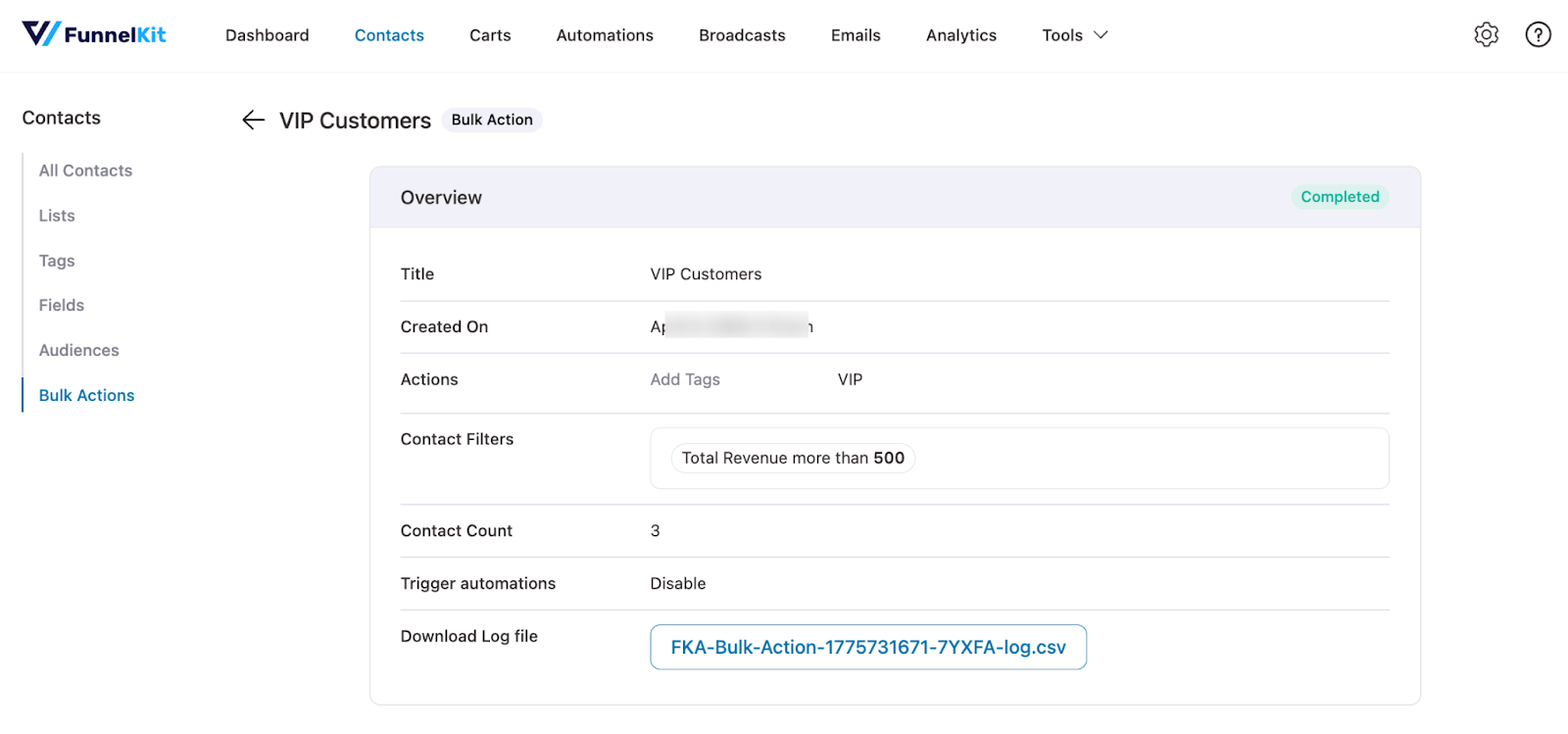
Wait for some time as your bulk action gets added to your contacts.
You can download the log file if needed.
Your bulk action has been successfully added to FunnelKit Automations.
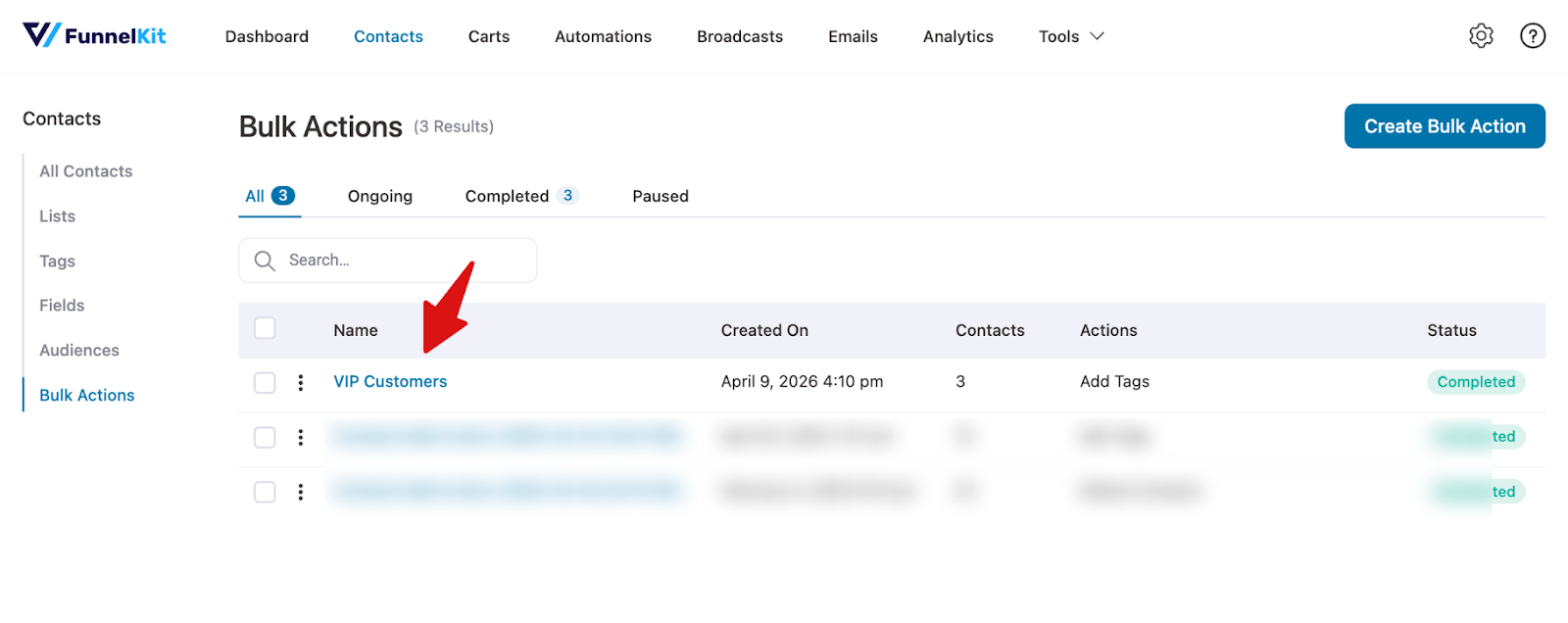
That’s it! This is how you can specify bulk actions to your contacts in FunnelKit Automations.


