Audiences can be created in FunnelKit Automations to help you save time.
You can use multiple filters to define your audience and then use the filters without having to set them again and again.
For example, if you want to select all the customers who have purchased the “printed coffee mug” in India, then you have to make use of two filters.
1. Contacts who purchased the printed coffee mug
2. Their Geographical location was India
Whenever you want to reach out to them using broadcasts, you will not have to apply the same filters again, but just click on the saved audience.
You can create and save dynamic Audiences based on the following conditions:
- Segments
- Contact Details
- User
- Custom Field
- Geography
- WooCommerce
- Engagement
- Broadcast
- Automation
- FunnelKitFunnels
Let's look at how you can create a new audience.
How to Create a New Audience?
Let’s create an audience named ‘VIP customers’, who have an average order value greater than $50 with an order count of more than 2.
Step 1: Add a new audience
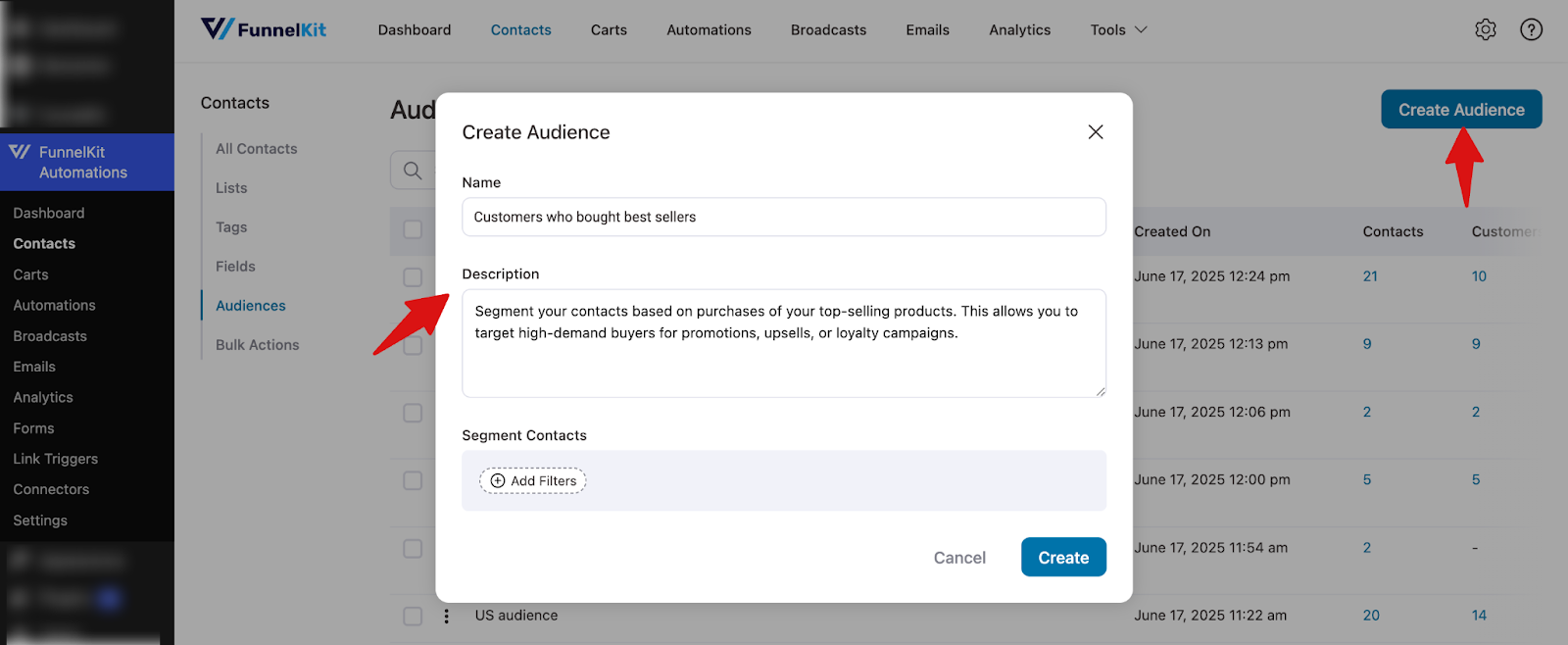
Go to Contacts ⇨ Audiences and click on “Add New Audience”. Enter a name and description of your audience.
Please note that the description is optional.
Step 2: Add filters/Conditions
Our first filter will be customers with an average order value of more than $50. Therefore, we will be picking WooCommerce and then selecting the AOV.
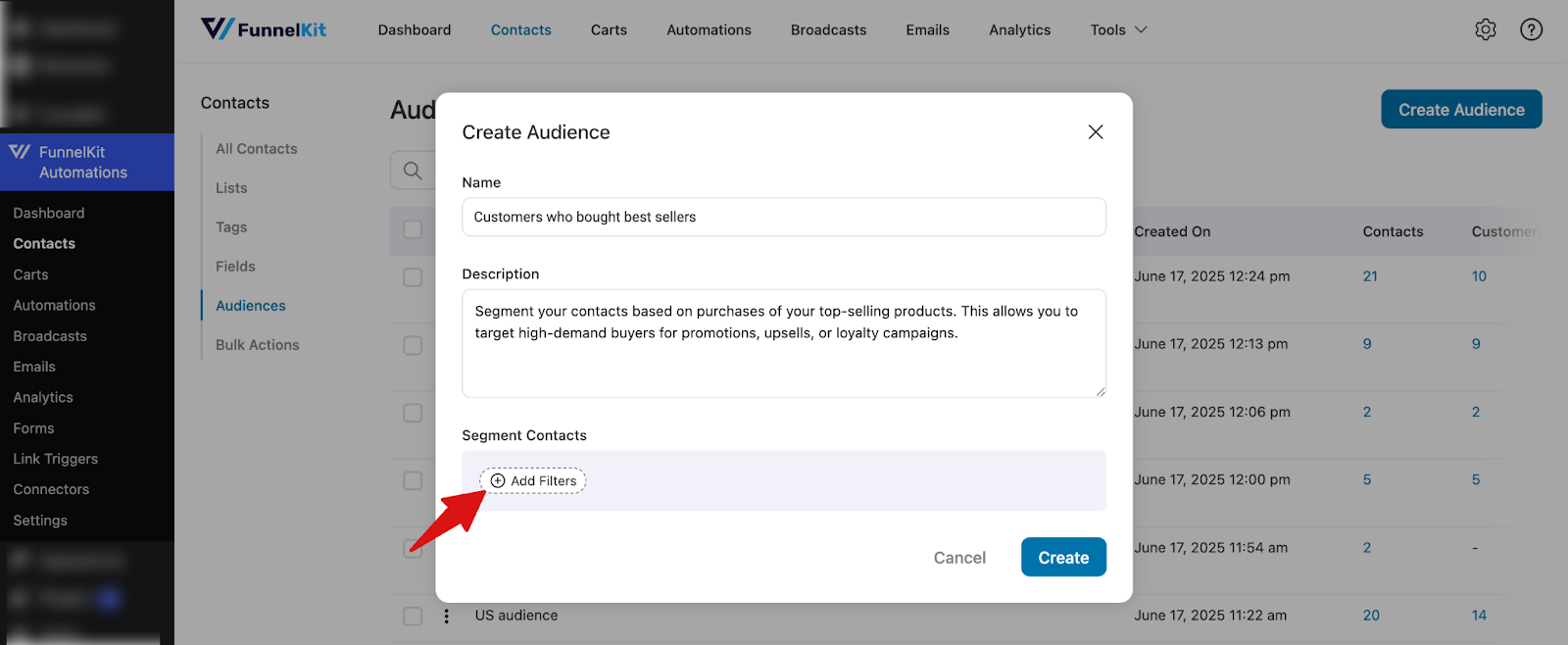
To add a condition, hit the button “+Add Filters” to set the condition.
Select WooCommerce, choose Average Order Value, and set the value to more than $500 to filter high-value customers.
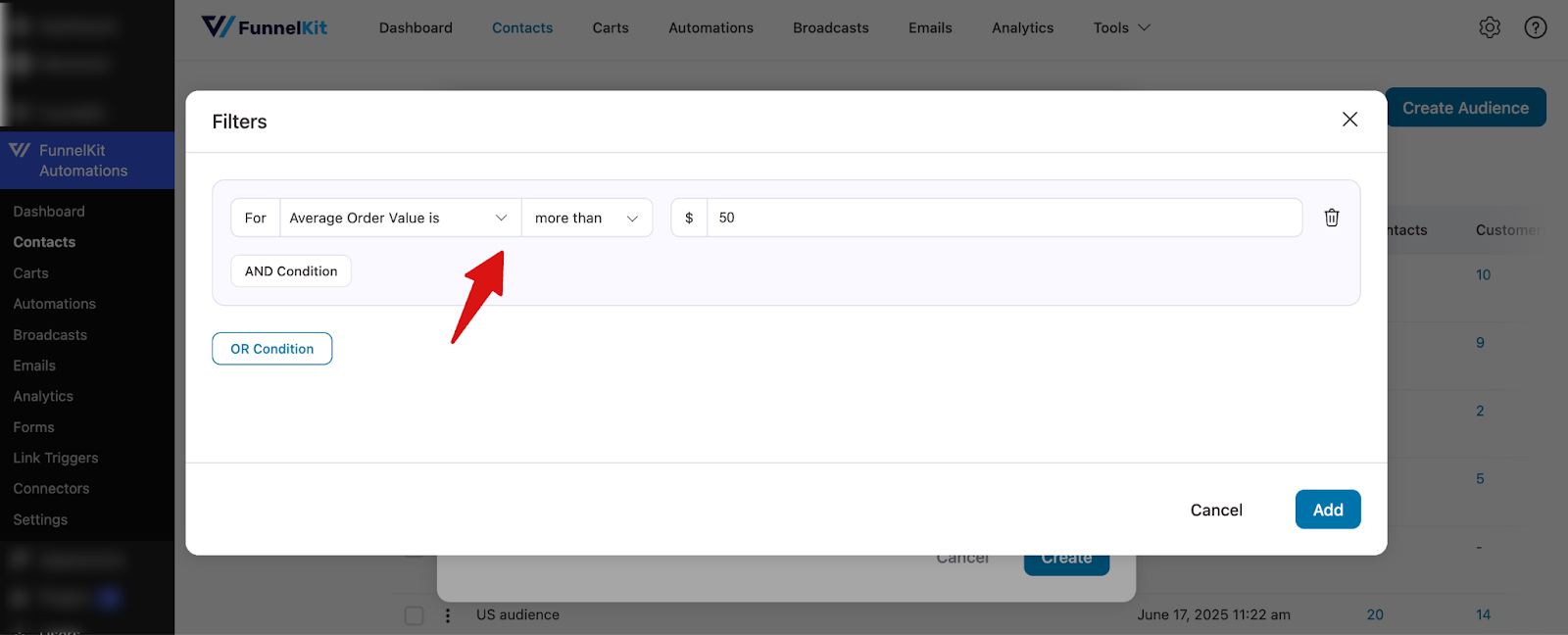
Now, hit on “AND Condition” and apply the second filter for Orders Count more than 2. Click on Add.
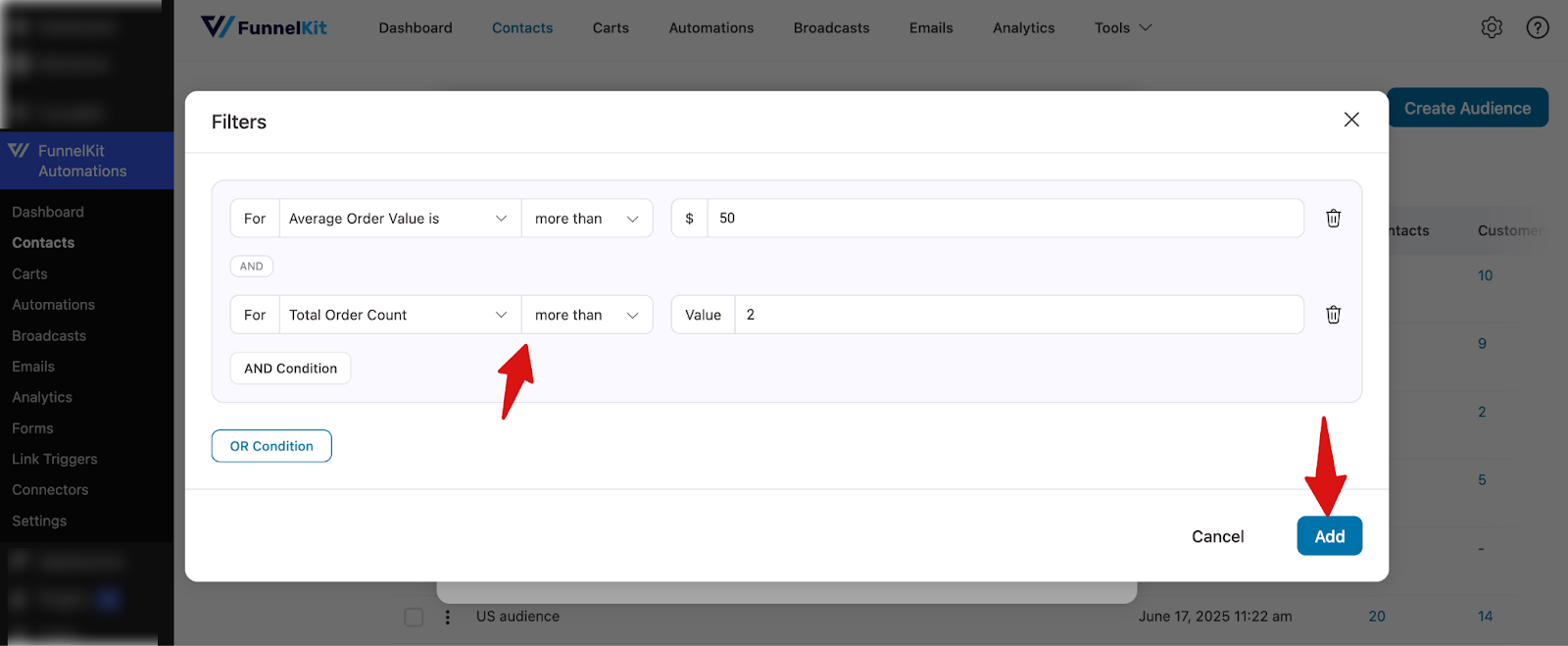
Note: You can also use the “OR” condition to apply if else condition to filter the audience.
Next, finally hit “Create” to create your audience.
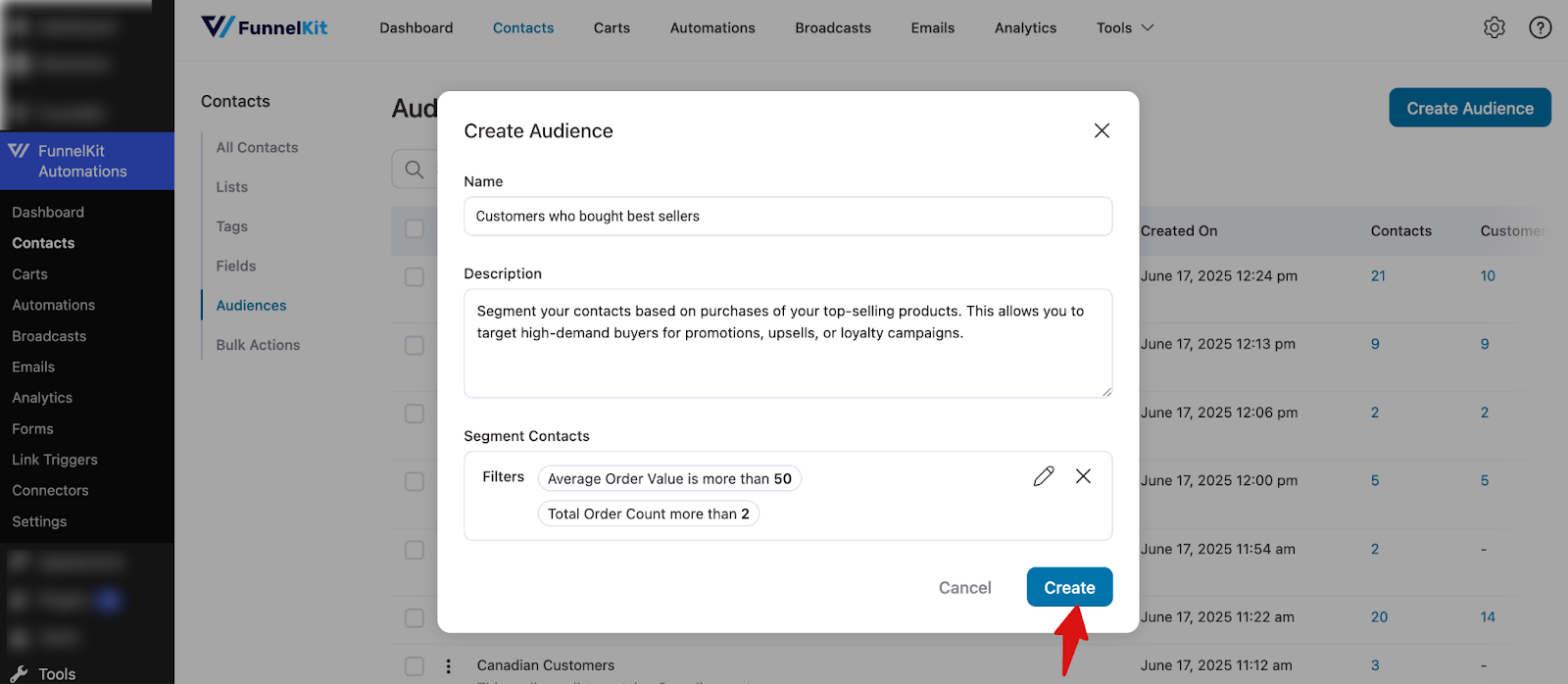
Congratulations! Your audience will be created.
How to View Contacts under an Audience?
To see your contacts under an Audience, go to Audiences under Contacts in FunnelKit Automations. Now hit the Action button and click on “View Contacts”.
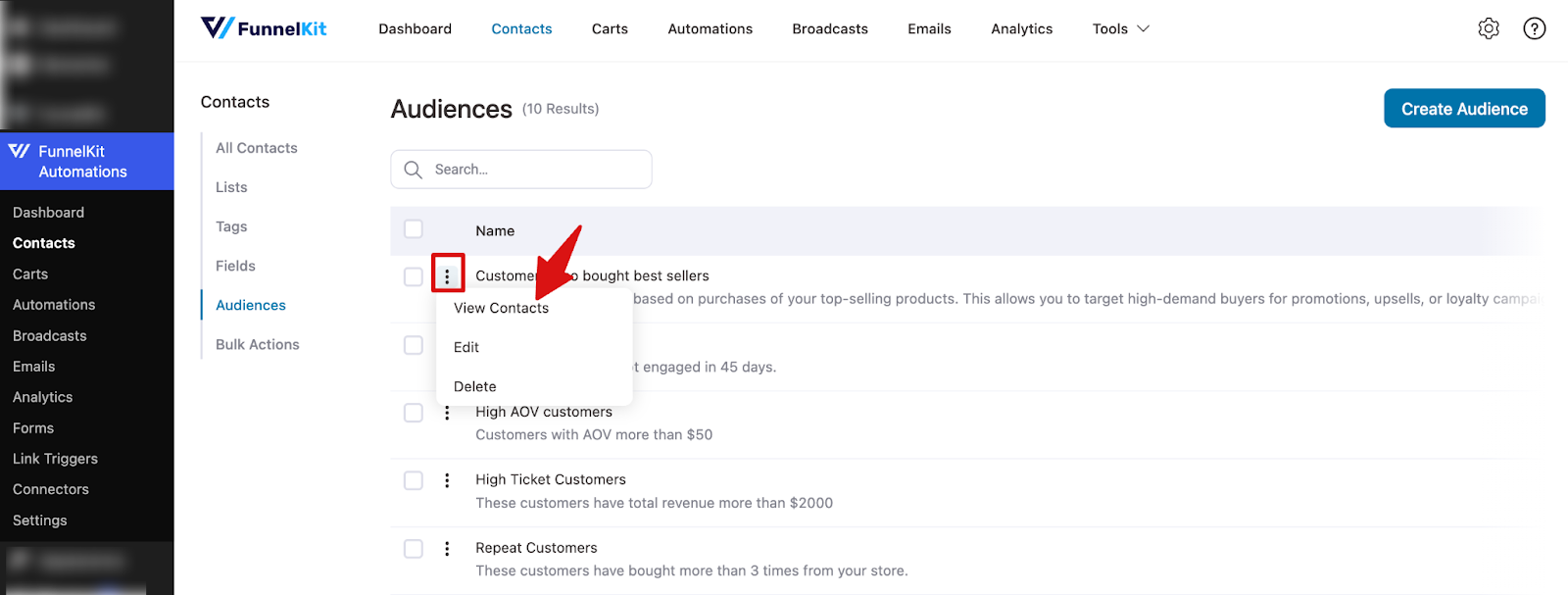
You can now view the contacts under this audience.
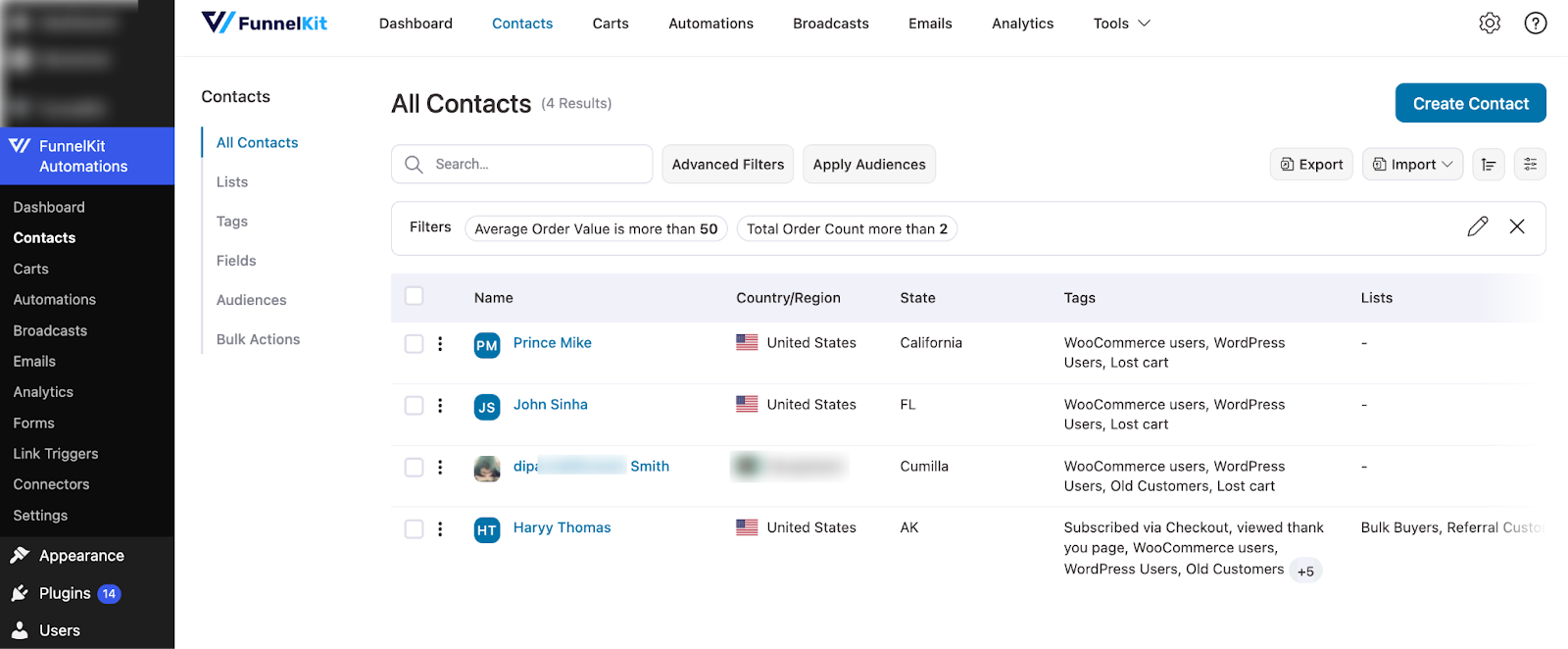
This is how you can view each contact under an Audience in FunnelKit Automations.
How to Edit an Audience?
To edit an already existing audience, go to Contacts ⇨ Audiences. Then, click on the Action button and hit Edit.
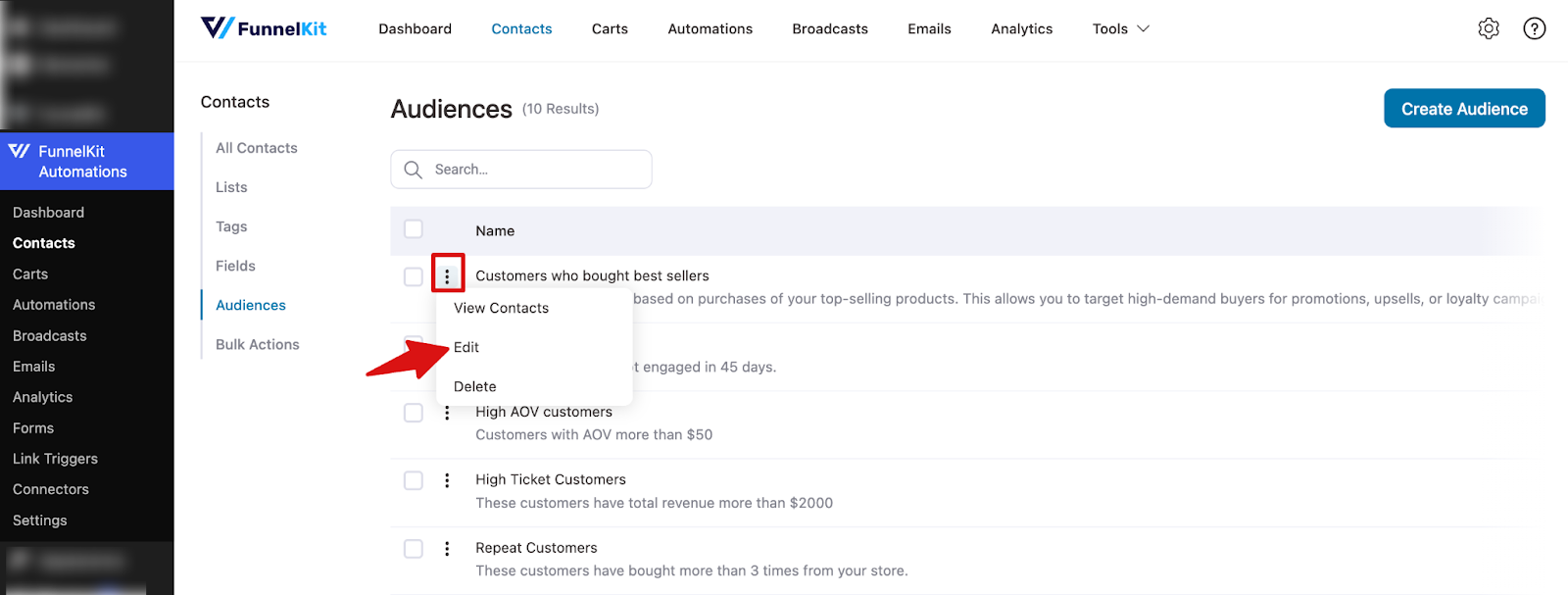
You can change the name, description, and even the filters of this audience.
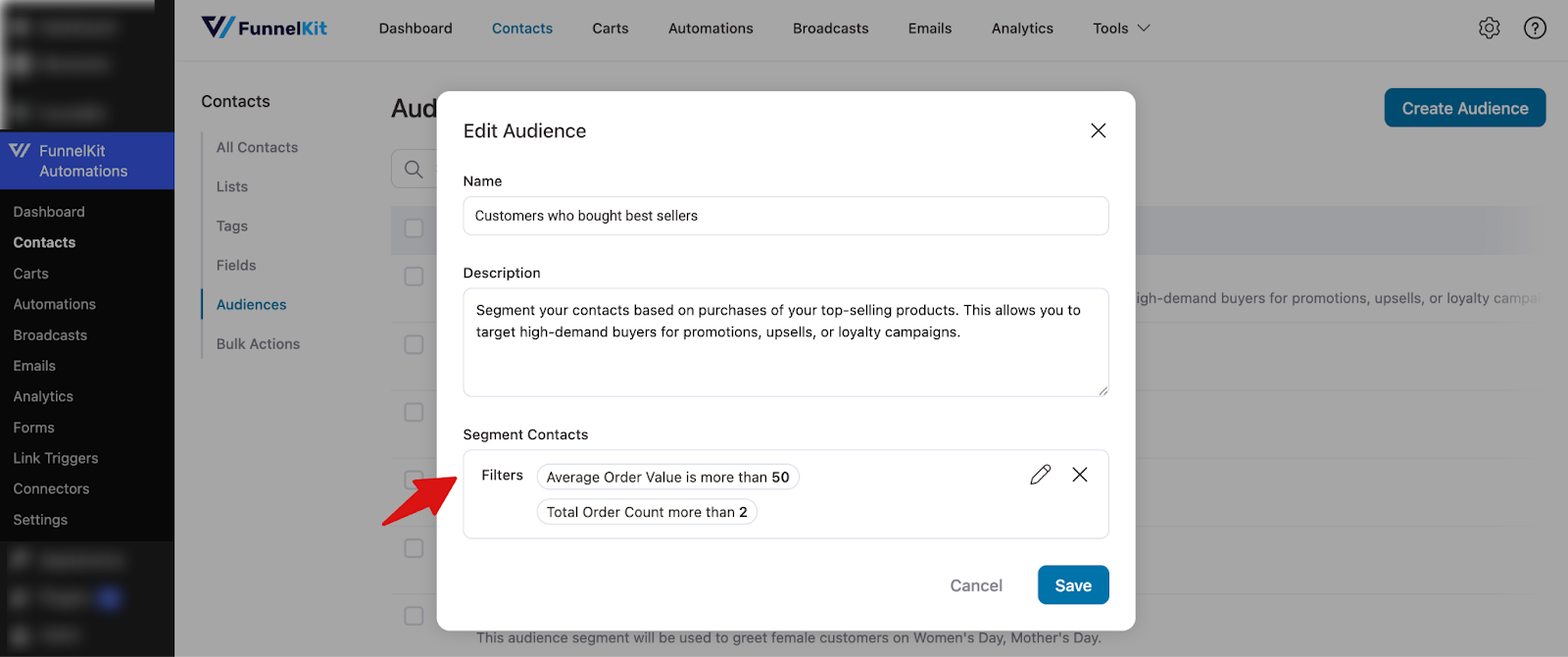
Make the changes, and when you’re done, click on Save.
How to Delete an Audience?
To delete an audience, go to Audiences.
Now, click on the Action button and hit Delete.
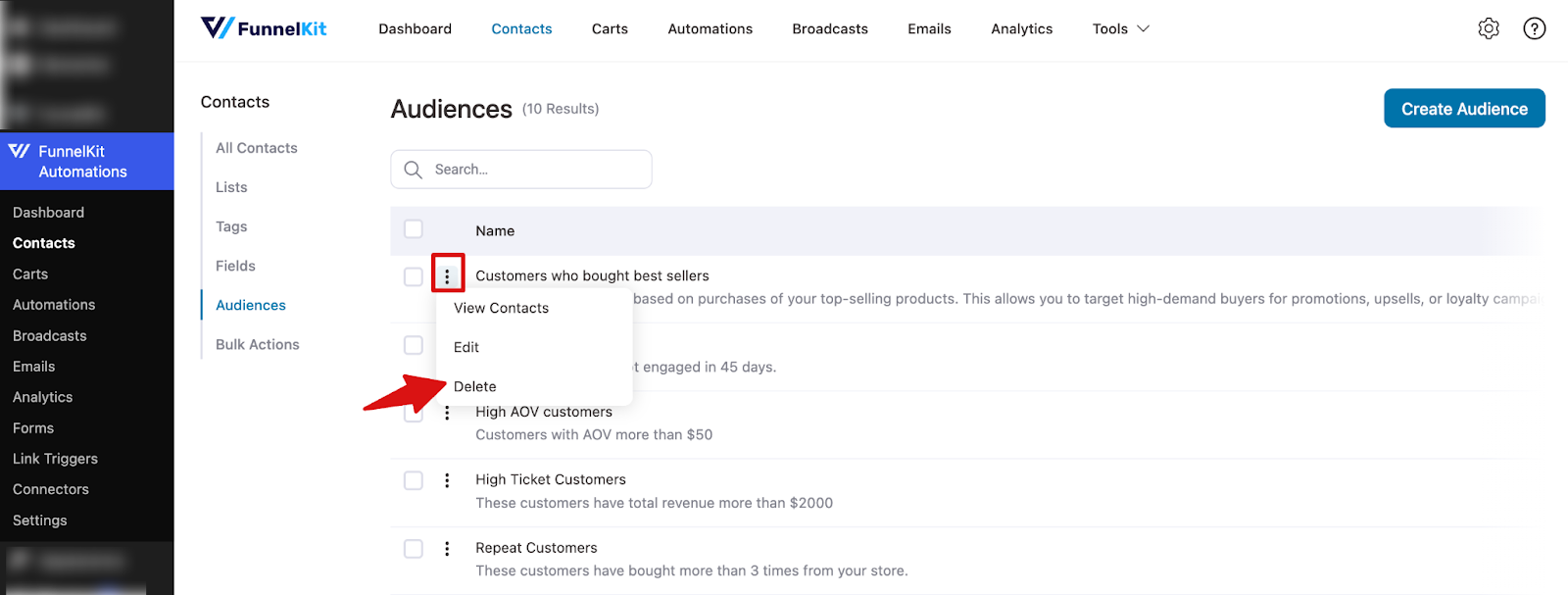
It’ll ask for your confirmation to delete this audience.
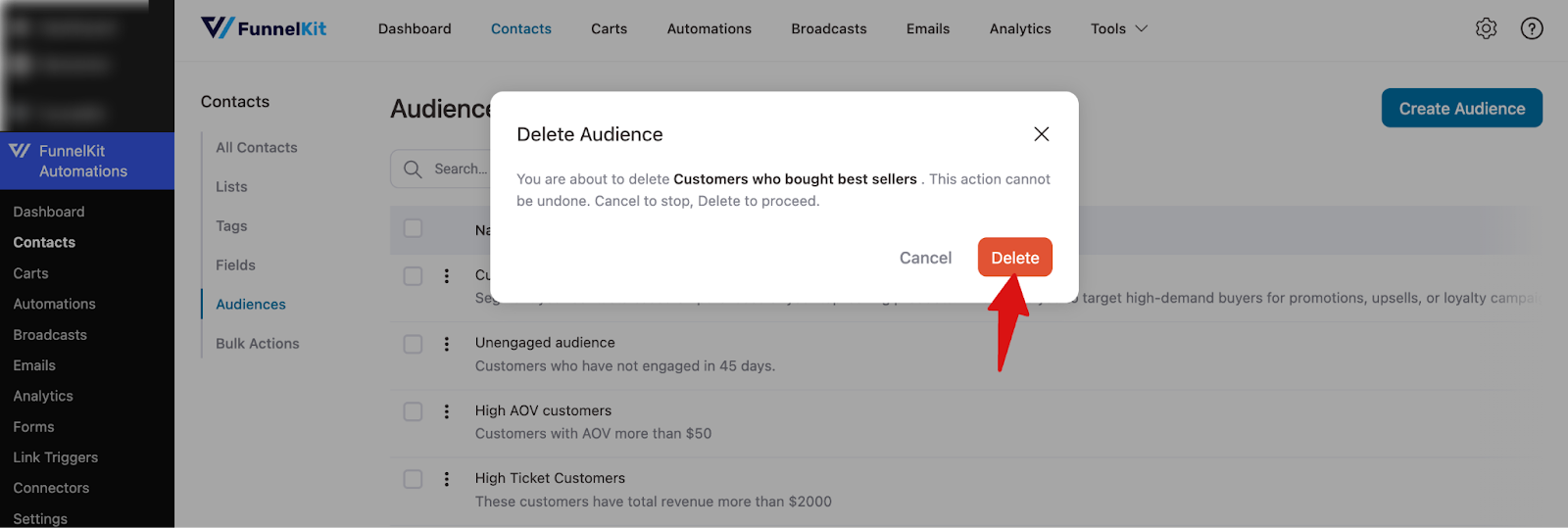
Clicking on confirm will delete your audience permanently.
That's it! This is all about audiences in FunnelKit Automations.
Want clearer content for the audience in a CRM? Read the following section.
Audience
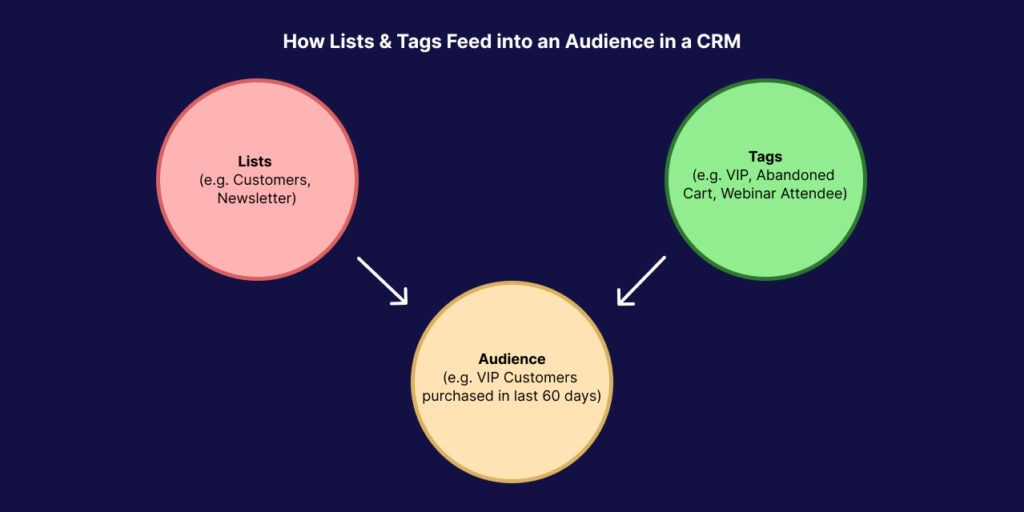
An audience is a dynamic, targeted group of contacts created using a mix of conditions like lists, tags, demographics, behavior, and engagement history.
- Think of it as a smart segment that updates automatically when people meet—or no longer meet—the criteria.
- Unlike lists (broad buckets) or tags (specific labels), an audience is contextual and usually built for campaigns or analysis.
Example:
Instead of keeping everyone who ever bought from you in one "Customers List," you could build an audience of “High-value customers who purchased in the last 60 days and clicked an email.”
Use Cases for Audiences
- Targeted Campaigns
- Send a special discount campaign to “Customers who purchased more than 3 times in the last year.”
- Run a re-engagement email to “Subscribers who haven’t opened an email in 90 days.”
- Product Launches
- Announce new products to a warm audience, like “Contacts tagged as Interested in Product A but haven’t purchased yet.”
The Audience combines rules from lists and tags to form a dynamic, smart segment (e.g., VIP customers who purchased in the last 60 days).
Here is the diagram: