With Step Branches in FunnelKit Automations, you can send contacts down different paths within a single automation based on the conditions they meet.
Instead of chaining multiple Condition steps together to create a maze of Yes/No decisions, you can define multiple named branches from one decision point, each with its own rules.
FunnelKit checks the branches in order and routes each contact through the first branch they qualify for. You can create targeted journeys for different audiences, for example, giving high spenders VIP offers, rewarding repeat buyers, or sending everyone else through a default Everyone Else branch.
This keeps your automation cleaner, your logic easier to manage, and your customer journeys more personalized.
This document explains how to use Step Branches in FunnelKit Automations.
How To Use Branches In FunnelKit Automations
Step 1: Adding Step Branches
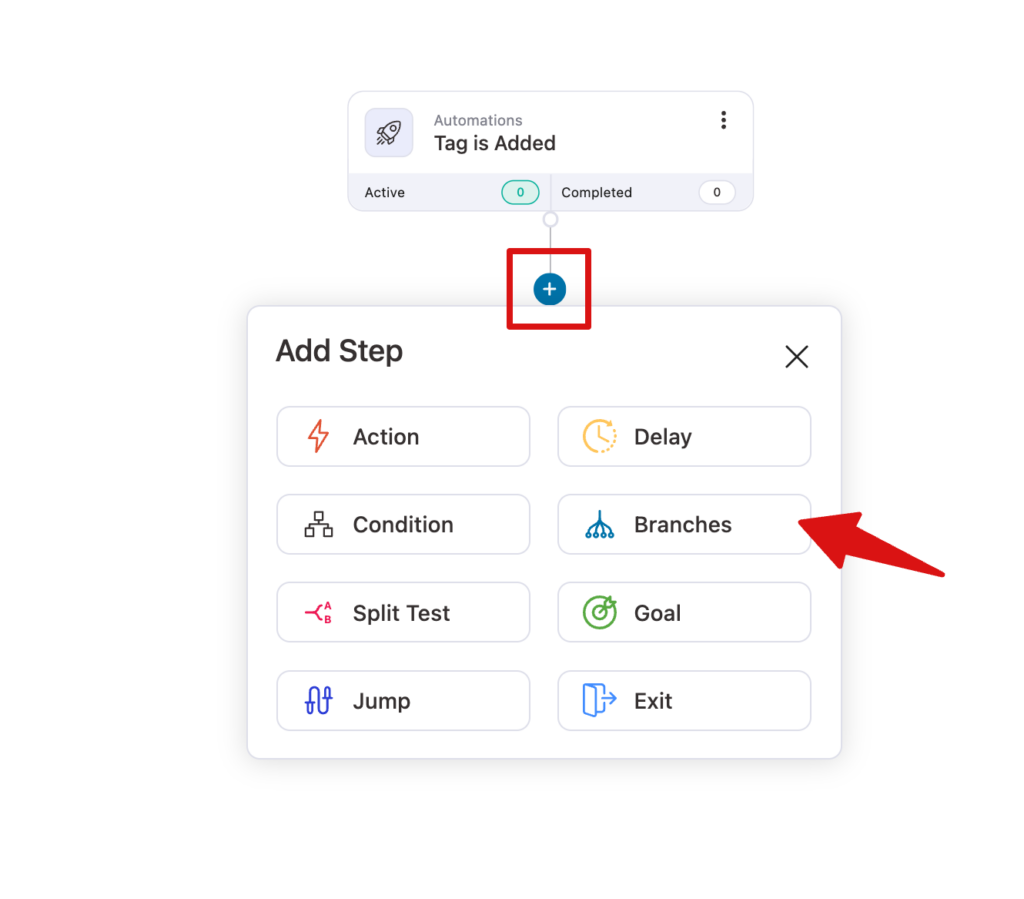
After you create an automation, you can add branches. To add a branch, hit “+” and select “Branches”.
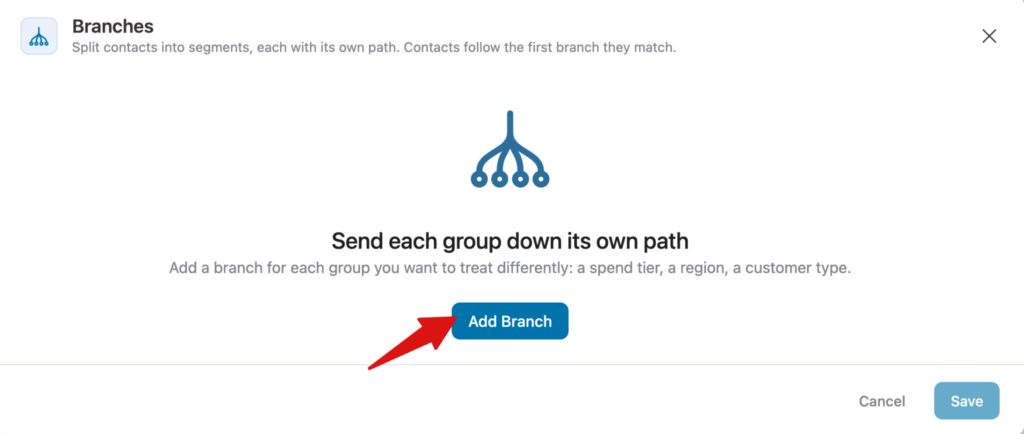
Next, hit the button “Add Branch”.
Step 2: Configuring the branches
Now it’s time to set up the branches.
For each branch, you need to select a condition to define the flow a user will follow. This lets you configure multiple conditions and flows in parallel without adding multiple Condition steps.
Note: You can add up to 10 branches.
Each branch can use conditions based on different segments and their available parameters shown below:
| Topic | Available Parameters |
| Segments | Tags, Lists, Audience, Status |
| Contact Details | First Name, Last Name, Email, Phone, Contact Created, Contact Created (Days), Company, Gender, Date Of Birth |
| User | Is User, User Role |
| WooCommerce | Total Revenue, Total Orders Count, Purchased Products, Purchased Products Categories, Purchased Products Tags, Has Made A Purchase, Has Used Coupons, First order was, Last order was, Last order Days, Average Order Value, Used Coupons |
| Geography | Country, State, Address 1, Address 2, City, Post Code |
| Engagement | Email Opens, Email Clicks, Engaged, Unengaged, Link Trigger Clicked, Last Login, Last Open, Last Sent, Last Clicked |
| Broadcast | Broadcast Sent, Broadcast Open, Broadcast Clicked |
| Automation | Has ever entered in Automation, Currently active in Automation, Completed the Automation, Completed Automation (Days) |
| DateTime | Current Year, Current Month, Current Day Of Month, Current Day Of Week, Current Time, Current Date Time |
| Sublium Subscriber | Subscriber Status, Subscriber Joined Date, Subscriber Next Renewal Date, Subscriber Last Renewal Date, Subscriber Renewals count, Subscriber Revenue, Active Subscriptions Count, Inactive Subscriptions Count, Purchased Products, Active Subscriptions Products |
For example: for the first branch, we can set a condition “Status is Subscribed”.
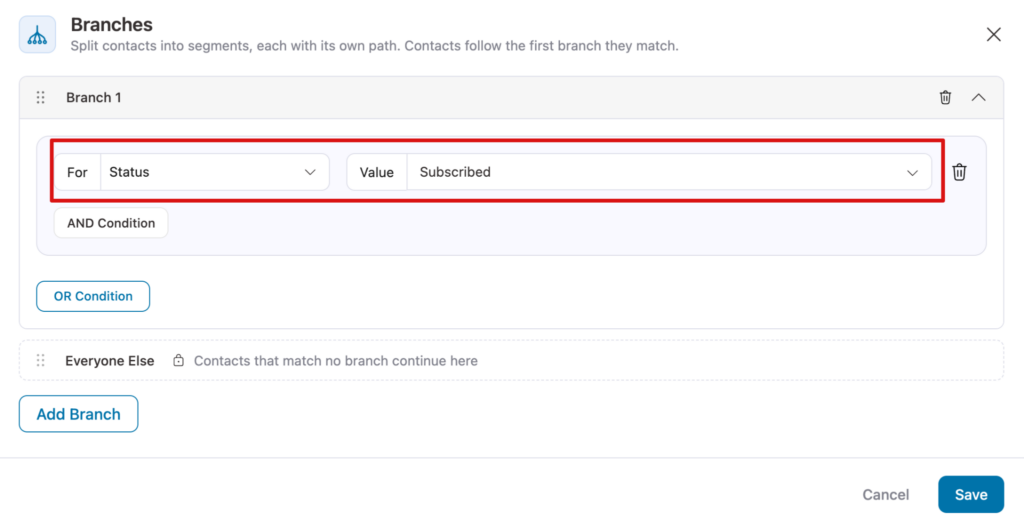
Note: You can use AND/OR to create multiple conditions for each branch.
Next, hit “Add Branch” to add multiple branches to your automations.
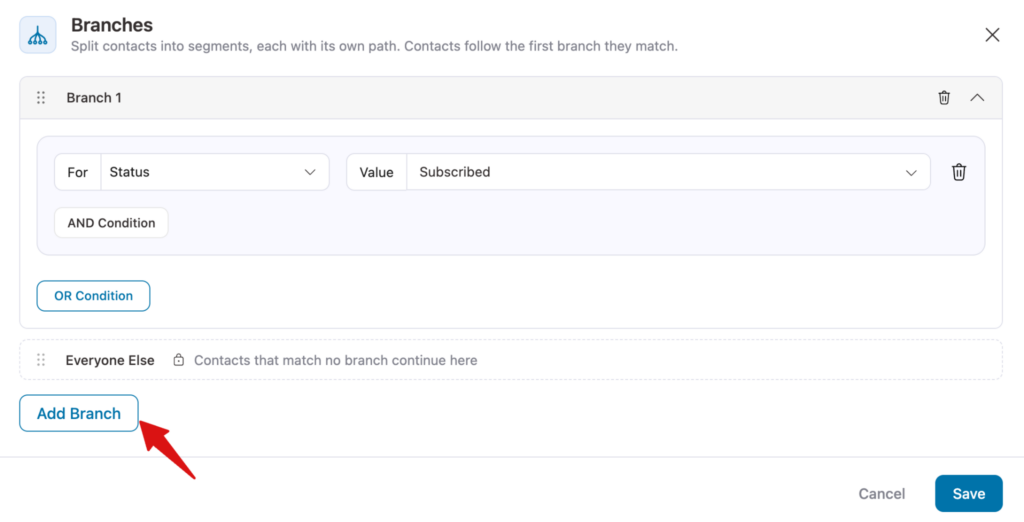
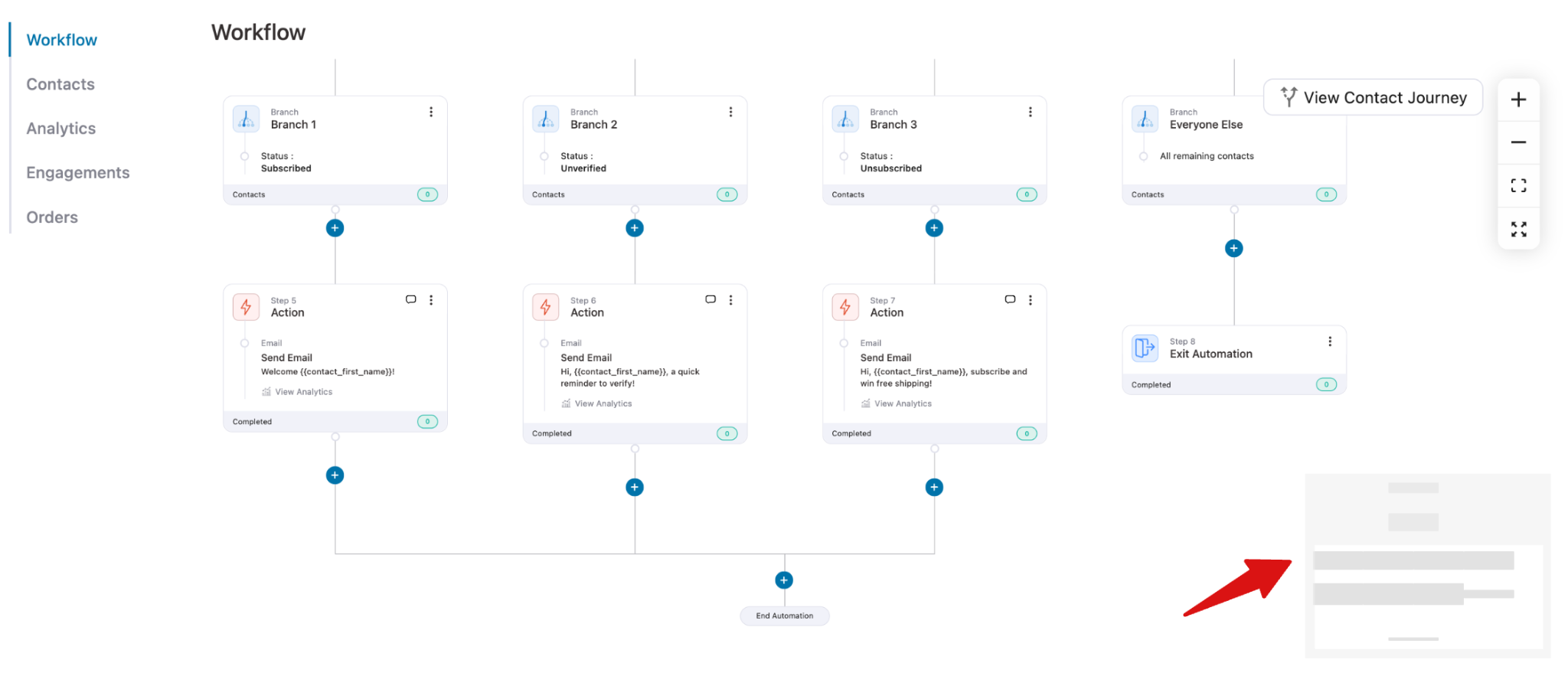
To show the process, we will create three branches and follow-up actions as shown below:
| Branch | Condition | Flow |
| Branch 1 | Status is Subscribed | Send a Welcome Email |
| Branch 2 | Status is Unverified | Send a Reminder Email |
| Branch 3 | Status is Unsubscribed | Send a Re-engagement Email |
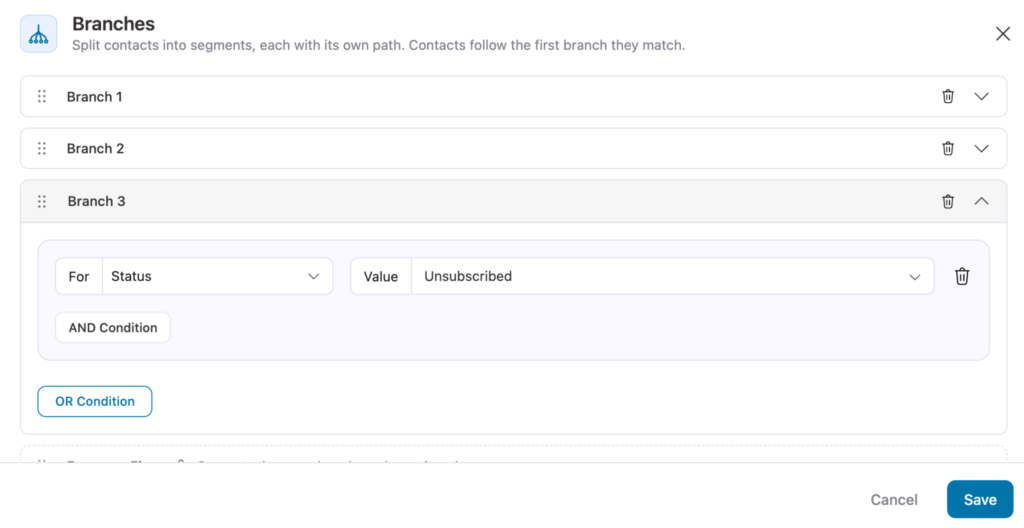
After adding the branches, hit “Save”.
Once you have added the branches, you can add the corresponding actions.
The Everyone else option handles the else case.
If a user does not follow one of the configured condition branches, the user can go through the Everyone else flow.
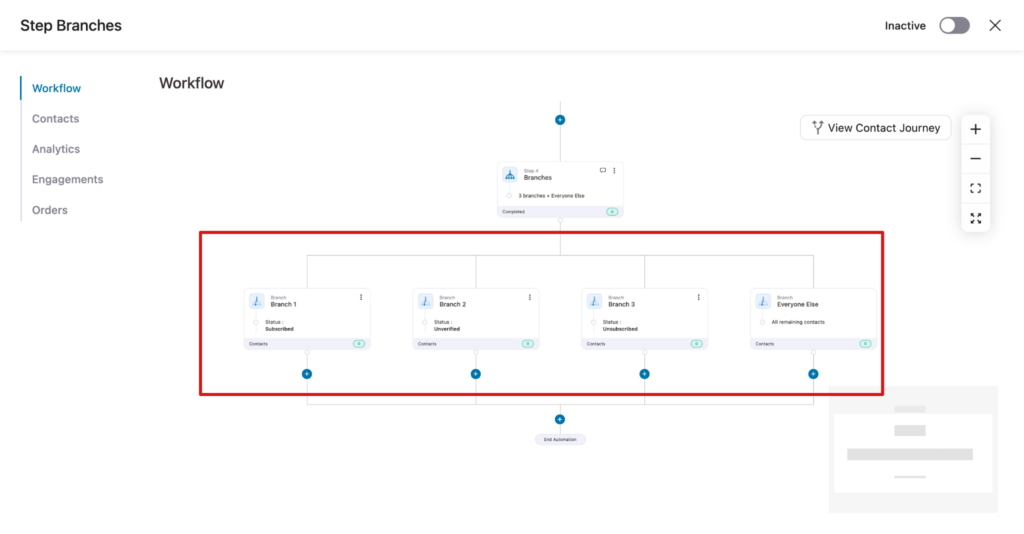
Step 3: Add follow-Up actions for each branch
After you set up each branch with proper conditions, it’s time to set up the following actions.
To do this, hit the “+” icon below each branch, then select the action. You can choose to add an action, delay, condition, add more branches, goal, jump, or exit as you would with any other automation.
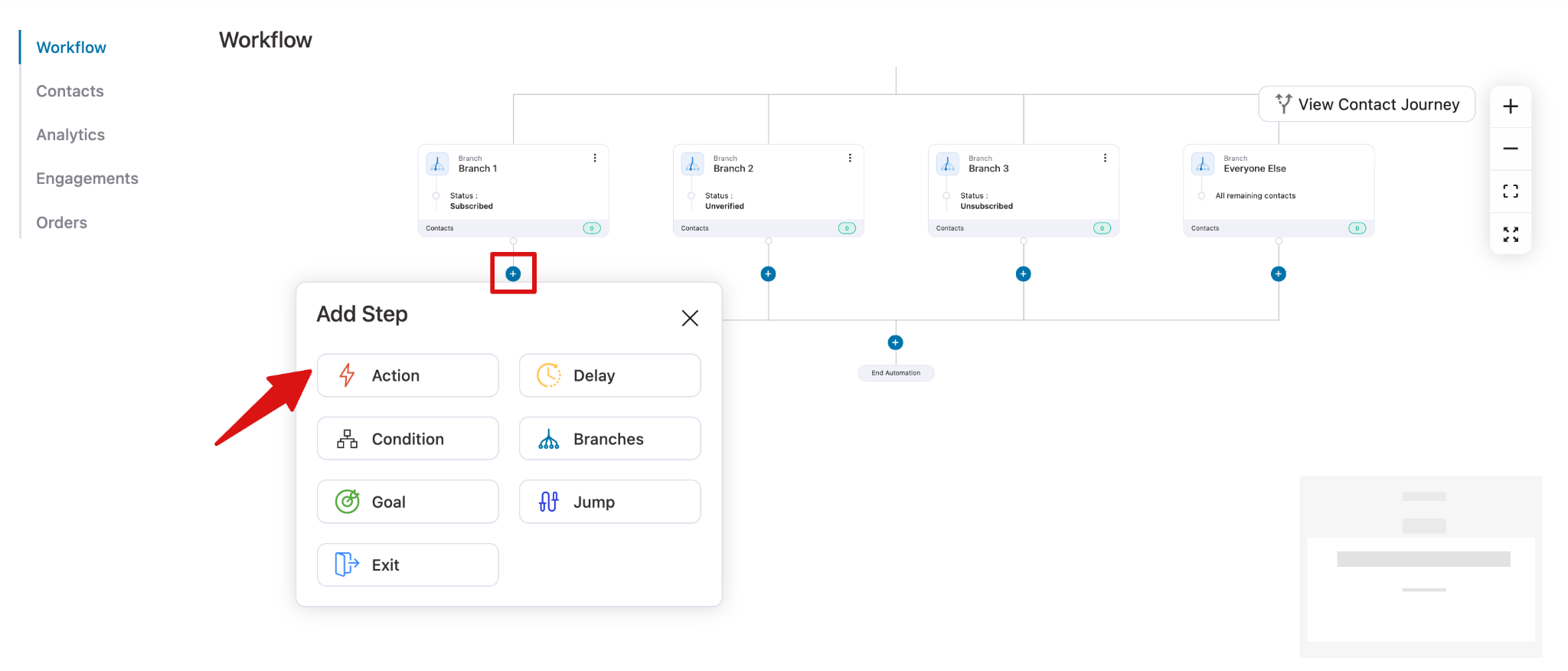
Here, we’re adding a “Send Email” action to each of the three branches and an “Exit” action for everyone else. Anyone who doesn’t meet any of the conditions will exit the automation.
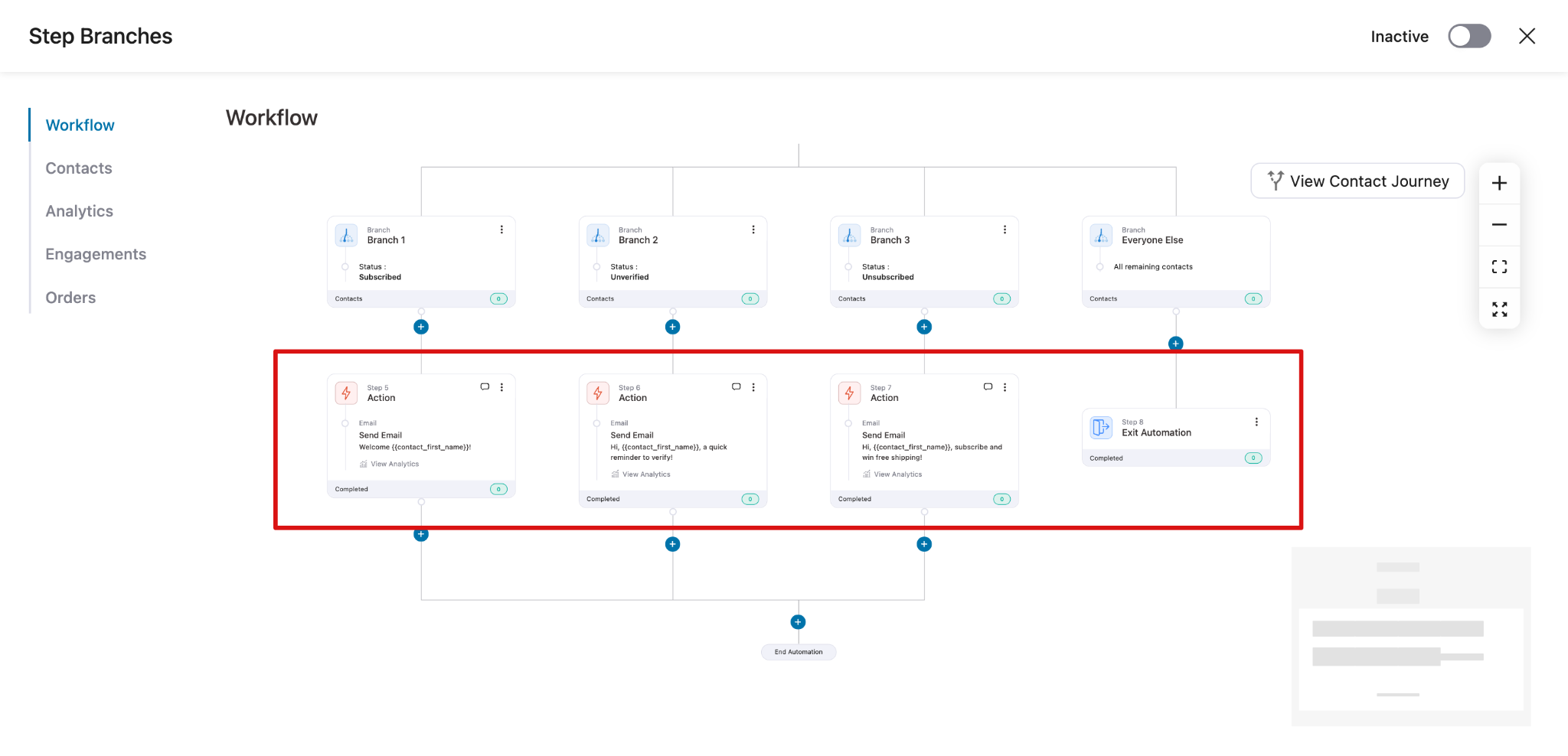
That’s it. This is how you can set up branches in FunnelKit Automations.
It also comes with a “Mini Map” at the bottom right corner, which helps you to track multiple branches more efficiently.